

Note
In order to import or export data you must first have a DataSet created. To learn how to create a DataSet, utilize the DataSet Quickstart.
Prepare data for import
Best Practice
There are two APIs that can be used to import data into Domo. The DataSet API should be used to create small DataSets that occasionally need their data updated. For creating and updating massive, constantly changing, or rapidly growing DataSets, the Stream API is recommended. Note: Only DataSets created with the API can be updated via APIs. Note: Pushing data to the API is limited to once per hour for Standard and Standard Trial users.
Known Limitation
The DataSet API only supports importing data in CSV format
Choosing update method
Once creating a new DataSet via the API, store the DataSet’s
dataset_id or simply retrieve preferred dataset_id through the DataSet API.
With the dataset_id, it is important to choose the appropriate updateMethod when importing data via the API. The two choices available are either to APPEND or REPLACE the data that currently exists in the DataSet. Choosing APPEND will incrementally create new rows of data to the dataset as they are imported through the API. REPLACE will completely remove the existing data and refresh the DataSet with all data from the last import via the API.
Defining which method to use when importing data with the API is done through the updateMethod parameter as shown in the example below:
Single part upload
Once you’ve chosen the type of updateMethod for the data you plan to import you will then need to use the
dataset_id to make the following request:
Sample Request
See this sample request in Java, Python.
Multi-part uploads
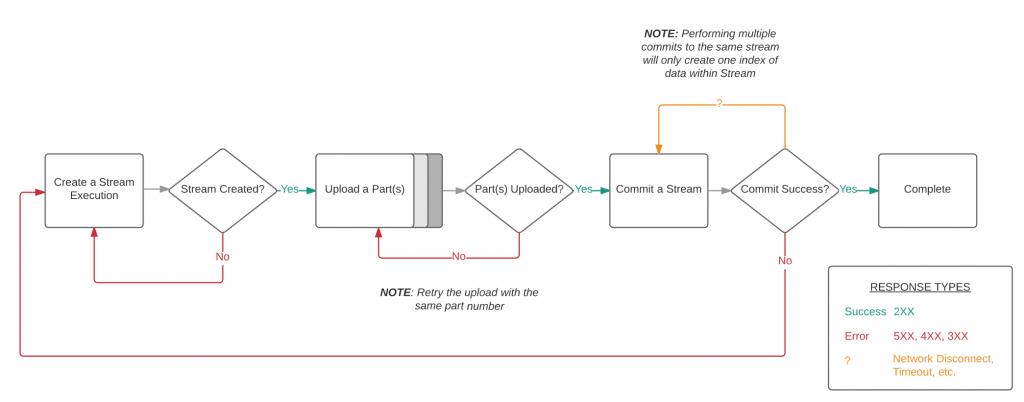
Sending large amounts of data over HTTP can be problematic. Even the smallest of network disruptions can render your entire upload corrupted. We designed the Streams API to help alleviate some of these problems and provide you with the ability to consistently and successfully upload data to your Domo instance.
Note
Only DataSets created with the API can be updated via APIs. Pushing data to the API is limited to once per hour for Standard and Standard Trial users.
- Constant import of large amounts of data into a DataSet
- Updates to existing data on a frequent basis
- Accelerating the time required to import large DataSets
Quickstart
Creating a stream to then upload data to a DataSet only requires these steps:
- Create a stream
- Create a stream execution
- Upload your data
- Finalize your execution
Note
In order to utilize this Quickstart you will need to obtain an access token or you can leverage any of Domo’s SDKs which will also handle authentication.
Step 1: Create a stream
The first step required to upload data to your Domo instance is to create a Stream. Include a DataSet and an update method in your request body. The supported update methods are “APPEND” and “REPLACE”. Sample Request See this sample request in Java, Python.Step 2: Create a stream execution
After creating a Stream, you now need to create an Execution. An Execution does a few things. It creates a line item in the DataSet history, it triggers all animations in the product (for example, the data importing arc in the Data Warehouse UI), and it also tells Domo that you’re about to start sending data. The primary reason to tell Domo that you’re starting to upload data (and one of the key benefits of Streams) is that it allows you to break up your data into smaller chunks and parallelize those uploads at the same time. This can result in huge performance increases and protects you from potential HTTP network issues. For example, if you break a million rows up into one hundred 10,000 chunks, if one upload fails, you only need re-upload that one failed chunk. Sample Request See this sample request in Java, Python.Step 3: Upload your data
As previously mentioned, this step can be parallelized. How small should you make each part? That depends on a couple factors. Generally, the smaller the part, the less likely it is to make it to your Domo instance without a network disruption. However, there is a lot of overhead incurred by creating too many requests. We’ve found that for narrow DataSets (those with around 100 columns or less), somewhere between 10,000 and 100,000 rows works well. The part ID specified on the request is used to track ordering of the parts as they’re reassembled on your Domo instance. The client is responsible for incrementing these IDs with each part. It’s preferable to start with 1 for each Execution and increment with each subsequent part. Please Note: it is preferable that these requests be compressed using gzip. Sample Request See this sample request in Java, Python.Step 4: Finalize your execution
When you are done uploading all your parts (or chunks of data). Send a final request that tells your Domo instance that you’re done. Sample Request See this sample request in Java, Python.API Recipe: Upload data in parallel
You have a table containing one billion rows, and want to upload it to a Domo DataSet quickly. To do this, we divide the data in ten groups of 100 million rows, and then upload each part in parallel. Let’s walk through this process. Parallel uploading is generally used for massive DataSets, and this guide effectively reviews the Stream API. For small DataSets, please use the DataSet API. In this example, we divide one billion rows into ten parts of 100 million rows. In reality, data parts should be at least 50mb in size. The row count for each part varies depending on the number of columns in the datasource, as well as the general length of cell contents. Experimentation with row count per part may be required for each datasource. Parallel Upload Overview
- Query your database or datasource for the desired result set
- Convert the result set to a column/row format
- Partition the result set into groups of 100 million rows (or partition via multiple DB queries/offsets)
- Convert each group into header-less CSV files (In this example, ten CSV files would be generated)
- Gzip compress each CSV file (this significantly reduces upload time)
- Create a Stream Execution, or upload job, on the desired Domo DataSet
- Asynchronously upload all ten gzip files (data parts) in parallel, via the Execution
- Ensure all ten parts have uploaded successfully, retry any failed parts
- When all parts have been uploaded, commit the Stream Execution to finalize the upload job
Export Data
Domo enables you the power to export data that has been prepared and transformed through Domo’s data platform. When requesting an export of a DataSet, you may choose to include the column headers and the name of the file. You will then need to use the
dataset_id again in your request as seen below. In this example you will notice the resulting file exported will include column headers and will be named “Q4_Sales_Data”.
Sample Request
See this sample request in Java, Python.
Next Steps
Explore more about the DataSet API now that you know how to import and export data.
- DataSet Quickstart
- Manage DataSets
- Create Personalized Data Permissions (PDP)
- DataSet API Reference
- Stream API Reference
Need additional help?
No problem, we’d love to help. Explore our documentation, answers to frequently asked questions, or join other developers in Domo’s Developer Forum. For further help, feel free to email us or contact our sales team.