> ## Documentation Index
> Fetch the complete documentation index at: https://domoinc-openapi-sync-dataflows.mintlify.site/llms.txt
> Use this file to discover all available pages before exploring further.
# Migrate Users to the New Left Navigation
## Intro
This article explains how to understand the left navigation migration banner and migrate your users to the new left navigation before Domo disables the top navigation.
***
## Required Grants
To view the migration banner and transition users to the new left navigation, you must have the Admin role. Specifically, this requires the **Manage all company settings** grant, which is included in the default Admin role by default.
## Understand the Migration Banner
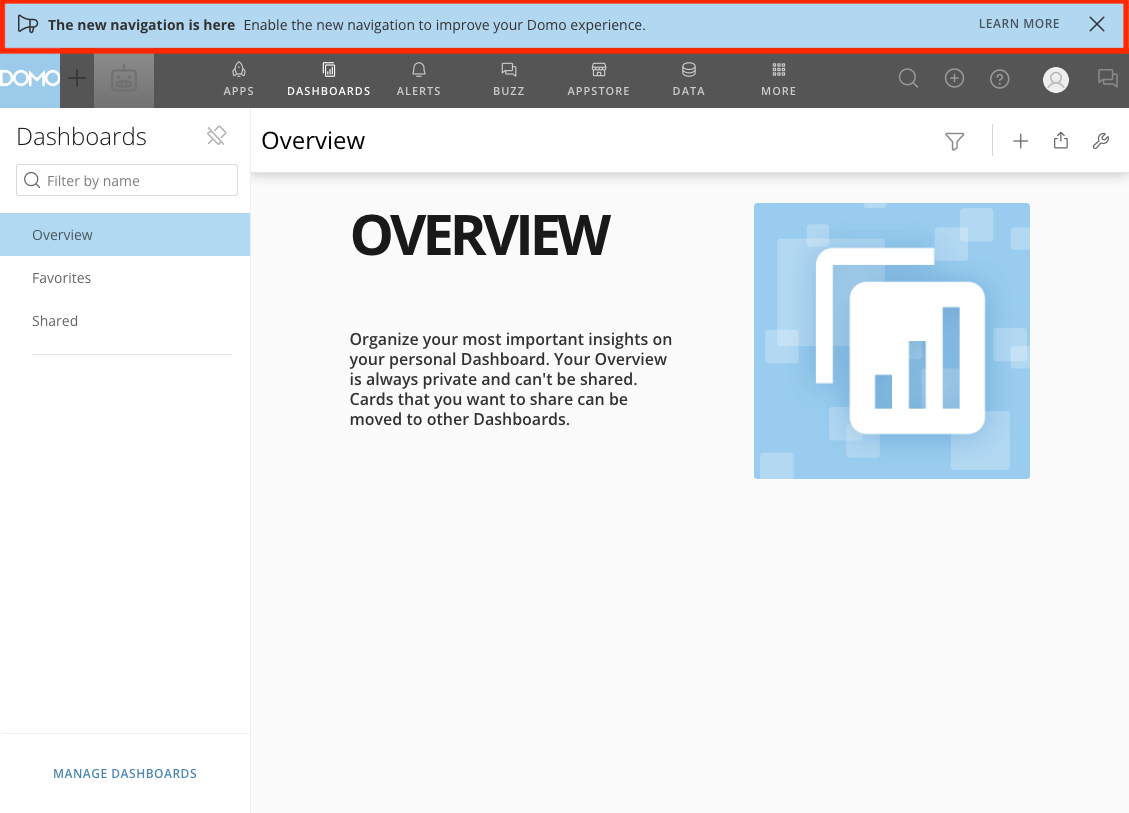
If you are a Domo Admin, a banner will appear in your instance inviting you to enable the new navigation. We recommend migrating your users before the deadline to ensure a smooth transition.
 ## Migrate Users to the New Left Navigation
Follow these steps to migrate your users to the new left navigation:
1. Select **Learn More** in the notification banner to open the New Navigation settings.
## Migrate Users to the New Left Navigation
Follow these steps to migrate your users to the new left navigation:
1. Select **Learn More** in the notification banner to open the New Navigation settings.
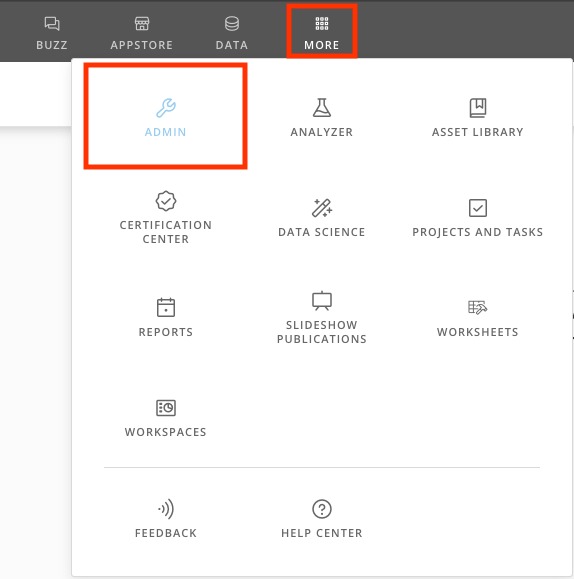
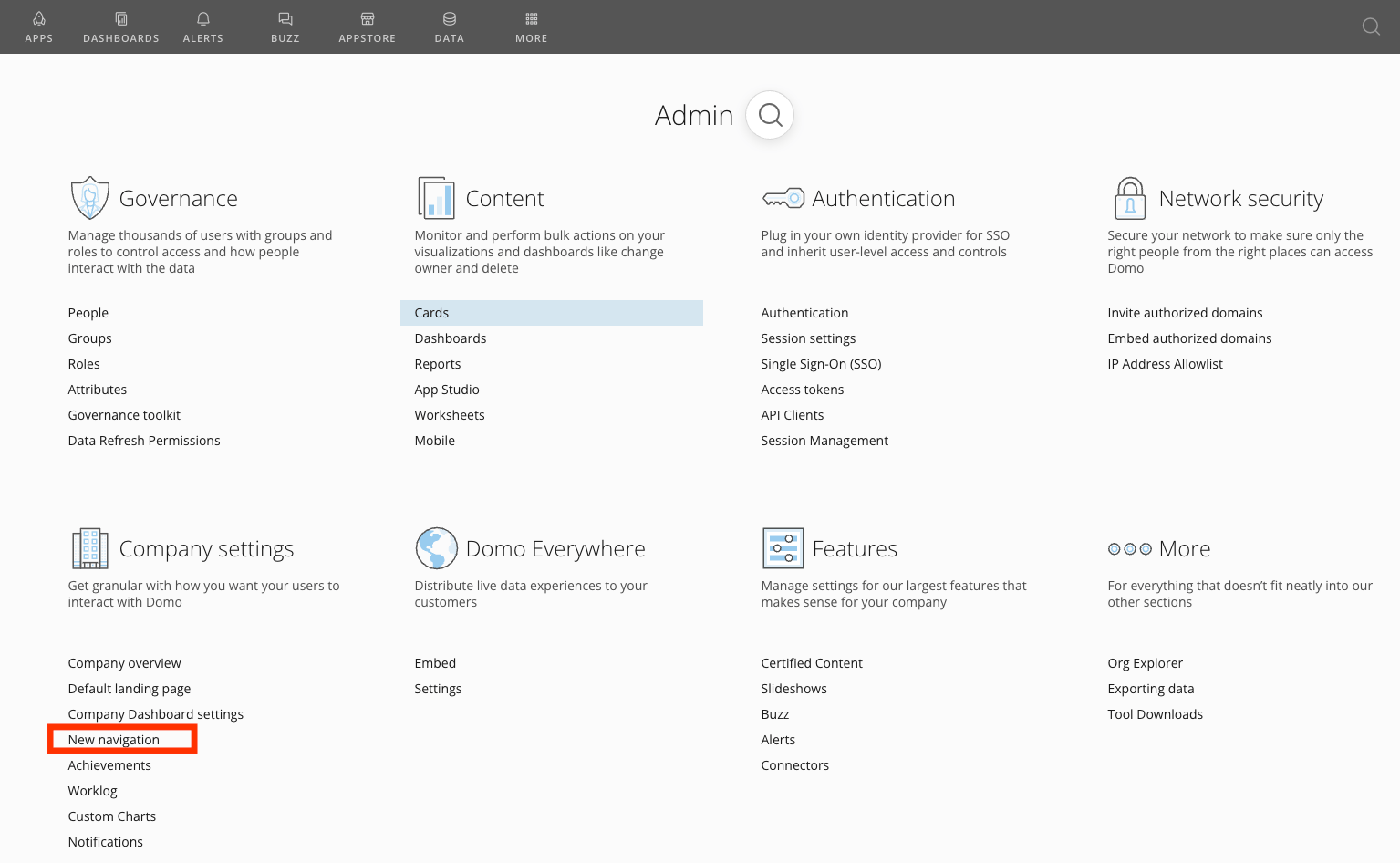
 **Note:** If you dismiss the banner, you can also select **More** > **Admin** in the top navigation, then select **New Navigation** under **Company Settings** to access the enablement tool.
 2. The following options are available to help you migrate users to the new navigation:
* **Not enabled in your instance —** This option disables the new navigation for all users in your instance. It is the default behavior if the new navigation has not been enabled yet.
* **Enabled for everyone —** Enables the navigation for all users in your instance.
* **Enabled for admins —** Enables the navigation for all admin users in your instance. This option grants all admins who can view the Company Settings page access to the navigation enablement tool.
* **Enabled for a specific group —** Enables the navigation for a specific group.
2. The following options are available to help you migrate users to the new navigation:
* **Not enabled in your instance —** This option disables the new navigation for all users in your instance. It is the default behavior if the new navigation has not been enabled yet.
* **Enabled for everyone —** Enables the navigation for all users in your instance.
* **Enabled for admins —** Enables the navigation for all admin users in your instance. This option grants all admins who can view the Company Settings page access to the navigation enablement tool.
* **Enabled for a specific group —** Enables the navigation for a specific group.
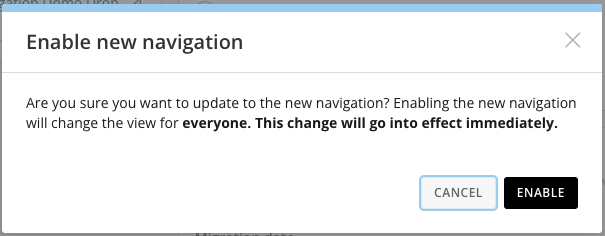
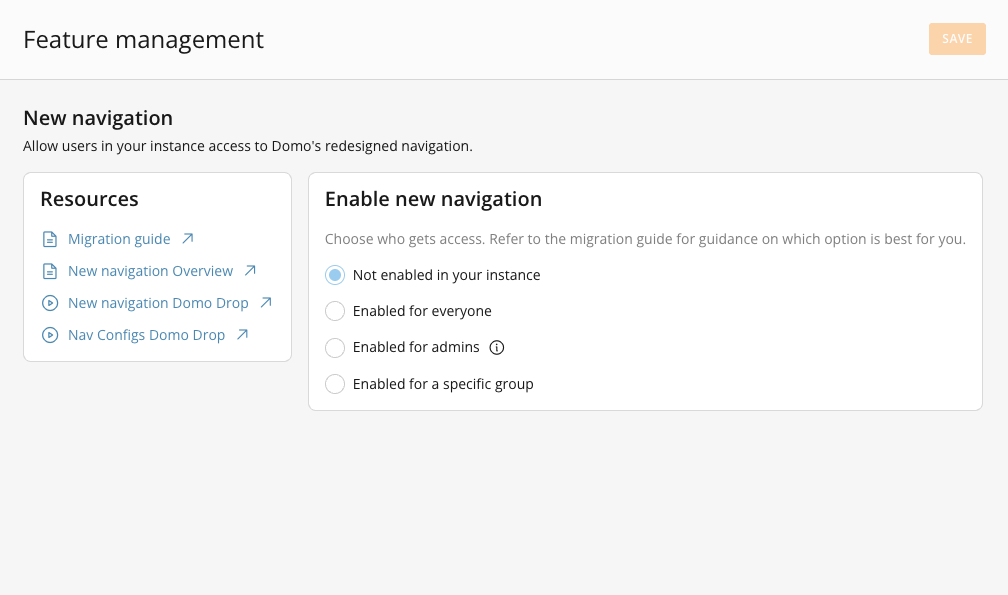 3. To save your changes, select **Save** in the top-right corner. A confirmation message appears. Select **Enable** to confirm. The change takes effect immediately.
 ## Resources and Documentation
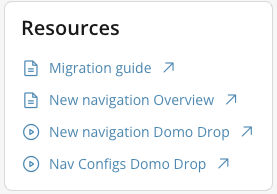
Refer to the New Navigation knowledge base article, feature overview videos, and useful links in the **Resources** section.
## Resources and Documentation
Refer to the New Navigation knowledge base article, feature overview videos, and useful links in the **Resources** section.