> ## Documentation Index
> Fetch the complete documentation index at: https://domoinc-openapi-sync-dataflows.mintlify.site/llms.txt
> Use this file to discover all available pages before exploring further.
# Confluence Connector
 ## Intro
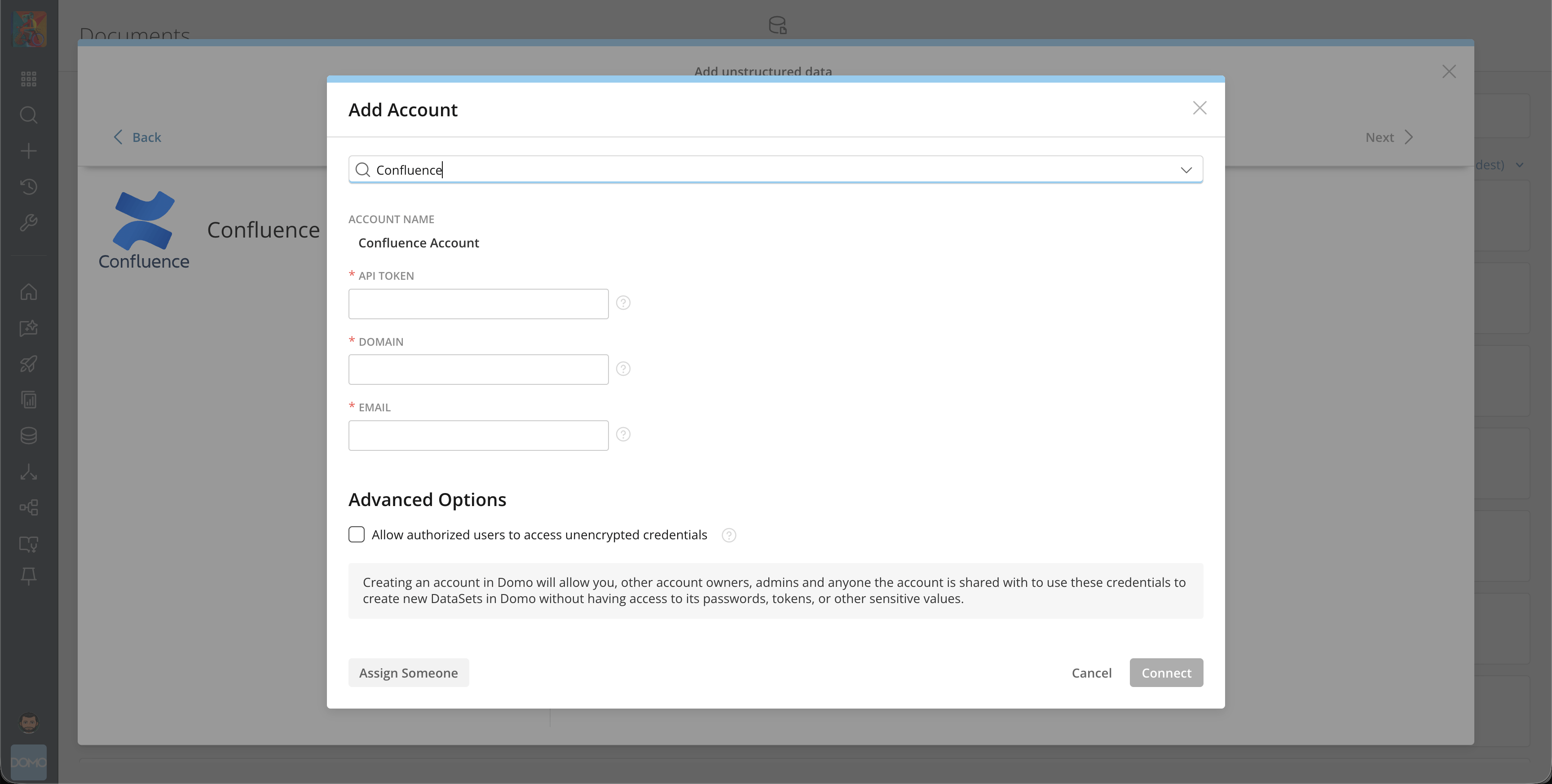
This article explains how to create an Atlassian API token to connect Confluence to Domo Documents.
***
## Required Grants
To access Documents, the following grants must be enabled for your role:
* **Manage Documents —** View, edit, and delete any Document Collections in this instance.
* **Edit Documents —** Create and edit Document Collections to which you have access.
* **View Documents —** View only for any Document Collections to which you have access.
Learn more about [grants](/s/article/360043438973).
## Create an API Token
1. Go to the [Atlassian Account API Tokens page](https://developer.atlassian.com/cloud/confluence/basic-auth-for-rest-apis/).
2. Select **Create API token** (or select **Create API token with scopes** for restricted app-specific permissions).
3. Enter a descriptive label for your token (such as "Domo Documents Integration").
4. Set an expiration date if prompted.
5. Select **Create**.
6. Select **Copy to clipboard** and save the token securely. You cannot view it again after leaving this page.
## Intro
This article explains how to create an Atlassian API token to connect Confluence to Domo Documents.
***
## Required Grants
To access Documents, the following grants must be enabled for your role:
* **Manage Documents —** View, edit, and delete any Document Collections in this instance.
* **Edit Documents —** Create and edit Document Collections to which you have access.
* **View Documents —** View only for any Document Collections to which you have access.
Learn more about [grants](/s/article/360043438973).
## Create an API Token
1. Go to the [Atlassian Account API Tokens page](https://developer.atlassian.com/cloud/confluence/basic-auth-for-rest-apis/).
2. Select **Create API token** (or select **Create API token with scopes** for restricted app-specific permissions).
3. Enter a descriptive label for your token (such as "Domo Documents Integration").
4. Set an expiration date if prompted.
5. Select **Create**.
6. Select **Copy to clipboard** and save the token securely. You cannot view it again after leaving this page.