> ## Documentation Index
> Fetch the complete documentation index at: https://domoinc-openapi-sync-dataflows.mintlify.site/llms.txt
> Use this file to discover all available pages before exploring further.

# Bring Your Own Model

## Intro

This article explains how to set up Bring Your Own Model (BYOM).

***

## Import Your Model

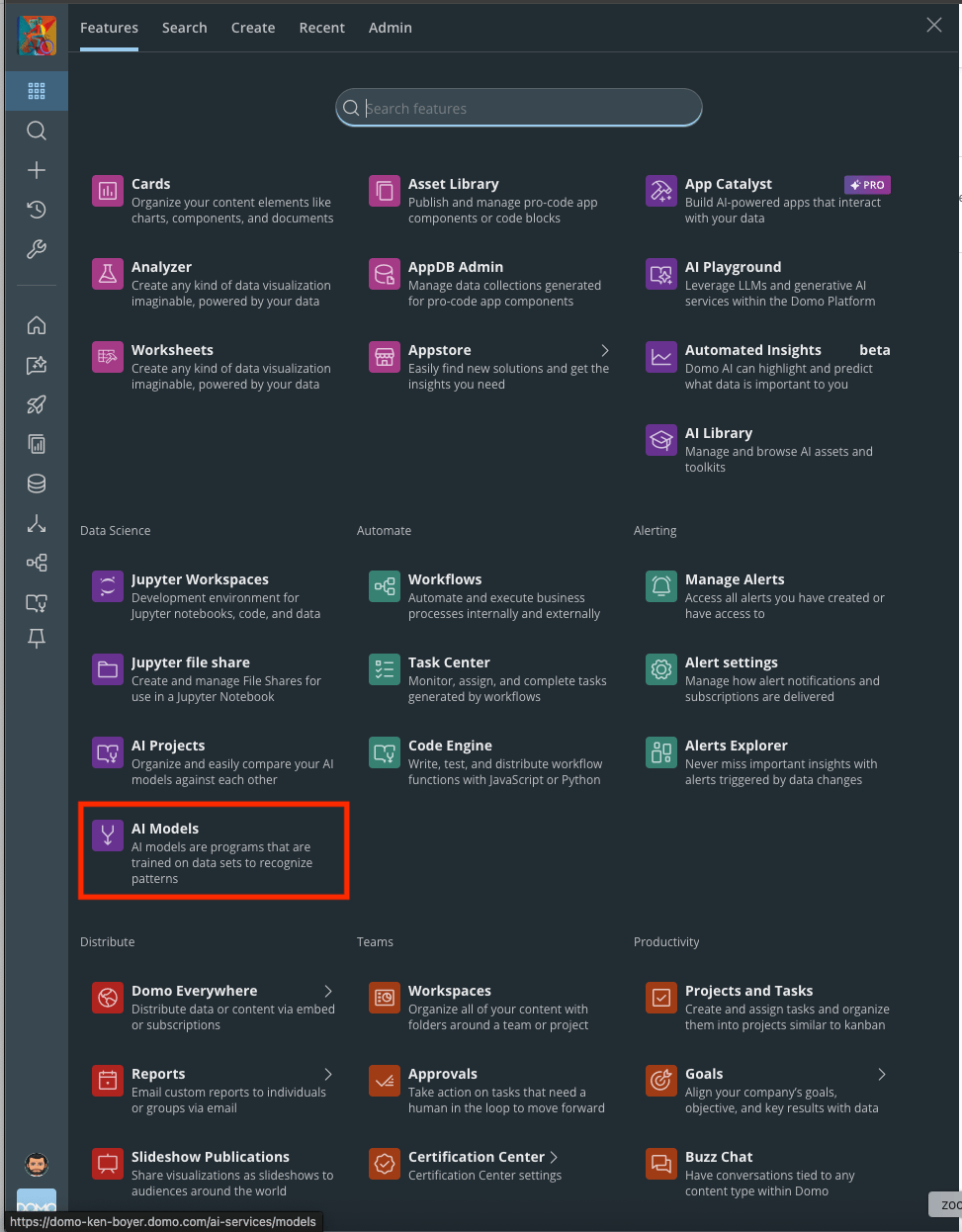
1. Select **AI Models** from the main menu.
<Frame>
  <img src="https://mintcdn.com/domoinc-openapi-sync-dataflows/HwqEEkaBMDGPodBd/images/kb/byom_1.png?fit=max&auto=format&n=HwqEEkaBMDGPodBd&q=85&s=7d35ca57871efe25a2a5fe8536c997c7" alt="AI Models option in the Domo main menu" width="973" height="1246" data-path="images/kb/byom_1.png" />
</Frame>

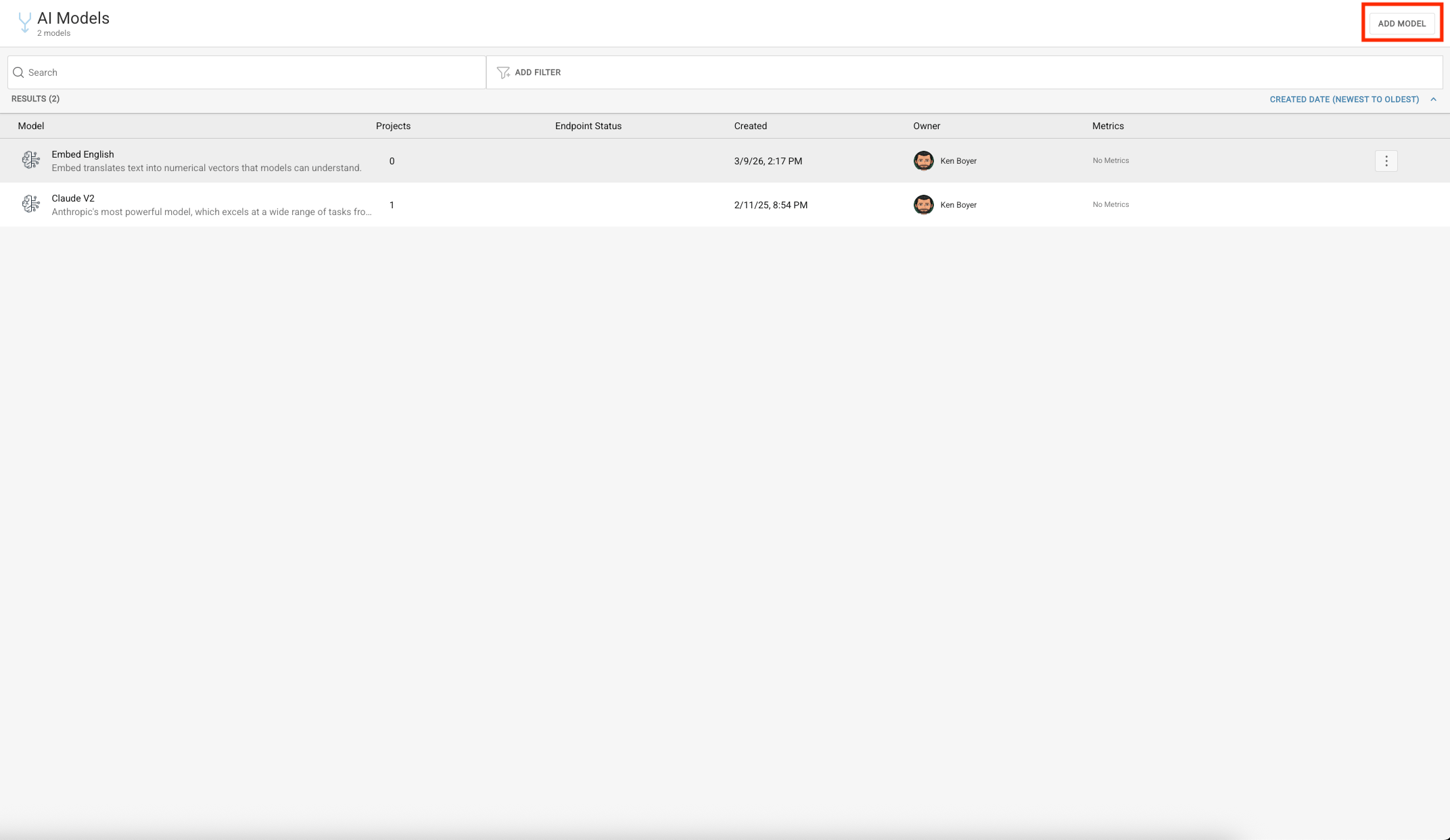
2. Select **Add Model**.

<Frame>
  <img src="https://mintcdn.com/domoinc-openapi-sync-dataflows/HwqEEkaBMDGPodBd/images/kb/byom_2.png?fit=max&auto=format&n=HwqEEkaBMDGPodBd&q=85&s=bfe96407ac4e9e8c26118d04dec3cc01" alt="Add Model button on the AI Models page" width="2144" height="1242" data-path="images/kb/byom_2.png" />
</Frame>

### Select an Adapter

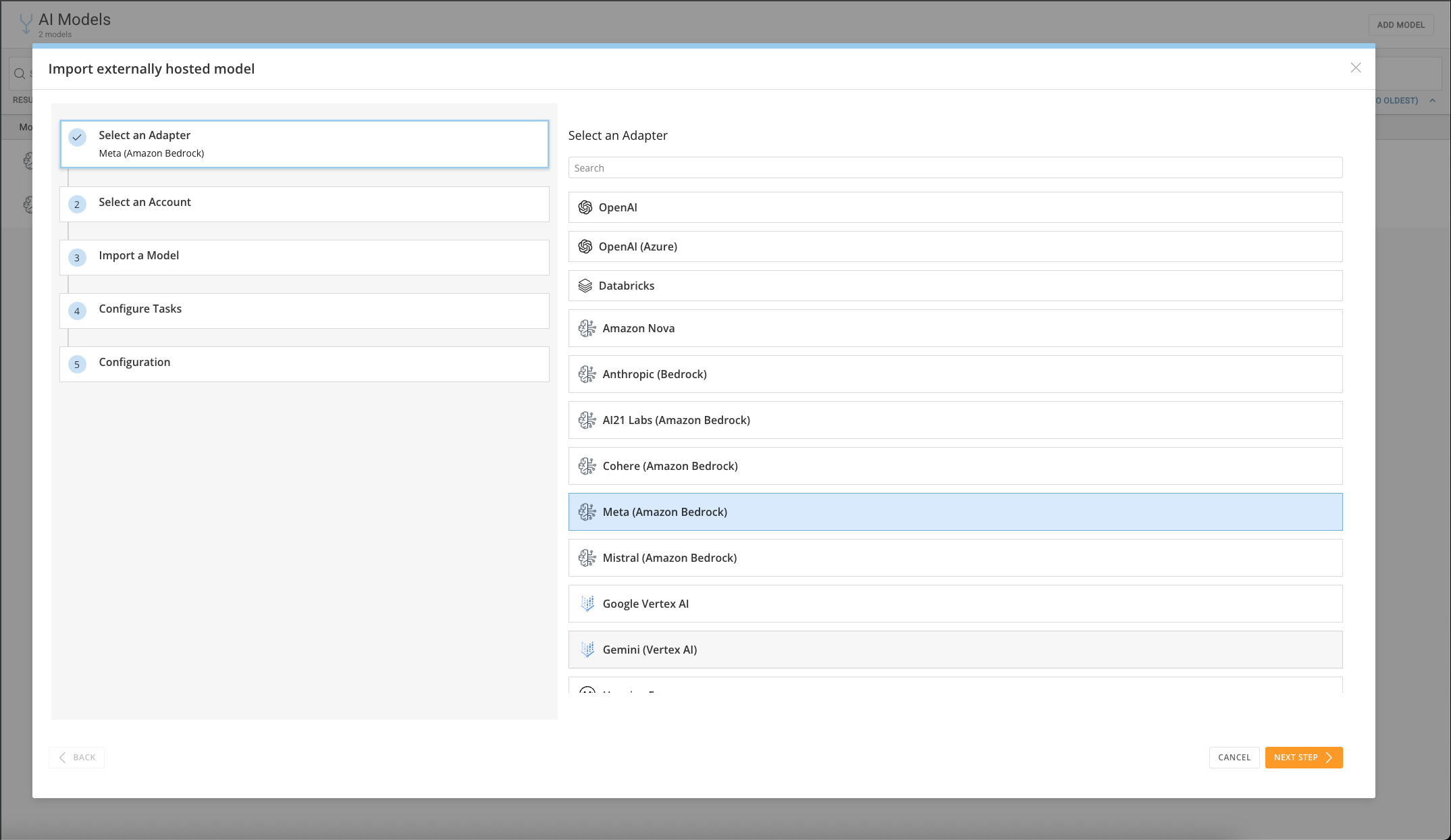
3. For this example, select **Meta (Amazon Bedrock)**, then select **Next**.
<Frame>
  <img src="https://mintcdn.com/domoinc-openapi-sync-dataflows/HwqEEkaBMDGPodBd/images/kb/byom_4.png?fit=max&auto=format&n=HwqEEkaBMDGPodBd&q=85&s=3778de5a82bda3316146b9a46af0720b" alt="Adapter selection screen with Meta (Amazon Bedrock) selected" width="2149" height="1244" data-path="images/kb/byom_4.png" />
</Frame>

### Select an Account

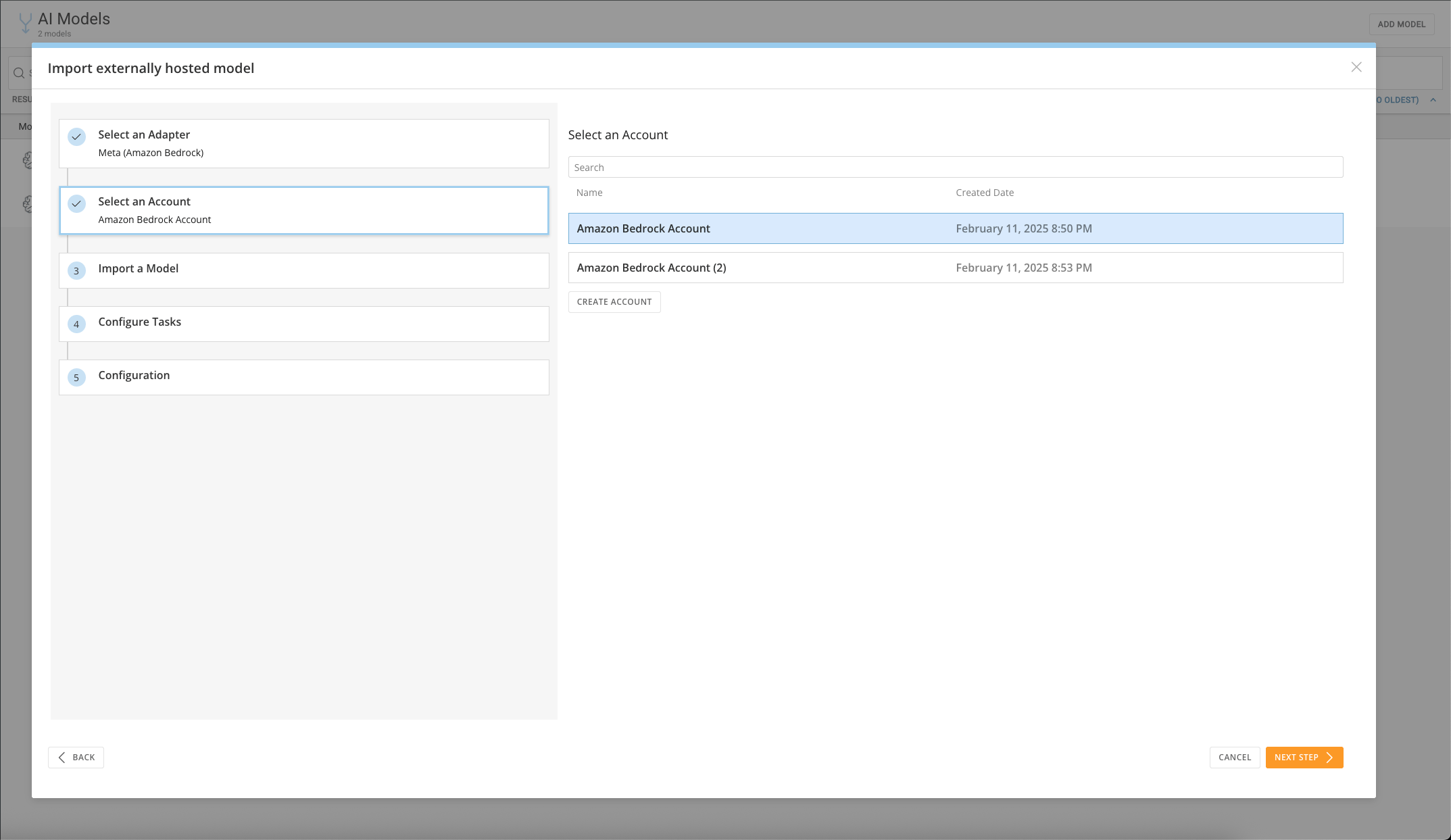
4. Choose a corresponding account, or create a new one. For this example, select an Amazon Bedrock account.
<Frame>
  <img src="https://mintcdn.com/domoinc-openapi-sync-dataflows/HwqEEkaBMDGPodBd/images/kb/byom_5.png?fit=max&auto=format&n=HwqEEkaBMDGPodBd&q=85&s=1829b6b2078bf3395a0e297b052d235c" alt="Account selection screen for the model import" width="2147" height="1243" data-path="images/kb/byom_5.png" />
</Frame>

### Import a Model

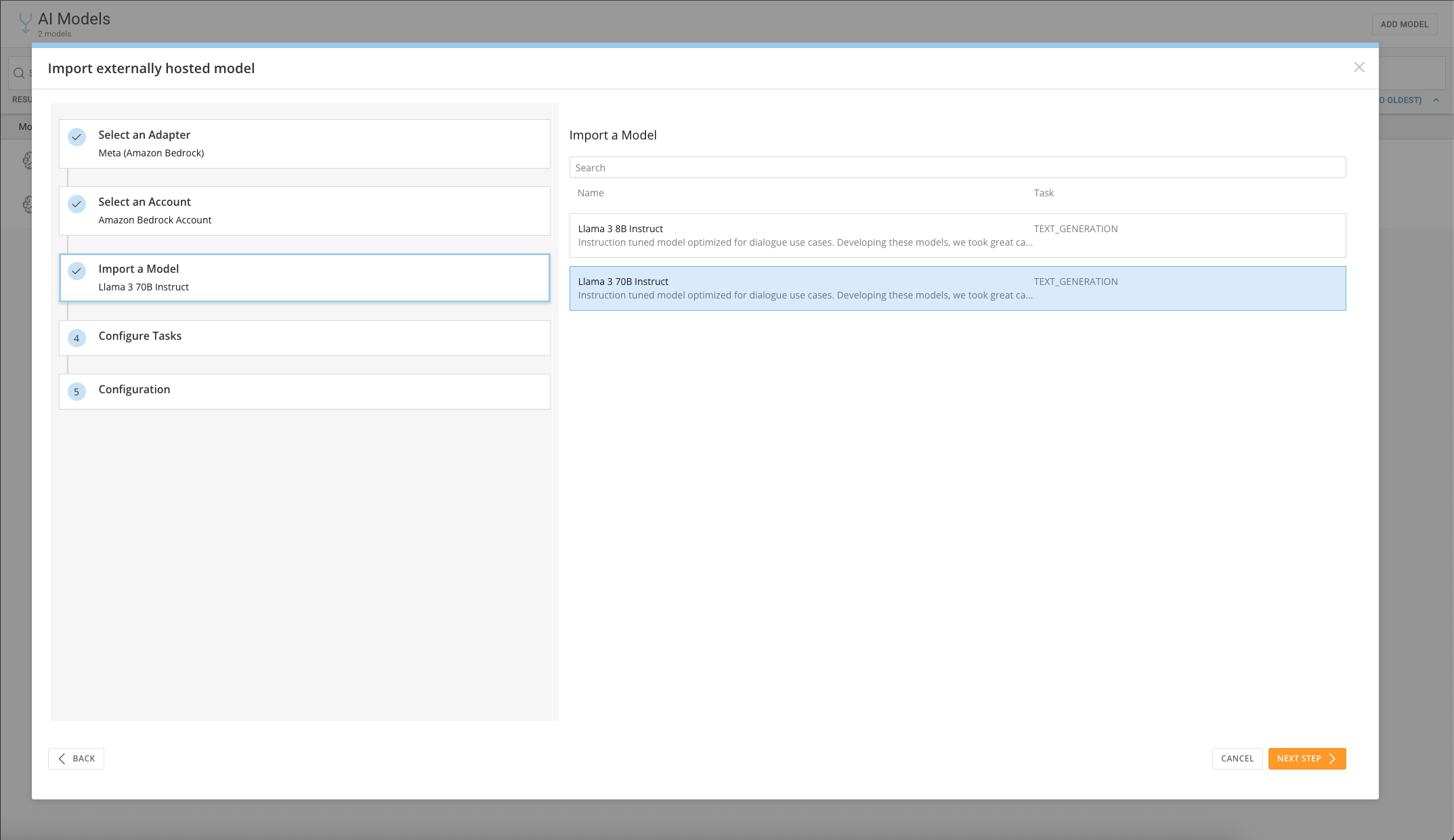
5. Select the model to import. For this example, import the Llama 3 70B Instruct model.
<Frame>
  <img src="https://mintcdn.com/domoinc-openapi-sync-dataflows/HwqEEkaBMDGPodBd/images/kb/byom_6.png?fit=max&auto=format&n=HwqEEkaBMDGPodBd&q=85&s=fb21eb7bb13c0707adb999d076031b1d" alt="Model selection screen showing Llama 3 70B Instruct" width="2147" height="1241" data-path="images/kb/byom_6.png" />
</Frame>

### Configure Tasks

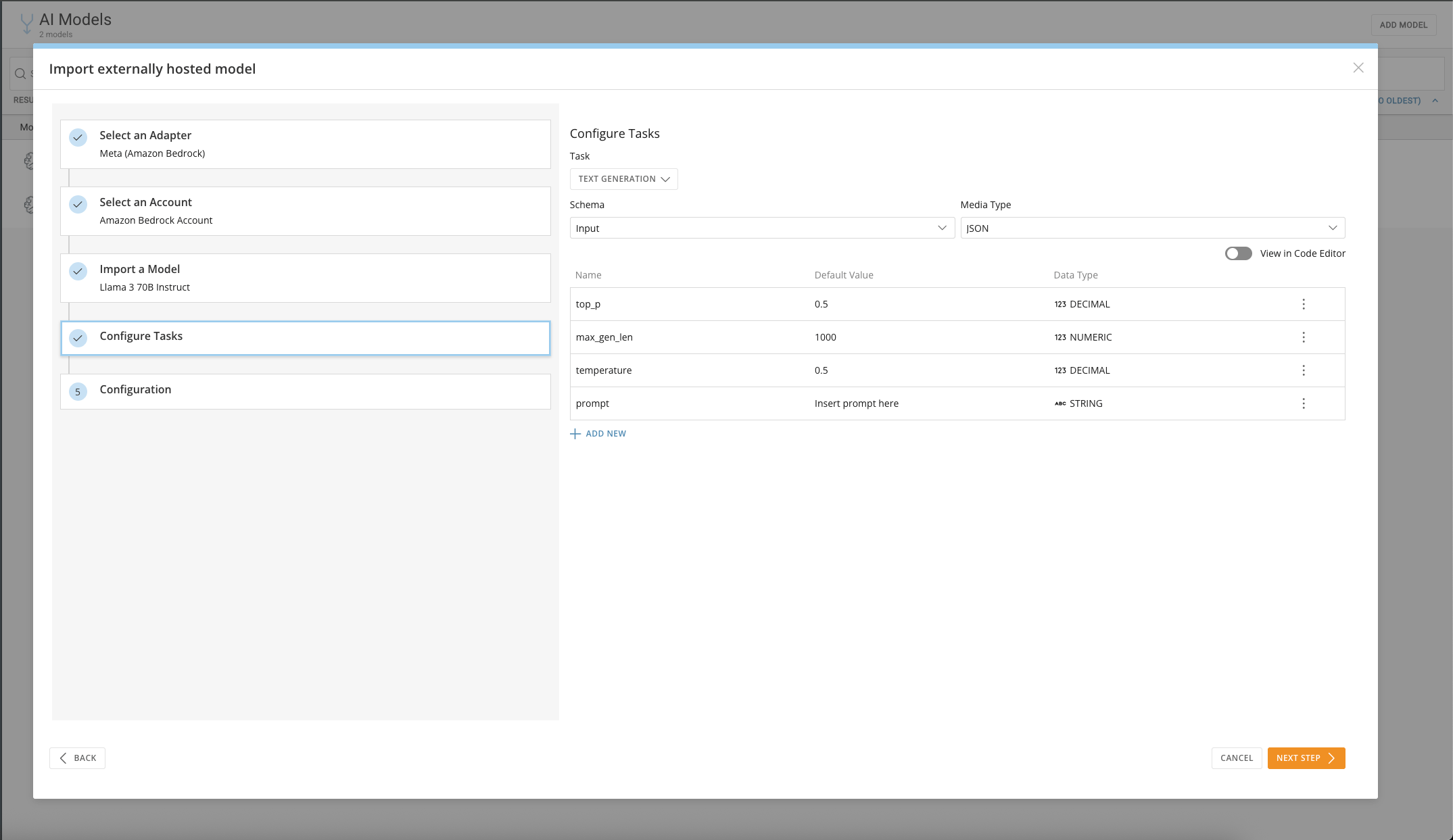
6. Define the **Task** the model performs, including the input and output schemas.
<Frame>
  <img src="https://mintcdn.com/domoinc-openapi-sync-dataflows/HwqEEkaBMDGPodBd/images/kb/byom_7.png?fit=max&auto=format&n=HwqEEkaBMDGPodBd&q=85&s=f5ad18c93ecaf3f28bb7308251656daf" alt="Task configuration screen with input and output schema fields" width="2149" height="1243" data-path="images/kb/byom_7.png" />
</Frame>

### Configuration

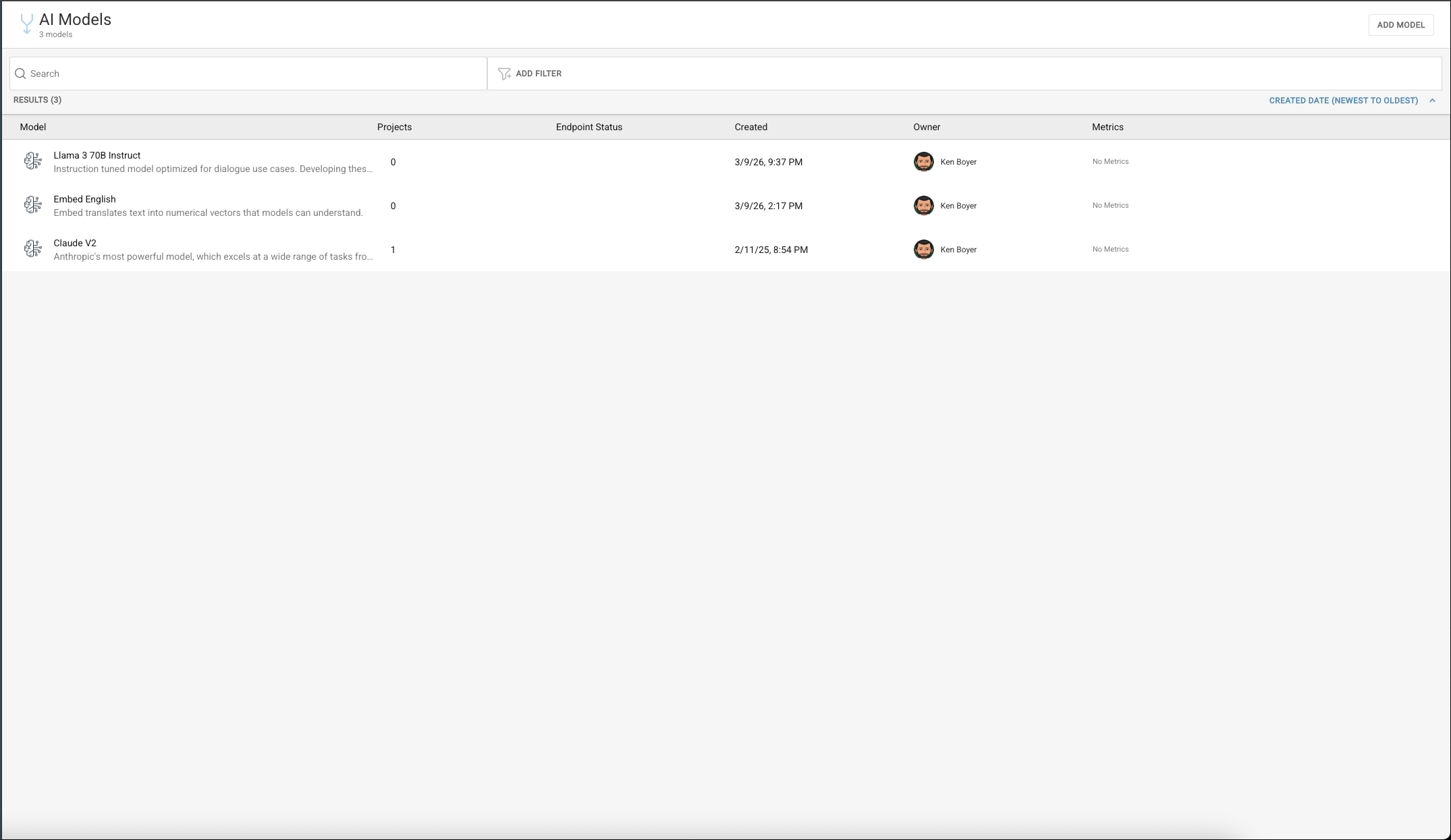
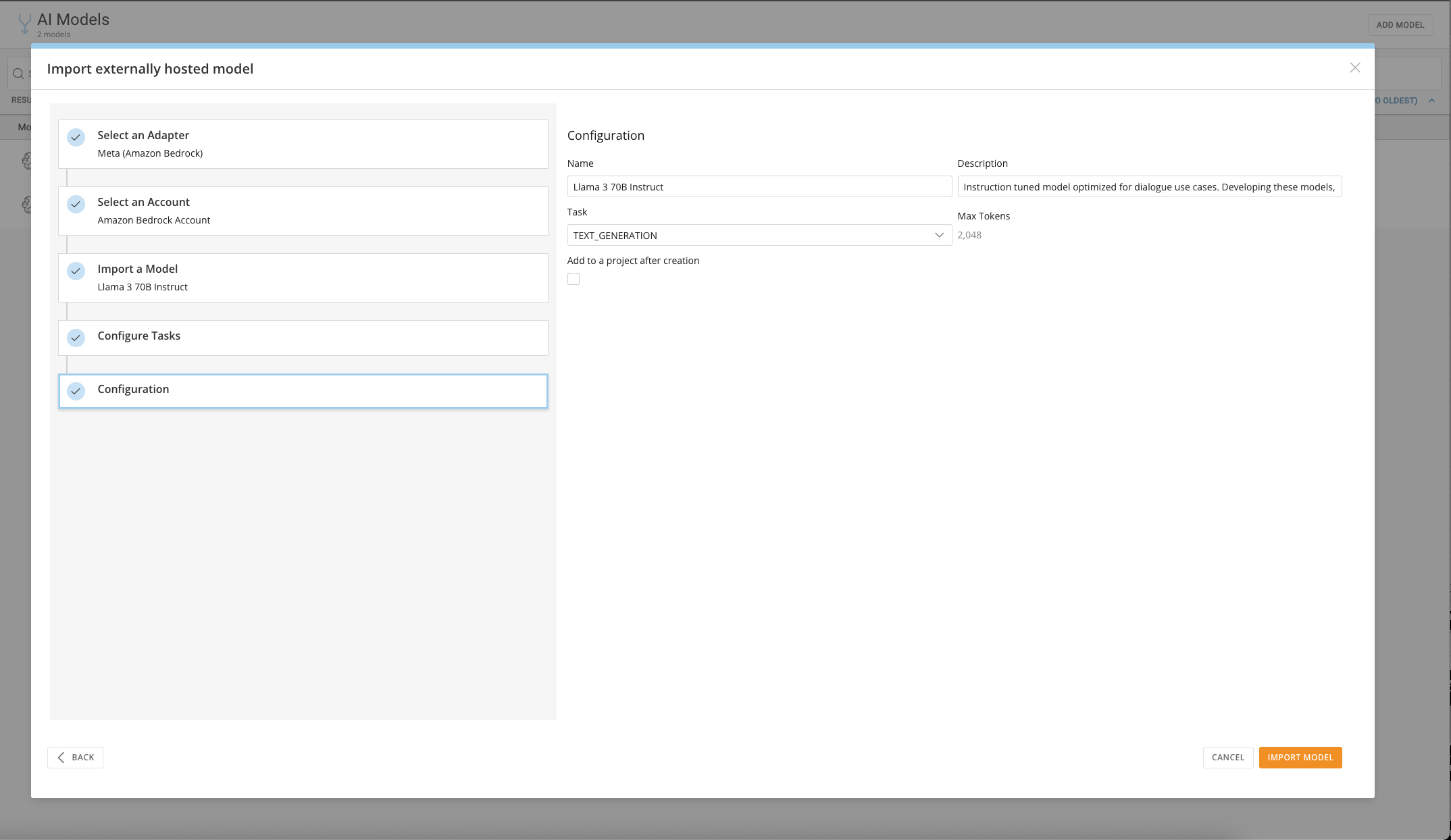
7. Fine-tune the setup, then select **Import Model**.
<Frame>
  <img src="https://mintcdn.com/domoinc-openapi-sync-dataflows/HwqEEkaBMDGPodBd/images/kb/byom_8.png?fit=max&auto=format&n=HwqEEkaBMDGPodBd&q=85&s=e25912850d0cd9d3f7fa38c730cc914d" alt="Final configuration screen before importing the model" width="2148" height="1244" data-path="images/kb/byom_8.png" />
</Frame>

<Frame>
  <img src="https://mintcdn.com/domoinc-openapi-sync-dataflows/HwqEEkaBMDGPodBd/images/kb/byom_9.png?fit=max&auto=format&n=HwqEEkaBMDGPodBd&q=85&s=0465a0d24e493abc544440602d4c78e8" alt="Model import confirmation screen" width="2150" height="1245" data-path="images/kb/byom_9.png" />
</Frame>

## Configure Your Model

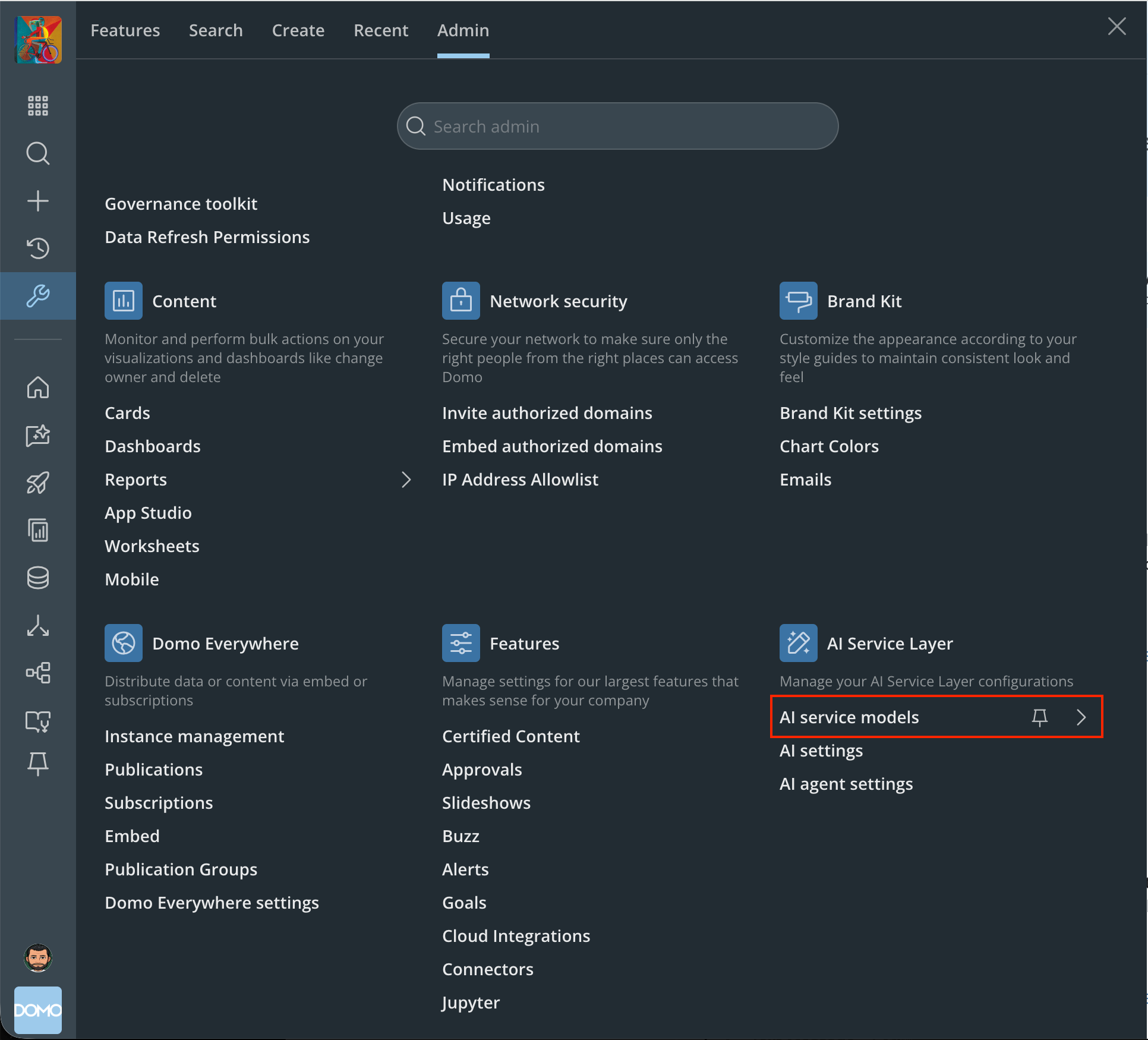
1. Select the **Text Generation** service from the **AI Service Models** page in Admin Settings.
<Frame>
  <img src="https://mintcdn.com/domoinc-openapi-sync-dataflows/HwqEEkaBMDGPodBd/images/kb/byom_10.png?fit=max&auto=format&n=HwqEEkaBMDGPodBd&q=85&s=c5142cc6c54e25c32eaca6b938316ea5" alt="Text Generation service option in AI Service Models" width="1932" height="1750" data-path="images/kb/byom_10.png" />
</Frame>

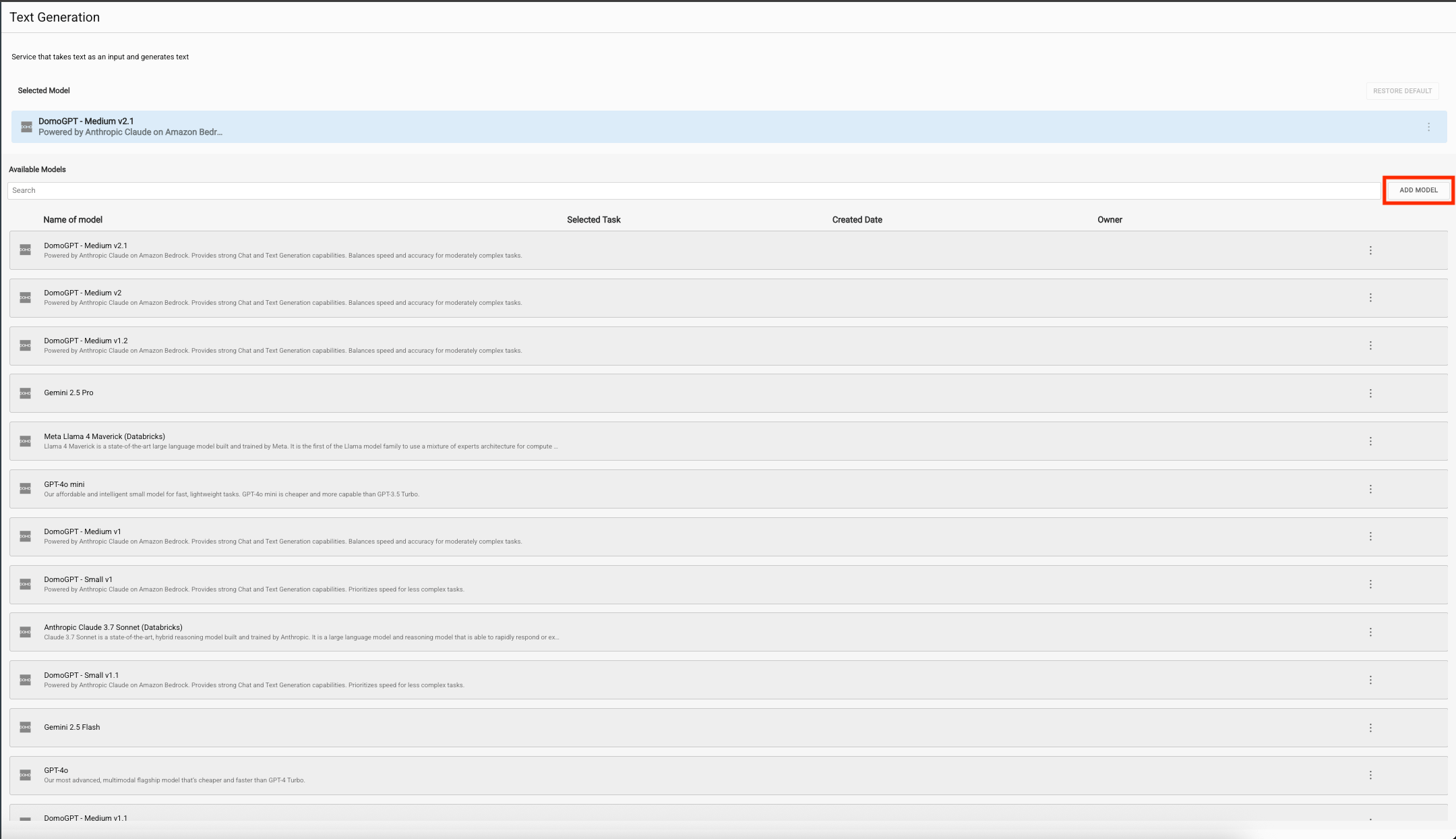
2. Select **Add Model**.

<Frame>
  <img src="https://mintcdn.com/domoinc-openapi-sync-dataflows/HwqEEkaBMDGPodBd/images/kb/byom_11.png?fit=max&auto=format&n=HwqEEkaBMDGPodBd&q=85&s=b52bd9dd7a5eaf485e3499c2b65d388c" alt="Add Model button on the Text Generation service page" width="2160" height="1244" data-path="images/kb/byom_11.png" />
</Frame>

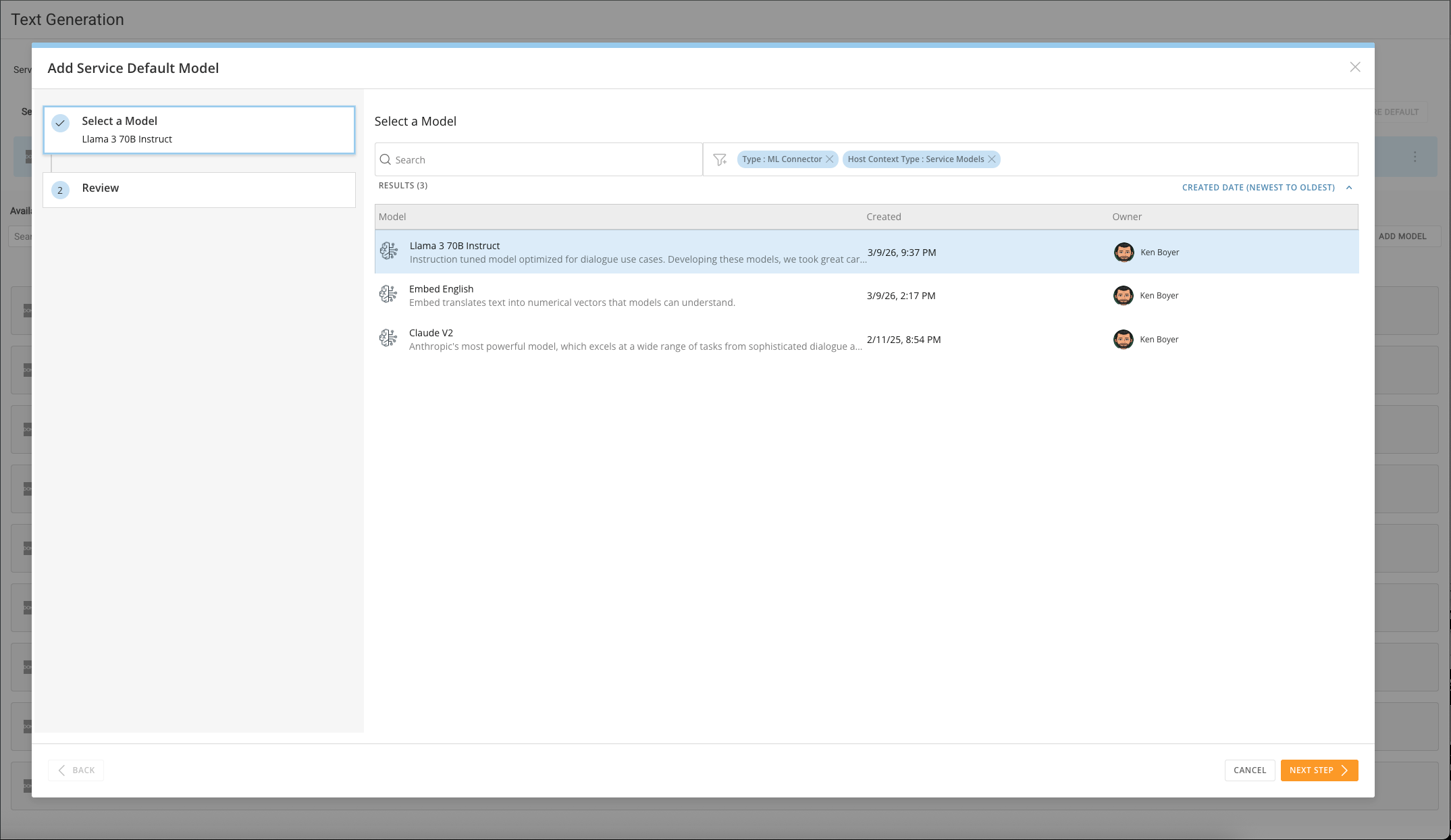
3. Select your newly imported model — in this case, Llama 3 70B Instruct.
<Frame>
  <img src="https://mintcdn.com/domoinc-openapi-sync-dataflows/HwqEEkaBMDGPodBd/images/kb/byom_12.png?fit=max&auto=format&n=HwqEEkaBMDGPodBd&q=85&s=156994411c6a9ffc754f44465a5a1fcb" alt="Llama 3 70B Instruct model selected in the Text Generation service" width="2149" height="1244" data-path="images/kb/byom_12.png" />
</Frame>

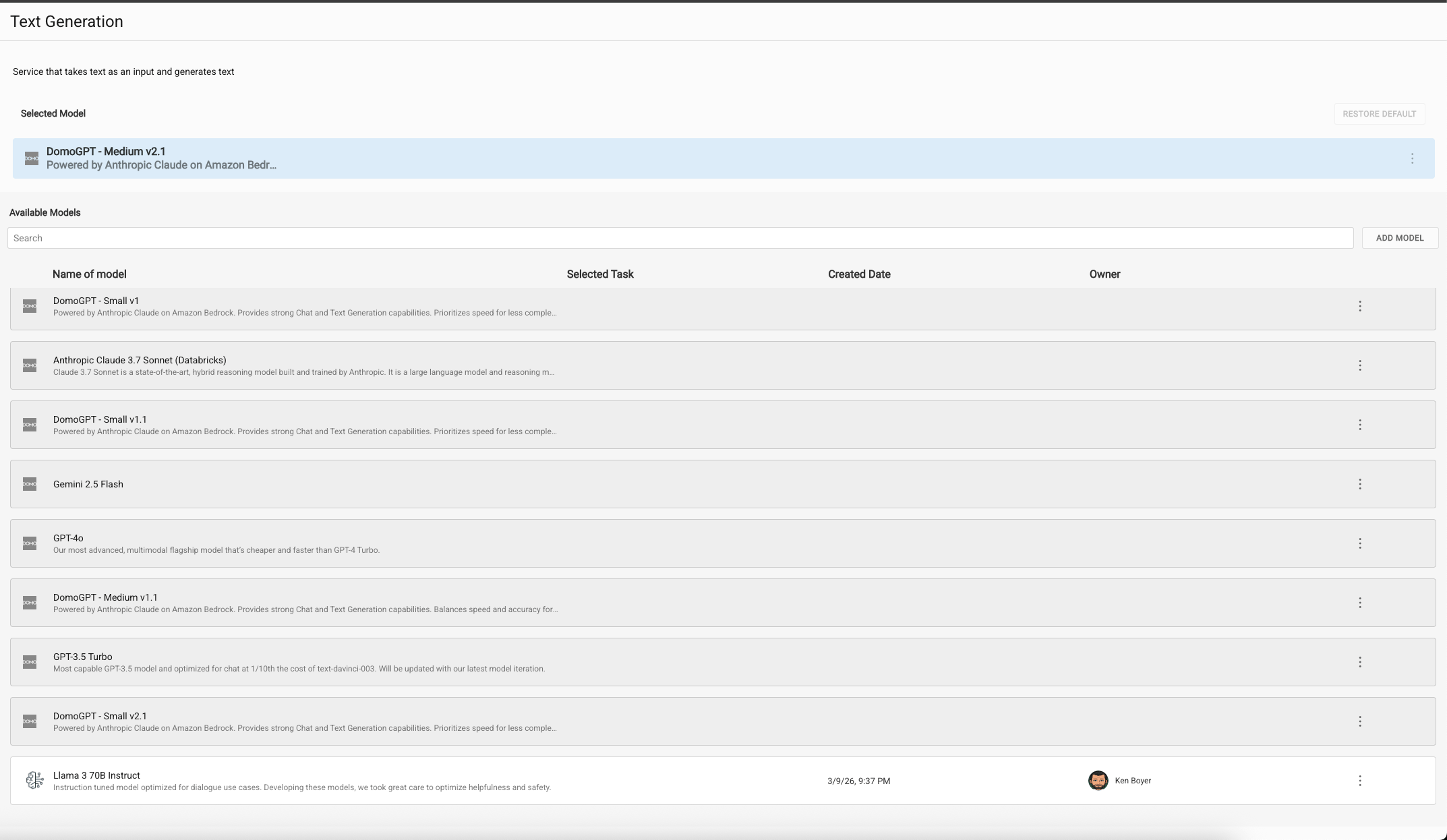
4. The new model is now listed and available for use. Set it as the **default** model for this service, or leave it available for programmatic use only.
<Frame>
  <img src="https://mintcdn.com/domoinc-openapi-sync-dataflows/HwqEEkaBMDGPodBd/images/kb/byom_13.png?fit=max&auto=format&n=HwqEEkaBMDGPodBd&q=85&s=feb46d77367a6c29f0459ff813e76668" alt="Newly added model listed with default option" width="2146" height="1246" data-path="images/kb/byom_13.png" />
</Frame>

## Use Your Model

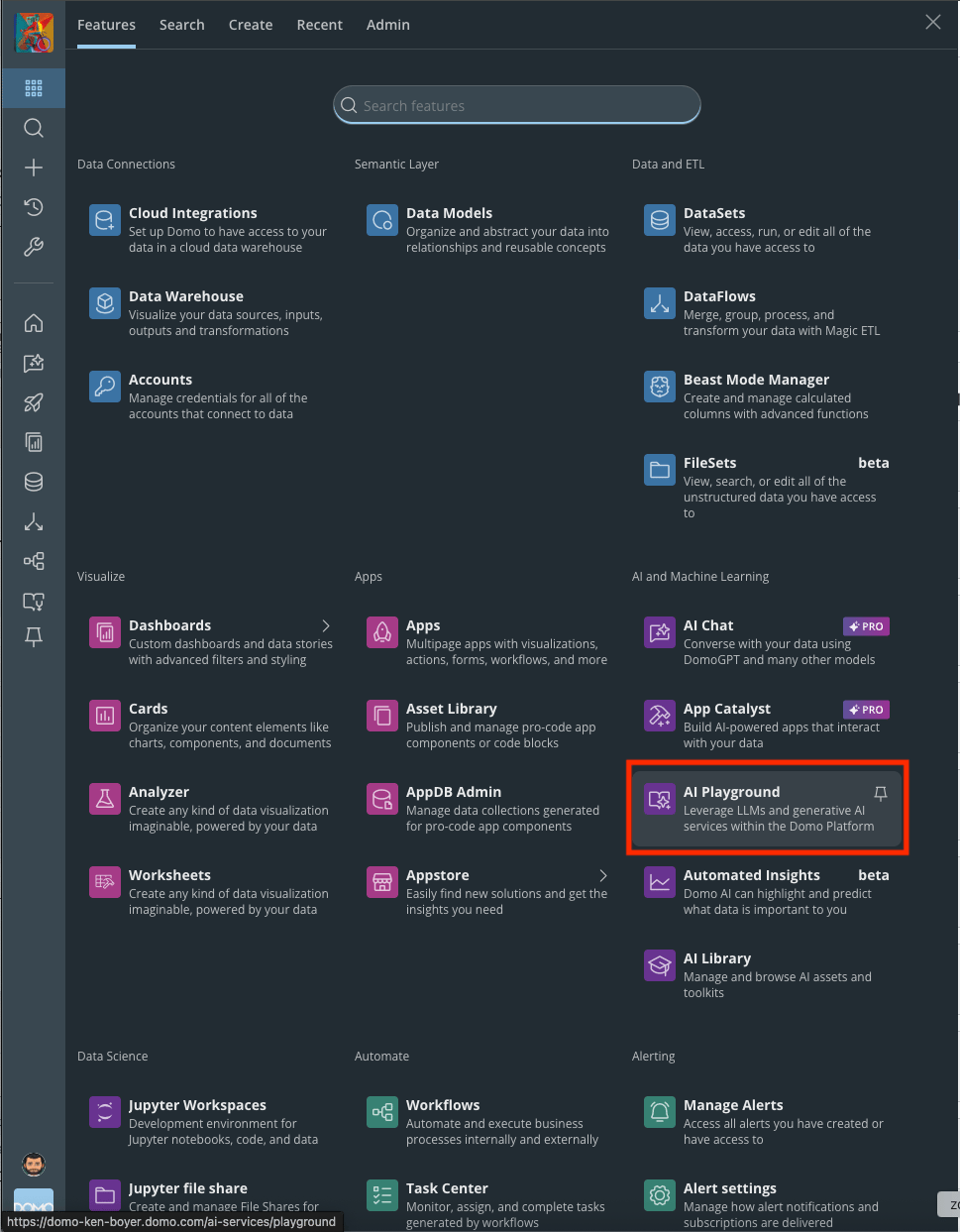
1. Select **AI Playground** from the main menu.
<Frame>
  <img src="https://mintcdn.com/domoinc-openapi-sync-dataflows/HwqEEkaBMDGPodBd/images/kb/byom_14.png?fit=max&auto=format&n=HwqEEkaBMDGPodBd&q=85&s=2ab5bba695d4e3a94cc64c27612f6b3a" alt="AI Playground option in the Domo main menu" width="969" height="1243" data-path="images/kb/byom_14.png" />
</Frame>

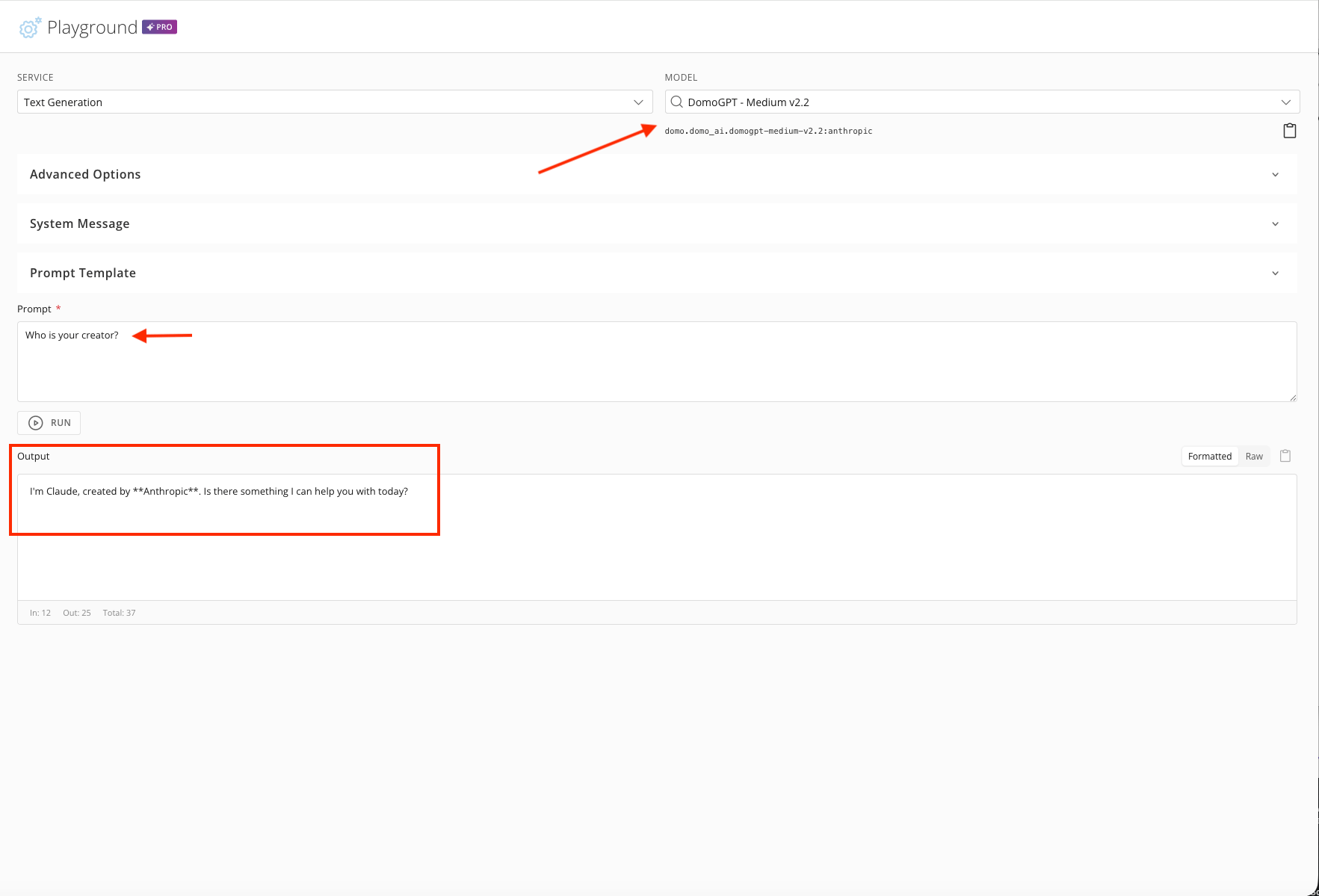
Use the **Text Generation** service with the default Domo model, **DomoGPT - Medium v2.2**.

2. Ask the model "Who is your creator?" to confirm which vendor it belongs to.
<Frame>
  <img src="https://mintcdn.com/domoinc-openapi-sync-dataflows/HwqEEkaBMDGPodBd/images/kb/byom_15.png?fit=max&auto=format&n=HwqEEkaBMDGPodBd&q=85&s=8cd4aac85b51f8820c99267d087b99d8" alt="DomoGPT model response to the creator question" width="1765" height="1199" data-path="images/kb/byom_15.png" />
</Frame>

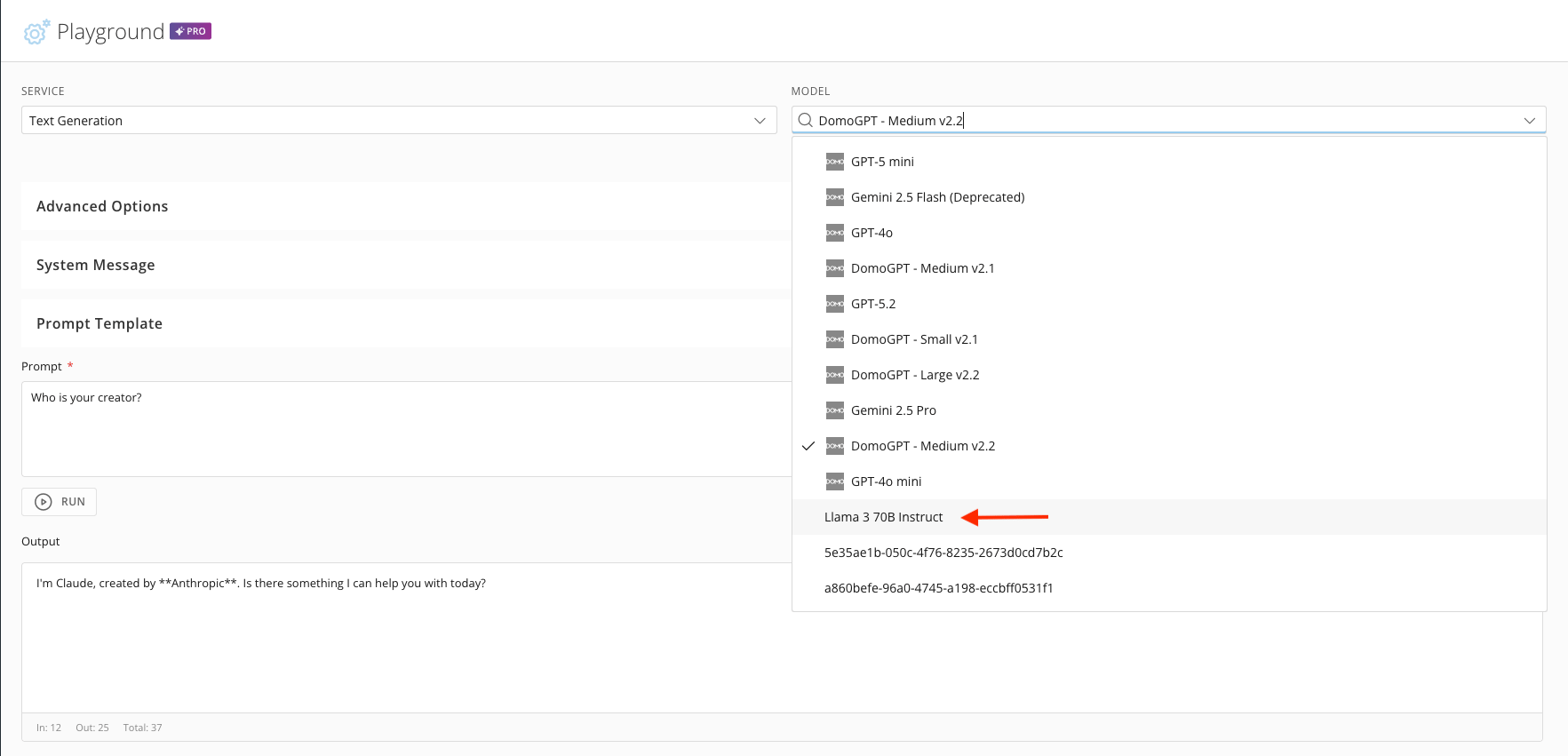
3. Select **Llama 3 70B Instruct** from the **Model** dropdown.
<Frame>
  <img src="https://mintcdn.com/domoinc-openapi-sync-dataflows/HwqEEkaBMDGPodBd/images/kb/byom_16.png?fit=max&auto=format&n=HwqEEkaBMDGPodBd&q=85&s=b93f56d5354700c432b2368b7735db57" alt="Model dropdown with Llama 3 70B Instruct selected" width="1765" height="851" data-path="images/kb/byom_16.png" />
</Frame>

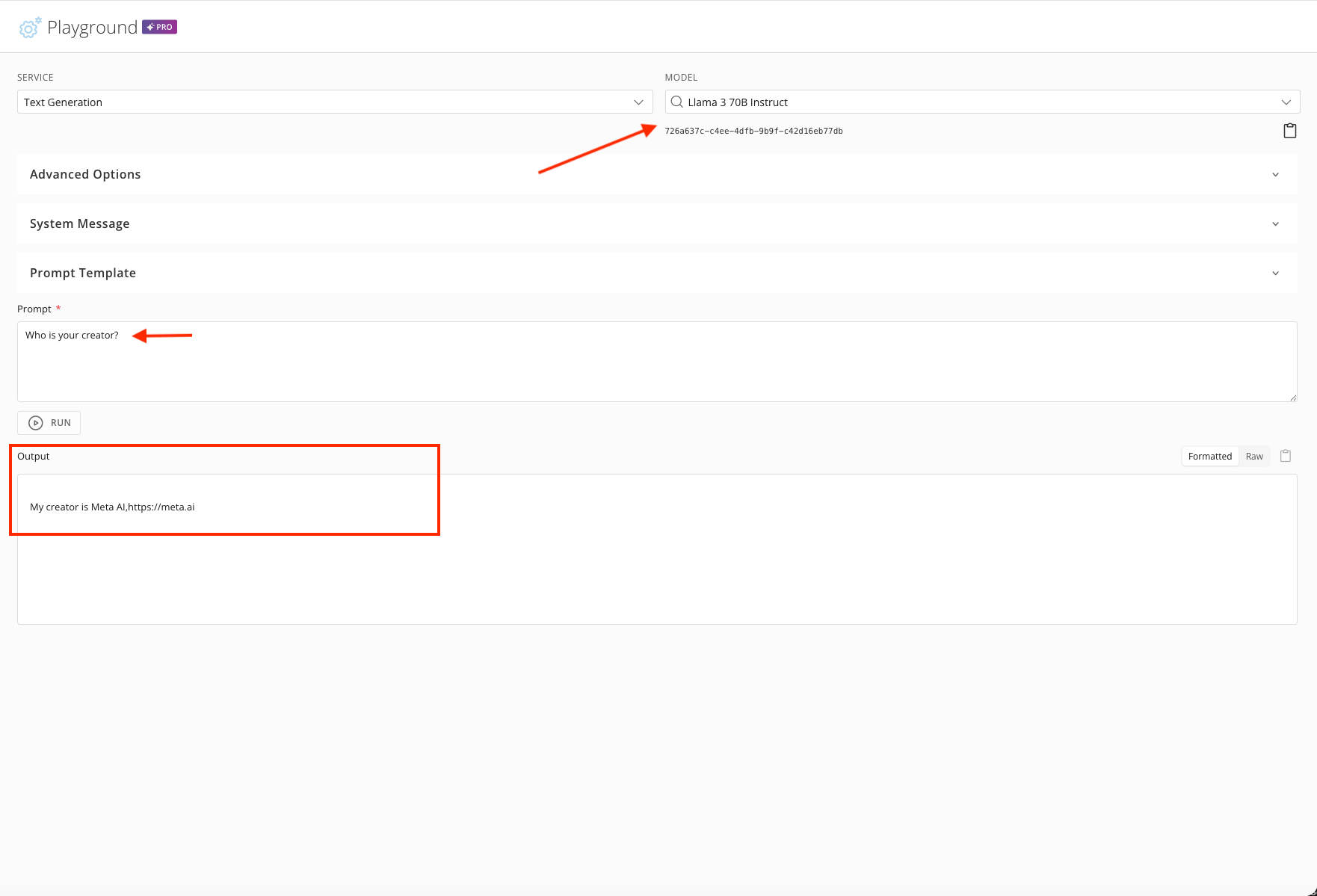
4. Ask this model "Who is your creator?"
<Frame>
  <img src="https://mintcdn.com/domoinc-openapi-sync-dataflows/HwqEEkaBMDGPodBd/images/kb/byom_17.png?fit=max&auto=format&n=HwqEEkaBMDGPodBd&q=85&s=dc5c74d1cca3a5b61a6580877f78aedd" alt="Llama 3 70B Instruct response to the creator question" width="1762" height="1199" data-path="images/kb/byom_17.png" />
</Frame>