> ## Documentation Index
> Fetch the complete documentation index at: https://domoinc-openapi-sync-dataflows.mintlify.site/llms.txt
> Use this file to discover all available pages before exploring further.
# Triggered Reports
## Intro
Triggered Reports allows you to trigger existing scheduled reports based on DataSet updates or alerts. Triggered reports can be added to new or existing jobs. You can log data for triggered reports in new or existing DataSets. For information on creating scheduled reports, see [Scheduling Reports.](/s/article/360043437773)
## Accessing the Toolkit
1. In the navigation header, go to
**More** > **Admin.**
2. In the
**Governance** menu, select **Toolkit.**
**Note:**
If the
**Toolkit**
option does not display in the Governance menu, ensure your user role has the required grants. You may need to enable the Toolkit by reaching out to your Account Executive (AE).
## Required Grants
To access the Governance Toolkit, you will need one of two grants enabled: Create Custom Pipeline Processes or Administer Custom Pipeline Processes. Grants can be added to a custom user role. By default, the Administer Custom Pipeline Process grant is enabled for Admin users.
#### Create Custom Pipeline Processes
* Allows the user to create, update, share, and delete jobs.
* Only allows the user to view jobs that they created or jobs that have been shared with them.
#### Administer Custom Pipeline Processes
* Allows the user to create, update, share, and delete jobs.
* Allows the user to see all jobs within the pipeline.
To learn more about custom roles and grants, see [Managing Custom Roles.](/s/article/360043438973)
## Adding a Triggered Report to a New Job
1. In the navigation header, go to
**More > Admin.**
2. In the
**Governance** menu, select **Toolkit.**
3. From the
**Your Tools** menu, select **Triggered Reports.**
A list of existing jobs in your instance display.
4. Select
**+ New Job** and configure the following:
* Add a title
* (Optional) Add a description
* Select one or more existing Scheduled Reports from the available list. For information on creating scheduled reports, see
[Scheduling Reports.](/s/article/360043437773)
5. Select
**Next.**
A list of DataSets and Alerts associated with your previously selected Scheduled Reports displays.
6. In the
**DataSets** OR **Alerts** tabs, select items that will trigger your scheduled report. These reports are delivered to your email. After choosing DataSets or Alerts, select **Next.**
**Note:**
Scheduled reports can be triggered by DataSet updates or Alerts, but not both. This prevents duplicate reports from being sent.
7. In
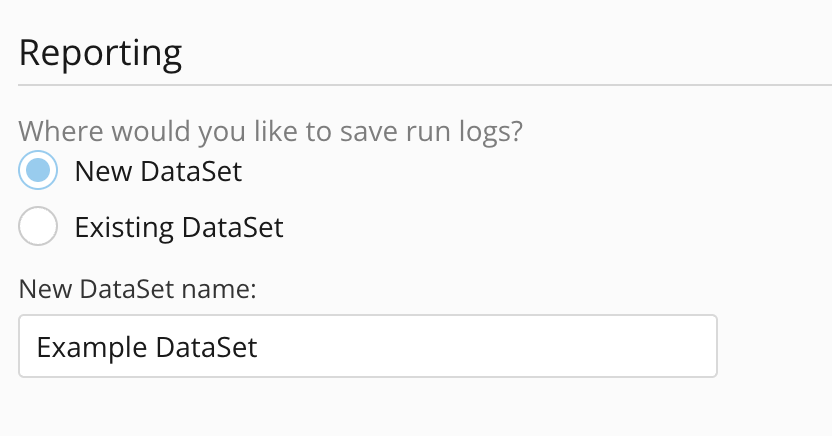
**Reporting**, choose where you want to write data for your triggered reports. This data can be written to a new or existing DataSet.
* To create a new DataSet, select
**New DataSet** and enter a name.
* For existing DataSets, select
**Existing DataSet.** Search and select your existing DataSet from the menu.
 8. Select
**Submit.**
The report runs when it is triggered, and any new DataSets are added to **Data** > **DataSets** in Domo.
## Adding a Triggered Report to an Existing Job
**Note:**
To add a triggered report to an existing job, you must be the job owner or an admin.
1. In the navigation header, go to
**More > Admin.**
2. In the
**Governance** menu, select **Toolkit.**
3. From the
**Your Tools** menu, select **Triggered Reports.**
A list of existing jobs in your instance displays.
4. Select a job. Within the job's details, select
**Edit.**
5. Choose an existing scheduled report and select
**Next.**
6. In the
**DataSets** OR **Alerts** tabs, select items that should trigger your scheduled report. These reports are delivered to your email. After choosing DataSets or Alerts, select **Next.**
7. Choose where you want to write data for your triggered reports. This data can be written in a new or existing DataSet.
* To create a new DataSet, select
**New DataSet** and enter a name.
* For existing DataSets, select
**Existing DataSet.** Search and select your existing DataSet from the menu.
8. Select
**Submit.**
The triggered report is added to the existing job, and any new DataSets are added to **Data** > **DataSets** in Domo.
## Enabling and Disabling Triggered Reports
If you're actively developing scheduled reports, you can disable triggered notifications from being sent to your email each time the job runs.
1. In the navigation header, go to
**More > Admin.**
2. In the
**Governance** menu, select **Toolkit.**
3. From the
**Your Tools** menu, select **Triggered Reports.**
A list of existing jobs in your instance displays.
4. Next to your job, switch the toggle in the
**Enabled** column to **Disabled.**
8. Select
**Submit.**
The report runs when it is triggered, and any new DataSets are added to **Data** > **DataSets** in Domo.
## Adding a Triggered Report to an Existing Job
**Note:**
To add a triggered report to an existing job, you must be the job owner or an admin.
1. In the navigation header, go to
**More > Admin.**
2. In the
**Governance** menu, select **Toolkit.**
3. From the
**Your Tools** menu, select **Triggered Reports.**
A list of existing jobs in your instance displays.
4. Select a job. Within the job's details, select
**Edit.**
5. Choose an existing scheduled report and select
**Next.**
6. In the
**DataSets** OR **Alerts** tabs, select items that should trigger your scheduled report. These reports are delivered to your email. After choosing DataSets or Alerts, select **Next.**
7. Choose where you want to write data for your triggered reports. This data can be written in a new or existing DataSet.
* To create a new DataSet, select
**New DataSet** and enter a name.
* For existing DataSets, select
**Existing DataSet.** Search and select your existing DataSet from the menu.
8. Select
**Submit.**
The triggered report is added to the existing job, and any new DataSets are added to **Data** > **DataSets** in Domo.
## Enabling and Disabling Triggered Reports
If you're actively developing scheduled reports, you can disable triggered notifications from being sent to your email each time the job runs.
1. In the navigation header, go to
**More > Admin.**
2. In the
**Governance** menu, select **Toolkit.**
3. From the
**Your Tools** menu, select **Triggered Reports.**
A list of existing jobs in your instance displays.
4. Next to your job, switch the toggle in the
**Enabled** column to **Disabled.**
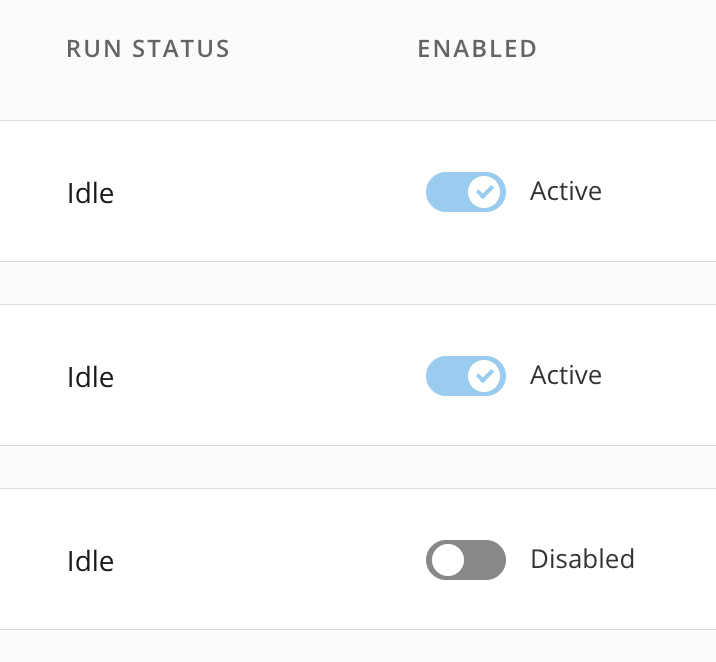 The triggered reports are temporarily disabled, and the job must be run manually.
**Tip:**
After you've finished developing, switch the toggle to
**Active.**
The report now triggers according to the DataSets updates or Alerts powered by DataSets.
The triggered reports are temporarily disabled, and the job must be run manually.
**Tip:**
After you've finished developing, switch the toggle to
**Active.**
The report now triggers according to the DataSets updates or Alerts powered by DataSets.