> ## Documentation Index
> Fetch the complete documentation index at: https://domoinc-openapi-sync-dataflows.mintlify.site/llms.txt
> Use this file to discover all available pages before exploring further.

# IBM DB2 Partition Connector

export const InlineImage = ({src, alt = '', height = '1.6em'}) => {
  return <img noZoom src={src} alt={alt} style={{
    display: 'inline',
    verticalAlign: 'start',
    height: height,
    margin: '0'
  }} />;
};

## Intro

IBM DB2 Partition Connector contains database server products developed by IBM. These products support the relational model with some support for object-relational features and non-relational structures like JSON and XML. Use Domo's IBM DB2 Partition connector to retrieve data about from an IBM database based on a provided SQL query.

You connect to your IBM DB2 database in the Data Center. This topic discusses the fields and menus that are specific to the IBM DB2 connector user interface. General information for adding DataSets, setting update schedules, and editing DataSet information is discussed in [Adding a DataSet Using a Data Connector](/s/article/360042926274).

<Note>
  **Note:** Domo does not support the IBM DA European connector.
</Note>

## Prerequisites

To connect to an IBM DB2 database and create a DataSet, you must have the following:

* The username and password you use to log into your IBM account
* The host name for the database
* The port number for the database
* The database name

CA certificate text or URL path is required *only* if you select **Certificate text** or **URL path**, respectively, in the **Certificate type** menu.

##### To obtain your credentials, do the following:

1. Log into **IBM Cloud**.
2. Go to **Service Credentials**.
3. Click **New credential +**.
4. Enter the name, select the role, and click **Add**.
5. Once the service credentials are created, expand the JSON to identify the username and password in the authentication block.

##### How to extract the SSL certificate:

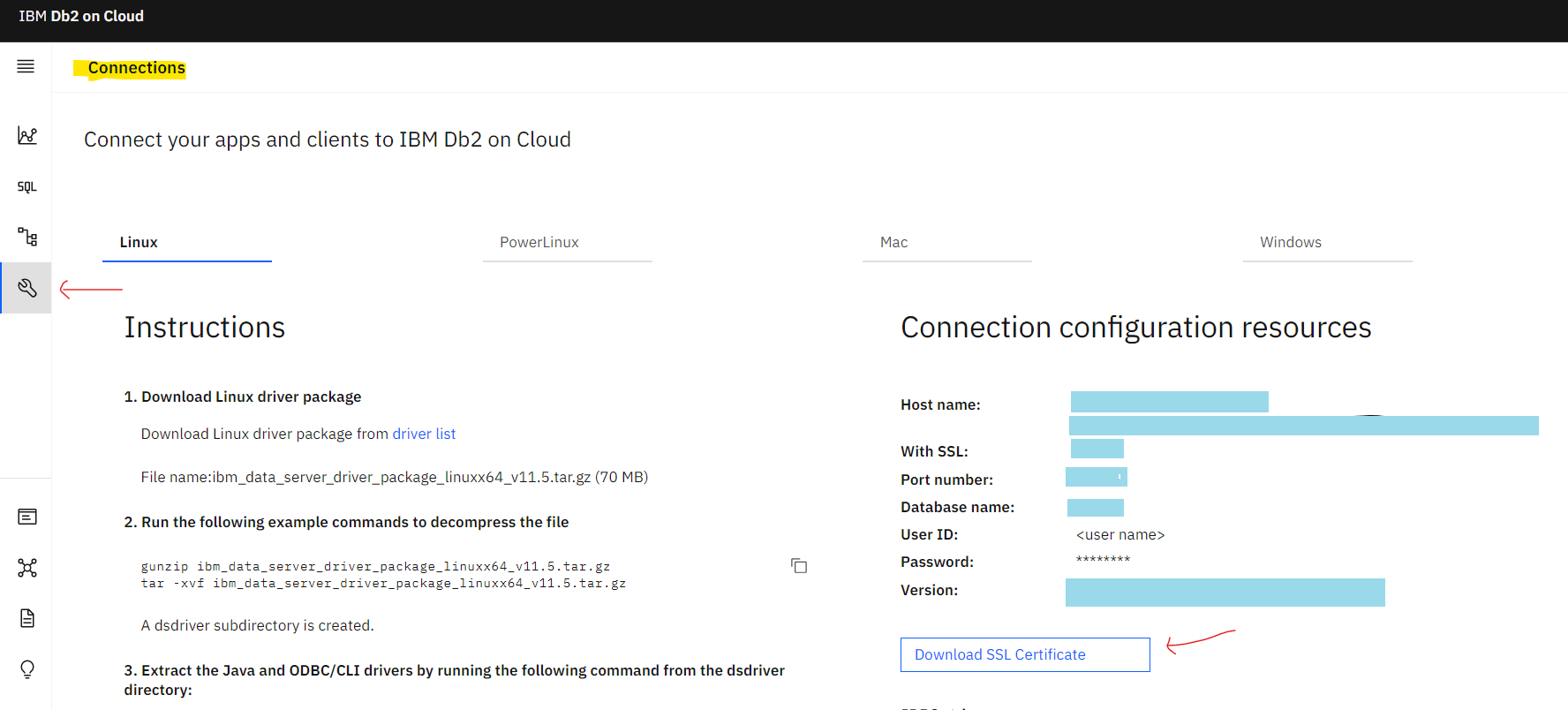
* Go to **Settings> Connections** on the web console to download the Certificate. The file is named **DigiCertGlobalRootCA.crt.**

  <Frame>
    <img src="https://mintcdn.com/domoinc-openapi-sync-dataflows/blcgkVgnZv6gj_XY/images/kb/ka05w00000123KC-00N5w00000Ri7BU-0EM5w000005vO59.png?fit=max&auto=format&n=blcgkVgnZv6gj_XY&q=85&s=5d8457158314d3281168d999e60e2a73" width="1776" height="804" data-path="images/kb/ka05w00000123KC-00N5w00000Ri7BU-0EM5w000005vO59.png" />
  </Frame>

* The certificate is also available at ***`/mnt/blumeta0/db2/ssl_keystore/rootCA.pem`*** inside the database container. You can extract it to tmp with this command:

  ```bash theme={"dark"}
  docker cp dashDB:/mnt/blumeta0/db2/ssl_keystore/rootCA.pem /tmp
  ```

* or access it directly with ***`<host volume>/db2/ssl_keystore/rootCA.pem`***

##### How convert the certificate.crt file to a.pem:

* If the certificate file is in binary format, then run the following command to convert it to PEM format using OpenSSL:

  ```
  $ openssl x509 -inform DER -outform PEM -in DigiCertGlobalRootCA.crt -out DigiCertGlobalRootCA.crt.pem
  ```

Before you can connect to an IBM DB2 database, you must also whitelist a number of IP addresses on your database server on the port you want to connect to. For the full list of IP addresses, see [Whitelisting IP Addresses for Connectors](/s/article/360043630093 "Whitelisting IP Addresses for Connectors").

## Connecting to Your IBM DB2 Database

This section enumerates the options in the **Credentials** and **Details** panes in the SAP Adaptive Server Enterprise Connector page. The components of the other panes in this page, **Scheduling** and **Name & Describe Your DataSet**, are universal across most connector types and are discussed in greater length in [Adding a DataSet Using a Data Connector](/s/article/360042926274 "Adding a DataSet Using a Data Connector").

### Credentials Pane

This pane contains fields for entering credentials to connect to your IBM DB2 database. The following table describes what is needed for each field:

<table border="1" cellpadding="1" cellspacing="1" data-aura-rendered-by="33:201;a"><thead><tr><th colspan="1" rowspan="1"><p><span class="s1"> Field </span></p></th><th colspan="1" rowspan="1"><p><span class="s1"> Description </span></p></th></tr></thead><tbody><tr><td colspan="1" rowspan="1"><p> Username </p></td><td colspan="1" rowspan="1"><p> Enter your IBM account username. </p></td></tr><tr><td colspan="1" rowspan="1"><p> Password </p></td><td colspan="1" rowspan="1"><p> Enter your IBM account password. </p></td></tr><tr><td colspan="1" rowspan="1"><p> Host </p></td><td colspan="1" rowspan="1"><p> Enter the host name for the DB2 database. For example: <span /><span class="mt-font-courier-new"><a href="http://db.company.com" rel="noopener" target="_blank"> db.company.com </a></span></p></td></tr><tr><td colspan="1" rowspan="1"><p> Port </p></td><td colspan="1" rowspan="1"><p> Enter the port number for the DB2 database. </p></td></tr><tr><td colspan="1" rowspan="1"><p> Database Name </p></td><td colspan="1" rowspan="1"><p> Enter the name of the DB2 database. </p></td></tr><tr><td colspan="1" rowspan="1"><p> Certificate Type </p></td><td colspan="1" rowspan="1"><p> Select a certificate type. If you do not want to include a certificate, select <b> No certificate </b>. If you select Certificate text, you must paste the text for your certificate in the <b> Certificate </b><span /> field. If you select <b> URL path </b>, you must enter the URL where your certificate is located in the <b> Certificate </b><span /> field. </p></td></tr><tr><td colspan="1" rowspan="1"><p> Certificate </p></td><td colspan="1" rowspan="1"><p> Paste the text for your CA certificate or enter the URL where your certificate is located. This is optional. If you do not want to include a certificate, select <span /><b> No certificate </b><span /> in the <span /><b> Certificate Type </b><span /> menu. </p></td></tr></tbody></table>

Once you have entered valid credentials, you can use the same account any time you go to create a new IBM DB2 DataSet. You can manage connector accounts in the **Accounts** tab in the Data Center. For more information about this tab, see [Managing User Accounts for Connectors](/s/article/360042926054 "Managing User Accounts for Connectors").

### Details Pane

In this pane you create an SQL query to pull data from your database. The **Query** parameter is required. The other three parameters are here to help you construct this query if you choose.

<table border="1" cellpadding="1" cellspacing="1" data-aura-rendered-by="33:201;a"><thead><tr><th colspan="1" rowspan="1"><p> Menu </p></th><th colspan="1" rowspan="1"><p> Description </p></th></tr></thead><tbody><tr><td colspan="1" rowspan="1"><p> Query Type </p></td><td colspan="1" rowspan="1"><p> Select a query type. </p><table class="zebra-striped bordered"><tbody><tr><th colspan="1" rowspan="1"> Query Type </th><th colspan="1" rowspan="1"> Description </th></tr><tr><td colspan="1" rowspan="1"> Custom Query </td><td colspan="1" rowspan="1"> Enter the SQL query to execute. </td></tr><tr><td colspan="1" rowspan="1"> Query Builder </td><td colspan="1" rowspan="1"> Select a table and fields to autogenerate your query. </td></tr></tbody></table></td></tr><tr><td colspan="1" rowspan="1"><p> Query </p></td><td colspan="1" rowspan="1"><p> Enter the Structured Query Language (SQL) query to use in selecting the data you want. For example: </p><p><span class="mt-font-courier-new"> select \* from Employee </span></p><p> If you want help in constructing your query, copy and paste the automatically-generated query from the <b> Query Helper </b> field into this field. </p></td></tr><tr><td colspan="1" rowspan="1"><span> Database Schemas </span></td><td colspan="1" rowspan="1"><p> Select the database schema. </p></td></tr><tr><td colspan="1" rowspan="1"><p> Database Table </p></td><td colspan="1" rowspan="1"><p> Select the table containing the data you want to pull into Domo. The selected table will be added to the automatically generated query in the <b> Query Helper </b> field. </p></td></tr><tr><td colspan="1" rowspan="1"><p> Query Helper </p></td><td colspan="1" rowspan="1"><p> Copy and paste this query into the <b> Query </b> field if you need help building a query. This query is automatically generated when you select a table and columns in the <b> Database Table </b> and <span /><b> Table Columns </b> fields, respectively. </p></td></tr><tr><td colspan="1" rowspan="1"><span> Table Name </span></td><td colspan="1" rowspan="1"><span> Enter the name of the table in your Oracle database where you want your DataSet data to be copied. </span></td></tr><tr><td colspan="1" rowspan="1"><p> Table Columns </p></td><td colspan="1" rowspan="1"><p> Select the table columns with data you want to pull into Domo. The selected columns will be added to the automatically generated query in the <b> Query Helper </b> field. </p></td></tr><tr><td colspan="1" rowspan="1"><span> Partition Column Name </span></td><td colspan="1" rowspan="1"><span> Select the partition column name. Only date fields will be shown in this discovery. </span></td></tr><tr><td colspan="1" rowspan="1"><span> Past Days </span></td><td colspan="1" rowspan="1"><span> Enter number of past days for which you want to get data. Value can be X, where X is a positive integer. Example: 30 </span></td></tr><tr><td colspan="1" rowspan="1"><span> Date Format </span></td><td colspan="1" rowspan="1"><span> Select the required date format. By default </span><b> yyyy-MM-dd </b><span> will be used. </span></td></tr><tr><td colspan="1" rowspan="1"><span> Custom Date Format </span></td><td colspan="1" rowspan="1"> Enter the custom date format you wish to apply to your data. </td></tr></tbody></table>

### FAQ

<AccordionGroup>
  <Accordion title="What kind of credentials do I need to power up this connector?">
    You need the username, password, host name, port number, and database name of your IBM DB2 database. You also need to select the Certificate type.
  </Accordion>

  <Accordion title="Are there any API limits that I need to be aware of?">
    Limits depend on your server configuration.
  </Accordion>

  <Accordion title="How often can the data be updated?">
    Datasets can run as often as every 15 minutes. However, depending on the runtime of the query, datasets may need to run less frequently.
  </Accordion>

  <Accordion title="Why can't I connect to my IBM DB2 database? Do I need to whitelist any IP addresses?">
    Before you can connect to a IBM DB2 database, you must also whitelist a number of IP addresses on your database server on the port you want to connect to. For the full list of IP addresses, see [Whitelisting IP Addresses.](/s/article/360043630093)
  </Accordion>

  <Accordion title="What's the difference between the IBM DB2, IBM DB2 Partition, and IBM DB2 SSH connectors?">
    In the IBM DB2 connector, you need to write an SQL query for the data you want to import. It allows you to select the database table and table columns. It also provides a Query Helper to guide you in writing an SQL query. The IBM DB2 Partition connector supports partitioning, thus optimizes your database performance. You need to write an SQL query for the data you want to import, and select the table name and partition column name. You also need to specify the number of past days you want to get data for. It allows you to select the required date format for your query data. The IBM DB2 SSH connector uses an SSH tunnel to connect to your IBM DB2 database. You need your SSH credentials along with your IBM DB2 credentials to connect to your database. You need to write an SQL query for the data you want to import. It allows you to select the database table and table columns. It also provides a Query Helper to guide you in writing an SQL query.
  </Accordion>
</AccordionGroup>

### Other Panes

For information about the remaining sections of the connector interface, including how to configure scheduling, retry, and update options, see [Adding a DataSet Using a Data Connector](/s/article/360042926274).
