> ## Documentation Index
> Fetch the complete documentation index at: https://domoinc-openapi-sync-dataflows.mintlify.site/llms.txt
> Use this file to discover all available pages before exploring further.
# Exporting Embedded Content
export const InlineImage = ({src, alt = '', height = '1.6em'}) => {
return  ;
};
## Intro
Users viewing embedded content have the option to export the content in a variety of file types depending on the content that is embedded.
**Note:**
If you do not see the option to export content, please ensure the
**Allow export**
box is checked in the embed settings modal when setting up the content to be embedded.
## Embedded Card
The following section contains information on how to export a Card that has been embedded.
### Card export
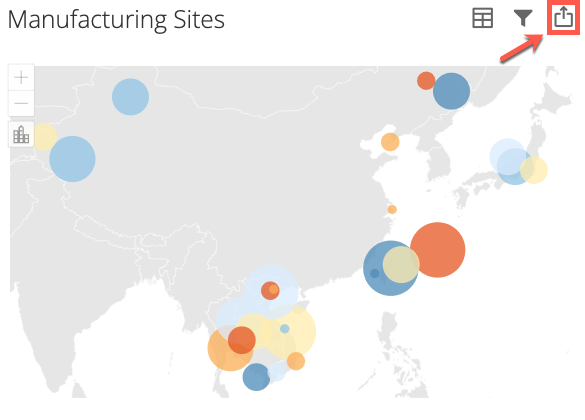
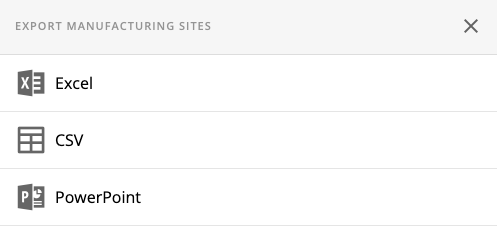
You can export the Card as an Excel file, CSV, or PowerPoint.
1. Click the export icon in the top right-hand corner of the Card.
;
};
## Intro
Users viewing embedded content have the option to export the content in a variety of file types depending on the content that is embedded.
**Note:**
If you do not see the option to export content, please ensure the
**Allow export**
box is checked in the embed settings modal when setting up the content to be embedded.
## Embedded Card
The following section contains information on how to export a Card that has been embedded.
### Card export
You can export the Card as an Excel file, CSV, or PowerPoint.
1. Click the export icon in the top right-hand corner of the Card.
 2. Select the desired export method:
**Excel**, **CSV**, or **PowerPoint**.
2. Select the desired export method:
**Excel**, **CSV**, or **PowerPoint**.
 ## Embedded Dashboard
The following sections contain information on how to export a Card that is part of a Dashboard and how to export an entire Dashboard.
### Card hover export
Using the Card hover export, you can quickly download your file as a CSV.
1. Hover over the Card you want to export to CSV.
2. Click the export icon that appears in the top right-hand corner of the Card.
## Embedded Dashboard
The following sections contain information on how to export a Card that is part of a Dashboard and how to export an entire Dashboard.
### Card hover export
Using the Card hover export, you can quickly download your file as a CSV.
1. Hover over the Card you want to export to CSV.
2. Click the export icon that appears in the top right-hand corner of the Card.
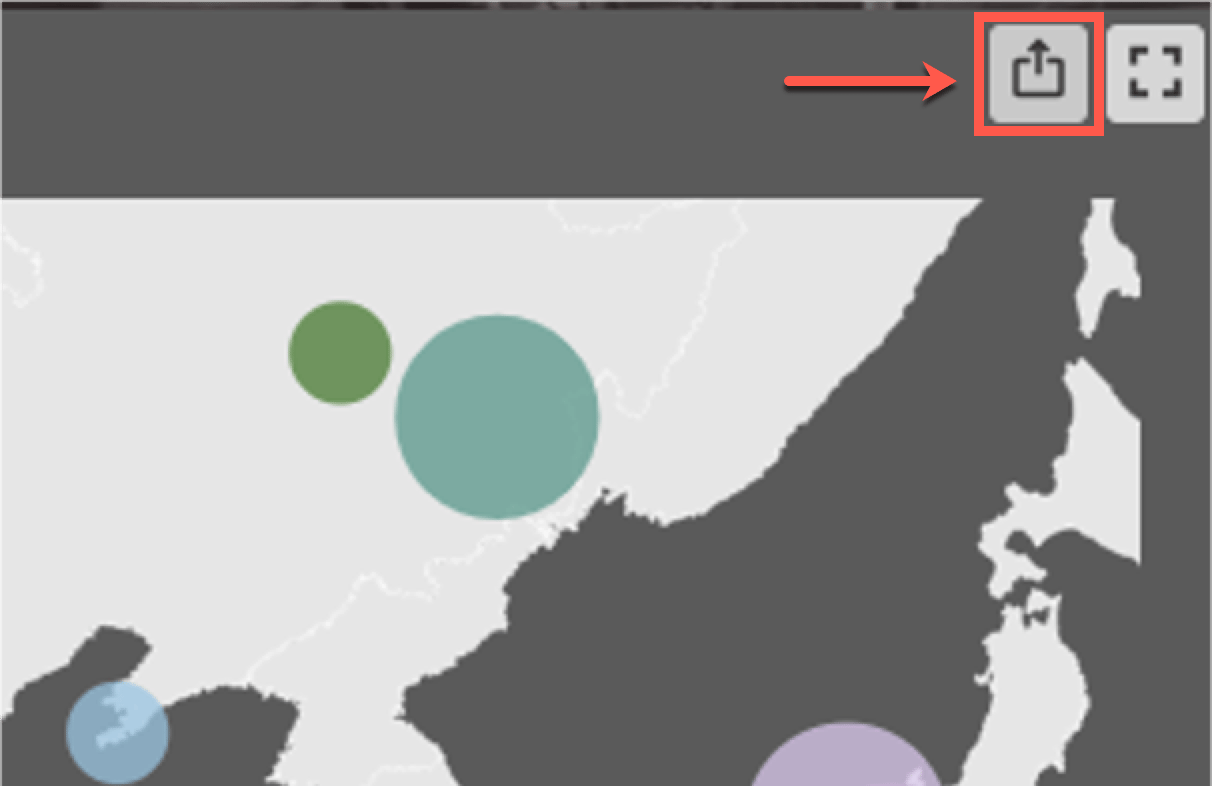 3. The file automatically downloads as a CSV.
### Maximization view export
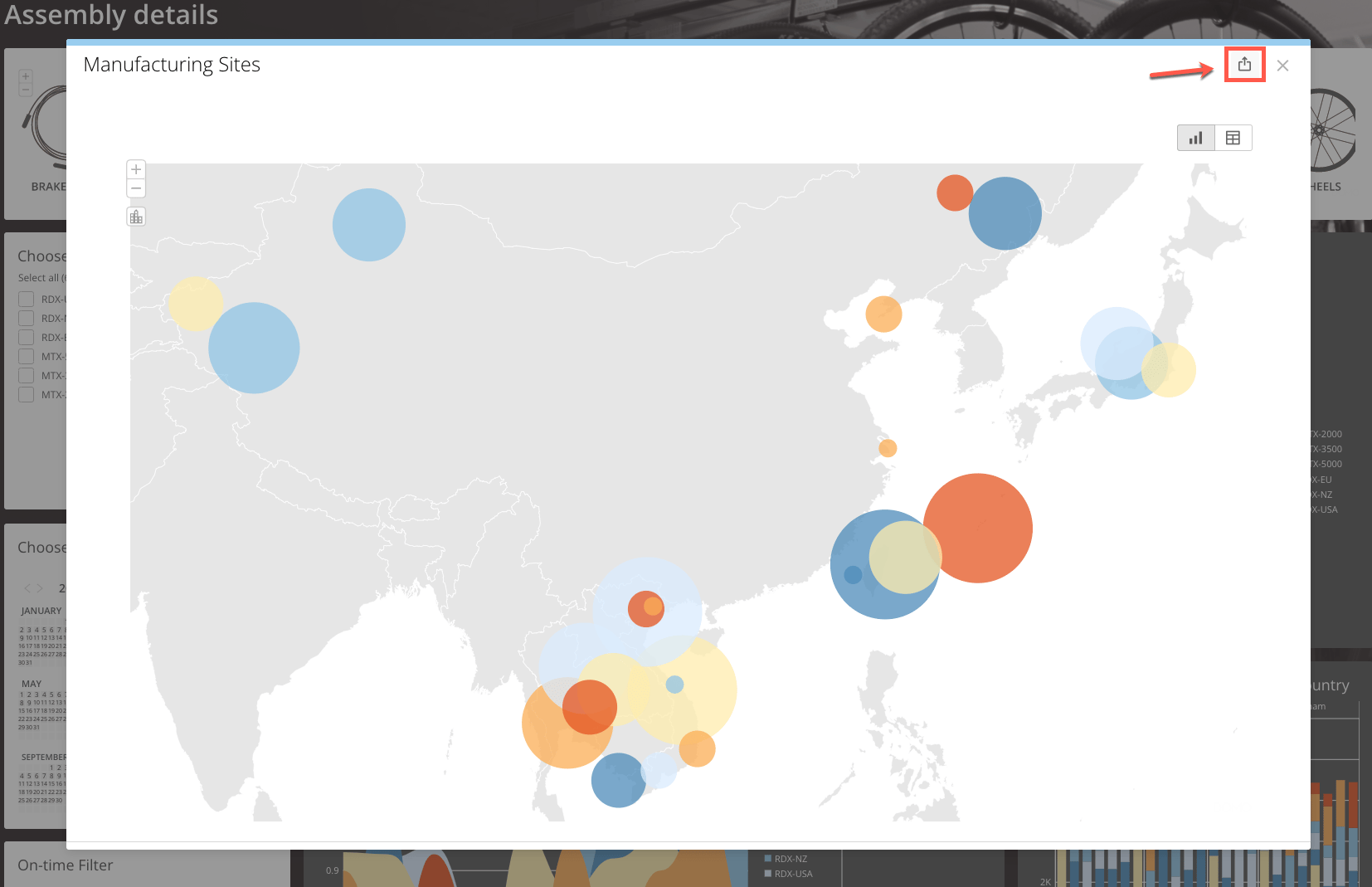
In the Maximization view of a Card, you can choose to export your Card as a CSV, PDF, PowerPoint, or Excel file.
1. Hover over the Card you want to export.
2. Click the Maximize icon that appears in the top right-hand corner of the Card.
3. The file automatically downloads as a CSV.
### Maximization view export
In the Maximization view of a Card, you can choose to export your Card as a CSV, PDF, PowerPoint, or Excel file.
1. Hover over the Card you want to export.
2. Click the Maximize icon that appears in the top right-hand corner of the Card.
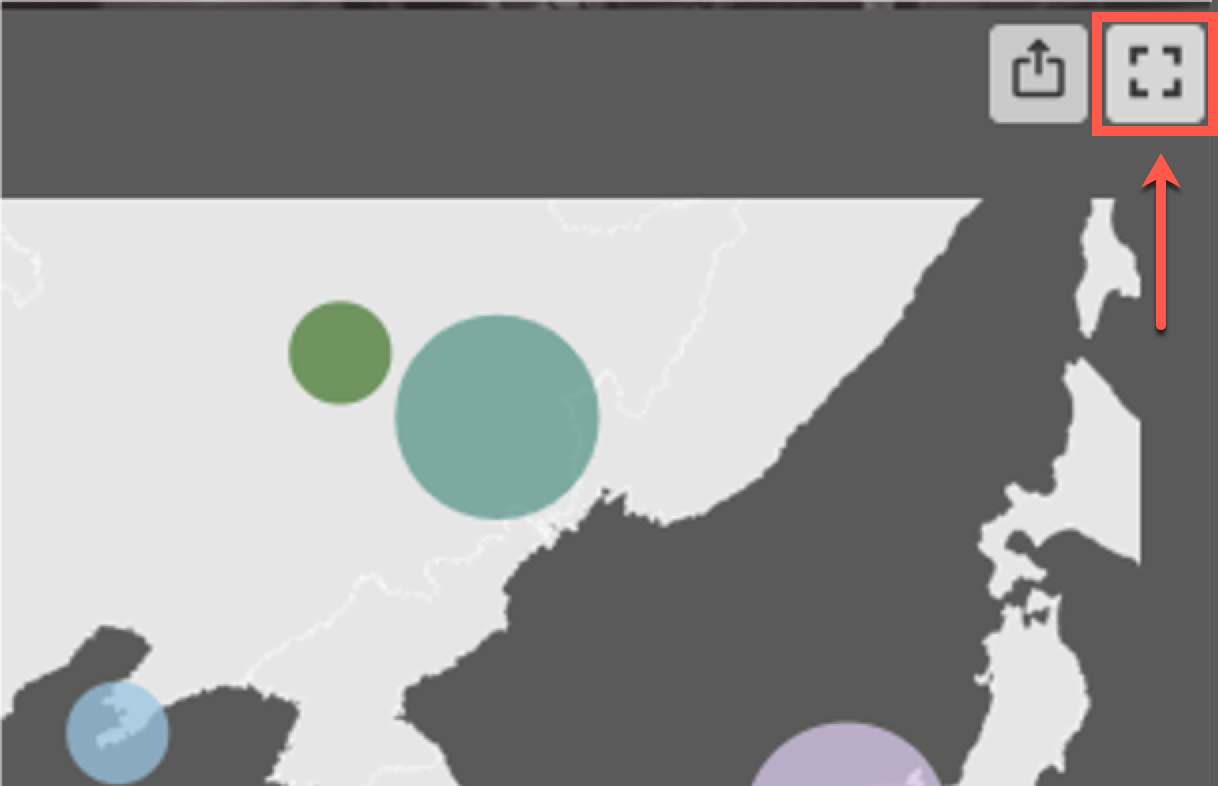 3. In the modal that opens, click on the export icon in the top right-hand corner.
 4. Select the desired export method:
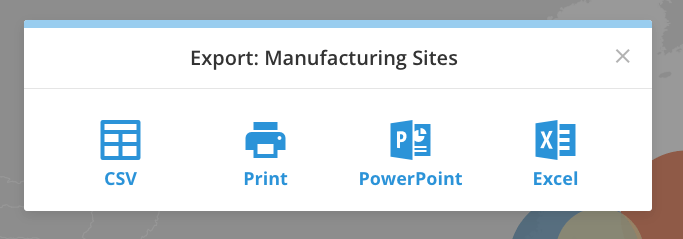
**CSV**, **Print**, **PowerPoint**, **Excel**.
4. Select the desired export method:
**CSV**, **Print**, **PowerPoint**, **Excel**.
 ### Dashboard export
You can export your Dashboard as a PowerPoint or PDF.
1. Click the export
icon in the top right-hand corner of the Dashboard.
2. Select the desired export method.
### Dashboard export
You can export your Dashboard as a PowerPoint or PDF.
1. Click the export
icon in the top right-hand corner of the Dashboard.
2. Select the desired export method.
 **Note:**
Depending on the number of Cards on the Dashboard, it may take a few minutes to download. To avoid multiple downloads, only select the export option once, even if it appears that it is not downloading.
**Note:**
Depending on the number of Cards on the Dashboard, it may take a few minutes to download. To avoid multiple downloads, only select the export option once, even if it appears that it is not downloading.