> ## Documentation Index
> Fetch the complete documentation index at: https://domoinc-openapi-sync-dataflows.mintlify.site/llms.txt
> Use this file to discover all available pages before exploring further.
# | Domo Bricks | Overview
export const InlineImage = ({src, alt = '', height = '1.6em'}) => {
return  ;
};
### Intro
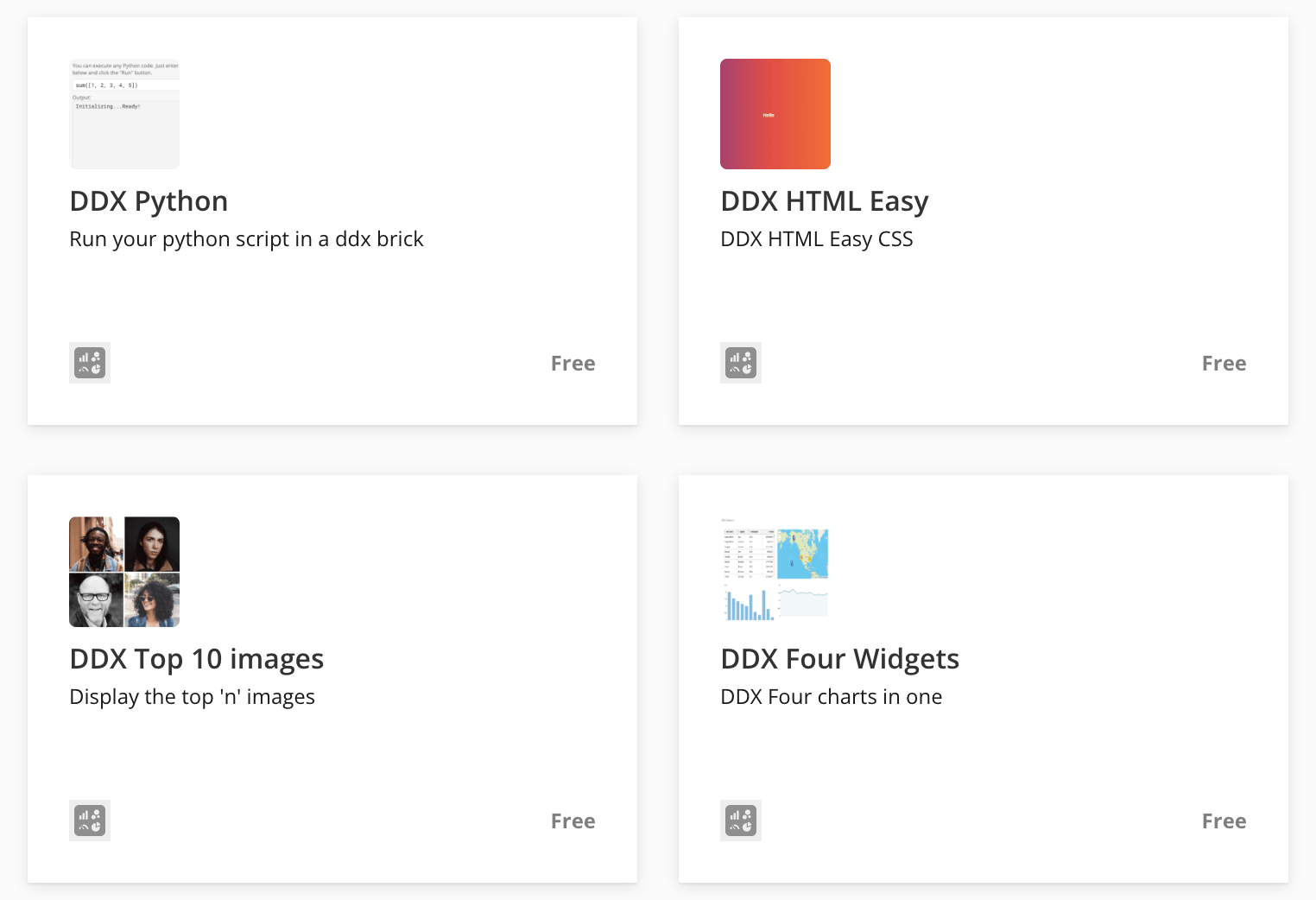
Domo Bricks (formerly DDX Bricks) are pre-built objects that allow you to create advanced visualizations and apps that can be customized by simply copying and pasting code.
With Domo Bricks, business users, citizen developers, and full-stack developers can quickly iterate, prototype, and compose new apps with beautiful and advanced features. You can choose from bricks available in the Domo Appstore, or use Domo Bricks to render a new library you found online by copying and pasting.
You can use HTML, CSS, and JavaScript to completely customize your brick. These new custom solutions visuals are immediately rendered and can be easily updated within your Domo instance. The default editor for Domo Bricks is Monaco, which powers VS Code.
**Important:**
AppDB in Domo Bricks is blocked in public embed contexts due to security concerns and trust requirements.
Find Domo Bricks in the [Appstore](https://www.domo.com/appstore/) .
;
};
### Intro
Domo Bricks (formerly DDX Bricks) are pre-built objects that allow you to create advanced visualizations and apps that can be customized by simply copying and pasting code.
With Domo Bricks, business users, citizen developers, and full-stack developers can quickly iterate, prototype, and compose new apps with beautiful and advanced features. You can choose from bricks available in the Domo Appstore, or use Domo Bricks to render a new library you found online by copying and pasting.
You can use HTML, CSS, and JavaScript to completely customize your brick. These new custom solutions visuals are immediately rendered and can be easily updated within your Domo instance. The default editor for Domo Bricks is Monaco, which powers VS Code.
**Important:**
AppDB in Domo Bricks is blocked in public embed contexts due to security concerns and trust requirements.
Find Domo Bricks in the [Appstore](https://www.domo.com/appstore/) .
 ***
### Prerequisites
To start using Domo Bricks you need the following:
* A Domo account
* The appropriate
[permissions](#permissions)
* Basic working knowledge of Domo DataSets and card building
To fully customize Domo Bricks, we recommend that you have a basic understanding of HTML, CSS, and JavaScript.
For information on implementing Domo Bricks, see our [developer docs](http://developer.domo.com/docs/ddx-bricks/ddx-bricks-overview.) .
### Permissions
To use Domo Bricks, you must have the following permissions. Admins and most Privileged users have these permissions by default. To learn more about adding grants to custom roles, see [Managing Custom Roles](/s/article/360043438973).
* View DomoApps
* Create DomoApps
* Create DDX Apps
* Edit Cards (in order to delete Domo Bricks)
* Use Appstore
* View Appstore
### Collaboration on Domo Bricks
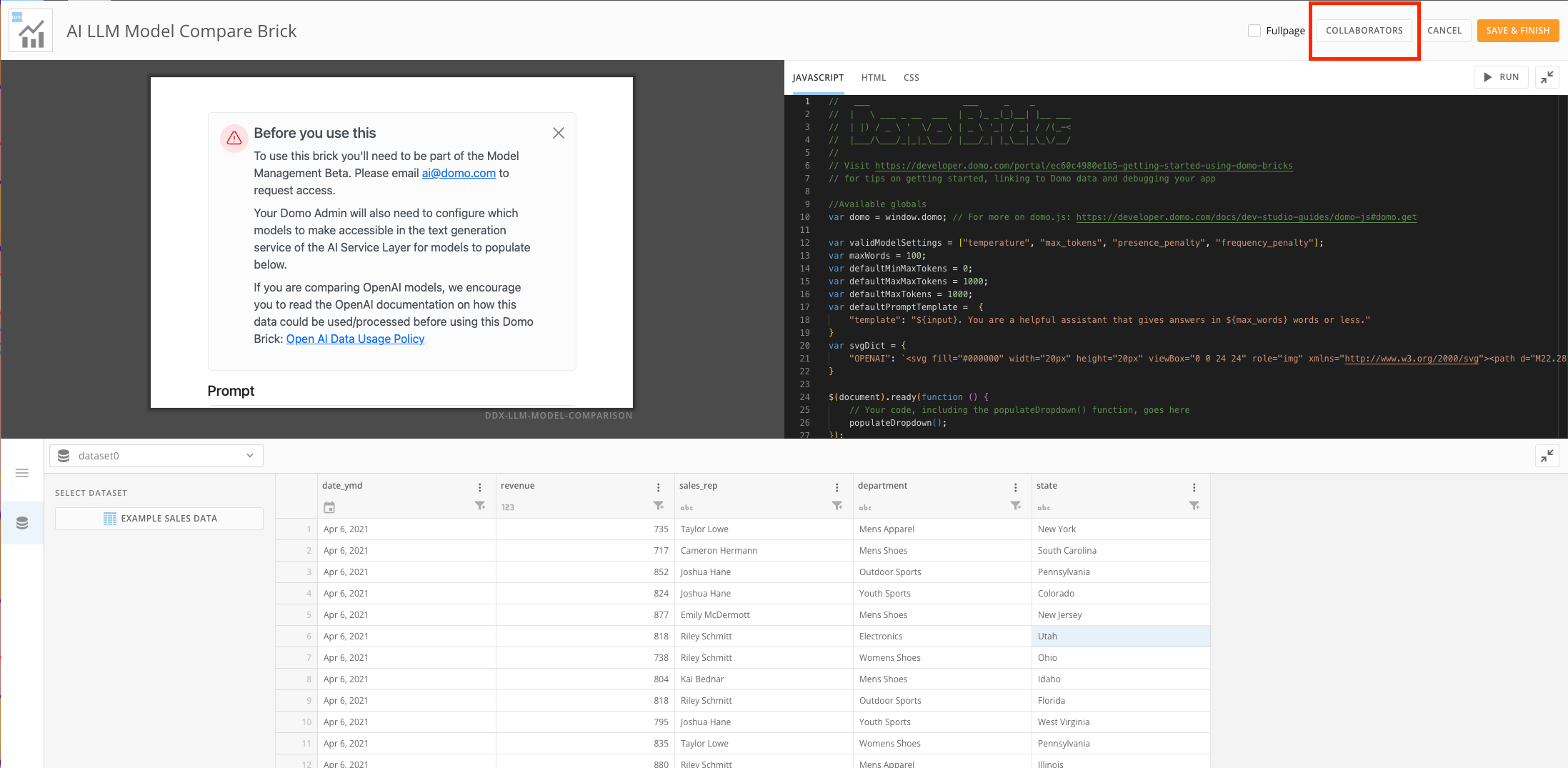
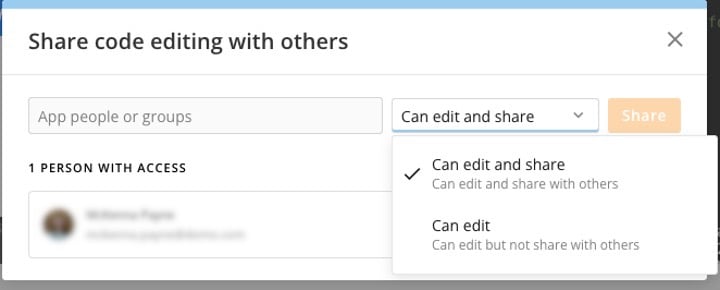
You can use the Collaborators option in the brick editor to share your Domo Brick with other users in your instance for shared development. You can manage the level of access collaborators have to your brick by granting them editing and sharing privileges or edit access alone.
To access the collaboration options, select **Card options** > **Edit** **Card**. In the top ribbon of the editor, select **Collaborators** to display the **Share code editing with others** modal.
***
### Prerequisites
To start using Domo Bricks you need the following:
* A Domo account
* The appropriate
[permissions](#permissions)
* Basic working knowledge of Domo DataSets and card building
To fully customize Domo Bricks, we recommend that you have a basic understanding of HTML, CSS, and JavaScript.
For information on implementing Domo Bricks, see our [developer docs](http://developer.domo.com/docs/ddx-bricks/ddx-bricks-overview.) .
### Permissions
To use Domo Bricks, you must have the following permissions. Admins and most Privileged users have these permissions by default. To learn more about adding grants to custom roles, see [Managing Custom Roles](/s/article/360043438973).
* View DomoApps
* Create DomoApps
* Create DDX Apps
* Edit Cards (in order to delete Domo Bricks)
* Use Appstore
* View Appstore
### Collaboration on Domo Bricks
You can use the Collaborators option in the brick editor to share your Domo Brick with other users in your instance for shared development. You can manage the level of access collaborators have to your brick by granting them editing and sharing privileges or edit access alone.
To access the collaboration options, select **Card options** > **Edit** **Card**. In the top ribbon of the editor, select **Collaborators** to display the **Share code editing with others** modal.
 In the modal, add people or groups and define editing and sharing privileges.
 ### FAQ
It is not possible to share edit access with Domo Bricks; only the user who installed the app can edit it. You can use **Save as** to make a copy of the app.
Changing the data in your brick does not automatically update the preview. When you save the app, any changes to the data or code can be previewed by selecting **Run**.
### FAQ
It is not possible to share edit access with Domo Bricks; only the user who installed the app can edit it. You can use **Save as** to make a copy of the app.
Changing the data in your brick does not automatically update the preview. When you save the app, any changes to the data or code can be previewed by selecting **Run**.