> ## Documentation Index
> Fetch the complete documentation index at: https://domoinc-openapi-sync-dataflows.mintlify.site/llms.txt
> Use this file to discover all available pages before exploring further.
# DataSet Backup
## Intro
The DataSet Backup tool allows you to back up Domo DataSets to your Amazon S3.
## Accessing the toolkit
The Governance Toolkit can be found in the **Admin** section of Domo, under **Governance** then **Toolkit**.
[https://{INSTANCE}.domo.com/admin/governance-toolkit/](https://%7BINSTANCE%7D.domo.com/admin/governance-toolkit/)
**Note:**
If the tool you wish to use is not enabled, please reach out to your Account Executive.
If you are unable to find the Toolkit, ensure your user role has the required grants.
## Required Grants
To access the Governance Toolkit a user will need 1 of 2 grants enabled for a user. Grants can be added to a custom user role. By default the Administer Custom Pipeline Process grant is enabled for Admin users.
* Create Custom Pipeline Processes
* This grant will allow a user to create, update, share and delete jobs.
* This grant will only allow a user to see jobs that they created or jobs that have been shared with them.
* Administer Custom Pipeline Processes
* This Grant will allow a user to create, update, share and delete jobs.
* this grant will allow a user to see all jobs
To learn more about custom roles and grants see [Managing Custom Roles](/s/article/360043438973).
## Creating an S3 Account
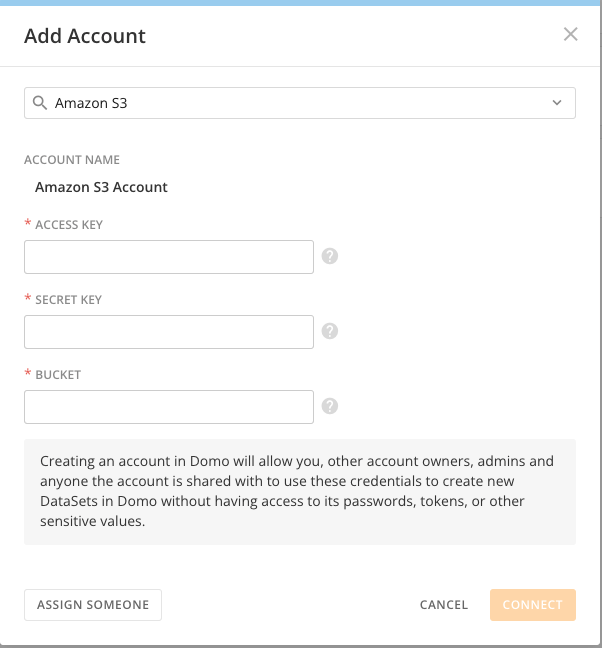
You will need a valid S3 account to use in the job.
1. Navigate to the Account section in your Data Center.
* [https://example.domo.com/datacenter/accounts](https://example.domo.com/datacenter/accounts)
2. Click the
**Add New** button in the top right-hand corner.
* Select
**Account**.
3. Search for
**Amazon S3**.
* You will want to select just the
**Amazon S3** account.
4. The account will ask you for the following information. All the information should be for your S3 account.
* Access Key
* Secret Key
* Bucket
5. Click
**Connect** to create the account.
 ## Creating a Job
1. Navigate to the
**Governance Toolkit** and select **PDP Automation**.
* [https://example.domo.com/admin/governance-toolkit/dataset-s3-backup](https://example.domo.com/admin/governance-toolkit/dataset-s3-backup)
2. Click
**+ New Job** at the top right.
3. Fill out the following information:
* Job Name (required)
* Job Description (optional)
* Selected DataSets (optional)
* You can add filtering to narrow down which DataSets you would like to include in the backup job.
* Each filter category will work as an AND statement.
* Each value in a filter category will work as an OR statement.
* I.E. The below screenshot would represent the filters as the following:
Owner Name = 'Nolan Landefeld'
AND
(Tag = 'Child Cards: 4022' OR Tag= 'Downstream Datasets: 288')
AND
(Type = 'Federated Data' OR Type = MySQL Federated')
## Creating a Job
1. Navigate to the
**Governance Toolkit** and select **PDP Automation**.
* [https://example.domo.com/admin/governance-toolkit/dataset-s3-backup](https://example.domo.com/admin/governance-toolkit/dataset-s3-backup)
2. Click
**+ New Job** at the top right.
3. Fill out the following information:
* Job Name (required)
* Job Description (optional)
* Selected DataSets (optional)
* You can add filtering to narrow down which DataSets you would like to include in the backup job.
* Each filter category will work as an AND statement.
* Each value in a filter category will work as an OR statement.
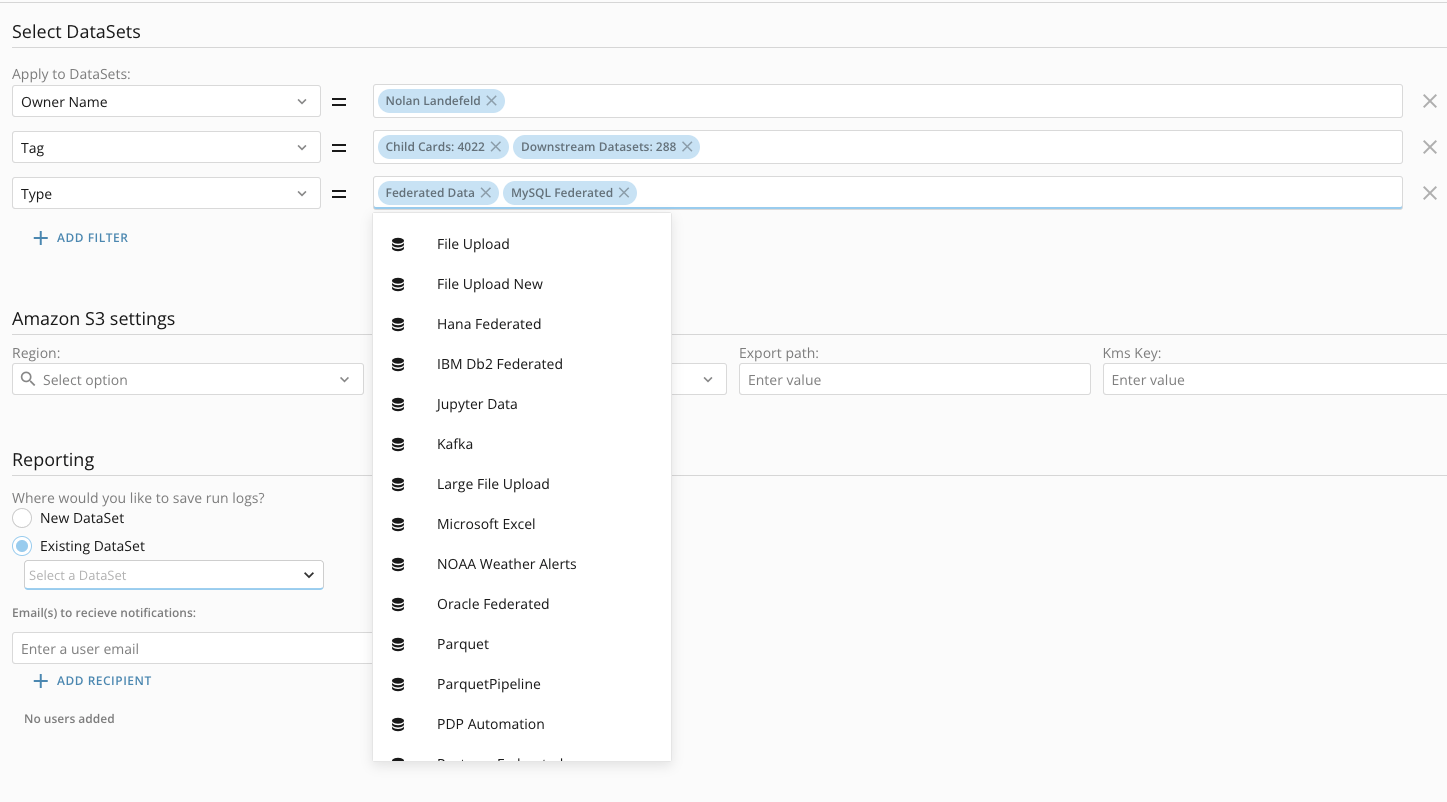
* I.E. The below screenshot would represent the filters as the following:
Owner Name = 'Nolan Landefeld'
AND
(Tag = 'Child Cards: 4022' OR Tag= 'Downstream Datasets: 288')
AND
(Type = 'Federated Data' OR Type = MySQL Federated')
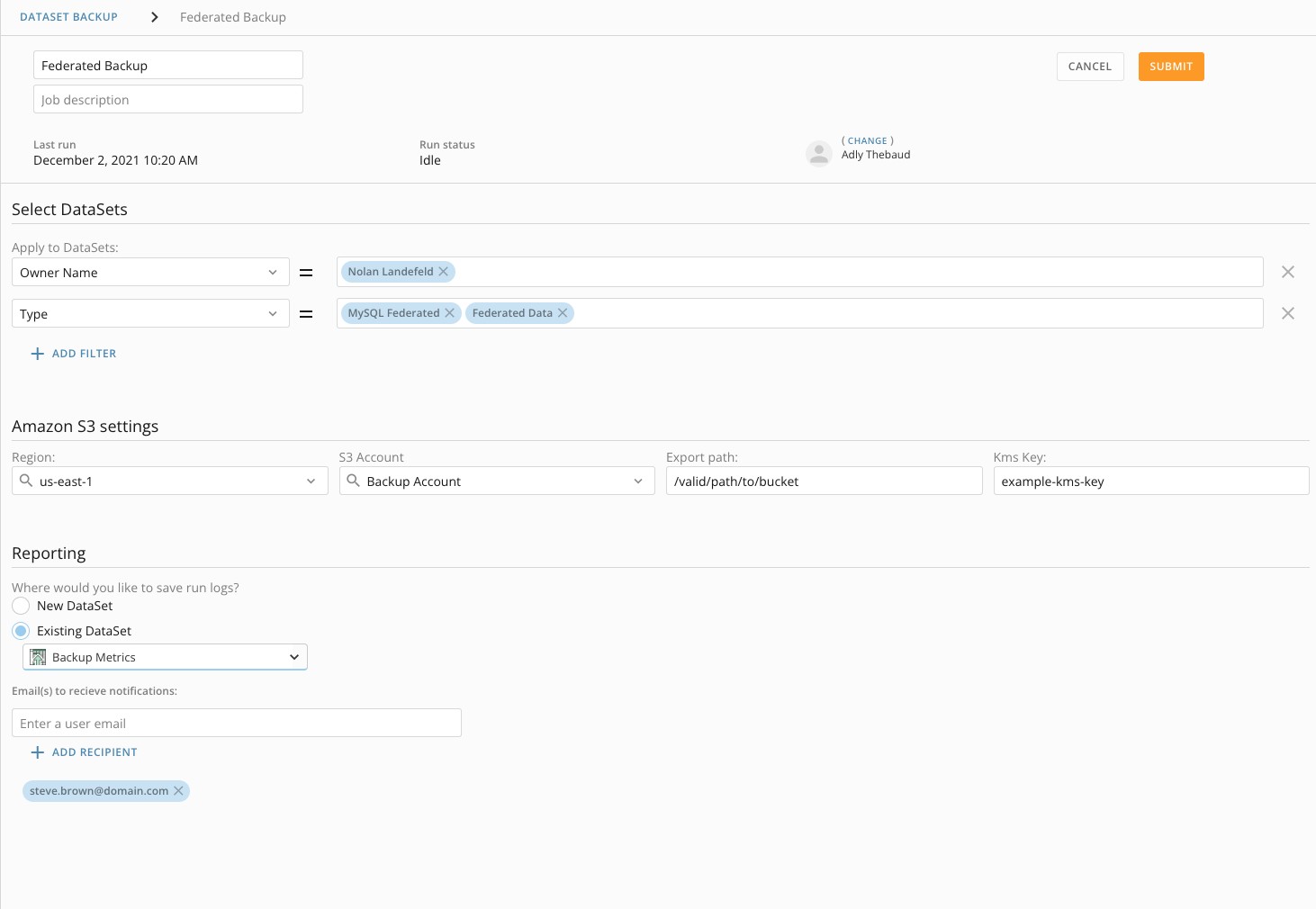
 * Region (required)
* Your S3 region.
* S3 Account (required)
* Select the S3 account you created for your job.
* Export Path (required)
* The path you wish to export the data to in your S3.
* Kms Key (required)
* Your S3 Kms Key.
* Run Logs (required)
* Each job will keep track of executions of the job and information surrounding that.
* New DataSet
* Will create a new DataSet in your Domo instance and all runs of the job will write logging to the new DataSet.
* Existing DataSet
* Existing DataSet will allow you to combine multiple DataSet Backup jobs into a single logging DataSet.
* The DataSet must be a DataSet created by the DataSet Backup tool.
* DataSet must also already contain rows of data.
* Email notifications (optional)
* You can add user emails to this field.
* Each email will receive an email notification from Domo each time the job runs.
* The notification will outline what the job did during the run and any failures that occurred.
* Region (required)
* Your S3 region.
* S3 Account (required)
* Select the S3 account you created for your job.
* Export Path (required)
* The path you wish to export the data to in your S3.
* Kms Key (required)
* Your S3 Kms Key.
* Run Logs (required)
* Each job will keep track of executions of the job and information surrounding that.
* New DataSet
* Will create a new DataSet in your Domo instance and all runs of the job will write logging to the new DataSet.
* Existing DataSet
* Existing DataSet will allow you to combine multiple DataSet Backup jobs into a single logging DataSet.
* The DataSet must be a DataSet created by the DataSet Backup tool.
* DataSet must also already contain rows of data.
* Email notifications (optional)
* You can add user emails to this field.
* Each email will receive an email notification from Domo each time the job runs.
* The notification will outline what the job did during the run and any failures that occurred.
 ## Running a Job
Each job has an Enabled Toggle. This will control how a job is run.
* Disabled
* The job will only execute when the job is manually run.
* Active
* The job will run once a week.
## Running a Job
Each job has an Enabled Toggle. This will control how a job is run.
* Disabled
* The job will only execute when the job is manually run.
* Active
* The job will run once a week.
