> ## Documentation Index
> Fetch the complete documentation index at: https://domoinc-openapi-sync-dataflows.mintlify.site/llms.txt
> Use this file to discover all available pages before exploring further.
# Setting User-Specific Landing Pages
export const InlineImage = ({src, alt = '', height = '1.6em'}) => {
return  ;
};
## Intro
With User-Specific Landing Pages, Admins can set curated Landing Pages to specify which content appears for specific users upon login. Users also have the ability to specify their own personal Landing Page. Either a Dashboard or a specific Card can be set as the Landing Page. This allows for setting Landing Pages that are relevant to their department, their team, or just that particular user.
**Note:**
Currently, the most recent option that has been set for a user will be the Landing Page that is displayed. For example, if an Admin has set a Landing Page for a specific user and then that user changes their Landing Page to a different one, the user's selection will override the Admin's selection.
**Video - User-Specific Landing Pages**
## Setting the User-Specific Landing Page as an Admin
As an Admin, you are able to set User-Specific Landing Pages for multiple users or for a single user.
**To set a User-Specific Landing Page for multiple users,**
1. Navigate to
**More > Admin > Governance > People**.
2. Select the users you would like to set the Landing Page for.
3. Click the
icon.
The Change landing page window opens.
4. (Optional) Select the desired Page or Card from the dropdown menu for their
**Desktop landing page**.
5. (Optional) Select the desired Page or Card from the dropdown menu for their
**Mobile landing page**.
;
};
## Intro
With User-Specific Landing Pages, Admins can set curated Landing Pages to specify which content appears for specific users upon login. Users also have the ability to specify their own personal Landing Page. Either a Dashboard or a specific Card can be set as the Landing Page. This allows for setting Landing Pages that are relevant to their department, their team, or just that particular user.
**Note:**
Currently, the most recent option that has been set for a user will be the Landing Page that is displayed. For example, if an Admin has set a Landing Page for a specific user and then that user changes their Landing Page to a different one, the user's selection will override the Admin's selection.
**Video - User-Specific Landing Pages**
## Setting the User-Specific Landing Page as an Admin
As an Admin, you are able to set User-Specific Landing Pages for multiple users or for a single user.
**To set a User-Specific Landing Page for multiple users,**
1. Navigate to
**More > Admin > Governance > People**.
2. Select the users you would like to set the Landing Page for.
3. Click the
icon.
The Change landing page window opens.
4. (Optional) Select the desired Page or Card from the dropdown menu for their
**Desktop landing page**.
5. (Optional) Select the desired Page or Card from the dropdown menu for their
**Mobile landing page**.
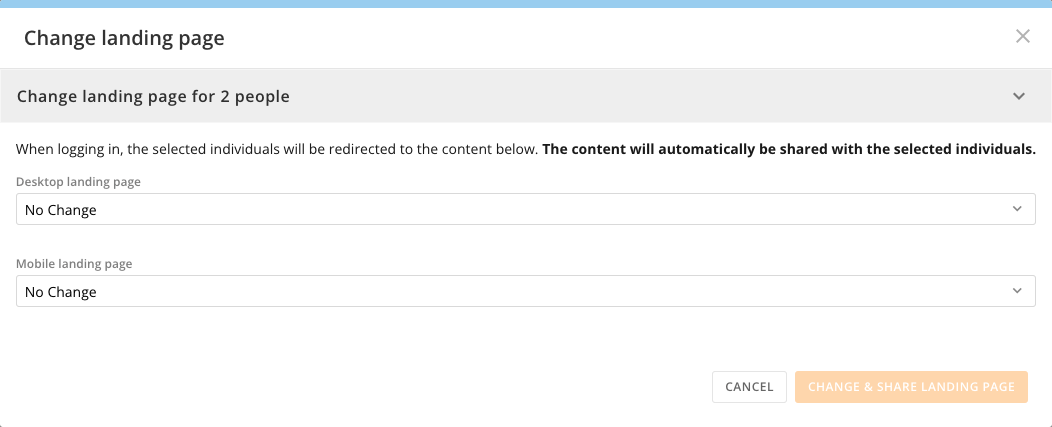 6. Click
**Change & Share Landing Page**.
**To set a User-Specific Landing Page for a single user,**
1. Navigate to
**More > Admin > Governance > People**.
2. Select the user you would like to set the Landing Page for.
3. Click the
icon.
The user Profile page opens.
4. (Optional) Hover over the
**Landing page** field and click the icon.
1. Select the desired Page or Card from the dropdown menu.
5. (Optional) Hover over the
**Mobile landing page** field, click the icon.
1. Select the desired Page or Card from the dropdown menu.
6. Click
**Change & Share Landing Page**.
**To set a User-Specific Landing Page for a single user,**
1. Navigate to
**More > Admin > Governance > People**.
2. Select the user you would like to set the Landing Page for.
3. Click the
icon.
The user Profile page opens.
4. (Optional) Hover over the
**Landing page** field and click the icon.
1. Select the desired Page or Card from the dropdown menu.
5. (Optional) Hover over the
**Mobile landing page** field, click the icon.
1. Select the desired Page or Card from the dropdown menu.
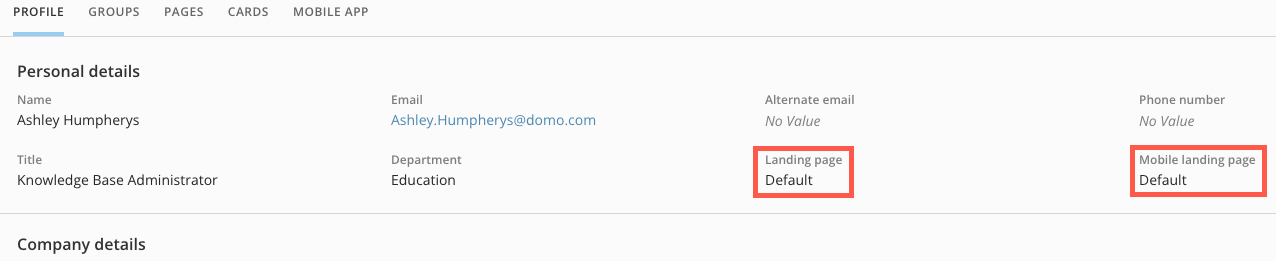 6. Click
**Save**.
## Setting your User-Specific Landing Page as a user
As a user, you can set the Landing Page that you would like to see when you first log into Domo.
**To set your User-Specific Landing Page,**
1. Click your picture in the top right-hand corner of the screen.
2. Select the
icon.
The Settings page opens.
3. (Optional) Select the desired Page or Card from the dropdown menu for your
**Desktop landing page**.
4. (Optional) Select the desired Page or Card from the dropdown menu for your
**Mobile landing page**.
6. Click
**Save**.
## Setting your User-Specific Landing Page as a user
As a user, you can set the Landing Page that you would like to see when you first log into Domo.
**To set your User-Specific Landing Page,**
1. Click your picture in the top right-hand corner of the screen.
2. Select the
icon.
The Settings page opens.
3. (Optional) Select the desired Page or Card from the dropdown menu for your
**Desktop landing page**.
4. (Optional) Select the desired Page or Card from the dropdown menu for your
**Mobile landing page**.
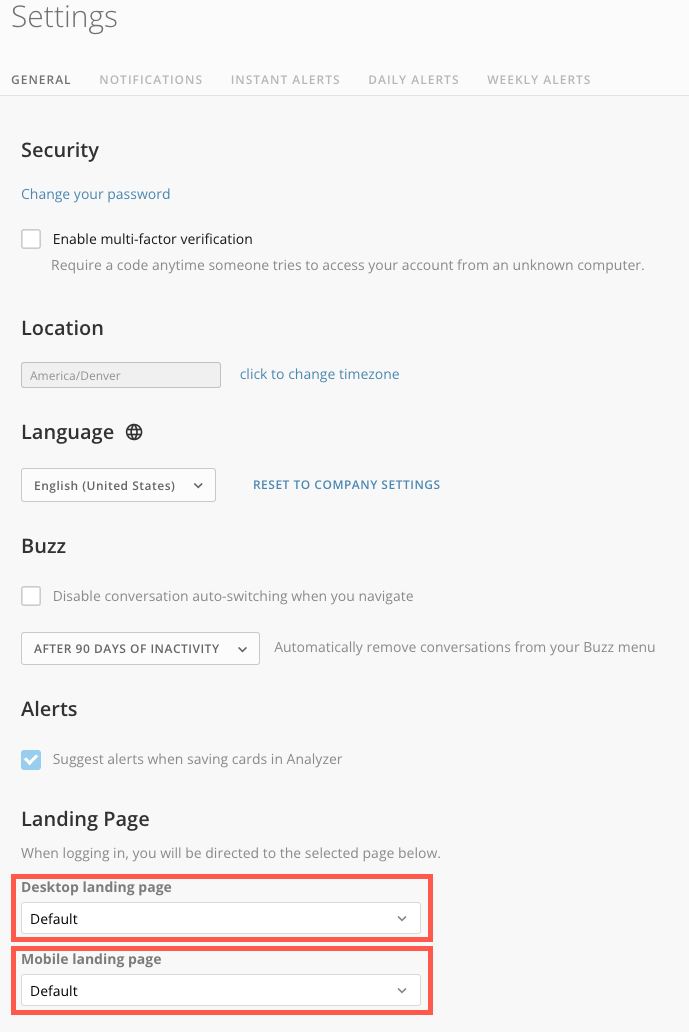 5. Click
**Select**.
5. Click
**Select**.