> ## Documentation Index
> Fetch the complete documentation index at: https://domoinc-openapi-sync-dataflows.mintlify.site/llms.txt
> Use this file to discover all available pages before exploring further.
# Scheduling a Job in Workbench 5.1
export const InlineImage = ({src, alt = '', height = '1.6em'}) => {
return  ;
};
You can schedule a DataSet job to routinely upload data from external DataSets to Domo. You can select a basic update frequency (once per day, once per week, etc.) or configure advanced scheduling options (such as setting an exact time, choosing specific days of the week or month, or setting update intervals within a specific daily timeframe). Or, if the data source is a local file, you can have Workbench run the job anytime the source file is updated. You can schedule jobs based on the local time of your server or Workbench machine without having to worry about the Daylight Savings Time.
For more information about the schedule job settings, see [Understanding the Workbench 5.1 User Interface](/s/article/4407032210199).
**Important:** When running on a schedule, Workbench uses the local system account to access the file. If the local system does not have access to the file, an error appears saying the file could not be accessed. You can get around this by changing the settings for Domo in Windows Services so you can run the DataSet Job with your own account, which has access to the file.
**Notes:**
* The **Update when file is changed** option works only when the file being watched is on the same PC as Workbench.
* A scheduled DataSet job sends data from the specified DataSet to Domo.
You can view the DataSet information in Domo by clicking **Data**. For more information, see [Data Center Layout](/s/article/360047553253 "Data Center Layout").
If there are any errors in the data, the DataSet is not sent to Domo. You can review logged information in the log files.
* A scheduled DataSet job uses the same update setting used when uploading data manually.
* You can receive an email report when a scheduled DataSet job runs. For more information, see Setting Notifications in Workbench 5.1.
* You can disable a scheduled DataSet job by changing the schedule to update manually.
#### To set a BASIC update schedule for a DataSet job,
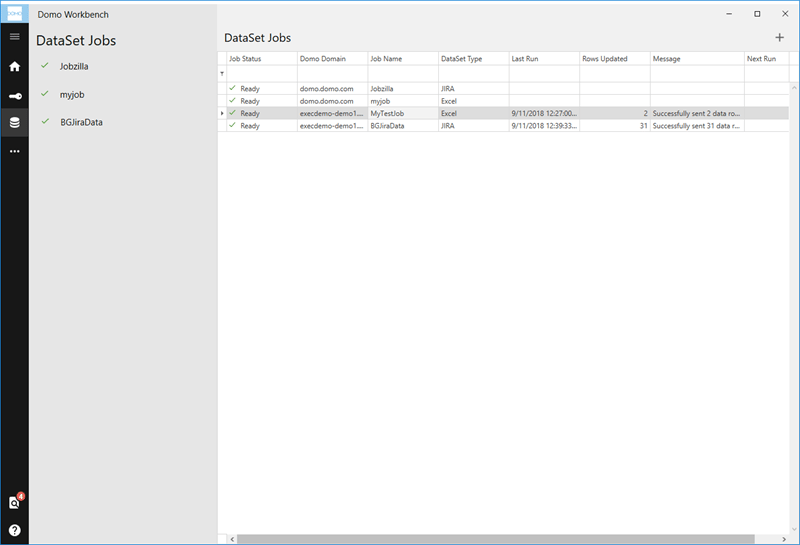
1. In the jobs listing in the
**Jobs** pane, double-click on the DataSet job you want to set an update schedule for.
;
};
You can schedule a DataSet job to routinely upload data from external DataSets to Domo. You can select a basic update frequency (once per day, once per week, etc.) or configure advanced scheduling options (such as setting an exact time, choosing specific days of the week or month, or setting update intervals within a specific daily timeframe). Or, if the data source is a local file, you can have Workbench run the job anytime the source file is updated. You can schedule jobs based on the local time of your server or Workbench machine without having to worry about the Daylight Savings Time.
For more information about the schedule job settings, see [Understanding the Workbench 5.1 User Interface](/s/article/4407032210199).
**Important:** When running on a schedule, Workbench uses the local system account to access the file. If the local system does not have access to the file, an error appears saying the file could not be accessed. You can get around this by changing the settings for Domo in Windows Services so you can run the DataSet Job with your own account, which has access to the file.
**Notes:**
* The **Update when file is changed** option works only when the file being watched is on the same PC as Workbench.
* A scheduled DataSet job sends data from the specified DataSet to Domo.
You can view the DataSet information in Domo by clicking **Data**. For more information, see [Data Center Layout](/s/article/360047553253 "Data Center Layout").
If there are any errors in the data, the DataSet is not sent to Domo. You can review logged information in the log files.
* A scheduled DataSet job uses the same update setting used when uploading data manually.
* You can receive an email report when a scheduled DataSet job runs. For more information, see Setting Notifications in Workbench 5.1.
* You can disable a scheduled DataSet job by changing the schedule to update manually.
#### To set a BASIC update schedule for a DataSet job,
1. In the jobs listing in the
**Jobs** pane, double-click on the DataSet job you want to set an update schedule for.
 2. Click the
**Schedule** subtab.
2. Click the
**Schedule** subtab.
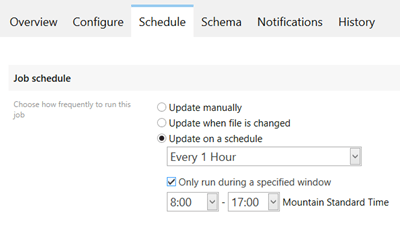 3. Select the radio button for the desired scheduling option.
* Select
**Update manually** if you intend to run this job manually instead of on a schedule or automatically when the data source changes.
* Select
**Update when file is changed** if you want the job to run anytime the data source is updated (local files only).
* Select
**Update on a schedule** if you want the job to run on a schedule.
4. (Conditional) If you selected
**Update on a schedule** in step 3, configure options as desired.
For example, if you select an update frequency of less than a day, you have the option to specify a range of hours when updating is active. If you select **Every Month** as the update frequency, you are prompted to enter the time of day as well as the days of the month when updating will occur.
**Note:** If you need your DataSet to update faster than every 15 minutes, please reach out to your account team for evaluation.
#### To set an ADVANCED update schedule for a DataSet job,
1. In the jobs listing in the
**Jobs** pane, double-click on the DataSet job you want to set an update schedule for.
2. Click the
**Schedule** subtab.
3. Click the
**Advanced Schedule** subtab.
3. Select the radio button for the desired scheduling option.
* Select
**Update manually** if you intend to run this job manually instead of on a schedule or automatically when the data source changes.
* Select
**Update when file is changed** if you want the job to run anytime the data source is updated (local files only).
* Select
**Update on a schedule** if you want the job to run on a schedule.
4. (Conditional) If you selected
**Update on a schedule** in step 3, configure options as desired.
For example, if you select an update frequency of less than a day, you have the option to specify a range of hours when updating is active. If you select **Every Month** as the update frequency, you are prompted to enter the time of day as well as the days of the month when updating will occur.
**Note:** If you need your DataSet to update faster than every 15 minutes, please reach out to your account team for evaluation.
#### To set an ADVANCED update schedule for a DataSet job,
1. In the jobs listing in the
**Jobs** pane, double-click on the DataSet job you want to set an update schedule for.
2. Click the
**Schedule** subtab.
3. Click the
**Advanced Schedule** subtab.
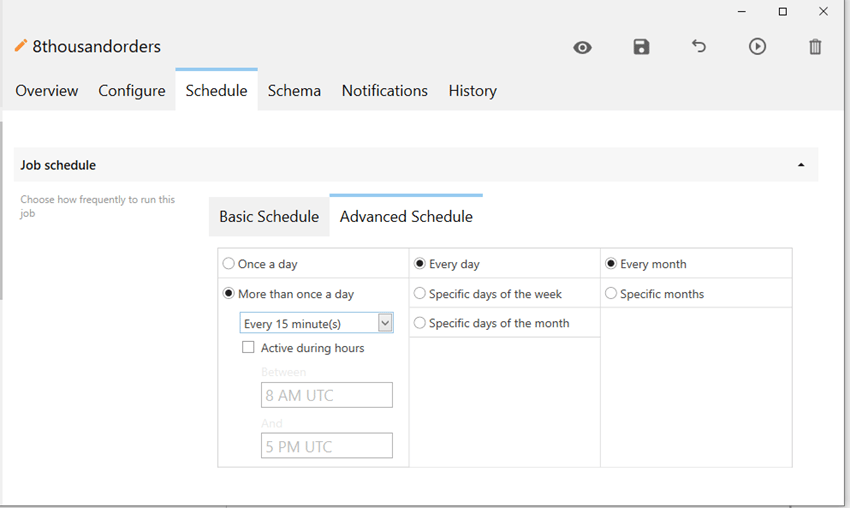 4. Configure your desired update schedule using the available options.
* By combining options from the three columns, you can create very specific update schedules. For example, you could choose **Once a day** from the first column and set the daily update to occur at 8:00 p.m.; you could have this happen on Wednesday and Saturday by choosing **Specific days of the week** in the second column then checking the boxes for Wednesday and Saturday; and you could ensure this happens every month by choosing the **Every month** radio button in the third column.
* For **More than once a day**, you choose the interval at which updates occur (every 15 minutes, every 30 minutes, or every hour). You can also set a timeframe during which updates are made by checking the **Active during hours** box then entering the desired hours for the timeframe.
**Note:** If you need your DataSet to update faster than every 15 minutes, please reach out to your account team for evaluation.
#### Local Time Scheduling
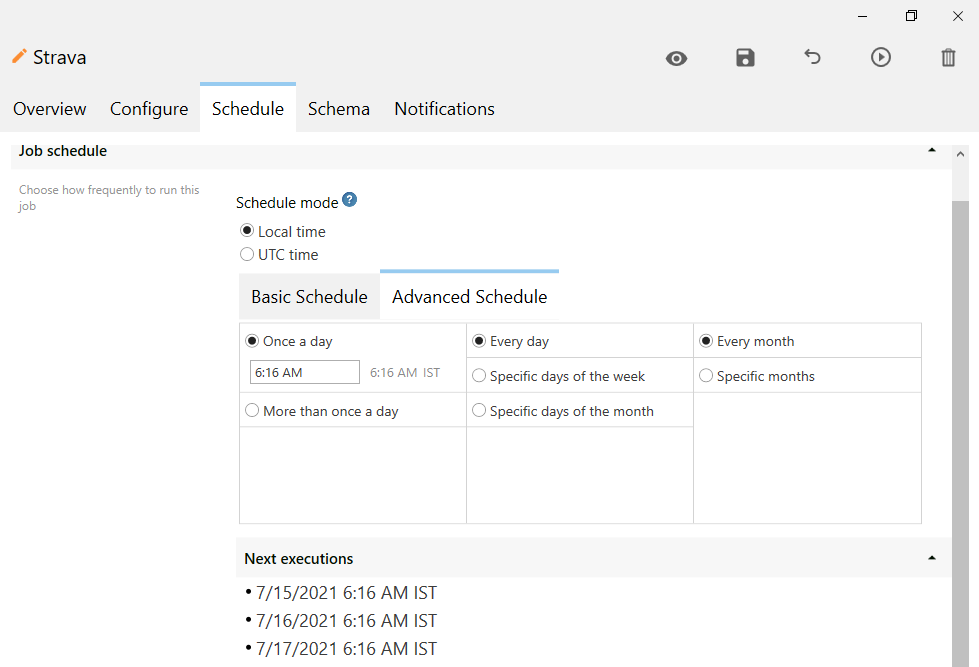
You can schedule jobs to activate based on the local time of your server or Workbench machine, thus you don't have to adjust for Daylight Savings Time. You can also see the next five scheduled run times, so you know exactly when your jobs will run next. When the local time on your machine changes, the Workbench job schedule will automatically sync with the time on your machine.
4. Configure your desired update schedule using the available options.
* By combining options from the three columns, you can create very specific update schedules. For example, you could choose **Once a day** from the first column and set the daily update to occur at 8:00 p.m.; you could have this happen on Wednesday and Saturday by choosing **Specific days of the week** in the second column then checking the boxes for Wednesday and Saturday; and you could ensure this happens every month by choosing the **Every month** radio button in the third column.
* For **More than once a day**, you choose the interval at which updates occur (every 15 minutes, every 30 minutes, or every hour). You can also set a timeframe during which updates are made by checking the **Active during hours** box then entering the desired hours for the timeframe.
**Note:** If you need your DataSet to update faster than every 15 minutes, please reach out to your account team for evaluation.
#### Local Time Scheduling
You can schedule jobs to activate based on the local time of your server or Workbench machine, thus you don't have to adjust for Daylight Savings Time. You can also see the next five scheduled run times, so you know exactly when your jobs will run next. When the local time on your machine changes, the Workbench job schedule will automatically sync with the time on your machine.
 **Note:** Using local time schedules in Workbench 5.1 migrates the schedules. If you would like to move back to Workbench 5.0, the schedules will be disturbed. In such a case, the schedules will be broken that are scheduled to run at specific time (i.e., 12:30pm EST), or are scheduled to run on a specific day of the week (Monday).
#### To disable a scheduled job,
1. In the jobs listing in the
**Jobs** pane, double-click on the DataSet job you want to disable scheduling for.
2. Click the
**Schedule** subtab.
3. In the
**Update** menu, select **Manually**.
**Tips:** If a scheduled job does not run when you expect,
* Check the log files for errors.
* Ensure that the machine is properly connected to the network and Internet.
## Group scheduling options
With the group scheduling options available in Workbench 5.1, you can create job dependencies or select jobs to run as a group.
For example, with schedule groups, if a job fails in your data pipeline, you can stop subsequent jobs from running. Or, if you need to wait for your source data systems to finish updating, you can schedule a group of jobs to run at the same time after your source data is ready.
**Note:**
* Jobs must be set to *manual* scheduling to be available for group scheduling.
* Be aware that any given job can be on a regular schedule or a group schedule but not both.
#### To set a group schedule,
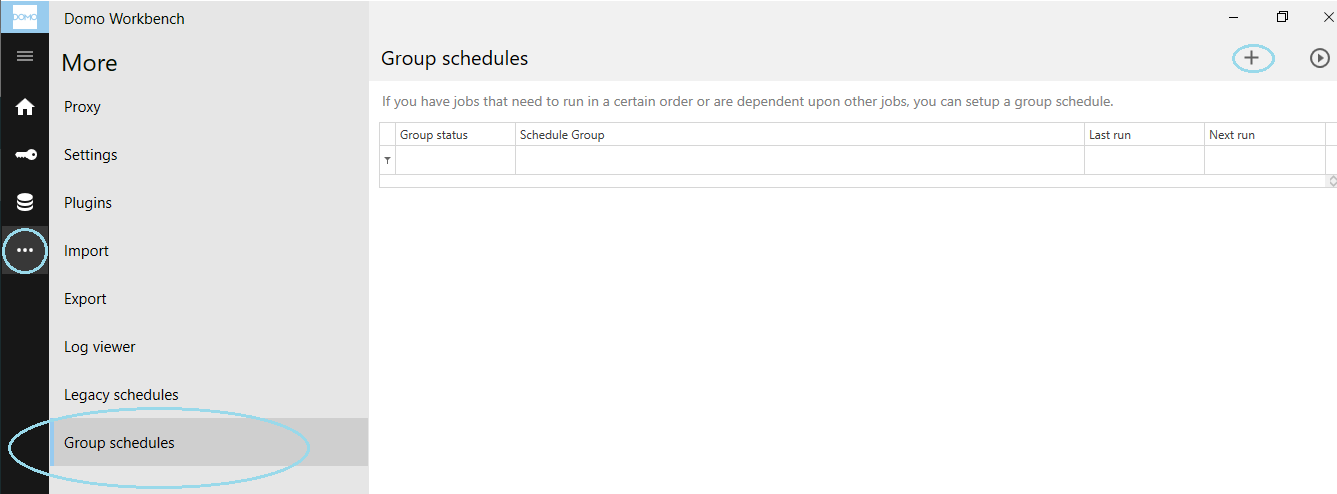
1. In Workbench, click the
icon in the toolbar on the left side of the screen.
2. Click
**Group Schedules**.
3. Click the "**+**" button in the upper right corner of the screen.
**Note:** Using local time schedules in Workbench 5.1 migrates the schedules. If you would like to move back to Workbench 5.0, the schedules will be disturbed. In such a case, the schedules will be broken that are scheduled to run at specific time (i.e., 12:30pm EST), or are scheduled to run on a specific day of the week (Monday).
#### To disable a scheduled job,
1. In the jobs listing in the
**Jobs** pane, double-click on the DataSet job you want to disable scheduling for.
2. Click the
**Schedule** subtab.
3. In the
**Update** menu, select **Manually**.
**Tips:** If a scheduled job does not run when you expect,
* Check the log files for errors.
* Ensure that the machine is properly connected to the network and Internet.
## Group scheduling options
With the group scheduling options available in Workbench 5.1, you can create job dependencies or select jobs to run as a group.
For example, with schedule groups, if a job fails in your data pipeline, you can stop subsequent jobs from running. Or, if you need to wait for your source data systems to finish updating, you can schedule a group of jobs to run at the same time after your source data is ready.
**Note:**
* Jobs must be set to *manual* scheduling to be available for group scheduling.
* Be aware that any given job can be on a regular schedule or a group schedule but not both.
#### To set a group schedule,
1. In Workbench, click the
icon in the toolbar on the left side of the screen.
2. Click
**Group Schedules**.
3. Click the "**+**" button in the upper right corner of the screen.
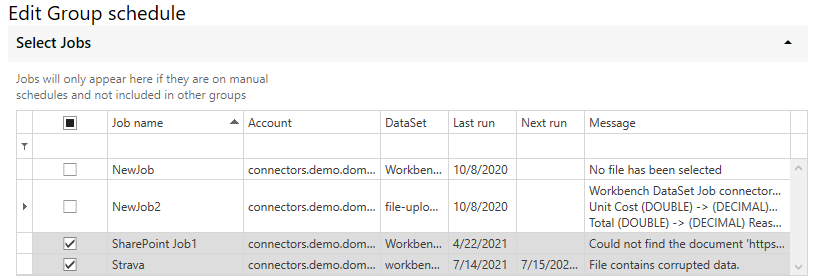
 A list of jobs appears.
4. Check the boxes for all jobs you want in your schedule group.
A list of jobs appears.
4. Check the boxes for all jobs you want in your schedule group.
 5. Scroll down to the
**Run order** area.
6. Set the run order for the jobs.
You can move jobs up or down in the order by selecting them and then clicking or , respectively, in the upper right corner; you can delete a job from the group by selecting it then clicking the trash can icon; you can choose to run selected jobs either with or after the previous job in the list by choosing the desired option in the **Run** menu; and you can mark jobs as critical by checking the **Critical** box for a job.
5. Scroll down to the
**Run order** area.
6. Set the run order for the jobs.
You can move jobs up or down in the order by selecting them and then clicking or , respectively, in the upper right corner; you can delete a job from the group by selecting it then clicking the trash can icon; you can choose to run selected jobs either with or after the previous job in the list by choosing the desired option in the **Run** menu; and you can mark jobs as critical by checking the **Critical** box for a job.
 7. Scroll down to the
**Schedule** area.
8. Configure a basic or advanced schedule for the job, following the instructions provided in the previous section.
9. Enter a name for the group schedule in the
**Name** field.
10. Click
**Done**.
7. Scroll down to the
**Schedule** area.
8. Configure a basic or advanced schedule for the job, following the instructions provided in the previous section.
9. Enter a name for the group schedule in the
**Name** field.
10. Click
**Done**.