> ## Documentation Index
> Fetch the complete documentation index at: https://domoinc-openapi-sync-dataflows.mintlify.site/llms.txt
> Use this file to discover all available pages before exploring further.
# Asset Library
export const InlineImage = ({src, alt = '', height = '1.6em'}) => {
return  ;
};
# Intro
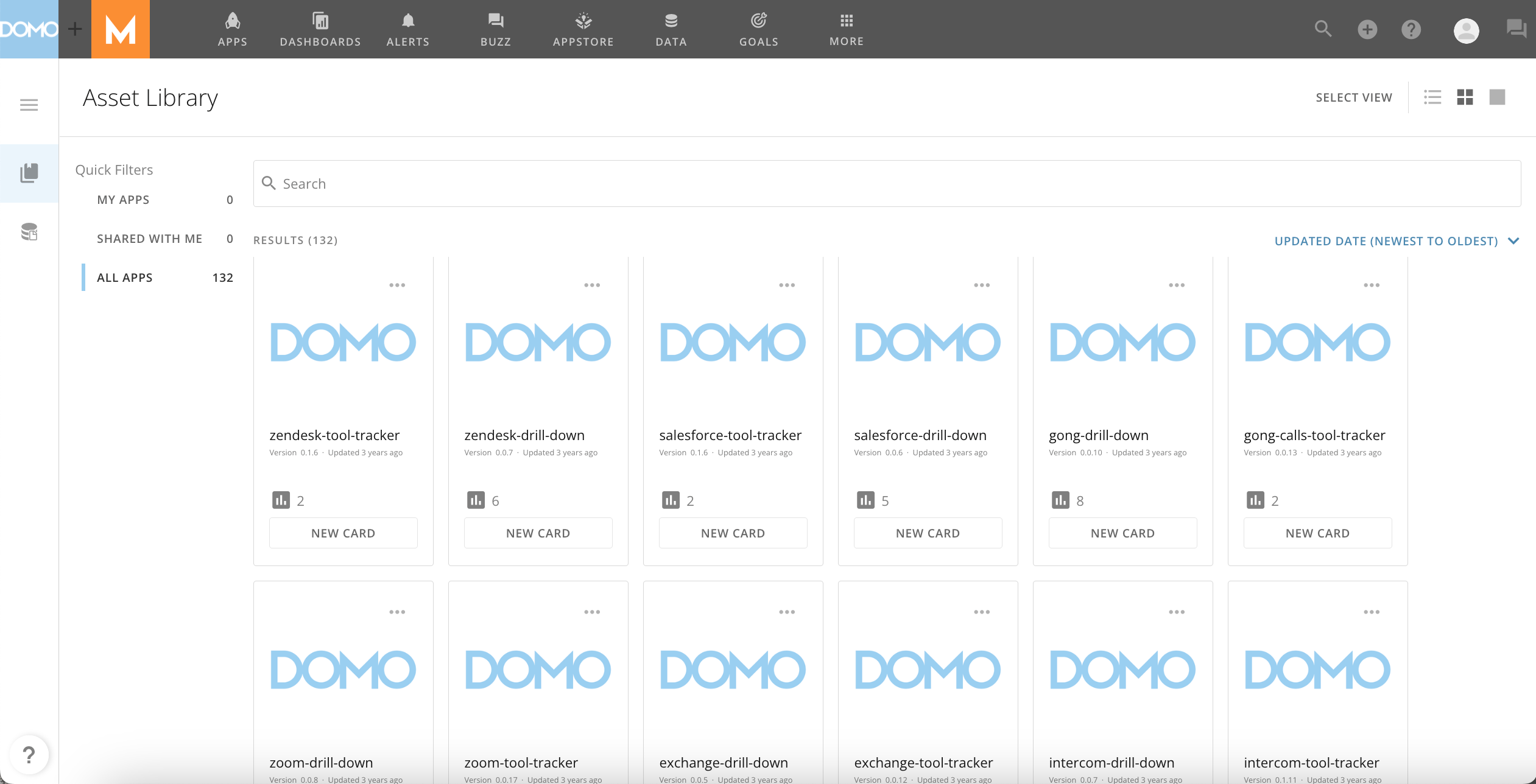
The Asset Library contains all the assets in your organization's instance, including apps. You can manage apps that you have created and apps that have been shared with you. If you have an Admin default security role, you can also manage all apps that exist in the instance.
;
};
# Intro
The Asset Library contains all the assets in your organization's instance, including apps. You can manage apps that you have created and apps that have been shared with you. If you have an Admin default security role, you can also manage all apps that exist in the instance.
 ***
# Access Asset Library
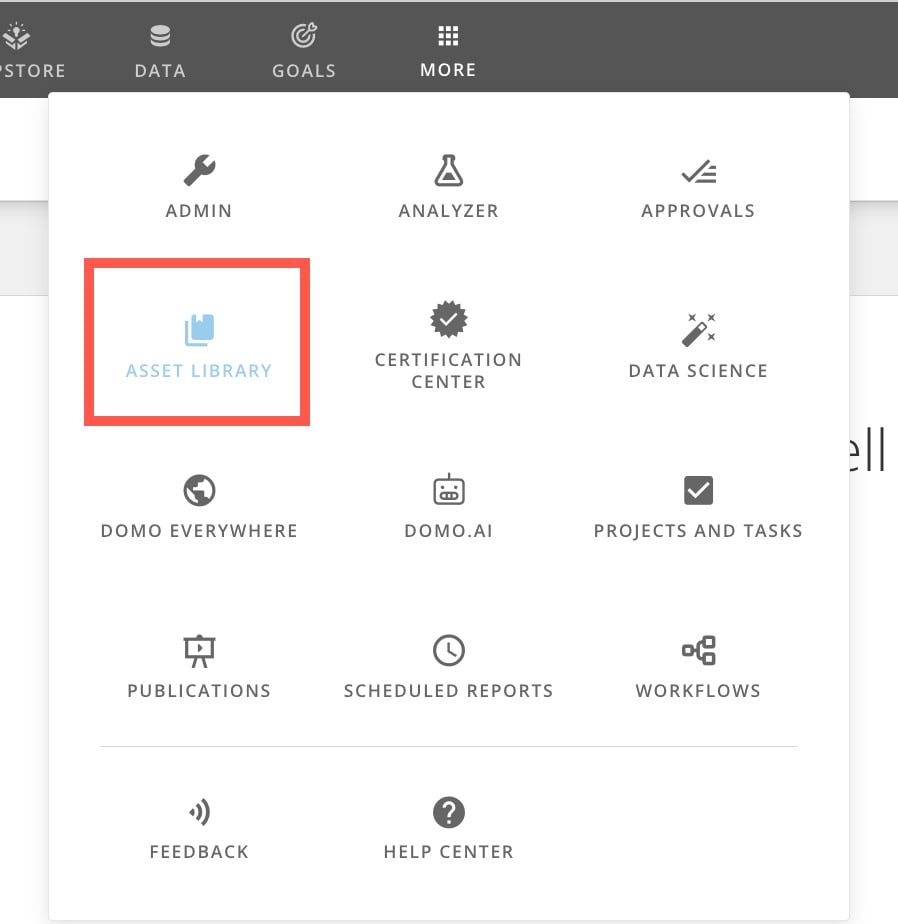
You can access the Asset Library from the navigation header by selecting **More** > **Asset Library**.
***
# Access Asset Library
You can access the Asset Library from the navigation header by selecting **More** > **Asset Library**.
 # Landing Page
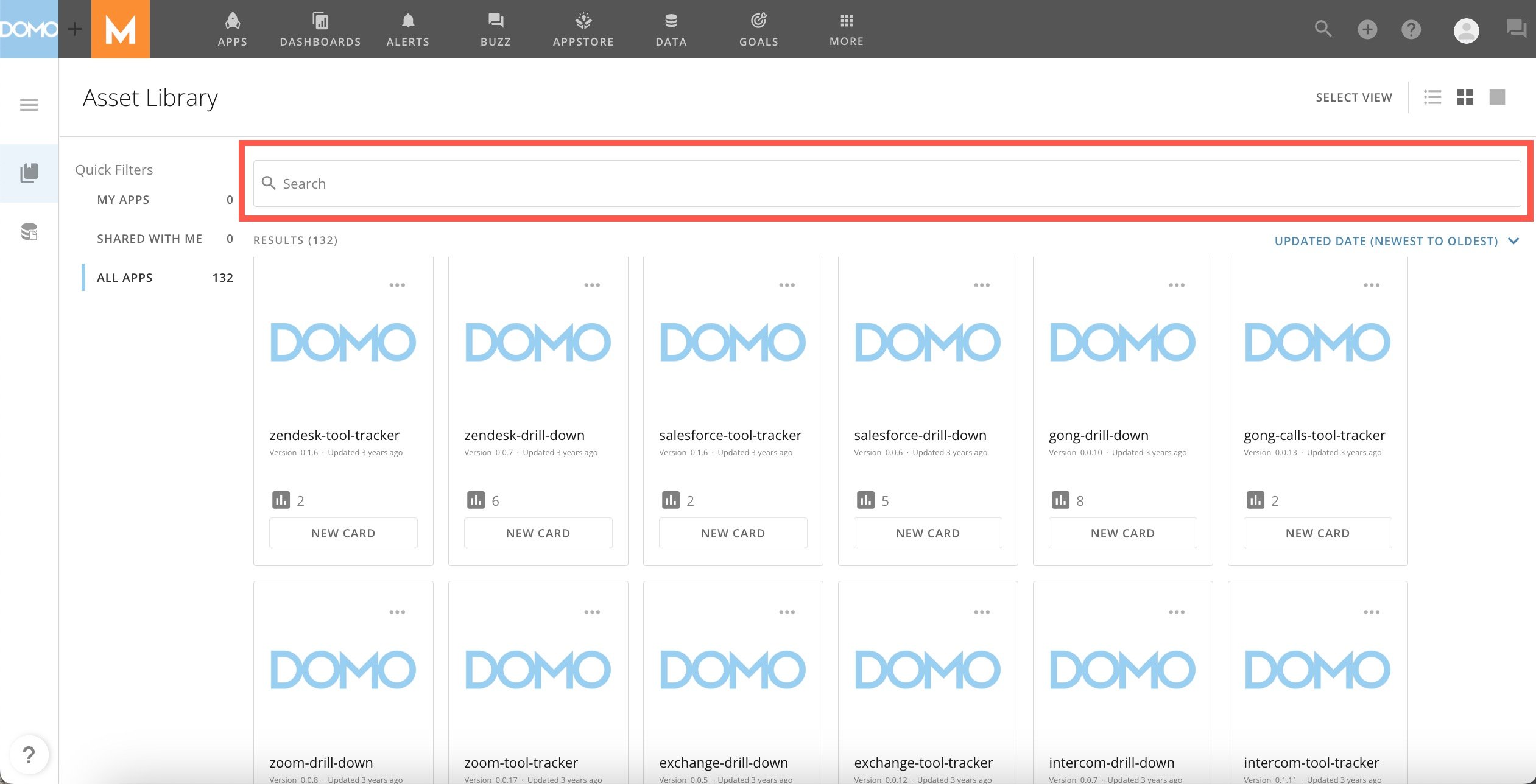
The Asset Library landing page contains a list of apps in your instance. You can customize the way you view the list as well as filter, search, and sort the list. Learn more about these options below.
You can choose one of the following view options:
* **List View**
**—** Displays apps vertically in rows. This is similar to DataSets.
* **Tile View**
**—** Displays apps in smaller tiles so you can see more apps on the page.
* **Original View**
**—** Displays apps in larger tiles.
# Landing Page
The Asset Library landing page contains a list of apps in your instance. You can customize the way you view the list as well as filter, search, and sort the list. Learn more about these options below.
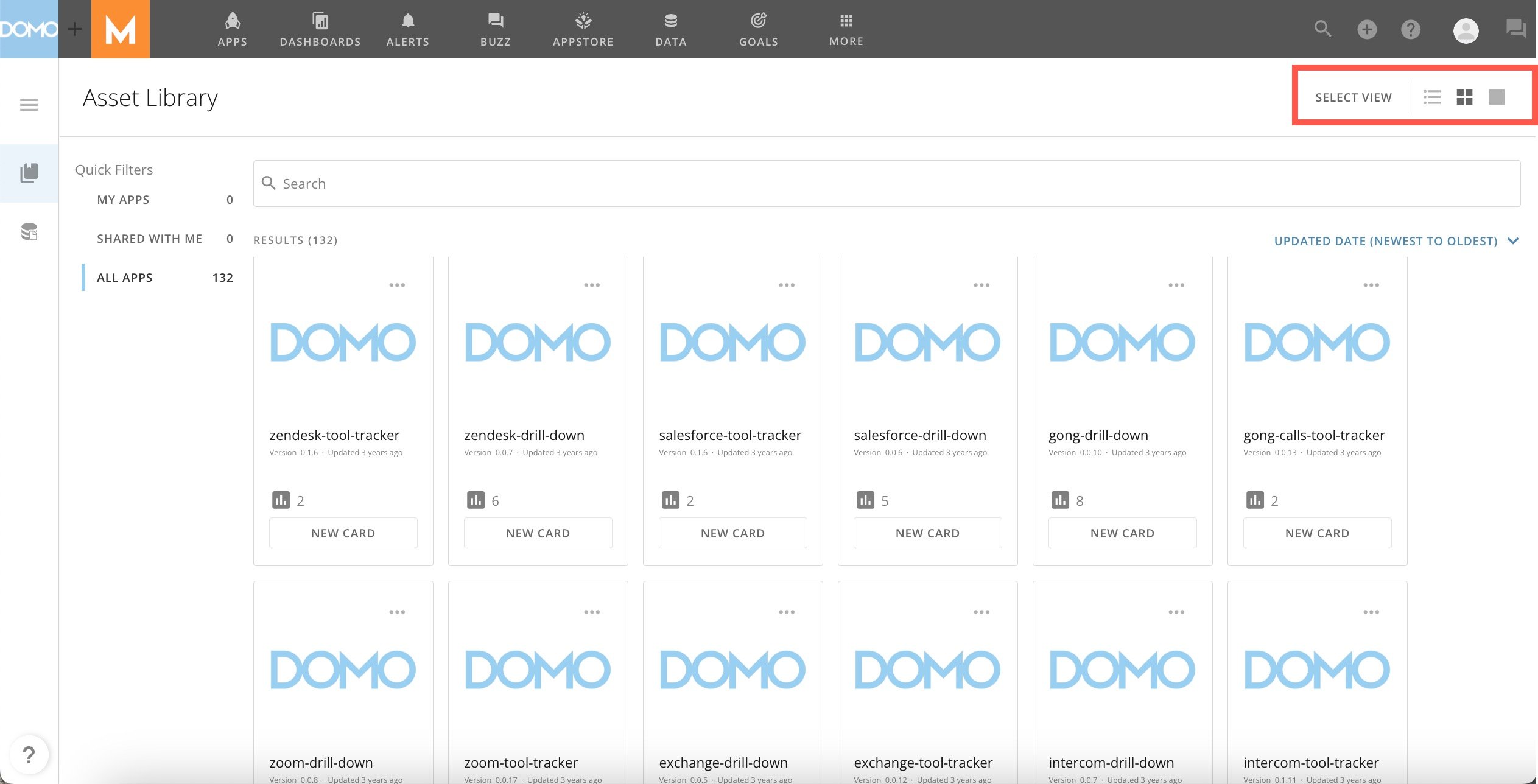
You can choose one of the following view options:
* **List View**
**—** Displays apps vertically in rows. This is similar to DataSets.
* **Tile View**
**—** Displays apps in smaller tiles so you can see more apps on the page.
* **Original View**
**—** Displays apps in larger tiles.
 The following Quick Filters allow you to choose what part of the library you want to search, filter, and sort through:
* **My Apps**
— Contains all the apps you have created.
* **Shared With Me**
— Contains all the apps that have been shared with you
* **All Apps**
— Contains all the apps created in your company's instance.
**Note:**
You must have an Admin default security role to access the
**All Apps**
Filter.
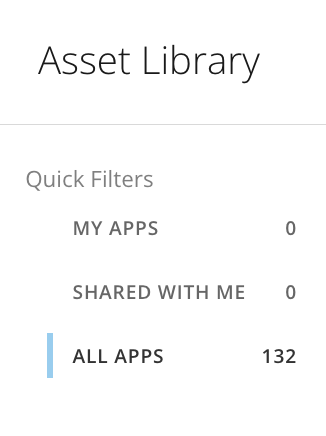
The following Quick Filters allow you to choose what part of the library you want to search, filter, and sort through:
* **My Apps**
— Contains all the apps you have created.
* **Shared With Me**
— Contains all the apps that have been shared with you
* **All Apps**
— Contains all the apps created in your company's instance.
**Note:**
You must have an Admin default security role to access the
**All Apps**
Filter.
 To find a specific app, enter one or more keywords in the search bar.
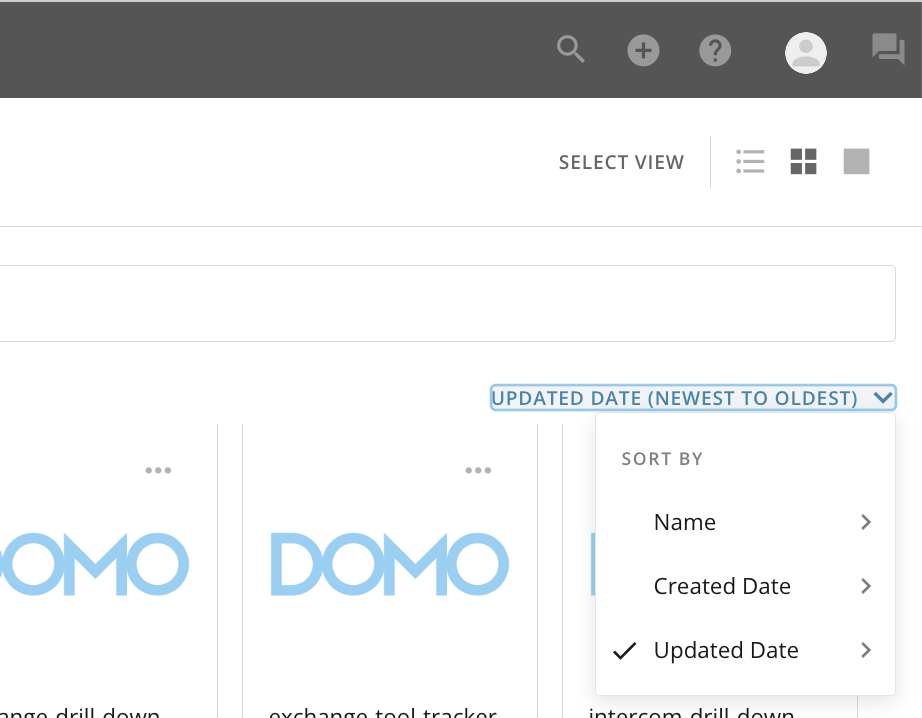
 The **Sort By** menu provides the following options for sorting the list:
* **Name**
— Sorts apps alphabetically: from **A to Z** or **Z to A**.
* **Created Date**
— Sorts apps by the date they were created: from **Newest to Oldest** or **Oldest to Newest**.
* **Updated Date**
— Sorts apps by the date they were last updated: from **Newest to Oldest** or **Oldest to Newest**.
The **Sort By** menu provides the following options for sorting the list:
* **Name**
— Sorts apps alphabetically: from **A to Z** or **Z to A**.
* **Created Date**
— Sorts apps by the date they were created: from **Newest to Oldest** or **Oldest to Newest**.
* **Updated Date**
— Sorts apps by the date they were last updated: from **Newest to Oldest** or **Oldest to Newest**.
 # App Details
While the layout depends on your view of the landing page, each app in the list displays a title, a version number, the date it was last updated, the owner's avatar, the number of cards—instances of the app—and an option to create a new card.
Hover over the **More** icon for an app to display the following options:
* **Download Assets —**
Downloads the available files for the app.
* **Share —**
Opens the **Share** modal, where you can choose to share the app with other users.
* **Create Card —**
Creates a new instance of the app.
Select an app from the list/app tile to display the app Details. There are four tabs in the app Details, described below:
# App Details
While the layout depends on your view of the landing page, each app in the list displays a title, a version number, the date it was last updated, the owner's avatar, the number of cards—instances of the app—and an option to create a new card.
Hover over the **More** icon for an app to display the following options:
* **Download Assets —**
Downloads the available files for the app.
* **Share —**
Opens the **Share** modal, where you can choose to share the app with other users.
* **Create Card —**
Creates a new instance of the app.
Select an app from the list/app tile to display the app Details. There are four tabs in the app Details, described below:
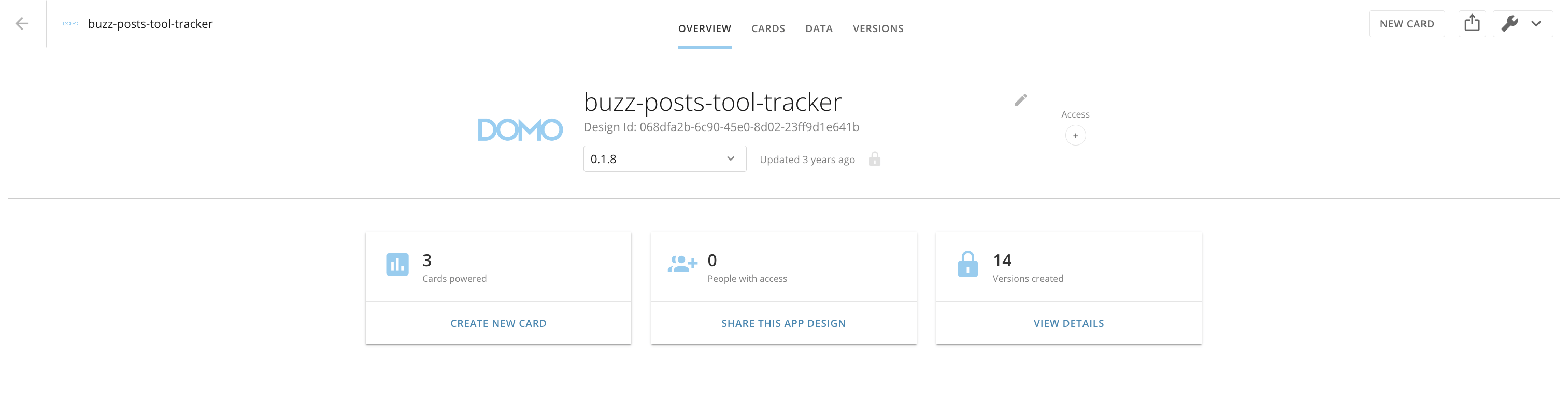 * The
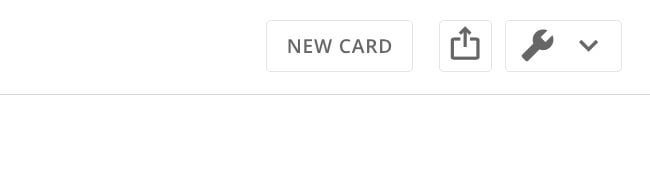
**Overview** tab displays the app name, design ID, version number, date last updated. This tab also allows you to create a new card (instance of the app), share the app, or download the available files for the app. (Select **App options** > **Download Assets**.)
* The
**Overview** tab displays the app name, design ID, version number, date last updated. This tab also allows you to create a new card (instance of the app), share the app, or download the available files for the app. (Select **App options** > **Download Assets**.)
 * The
**Cards** tab displays the cards created with the app and displays the option to **Create** **Card**.
* The
**Data** tab displays the data powering the app divided into **DataSets**, **Wired Collections**, and **Datastore Collections**. For each of these data sources, you can view the owner, a list of people with access to it, and the number of views.
Navigate between the different groups of data (divided by card/app instance) by selecting **Expand/Collapse**.
* The
**Versions** tab displays all of the versions of the app and allows you to release the version(s) to the Appstore.
* The
**Cards** tab displays the cards created with the app and displays the option to **Create** **Card**.
* The
**Data** tab displays the data powering the app divided into **DataSets**, **Wired Collections**, and **Datastore Collections**. For each of these data sources, you can view the owner, a list of people with access to it, and the number of views.
Navigate between the different groups of data (divided by card/app instance) by selecting **Expand/Collapse**.
* The
**Versions** tab displays all of the versions of the app and allows you to release the version(s) to the Appstore.