> ## Documentation Index
> Fetch the complete documentation index at: https://domoinc-openapi-sync-dataflows.mintlify.site/llms.txt
> Use this file to discover all available pages before exploring further.

# Snowflake Managed Unload Connector

<Note>
  **Note:** Snowflake will no longer support the username and password authentication mechanism as of November 2025. As a result, this connector will be retired in November 2025 and will no longer function. Please consider using one of the following connection methods instead:

  * [Cloud Amplifier](https://domo-support.domo.com/s/article/4402322966807?language=en_US "Cloud Amplifier")
  * [Snowflake Key Pair Internal Managed Unload Connector](/s/article/360061224493 "Snowflake Key Pair Internal Managed Unload Connector")
  * [Snowflake OAuth Internal Unload v2 Connector](/s/article/1500010196881 "Snowflake OAuth Internal Unload v2 Connector")
</Note>

## Intro

Snowflake is a cloud-based analytic data warehouse system. Use Domo's Snowflake Managed Unload connector to unload data from your Snowflake database into internal Amazon S3. The files are then downloaded from internal S3 into Domo. This connector should be preferred over the other Snowflake connectors if you are executing very large queries. To learn more about the Snowflake API, visit their page ([https://docs.snowflake.net/manuals](https://docs.snowflake.net/manuals "https://docs.snowflake.net/manuals") ).

You connect to your Snowflake Managed Unload account in the Data Center. This topic discusses the fields and menus that are specific to the Snowflake Managed Unload connector user interface. General information for adding DataSets, setting update schedules, and editing DataSet information is discussed in [Adding a DataSet Using a Data Connector](https://domo-support.domo.com/s/article/360042926274?language=en_US "Adding a DataSet Using a Data Connector").

## Prerequisites

To connect to your Snowflake Managed Unload account and create a DataSet, you must have the following:

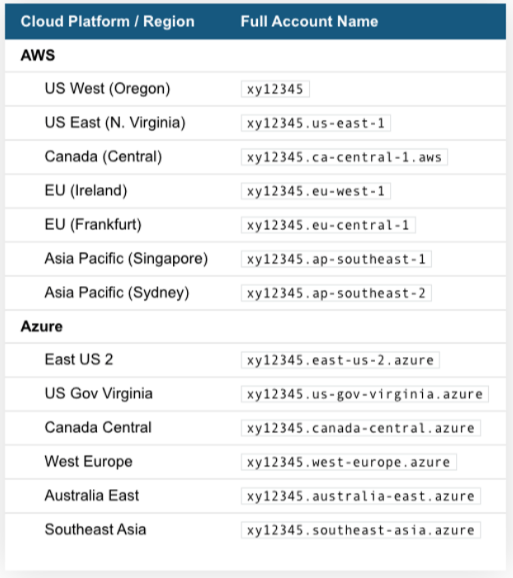
* The full name of your account (provided by Snowflake). For US West Region
  ****account\_name****, and All other regions ****account\_name.region\_id****. This is the portion of your Snowflake URL immediately following https\://.

  Note that your full account name may include additional segments that identify the region and cloud platform where your account is hosted. The following table provides account name examples by cloud platform/region. For each row, it assumes your account name is "xy12345."

  <Frame>
    <img alt="snowflake_account_names.png" src="https://mintcdn.com/domoinc-openapi-sync-dataflows/blcgkVgnZv6gj_XY/images/kb/ka05w00000123Kt-00N5w00000Ri7BU-0EM5w000005vO5S.png?fit=max&auto=format&n=blcgkVgnZv6gj_XY&q=85&s=94e8a1fb7fbd352130ec6ddef81336bf" width="513" height="578" data-path="images/kb/ka05w00000123Kt-00N5w00000Ri7BU-0EM5w000005vO5S.png" />
  </Frame>

* The username and password used to connect to your Snowflake host.

Snowflake Managed Unload Connector requires more permissions than a regular Snowflake Connector. Here is the list of commands for roles and permissions:

<table border="1" data-aura-rendered-by="33:195;a"><tbody><tr><td colspan="1" rowspan="1"> CREATE STAGE </td><td colspan="1" rowspan="1"><span> Creates a new stage to unload data from tables into files </span></td></tr><tr><td colspan="1" rowspan="1"> COPY INTO \<location> </td><td colspan="1" rowspan="1"><span> command to unload all the rows from a table into one or more files into the stage </span></td></tr><tr><td colspan="1" rowspan="1"><span> CREATE FILE FORMAT </span></td><td colspan="1" rowspan="1"> Creates a file format </td></tr><tr><td colspan="1" rowspan="1"> LIST </td><td colspan="1" rowspan="1"><span> Returns a list of files that have been staged </span></td></tr><tr><td colspan="1" rowspan="1"><span> GET </span></td><td colspan="1" rowspan="1"><span> Downloads data files from the above created Snowflake stage </span></td></tr><tr><td colspan="1" rowspan="1"><span> REMOVE </span></td><td colspan="1" rowspan="1"><span> Removes files that have been staged - unloaded from a table </span></td></tr></tbody></table>

## Connecting to Your Snowflake Managed Unload Account

This section enumerates the options in the **Credentials** and **Details** panes in the Snowflake Managed Unload Connector page. The components of the other panes in this page, **Scheduling** and **Name & Describe Your DataSet**, are universal across most connector types and are discussed in greater length in [Adding a DataSet Using a Data Connector](https://domo-support.domo.com/s/article/360042926274?language=en_US "Adding a DataSet Using a Data Connector").

## Credentials Pane

This pane contains fields for entering credentials to connect to your Snowflake Managed Unload account. The following table describes what is needed for each field:

<table border="1" cellpadding="1" cellspacing="1" data-aura-rendered-by="33:195;a"><thead><tr><th colspan="1" rowspan="1"><p><span class="s1"> Field </span></p></th><th colspan="1" rowspan="1"><p><span class="s1"> Description </span></p></th></tr></thead><tbody><tr><td colspan="1" rowspan="1"> Account Name </td><td colspan="1" rowspan="1"> Enter your Snowflake account name. For more information, see <a href="#h_01ES6VKF5A1N9WPTTBV00ZQDBF" target="_self" title="Snowflake Managed Unload"> Prerequisites </a>. </td></tr><tr><td colspan="1" rowspan="1"> Username </td><td colspan="1" rowspan="1"> Enter the username you use to connect to your Snowflake host. </td></tr><tr><td colspan="1" rowspan="1"> Password </td><td colspan="1" rowspan="1"> Enter the password you use to connect to your Snowflake host. </td></tr><tr><td colspan="1" rowspan="1"> Role </td><td colspan="1" rowspan="1"> Enter your role. </td></tr></tbody></table>

Once you have entered valid Snowflake Managed Unload credentials, you can use the same account any time you go to create a new Snowflake Managed Unload DataSet. You can manage connector accounts in the **Accounts** tab in the Data Center. For more information about this tab, see [Managing User Accounts for Connectors](https://domo-support.domo.com/s/article/360042926054?language=en_US "Managing User Accounts for Connectors").

## Details Pane

This pane contains a primary **Reports** menu, along with various other menus which may or may not appear depending on the report type you select.

<table border="1" cellpadding="1" cellspacing="1" data-aura-rendered-by="33:195;a"><thead><tr><th colspan="1" rowspan="1"><p> Menu </p></th><th colspan="1" rowspan="1"><p> Description </p></th></tr></thead><tbody><tr><td colspan="1" rowspan="1"><p> Report </p></td><td colspan="1" rowspan="1"><p> Select the Query Type. The following query types are available: </p><table border="1" cellpadding="1" cellspacing="1"><tbody><tr><td colspan="1" rowspan="1"> Custom Query </td><td colspan="1" rowspan="1"> Enter the SQL query to execute. </td></tr><tr><td colspan="1" rowspan="1"> Query Builder </td><td colspan="1" rowspan="1"> Select a table and fields to auto-generate your query. </td></tr></tbody></table></td></tr><tr><td colspan="1" rowspan="1"><p> Query </p></td><td colspan="1" rowspan="1"><p> Enter the SQL query to retrieve your data. You can use the <b><b> Query Helper </b></b> parameter to help you write a usable SQL query. To use the <b><b> Query Helper </b></b>, do the following: </p><ol><li><p> Select your desired warehouse, database, database schema, database object, and table columns or views in each menu. </p></li><li><p> Copy the SQL statement that appears in the <b><b> Query Helper </b></b> field. </p></li><li><p> Paste the copied SQL statement into the <b><b> Query </b></b> field. </p></li></ol></td></tr><tr><td colspan="1" rowspan="1"> Warehouses </td><td colspan="1" rowspan="1"> Select the warehouse containing the data you want to retrieve. The list populates with all of the warehouses you have access to based on your credentials. </td></tr><tr><td colspan="1" rowspan="1"> Databases </td><td colspan="1" rowspan="1"> Select the database containing the data you want to retrieve. The list populates with all of the databases you have access to based on your credentials. </td></tr><tr><td colspan="1" rowspan="1"> Database Schemas </td><td colspan="1" rowspan="1"> Select the database schema containing the data you want to retrieve. The list populates with all of the schemas you have access to based on your credentials. </td></tr><tr><td colspan="1" rowspan="1"> Database Objects </td><td colspan="1" rowspan="1"> Select the database object containing the data you want to retrieve. The list populates with all of the objects you have access to based on your credentials. </td></tr><tr><td colspan="1" rowspan="1"> Database Views </td><td colspan="1" rowspan="1"> Select the database view you want to retrieve. The list populates with all of the views you have access to based on your credentials. If you do not select a database view, the connector retrieves your entire database schema. </td></tr><tr><td colspan="1" rowspan="1"> Database Tables </td><td colspan="1" rowspan="1"> Select the database table you want to retrieve. The list populates with all of the tables you have access to based on your credentials. If you do not select a database table, the connector retrieves your entire database schema. </td></tr><tr><td colspan="1" rowspan="1"> Table Columns </td><td colspan="1" rowspan="1"> Select the table columns you want to retrieve. The list populates with all of the columns you have access to based on your credentials. If you do not select a table column, the connector retrieves your entire selected database table. </td></tr><tr><td colspan="1" rowspan="1"> Query Helper </td><td colspan="1" rowspan="1"> When you select warehouses, databases, schemas, tables, etc. from the above menus, a usable SQL query is built for you in this field. Copy and paste the SQL statement in this field into the <b><b> Query </b></b> field. For more information, see <b><b> Query </b></b>, above. </td></tr><tr><td colspan="1" rowspan="1"> Partition Support </td><td colspan="1" rowspan="1"> Choose whether or not to partition your data. </td></tr><tr><td colspan="1" rowspan="1"> Past Days </td><td colspan="1" rowspan="1"> Enter the number of past days that you want to get data for. Value can be X, where X is a positive integer. For example: 30. </td></tr><tr><td colspan="1" rowspan="1"> Date Format </td><td colspan="1" rowspan="1"> Select the required date format. By default, <b> yyyy-MM-dd </b> will be used. </td></tr><tr><td colspan="1" rowspan="1"> Custom Date Format </td><td colspan="1" rowspan="1"> Enter the custom date format. </td></tr><tr><td colspan="1" rowspan="1"> Query Tag </td><td colspan="1" rowspan="1"> Optional parameter that can be used to tag connector SQL executions in Snowflake as a <b> Query Tag </b>. </td></tr></tbody></table>

## Other Panes

For information about the remaining sections of the connector interface, including how to configure scheduling, retry, and update options, see [Adding a DataSet Using a Data Connector](https://domo-support.domo.com/s/article/360042926274?language=en_US "Adding a DataSet Using a Data Connector").

## FAQs

<AccordionGroup>
  <Accordion title="When should I use this Connector?">
    The Snowflake KeyPair Internal Managed Unload connector imports data to DOmo from Snowflake by first unloading data to a user-defined S3 bucket before ingesting the data in Domo. This connector is suitable for datasets of any size and is recommended for very large datasets. To connect, you'll need a local Snowflake username and a private key.
  </Accordion>

  <Accordion title="Are there any API limits I should be aware of?">
    This depends on your server configuration.
  </Accordion>

  <Accordion title="How frequently will my data update?">
    DataSets can run as often as every 15 minutes. However, depending on the runtime of the query, DataSets may need to run less frequently.
  </Accordion>

  <Accordion title="What should I be aware of while writing a query?">
    Make sure that all the words, table names, and field names are correctly spelled. Refer to the Query Helper field for query help.
  </Accordion>

  <Accordion title="Why can't I connect to my Snowflake database? Do I need to whitelist any IP addresses?">
    Before you can connect to a Snowflake database, you must also whitelist a number of IP addresses on your database server on the port you want to connect to. For the full list of IP addresses, see [Whitelisting IP Addresses in Domo](https://domo-support.domo.com/s/article/360043439173?language=en_US "Whitelisting IP Addresses in Domo").
  </Accordion>
</AccordionGroup>
