> ## Documentation Index
> Fetch the complete documentation index at: https://domoinc-openapi-sync-dataflows.mintlify.site/llms.txt
> Use this file to discover all available pages before exploring further.
# Troubleshooting for Custom Apps
export const InlineImage = ({src, alt = '', height = '1.6em'}) => {
return  ;
};
## Intro
This article describes some steps for troubleshooting common issues with custom apps.
***
## Check for Data Issues
You can check the DataSet mapping to ensure all the columns required by the app have been mapped to the Domo DataSet(s) powering the app. Follow these steps:
1. Hover over the app card until
**Card options** displays.
2. Select
**Card options** > **Edit Card**. The app editor opens.
3. Scroll down to see a list of the DataSets powering the app.
;
};
## Intro
This article describes some steps for troubleshooting common issues with custom apps.
***
## Check for Data Issues
You can check the DataSet mapping to ensure all the columns required by the app have been mapped to the Domo DataSet(s) powering the app. Follow these steps:
1. Hover over the app card until
**Card options** displays.
2. Select
**Card options** > **Edit Card**. The app editor opens.
3. Scroll down to see a list of the DataSets powering the app.
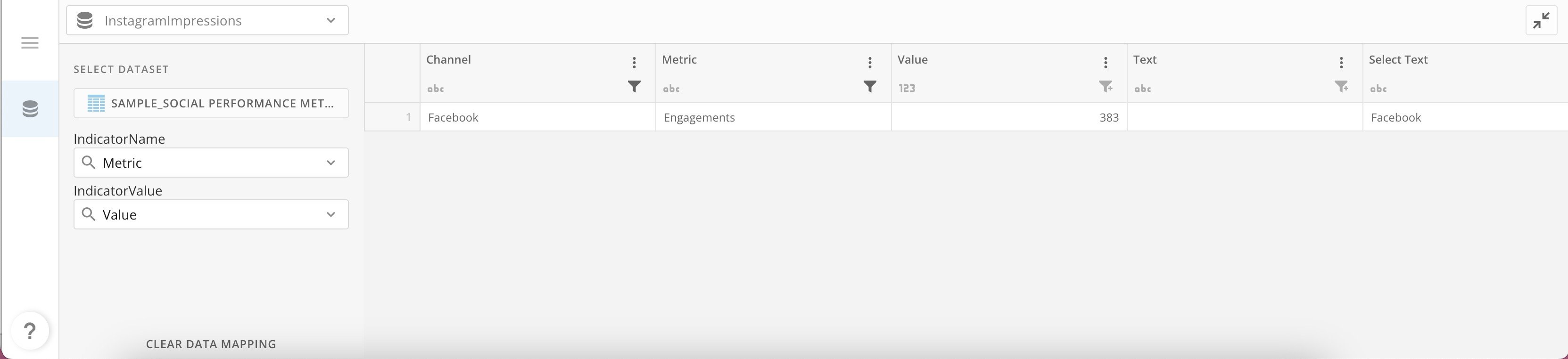 4. Make sure each item has a Domo DataSet selected and fields are mapped to a column in the DataSet.
* Check column types
* Apps require columns to be a specific data type such as text, date, or number. Ensure that each column from the DataSet(s) powering the app match the sample DataSet schema.
* Use valid column names
* Avoid special characters in column names, especially periods.
* Check data to make sure the values are in the proper ranges.
* Check data to ensure there are no unnecessary null values.
* If a DataFlow output is used to power the app, check to make sure that no DataFlow data type mismatch occurs.
* Check for zero-length characters that could have been passed into the Domo DataSet from the DataSet source such as Excel or ODBC, for example. Zero-length characters can be removed in MySQL DataFlows.
## Check Developer Tools
To perform these steps, you must be using the Google Chrome brower.
1. Hover over the app card until
**Card options** displays.
2. Select
**Card options** > **Details**. The Details view for the app displays.
3. Right-click on the page and select
**Inspect**. The Inspect tool displays.
4. Make sure each item has a Domo DataSet selected and fields are mapped to a column in the DataSet.
* Check column types
* Apps require columns to be a specific data type such as text, date, or number. Ensure that each column from the DataSet(s) powering the app match the sample DataSet schema.
* Use valid column names
* Avoid special characters in column names, especially periods.
* Check data to make sure the values are in the proper ranges.
* Check data to ensure there are no unnecessary null values.
* If a DataFlow output is used to power the app, check to make sure that no DataFlow data type mismatch occurs.
* Check for zero-length characters that could have been passed into the Domo DataSet from the DataSet source such as Excel or ODBC, for example. Zero-length characters can be removed in MySQL DataFlows.
## Check Developer Tools
To perform these steps, you must be using the Google Chrome brower.
1. Hover over the app card until
**Card options** displays.
2. Select
**Card options** > **Details**. The Details view for the app displays.
3. Right-click on the page and select
**Inspect**. The Inspect tool displays.
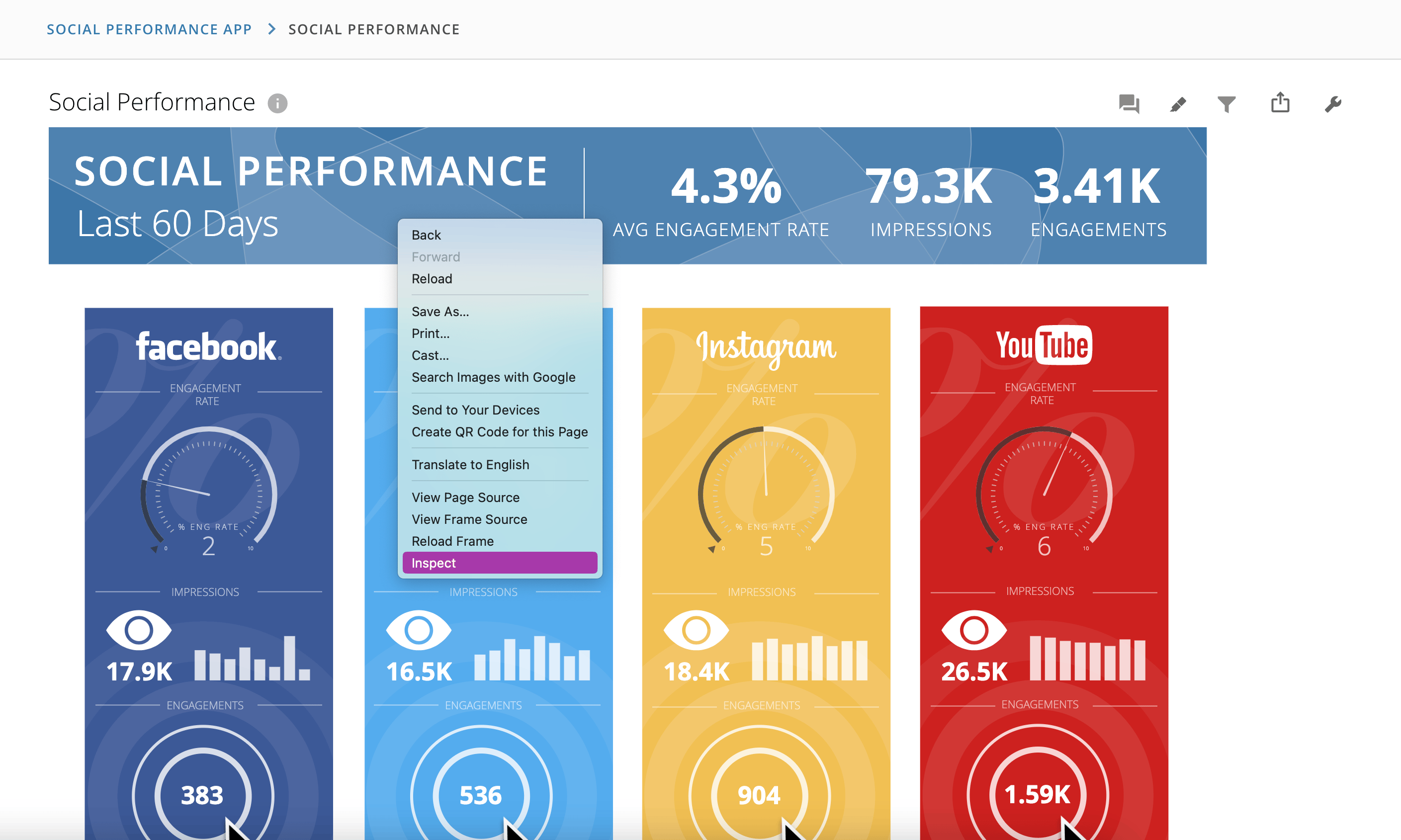 4. Navigate to the
**Network** tab of the tool.
4. Navigate to the
**Network** tab of the tool.
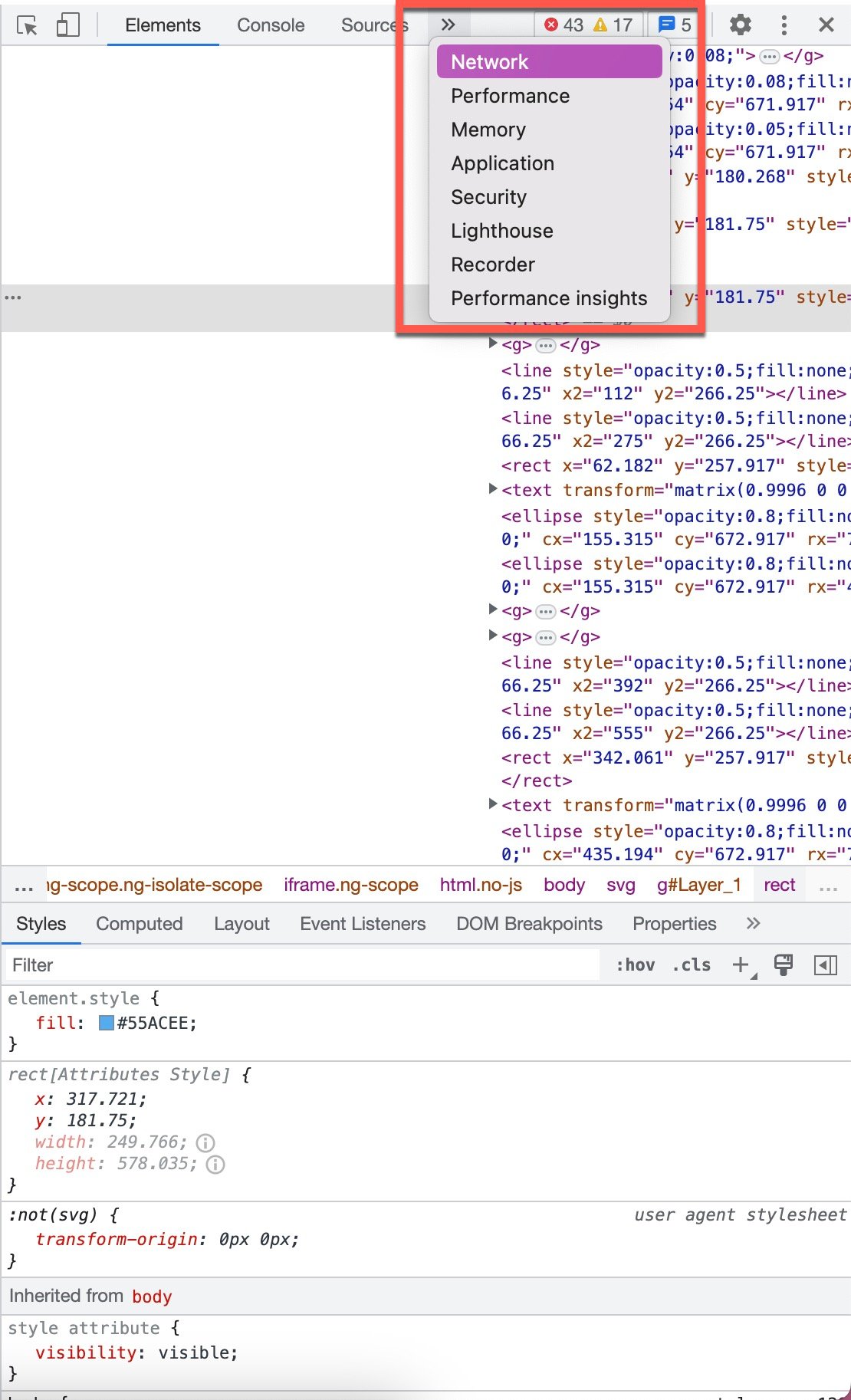 5. With the
**Network** tab open, refresh your Chrome page.
6. Look for any failed requests in the
**Network** tab. These are shown in red. Failed requests may help identify columns that aren't mapped correctly or expose other issues in the app.
## Contact Engineering Services
For apps built by Domo, you can contact the Engineering Services team about issues by email at [es.maintenance@domo.com](mailto:es.maintenance@domo.com "mailto:es.maintenance@domo.com"). Please provide the following information in your email:
* App name
* Instance in which it was deployed
* The error that is occurring
* Steps to reproduce the error
* Device and browser information
5. With the
**Network** tab open, refresh your Chrome page.
6. Look for any failed requests in the
**Network** tab. These are shown in red. Failed requests may help identify columns that aren't mapped correctly or expose other issues in the app.
## Contact Engineering Services
For apps built by Domo, you can contact the Engineering Services team about issues by email at [es.maintenance@domo.com](mailto:es.maintenance@domo.com "mailto:es.maintenance@domo.com"). Please provide the following information in your email:
* App name
* Instance in which it was deployed
* The error that is occurring
* Steps to reproduce the error
* Device and browser information