> ## Documentation Index
> Fetch the complete documentation index at: https://domoinc-openapi-sync-dataflows.mintlify.site/llms.txt
> Use this file to discover all available pages before exploring further.

# Connecting to Excel Data in Workbench 4

<Warning>
  **Important:** Support for Workbench 4 ended on **April 15, 2021**. Workbench may continue to run on installed machines, but it will no longer receive feature enhancements and security updates. When issues are encountered in Workbench 4, the recommended course of action from the Domo Support team will be to upgrade to the latest version of Workbench 5. To see this article for Workbench 5, click [**here**](/s/article/360043437253).
</Warning>

## Intro

You can create an Excel DataSet Job in Workbench 4. When you select Excel as your Data Source type, you can specify the location of the Excel sheet you want to connect to and configure the cell range for the desired data.

**Training Videos - Upload Files with Workbench 4**

Learn how to upload both CSV and Excel files with Workbench 4.

**Part 1 of 4**

<iframe allowfullscreen="" frameborder="0" height="315" src="//player.vimeo.com/video/412866033" width="560" />

**Part 2 of 4**

<iframe allowfullscreen="" height="315" width="560" src="//player.vimeo.com/video/412866261" scrolling="auto" frameborder="0" />

**Part 3 of 4**

<iframe allowfullscreen="" frameborder="0" height="315" src="//player.vimeo.com/video/412866767" width="560" />

**Part 4 of 4**

<iframe allowfullscreen="" height="315" width="560" src="//player.vimeo.com/video/412866962" scrolling="auto" frameborder="0" spellcheck="false" aria-label="To enrich screen reader interactions, please activate Accessibility in Grammarly extension settings" />

**To create an Excel DataSet Job in Workbench 4,**

1. Click
   **Add New** in the **DataSet Jobs** grouping in the Buttons toolbar at the top of the Workbench window.

   This opens the **Workbench DataSet Job Creation Wizard**.

2. (Conditional) If requested, select the desired Domo server. (This screen only appears if you have more than one server set up in Workbench.)

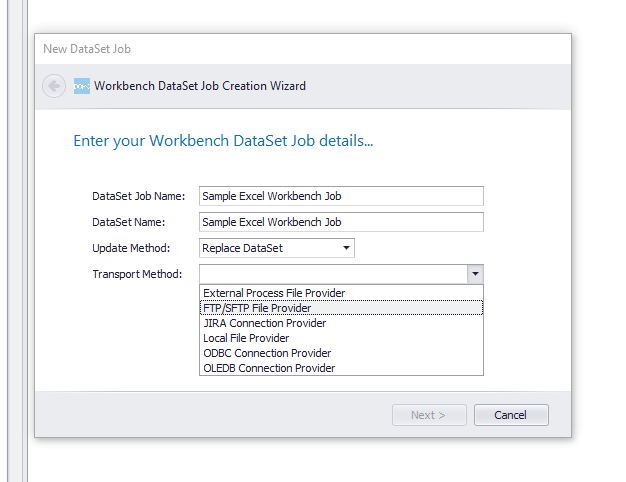
3. In the
   **DataSet Job Name** field, enter a name for the DataSet Job. This is the name of the job as it appears in Workbench, *not* the name of the uploaded DataSet in Domo.

4. In the
   **DataSet Name** field, enter the name of the DataSet. This is the name of the uploaded DataSet in Domo.

5. Select the desired update method in the
   **Update Method** menu:

   * Select
     **Replace DataSet** if you want the DataSet to be replaced entirely upon updating.
   * Select
     **Append to DataSet** if you want new data to be added to the existing data set upon updating.

6. In the
   **Transport Method** menu, select **Local File Provider,** **External Process File Provider**, or **FTP/SFTP File Provider**.

   <Note>
     **Note:**

     JIRA Connection Provider, ODBC Connector Provider, and OLEDB Connection Provider are not valid for Excel jobs.
   </Note>

   Descriptions for these transport methods are as follows:

   <table class="mt-responsive-table"><thead><tr><th colspan="1" rowspan="1"><p> Transport Method </p></th><th colspan="1" rowspan="1"><p> Description </p></th></tr></thead><tbody><tr><td colspan="1" rowspan="1"><p> Local File Provider </p></td><td colspan="1" rowspan="1"><p> Lets you select a file from your machine or a network drive. </p></td></tr><tr><td colspan="1" rowspan="1"><p> External Process File Provider </p></td><td colspan="1" rowspan="1"><p> Lets you use a third-party application to pull data to your local machine for processing. </p></td></tr><tr><td colspan="1" rowspan="1"> FTP/SFTP File Provider </td><td colspan="1" rowspan="1"> Lets you retrieve a file via FTP, SFTP (SSH-FTP), or FTPS (FTP-SSL) </td></tr></tbody></table>

   <Frame>
     <img alt="wbexcel1.png" src="https://mintcdn.com/domoinc-openapi-sync-dataflows/KRKoASQJgRuO8wHw/images/kb/ka05w00000123po-00N5w00000Ri7BU-0EM5w000005vPKT.png?fit=max&auto=format&n=KRKoASQJgRuO8wHw&q=85&s=7a8aafd1179d9db9ce98f065f67b60ac" width="626" height="482" data-path="images/kb/ka05w00000123po-00N5w00000Ri7BU-0EM5w000005vPKT.png" />
   </Frame>

7. Click
   **Next**.

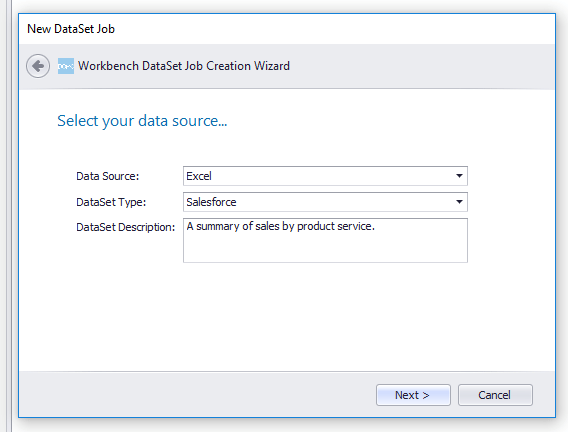
8. In the
   **Data Source** menu, select **Excel**.

9. In the
   **DataSet Type** field, select the type of DataSet in the dropdown or enter a custom name.

   The DataSet type you select or enter here is reflected as the connector type in Domo after you execute the job.
   <Tip>
     **Tip:** It is recommended that you select or enter the DataSet type that tells users what data is being represented, *not* the data reader you are using to present the data. For example, you might be connecting to an Excel sheet that contains Twitter data. In this case the best option would be to enter "Twitter" rather than selecting **Excel** because the data you are representing in Domo is from Twitter, not Excel.
   </Tip>

10. (Optional) Enter a description in the
    **DataSet Description** field.

    <Note>
      **Note:** You can change any of the settings you made in the above steps in the **Source** panel for the DataSet Job after you complete all of the steps in the Wizard *except* the transport method.
    </Note>

    <Frame>
      <img alt="wbexcel2.png" src="https://mintcdn.com/domoinc-openapi-sync-dataflows/7Nd5Hb-h9pITriJg/images/kb/ka05w00000123po-00N5w00000Ri7BU-0EM5w000005vPKU.png?fit=max&auto=format&n=7Nd5Hb-h9pITriJg&q=85&s=20bd3aaba5bb01991a28edc975b9d813" width="568" height="432" data-path="images/kb/ka05w00000123po-00N5w00000Ri7BU-0EM5w000005vPKU.png" />
    </Frame>

11. Click
    **Next**.

    A new Excel DataSet Job is added to the list of jobs for the currently authenticated server in the **Accounts** pane.

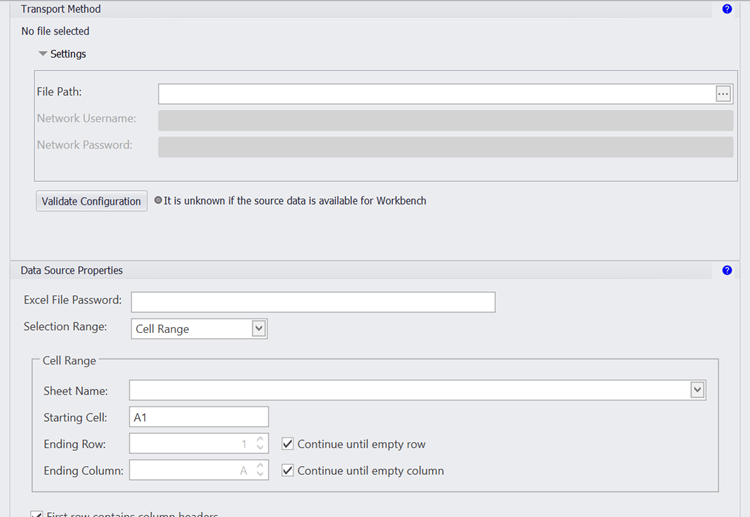
12. Under the Excel DataSet Job that was just added to the jobs list, select
    **Source**.

    A panel opens with options for configuring your file transport and setting options for your Excel data source.
    <Frame>
      <img alt="wbexcel3.png" src="https://mintcdn.com/domoinc-openapi-sync-dataflows/7Nd5Hb-h9pITriJg/images/kb/ka05w00000123po-00N5w00000Ri7BU-0EM5w000005vPKa.png?fit=max&auto=format&n=7Nd5Hb-h9pITriJg&q=85&s=6026aa9144a329db8b18144bdcf4e176" width="750" height="517" data-path="images/kb/ka05w00000123po-00N5w00000Ri7BU-0EM5w000005vPKa.png" />
    </Frame>

13. (Conditional) Do one of the following:

    * If you selected
      **Local File Provider** as your Transport Method...

      1. Click the ellipsis (...) in the
         **File Path** field.
      2. Select the desired Excel file from your machine or network.
      3. (Conditional) If your file is on a password-protected network drive, enter the username and password for the network in the
         **Network Username** and **Network Password** fields.
    * If you selected
      **External Process File Provider** as your Transport Method...

      1. Click the ellipsis (...) in the
         **Program Executable** field.
      2. Select the desired executable file from your machine or network.
      3. (Optional) Enter arguments in the
         **Arguments** field, if any.
      4. Click the ellipsis (...) in the
         **Output File Path** field.
      5. Select the desired output file path on your machine or network.

         The file type for the output path *must* be Excel.
    * If you selected
      **FTP/** **SFTP File Provider** as your Transport Method...

      1. Enter the server name in the
         **Server** field.
      2. Enter the port number in the
         **Port** field.
      3. Enter your server credentials in the
         **Username** and **Password** fields.
      4. Select the desired protocol (**FTP**, **SFTP**, or **FTPS**).
      5. (Optional) If you have an SSL certificate (SFTP and FTPS only), configure the settings as necessary.

         For more information about these settings, see [SFTP File Provider](/s/article/360047403773 "Understanding the Workbench 4 User Interface").
      6. In the
         **Remote File** field, enter the filename for the field you want to import.

14. Click
    **Validate Configuration**.

15. (Conditional) In the
    **Data Source Properties** pane, if your Excel file is password-protected, enter the password in the **Excel File Password** field.

16. Using the
    **Selection Range** menu, select the desired range type.

    The following table provides descriptions of the range types:

    <table border="1" cellpadding="1" cellspacing="1"><thead><tr><th colspan="1" rowspan="1"><p> Range Type </p></th><th colspan="1" rowspan="1"><p> Description </p></th></tr></thead><tbody><tr><td colspan="1" rowspan="1"><p> Cell Range </p></td><td colspan="1" rowspan="1"><p> Lets you specify the Excel sheet from which you want to pull data, along with the starting cell, ending row, and ending column. </p></td></tr><tr><td colspan="1" rowspan="1"><p> Named Range </p></td><td colspan="1" rowspan="1"><p> Lets you select a named range from a list. If you have not created any named ranges for this file in Excel, no options appear in this menu. </p></td></tr><tr><td colspan="1" rowspan="1"><p> Dynamic Range </p></td><td colspan="1" rowspan="1"><p> Lets you skip a specified number of lines at the end of the Excel sheet. </p></td></tr></tbody></table>

17. Do one of the following:

    * If you selected **Cell Range** as your selection range...

      1. Select the sheet you want to connect to in the **Sheet Name** menu.
      2. In **Starting Cell**, specify the first cell in the range you want to pull data from.
      3. (Conditional) If you want Workbench to pull data from your sheet until it encounters an empty row and/or column, leave the
         **Continue until empty row** and/or **Continue until empty column** boxes checked. Otherwise clear the checkboxes and specify the ending row and column in the **Ending Row** and **Ending Column** fields, respectively.
      4. If the first row in your cell range contains column headers, leave the box checked; otherwise clear this box.
    * If you selected **Named Range** as your selection range...

      1. Select the range in the **Named Range** menu.
      2. (Conditional) If you want Workbench to pull data from your sheet until it encounters an empty row and/or column, leave the **Continue until empty row box checked**.
      3. If the first row in your cell range contains column headers, leave the box checked; otherwise clear this box. This is important when building cards in Domo because column headers are used to reference the data in those columns. For more information, see [Applying DataSet Columns to Your Chart](/s/article/360043428713 "Applying DataSet Columns to Your Chart").
    * If you selected **Dynamic Range** as your selection range...

      1. Select the sheet you want to connect to in the **Sheet Name** menu.
      2. In **Starting Cell**, specify the first cell in the range you want to pull data from.
      3. (Conditional) If you want Workbench to ignore rows at the end of your sheet, specify the number of rows in
         **Ignore Ending Rows**.

You are now ready to execute the DataSet Job, thereby creating an Excel DataSet in Domo. However, there are many other actions you can take on the DataSet job before you send it to Domo. These include the following:

* [Setting an update schedule for the job](/s/article/360046856934 "Scheduling a Job in Workbench 4")
* [Adding the job to a group of jobs with an advanced schedule set in Windows Task Scheduler](/s/article/360046857074 "Creating a Schedule Group in Workbench 4")
* [Configuring notifications to be sent when the job update succeeds or fails](/s/article/360047494393 "Setting Notifications in Workbench 4")
* [Encrypting and decrypting Workbench data](/s/article/360047501293 "Encrypting and Decrypting Workbench 4 Data")
* [Creating new columns using calculations](/s/article/360046861474 "Creating Columns in Workbench 4 Using Calculations")
* [Setting a custom date format on a column](/s/article/360047504553 "Setting a Custom Date Format on a Column in Workbench 4")
* [Replacing a value in a column](/s/article/360046864274 "Replacing a Column Value in Workbench 4")
* [Combining DataSets](/s/article/360046861014 "Combining DataSets in Workbench 4")
* [Applying filters to columns](/s/article/360046864074 "Filtering Columns in Workbench 4")