> ## Documentation Index
> Fetch the complete documentation index at: https://domoinc-openapi-sync-dataflows.mintlify.site/llms.txt
> Use this file to discover all available pages before exploring further.
# Creating Columns in Workbench 4 Using Calculations
**Important:** Support for Workbench 4 ended on **April 15, 2021**. Workbench may continue to run on installed machines, but it will no longer receive feature enhancements and security updates. When issues are encountered in Workbench 4, the recommended course of action from the Domo Support team will be to upgrade to the latest version of Workbench 5. To see this article for Workbench 5, click [**here**](/s/article/360042932794).
You can create new columns in DataSets in Workbench 4 by building calculations based on the data in other columns. For example, you might have a column containing values with one or more decimal places. You could create a new column in which all of the values in the original column are rounded up or down to the nearest whole number, using the CEILING or FLOOR functions, respectively. Workbench 4 contains over 80 such functions you can use in constructing calculations. Categories of functions include logical (such as AND, NOT, IF, etc.), mathematical (such as ACOS, RND, and SUMLIST ), statistical (such as AVERAGE, MAX, and STDEV ), text (such as CONCATENATE, MID, and SUBSTITUTE ), and date and time (such as DAY, EOMONTH, and TODAY ). You can find descriptions of all of the functions in the Workbench 4 user interface.
**Training Video - Creating Columns in Workbench Using Calculations**
Learn how to create new Workbench columns using calculations.
You build calculated fields for a selected DataSet job in the **Calculation Builder.** You access the **Calculation Builder** for a DataSet by adding a **Calculation** transform.
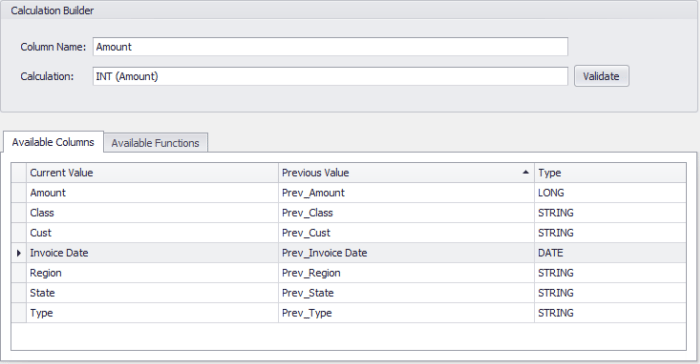 To add a calculated field in Workbench 4,
1. In the
**Accounts** pane, select the DataSet job you want to add a calculated field to.
2. In the
**Transforms** grouping in the Buttons toolbar at the top of the Workbench window, click **Add New**.
3. In the
**Transform Type** menu, select **Calculation** then click **Next**.
4. Click
**Finish**.
A **Calculation** item is added under **Transforms** for this DataSet job.
5. Click the new
**Calculation** item under **Transforms**.
The **Calculation Builder** opens in the Dynamic Options panel.
6. Enter a name for the calculation in the
**Column Name** field.
7. Build your calculation in the
**Calculation** field using the column names in the **Available Fields** listing and the functions in the **Available** **Functions** listing.
You can add column names and functions to a calculation by double-clicking them in the list.
You can filter the functions by category by selecting the desired category in the **Category** menu. All functions are accompanied by descriptions; you can see the description for a function by clicking that function. In addition, each function shows its proper usage. For example, the SUM function is represented as SUM (p1, \[p2],...). This means that you are summing the values in all referenced columns, which are indicated by p1, p2, and so on.
8. Click
**Validate** to ensure that your calculation is valid.
**Note:** In calculations, column names *cannot* contain non-ASCII characters. You can reference a column in a calculation using Column# where is the 1-based column order. For example: CONCATENATE(Column2,Column3)
9. Click
**Save** in the **DataSet Jobs** grouping in the Buttons toolbar at the top of the Workbench window **.**
Your DataSet now contains the new column based on your calculation.
To add a calculated field in Workbench 4,
1. In the
**Accounts** pane, select the DataSet job you want to add a calculated field to.
2. In the
**Transforms** grouping in the Buttons toolbar at the top of the Workbench window, click **Add New**.
3. In the
**Transform Type** menu, select **Calculation** then click **Next**.
4. Click
**Finish**.
A **Calculation** item is added under **Transforms** for this DataSet job.
5. Click the new
**Calculation** item under **Transforms**.
The **Calculation Builder** opens in the Dynamic Options panel.
6. Enter a name for the calculation in the
**Column Name** field.
7. Build your calculation in the
**Calculation** field using the column names in the **Available Fields** listing and the functions in the **Available** **Functions** listing.
You can add column names and functions to a calculation by double-clicking them in the list.
You can filter the functions by category by selecting the desired category in the **Category** menu. All functions are accompanied by descriptions; you can see the description for a function by clicking that function. In addition, each function shows its proper usage. For example, the SUM function is represented as SUM (p1, \[p2],...). This means that you are summing the values in all referenced columns, which are indicated by p1, p2, and so on.
8. Click
**Validate** to ensure that your calculation is valid.
**Note:** In calculations, column names *cannot* contain non-ASCII characters. You can reference a column in a calculation using Column# where is the 1-based column order. For example: CONCATENATE(Column2,Column3)
9. Click
**Save** in the **DataSet Jobs** grouping in the Buttons toolbar at the top of the Workbench window **.**
Your DataSet now contains the new column based on your calculation.