> ## Documentation Index
> Fetch the complete documentation index at: https://domoinc-openapi-sync-dataflows.mintlify.site/llms.txt
> Use this file to discover all available pages before exploring further.

# Using the External Process File Provider in Workbench 4

<Warning>
  **Important:** Support for Workbench 4 ended on **April 15, 2021**. Workbench may continue to run on installed machines, but it will no longer receive feature enhancements and security updates. When issues are encountered in Workbench 4, the recommended course of action from the Domo Support team will be to upgrade to the latest version of Workbench 5.
</Warning>

## Intro

The External Process File Provider is a highly configurable option to connect to data within Workbench. By executing a script, you can connect to data, hardware, or even perform transformations between two databases. If you can write a script to perform the action, you can execute it using the External Process File Provider in Workbench.

<Note>
  **Note:** This is considered an advanced feature of Workbench and a basic understanding of scripting is necessary with this method.
</Note>

## Using the External Process File Provider

****To create an External Process File Provider DataSet job in Workbench 4,****

1. Click
   **Add New** in the **DataSet Jobs** grouping in the Buttons toolbar at the top of the Workbench window.

   This opens the **Workbench DataSet Job Creation Wizard**.

2. (Conditional) If requested, select the desired Domo server. (This screen only appears if you have set up more than one connection to Domo.)

3. In the
   ****DataSet Job Name**** field, enter a name for the DataSet Job. This is the name of the job as it appears in Workbench, **not** the name of the uploaded DataSet in Domo.

4. In the
   ****DataSet Name**** field, enter the name of the DataSet. This is the name of the uploaded DataSet in Domo.

5. Select the desired update method in the
   ****Update Method**** menu:

   a. Select **Replace DataSet** if you want the DataSet to be replaced entirely upon updating.

   b. Select **Append to DataSet** if you want new data to be added to the existing DataSet upon updating.

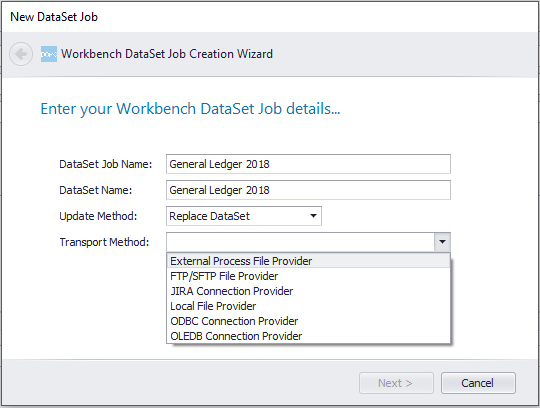
6. In the
   **Transport Method** menu, select **External Process File Provider**.

   <Frame>
     <img alt="WB_External_Process_File_Provider_Transport_Method.png" src="https://mintcdn.com/domoinc-openapi-sync-dataflows/7Nd5Hb-h9pITriJg/images/kb/ka05w00000123qd-00N5w00000Ri7BU-0EM5w000005vPKG.png?fit=max&auto=format&n=7Nd5Hb-h9pITriJg&q=85&s=12f83db9eff13765592754c392face04" width="540" height="408" data-path="images/kb/ka05w00000123qd-00N5w00000Ri7BU-0EM5w000005vPKG.png" />
   </Frame>

7. Click
   **Next**.

8. In the
   ****DataSet Type**** field, select the type of DataSet in the dropdown or enter a custom name.

   The DataSet type you select or enter here is reflected as the connector type in Domo after you execute the job.
   <Tip>
     **Tip:** It is recommended that you select or enter the DataSet type that tells users what data is being represented, *not* the data reader you are using to present the data. For example, you might be connecting to an ODBC database that contains Twitter data. In this case, the best option would be to enter "Twitter" rather than selecting ODBC because the data you are representing in Domo is from Twitter.
   </Tip>

9. (Optional) Enter a description in the
   ****DataSet Description**** field.

   <Note>
     **Note:** You can change any of the settings you made in the above steps in the [Source panel](/s/article/360047403773 "Understanding the Workbench 4 User Interface") for the DataSet Job after you complete all the steps in the Wizard *except* the transport method.
   </Note>

10. Click
    ****Next****.

11. A new
    **External Process File Provider** DataSet Job is added to the list of jobs for the currently authenticated server in the ****Accounts**** pane.

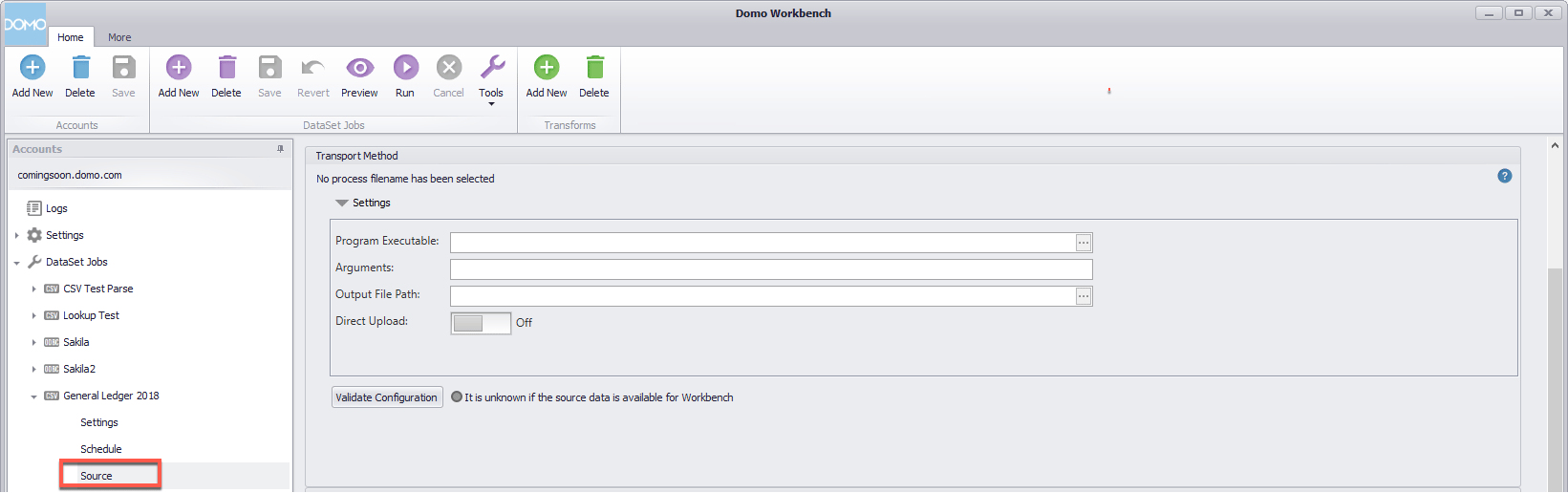
12. Under the External Process File Provider DataSet Job that was just added to the jobs list, select
    ****Source****.

A panel opens with options for configuring your External Process connection and defining your script file.

<Frame>
  <img alt="WB_External_Process_File_Provider_Source_Tab.png" src="https://mintcdn.com/domoinc-openapi-sync-dataflows/7Nd5Hb-h9pITriJg/images/kb/ka05w00000123qd-00N5w00000Ri7BU-0EM5w000005vPKI.png?fit=max&auto=format&n=7Nd5Hb-h9pITriJg&q=85&s=c662c139c86d1b5482e2d60726d2ca55" width="1641" height="516" data-path="images/kb/ka05w00000123qd-00N5w00000Ri7BU-0EM5w000005vPKI.png" />
</Frame>

The following table describes the available options:

<table class="mt-responsive-table" data-aura-rendered-by="33:195;a"><thead><tr><th colspan="1" rowspan="1"> Option </th><th colspan="1" rowspan="1"> Description </th></tr></thead><tbody><tr><td colspan="1" rowspan="1"> Program Executable </td><td colspan="1" rowspan="1"> Locate and enter the executable application file (script) to pull data into Workbench </td></tr><tr><td colspan="1" rowspan="1"> Arguments </td><td colspan="1" rowspan="1"> Locate and enter the executable application file (script) to pull data into Workbench </td></tr><tr><td colspan="1" rowspan="1"> Output File Path </td><td colspan="1" rowspan="1"> Specify what the file path is for the output file that the executable/script will generate. </td></tr><tr><td colspan="1" rowspan="1"> Direct Upload </td><td colspan="1" rowspan="1"> Specify whether Workbench should or should not directly upload your output file to Domo. <br /><Note><div class="info-box-wrapper"><div class="info-box-icon-container"><span class="info-box-icon" /></div><div class="info-box-content-container"><div class="info-box-content"><span><b> Note: </b> The direct upload option is only available for CSV files. See <a href="/s/article/360047538593" target="_self" title="Setting Up Direct Upload in Workbench"> Direct Upload in Workbench </a> for more information. </span></div></div></div></Note></td></tr></tbody></table>

## Use Cases

All you need to use this option is the knowledge to build an executable file and because they are so highly configurable, your capabilities with this option are limitless. Below are just a few use cases of what can be done using the External Process File Provider.

* Connect to an API when a pre-built connector doesn't exist.
* Unencrypt and output encrypted data.
* Pull data from Domo, perform a series of transformation, then upload back into Domo to bypass building a DataFlow.
* Store passwords in an external file script and run them through this option to avoid storing passwords in Workbench.
