> ## Documentation Index
> Fetch the complete documentation index at: https://domoinc-openapi-sync-dataflows.mintlify.site/llms.txt
> Use this file to discover all available pages before exploring further.
# Creating a Schedule Group in Workbench 4
**Important:** Support for Workbench 4 ended on **April 15, 2021**. Workbench may continue to run on installed machines, but it will no longer receive feature enhancements and security updates. When issues are encountered in Workbench 4, the recommended course of action from the Domo Support team will be to upgrade to the latest version of Workbench 5. To see this article for Workbench 5, click [**here**](/s/article/360046750913).
You can create groups of DataSet jobs that run on the sa
me schedule. Unlike scheduling for an individual DataSet job, which is done from within Workbench and provides few options, scheduling for a DataSet job group is done in Windows Task Scheduler (after you create the group in Workbench), so advanced options are available. You can also make edits to your groups from within Workbench.
For information about basic scheduling, see [Scheduling a Job in Workbench 4](/s/article/360046856934 "Scheduling a Job in Workbench 4").
**To create a schedule group,**
1. Click
**Tools > Schedule** in the Buttons toolbar at the top of the Workbench window.
2. Select
**New Scheduled Group** then click **Next**.
3. Enter a name for your group in the
**Group Name** field.
4. Enter your Windows credentials in the required fields, then click
**Next**.
5. Check the boxes for all of the DataSet jobs you want in this group, then click
**Next**.
This creates a group with default schedule settings.
6. (Conditional) To configure advanced settings in Windows Task Scheduler, click
**Modify Schedule**, then continue on to the next step. Otherwise click **Finish**.
When you click **Modify Schedule**, Windows Task Scheduler opens automatically so you can complete the scheduling process.
7. In
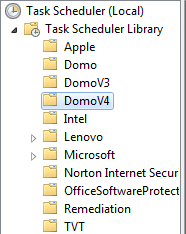
**Task Scheduler Library**, click **DomoV4**.
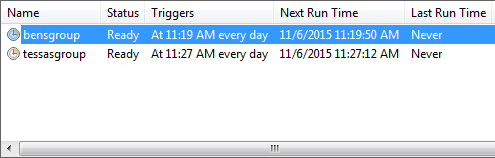
 8. In the pane in the top center of the screen, double-click the DataSet job you want to schedule.
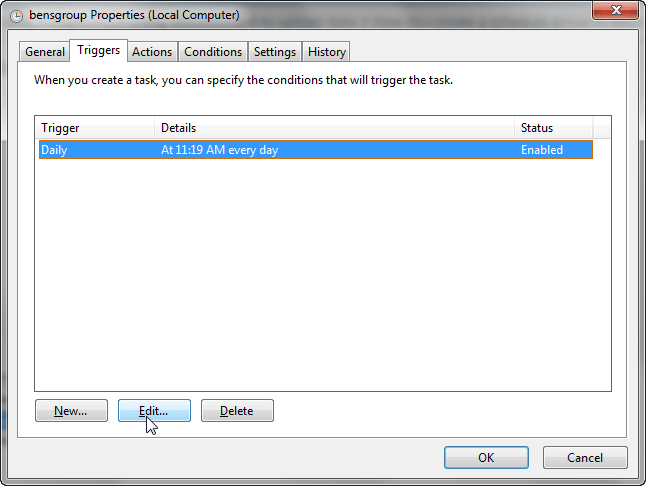
 9. Click the
**Triggers** tab.
10. Select the default trigger then click
**Edit**.
9. Click the
**Triggers** tab.
10. Select the default trigger then click
**Edit**.
 11. Set up the scheduling for the group in the
**Edit Trigger** dialog.
11. Set up the scheduling for the group in the
**Edit Trigger** dialog.
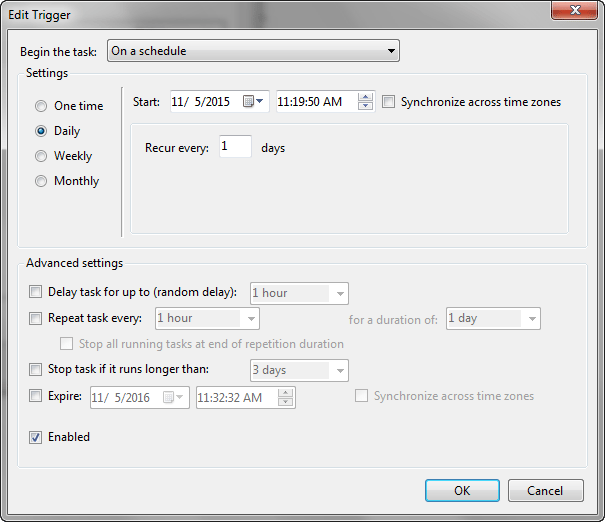 For more information about the options in this dialog, see Windows' help documentation.