> ## Documentation Index
> Fetch the complete documentation index at: https://domoinc-openapi-sync-dataflows.mintlify.site/llms.txt
> Use this file to discover all available pages before exploring further.
# Manage DataSet Views
export const InlineImage = ({src, alt = '', height = '1.6em'}) => {
return  ;
};
### Intro
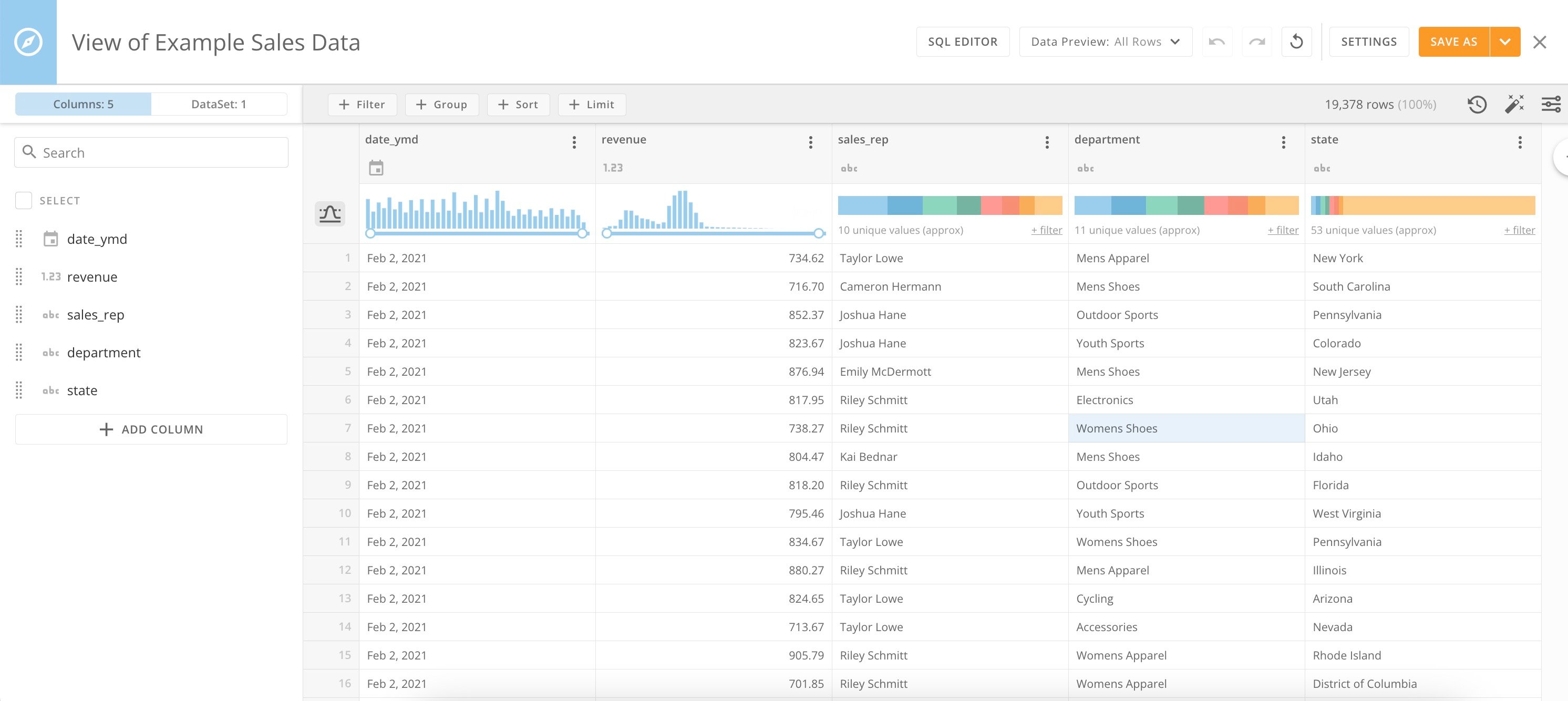
DataSet Views in Views Explorer give you a simple, yet powerful way to explore—filter, group, and aggregate—and even combine your data in a spreadsheet interface, without having to build a transform DataFlow. DataSet Views is available in Analyzer, so you can create and edit the view while building a visualization. DataSet View creation and editing takes place inside the Views Explorer.
The [Advanced SQL Editor](#advanced_sql_editor) allows users proficient in SQL to create a DataSet View, and the [AI Assistant](#use_ai_to_write_query) can help you craft your SQL queries.
;
};
### Intro
DataSet Views in Views Explorer give you a simple, yet powerful way to explore—filter, group, and aggregate—and even combine your data in a spreadsheet interface, without having to build a transform DataFlow. DataSet Views is available in Analyzer, so you can create and edit the view while building a visualization. DataSet View creation and editing takes place inside the Views Explorer.
The [Advanced SQL Editor](#advanced_sql_editor) allows users proficient in SQL to create a DataSet View, and the [AI Assistant](#use_ai_to_write_query) can help you craft your SQL queries.
 ***
### Permissions
Permissions are as follows:
* **DataSet Views —**
Admins or users with either the Edit DataSet or Manage DataSet grant enabled for their role can use DataSet Views. Learn more about [Managing Custom Roles](/s/article/360043438973).
* **Advanced SQL Editor & AI Assistant —**
The Advanced SQL Editor is available to all users with Edit permission to a DataSet View. The AI Assistant is limited to users who have the Use AI Services grant enabled for their role.
### Access Views Explorer
There are two ways to access Views Explorer—from the Data Center or within Analyzer. Learn how to [use DataSet Views with Analyzer](/s/article/4402058407191).
To access Views Explorer from the Data Center, locate and select the DataSet you want to create a DataSet View from to open and display its **Overview** tab.
***
### Permissions
Permissions are as follows:
* **DataSet Views —**
Admins or users with either the Edit DataSet or Manage DataSet grant enabled for their role can use DataSet Views. Learn more about [Managing Custom Roles](/s/article/360043438973).
* **Advanced SQL Editor & AI Assistant —**
The Advanced SQL Editor is available to all users with Edit permission to a DataSet View. The AI Assistant is limited to users who have the Use AI Services grant enabled for their role.
### Access Views Explorer
There are two ways to access Views Explorer—from the Data Center or within Analyzer. Learn how to [use DataSet Views with Analyzer](/s/article/4402058407191).
To access Views Explorer from the Data Center, locate and select the DataSet you want to create a DataSet View from to open and display its **Overview** tab.
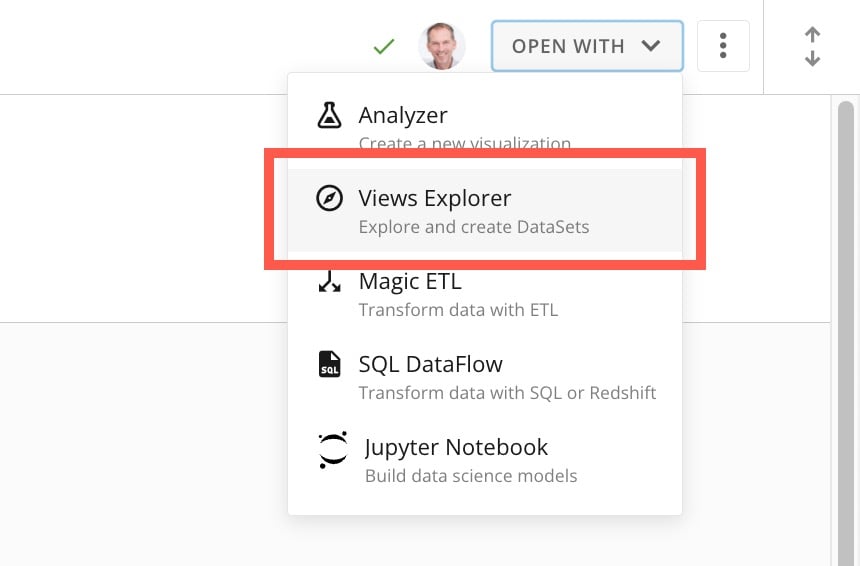
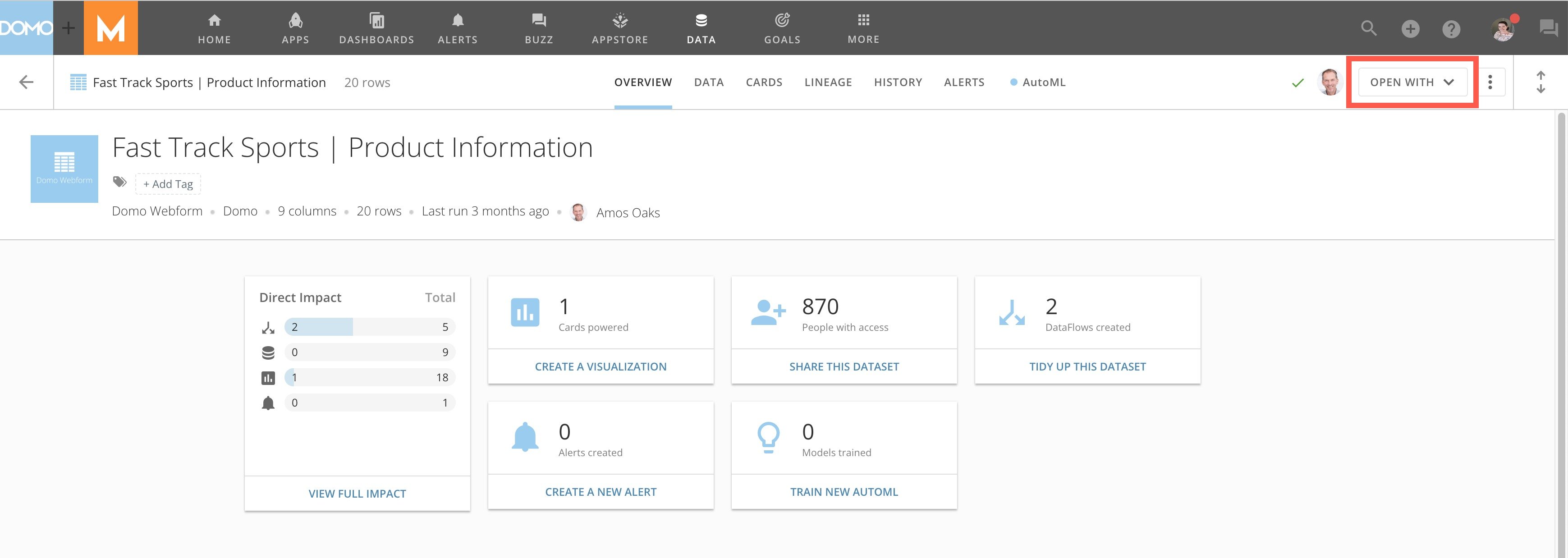 Select **Open With** > **Views Explorer**.
 ### Use Views Explorer
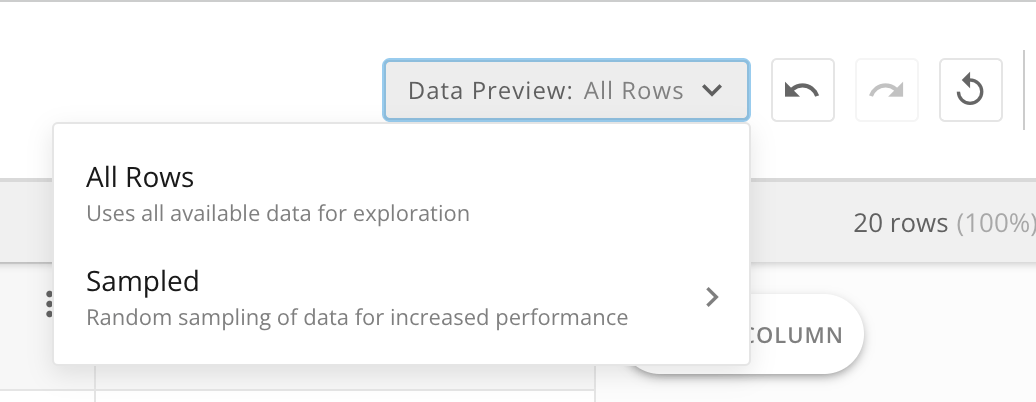
The Views Explorer allows you to view all rows in the DataSet or to sample a set number of rows to enable your changes to be seen more quickly without waiting for changes to display for every row.
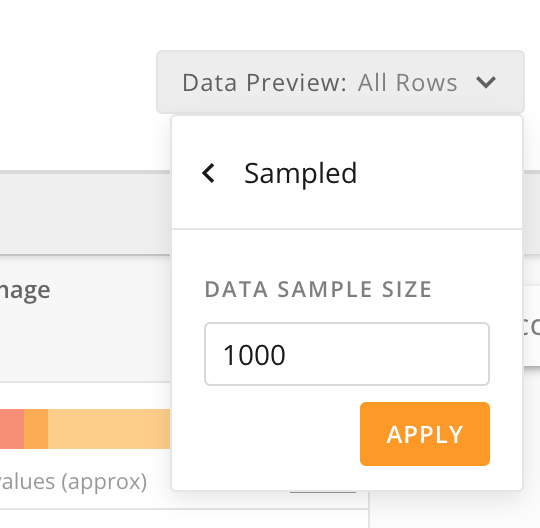
To configure a sample preview from the top navigation of View Explorer, select **Data Preview** > **Sampled**. Then enter the number of rows for the sample size.
### Use Views Explorer
The Views Explorer allows you to view all rows in the DataSet or to sample a set number of rows to enable your changes to be seen more quickly without waiting for changes to display for every row.
To configure a sample preview from the top navigation of View Explorer, select **Data Preview** > **Sampled**. Then enter the number of rows for the sample size.
 #### Appearance Controls
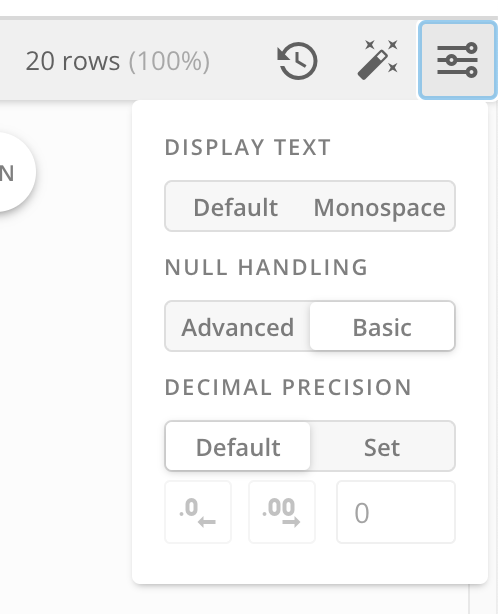
Selecting **Controls** in the top ribbon of your View allows you to choose default or monospace text and how to handle null values and decimals.
#### Appearance Controls
Selecting **Controls** in the top ribbon of your View allows you to choose default or monospace text and how to handle null values and decimals.
 **Null Values:**
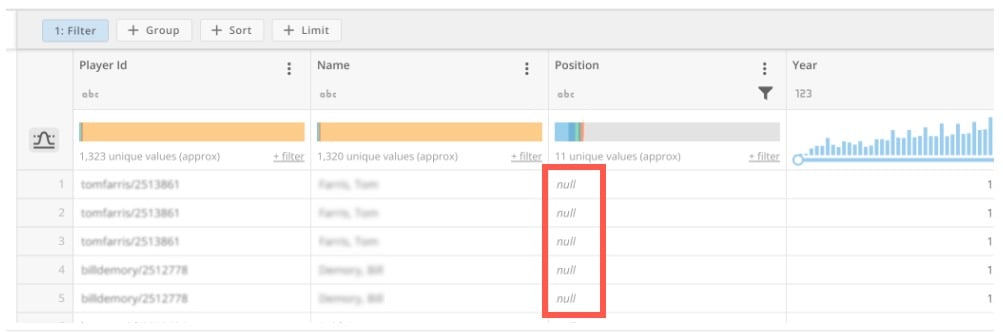
By default, Domo shows null values as blank. In DataSet Views, when you choose
**Advanced**
null handling, null values display as `null` in the columns.
**Null Values:**
By default, Domo shows null values as blank. In DataSet Views, when you choose
**Advanced**
null handling, null values display as `null` in the columns.
 Navigate through the following topics to learn how to use Views Explorer:
###### Columns
* [Add Columns](#add_columns "DataSet Views (Beta)")
* [Rename Columns](#rename_columns "DataSet Views (Beta)")
* [Move Columns](#move_columns "DataSet Views (Beta)")
* [Add Calculated Column](#add_calculated_column "DataSet Views (Beta)")
* [Remove Columns](#remove_columns "DataSet Views (Beta)")
###### Joins & Unions
* [Perform Joins](#perform_joins "DataSet Views (Beta)")
* [Perform Unions](#h_01F89DQC4EXKVWE52B3RYCF8TN)
###### Filter & Sort
* [Filter Data](#filter_data "DataSet Views (Beta)")
* [Group Data](#group_data "DataSet Views (Beta)")
* [Sort Data](#sort_data "DataSet Views (Beta)")
* [Limit Data](#limit_data "DataSet Views (Beta)")
* [DataSet suggestions](#dataset_suggestions)
###### DataSet View Controls
* [Version history](#version_history)
* [Change controls](#change_controls)
* [Save DataSet View](#save_dataset_view "DataSet Views (Beta)")
* [Export DataSet View](#export_view)
# Add Columns
Sometimes you may want to add a duplicate of one or more columns to the DataSet View. You can do this by adding a column(s).
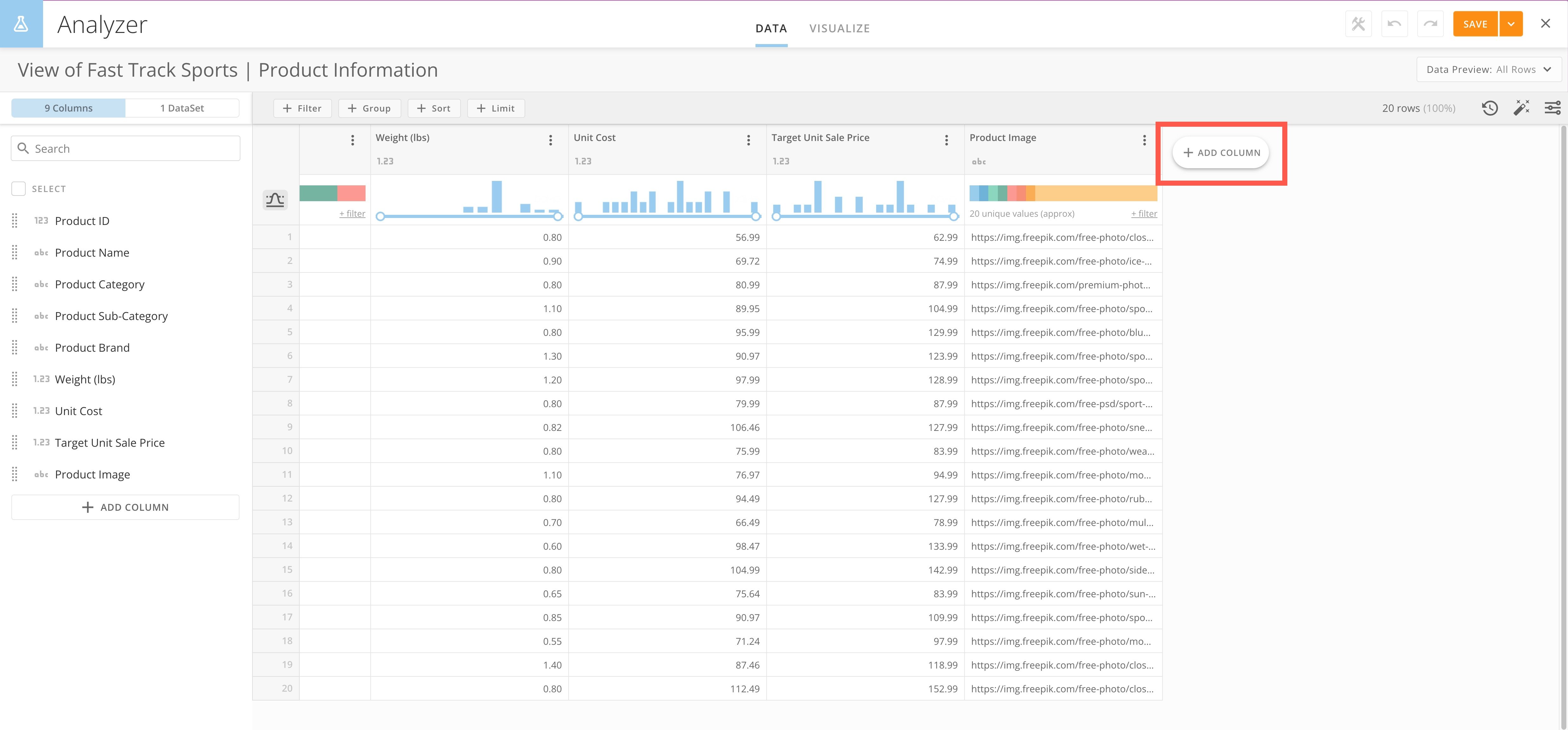
To add a column to the DataSet View, select **Add Column** (or hover over **Add** and then select **Add Column**).
Navigate through the following topics to learn how to use Views Explorer:
###### Columns
* [Add Columns](#add_columns "DataSet Views (Beta)")
* [Rename Columns](#rename_columns "DataSet Views (Beta)")
* [Move Columns](#move_columns "DataSet Views (Beta)")
* [Add Calculated Column](#add_calculated_column "DataSet Views (Beta)")
* [Remove Columns](#remove_columns "DataSet Views (Beta)")
###### Joins & Unions
* [Perform Joins](#perform_joins "DataSet Views (Beta)")
* [Perform Unions](#h_01F89DQC4EXKVWE52B3RYCF8TN)
###### Filter & Sort
* [Filter Data](#filter_data "DataSet Views (Beta)")
* [Group Data](#group_data "DataSet Views (Beta)")
* [Sort Data](#sort_data "DataSet Views (Beta)")
* [Limit Data](#limit_data "DataSet Views (Beta)")
* [DataSet suggestions](#dataset_suggestions)
###### DataSet View Controls
* [Version history](#version_history)
* [Change controls](#change_controls)
* [Save DataSet View](#save_dataset_view "DataSet Views (Beta)")
* [Export DataSet View](#export_view)
# Add Columns
Sometimes you may want to add a duplicate of one or more columns to the DataSet View. You can do this by adding a column(s).
To add a column to the DataSet View, select **Add Column** (or hover over **Add** and then select **Add Column**).
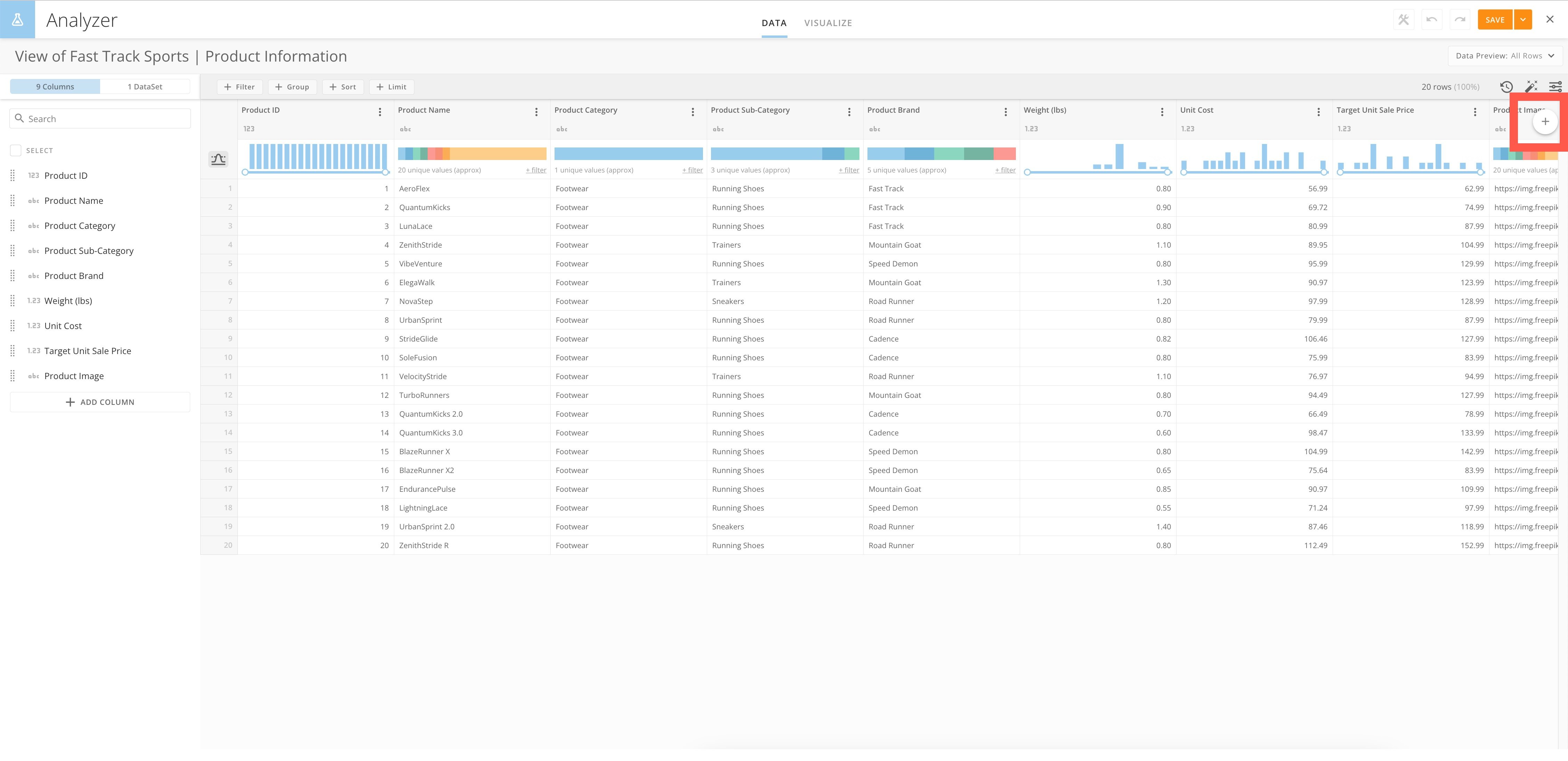
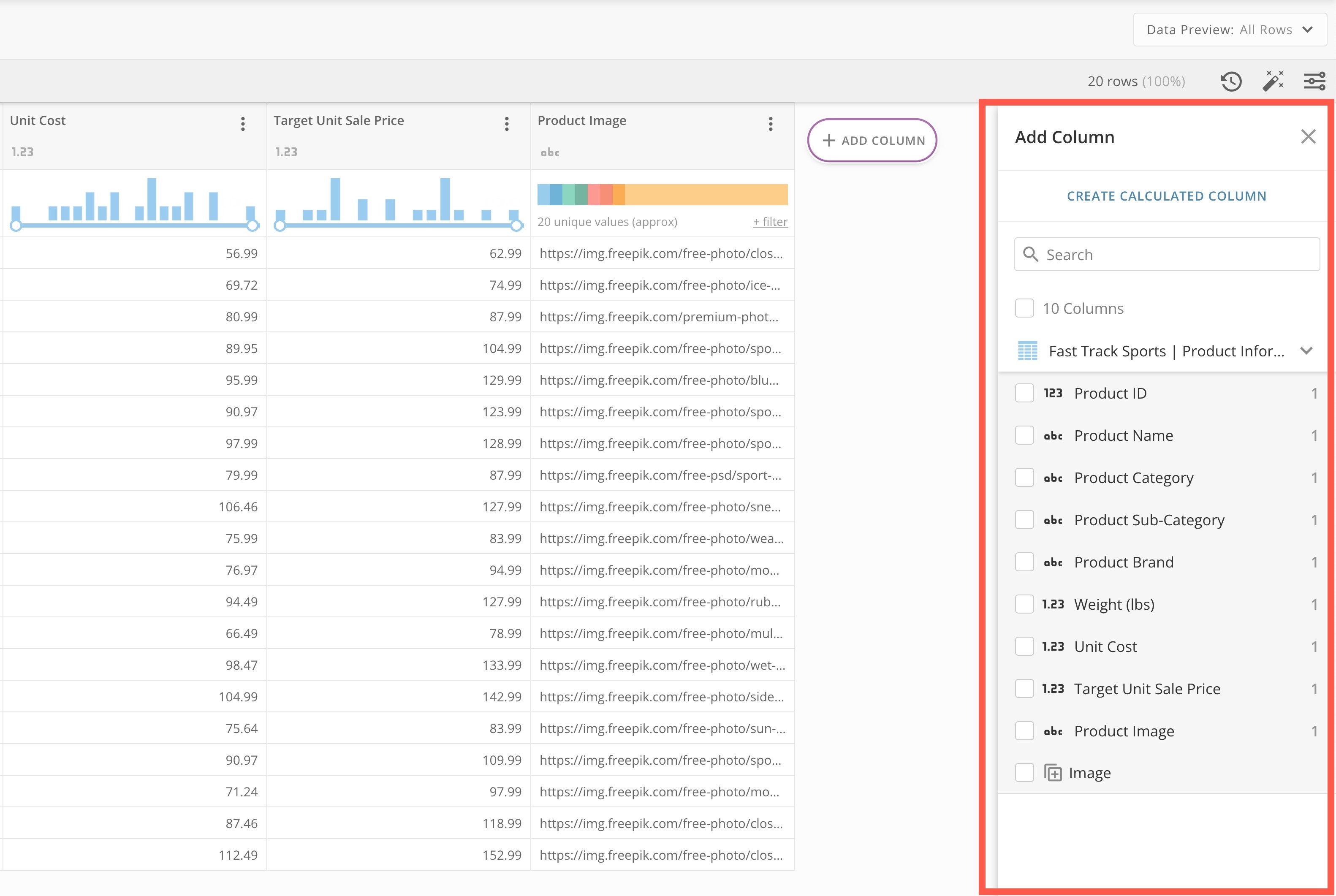
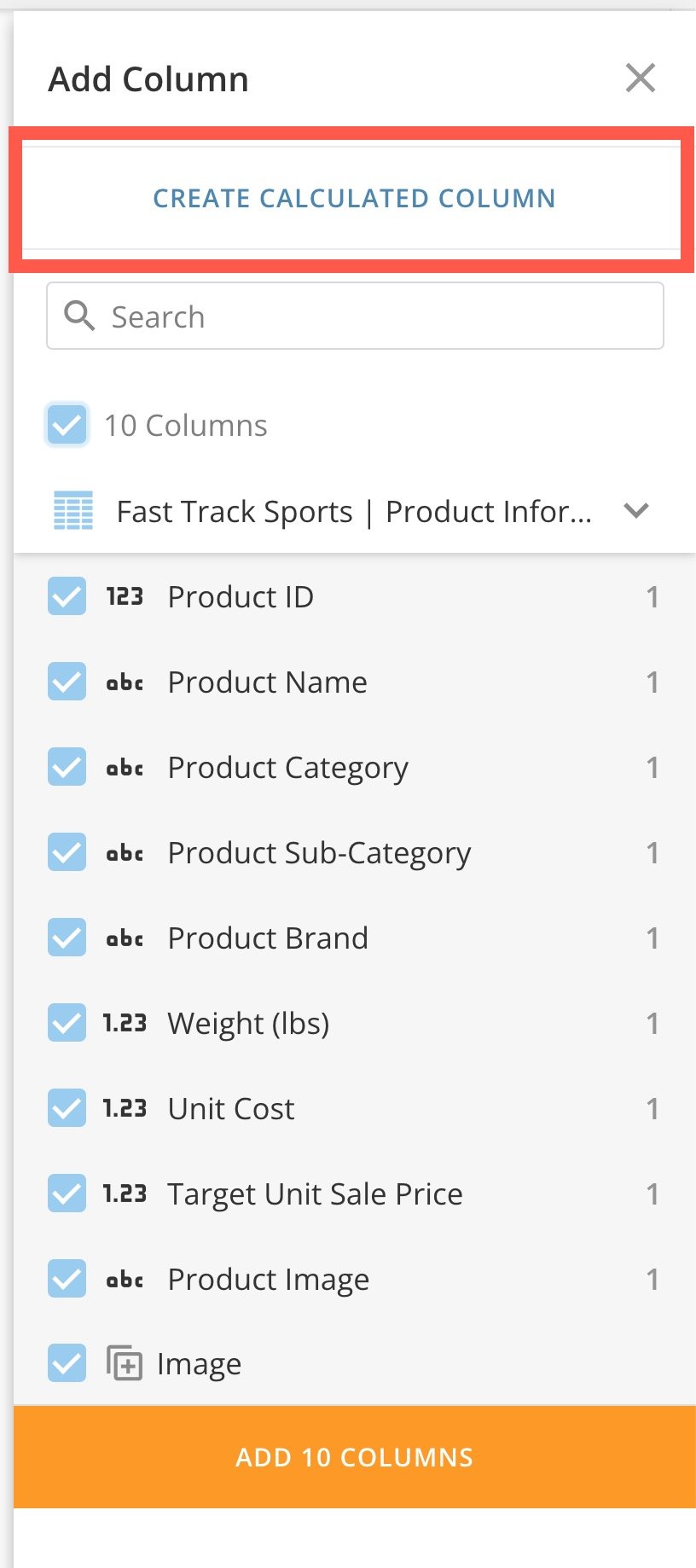
 The **Add Column** panel displays on the right of the Views Explorer.
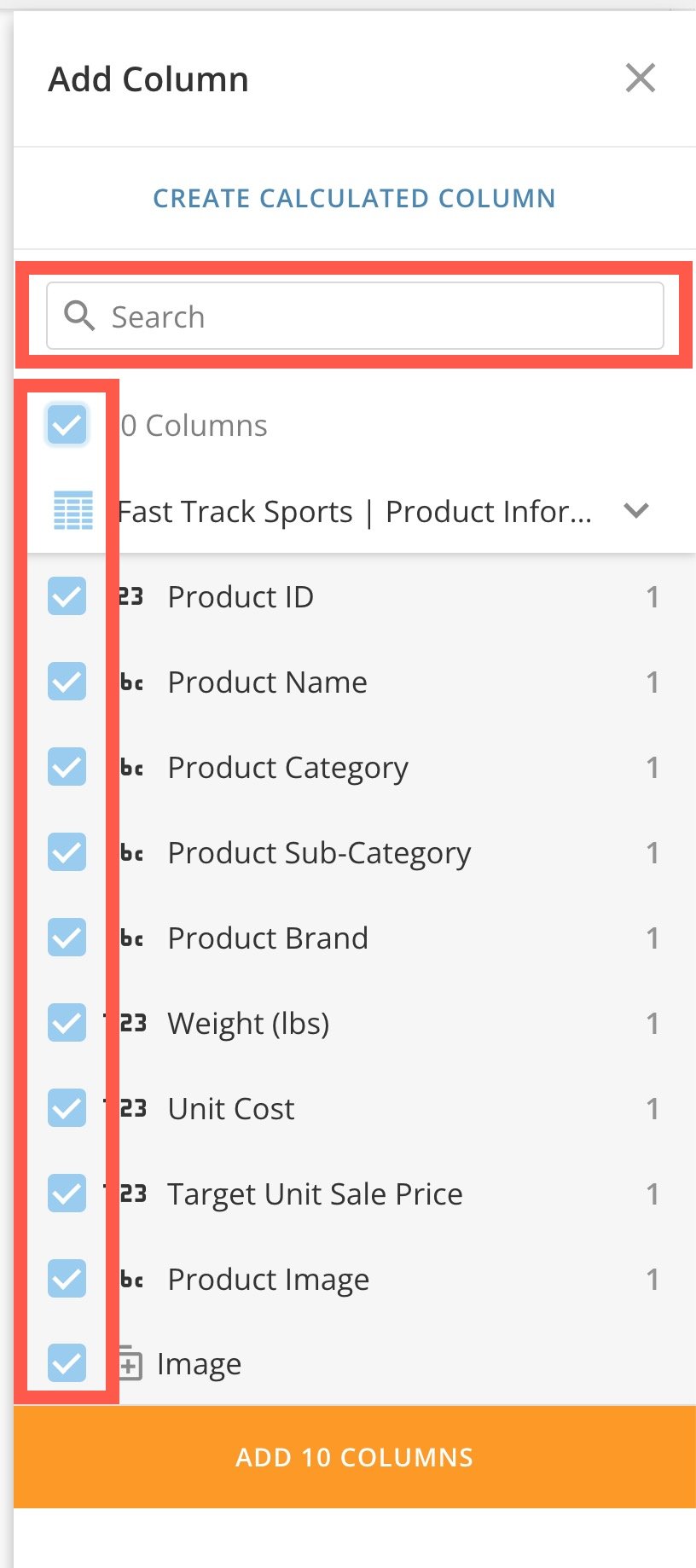
 Use the search tool to locate the column(s) you want to duplicate and/or select the checkbox for each one. If you want to select all of the columns, select the checkbox labeled **xx Columns**.
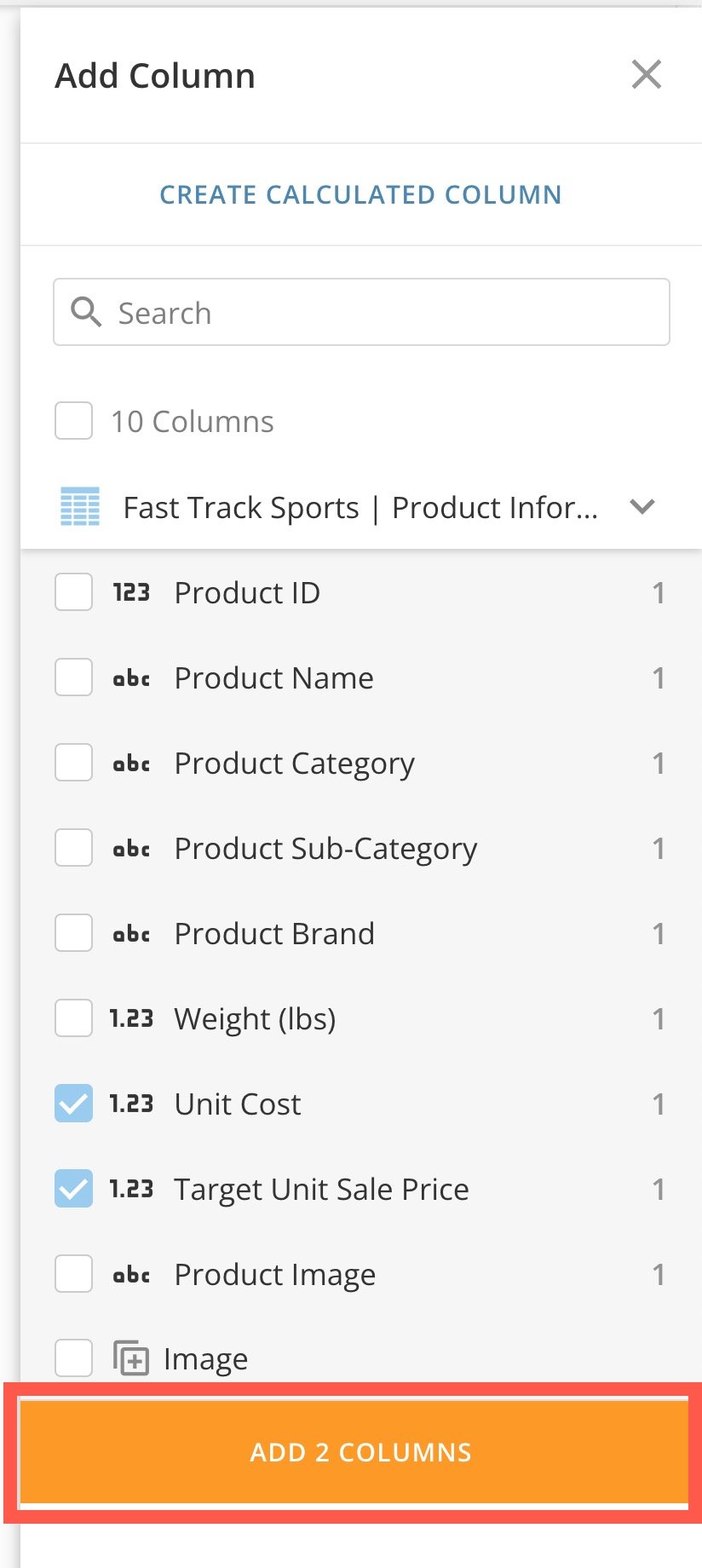
 After selecting all of the columns you want to duplicate, select **Add xx Columns**.
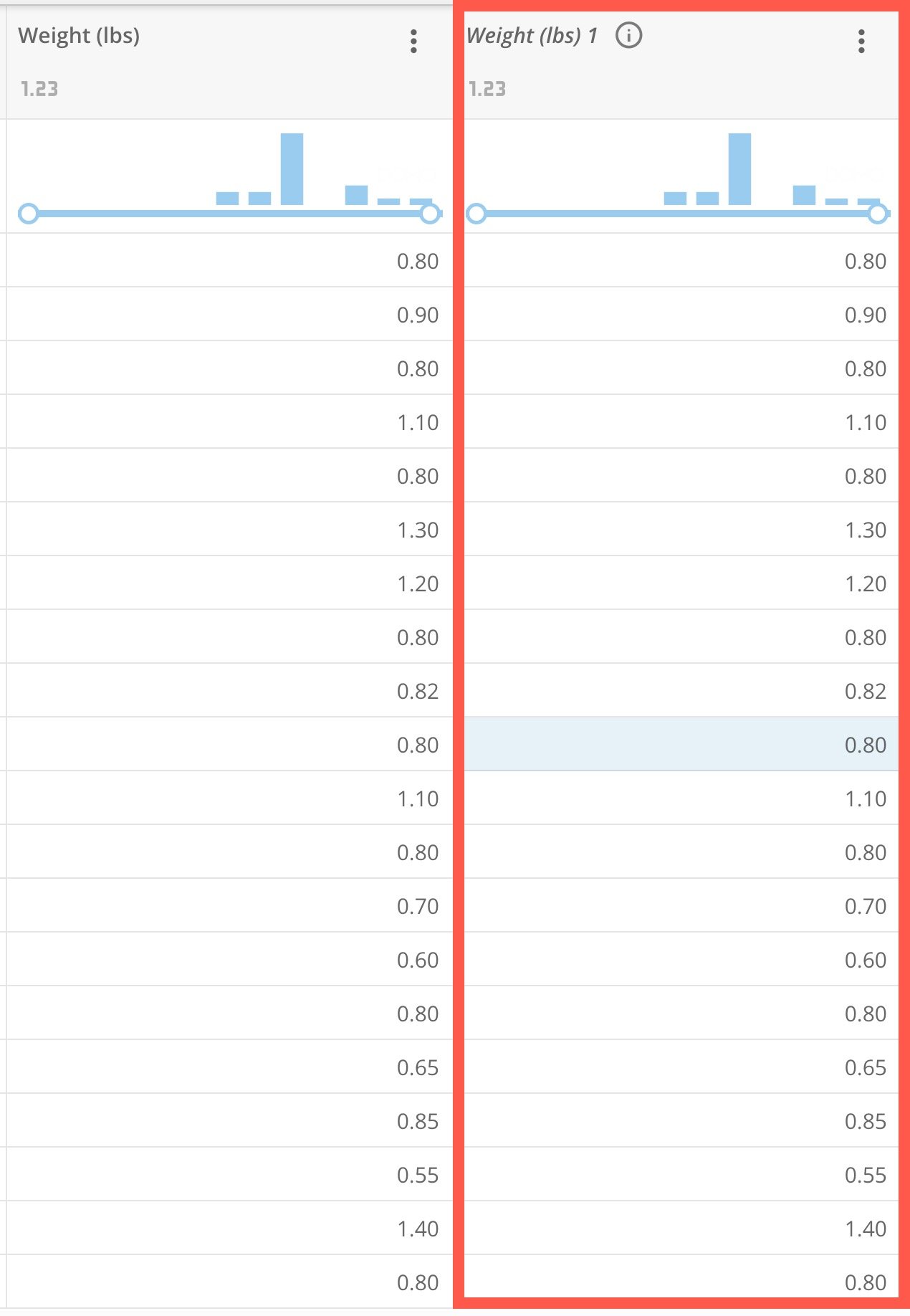
 The duplicated columns appear next to the original column of the same name, with the same title and a number in italics. The original version of the column is 0 (not shown) and any duplicates begin with 1.
 # Rename Columns
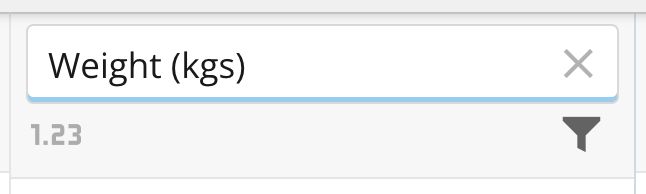
Rename a column by hovering over the column name until the **Edit** icon displays. Then click on the name to make the field editable. Click outside of the field to save your changes.
# Rename Columns
Rename a column by hovering over the column name until the **Edit** icon displays. Then click on the name to make the field editable. Click outside of the field to save your changes.
 # Move Columns
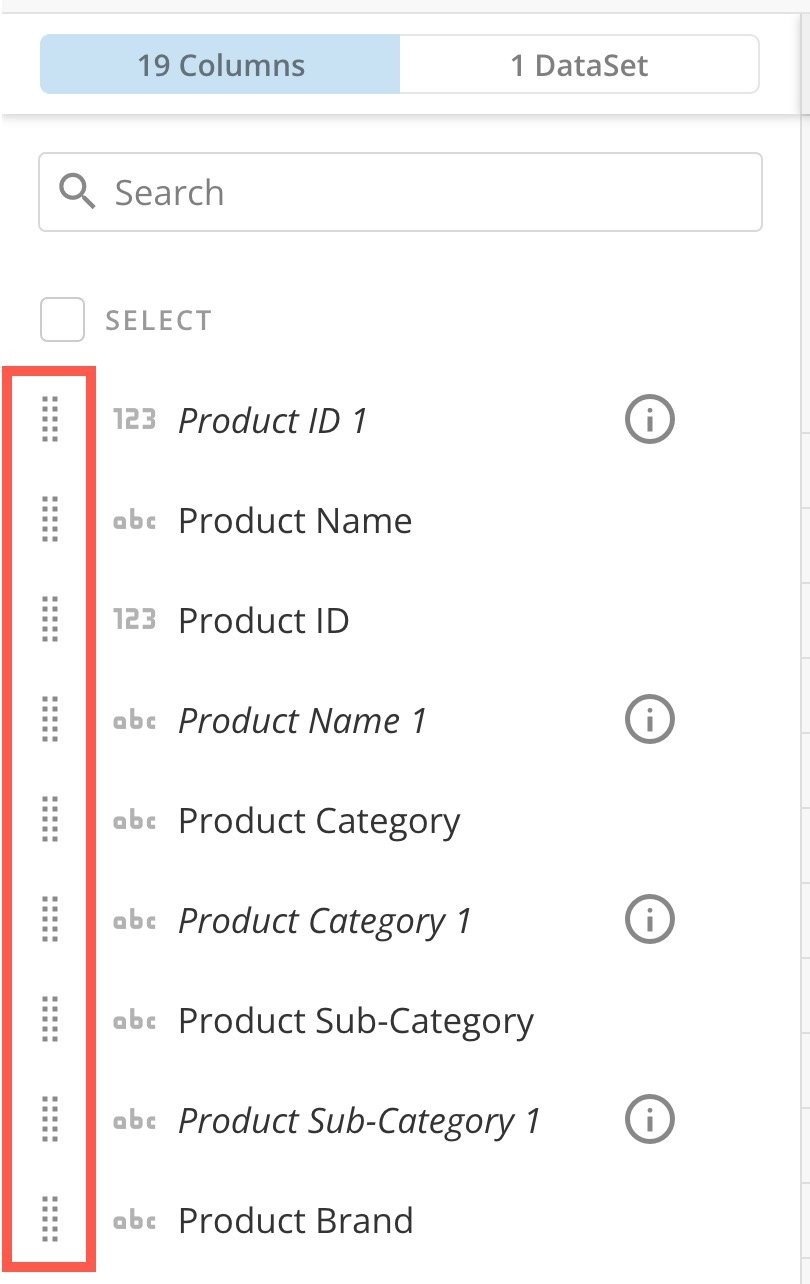
Reorder columns in the left panel by using the handles to drag the columns in the correct order.
# Move Columns
Reorder columns in the left panel by using the handles to drag the columns in the correct order.
 # Add Calculated Column
Add a new calculated column to your DataSet View by opening the [Add Column panel](#add_columns) and selecting **Create Calculated Column**.
# Add Calculated Column
Add a new calculated column to your DataSet View by opening the [Add Column panel](#add_columns) and selecting **Create Calculated Column**.
 The **Calculated Column Editor** displays.
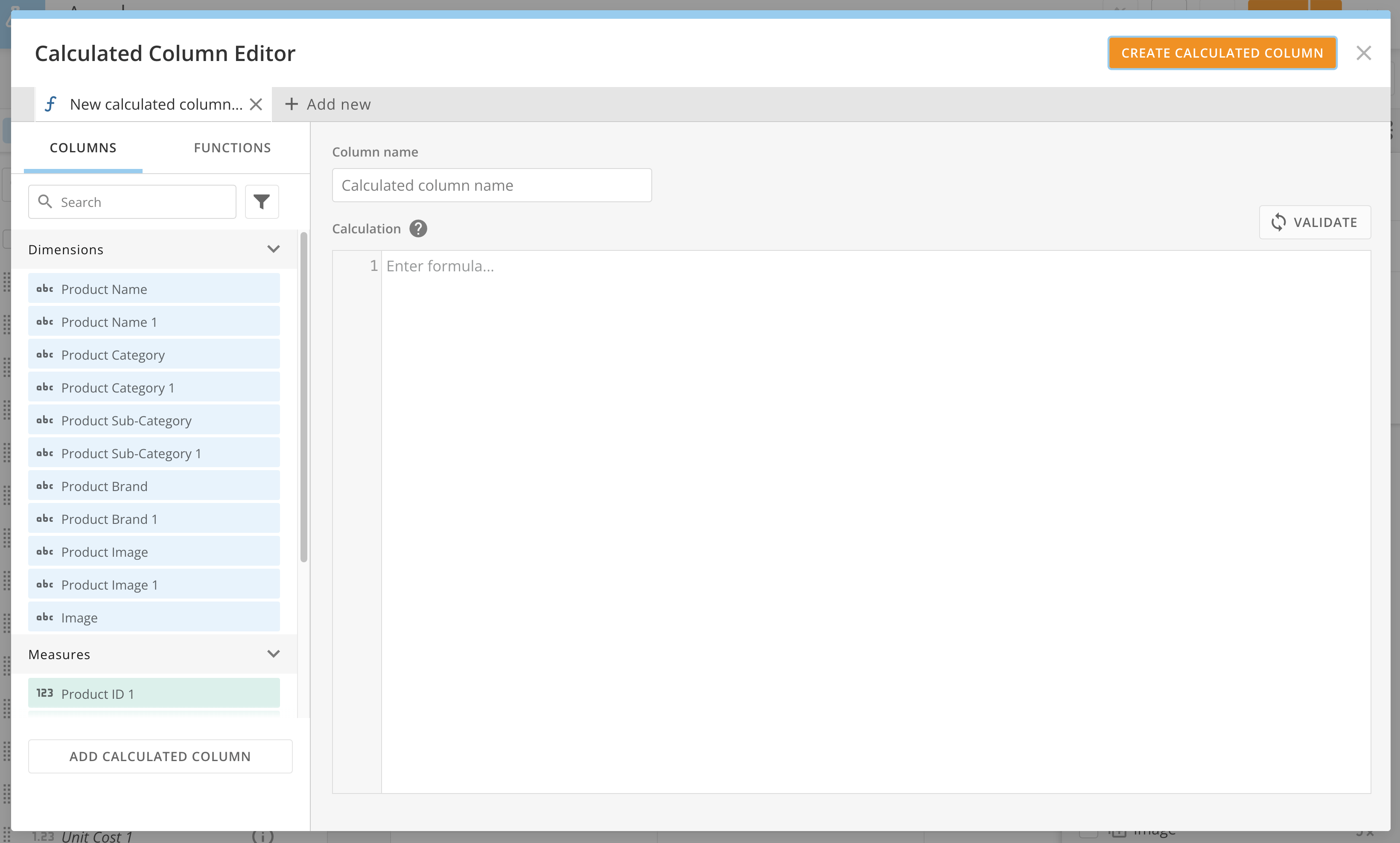 Enter your calculation in the **Formula** field of the editor.
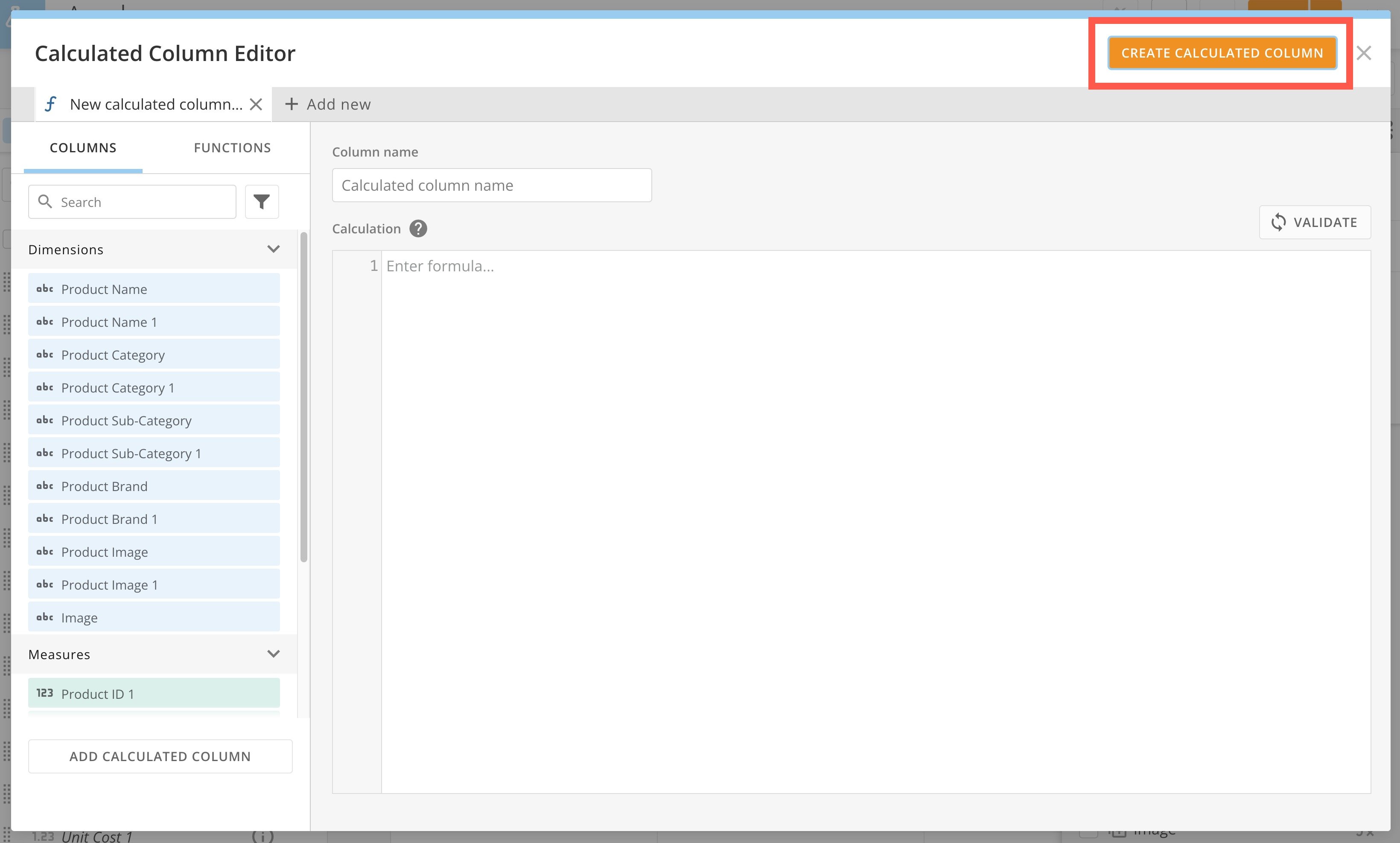
When you have finished writing your calculation, select **Create Calculated Column**. This automatically adds the new calculated column to your DataSet in Views Explorer. To save the calculated column to your DataSet, you must save your DataSet as a new DataSet View.
Enter your calculation in the **Formula** field of the editor.
When you have finished writing your calculation, select **Create Calculated Column**. This automatically adds the new calculated column to your DataSet in Views Explorer. To save the calculated column to your DataSet, you must save your DataSet as a new DataSet View.
 # Remove Columns
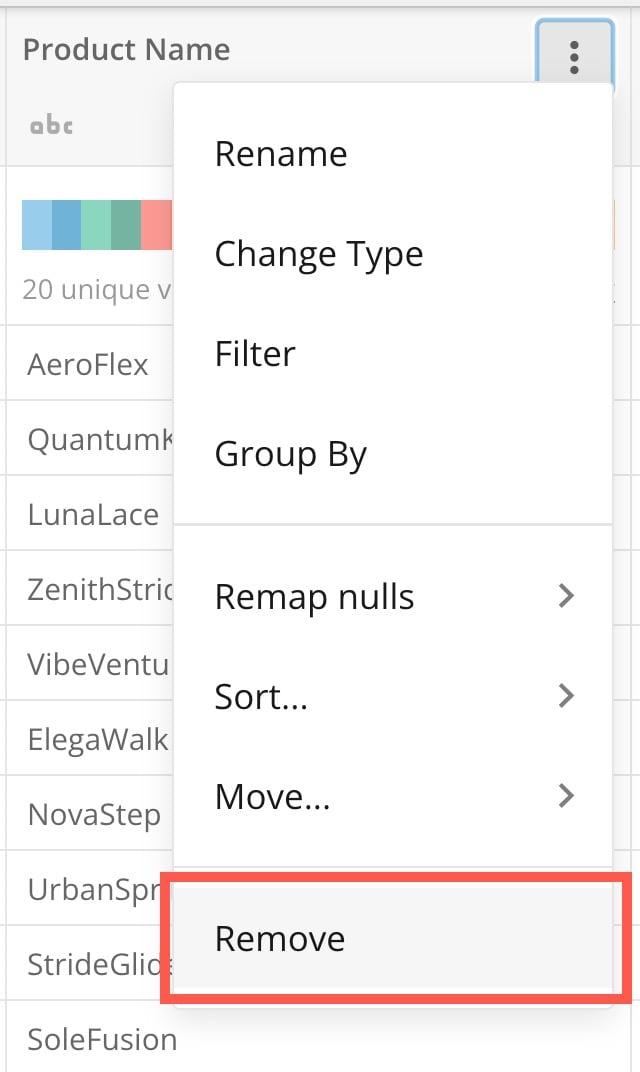
Remove a column by selecting the kebab menu for the column and choosing **Remove**. To remove multiple columns, you can also choose the **Select All** option from the columns on the left and the delete icon.
# Remove Columns
Remove a column by selecting the kebab menu for the column and choosing **Remove**. To remove multiple columns, you can also choose the **Select All** option from the columns on the left and the delete icon.
 #### Bulk Removal
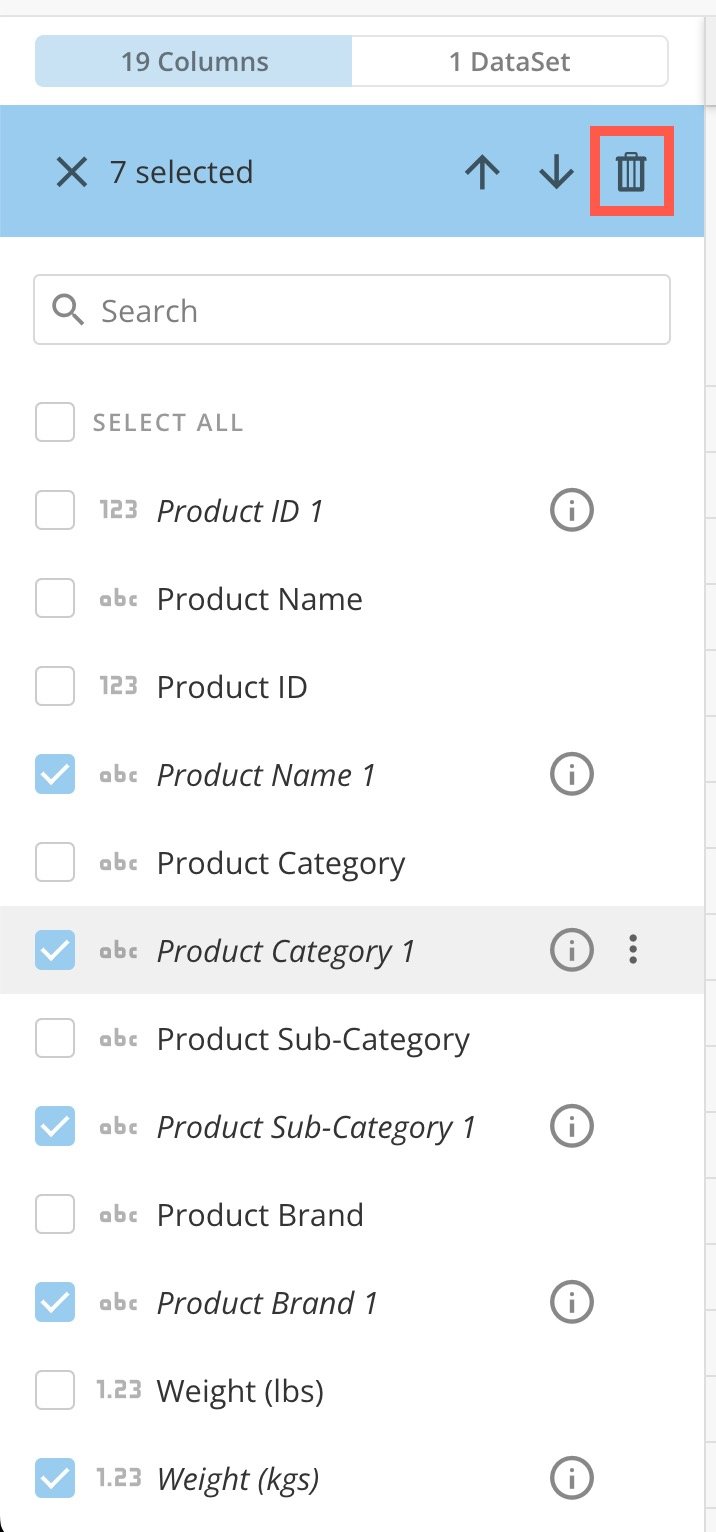
To remove multiple columns at the same time, select the checkboxes for the columns you want to remove and select **Delete**.
#### Bulk Removal
To remove multiple columns at the same time, select the checkboxes for the columns you want to remove and select **Delete**.
 # Perform Joins
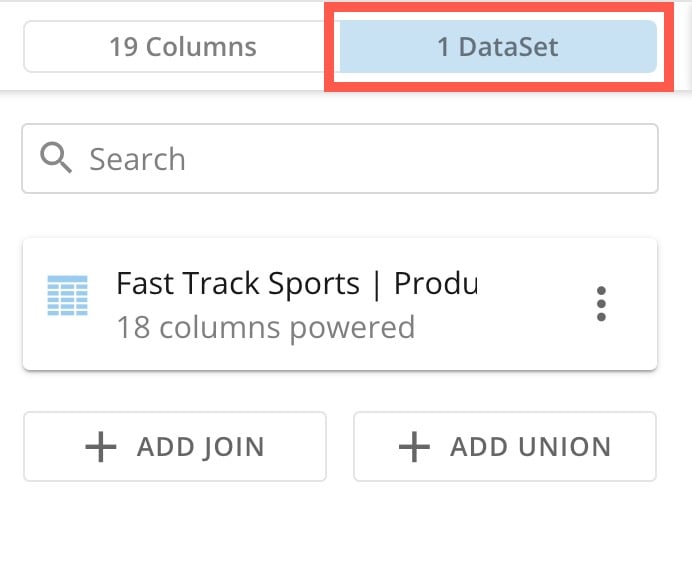
To join DataSets in Views Explorer, toggle the DataSet side of the left panel.
# Perform Joins
To join DataSets in Views Explorer, toggle the DataSet side of the left panel.
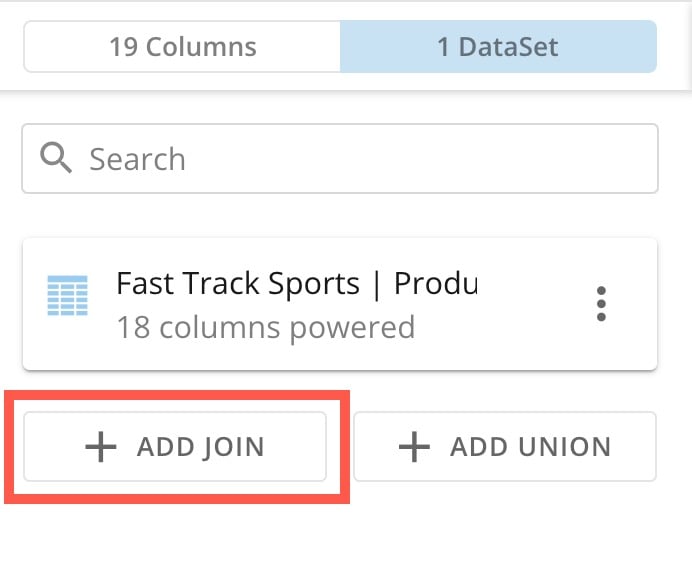
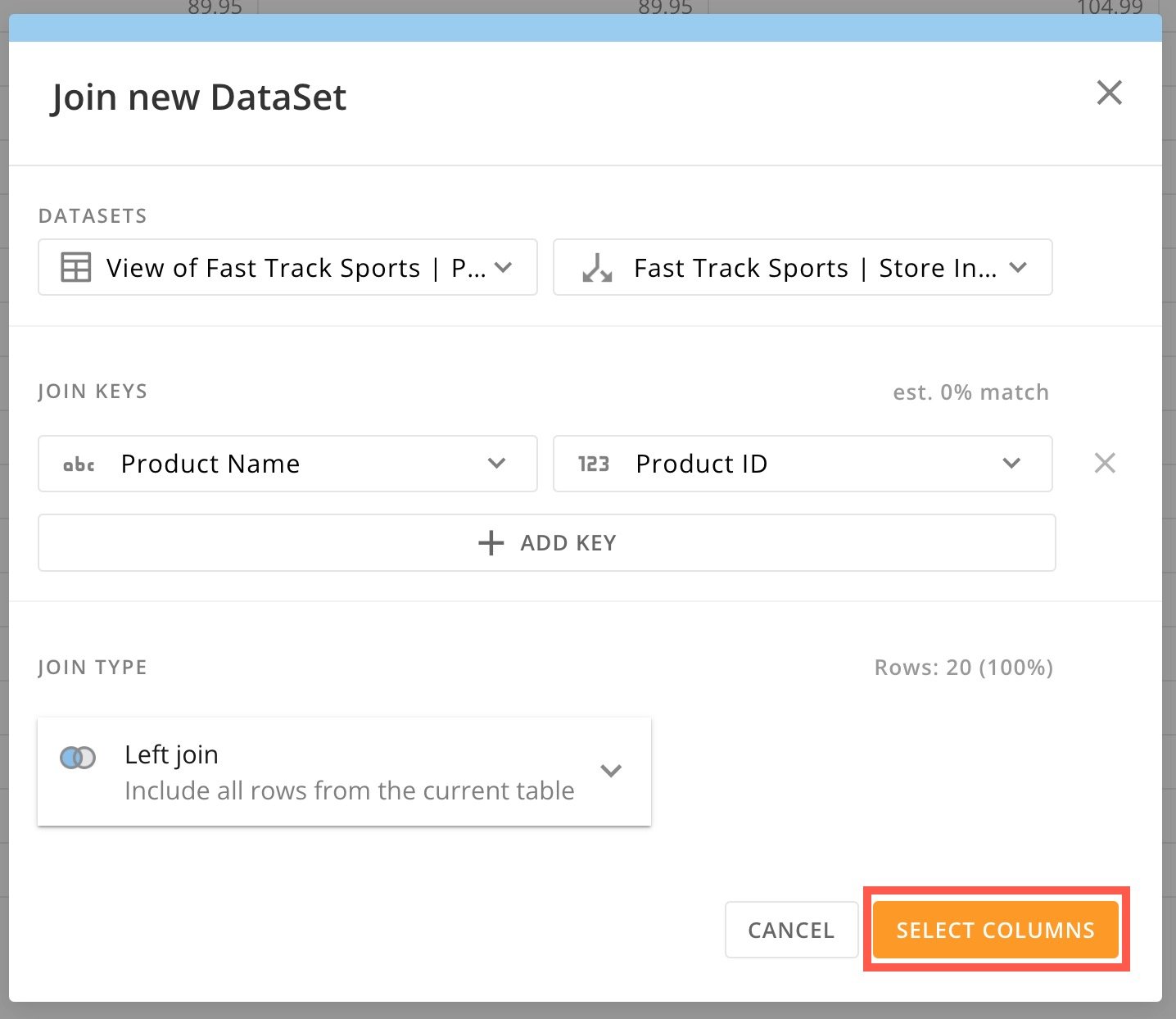
 Select **+** **Add Join** to display the **Join new DataSet** modal.
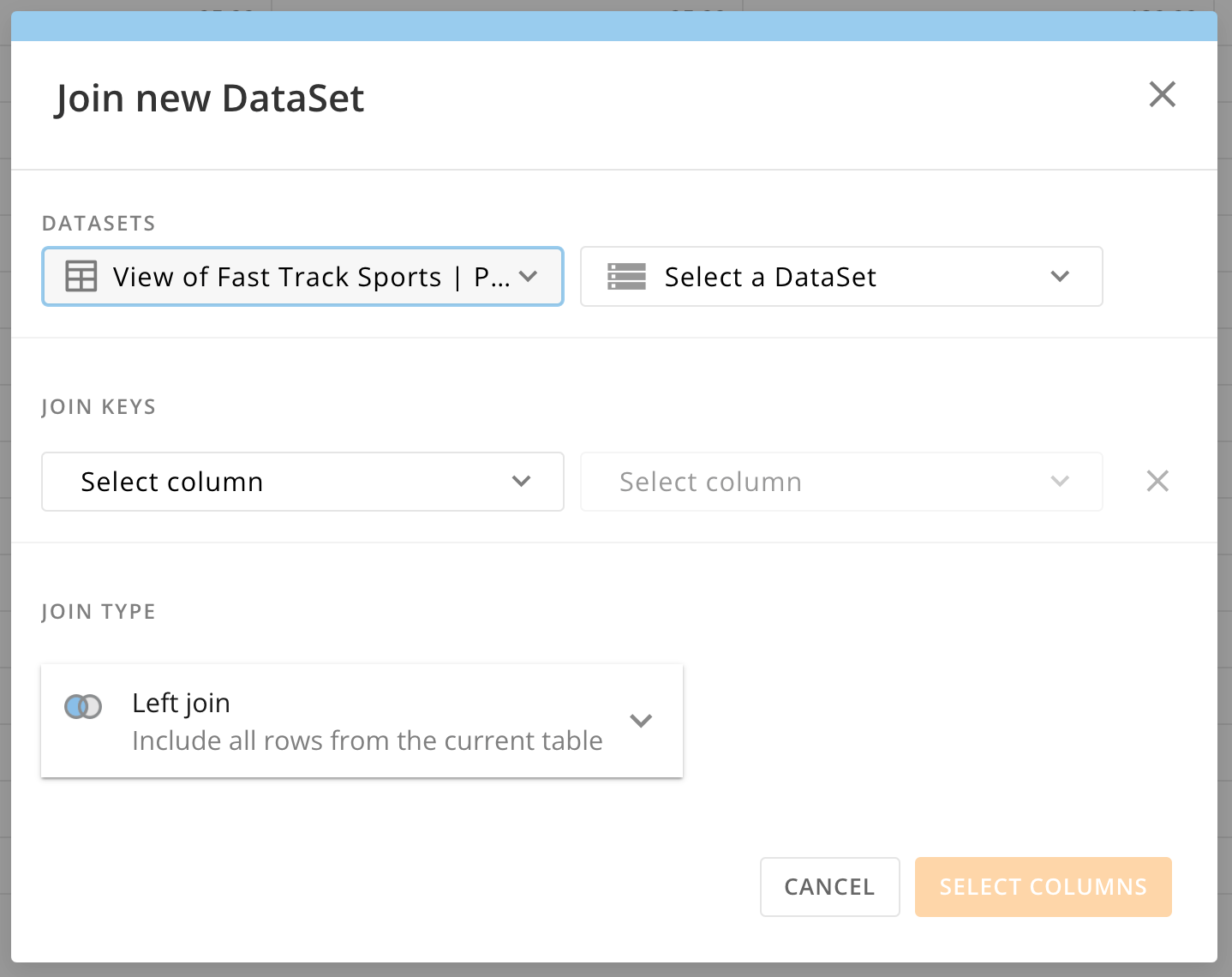 Select a DataSet to join and select columns from both DataSets to use as a join key. You can select **+ Add Key** if you want to configure multiple join keys.
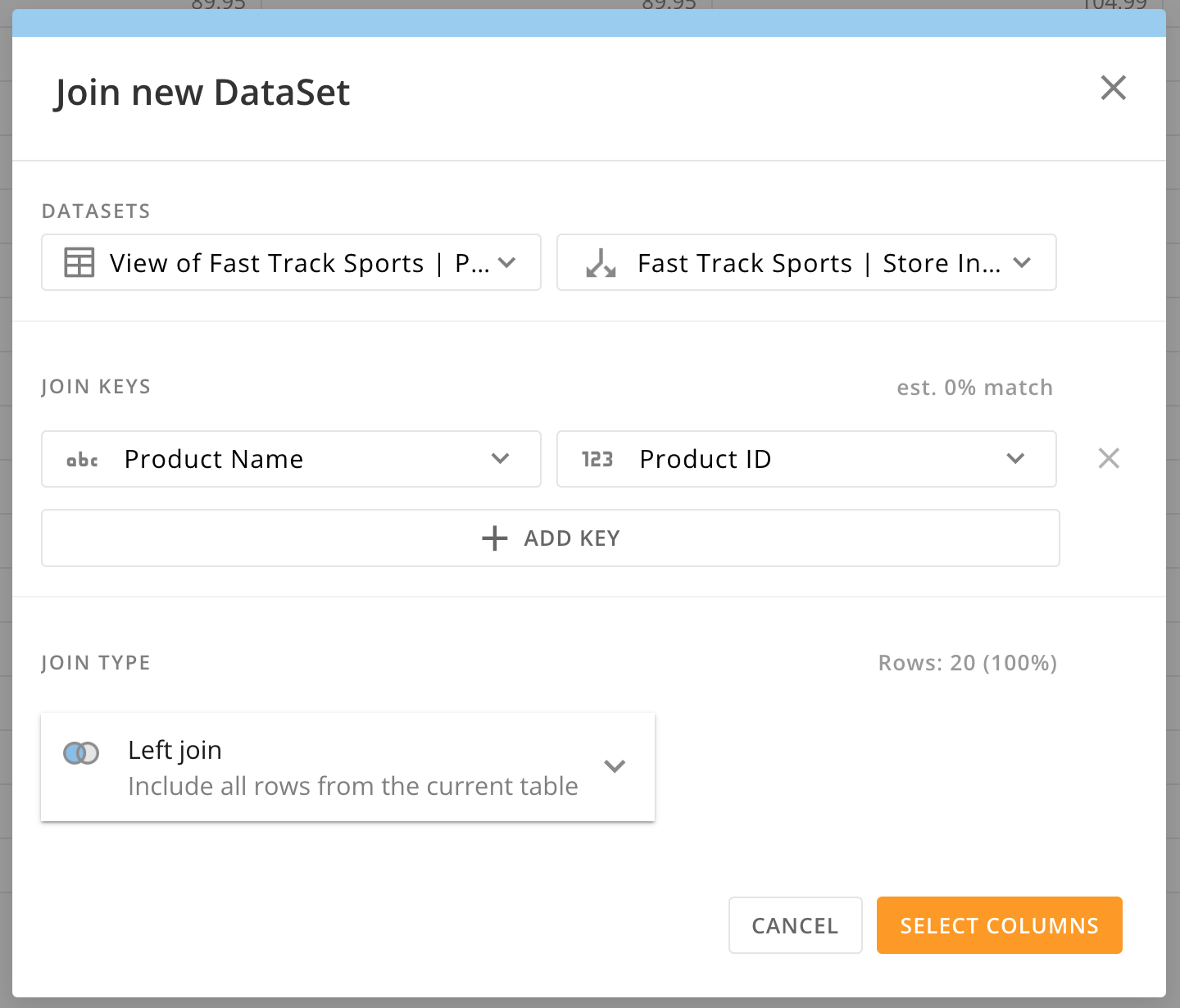 Choose the join type for the DataSets— left, right, or inner join—then choose **Select Columns**.
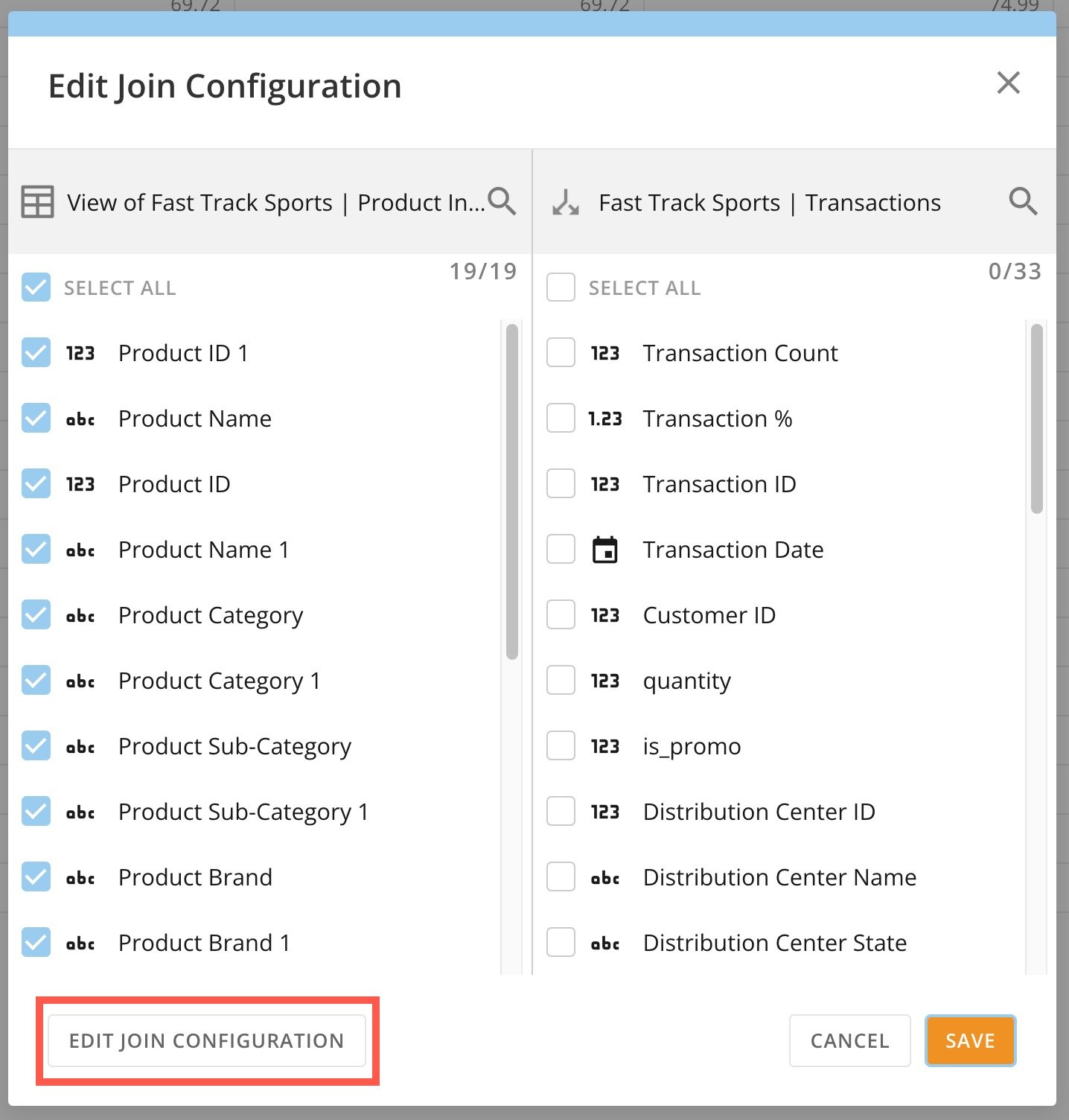
 Choose which columns from both DataSets you want to include in the joined DataSet. To make changes to the join configuration, select **Edit Join Configuration**.
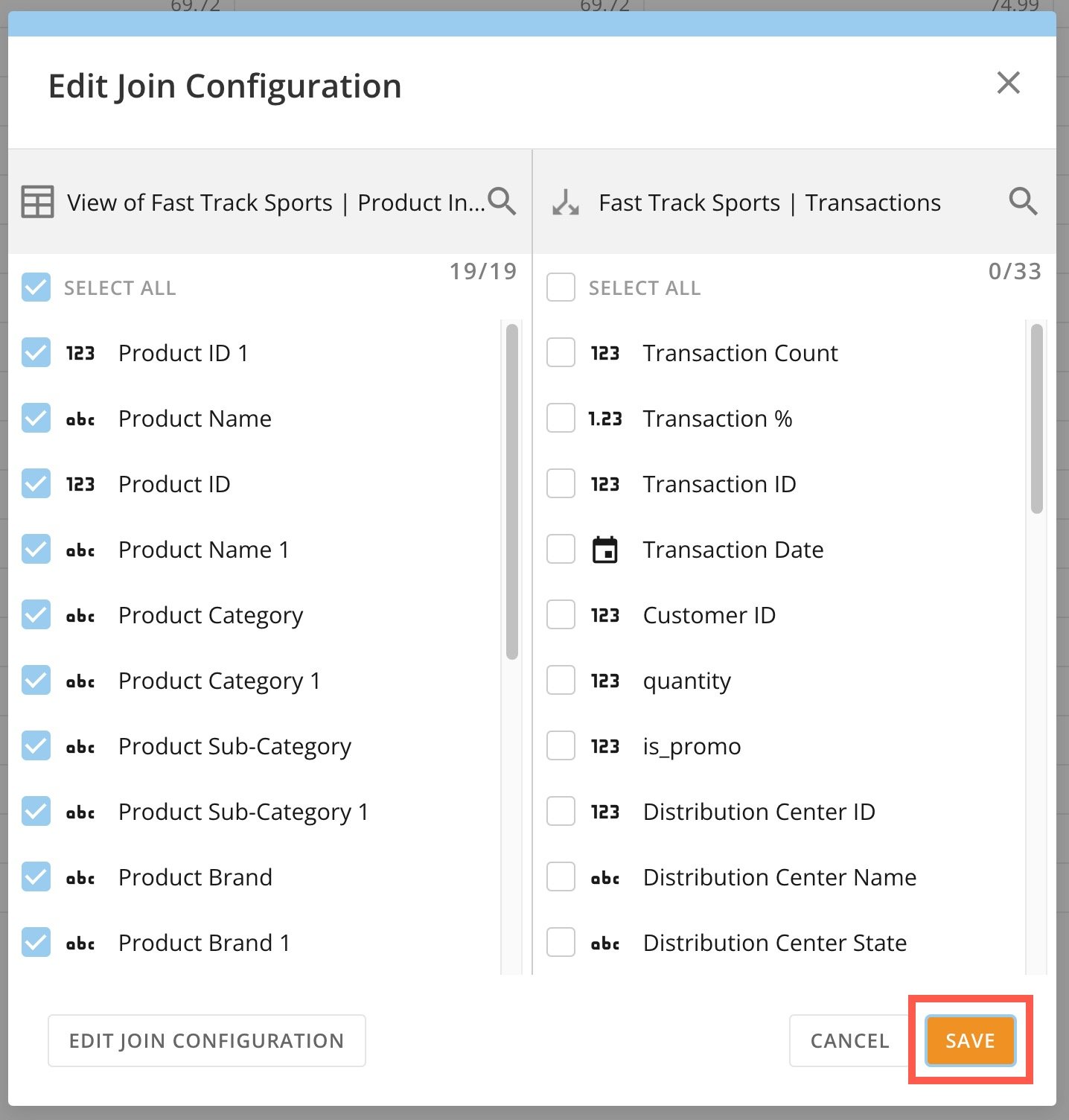
 After choosing which columns to include, select **Save**.
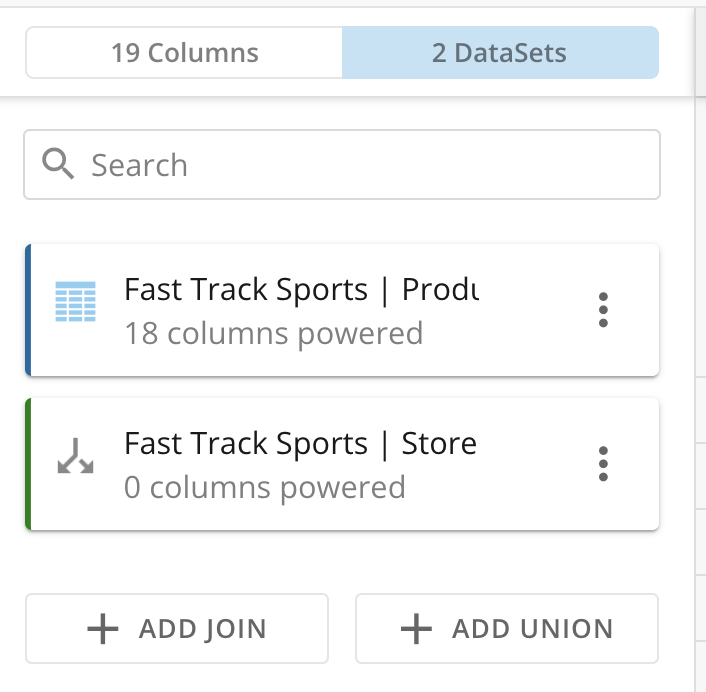
 Your joined DataSet now displays in the **DataSet** side of the left panel in Views Explorer.
 # Perform Unions
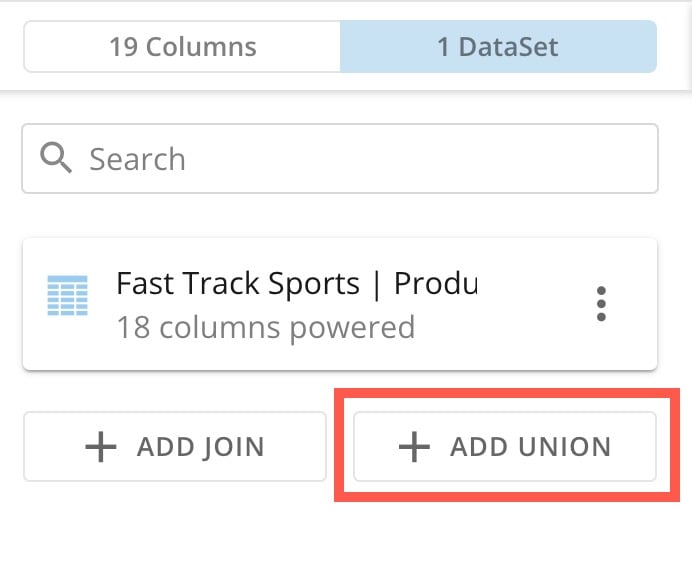
To union your DataSets using Views Explorer, toggle the DataSet side of the left panel. From there, select the **Add Union** button.
Select **+** **Add Union** to display the **Union configuration** modal.
# Perform Unions
To union your DataSets using Views Explorer, toggle the DataSet side of the left panel. From there, select the **Add Union** button.
Select **+** **Add Union** to display the **Union configuration** modal.
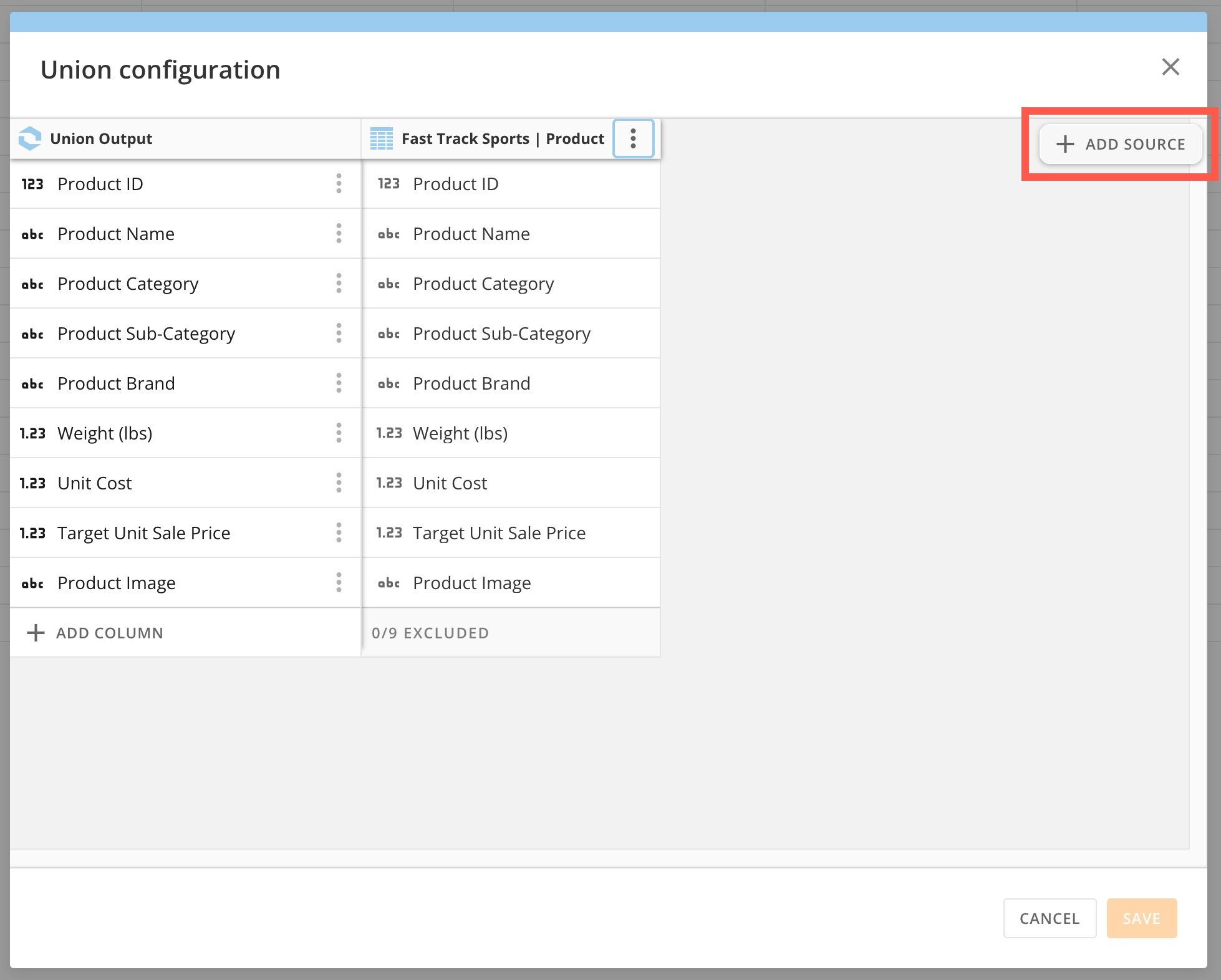
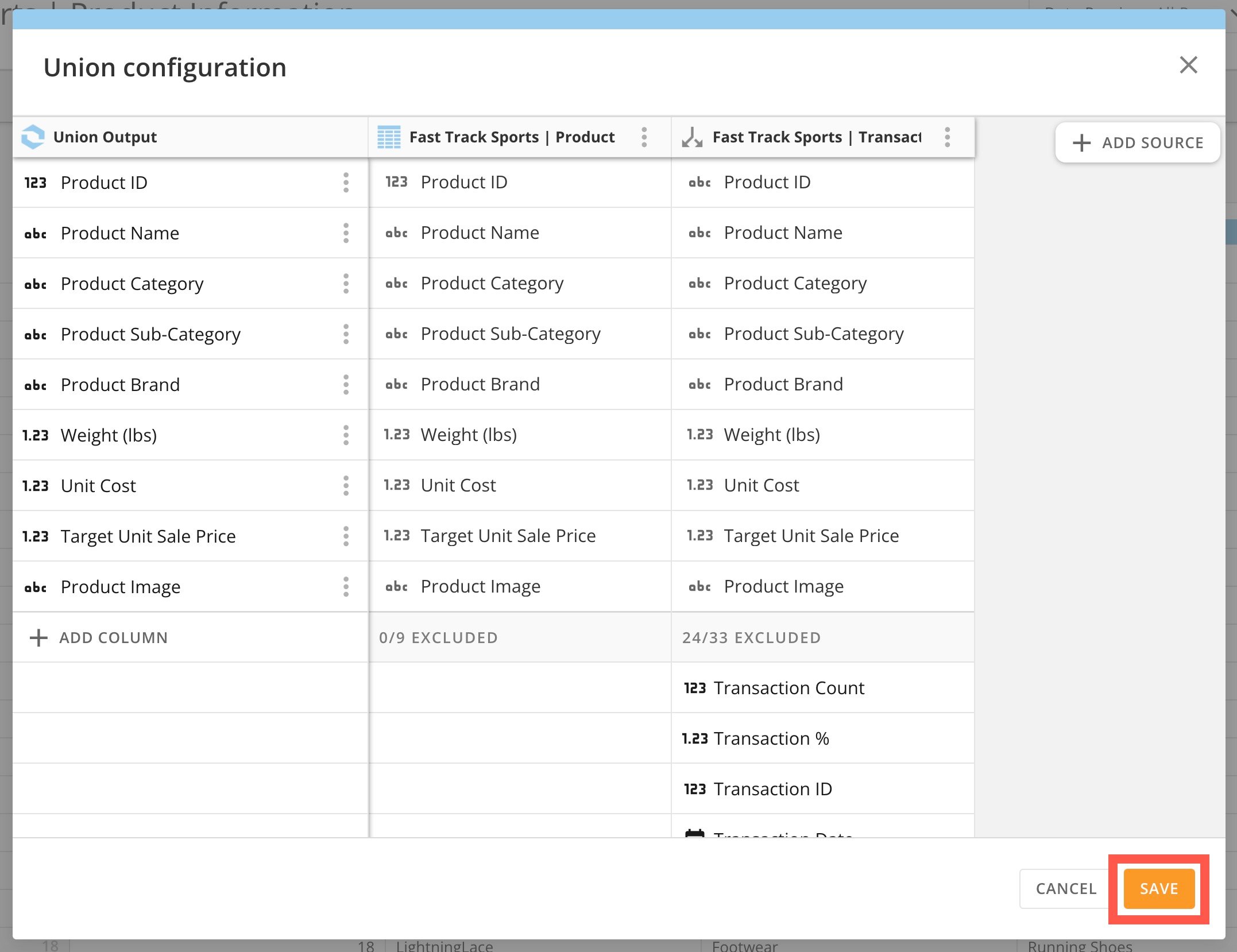
 In the modal, select **+ Add Source** to choose the DataSet(s) you want to union, then select **Save**.
 **Note:**
For unions to work properly, all DataSets must contain the same columns. If your DataSets contain different columns, it is best to
[join](#perform_joins)
them instead.
**Note:**
For unions to work properly, all DataSets must contain the same columns. If your DataSets contain different columns, it is best to
[join](#perform_joins)
them instead.
 # Filter Data
Filter columns in your View by using the **+** **Filter** option at the top of the View.
# Filter Data
Filter columns in your View by using the **+** **Filter** option at the top of the View.
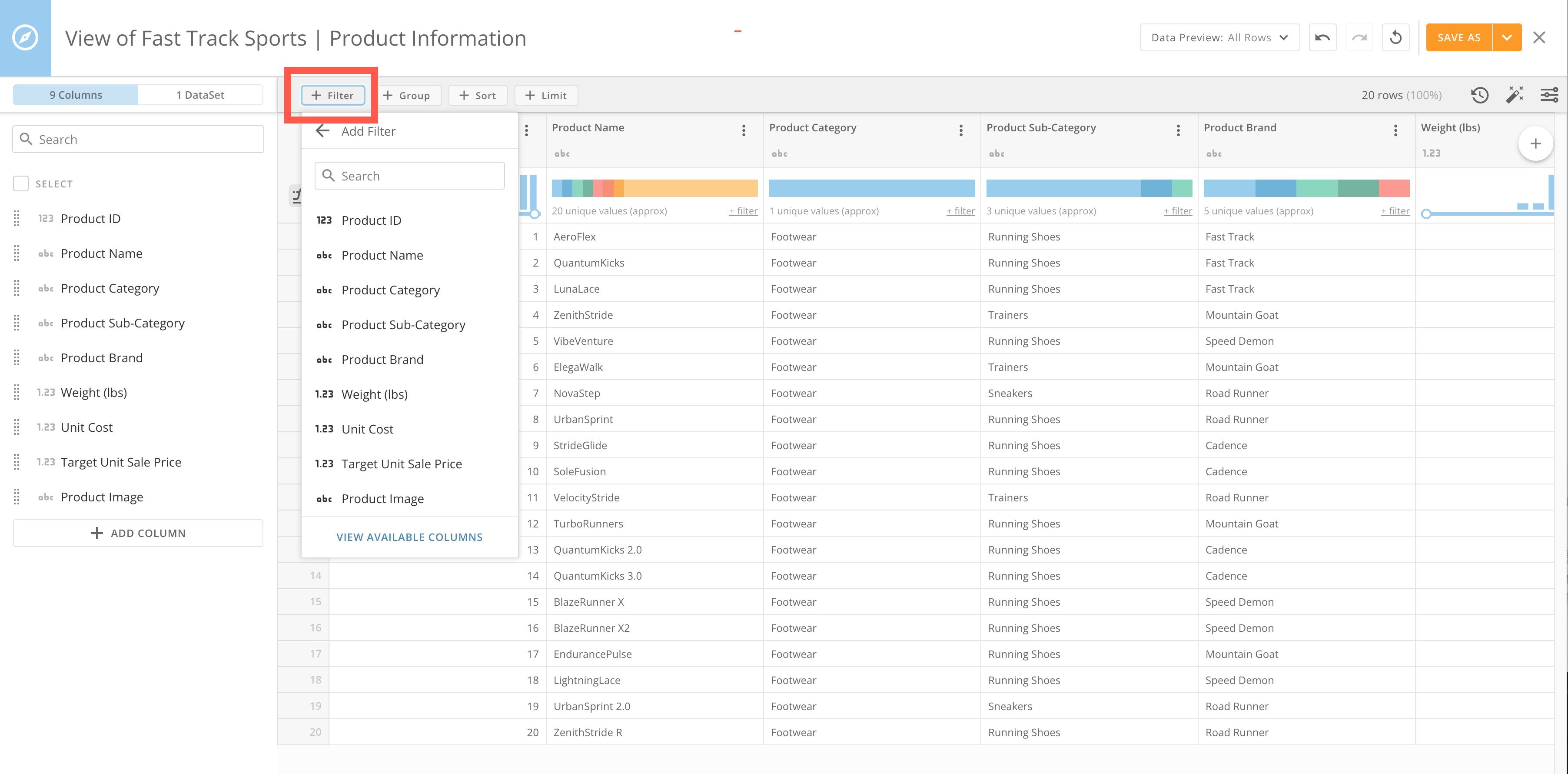 When choosing your Filter, you can toggle between viewing the selected columns and viewing the available columns to use with Filters.
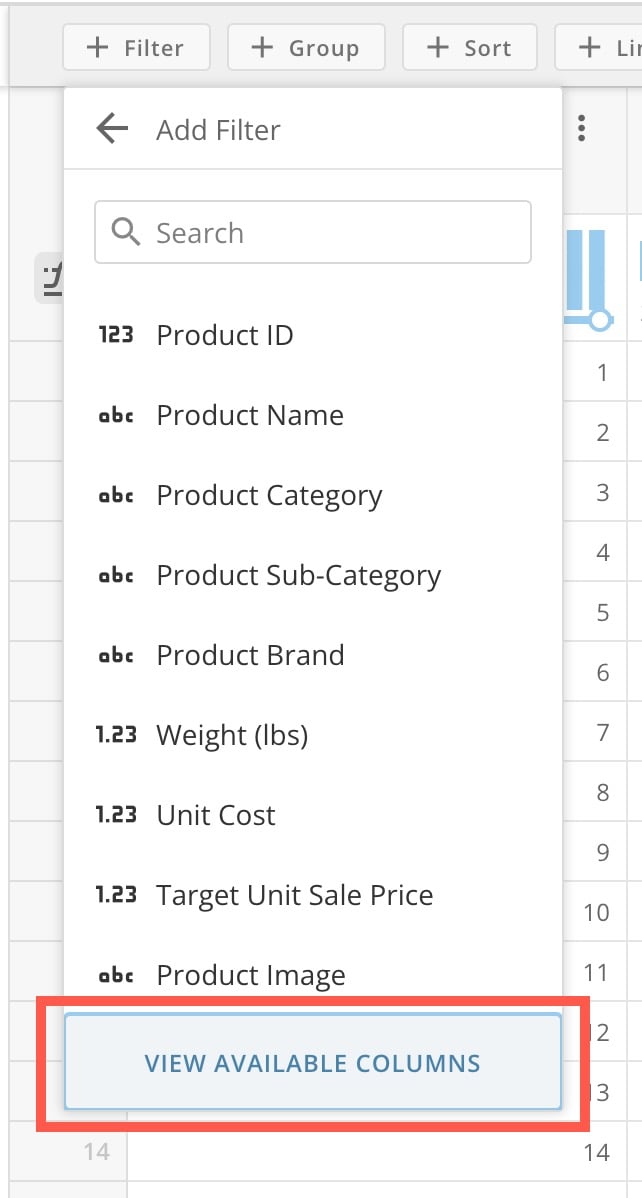
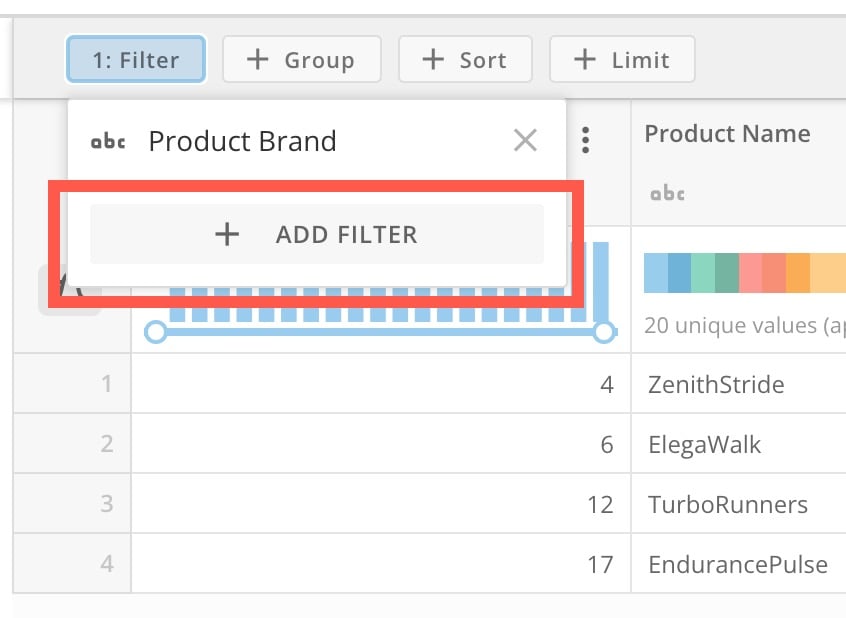
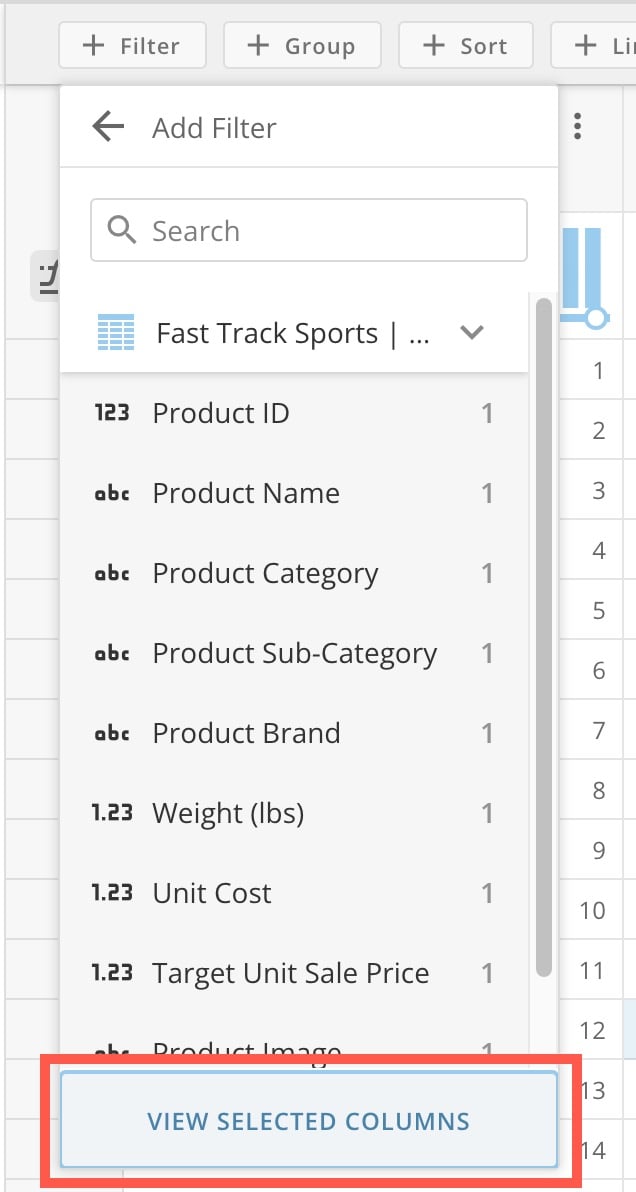 After you have configured one Filter, you can add another by selecting **+ Filter** again and then **+ Add Filter**.
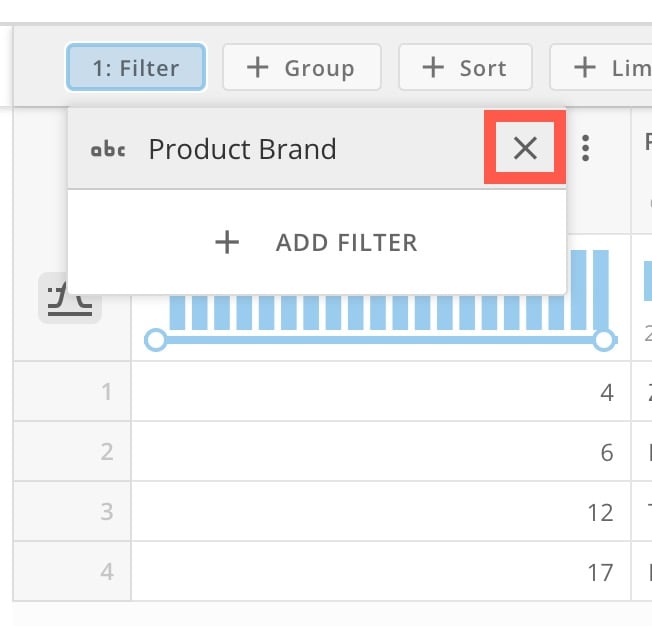
 To remove a Filter, select **Remove**.
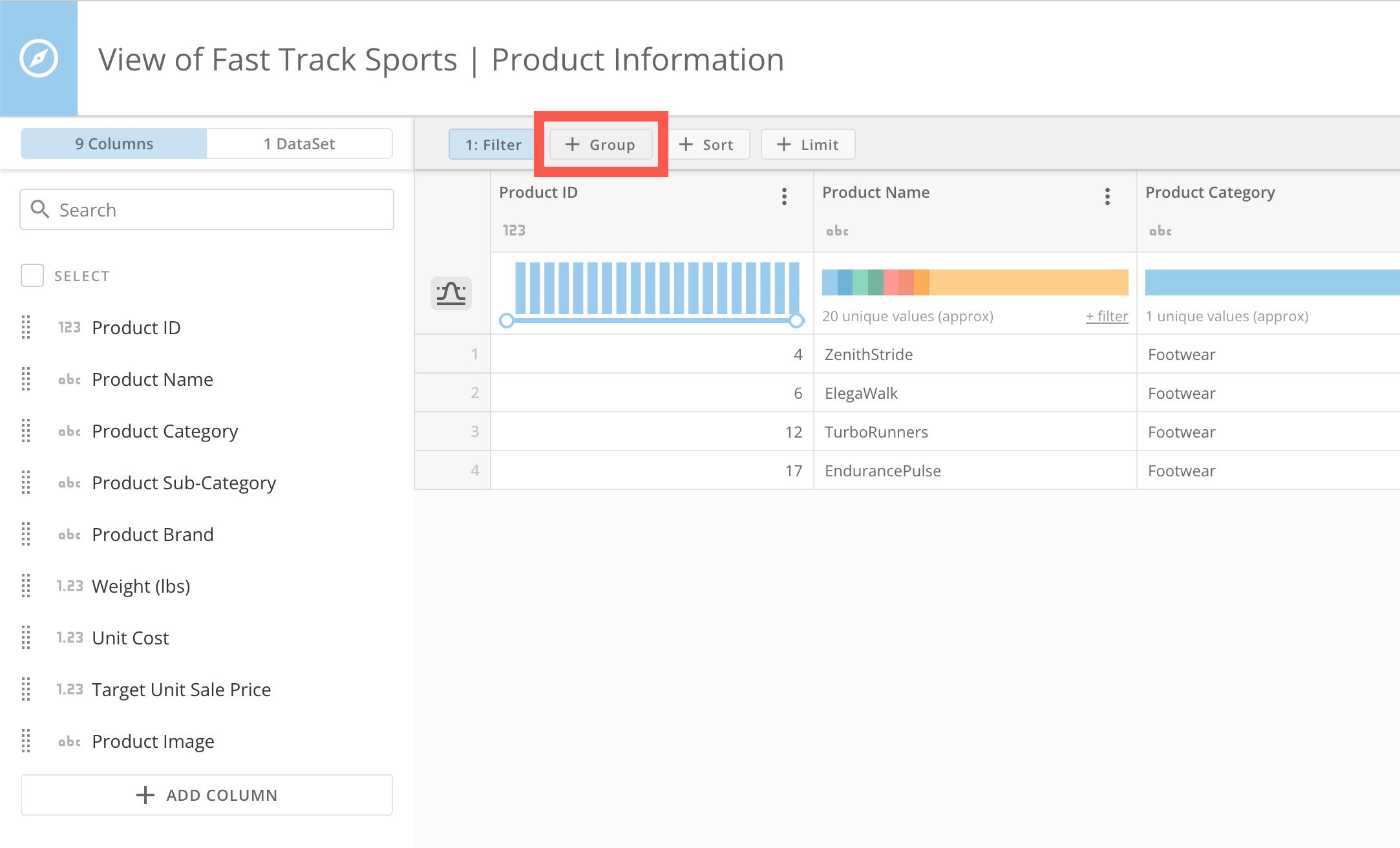
 # Group Data
Grouping data helps you to see only columns you are interested in and aggregations that summarize the data from the categories you select. To Group data, select **+ Group** at the top of the View.
# Group Data
Grouping data helps you to see only columns you are interested in and aggregations that summarize the data from the categories you select. To Group data, select **+ Group** at the top of the View.
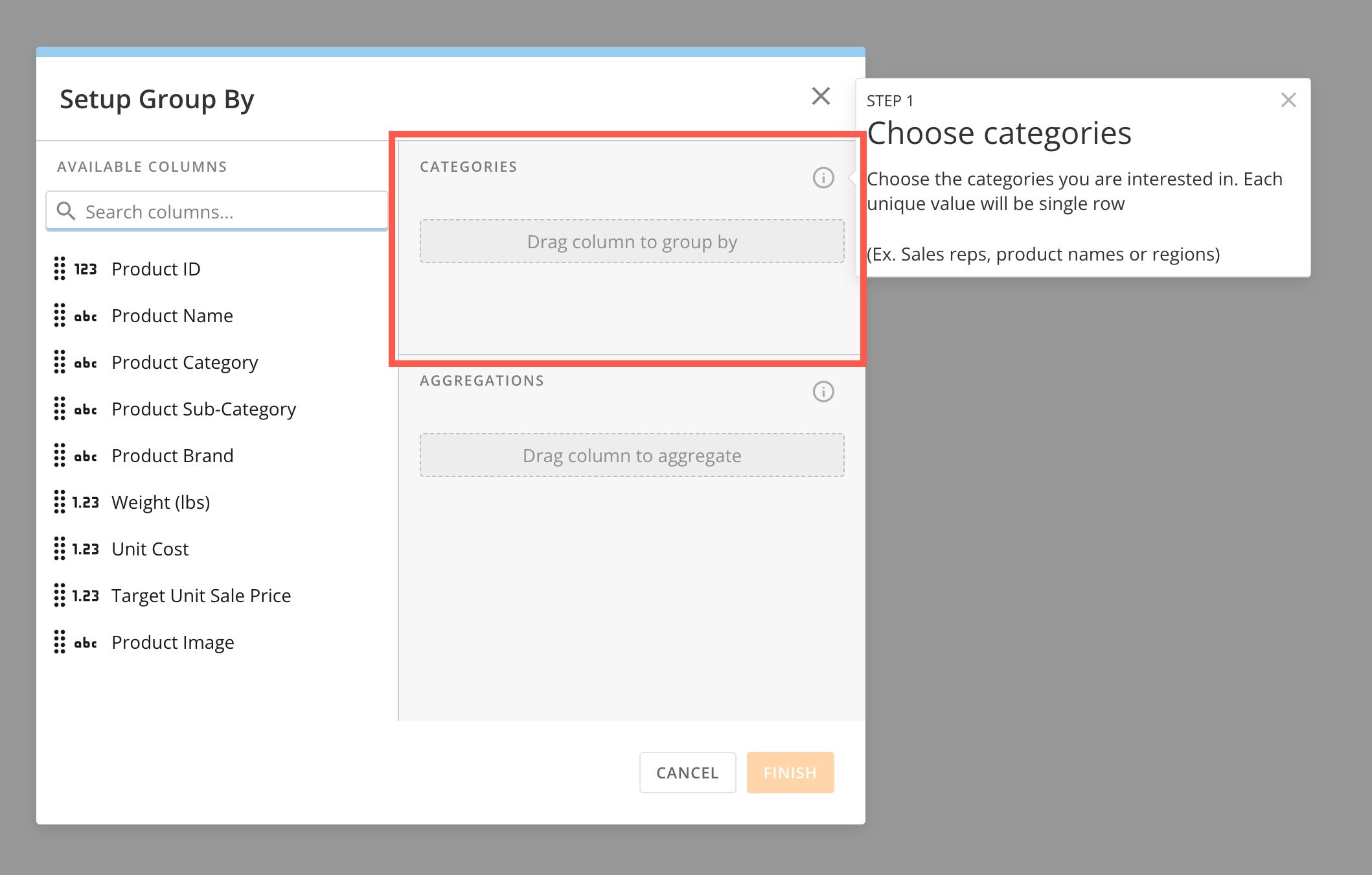
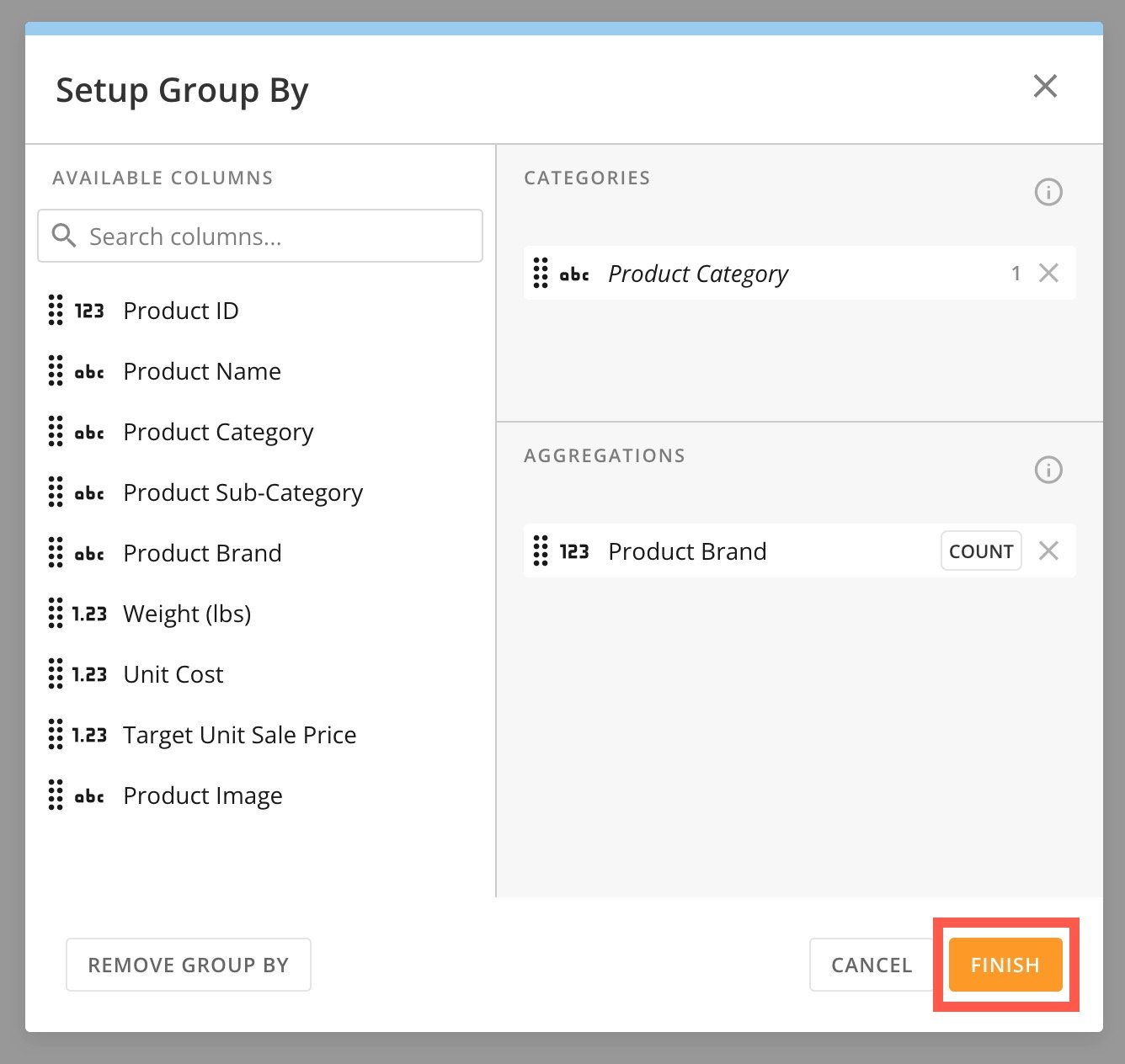
 In the **Setup Group By** modal, drag the column(s) you are interested in to the **Categories** section.
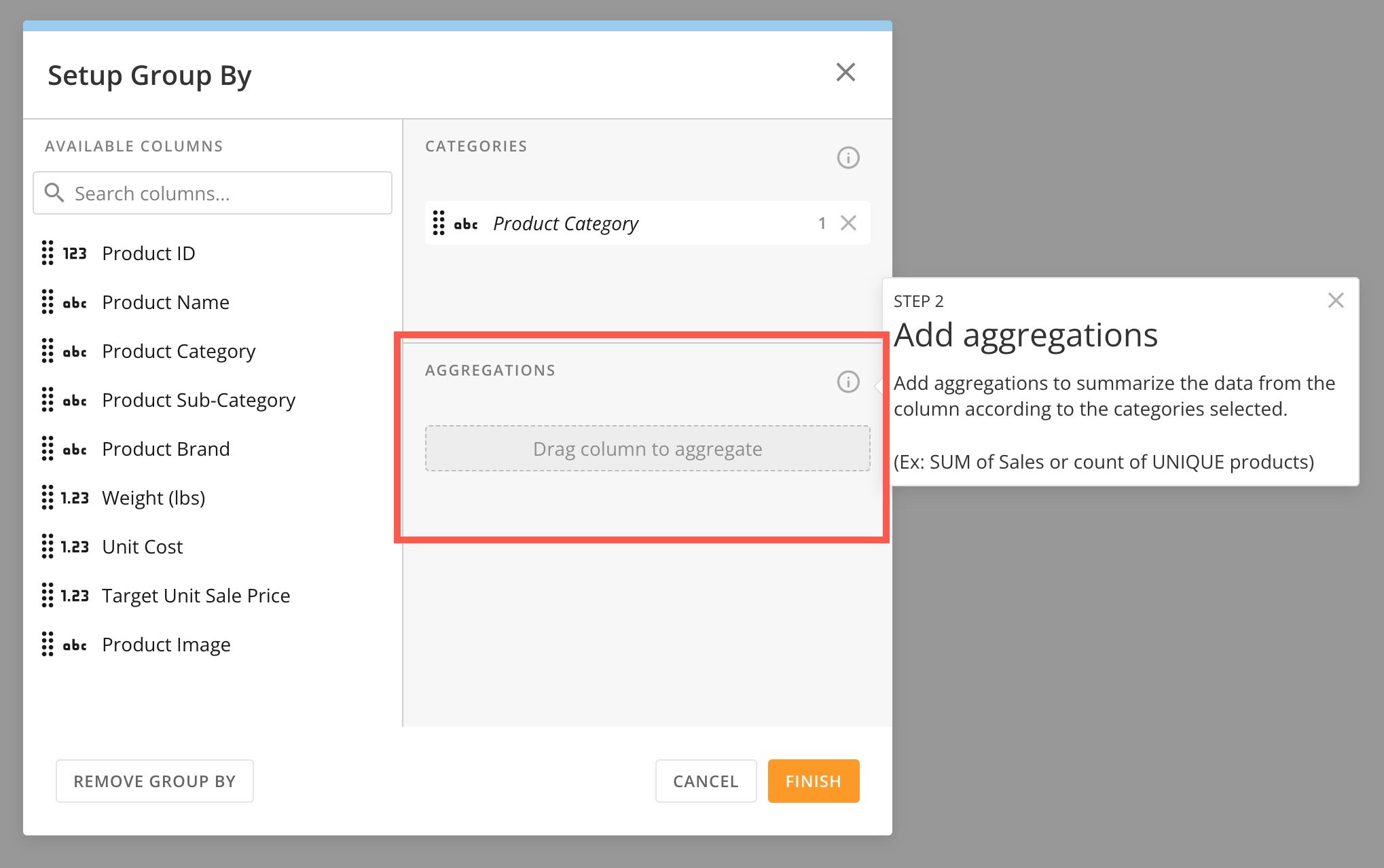
 Then drag the column(s) you want to aggregate by to the **Aggregations** section.
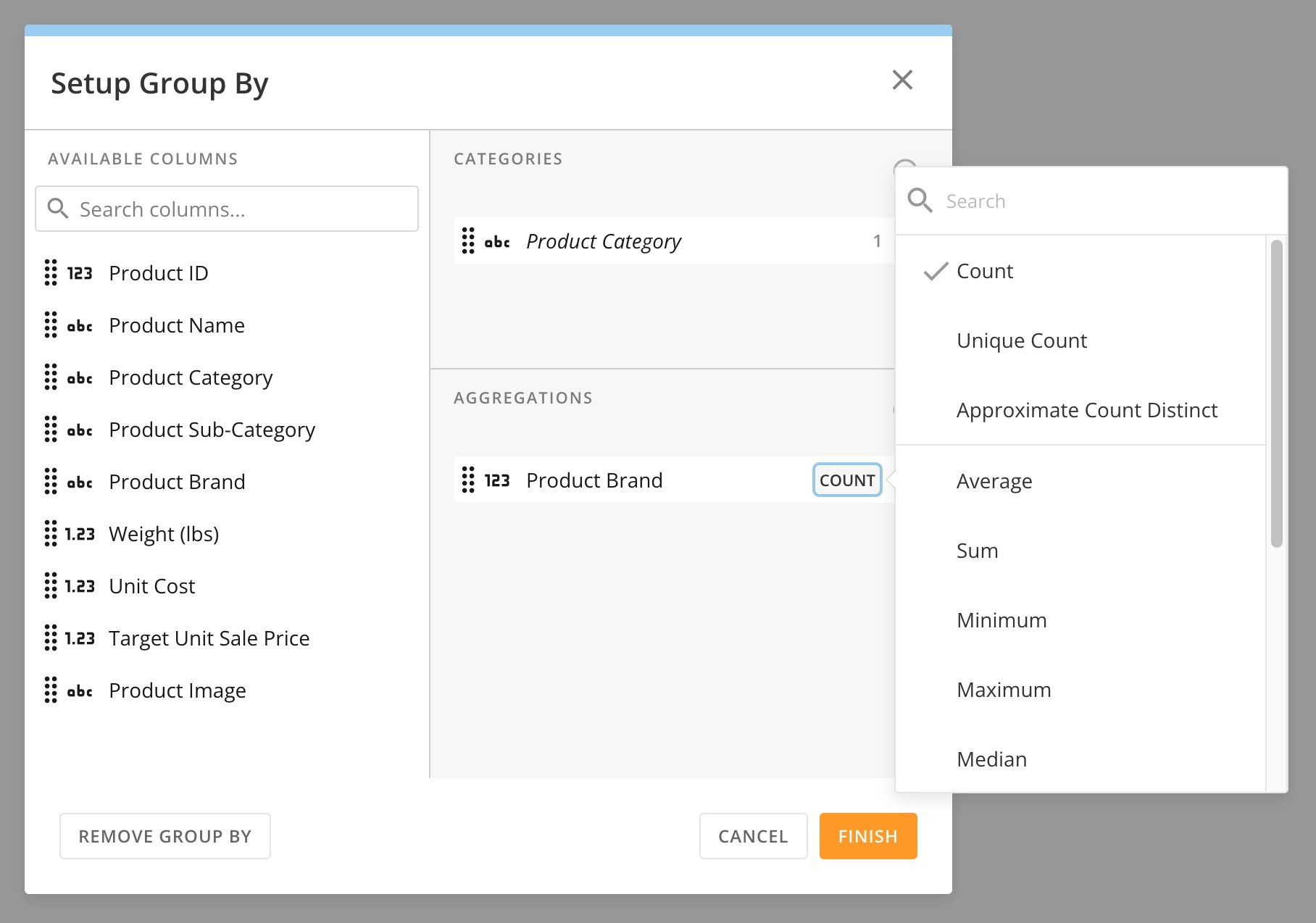
 After choosing your category(ies) and aggregation(s), you can configure your aggregation(s). In this example, we are configuring the COUNT of our aggregation.
 When you are finished, select **Finish** to close the modal.
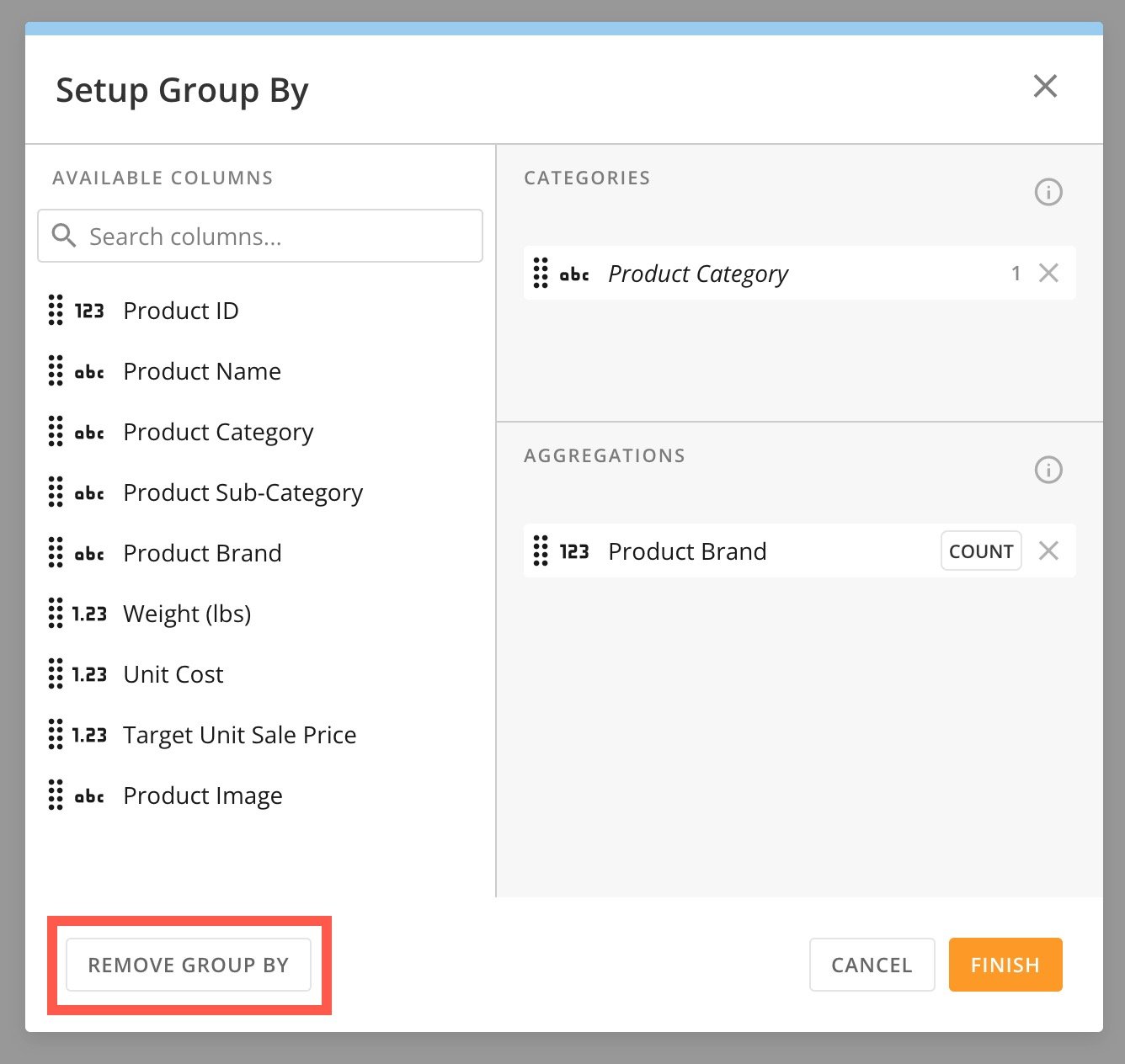
 To remove the grouping criteria from your View, open the **Setup Group By** modal and select **Remove Group By**.
 # Sort Data
You can sort your data in the following ways, depending on data type:
* Alphabetically (A–Z or Z–A)
* By date
* Low to High or High to Low
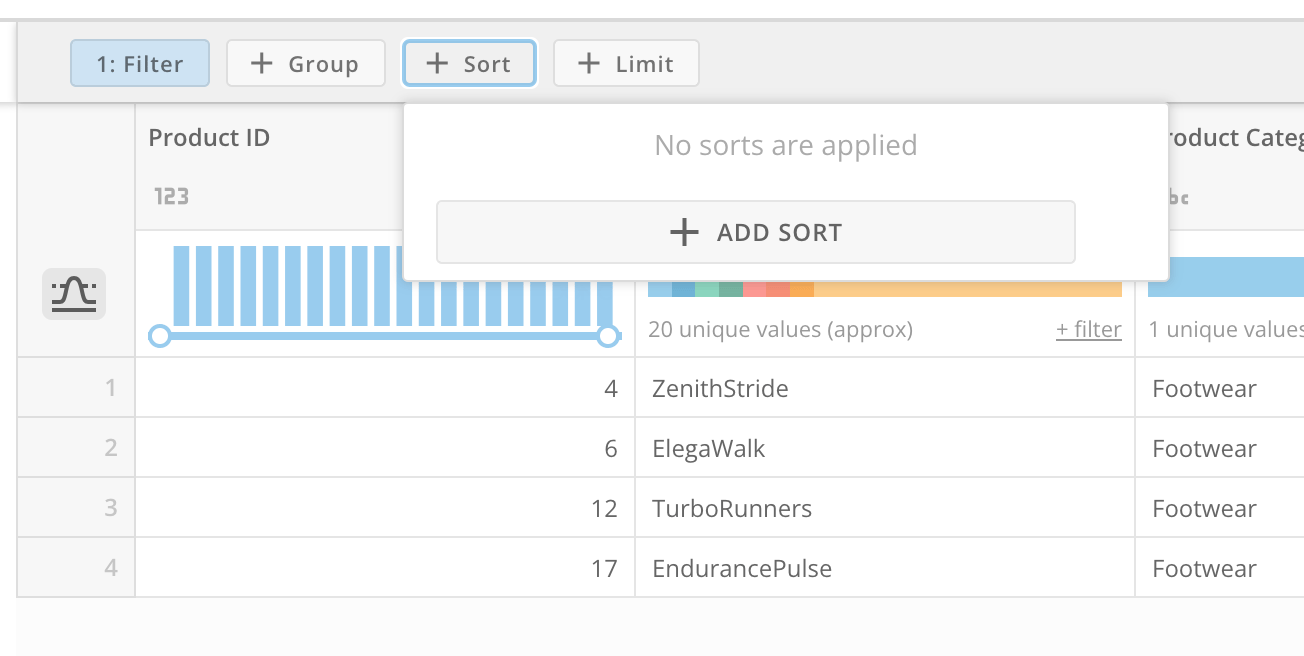
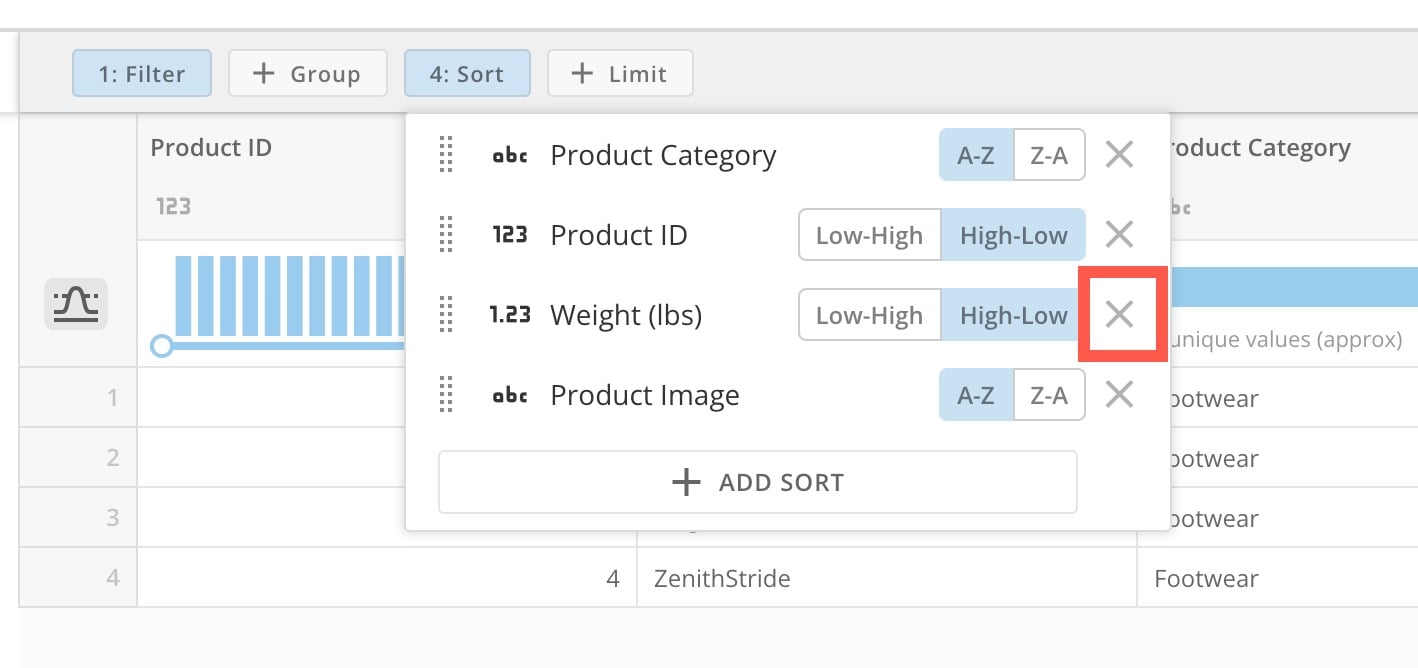
To sort data, select **+** **Sort** at the top of your View. Then select **+ Add Sort**.
# Sort Data
You can sort your data in the following ways, depending on data type:
* Alphabetically (A–Z or Z–A)
* By date
* Low to High or High to Low
To sort data, select **+** **Sort** at the top of your View. Then select **+ Add Sort**.
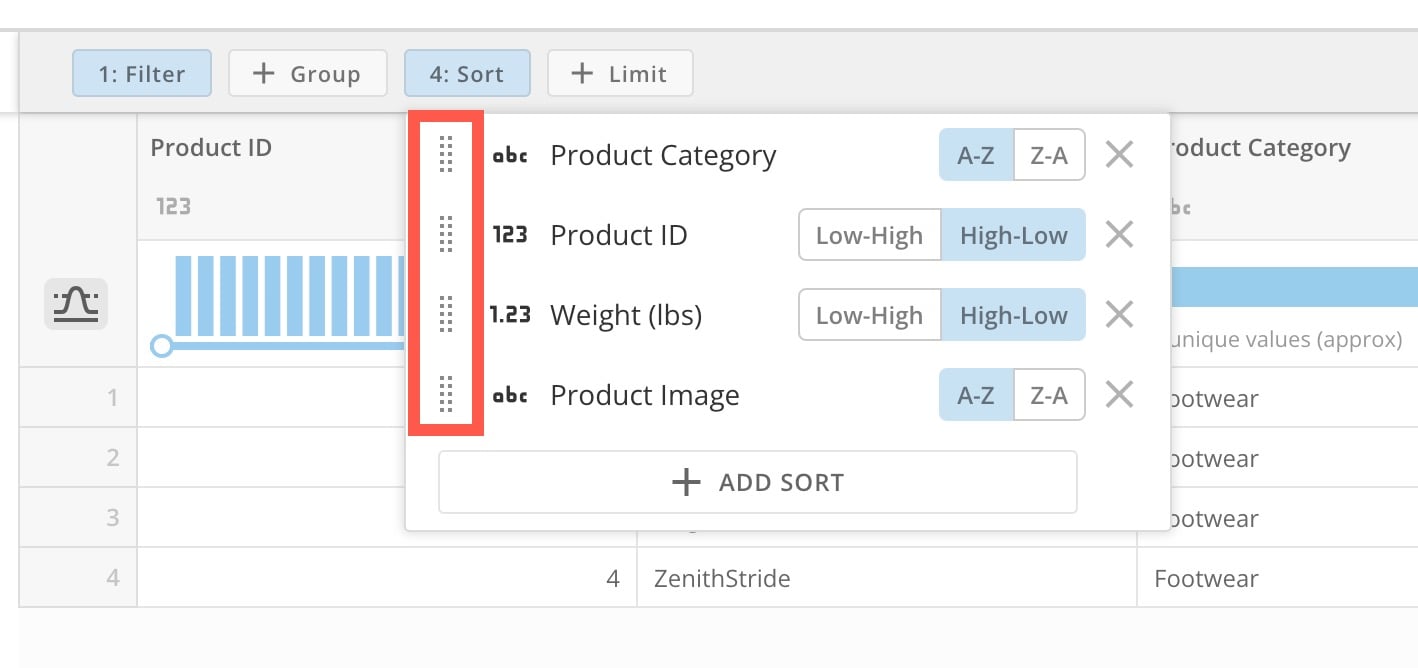
 You can add multiple sort criteria and change the way they are applied by using their handles to drag them.
 Remove a sort by selecting **Remove**.
 # Limit Data
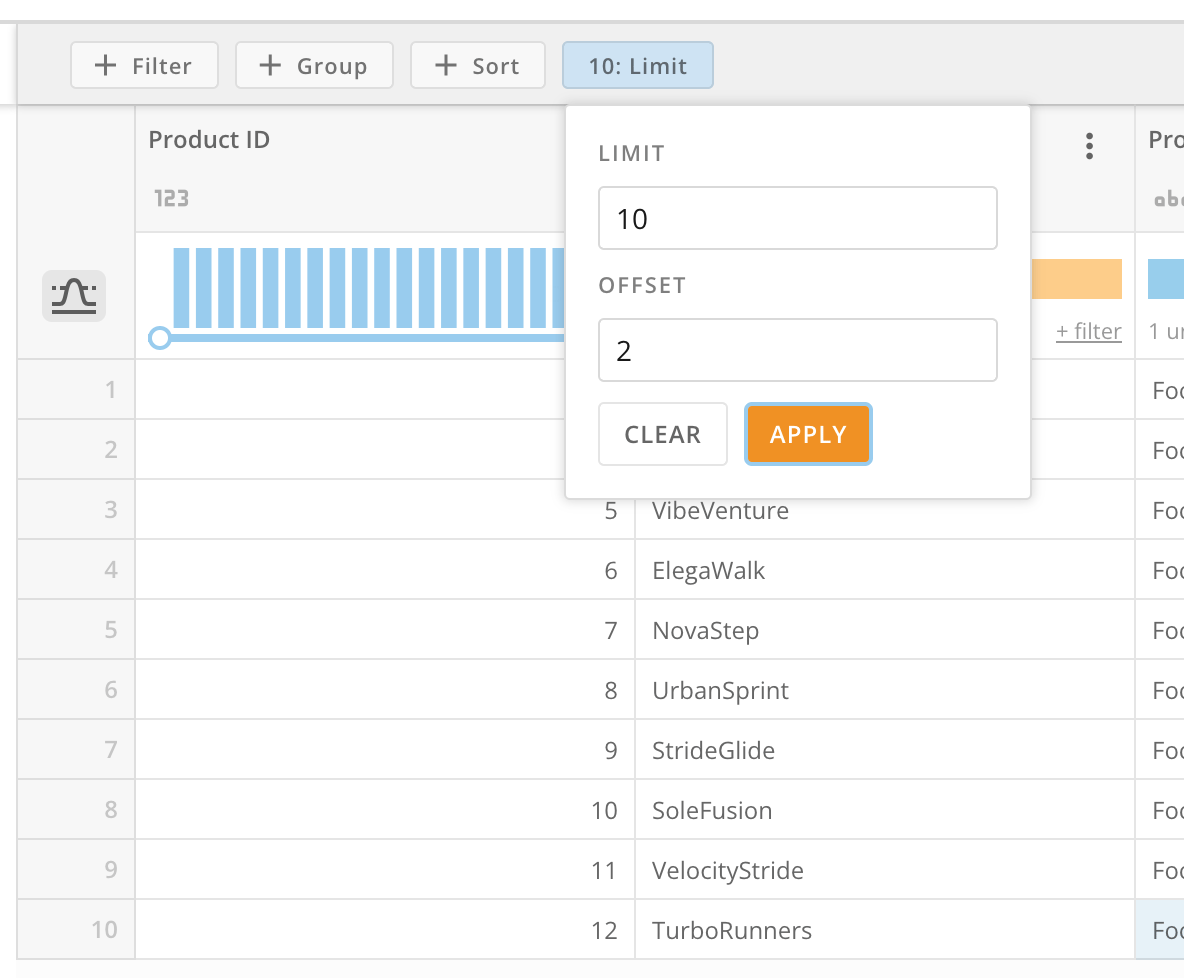
Limiting data means the DataSet will only return the number of rows you have chosen, sorted by the sorting rules you select. To limit the number of rows in your data, choose **+** **Limit** and add the number of rows you would like to include in your DataSet.
Then choose an offset number.
Select **Apply** to see your changes reflected in the View.
# Limit Data
Limiting data means the DataSet will only return the number of rows you have chosen, sorted by the sorting rules you select. To limit the number of rows in your data, choose **+** **Limit** and add the number of rows you would like to include in your DataSet.
Then choose an offset number.
Select **Apply** to see your changes reflected in the View.
 # DataSet Suggestions
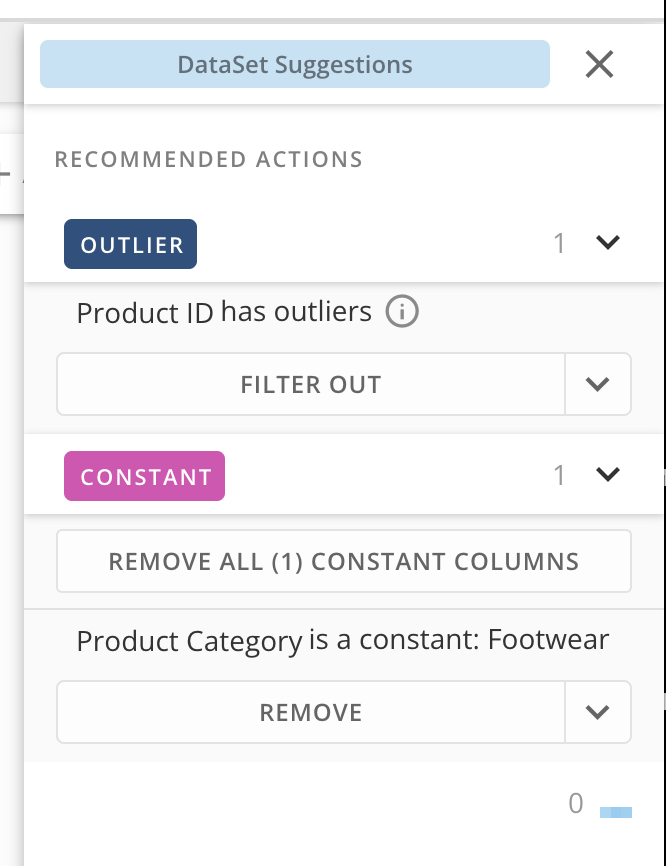
The **DataSet Suggestions** tool in the ribbon at the top of your View helps you review items like outliers and constant values in your View so you can filter them out or remove them.
# DataSet Suggestions
The **DataSet Suggestions** tool in the ribbon at the top of your View helps you review items like outliers and constant values in your View so you can filter them out or remove them.
 # Version History
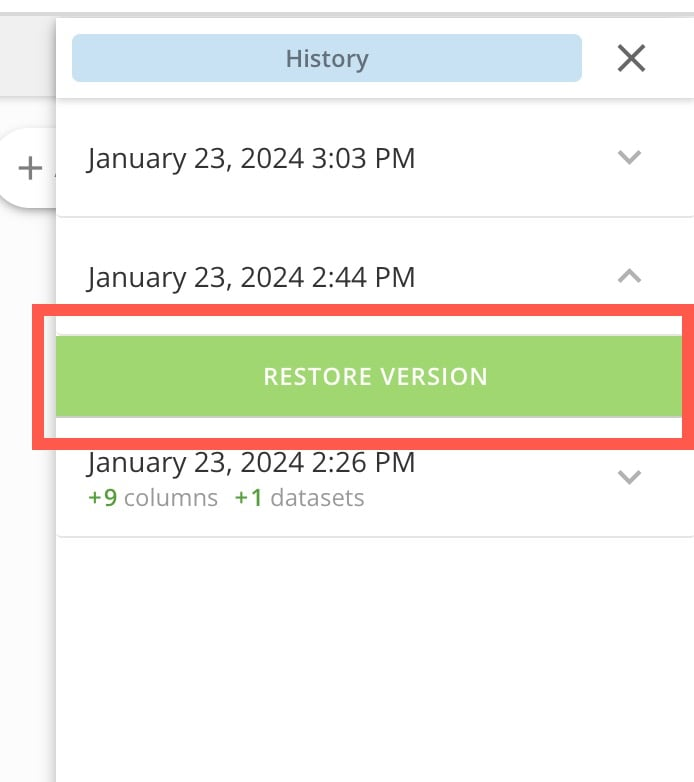
Use the version history to revert to a previous version of your DataSet View. In the ribbon at the top of your View, select **History** to open the **History** panel.
Find the version you want to revert to and select it.
Select **Restore Version**.
# Version History
Use the version history to revert to a previous version of your DataSet View. In the ribbon at the top of your View, select **History** to open the **History** panel.
Find the version you want to revert to and select it.
Select **Restore Version**.
 # Change Controls
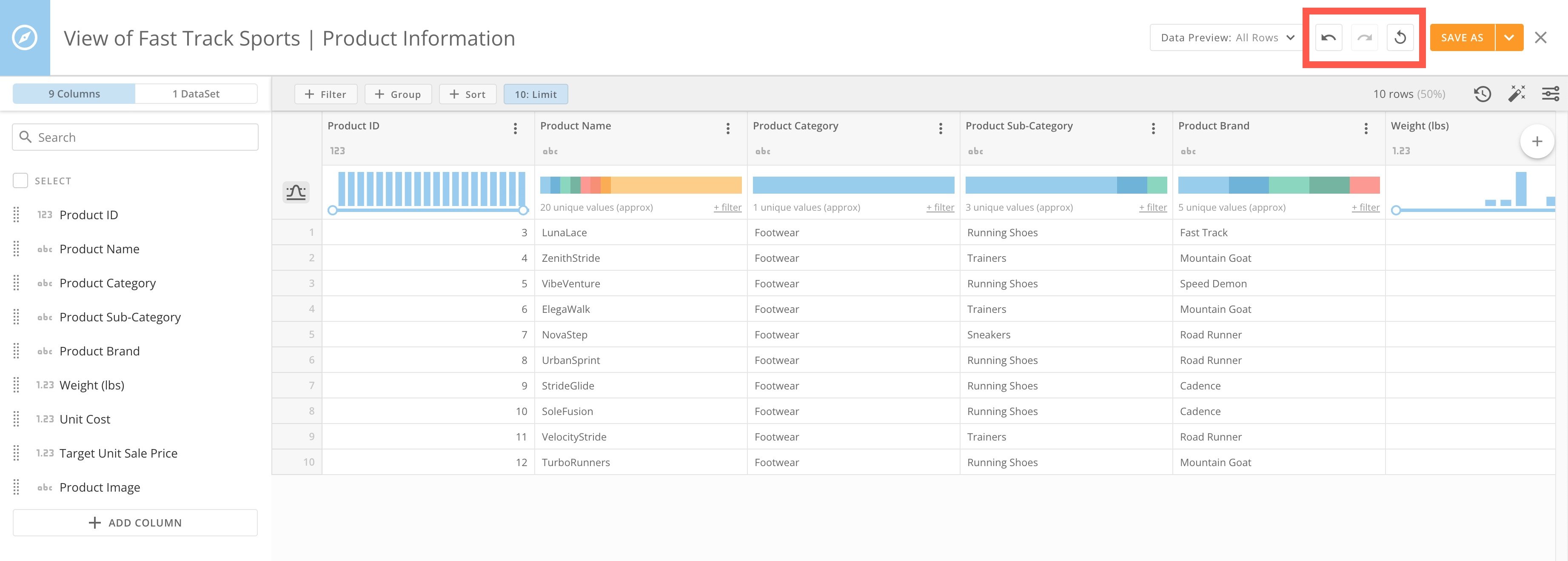
In the top navigation, there are three controls you can use as you make changes to your View.
* **Undo —**
Use **Undo** to undo your last change.
* **Redo —**
If you Undo something by mistake, use **Redo** to redo the undone change.
* **Revert to original —**
Use **Revert** to undo all of your changes to this View.
# Change Controls
In the top navigation, there are three controls you can use as you make changes to your View.
* **Undo —**
Use **Undo** to undo your last change.
* **Redo —**
If you Undo something by mistake, use **Redo** to redo the undone change.
* **Revert to original —**
Use **Revert** to undo all of your changes to this View.
 In the top navigation, select **Close** to close the DataSet View without saving.
# Save DataSet View
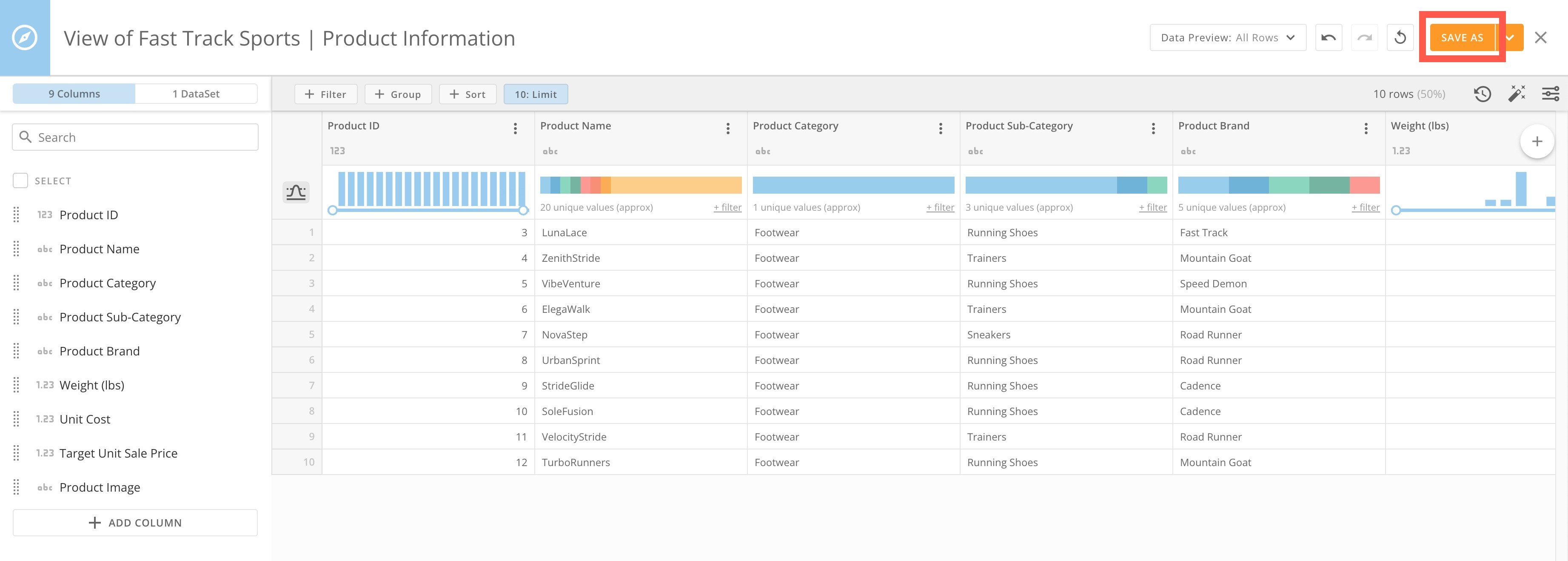
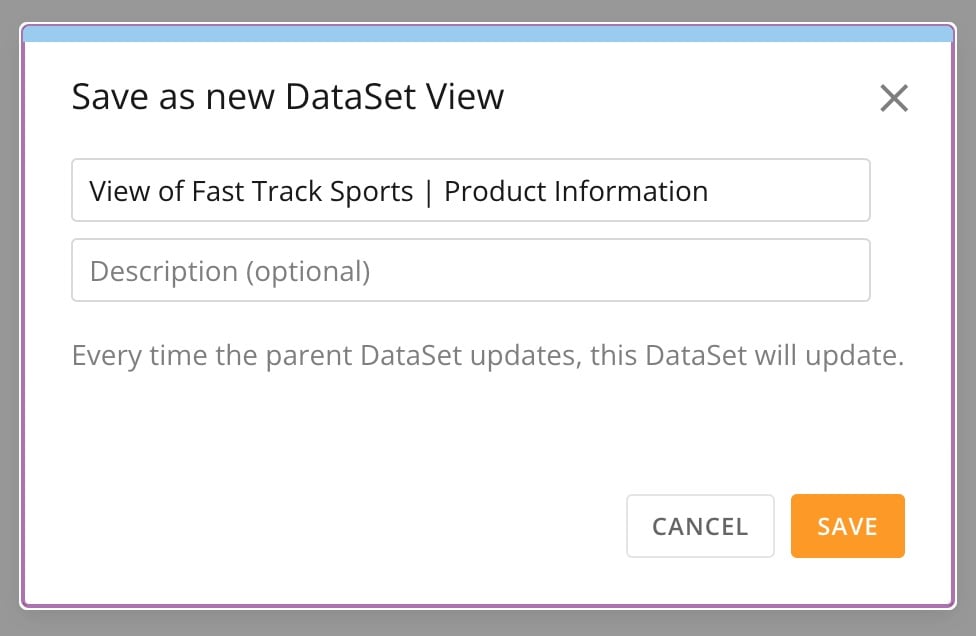
After making changes to your data, you can save it as a new DataSet View. In the top navigation, select **Save As**. In the modal, choose a new name for your View and select **Save**.
In the top navigation, select **Close** to close the DataSet View without saving.
# Save DataSet View
After making changes to your data, you can save it as a new DataSet View. In the top navigation, select **Save As**. In the modal, choose a new name for your View and select **Save**.
 After saving, your DataSet View appears in the Domo Data Center under **DataSets**, with the DataSet View icon:
You can share your DataSet View with others.
**Important:**
PDP policies from the parent DataSet still apply and the DataSet View always updates when the parent DataSet updates.
# Export DataSet View
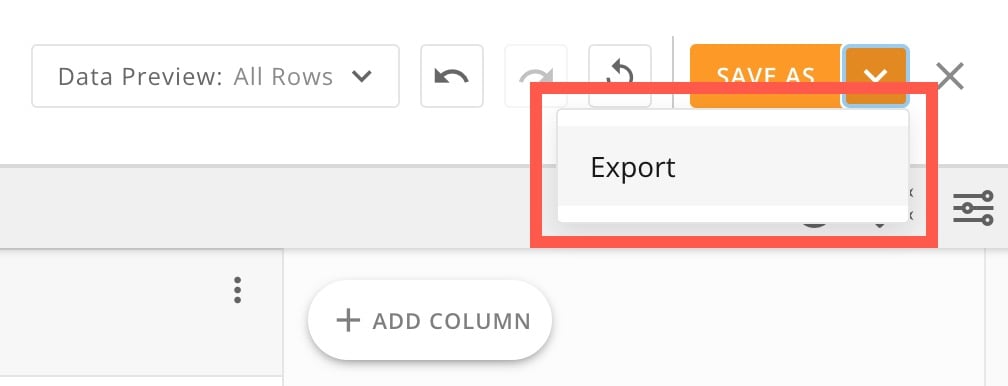
To export your DataSet View, select > **Export**. The DataSet View is exported as a CSV file.
After saving, your DataSet View appears in the Domo Data Center under **DataSets**, with the DataSet View icon:
You can share your DataSet View with others.
**Important:**
PDP policies from the parent DataSet still apply and the DataSet View always updates when the parent DataSet updates.
# Export DataSet View
To export your DataSet View, select > **Export**. The DataSet View is exported as a CSV file.
 ### Advanced SQL Editor
The Advanced SQL editor for DataSet Views allows you to get help from an AI Assistant to translate natural human language into complex data queries. See the [FAQ](#faq) for answers to common questions.
# Use the Advanced SQL Editor
In Views Explorer, select **SQL Editor** to open the Advanced SQL Editor.
### Advanced SQL Editor
The Advanced SQL editor for DataSet Views allows you to get help from an AI Assistant to translate natural human language into complex data queries. See the [FAQ](#faq) for answers to common questions.
# Use the Advanced SQL Editor
In Views Explorer, select **SQL Editor** to open the Advanced SQL Editor.
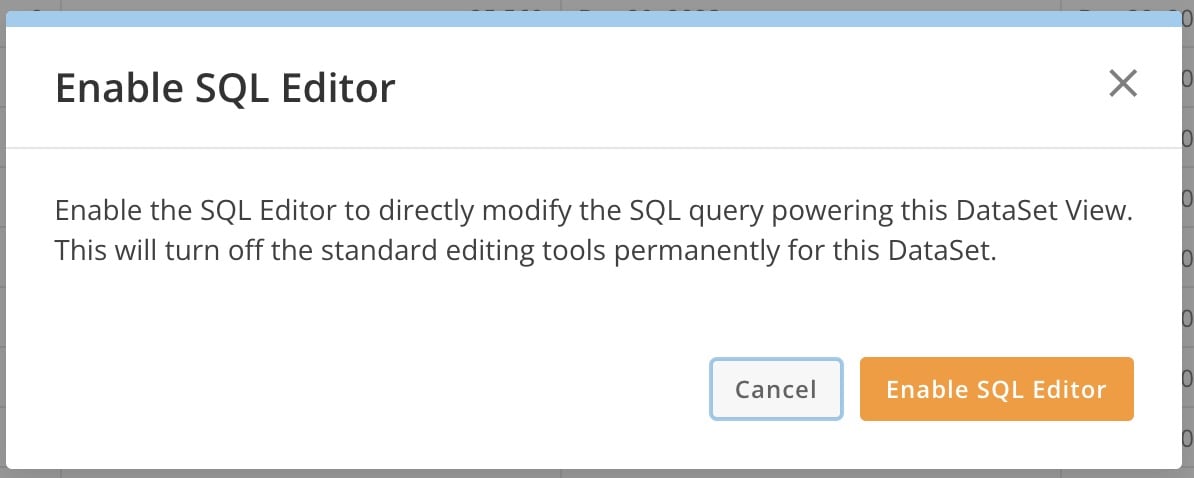
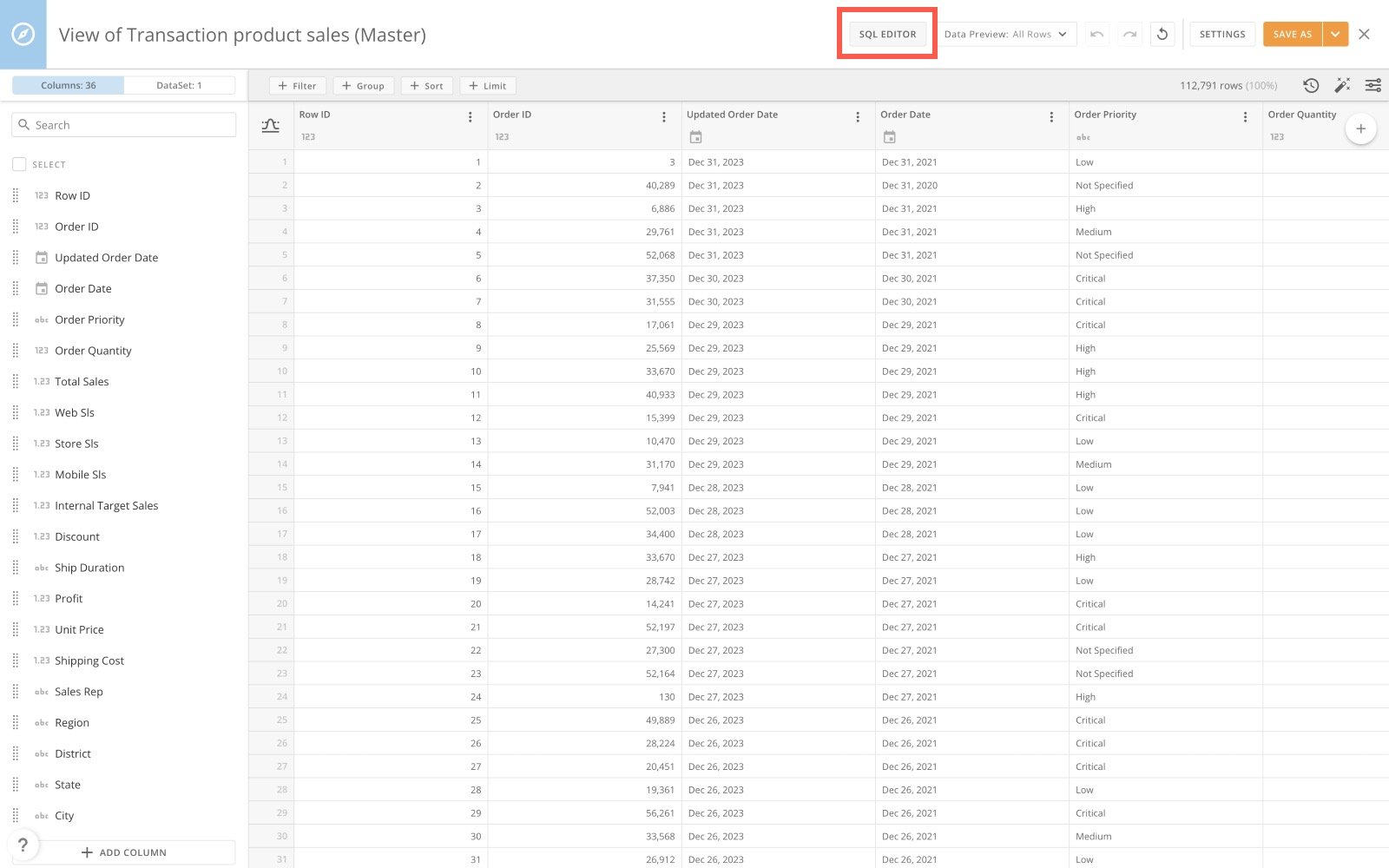 A message displays, warning that you are losing your existing view properties by switching to the editor. To continue, select **Enable SQL Editor**.
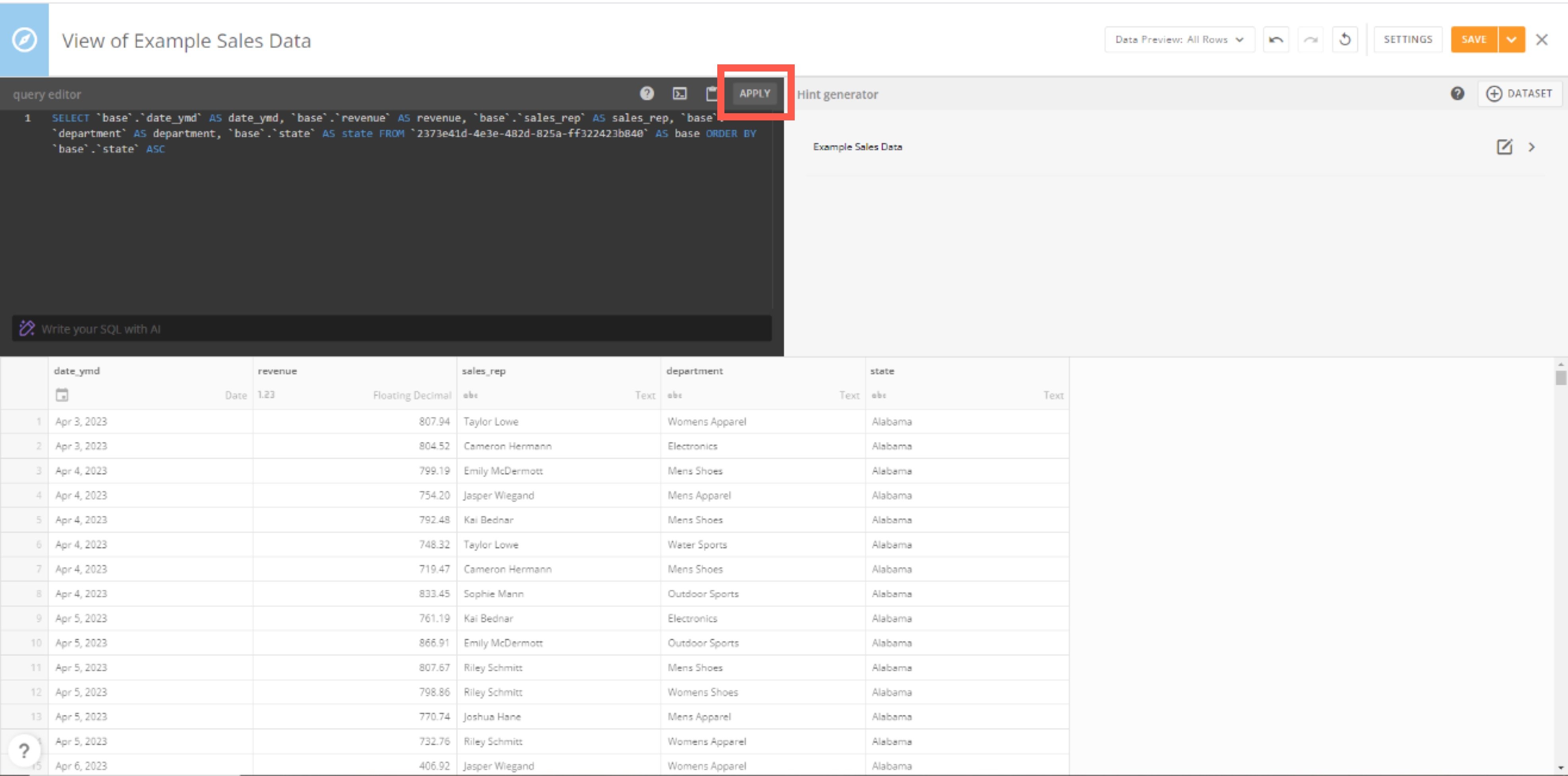
 In the Advanced SQL Editor, you can write a valid SQL query and select **Apply**. The results are displayed below the editor.
 # Use AI Assistant to Write a Query
In the SQL editor, write any text in natural language that describes the results you want to see and then press **Enter** or select **Create SQL**.
# Use AI Assistant to Write a Query
In the SQL editor, write any text in natural language that describes the results you want to see and then press **Enter** or select **Create SQL**.
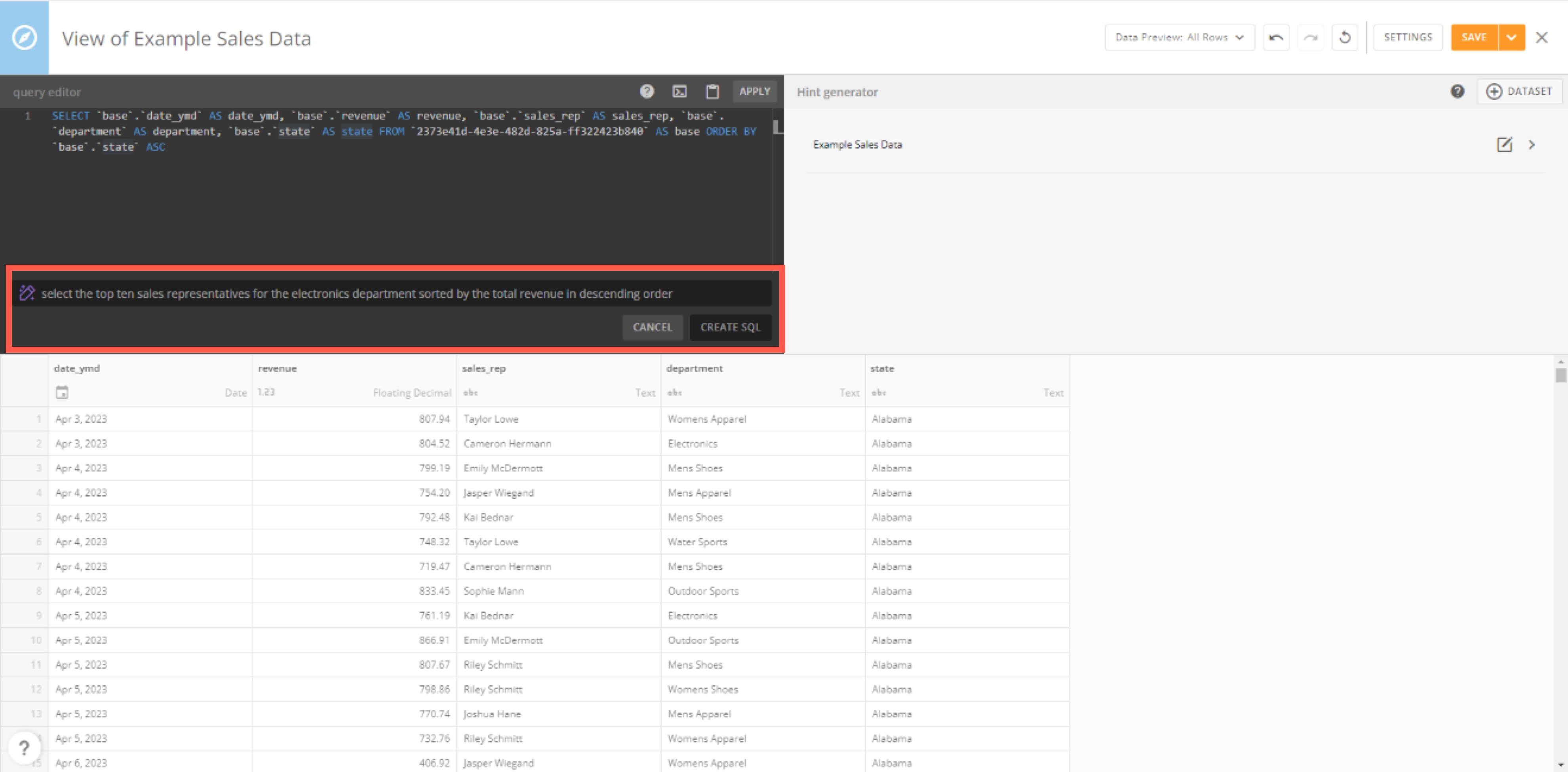 The AI translates your query into SQL and adds it to the SQL editor.
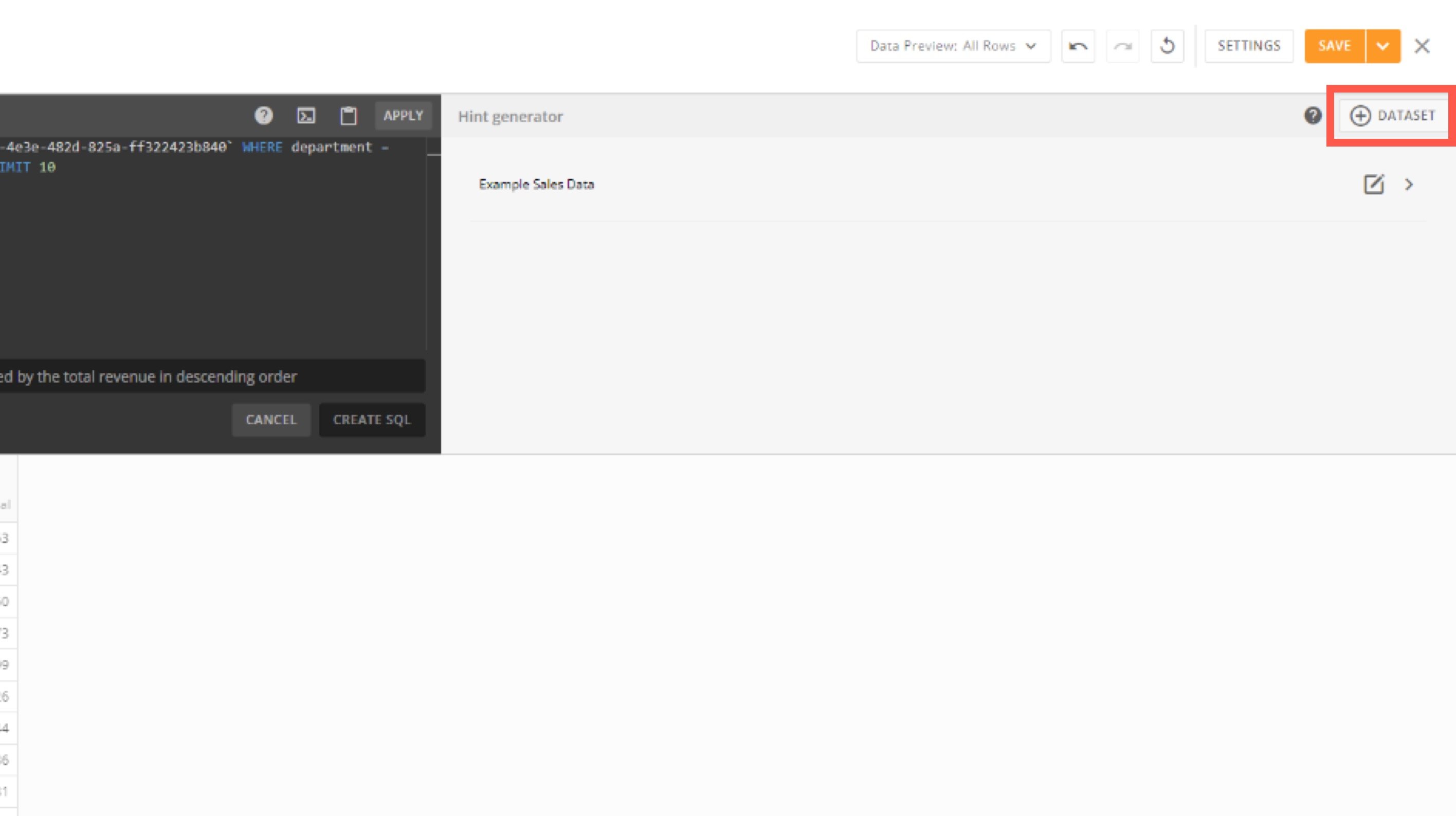
You can add more DataSets by selecting **+ DataSet**. This instructs the AI Assistant to find the information you need by joining the additional DataSets to the main DataSet.
The AI translates your query into SQL and adds it to the SQL editor.
You can add more DataSets by selecting **+ DataSet**. This instructs the AI Assistant to find the information you need by joining the additional DataSets to the main DataSet.
 ### FAQ
Null values are not considered to be equal or not equal to any other value. This means that comparing a column with a null value to another column using either = or!= (\<>) will always return false for that row.
The row count metadata for views on federated DataSets will always show the row count as of when the View was created.
We support creating Views for published federated datasets on the subscriber side; however, the row count is not supported.
DataSetViews are not supported inside of MySQL DataFlows.
No. These are not supported and will result in an error.
# Advanced SQL Editor with AI Assistant
No, only the schemas of any DataSet included in the list of DataSets on the right side of the editor are included in the prompt to the AI service. This allows the AI model to return the correct column names and DataSet names to be used in the SQL query.
No. Because we are prompting an AI service (like ChatGPT), results may vary. The AI Assistant is meant to be used as a tool to help you generate the SQL for the data you want to include in your Dataset View.
### Video — DataSet Views Explorer Overview
### FAQ
Null values are not considered to be equal or not equal to any other value. This means that comparing a column with a null value to another column using either = or!= (\<>) will always return false for that row.
The row count metadata for views on federated DataSets will always show the row count as of when the View was created.
We support creating Views for published federated datasets on the subscriber side; however, the row count is not supported.
DataSetViews are not supported inside of MySQL DataFlows.
No. These are not supported and will result in an error.
# Advanced SQL Editor with AI Assistant
No, only the schemas of any DataSet included in the list of DataSets on the right side of the editor are included in the prompt to the AI service. This allows the AI model to return the correct column names and DataSet names to be used in the SQL query.
No. Because we are prompting an AI service (like ChatGPT), results may vary. The AI Assistant is meant to be used as a tool to help you generate the SQL for the data you want to include in your Dataset View.
### Video — DataSet Views Explorer Overview