> ## Documentation Index
> Fetch the complete documentation index at: https://domoinc-openapi-sync-dataflows.mintlify.site/llms.txt
> Use this file to discover all available pages before exploring further.
# 2017 Release 2 | January
export const InlineImage = ({src, alt = '', height = '1.6em'}) => {
return  ;
};
## New features and enhancements
Features and enhancements in this release include the following:
### New Card Interaction Tools (CSR)
Our new Card Interaction (Client-Side Rendering) tools make it easy and fun to perform in-depth data analysis on your charts in ways you never could before. These tools include the following:
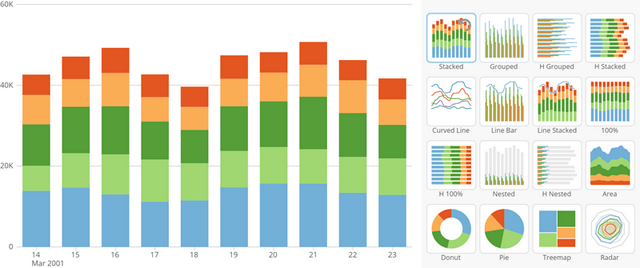
* **New Chart Picker**. You can now change the chart type for most charts right in the Details page instead of having to first open the Card Builder. In contrast to the chart type picker in Card Builder, which only shows icons for each chart type, the Details view chart type picker shows you actual thumbnail versions of each available chart type with your chart data already applied.
;
};
## New features and enhancements
Features and enhancements in this release include the following:
### New Card Interaction Tools (CSR)
Our new Card Interaction (Client-Side Rendering) tools make it easy and fun to perform in-depth data analysis on your charts in ways you never could before. These tools include the following:
* **New Chart Picker**. You can now change the chart type for most charts right in the Details page instead of having to first open the Card Builder. In contrast to the chart type picker in Card Builder, which only shows icons for each chart type, the Details view chart type picker shows you actual thumbnail versions of each available chart type with your chart data already applied.
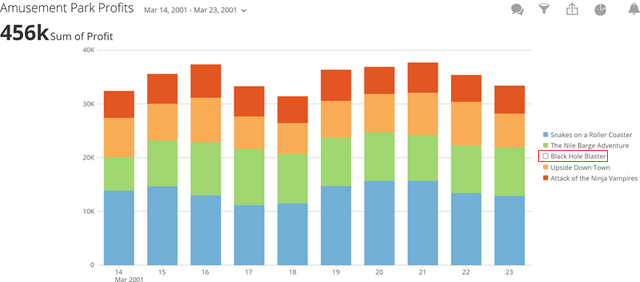
 * **Legend Item Toggle**. In most chart types with legends (excluding Maps), you can now click on a legend item to hide or show the corresponding data in the chart.
 * **Chart Zoom**. You can click and drag over a portion of a chart to "zoom in" on that portion. This works on most chart types, excluding pie-type charts, maps, gauges, Radar graphs, and a few others.
* **Quick Sort**. For most Bar and Line graphs, you can now quickly change the sort method just by clicking an icon, without having to open the Card Builder.
* **Chart Save As**. When you make changes to a chart in the Details view (whether by using any of the above features or filtering using the Analyzer tool), you can now save a copy of the edited chart to your Domo. You can then give the new version of the card a new name, enter a description to help viewers understand what has been changed in the card, and select the page in Domo where the new card will reside.
* **Data Forecasting**. A new chart property for Bar and Line charts allows you to forecast the value of the remainder of the current period in your chart. It does this by taking the current value for the period and comparing it to the previous period.
### Bulk Admin Options for Pages and Cards
At long last, "Admin" users in Domo now have the ability to make bulk edits to the pages and cards in their company Domo instance! With this capability in place, users of your Domo instance will no longer need to waste time manually moving, deleting, and setting permissions on cards and pages, freeing them up to tackle more important tasks like answering the needs of your business.
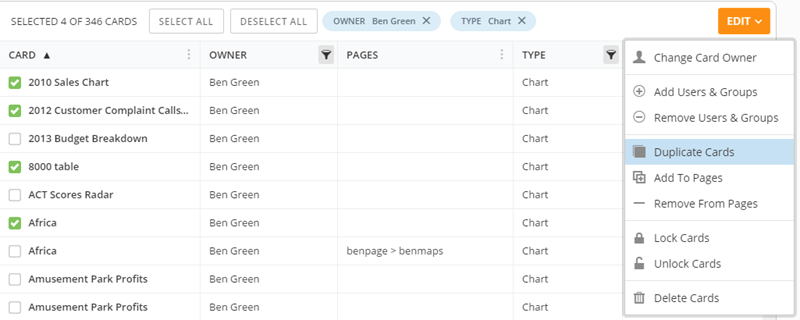
The **Cards** and **Pages** tabs in the Admin Settings have been completely revamped to allow you to make bulk changes with ease. The **Cards** tab lets you filter by card, owner, number of pages the card is found in, card type (chart, document, poll, etc.), and the date of the last edit, or any combination of these. The **Pages** tab lets you filter by page, parent page, owner, the number of cards in the page, and the last update date and time, or any combination. You can even select all of the cards or pages in your instance if you want to make changes to all of them. For any page or card, you can click anywhere in the row to bring up a tab with more information.
* **Chart Zoom**. You can click and drag over a portion of a chart to "zoom in" on that portion. This works on most chart types, excluding pie-type charts, maps, gauges, Radar graphs, and a few others.
* **Quick Sort**. For most Bar and Line graphs, you can now quickly change the sort method just by clicking an icon, without having to open the Card Builder.
* **Chart Save As**. When you make changes to a chart in the Details view (whether by using any of the above features or filtering using the Analyzer tool), you can now save a copy of the edited chart to your Domo. You can then give the new version of the card a new name, enter a description to help viewers understand what has been changed in the card, and select the page in Domo where the new card will reside.
* **Data Forecasting**. A new chart property for Bar and Line charts allows you to forecast the value of the remainder of the current period in your chart. It does this by taking the current value for the period and comparing it to the previous period.
### Bulk Admin Options for Pages and Cards
At long last, "Admin" users in Domo now have the ability to make bulk edits to the pages and cards in their company Domo instance! With this capability in place, users of your Domo instance will no longer need to waste time manually moving, deleting, and setting permissions on cards and pages, freeing them up to tackle more important tasks like answering the needs of your business.
The **Cards** and **Pages** tabs in the Admin Settings have been completely revamped to allow you to make bulk changes with ease. The **Cards** tab lets you filter by card, owner, number of pages the card is found in, card type (chart, document, poll, etc.), and the date of the last edit, or any combination of these. The **Pages** tab lets you filter by page, parent page, owner, the number of cards in the page, and the last update date and time, or any combination. You can even select all of the cards or pages in your instance if you want to make changes to all of them. For any page or card, you can click anywhere in the row to bring up a tab with more information.
 #### Bulk options for pages
Bulk options for pages include all of the following:
* Changing page owners
* Adding and removing users and groups
* Moving pages in the hierarchy (includes options for setting permissions on moved pages)
* Locking and unlocking pages
* Deleting pages
#### Bulk options for cards
Bulk options for cards include all of the following:
* Changing cards owners
* Adding and removing users and groups
* Duplicating cards
* Adding and removing cards to/from pages
* Locking and unlock cards
* Deleting cards
For information about these options, see [Admin Settings Layout](/s/article/360042934234 "Admin Settings Layout").
### Domo Online Form v2
The online forms (webforms) tool has been improved to provide more options for manually creating DataSets in Domo. These new options include the following:
* You can import an existing DataSet into a webform.
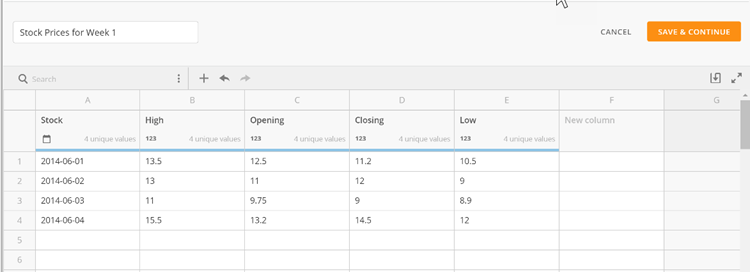
* You can change the data type for a column. **Number** (value), **Text** (string), and **Date** data types are available. You can also disable Domo's automatic data type identification for a column by deselecting the **Auto Detect** option for a column.
* You can search for and replace given text strings.
* You can add columns to your online form with one click of a button.
* You can expand the online forms editor to fill your entire screen.
* You can filter to see rows in a column that do not match the selected data type.
Each column also shows the number of unique values within that column.
#### Bulk options for pages
Bulk options for pages include all of the following:
* Changing page owners
* Adding and removing users and groups
* Moving pages in the hierarchy (includes options for setting permissions on moved pages)
* Locking and unlocking pages
* Deleting pages
#### Bulk options for cards
Bulk options for cards include all of the following:
* Changing cards owners
* Adding and removing users and groups
* Duplicating cards
* Adding and removing cards to/from pages
* Locking and unlock cards
* Deleting cards
For information about these options, see [Admin Settings Layout](/s/article/360042934234 "Admin Settings Layout").
### Domo Online Form v2
The online forms (webforms) tool has been improved to provide more options for manually creating DataSets in Domo. These new options include the following:
* You can import an existing DataSet into a webform.
* You can change the data type for a column. **Number** (value), **Text** (string), and **Date** data types are available. You can also disable Domo's automatic data type identification for a column by deselecting the **Auto Detect** option for a column.
* You can search for and replace given text strings.
* You can add columns to your online form with one click of a button.
* You can expand the online forms editor to fill your entire screen.
* You can filter to see rows in a column that do not match the selected data type.
Each column also shows the number of unique values within that column.
 For more information, see Powering a KPI Card with Data.
### Domo PowerPoint and Excel Plugins v2
Updated versions of our PowerPoint and Excel plugins are now available. These new versions include the following improvements and fixes:
#### General
A bug has been fixed, allowing SSO-enabled users behind a proxy to connect to their Domo instance.
#### Excel Plugin
* **Query table**. You can now pull subsets of DataSets or single values into Excel based on aggregates, filters, limits, etc.
* **New upload UI.** The UI when uploading a DataSet has been redesigned with a progress bar and better messaging so you know what is going on and approximately how long it’s going to take to upload your data into Domo.
* **New download UI.** The UI when downloading a DataSet has also been redesigned with a progress bar and better messaging.
* **Bug fixes**. A number of bug fixes have been made, including errors when uploading DataSets containing null columns and checking for the latest version in international locations.
#### PowerPoint Plugin
* **Summary numbers**. Chart summary numbers can now be pulled and added to slides.
* **Publication groups support.** Support for Publication Groups has been added.
* A number of bug fixes have also been made including errors when refreshing cards in international locations.
For more information, see [Using the Domo Excel Plugin](/s/article/360043437933 "Using the Domo PowerPoint Plugin").
### ETL Enhancements
In our Magic ETL editor, you can now do all of the following:
* Select the current date and time (in UTC).
* Replace `NULL` values and empty strings.
* Use `MIN`, `MAX`, and `Count Including NULLs` aggregation types.
For more information about the ETL editor, see Creating a Magic ETL DataFlow.
### New public-facing connectors
The following connectors are now customer-facing with this release:
* Bitly
* Brandwatch
* Crimson Hexagon
* Jobvite
* Sample Data Engine
* Snowflake
* Tumblr
* USGS Earthquakes
* Workday Reports-as-a-Service (RAAS)
### Duplicate Card = Save As
In the interest of eliminating confusion for new users, the **Duplicate Card** option for cards has been replaced with **Save As**.
### Participants in Appstore
Participant-level users are now able to browse Apps in the Appstore. For more information about the Appstore, see The Appstore. For more information about security roles, see Security Role Reference.
### New Share Menu in Chart Details
Two commonly used share actions in the chart Details view— **Share** and **Export** —have been moved from the menu into a new menu. This menu also contains the new **Save As** option, described under January 2017 Release 1 above.
For more information, see Powering a KPI Card with Data.
### Domo PowerPoint and Excel Plugins v2
Updated versions of our PowerPoint and Excel plugins are now available. These new versions include the following improvements and fixes:
#### General
A bug has been fixed, allowing SSO-enabled users behind a proxy to connect to their Domo instance.
#### Excel Plugin
* **Query table**. You can now pull subsets of DataSets or single values into Excel based on aggregates, filters, limits, etc.
* **New upload UI.** The UI when uploading a DataSet has been redesigned with a progress bar and better messaging so you know what is going on and approximately how long it’s going to take to upload your data into Domo.
* **New download UI.** The UI when downloading a DataSet has also been redesigned with a progress bar and better messaging.
* **Bug fixes**. A number of bug fixes have been made, including errors when uploading DataSets containing null columns and checking for the latest version in international locations.
#### PowerPoint Plugin
* **Summary numbers**. Chart summary numbers can now be pulled and added to slides.
* **Publication groups support.** Support for Publication Groups has been added.
* A number of bug fixes have also been made including errors when refreshing cards in international locations.
For more information, see [Using the Domo Excel Plugin](/s/article/360043437933 "Using the Domo PowerPoint Plugin").
### ETL Enhancements
In our Magic ETL editor, you can now do all of the following:
* Select the current date and time (in UTC).
* Replace `NULL` values and empty strings.
* Use `MIN`, `MAX`, and `Count Including NULLs` aggregation types.
For more information about the ETL editor, see Creating a Magic ETL DataFlow.
### New public-facing connectors
The following connectors are now customer-facing with this release:
* Bitly
* Brandwatch
* Crimson Hexagon
* Jobvite
* Sample Data Engine
* Snowflake
* Tumblr
* USGS Earthquakes
* Workday Reports-as-a-Service (RAAS)
### Duplicate Card = Save As
In the interest of eliminating confusion for new users, the **Duplicate Card** option for cards has been replaced with **Save As**.
### Participants in Appstore
Participant-level users are now able to browse Apps in the Appstore. For more information about the Appstore, see The Appstore. For more information about security roles, see Security Role Reference.
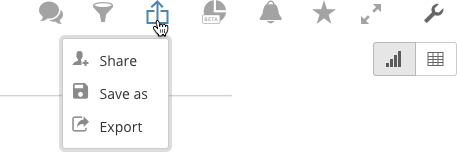
### New Share Menu in Chart Details
Two commonly used share actions in the chart Details view— **Share** and **Export** —have been moved from the menu into a new menu. This menu also contains the new **Save As** option, described under January 2017 Release 1 above.
 For more information, see Card Details View Layout.
## Getting Help
You can view the latest release notes information in the Help Center, which you can access from Domo by clicking **> Help Center**.
If you have questions about Domo,
* search for a topic in the Help Center
* train in Domo University at
[http://www.domo.com/university](http://www.domo.com/university "http://www.domo.com/university")
* get answers in the Domo Community at
[https://dojo.domo.com](https://dojo.domo.com "https://dojo.domo.com").
* contact Technical Support by using `\support` in Buzz, by email at [support@domo.com](mailto:support@domo.com "support@domo.com") or by phone at 801-805-9505 (Monday through Friday, 7 am to 6 pm MST)
* reach out to your Domo Customer Success Manager or Technical Consultant
If you have feedback, please send it from within Domo ( **> Feedback**). Or send an email to [product.feedback@domo.com](mailto:product.feedback@domo.com "product.feedback@domo.com").
For more information about getting help, see [Getting Help](/s/article/360042922874 "Getting Help").
For more information, see Card Details View Layout.
## Getting Help
You can view the latest release notes information in the Help Center, which you can access from Domo by clicking **> Help Center**.
If you have questions about Domo,
* search for a topic in the Help Center
* train in Domo University at
[http://www.domo.com/university](http://www.domo.com/university "http://www.domo.com/university")
* get answers in the Domo Community at
[https://dojo.domo.com](https://dojo.domo.com "https://dojo.domo.com").
* contact Technical Support by using `\support` in Buzz, by email at [support@domo.com](mailto:support@domo.com "support@domo.com") or by phone at 801-805-9505 (Monday through Friday, 7 am to 6 pm MST)
* reach out to your Domo Customer Success Manager or Technical Consultant
If you have feedback, please send it from within Domo ( **> Feedback**). Or send an email to [product.feedback@domo.com](mailto:product.feedback@domo.com "product.feedback@domo.com").
For more information about getting help, see [Getting Help](/s/article/360042922874 "Getting Help").