> ## Documentation Index
> Fetch the complete documentation index at: https://domoinc-openapi-sync-dataflows.mintlify.site/llms.txt
> Use this file to discover all available pages before exploring further.
# Installing CourseBuilder
To download and launch CourseBuilder, follow the steps in this section.
1. Go to the global search tool in Domo or the Domo Appstore and search for “CourseBuilder.”
2. Select the tile when it appears in your search results.
3. Click **Download**, then select the **Windows** or **Mac OS** option.
4. Once the app has finished downloading, initiate the download/launch wizard. Depending on whether you use a Mac or a PC, take the following steps:
* To launch CourseBuilder for **Mac**...
1. Go into Finder and locate where you saved the CourseBuilder.dmg download file.
2. Right click the file so that it shows the following menu:
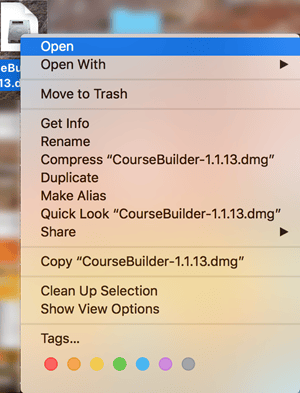 3. Press and hold **Ctrl** and then select **Open**. Once you do this, the following dialog box should appear that includes the option to select **Open**:
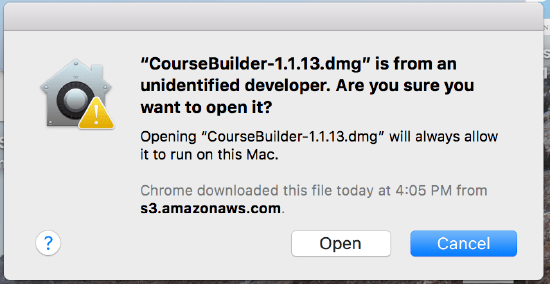 4. Select **Open**. This will initiate the CourseBuilder download.
5. Once the following view appears, drag and drop the CourseBuilder app into your Applications folder.
4. Select **Open**. This will initiate the CourseBuilder download.
5. Once the following view appears, drag and drop the CourseBuilder app into your Applications folder.
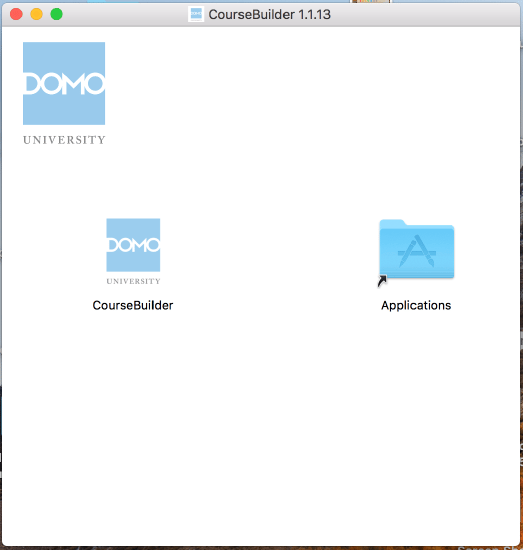 6. In Finder, go to your Applications folder, locate **CourseBuilder**, press and hold **Ctrl** and then select the app icon, then select **Open** in the shortcut menu.
7. When the next popup appears, select **Open**. This should open CourseBuilder.
**Note:** If you skip the sub-steps above, your Mac will not allow you to open the app because it was downloaded from a source other than the Apple Appstore.
* To launch CourseBuilder for **PC**...
1. When the green window pops up, click **More info**.
6. In Finder, go to your Applications folder, locate **CourseBuilder**, press and hold **Ctrl** and then select the app icon, then select **Open** in the shortcut menu.
7. When the next popup appears, select **Open**. This should open CourseBuilder.
**Note:** If you skip the sub-steps above, your Mac will not allow you to open the app because it was downloaded from a source other than the Apple Appstore.
* To launch CourseBuilder for **PC**...
1. When the green window pops up, click **More info**.
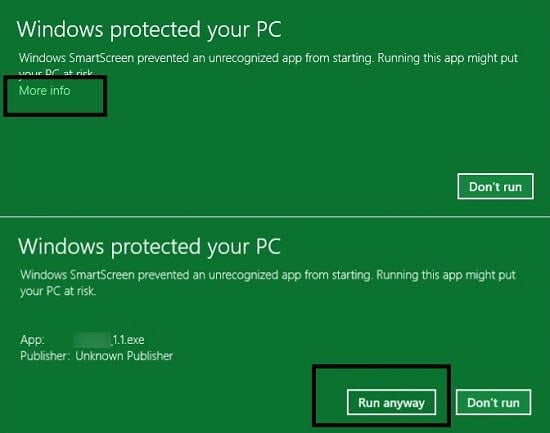 2. Then select **Run Anyway**. This should open CourseBuilder.
**Note:** If you skip the sub-steps above, your PC will not allow you to open the app because it was not downloaded from an official or PC whitelisted source, such as the Google Appstore.
2. Then select **Run Anyway**. This should open CourseBuilder.
**Note:** If you skip the sub-steps above, your PC will not allow you to open the app because it was not downloaded from an official or PC whitelisted source, such as the Google Appstore.