> ## Documentation Index
> Fetch the complete documentation index at: https://domoinc-openapi-sync-dataflows.mintlify.site/llms.txt
> Use this file to discover all available pages before exploring further.
# Enable Multi-factor Authentication
export const InlineImage = ({src, alt = '', height = '1.6em'}) => {
return  ;
};
### Intro
In the Admin Settings, you can access options for enabling multi-factor authentication (MFA) for the users in your organization. When you enable MFA for your instance, users who log into Domo receive an authentication code via text message that they must enter to access Domo. If a user does not have a phone number listed in Domo, they receive an email instead. Users without a listed phone number do not receive a separate prompt. If a user does not receive a text message with the access code, they should check the email associated with their Domo account. To learn how to add a phone number to your profile, see [Specifying Your Personal Profile Information](/s/article/360043439413).
The Domo, Inc. mobile app does not currently act as the second factor for authentication. Mobile users need to receive the text message the first time they log in.
**Important:** If enabling MFA outside the US, please note that each user's valid mobile phone number MUST start with a country code. For instance, if receiving SMS notifications in Japan, enter the number as "+81 80-1234-5678" where 81 is the Japan country code. Follow this link to find out your [country code](https://countrycode.org/)
To request access to this feature, contact your CSM or [Domo Support](https://domo-support.domo.com/s/).
***
### Multi-factor Authentication and SSO
Multi-factor authentication settings are not enforced when users log in through SSO. If you require MFA for SSO users, you need to configure it with your identity provider (IdP). Direct Sign-On users still have MFA applied to their logins. For more information, see Understanding and Configuring Domo Single Sign-On.
### Configure Multi-Factor Authentication for Your Organization
You can only change the authentication settings if you have an Admin default security role or a custom role with the Manage All Company Settings grant enabled. For more information about default security roles, see [Managing Custom Roles](/s/article/360043438973 "Security Role Reference").
Follow these steps to configure multi-factor authentication for your instance:
1. In the navigation header, go to **More** > **Admin**.
The Admin Settings display.
2. In the **Authentication** menu, go to **Authentication**.
3. Scroll to the **Multi-factor authentication** section of the page.
4. To enable MFA, toggle the switch. By default, it is off.
;
};
### Intro
In the Admin Settings, you can access options for enabling multi-factor authentication (MFA) for the users in your organization. When you enable MFA for your instance, users who log into Domo receive an authentication code via text message that they must enter to access Domo. If a user does not have a phone number listed in Domo, they receive an email instead. Users without a listed phone number do not receive a separate prompt. If a user does not receive a text message with the access code, they should check the email associated with their Domo account. To learn how to add a phone number to your profile, see [Specifying Your Personal Profile Information](/s/article/360043439413).
The Domo, Inc. mobile app does not currently act as the second factor for authentication. Mobile users need to receive the text message the first time they log in.
**Important:** If enabling MFA outside the US, please note that each user's valid mobile phone number MUST start with a country code. For instance, if receiving SMS notifications in Japan, enter the number as "+81 80-1234-5678" where 81 is the Japan country code. Follow this link to find out your [country code](https://countrycode.org/)
To request access to this feature, contact your CSM or [Domo Support](https://domo-support.domo.com/s/).
***
### Multi-factor Authentication and SSO
Multi-factor authentication settings are not enforced when users log in through SSO. If you require MFA for SSO users, you need to configure it with your identity provider (IdP). Direct Sign-On users still have MFA applied to their logins. For more information, see Understanding and Configuring Domo Single Sign-On.
### Configure Multi-Factor Authentication for Your Organization
You can only change the authentication settings if you have an Admin default security role or a custom role with the Manage All Company Settings grant enabled. For more information about default security roles, see [Managing Custom Roles](/s/article/360043438973 "Security Role Reference").
Follow these steps to configure multi-factor authentication for your instance:
1. In the navigation header, go to **More** > **Admin**.
The Admin Settings display.
2. In the **Authentication** menu, go to **Authentication**.
3. Scroll to the **Multi-factor authentication** section of the page.
4. To enable MFA, toggle the switch. By default, it is off.
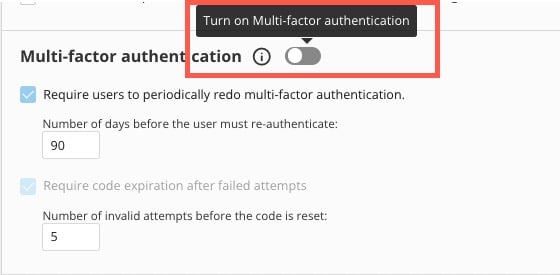 5. (Optional) To require that users redo their multi-factor authentication after a given number of days, do the following:
* Check the box labeled **Require users to periodically redo multi-factor authentication**.
* Enter the number of days before multi-factoring expires.
6. (Optional) To require that codes expire after a given number of failed attempts, enter the number of accepted invalid attempts before code expiration.
7. Select **Save**.
### Configure Multi-factor Authentication for Yourself
If your company doesn't use MFA, you can configure it for yourself in your personal settings. Follow these steps:
1. In the navigation header, select your profile picture.
2. Select
**Settings**.
The User Settings display.
3. In the **General** tab, locate the **Security** section and check the box labeled **Enable multi-factor verification**. If you have a phone number listed on your profile, the access code is delivered via SMS message. If not, the access code is sent to the email address associated with your Domo account.
5. (Optional) To require that users redo their multi-factor authentication after a given number of days, do the following:
* Check the box labeled **Require users to periodically redo multi-factor authentication**.
* Enter the number of days before multi-factoring expires.
6. (Optional) To require that codes expire after a given number of failed attempts, enter the number of accepted invalid attempts before code expiration.
7. Select **Save**.
### Configure Multi-factor Authentication for Yourself
If your company doesn't use MFA, you can configure it for yourself in your personal settings. Follow these steps:
1. In the navigation header, select your profile picture.
2. Select
**Settings**.
The User Settings display.
3. In the **General** tab, locate the **Security** section and check the box labeled **Enable multi-factor verification**. If you have a phone number listed on your profile, the access code is delivered via SMS message. If not, the access code is sent to the email address associated with your Domo account.
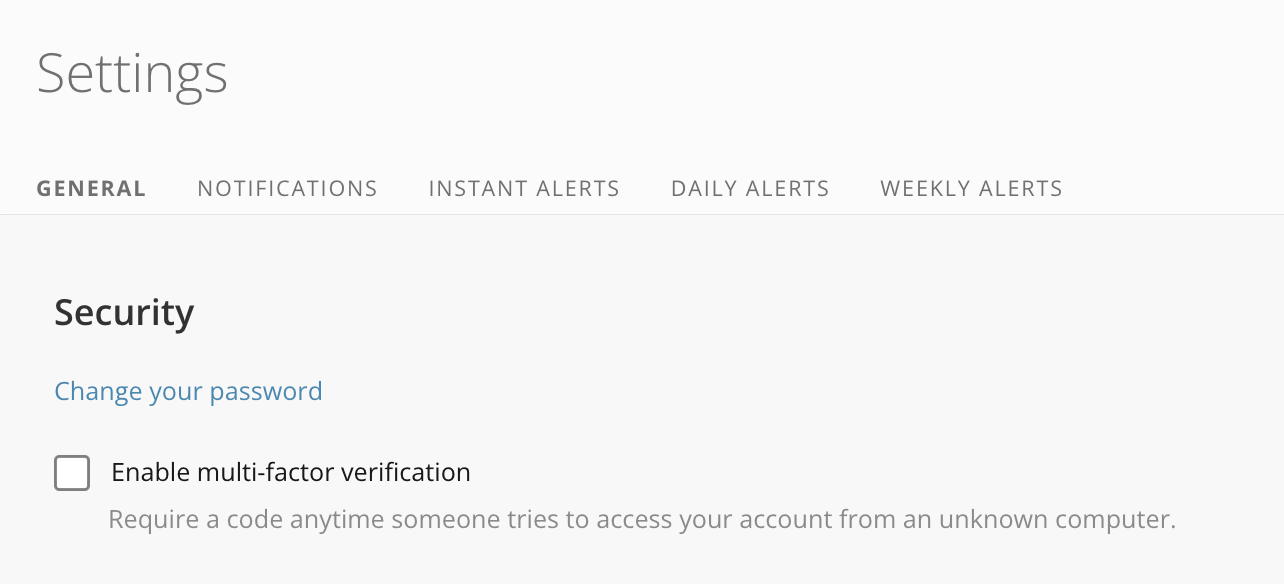 Now, when you log into Domo, an access code is sent to either your phone number or email address, depending on your configuration.
### FAQ
Yes. Please contact your customer service team to have this capability added to your instance. You'll then have access to a new setting on the Authentication screen that will allow you to require MFA for your users.
Not at this time.
* Your valid mobile phone number MUST start with a country code. If your phone number in Japan is 080-1234-5678, enter it as "+81 80-1234-5678" w here 81 is the Japan country code. Follow this link to find out your [country code](https://countrycode.org/).
* Check your email account associated with Domo. You may not have a phone number listed in Domo and have received the code via email.
If this happens, users receive an email with the code instead of a text message.
### Multi-factor Authentication (video)
Now, when you log into Domo, an access code is sent to either your phone number or email address, depending on your configuration.
### FAQ
Yes. Please contact your customer service team to have this capability added to your instance. You'll then have access to a new setting on the Authentication screen that will allow you to require MFA for your users.
Not at this time.
* Your valid mobile phone number MUST start with a country code. If your phone number in Japan is 080-1234-5678, enter it as "+81 80-1234-5678" w here 81 is the Japan country code. Follow this link to find out your [country code](https://countrycode.org/).
* Check your email account associated with Domo. You may not have a phone number listed in Domo and have received the code via email.
If this happens, users receive an email with the code instead of a text message.
### Multi-factor Authentication (video)