> ## Documentation Index
> Fetch the complete documentation index at: https://domoinc-openapi-sync-dataflows.mintlify.site/llms.txt
> Use this file to discover all available pages before exploring further.
# Allowlist IP Addresses in Domo
### Intro
You may choose to only allow access to your Domo environment from certain network addresses. For example, you may want to allow access to Domo only from inside your corporate network.
With the Domo IP address allowlist, you can control access to Domo based on IP address. Find the allowlist in the Admin Settings under **Network security**. The IP address allowlist is only accessible to people with an Admin system security role or a custom role with the Manage All Company Settings grant enabled. Learn more about [system roles](/s/article/360043438953) or [managing custom roles](/s/article/360043438973).
**Tip:** This article describes how to configure the Domo IP address allowlist. If you need to allow Domo to connect to your other systems, you may need to add the Domo IP addresses to allowlists in those systems. For a list of these addresses, see [Allow Domo IP Addresses for Network Connections](/s/article/360043630093).
**Please note:**
* The allowlist is exclusive,
*not* inclusive. This means that if you add *any* IP addresses to the allowlist, only users from the specified IP addresses can use Domo. If *no* addresses are included in the allowlist, users can access Domo from any IP address.
* IP addresses on the allowlist are applied to publications.
***
### Access IP Address Allowlist
Access the IP address allowlist by navigating to the Admin Settings.
Under **Network security**, select **IP Address Allowlist**.
### Add IP Addresses to the Allowlist
Follow the steps below to add IP addresses and enforce the allowlist.
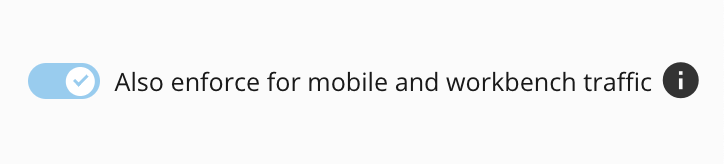
**Important:** By default, the allowlist (if it contains at least one address) is enforced for desktop browser traffic only. To enforce the allowlist across mobile and Workbench traffic, toggle the switch labeled **Also enforce for mobile and workbench traffic**.
 1. [Access the IP address allowlist](#access_ip_address_allowlist).
2. On the **IP address allowlist** page, select **Add IP Address**.
1. [Access the IP address allowlist](#access_ip_address_allowlist).
2. On the **IP address allowlist** page, select **Add IP Address**.
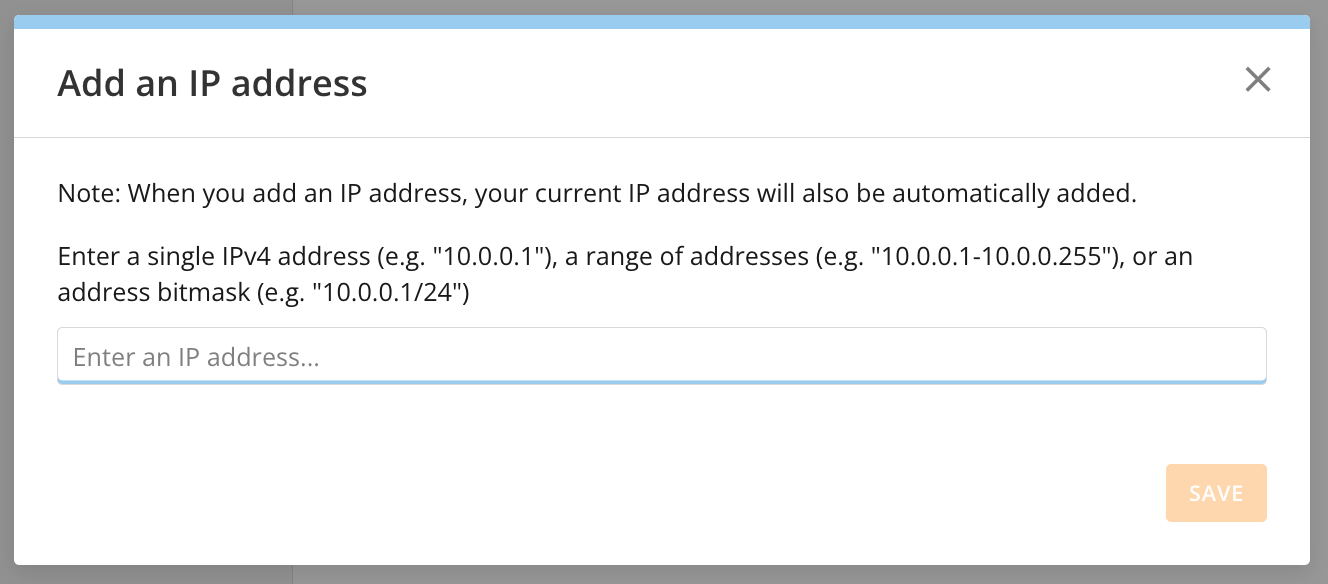
 3. In the modal that displays, enter an IP address you want to use to access Domo, then select **Save**.
**Note:** When you add IP addresses to the list, your current IP address is also automatically added. This is intentional to prevent you from being accidentally locked out of Domo. That address—and any other address—can later be [removed](#remove_ip_addresses) from the list if necessary.
3. In the modal that displays, enter an IP address you want to use to access Domo, then select **Save**.
**Note:** When you add IP addresses to the list, your current IP address is also automatically added. This is intentional to prevent you from being accidentally locked out of Domo. That address—and any other address—can later be [removed](#remove_ip_addresses) from the list if necessary.
 4. (Optional) Add additional IP addresses by repeating steps 2 and 3.
### Remove IP Addresses from the Allowlist
**Note:** To stop enforcing the allowlist, remove all addresses. An empty allowlist means that Domo can be accessed from any IP address.
1. [Access the IP address allowlist](#access_ip_address_allowlist).
2. Check the boxes for each IP address you want to remove from the list (or choose all addresses by using **Select All**).
4. (Optional) Add additional IP addresses by repeating steps 2 and 3.
### Remove IP Addresses from the Allowlist
**Note:** To stop enforcing the allowlist, remove all addresses. An empty allowlist means that Domo can be accessed from any IP address.
1. [Access the IP address allowlist](#access_ip_address_allowlist).
2. Check the boxes for each IP address you want to remove from the list (or choose all addresses by using **Select All**).
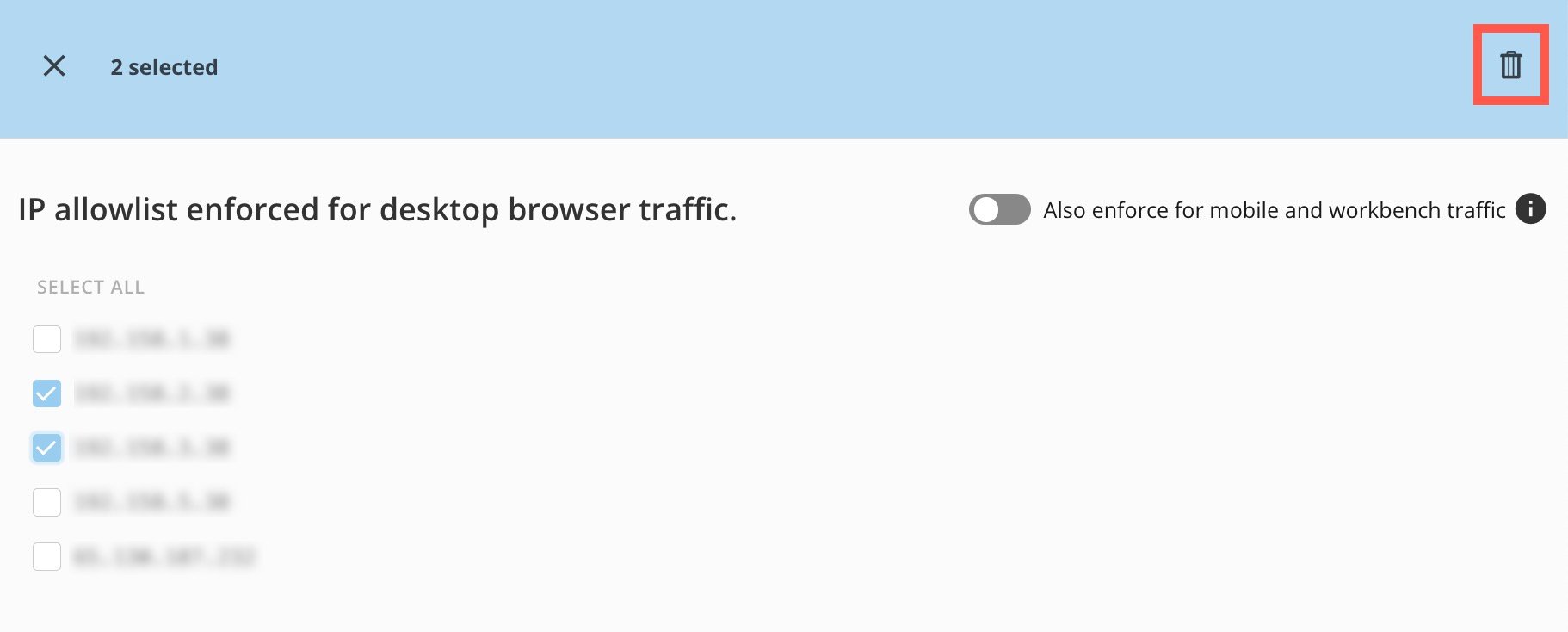
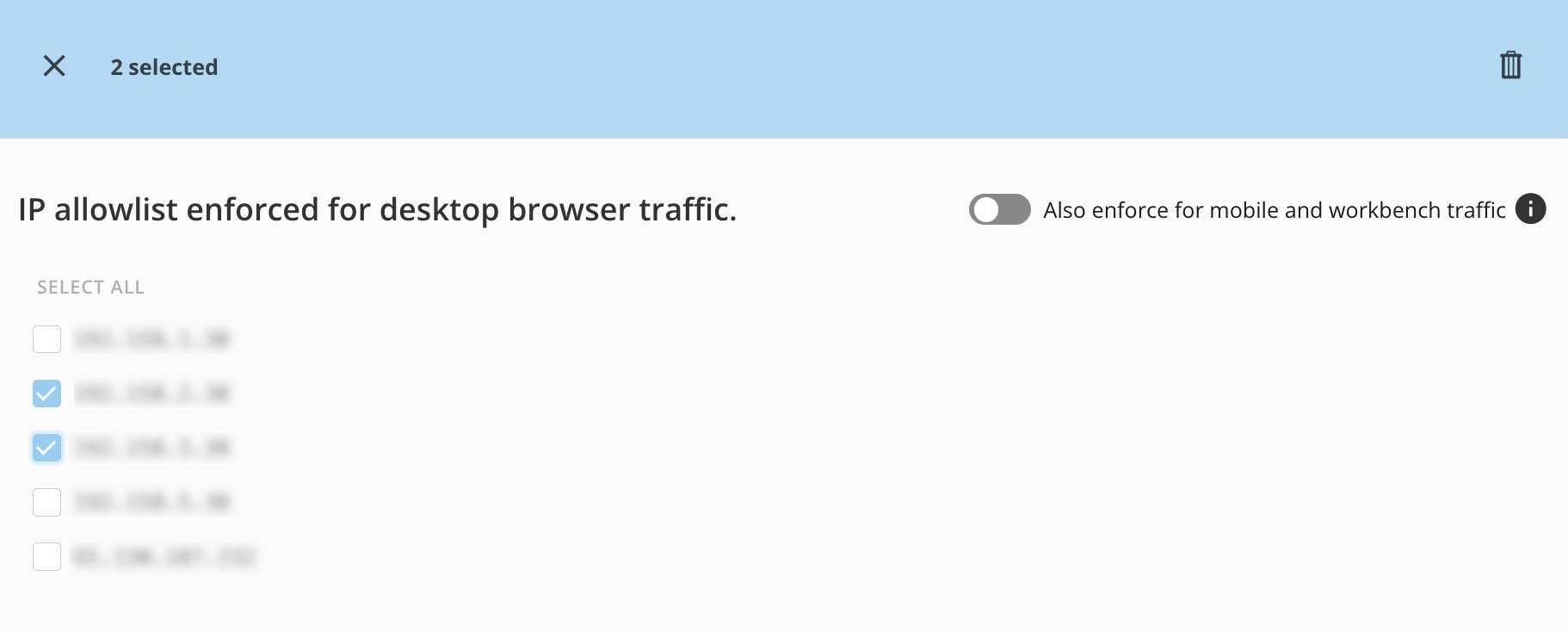 3. Select **Delete** (trash icon) in the blue banner and confirm that you wish to remove the selected address(es).
**Note:** If all addresses are removed from the allowlist, then traffic is allowed from all IP addresses.
3. Select **Delete** (trash icon) in the blue banner and confirm that you wish to remove the selected address(es).
**Note:** If all addresses are removed from the allowlist, then traffic is allowed from all IP addresses.
 **Tip:** Learn how to [allowlist IP addresses for database connectors](/s/article/360043630093).