> ## Documentation Index
> Fetch the complete documentation index at: https://domoinc-openapi-sync-dataflows.mintlify.site/llms.txt
> Use this file to discover all available pages before exploring further.
# Configure Language Settings
export const InlineImage = ({src, alt = '', height = '1.6em'}) => {
return  ;
};
### Intro
Domo has two types of language settings: user language settings and company language settings.
* The user language settings determine the interface language for your personal view of Domo.
* The company language settings determine the default interface language for everyone in the instance.
**For either setting, you can choose from the following languages:**
* Dutch
* French
* German
* Japanese
* Portuguese
* Simplified Chinese
* Spanish
***
### Set Your Personal Interface Language
If your primary language differs from the default interface language set by your company, Domo allows you to choose a different language for your personal interface. You can change this in one of two places: your Domo login screen or your user localization settings.
# Set Your Personal Interface Language From the Login Screen
To set the language for your personal interface from the Domo login screen, expand the language dropdown under the login panel before logging in.
;
};
### Intro
Domo has two types of language settings: user language settings and company language settings.
* The user language settings determine the interface language for your personal view of Domo.
* The company language settings determine the default interface language for everyone in the instance.
**For either setting, you can choose from the following languages:**
* Dutch
* French
* German
* Japanese
* Portuguese
* Simplified Chinese
* Spanish
***
### Set Your Personal Interface Language
If your primary language differs from the default interface language set by your company, Domo allows you to choose a different language for your personal interface. You can change this in one of two places: your Domo login screen or your user localization settings.
# Set Your Personal Interface Language From the Login Screen
To set the language for your personal interface from the Domo login screen, expand the language dropdown under the login panel before logging in.
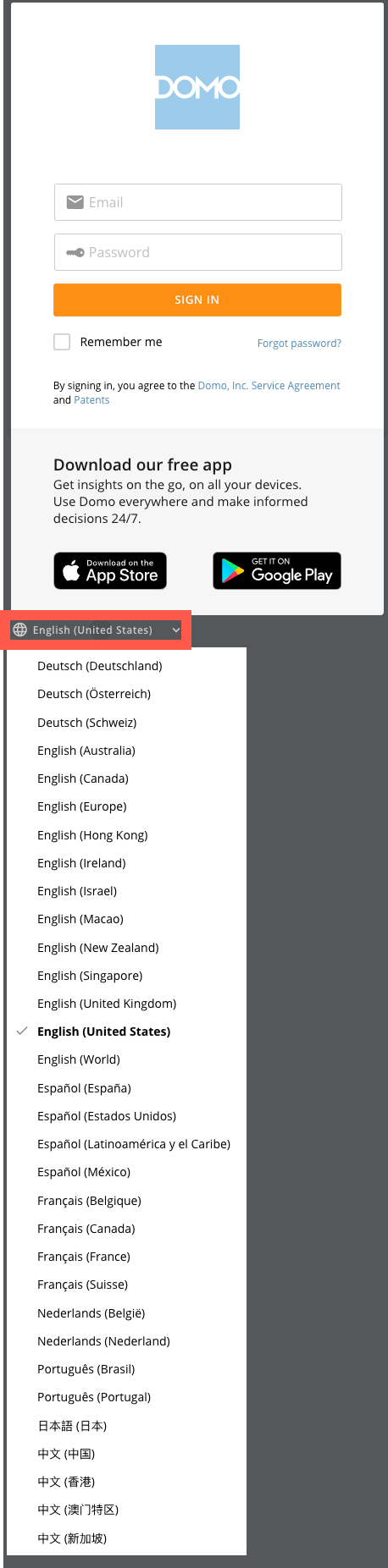 Find and select the language you want to use.
Your personal view of Domo now displays in that language.
# Set Your Personal Interface Language in the User Localization Settings
1. In the header, select your profile picture.
Find and select the language you want to use.
Your personal view of Domo now displays in that language.
# Set Your Personal Interface Language in the User Localization Settings
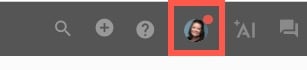
1. In the header, select your profile picture.
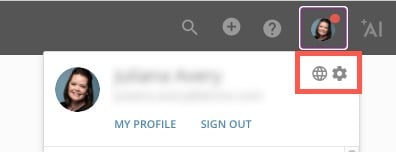
 2. Select **User Locale Settings/Settings** to open the user settings.
 3. Go to the **Localization** tab.
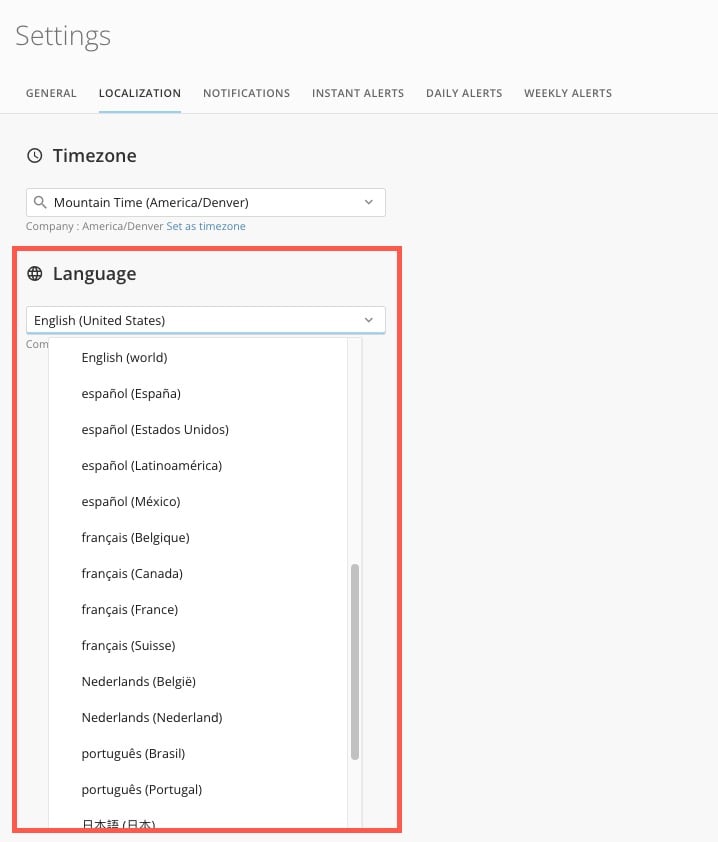
4. In the **Language** section dropdown, choose the language you want to use.
3. Go to the **Localization** tab.
4. In the **Language** section dropdown, choose the language you want to use.
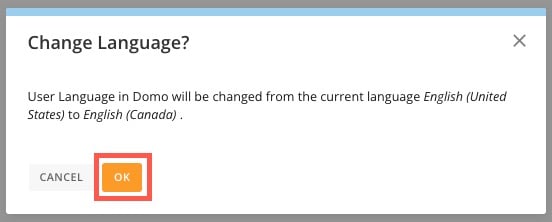
 5. In the confirmation dialog that displays, select **OK**.
 # Use European Number Formatting
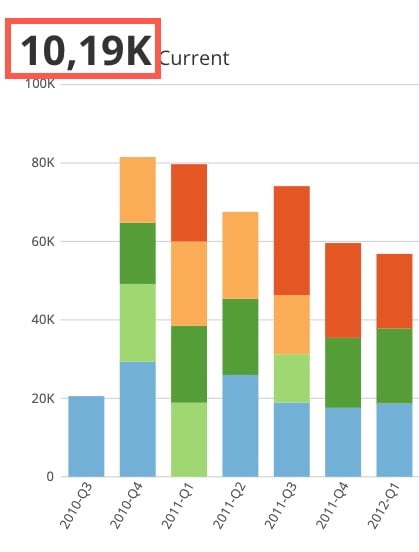
If you want to use English with European number formatting, use the **English (Netherlands)** setting. Follow the steps below.
**Note:** Domo European number formatting uses a dot (.) as a thousands separator, a comma (,) as a decimal separator, and other European numbering conventions.
# Use European Number Formatting
If you want to use English with European number formatting, use the **English (Netherlands)** setting. Follow the steps below.
**Note:** Domo European number formatting uses a dot (.) as a thousands separator, a comma (,) as a decimal separator, and other European numbering conventions.
 1. Access the
[user localization settings](#set_personal_interface_langauge_user_settings).
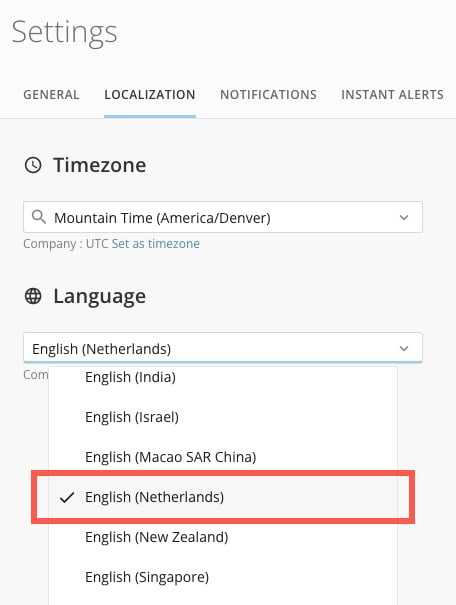
2. In the **Language** section dropdown, select **English (Netherlands)**. This changes the numbers in your interface to match Dutch number formatting conventions, including using commas as decimals.
1. Access the
[user localization settings](#set_personal_interface_langauge_user_settings).
2. In the **Language** section dropdown, select **English (Netherlands)**. This changes the numbers in your interface to match Dutch number formatting conventions, including using commas as decimals.
 3. In the confirmation dialog that displays, select **OK**.
# Reset Interface Language to Company Settings
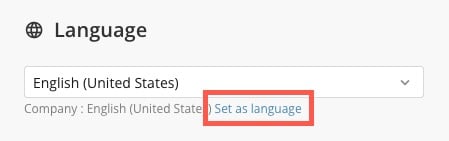
You can reset your personal interface language to the company default at any time from the [user localization settings](#set_personal_interface_langauge_user_settings). Beneath the **Language** dropdown, select **Set as language**.
3. In the confirmation dialog that displays, select **OK**.
# Reset Interface Language to Company Settings
You can reset your personal interface language to the company default at any time from the [user localization settings](#set_personal_interface_langauge_user_settings). Beneath the **Language** dropdown, select **Set as language**.
 ### Set the Company Default Interface Language
Admins can change the default interface language for the entire instance of Domo web.
##### Mobile App Language
The language for the Domo mobile application on iOS and Android matches the device language—to change the language of the application you must change your device language. If you use a language that isn't currently supported for Domo mobile, the application defaults to English.
##### Required Grant
You must have an Admin default security role or a custom role with the Manage All Company Settings grant enabled to change the default interface language.
# Change the Default Web Language
**Tip:** We recommend notifying users before changing the company language settings.
Follow these steps to change the default interface language for Domo web.
1. Navigate to the Admin Settings.
2. Under **Company** **settings**, select **Company** **overview**.
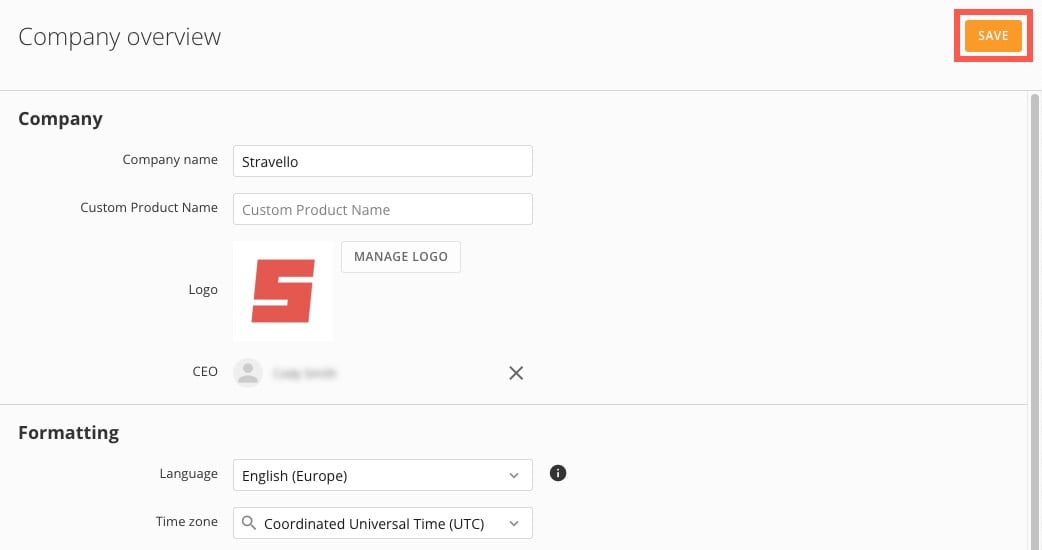
3. On the **Company overview** page under **Formatting**, choose a language from the dropdown.
### Set the Company Default Interface Language
Admins can change the default interface language for the entire instance of Domo web.
##### Mobile App Language
The language for the Domo mobile application on iOS and Android matches the device language—to change the language of the application you must change your device language. If you use a language that isn't currently supported for Domo mobile, the application defaults to English.
##### Required Grant
You must have an Admin default security role or a custom role with the Manage All Company Settings grant enabled to change the default interface language.
# Change the Default Web Language
**Tip:** We recommend notifying users before changing the company language settings.
Follow these steps to change the default interface language for Domo web.
1. Navigate to the Admin Settings.
2. Under **Company** **settings**, select **Company** **overview**.
3. On the **Company overview** page under **Formatting**, choose a language from the dropdown.
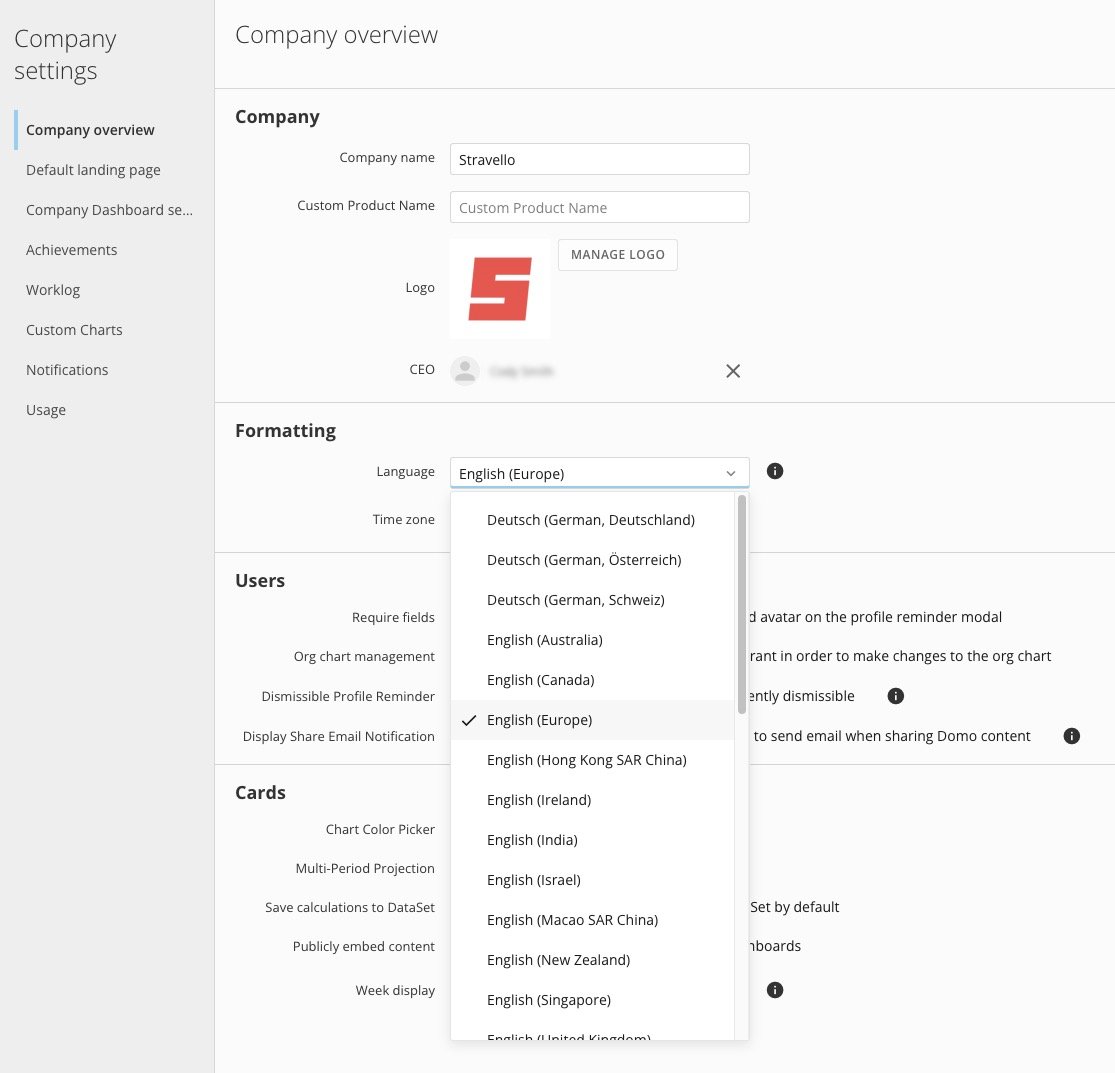 4. Select **Save** at the top of the **Company overview** page.