> ## Documentation Index
> Fetch the complete documentation index at: https://domoinc-openapi-sync-dataflows.mintlify.site/llms.txt
> Use this file to discover all available pages before exploring further.
# Set the Default Landing Page
### Intro
You can set the Domo default landing page for people in your organization in the Company Settings section of the Admin Settings. By default, an individual's system **Overview** page is their Domo landing page.
You can choose to set Apps Home, an app, or a dashboard (including a private dashboard) as the default landing page for everyone, depending on your [grants](#required_grants).
### Required Grants
You can only set the default landing if you have one of the following:
* An Admin default security role
* A custom role with the Manage All Company Settings grant enabled
For more information about default security roles and grants, see [Managing Custom Roles](/s/article/360043438973 "Security Role Reference").
### Set the Default Landing Page
Follow these steps to set the default landing page for everyone in your organization:
1. In the Domo navigation header, select **More** **> Admin** to display the Admin Settings.
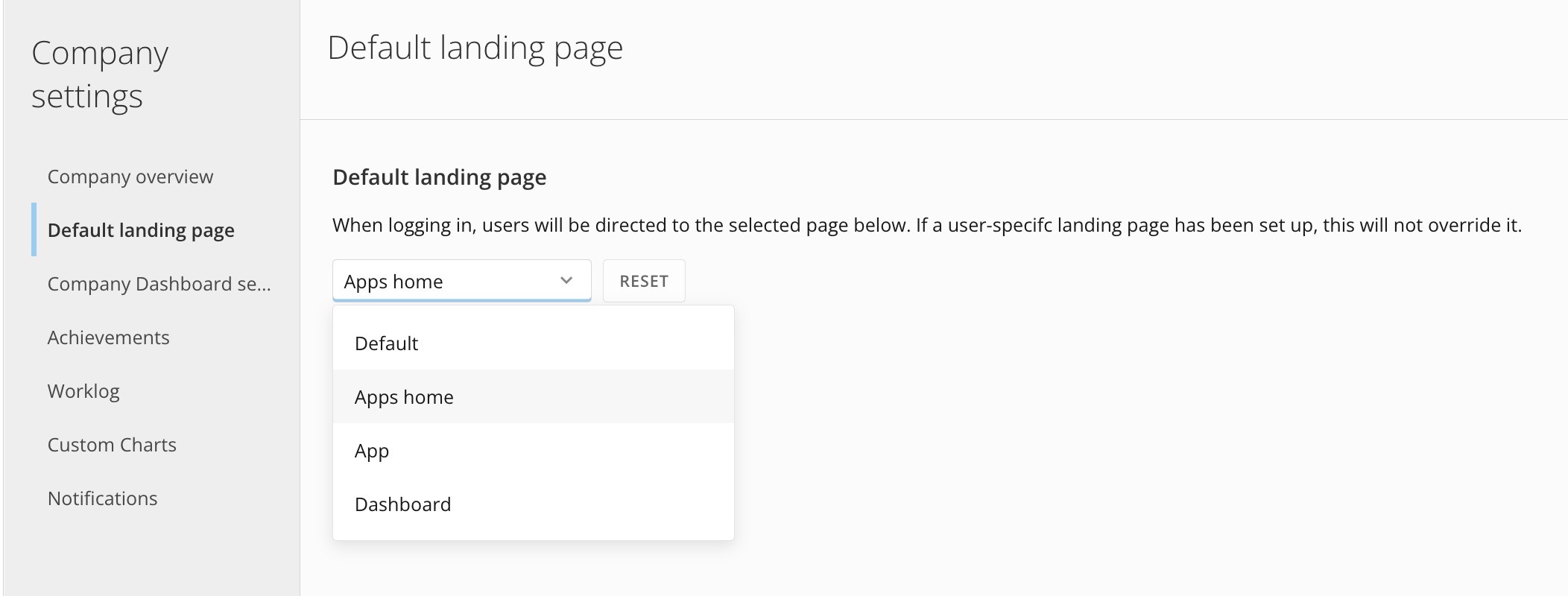
2. Under **Company settings**, select **Default landing page**.
3. In the **Default landing page** section, select the dropdown and choose one of the following options:
* **Default —** Sets each individual's system **Overview** page as the default landing page.
* **Apps home —** Sets the Apps Home as the default landing page. Learn about [Apps Home](/s/article/000005295).
* **App —** Allows you to set a specific app as the default landing page. If someone doesn't have access to the app, they receive a message about requesting access.
* **Dashboard —** Allows you to set a specific dashboard as the default landing page. If someone doesn't have access to the dashboard, they receive a message about requesting access.
**Notes:**
* The dashboard tab order does
*not* change when setting a dashboard as the default landing page. You can re-order or lock the order of dashboards. For information about ordering dashboards, see [Adding Company Pages](/s/article/360042934414 "Managing Pages").
* You cannot reorder, lock, or hide the
**Overview** page.
 4. If you choose an app or dashboard as the default landing page, verify that the item is appropriately shared with others. For more information, see
[Sharing and Access to Cards and Pages](/s/article/360042932994 "Sharing Access to Content").
### Create a Custom-Branded Landing Page (video)
4. If you choose an app or dashboard as the default landing page, verify that the item is appropriately shared with others. For more information, see
[Sharing and Access to Cards and Pages](/s/article/360042932994 "Sharing Access to Content").
### Create a Custom-Branded Landing Page (video)