> ## Documentation Index
> Fetch the complete documentation index at: https://domoinc-openapi-sync-dataflows.mintlify.site/llms.txt
> Use this file to discover all available pages before exploring further.
# Asset Manager
The Asset Manager app allows you to manage and configure your ad campaign images in one convenient location. You can add, delete, and include descriptions and tags for each managed image. Like the Asset Viewer app, you can take a step forward and configure the app’s viewing settings to fit your business use case. Images can also be filtered according to description type or associated tags & they can also be searched for using the search bar option in the tool bar menu. All images placed in the Asset Manager app are placed into App DB and have their own associated dataset in Domo for you to access for other use cases.
 ### Parts of the Asset Manager App
#### Default View
The default view in the Image Manager app is configurable using the Configuration gear menu. The three view options are Single Item View, Grid View, and List View.
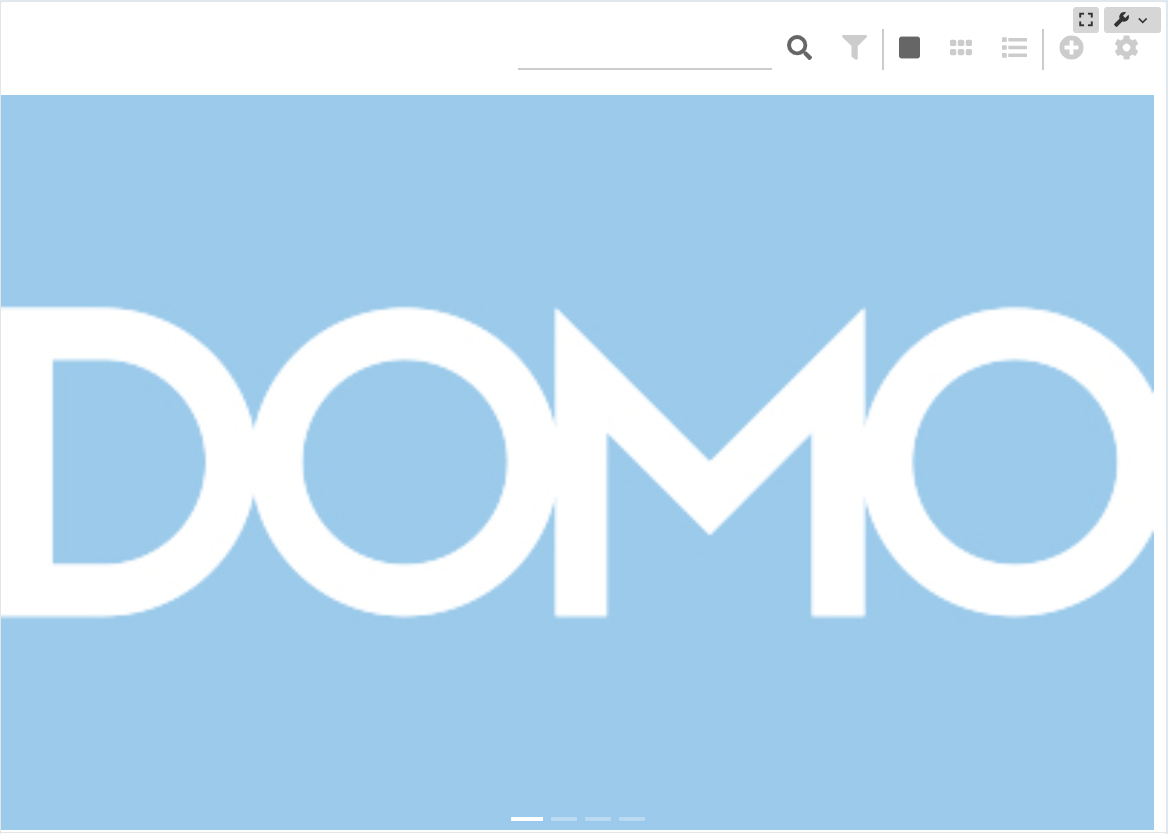
#### Single Item View
The Single Item View displays one image at a time using a slideshow effect.
### Parts of the Asset Manager App
#### Default View
The default view in the Image Manager app is configurable using the Configuration gear menu. The three view options are Single Item View, Grid View, and List View.
#### Single Item View
The Single Item View displays one image at a time using a slideshow effect.
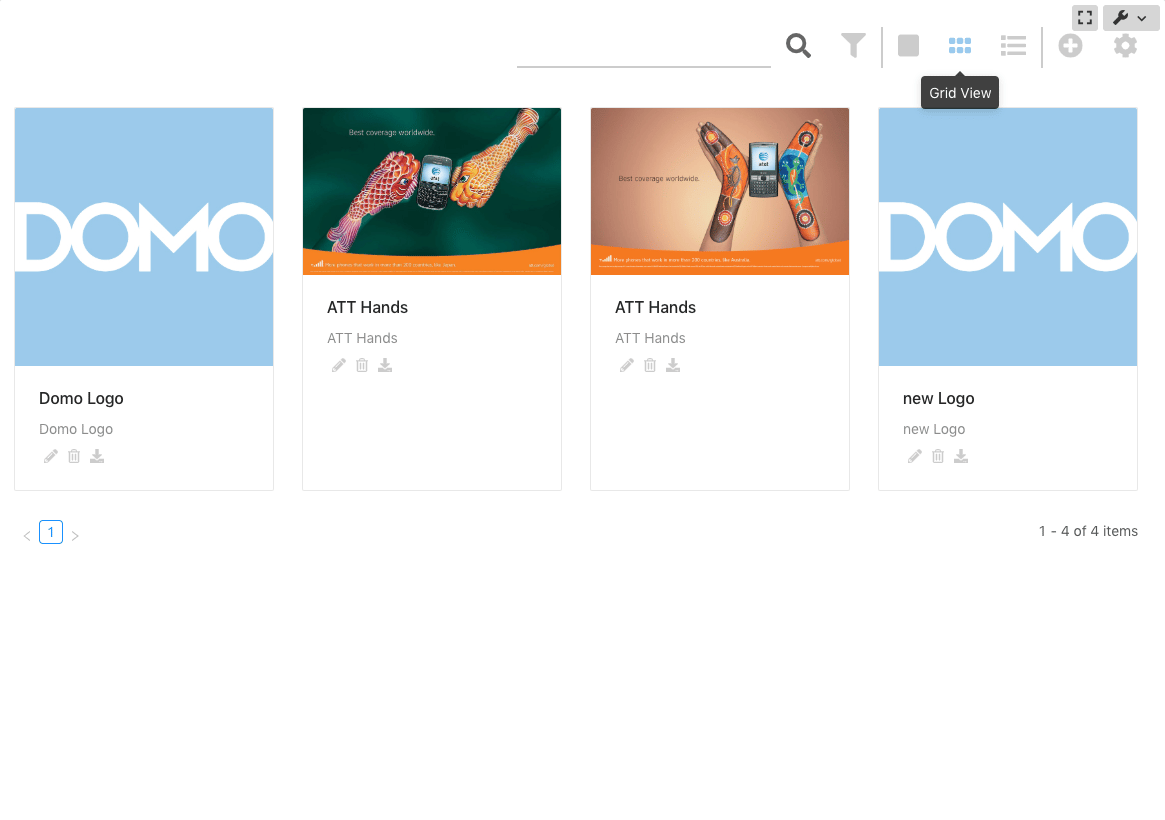
 #### Grid View
The Grid View displays images in a grid view, line by line
#### Grid View
The Grid View displays images in a grid view, line by line
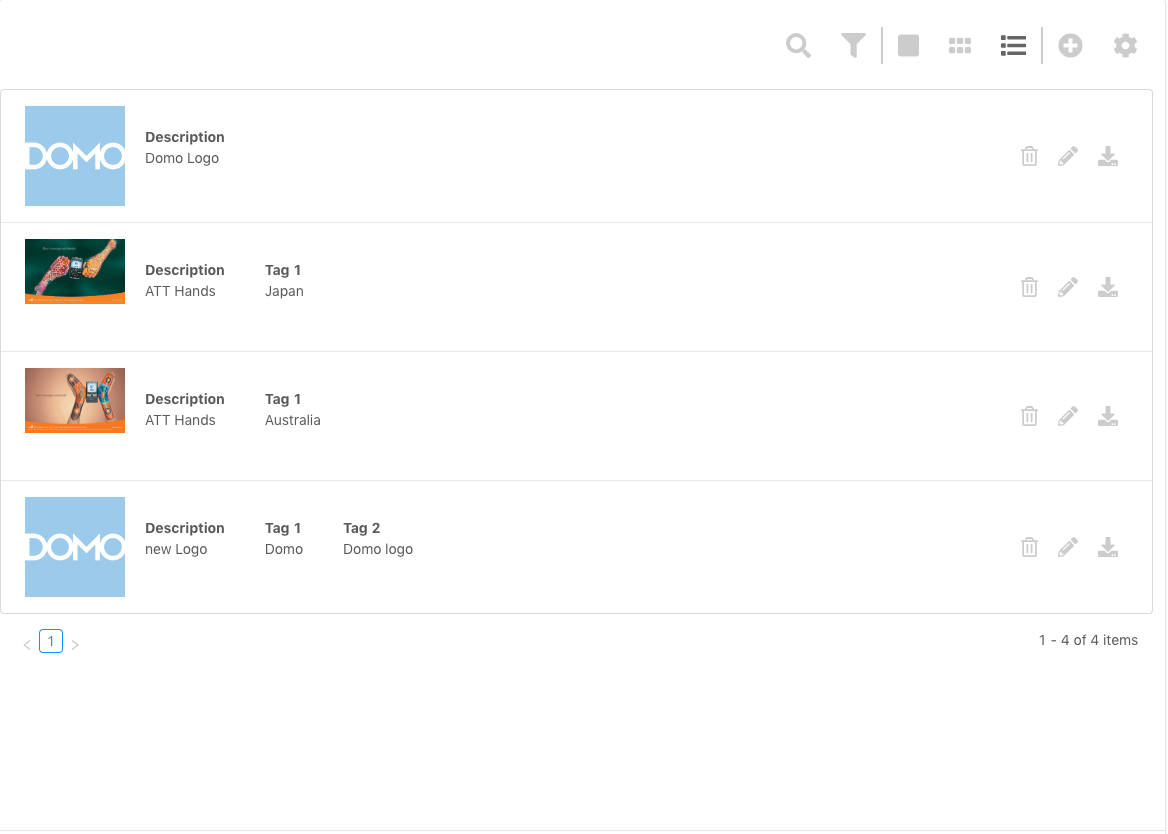
 #### List View
The List View displays images in rows formation vertically through the app
#### Search
The Search option allows you to search for images by their description
#### List View
The List View displays images in rows formation vertically through the app
#### Search
The Search option allows you to search for images by their description
 #### Filter
The Filter option allows you to filter the images by description and tags or sort by upload date.
#### Filter
The Filter option allows you to filter the images by description and tags or sort by upload date.
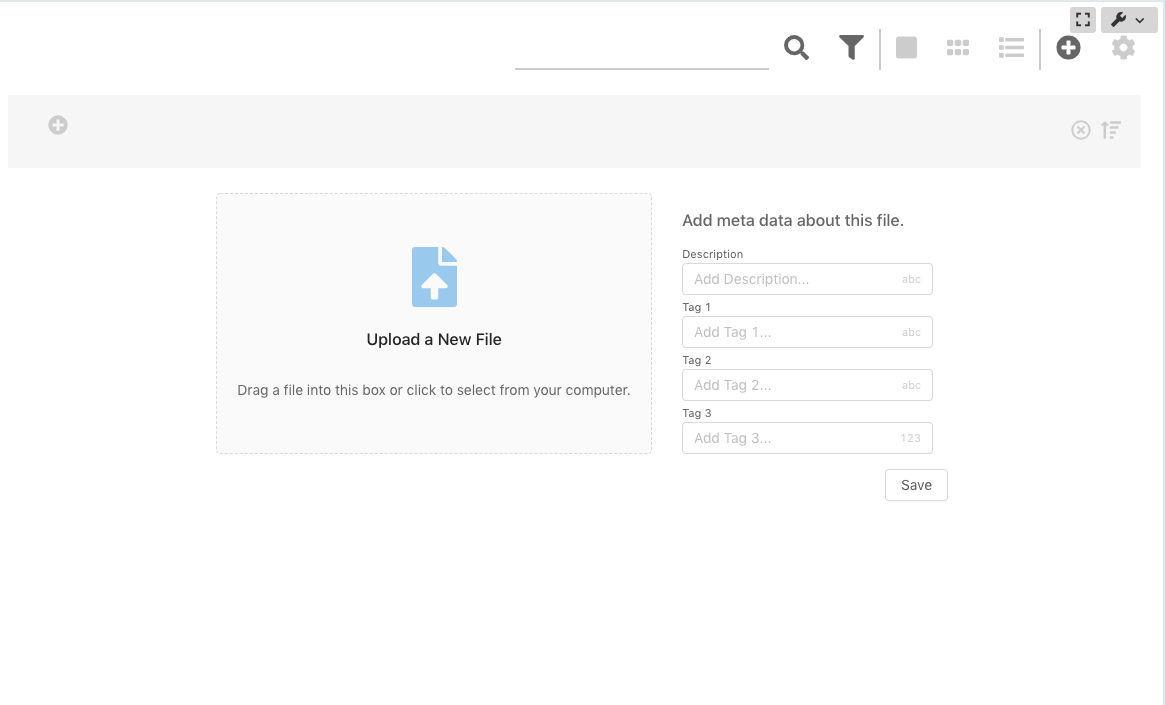
 ### Add Image
The Add Image button is where you're able to add new images to your Image Manager app. Upload a new file either by dragging and dropping it into the field or searching for and selecting one from your machine. Include a description and tags to make your images easy to search for and identify.
### Add Image
The Add Image button is where you're able to add new images to your Image Manager app. Upload a new file either by dragging and dropping it into the field or searching for and selecting one from your machine. Include a description and tags to make your images easy to search for and identify.
 ### Configuration
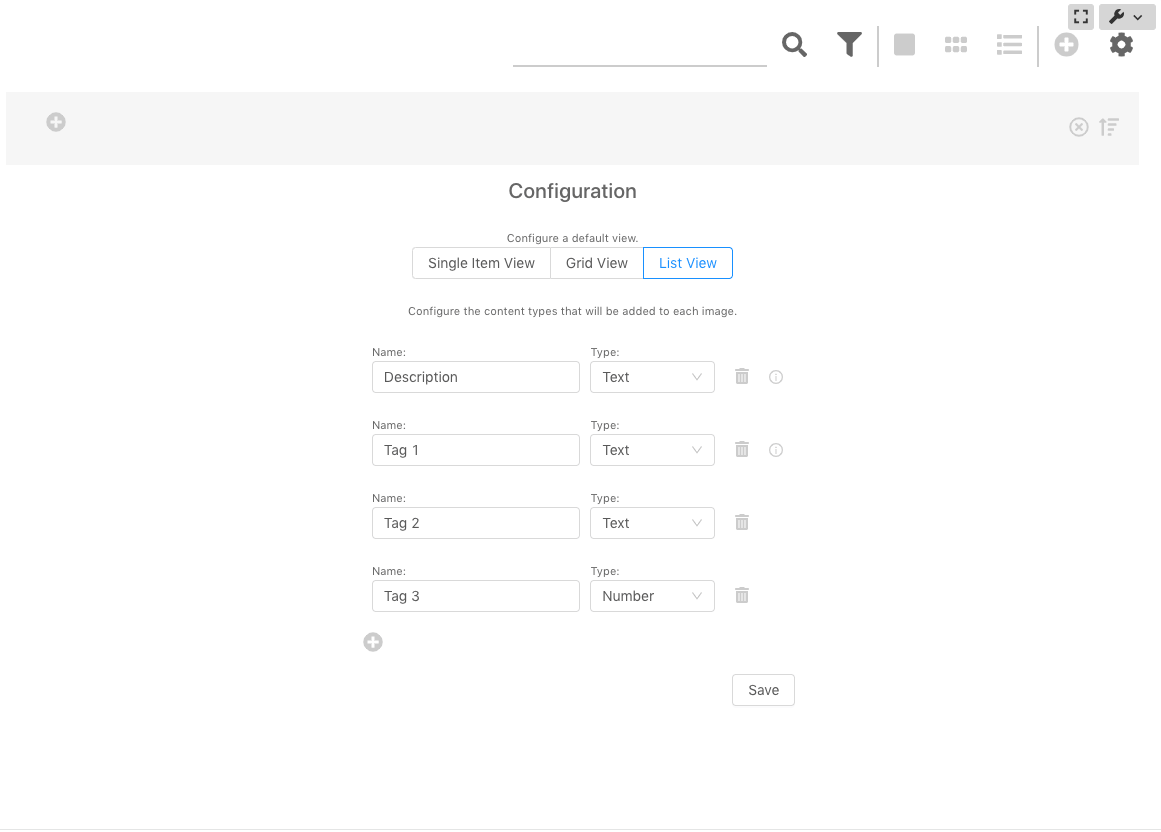
The Configuration button is where you'll go to configure your viewing setting in the app. Here you can configure your default view to one of the three viewing options: Single Item, Grid, or List. You're also able to configure the content types that will be added to each image such as the name as description or tag OR type as text, decimal, or number.
### Configuration
The Configuration button is where you'll go to configure your viewing setting in the app. Here you can configure your default view to one of the three viewing options: Single Item, Grid, or List. You're also able to configure the content types that will be added to each image such as the name as description or tag OR type as text, decimal, or number.
 ## How Do I Get This?
*To begin using the Asset Manager App, have an Admin contact your Customer Success Manager.*
## FAQ
*Document repository in Domo with an associated dataset with document metadata makes your image managing process simpler.*
Create a meta data schema for each document and start uploading them from the repo in Domo.
## How Do I Get This?
*To begin using the Asset Manager App, have an Admin contact your Customer Success Manager.*
## FAQ
*Document repository in Domo with an associated dataset with document metadata makes your image managing process simpler.*
Create a meta data schema for each document and start uploading them from the repo in Domo.