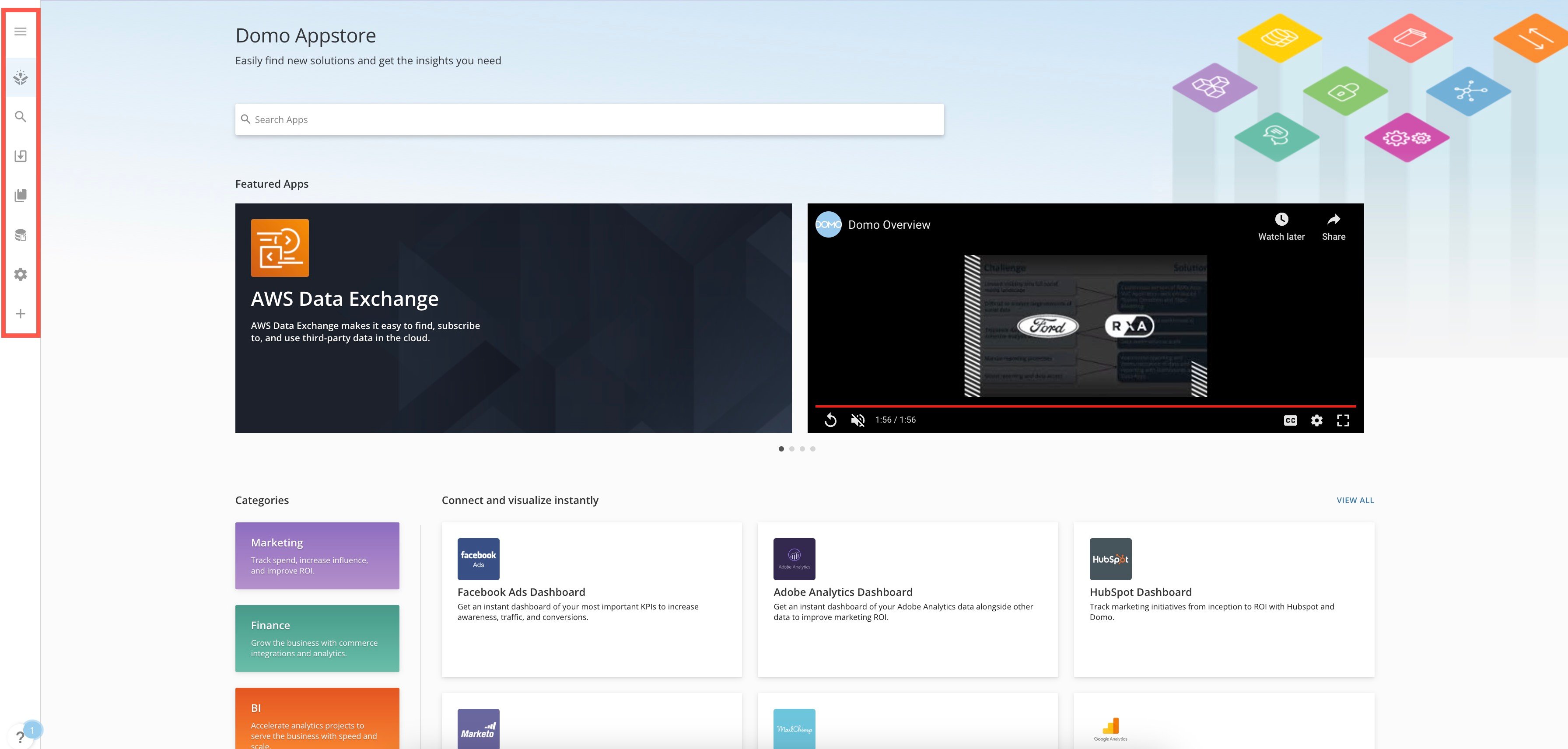
| Name | Icon | Description |
|---|---|---|
| Menu | Displays the full Appstore menu. | |
| Home | Displays featured, new, and trending listings, as well as the ability to filter by category and capability. Learn more about Home below. | |
| Search | Allows you to search for specific Appstore content using a variety of Quick Filters. Learn more about Search below. | |
| Installed Apps | Displays all apps installed in your Domo instance separated by your installed apps, apps installed by others, and Appstore purchases. Learn more about Installed Apps below. | |
| Asset Library | Displays your assets divided by apps you've designed, apps that have been shared with you, and all apps. See Asset Library . | |
| AppDB Admin | Displays your collections of JSON documents and other configuration details. | |
| Manage | Allows you to see all apps that have been pushed to publication and choose whether to grant or deny publication for apps in this list. You must have a default security role of "Admin" or a custom role with the "Manage Appstore" grant enabled to access this area. For more information about security roles, see Managing Custom Roles . For more information about managing apps, see List on the Appstore . | |
| Publish | Begins the process to publish your listing on the Appstore. See Publish on the Appstore for more information. |
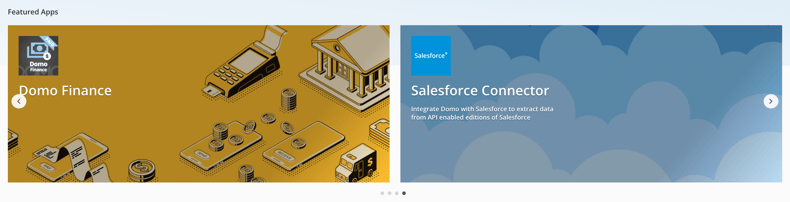 When you select a listing in the Appstore, the [Details view](#details_view) for that listing displays.
#### Categories
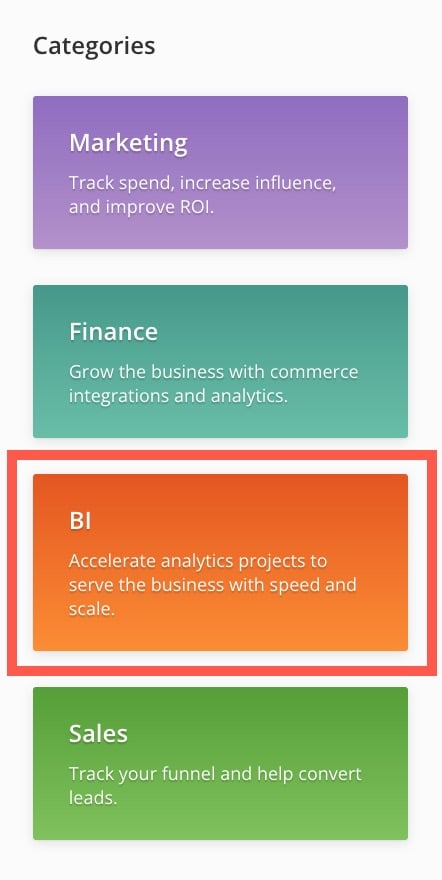
The **Categories** section of the **Home** page lets you filter to locate listings belonging to those categories. When you select a category, the **Search** page displays with that category applied as a Quick Filter.
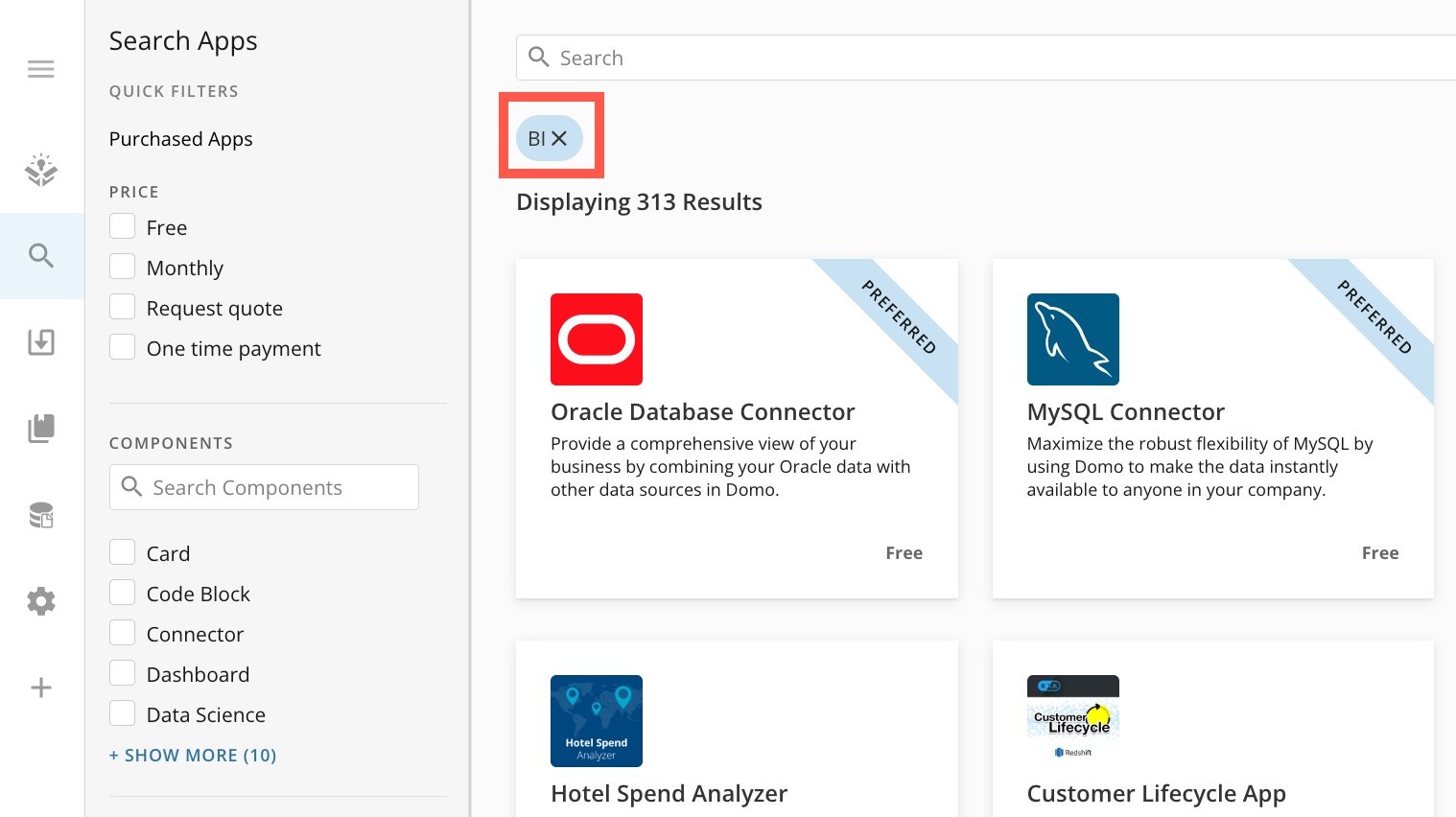
In the examples below, the **BI** category is selected on the **Home** page, which displays the **Search** page with the **BI** Filter applied. See [Search](#search) for more information.
When you select a listing in the Appstore, the [Details view](#details_view) for that listing displays.
#### Categories
The **Categories** section of the **Home** page lets you filter to locate listings belonging to those categories. When you select a category, the **Search** page displays with that category applied as a Quick Filter.
In the examples below, the **BI** category is selected on the **Home** page, which displays the **Search** page with the **BI** Filter applied. See [Search](#search) for more information.
 #### Capabilities
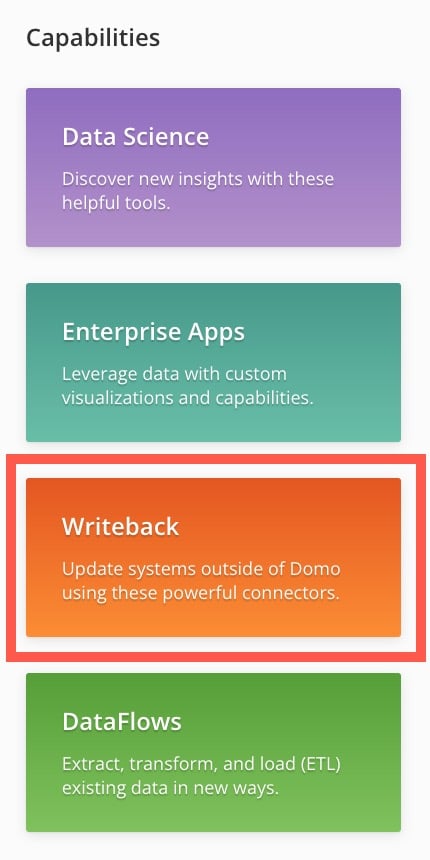
The **Capabilities** section of the **Home** page lets you filter to locate listings with those capabilities. When you select a capability, the **Search** page displays with that capability applied as a component Quick Filter.
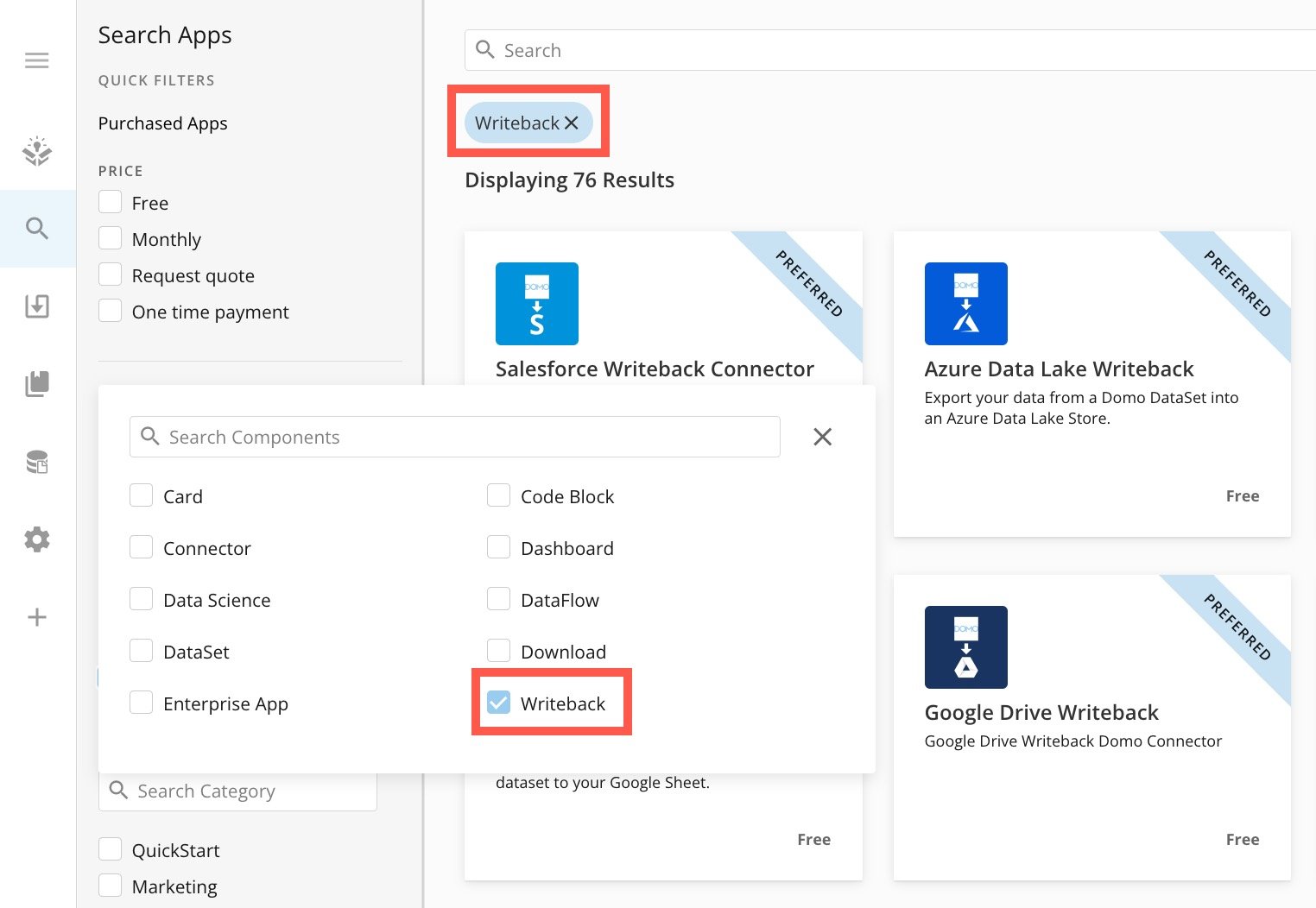
In the examples below, the **Writeback** capability is selected on the **Home** page, which displays the **Search** page with the **Writeback** component Filter applied. See [Search](#search) for more information.
#### Capabilities
The **Capabilities** section of the **Home** page lets you filter to locate listings with those capabilities. When you select a capability, the **Search** page displays with that capability applied as a component Quick Filter.
In the examples below, the **Writeback** capability is selected on the **Home** page, which displays the **Search** page with the **Writeback** component Filter applied. See [Search](#search) for more information.
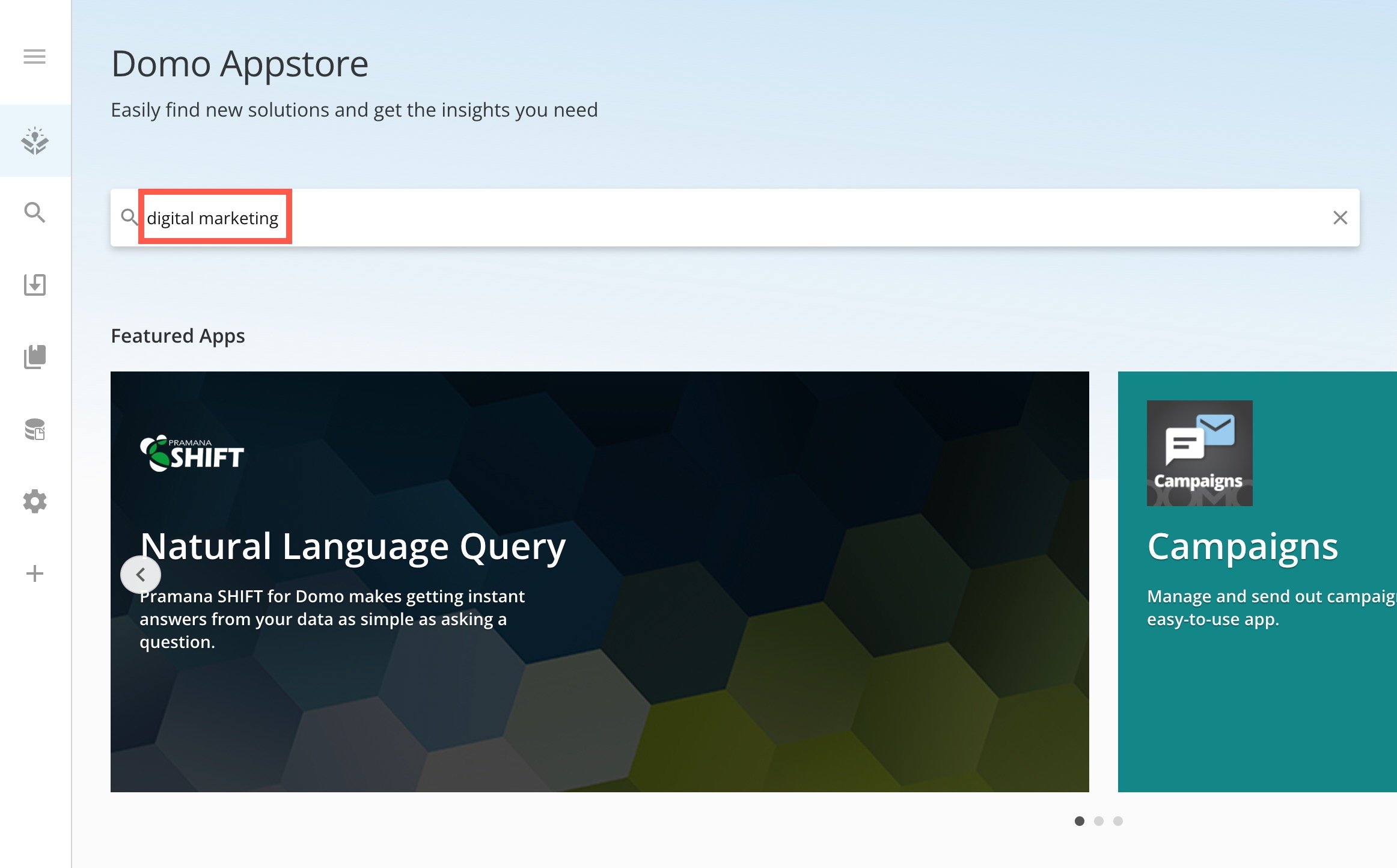
 You can also perform a keyword search using the search bar at the top of the **Home** page. If you search in the
  ### Search
You can also search the Appstore using keywords on the
### Search
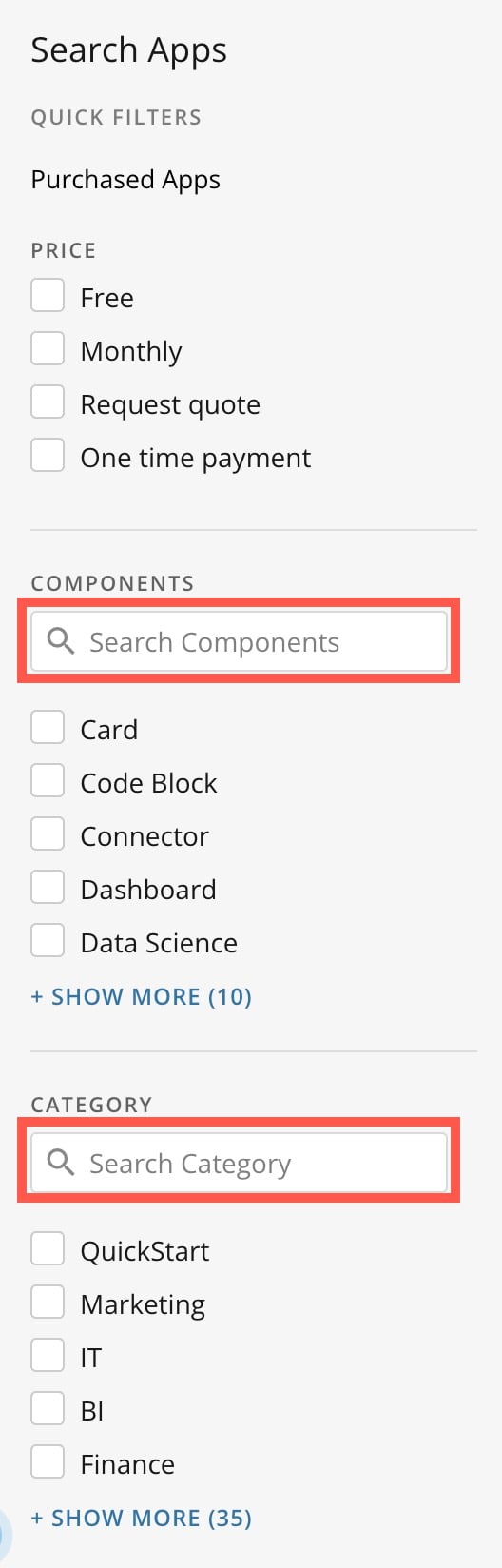
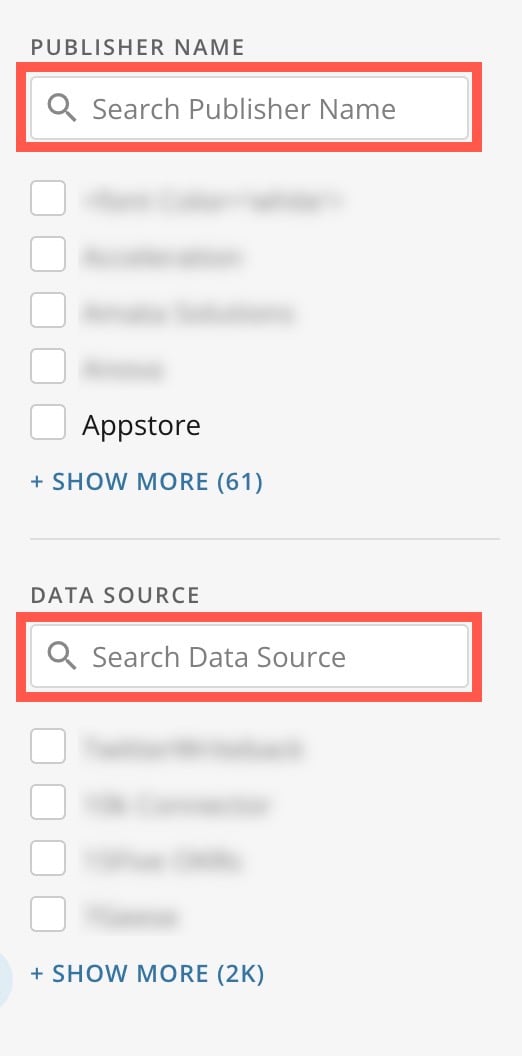
You can also search the Appstore using keywords on the  On the left side of the **Search** page, you can select any of the available Quick Filters to display all listings that matcj the criteria. The Quick Filters are divided into categories:
* Price
* Components
* Category
* Publisher Name
* Data Source
You can also search by keyword in each category of Quick Filter except for Price.
On the left side of the **Search** page, you can select any of the available Quick Filters to display all listings that matcj the criteria. The Quick Filters are divided into categories:
* Price
* Components
* Category
* Publisher Name
* Data Source
You can also search by keyword in each category of Quick Filter except for Price.
 #### Sort Results
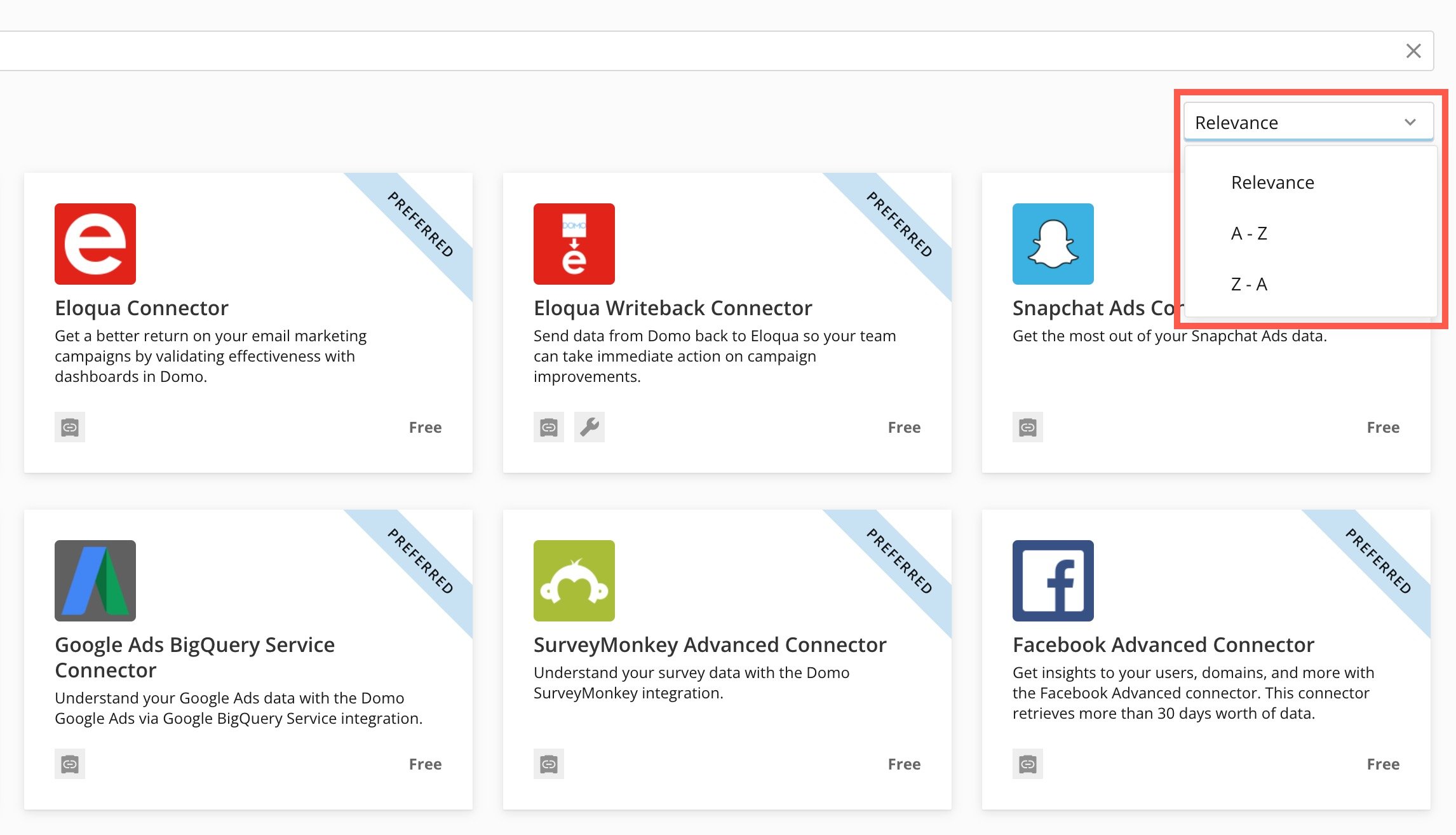
You can also sort search results by relevance or in alphabetically ascending or descending order.
#### Sort Results
You can also sort search results by relevance or in alphabetically ascending or descending order.
 ## Listing Types
You can find Apps by Domo, connectors, and third-party listings on the Appstore.
### Apps by Domo
Each person in your organization can download their own version of an app. These individual versions contain cards powered by the individual's personal data. Apps by Domo are of the following types:
* **QuickStart Apps —** These are packs of template KPI cards, each associated with a particular third-party connector, that you can power with your own data. You power QuickStart apps using a connector, usually by entering credentials and/or other information. When you install a QuickStart app, a dashboard for the QuickStart app is added to your organization's instance of Domo. This dashboard contains all of the cards associated with this connector, powered by your own live data. For example, if you add the LinkedIn QuickStart app to your Domo instance, a LinkedIn dashboard displays with cards for "Company Followers," "Likes," "Clicks vs. Impressions," and so on, all powered by your organization's LinkedIn data. For more information about KPI cards, see Understanding Cards.
* **Card Apps —** These apps consist of one card that you deploy in your Domo instance. At the time of deployment, you can choose whether to deploy the Card App to an existing dashboard or to create a new dashboard for it. Card Apps are powered by selecting a DataSet with matching column names.
* **Custom Apps —** These are cards that use multiple charts and images to present data measurements using rich visualizations. You can use pre-built [Domo Bricks](/s/article/4423762260375) that you can customize by copying and pasting code or create Custom Apps yourself with the App Framework. Learn about this in the [developer portal](https://developer.domo.com/portal/28v6sqz9eslb9-overview).
For help with troubleshooting Custom Apps, see [Troubleshooting for Custom Apps](https://domo-support.domo.com/s/article/360052583893?language=en_US).
View the documentation for [Available Apps](https://domo-support.domo.com/s/topic/0TO5w000000Zan9GAC/available-apps?language=en_US) here.
### Connectors
Hundreds of connectors allow you to access your data and use it to power your Domo assets. You may need to enter your credentials, depending on the connector. See [Connecting Data to Domo](https://domo-support.domo.com/s/topic/0TO5w000000ZammGAC/connecting-data-to-domo?language=en_US) for more information.
### Third-Party Listings
Domo allows third-parties to create listings and publish them on the Appstore to be installed by anyone or only internally by their organization. This allows partners to add value to the Appstore for all Domo users and even to create another revenue stream for their organization. All partner listings are subject to the same approval process and criteria as any Domo listings to ensure the high quality you expect from Domo.
To learn about the publishing process, see [Publish on the Appstore](https://domo-support.domo.com/s/topic/0TO5w000000ZanOGAS/publish-on-the-appstore?language=en_US).
See our [developer portal](https://developer.domo.com/portal/28v6sqz9eslb9-overview) for more information about app coding and creation.
## Details View
## Listing Types
You can find Apps by Domo, connectors, and third-party listings on the Appstore.
### Apps by Domo
Each person in your organization can download their own version of an app. These individual versions contain cards powered by the individual's personal data. Apps by Domo are of the following types:
* **QuickStart Apps —** These are packs of template KPI cards, each associated with a particular third-party connector, that you can power with your own data. You power QuickStart apps using a connector, usually by entering credentials and/or other information. When you install a QuickStart app, a dashboard for the QuickStart app is added to your organization's instance of Domo. This dashboard contains all of the cards associated with this connector, powered by your own live data. For example, if you add the LinkedIn QuickStart app to your Domo instance, a LinkedIn dashboard displays with cards for "Company Followers," "Likes," "Clicks vs. Impressions," and so on, all powered by your organization's LinkedIn data. For more information about KPI cards, see Understanding Cards.
* **Card Apps —** These apps consist of one card that you deploy in your Domo instance. At the time of deployment, you can choose whether to deploy the Card App to an existing dashboard or to create a new dashboard for it. Card Apps are powered by selecting a DataSet with matching column names.
* **Custom Apps —** These are cards that use multiple charts and images to present data measurements using rich visualizations. You can use pre-built [Domo Bricks](/s/article/4423762260375) that you can customize by copying and pasting code or create Custom Apps yourself with the App Framework. Learn about this in the [developer portal](https://developer.domo.com/portal/28v6sqz9eslb9-overview).
For help with troubleshooting Custom Apps, see [Troubleshooting for Custom Apps](https://domo-support.domo.com/s/article/360052583893?language=en_US).
View the documentation for [Available Apps](https://domo-support.domo.com/s/topic/0TO5w000000Zan9GAC/available-apps?language=en_US) here.
### Connectors
Hundreds of connectors allow you to access your data and use it to power your Domo assets. You may need to enter your credentials, depending on the connector. See [Connecting Data to Domo](https://domo-support.domo.com/s/topic/0TO5w000000ZammGAC/connecting-data-to-domo?language=en_US) for more information.
### Third-Party Listings
Domo allows third-parties to create listings and publish them on the Appstore to be installed by anyone or only internally by their organization. This allows partners to add value to the Appstore for all Domo users and even to create another revenue stream for their organization. All partner listings are subject to the same approval process and criteria as any Domo listings to ensure the high quality you expect from Domo.
To learn about the publishing process, see [Publish on the Appstore](https://domo-support.domo.com/s/topic/0TO5w000000ZanOGAS/publish-on-the-appstore?language=en_US).
See our [developer portal](https://developer.domo.com/portal/28v6sqz9eslb9-overview) for more information about app coding and creation.
## Details View
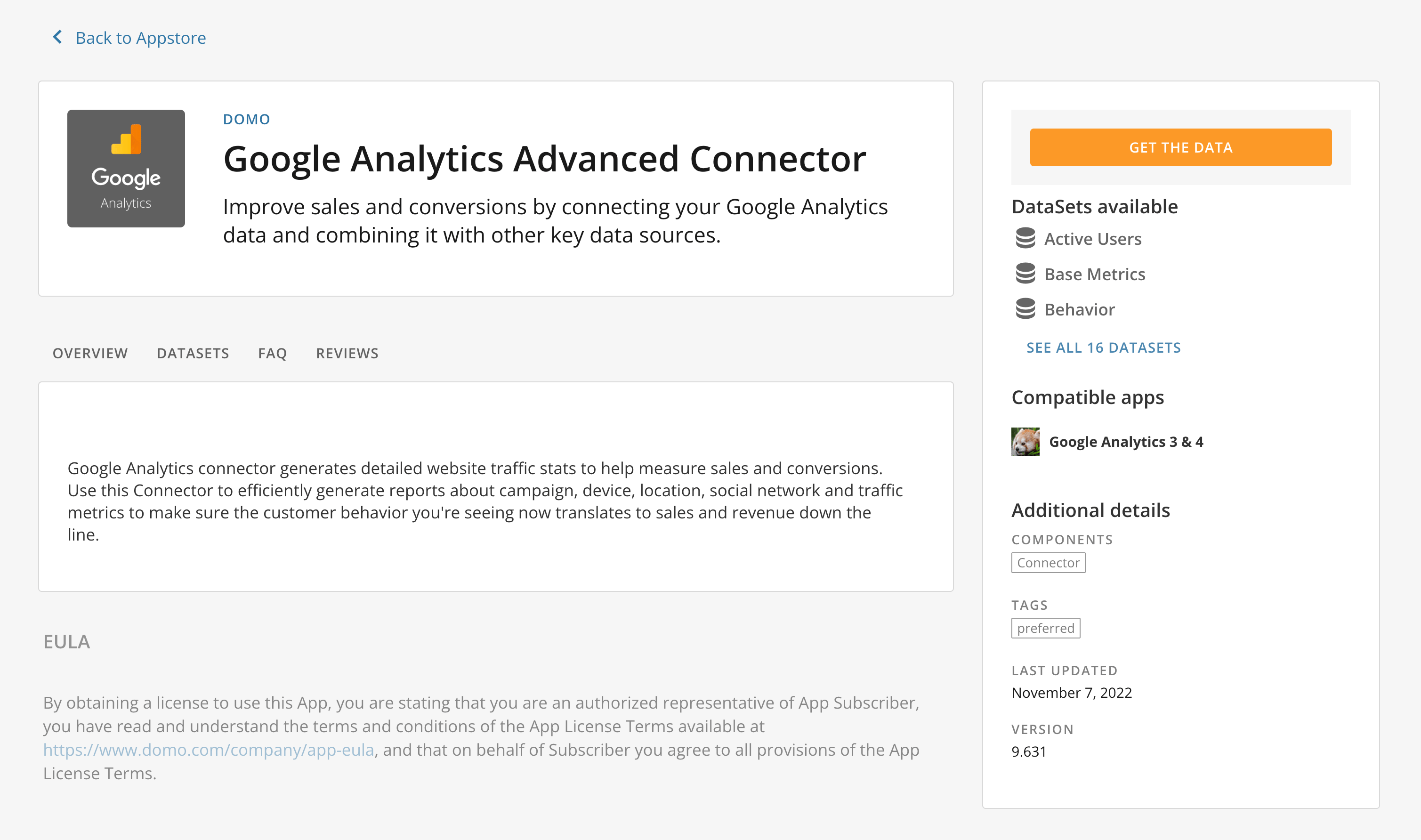 When you select any listing in the Appstore, you open its Details view, which includes the following information about the listing:
* Intended audience
* Benefits
* Amount of setup effort
* Tags
* Version number
* Other descriptive information
The **Overview** tab is the default tab for all listings and the only tab for apps. Connectors have an **Overview** tab as well as the following tabs:
* **DataSets —** A list of all the DataSets you can pull into Domo with this connector.
* **FAQ —** A list of frequently asked questions and answers for the connector.
* **Reviews —** The average customer rating for the connector.
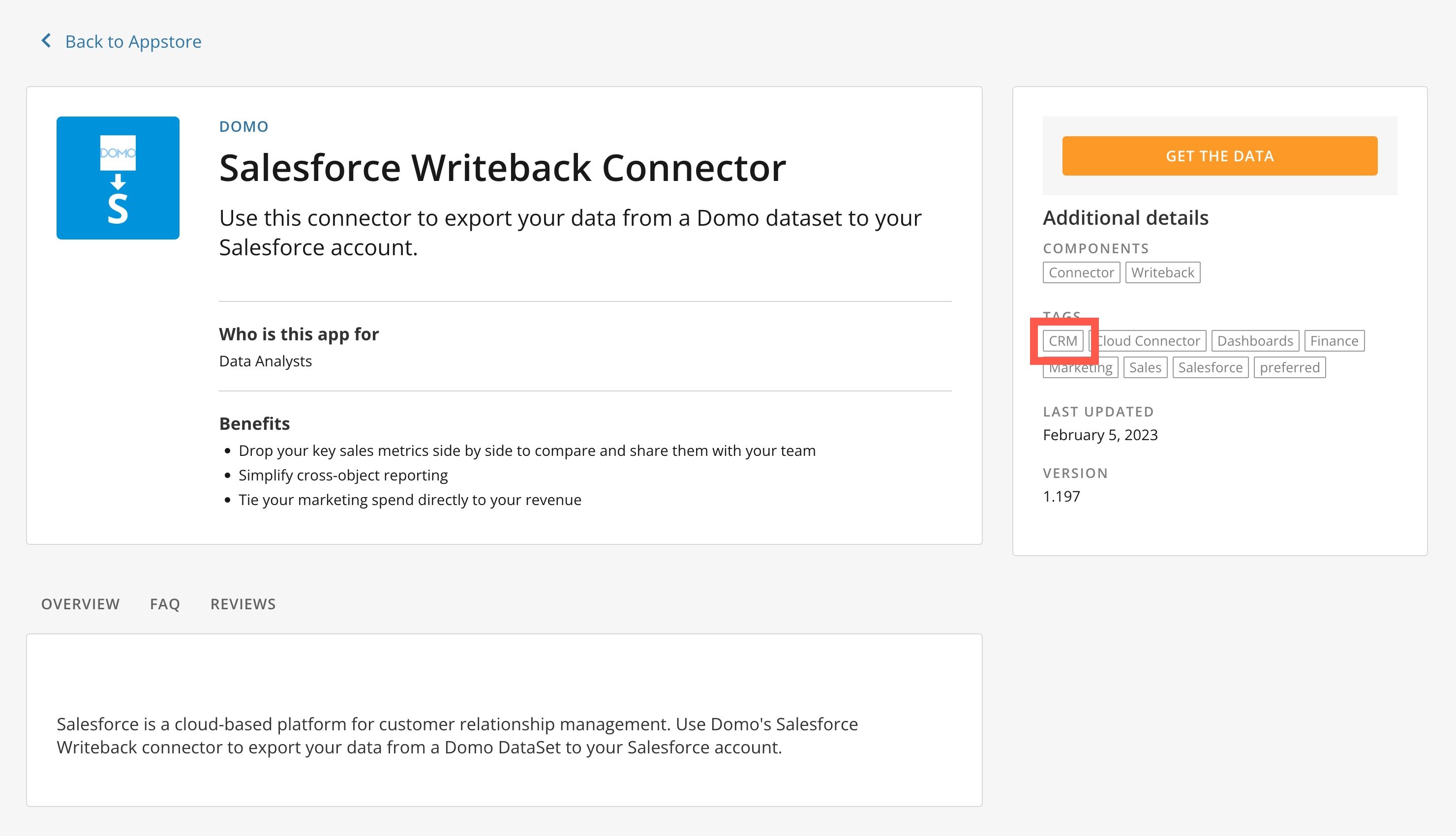
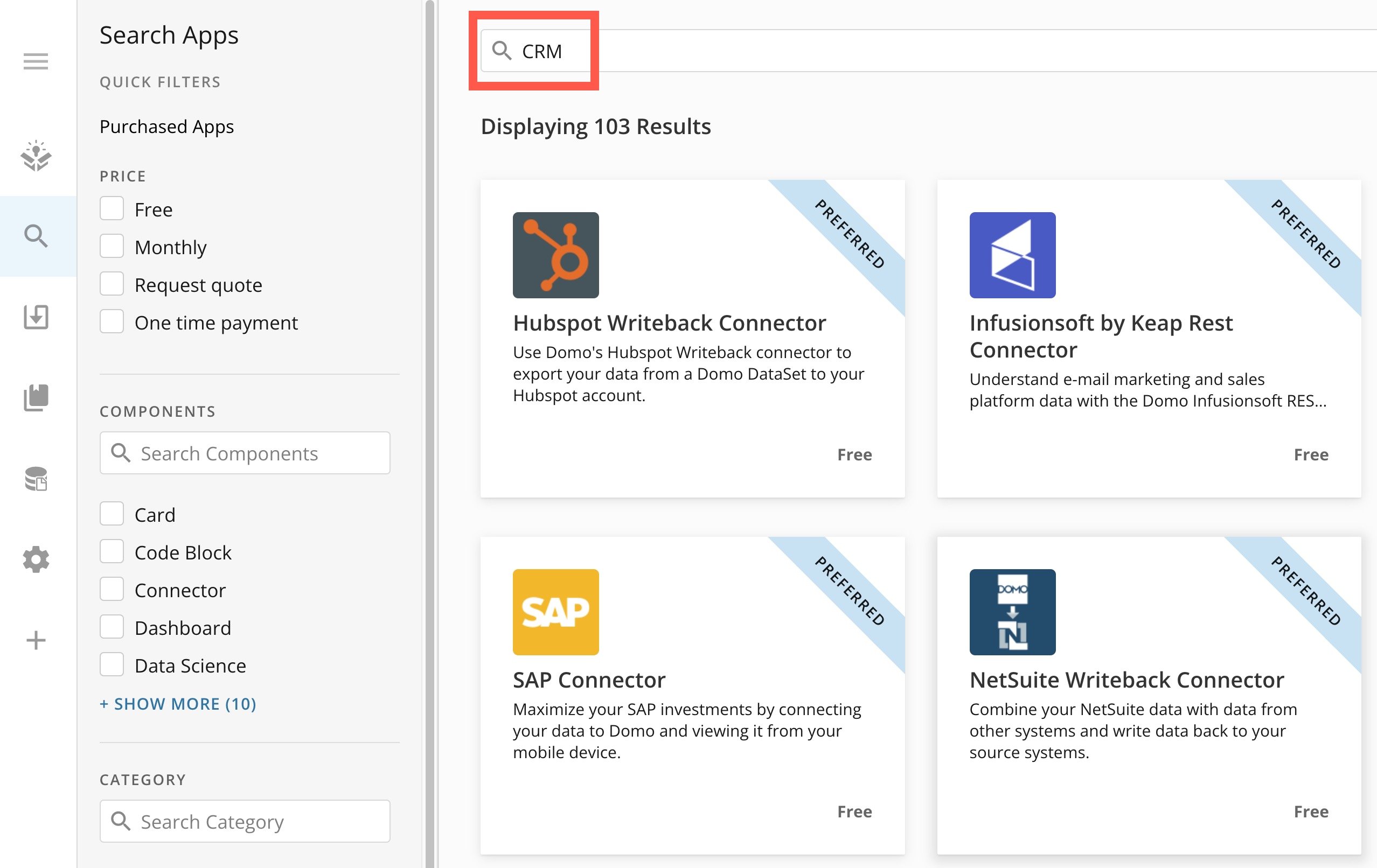
Tags allow you to search for other tools with that tag in their name or description. Select a tag to open the **Search** page with that tag as the search term and display the results. In the images below, the **CRM** tag from the listing is used as the search term.
When you select any listing in the Appstore, you open its Details view, which includes the following information about the listing:
* Intended audience
* Benefits
* Amount of setup effort
* Tags
* Version number
* Other descriptive information
The **Overview** tab is the default tab for all listings and the only tab for apps. Connectors have an **Overview** tab as well as the following tabs:
* **DataSets —** A list of all the DataSets you can pull into Domo with this connector.
* **FAQ —** A list of frequently asked questions and answers for the connector.
* **Reviews —** The average customer rating for the connector.
Tags allow you to search for other tools with that tag in their name or description. Select a tag to open the **Search** page with that tag as the search term and display the results. In the images below, the **CRM** tag from the listing is used as the search term.
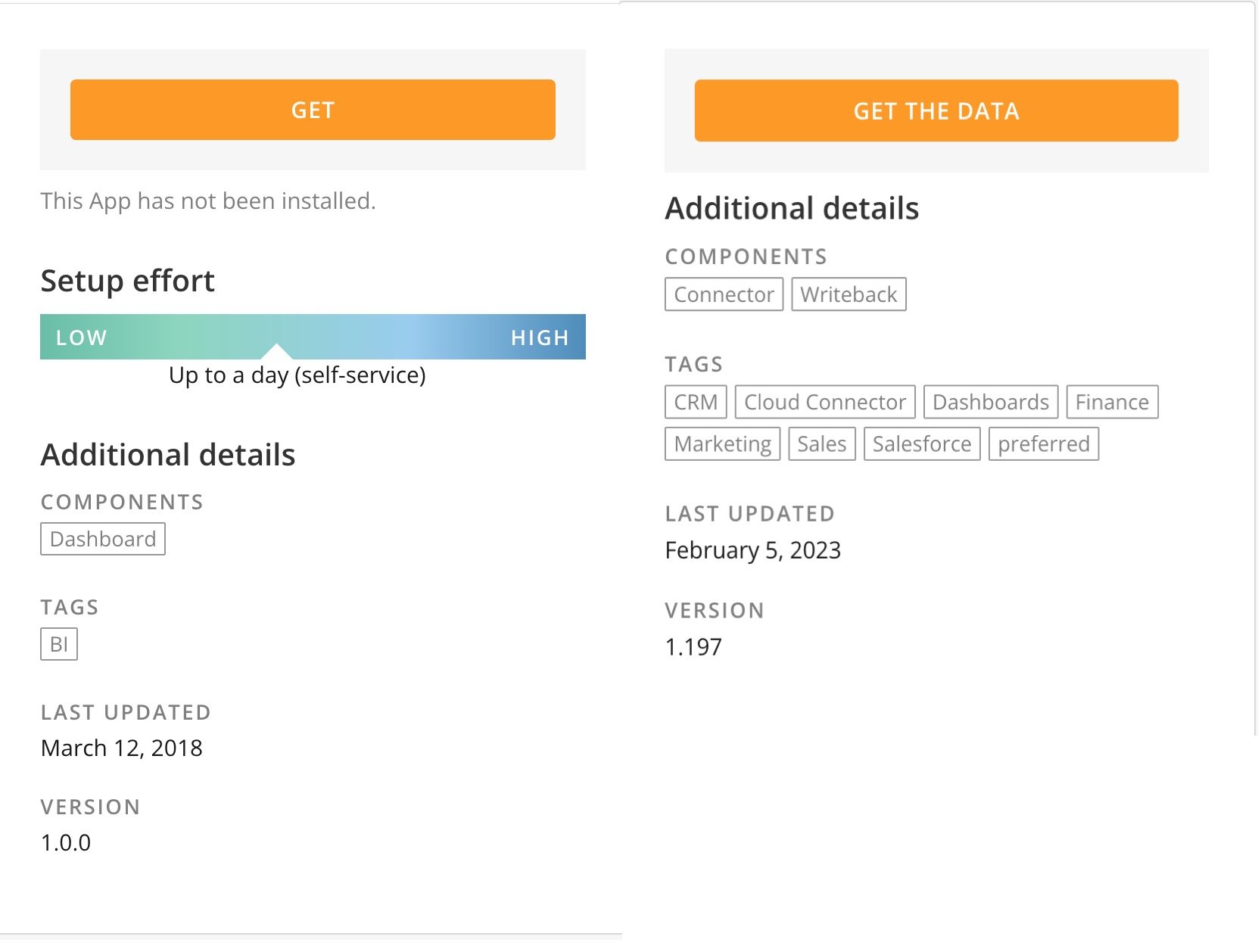
 Select **Get** to deploy an app.
Select **Get the Data** to configure a connector.
Select **Get** to deploy an app.
Select **Get the Data** to configure a connector.
 ## Installed Apps
**Installed Apps** has three sections:
* Your Installed Apps
* Installed By Others
* Appstore Purchases
In any section, you can select an app to open its Details view. From the Details view, you can select
## Installed Apps
**Installed Apps** has three sections:
* Your Installed Apps
* Installed By Others
* Appstore Purchases
In any section, you can select an app to open its Details view. From the Details view, you can select 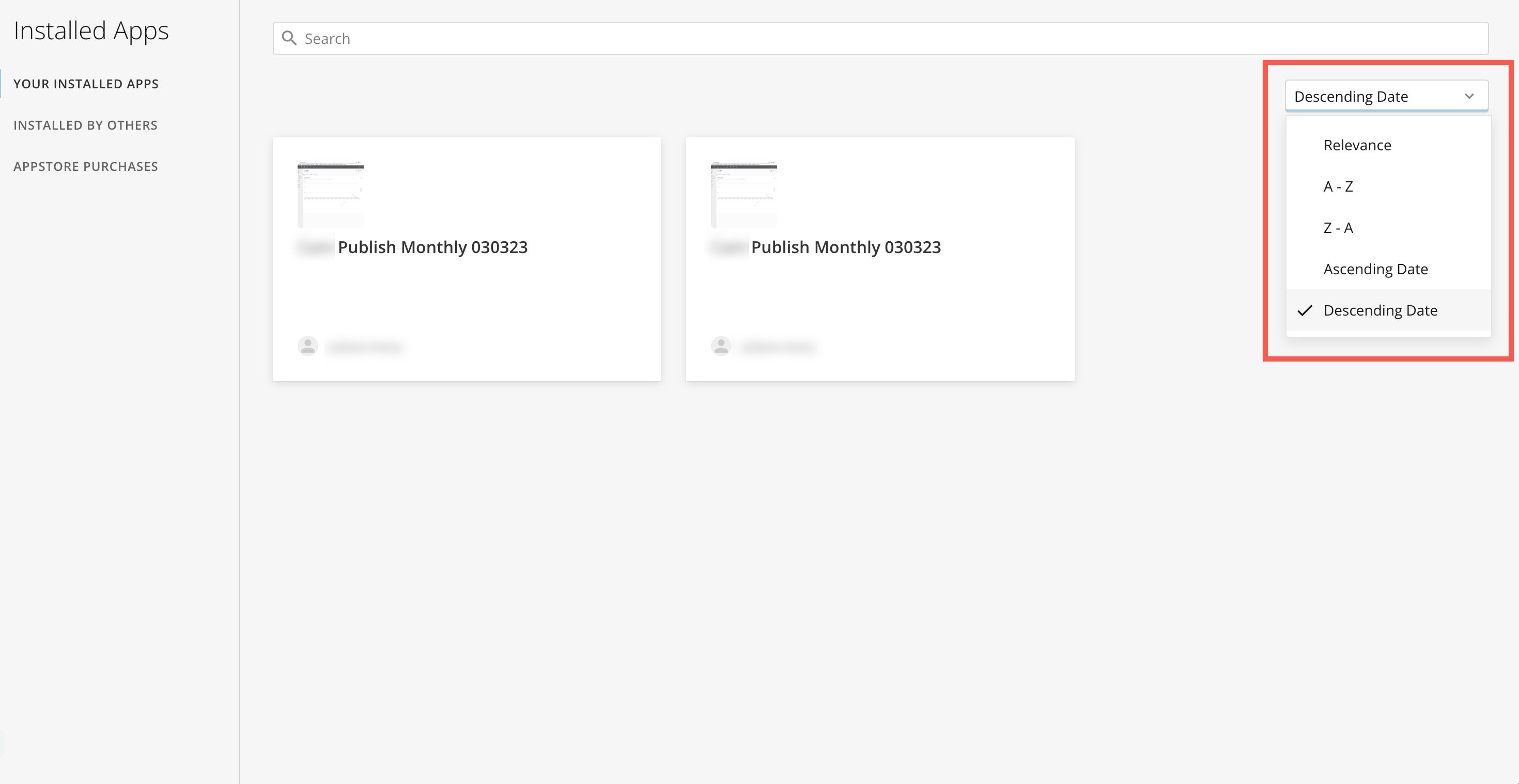 ### Appstore Purchases
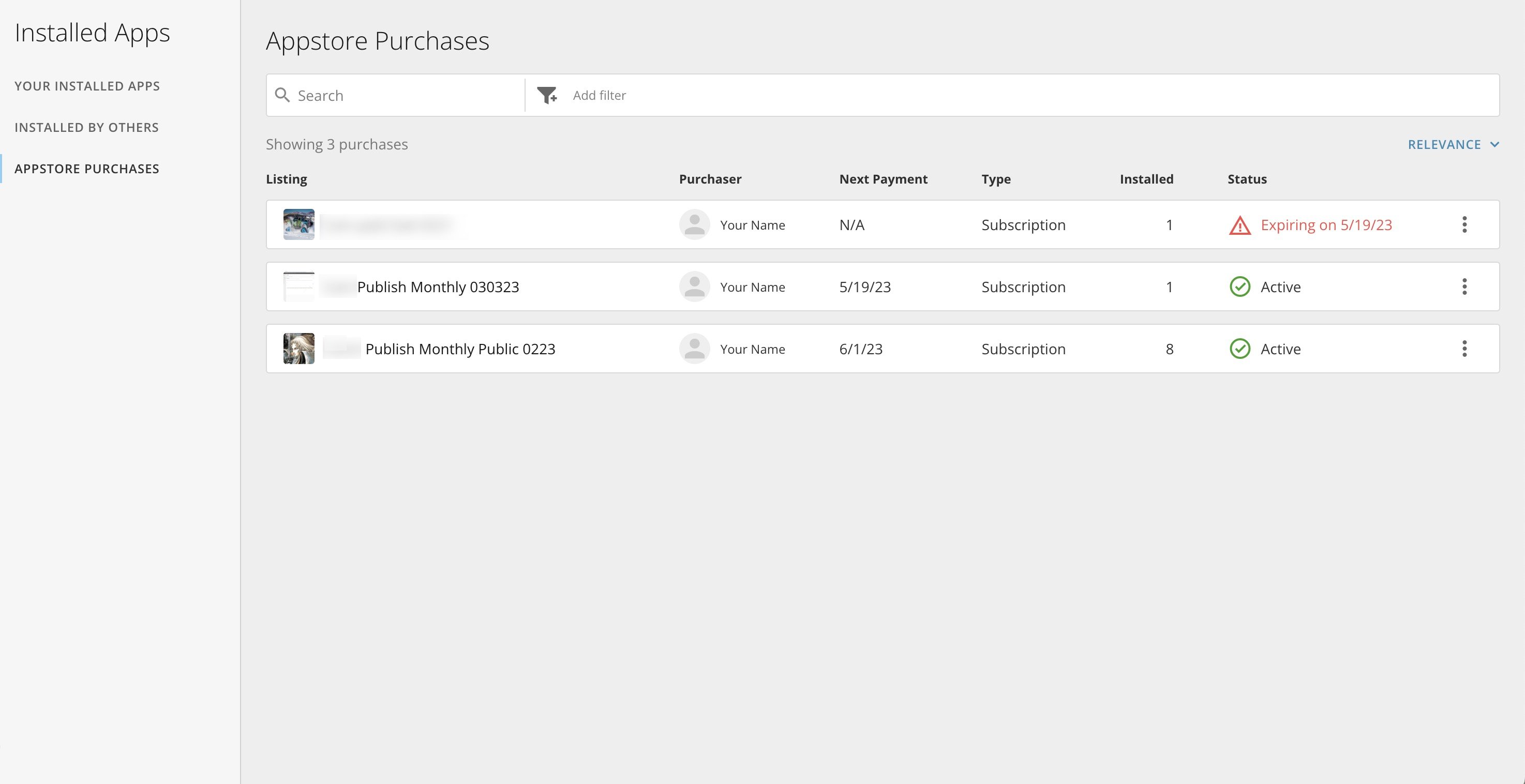
In the **Appstore Purchases** section, you can perform a keyword search in the search bar.
### Appstore Purchases
In the **Appstore Purchases** section, you can perform a keyword search in the search bar.
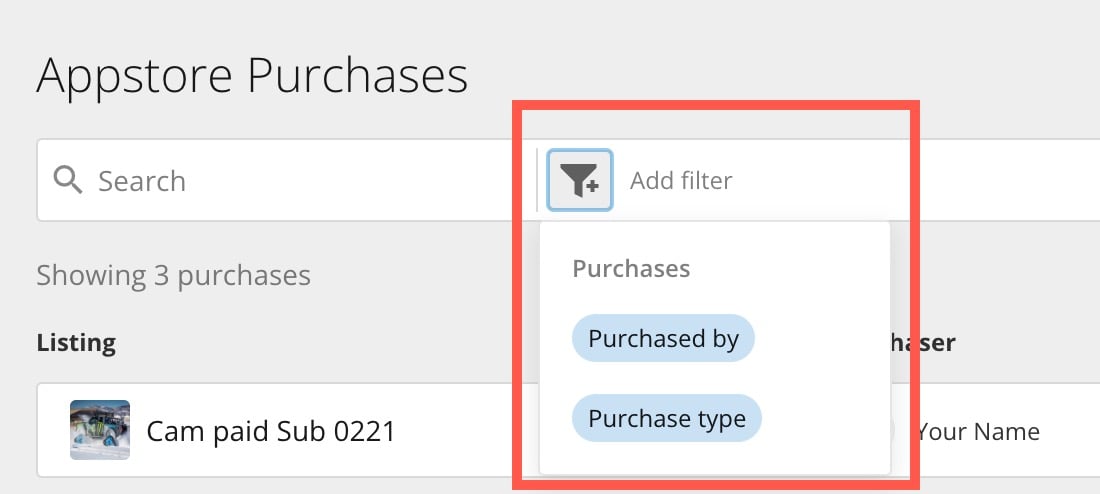
 You can also filter search results by selecting
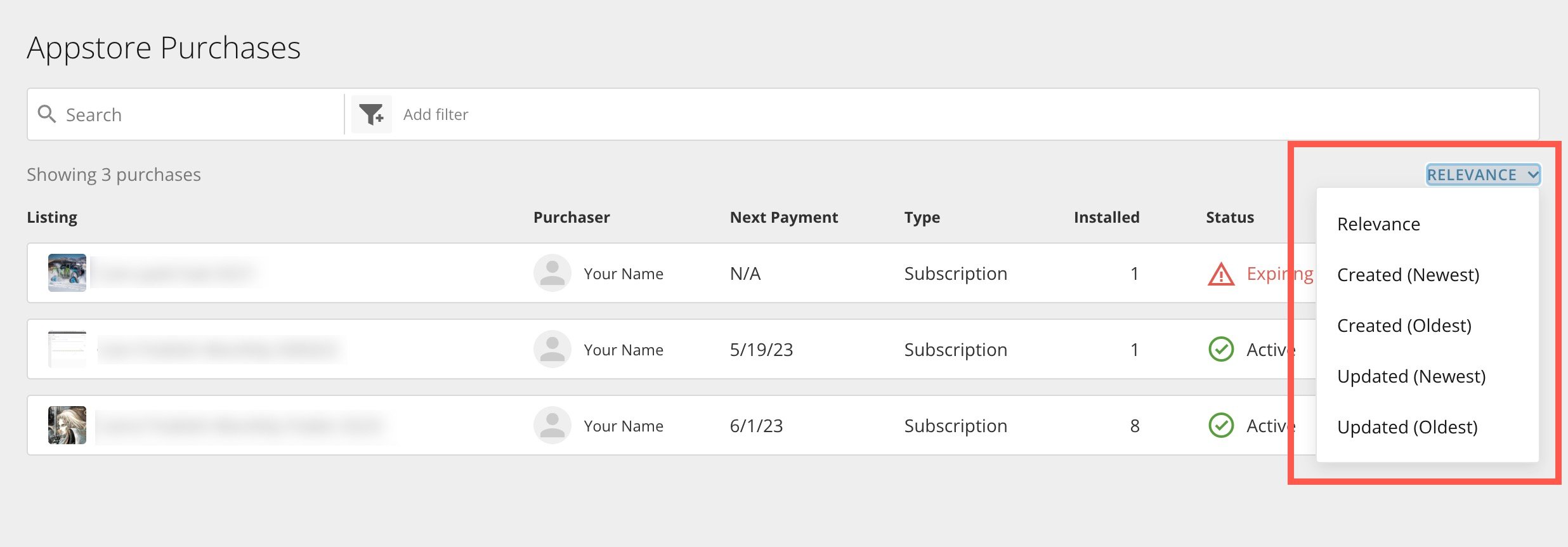
  Finally, you can sort your purchases by relevance, newest created, oldest created, newest updated, and oldest updated.
 ### Details View Installed Apps
#### Your Installed Apps
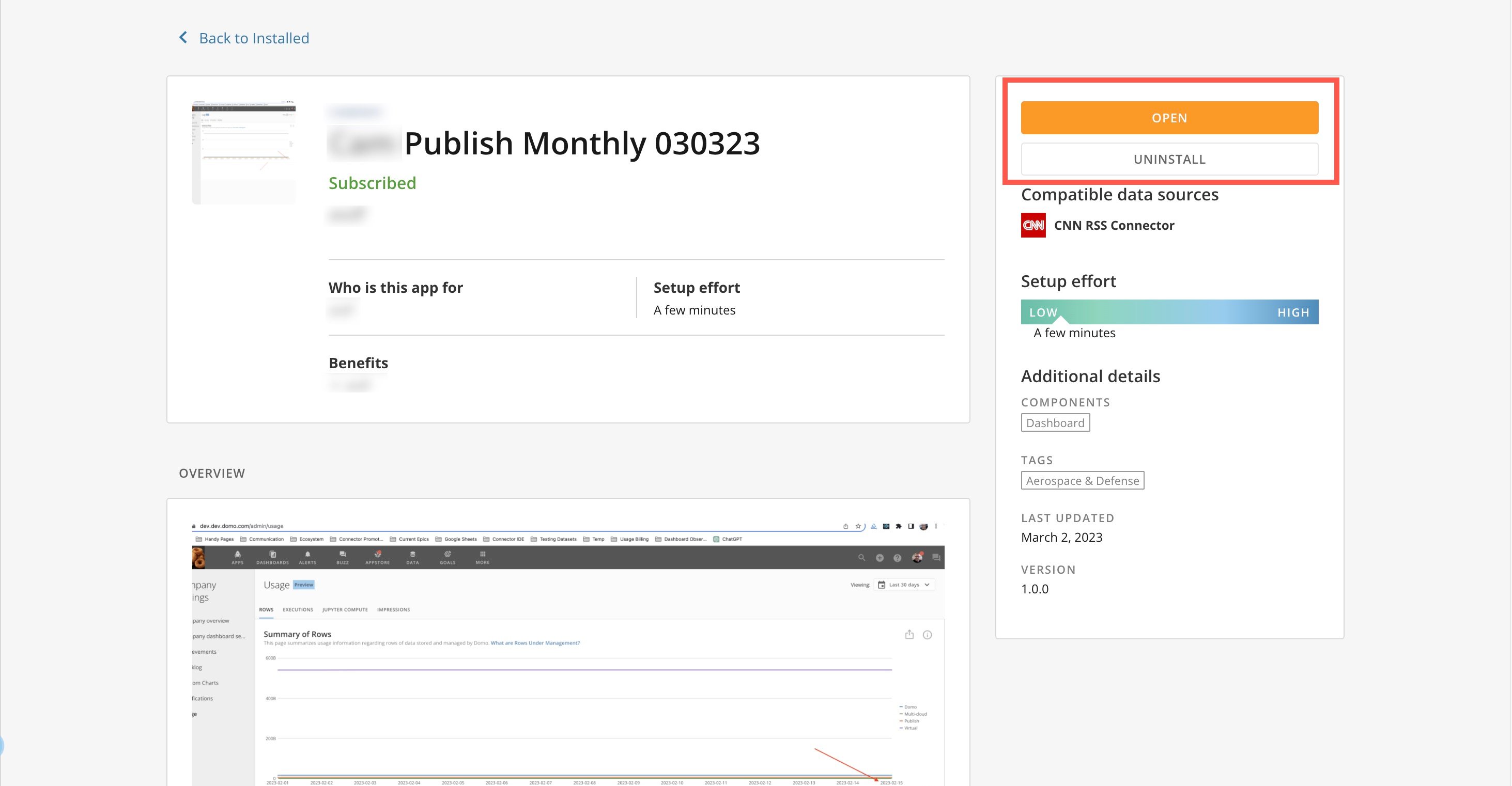
From the Details view of an app you have installed, you can select **Open** to launch the app or **Uninstall** to remove it from your instance.
### Details View Installed Apps
#### Your Installed Apps
From the Details view of an app you have installed, you can select **Open** to launch the app or **Uninstall** to remove it from your instance.
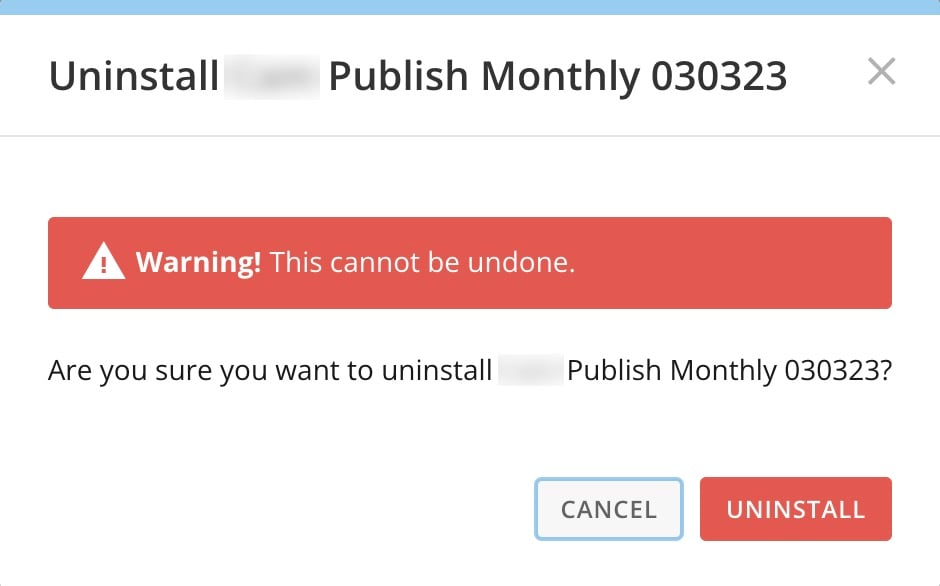
 When you select **Uninstall**, a warning dialog displays where you must confirm that you are removing the app and that the action cannot be undone. You may also cancel the removal by selecting **Cancel**.
 #### Installed By Others
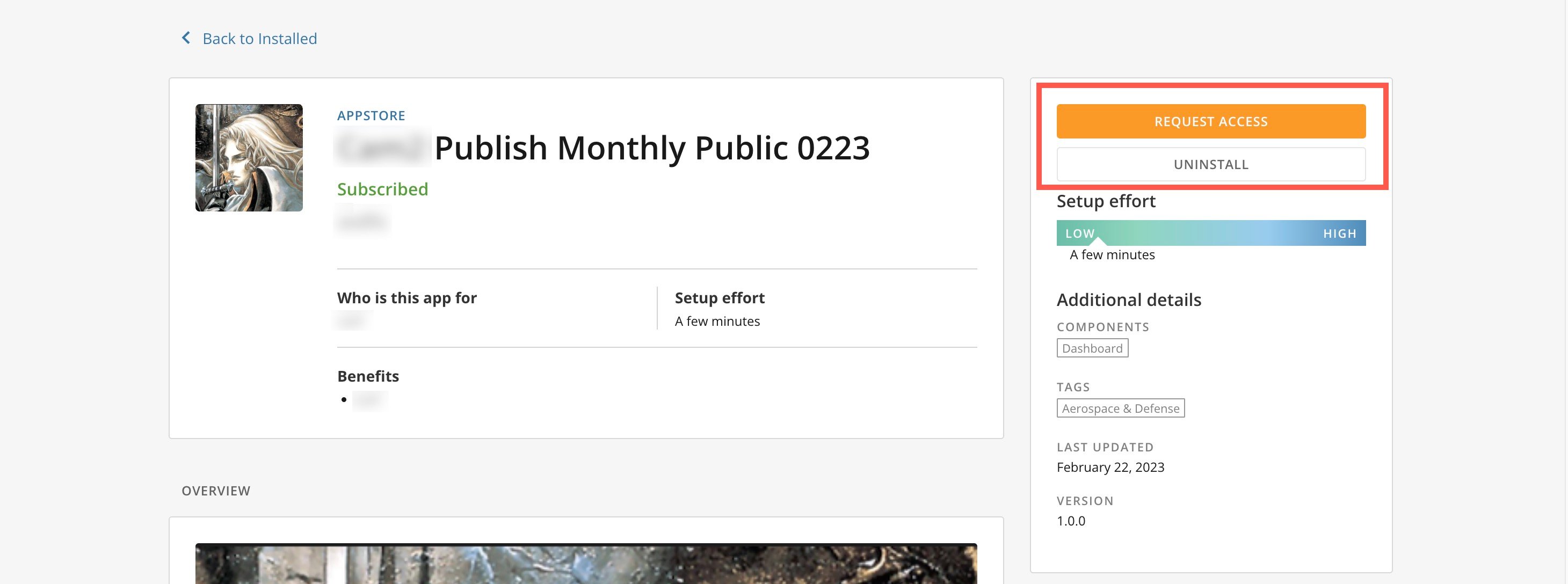
From the Details view of an app installed by another person, you can select **Request Access** > **Request Access** to ask the app owner to grant you access to it. You can also select **Uninstall** to remove the app from your instance.
#### Installed By Others
From the Details view of an app installed by another person, you can select **Request Access** > **Request Access** to ask the app owner to grant you access to it. You can also select **Uninstall** to remove the app from your instance.
 When you select **Uninstall**, a warning dialog displays where you must confirm that you are removing the app and that the action cannot be undone. You may also cancel the removal by selecting **Cancel**.
#### Appstore Purchases
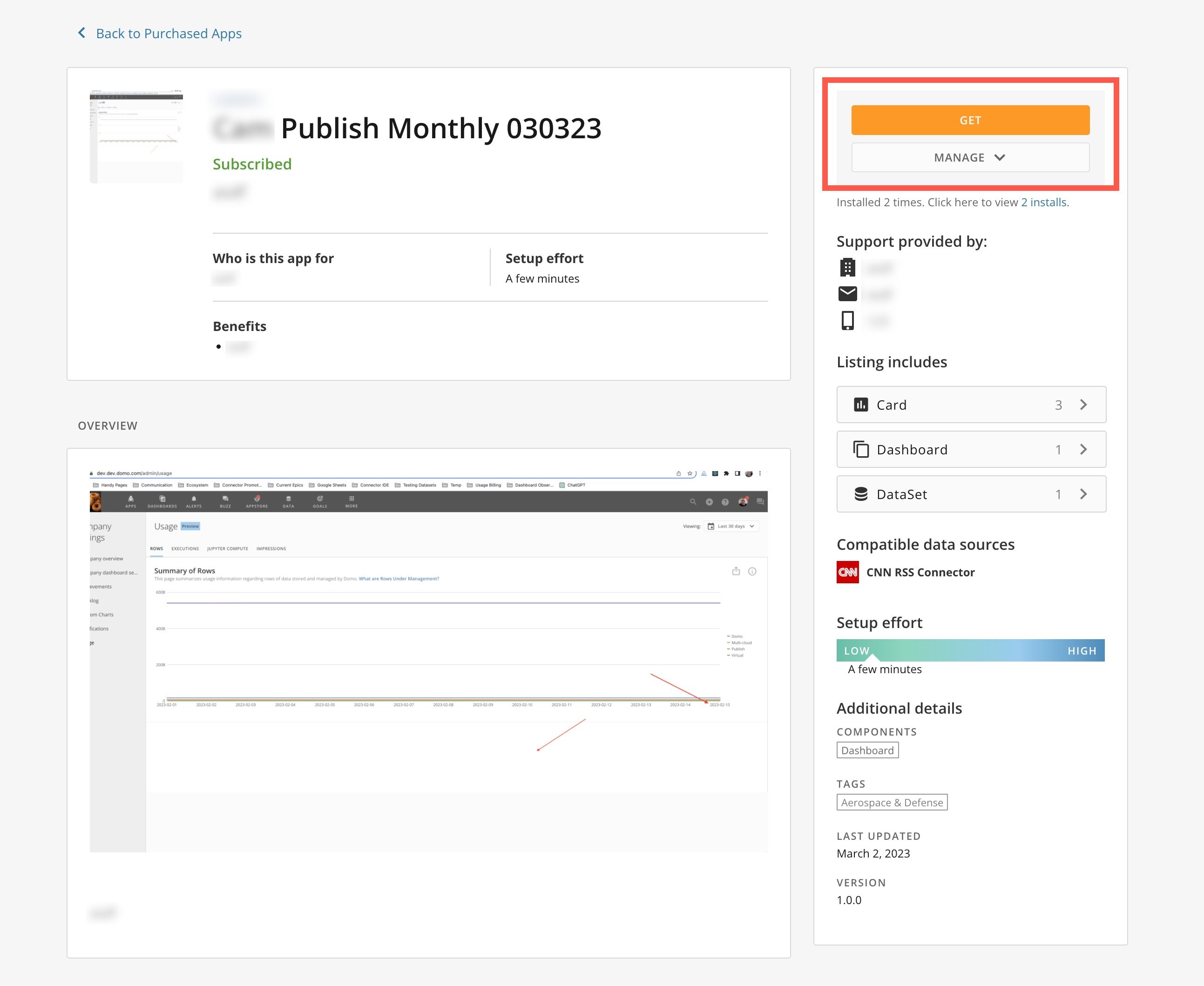
From the Details view for a purchased app, you can select **Get** to install it.
If the app is subscription-based and the subscription is active, you can select **Manage** > **Update payment method** to change the payment information and take ownership of the subscription or **Manage** > **Cancel Subscription** to end the current subscription. Learn more about subscriptions in [Manage Subscriptions to Appstore Listings](/s/article/000005183).
When you select **Uninstall**, a warning dialog displays where you must confirm that you are removing the app and that the action cannot be undone. You may also cancel the removal by selecting **Cancel**.
#### Appstore Purchases
From the Details view for a purchased app, you can select **Get** to install it.
If the app is subscription-based and the subscription is active, you can select **Manage** > **Update payment method** to change the payment information and take ownership of the subscription or **Manage** > **Cancel Subscription** to end the current subscription. Learn more about subscriptions in [Manage Subscriptions to Appstore Listings](/s/article/000005183).
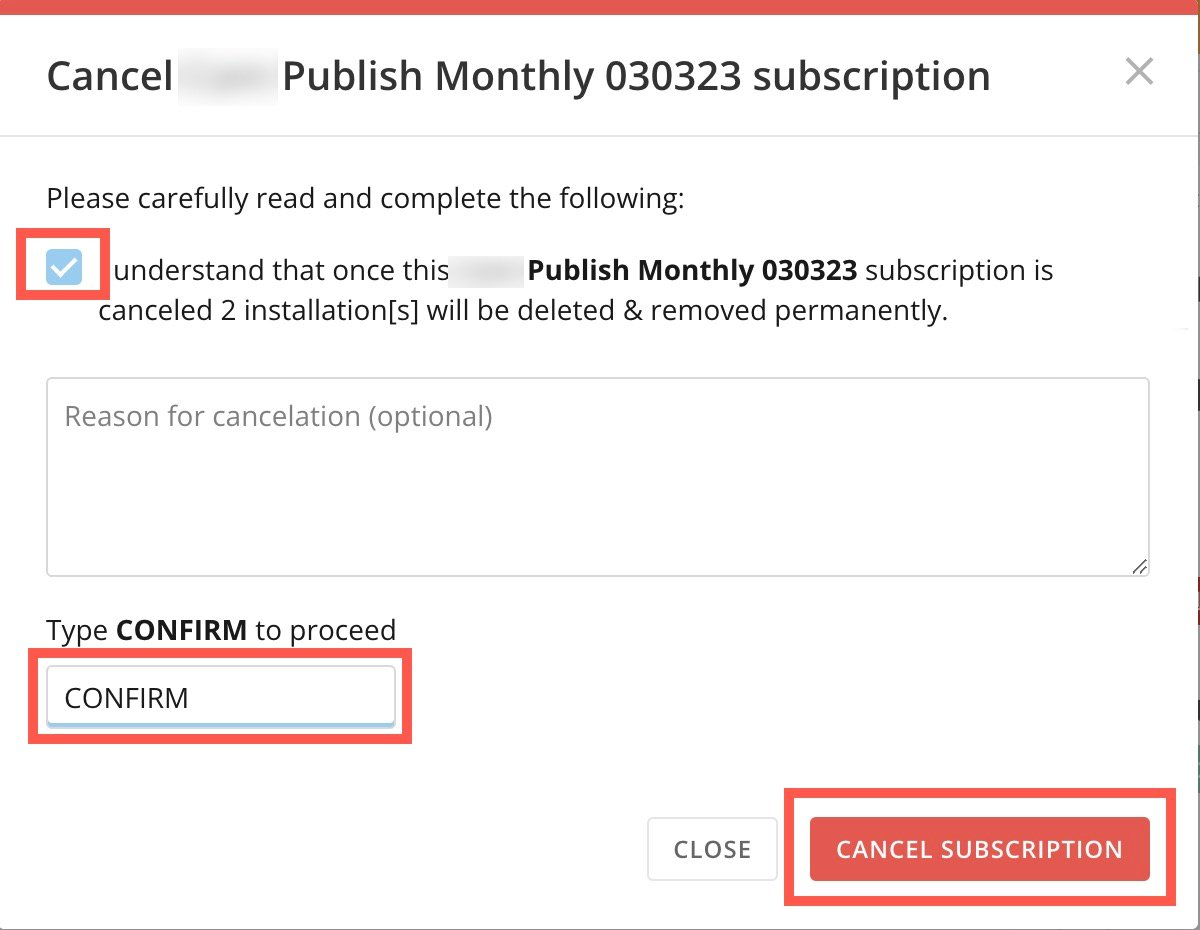
 When you select **Cancel Subscription**, a dialog displays where you must check a box to confirm that you understand that the subscription will be canceled and any current installations of the app will be deleted and removed permanently.
After you check the box, enter **CONFIRM** where indicated. You can then select **Cancel Subscription** or select **Cancel** to return to the Details page without canceling the subscription.
When you select **Cancel Subscription**, a dialog displays where you must check a box to confirm that you understand that the subscription will be canceled and any current installations of the app will be deleted and removed permanently.
After you check the box, enter **CONFIRM** where indicated. You can then select **Cancel Subscription** or select **Cancel** to return to the Details page without canceling the subscription.