> ## Documentation Index
> Fetch the complete documentation index at: https://domoinc-openapi-sync-dataflows.mintlify.site/llms.txt
> Use this file to discover all available pages before exploring further.
# Exporting Dashboards to PDF or PowerPoint
export const InlineImage = ({src, alt = '', height = '1.6em'}) => {
return  ;
};
## Intro
You can export Dashboards to a PDF by selecting the **Export as PDF** option or to PowerPoint by selecting the **Export as PowerPoint** option in the share menu in the upper right corner of the screen. This option appears *only* for Dashboard Pages. It does not appear for standard pages.
**Note:** Exporting card descriptions is not supported. If a card description is enabled on a dashboard, that description does not show when the dashboard is exported.
**To export a Dashboard to PDF,**
1. Open the Dashboard you want to export.
2. In the
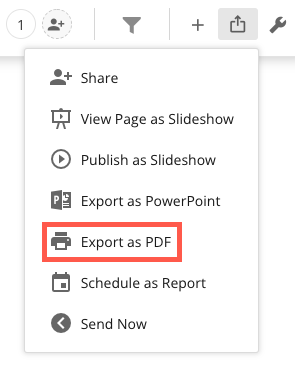
menu in the upper right corner, select **Export as PDF**.
;
};
## Intro
You can export Dashboards to a PDF by selecting the **Export as PDF** option or to PowerPoint by selecting the **Export as PowerPoint** option in the share menu in the upper right corner of the screen. This option appears *only* for Dashboard Pages. It does not appear for standard pages.
**Note:** Exporting card descriptions is not supported. If a card description is enabled on a dashboard, that description does not show when the dashboard is exported.
**To export a Dashboard to PDF,**
1. Open the Dashboard you want to export.
2. In the
menu in the upper right corner, select **Export as PDF**.
 **To export a Dashboard to PowerPoint,**
1. Open the Dashboard you want to export.
2. In the
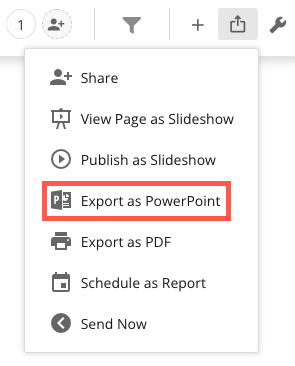
menu in the upper right corner, select **Export as PowerPoint**.
**To export a Dashboard to PowerPoint,**
1. Open the Dashboard you want to export.
2. In the
menu in the upper right corner, select **Export as PowerPoint**.
 ## Export icon grayed out
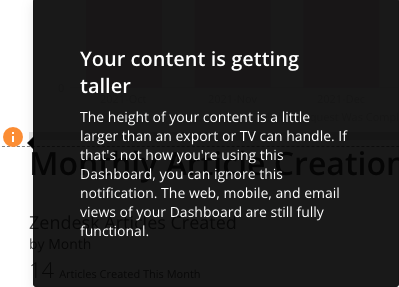
If any layout (section of Cards) on the Page is greater than 11 inches high, the **Export as PDF** option is unavailable (since a PDF page is 11 inches high). The same is true for the **Export to PowerPoint** option. If you go into the Edit mode for the Page, a warning message appears as a banner at the top of the page as follows:
## Export icon grayed out
If any layout (section of Cards) on the Page is greater than 11 inches high, the **Export as PDF** option is unavailable (since a PDF page is 11 inches high). The same is true for the **Export to PowerPoint** option. If you go into the Edit mode for the Page, a warning message appears as a banner at the top of the page as follows:
 A warning message also appears next to the Card that is too tall, as follows:
 Once you shorten all layouts displaying this warning, you will be able to export the page to PDF.
For more information about Dashboards, see [Creating Dashboards](/s/article/360043428433 "Creating Domo Stories").
## View page breaks
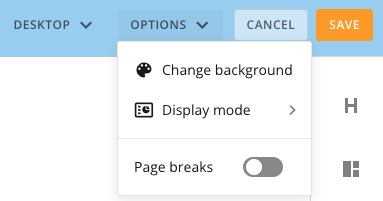
To easily see if your Dashboard will export to PDF or PowerPoint, you can enable the **Page breaks** toggle. This displays the maximum height that a layout section can be before it gets cut off.
Once you shorten all layouts displaying this warning, you will be able to export the page to PDF.
For more information about Dashboards, see [Creating Dashboards](/s/article/360043428433 "Creating Domo Stories").
## View page breaks
To easily see if your Dashboard will export to PDF or PowerPoint, you can enable the **Page breaks** toggle. This displays the maximum height that a layout section can be before it gets cut off.
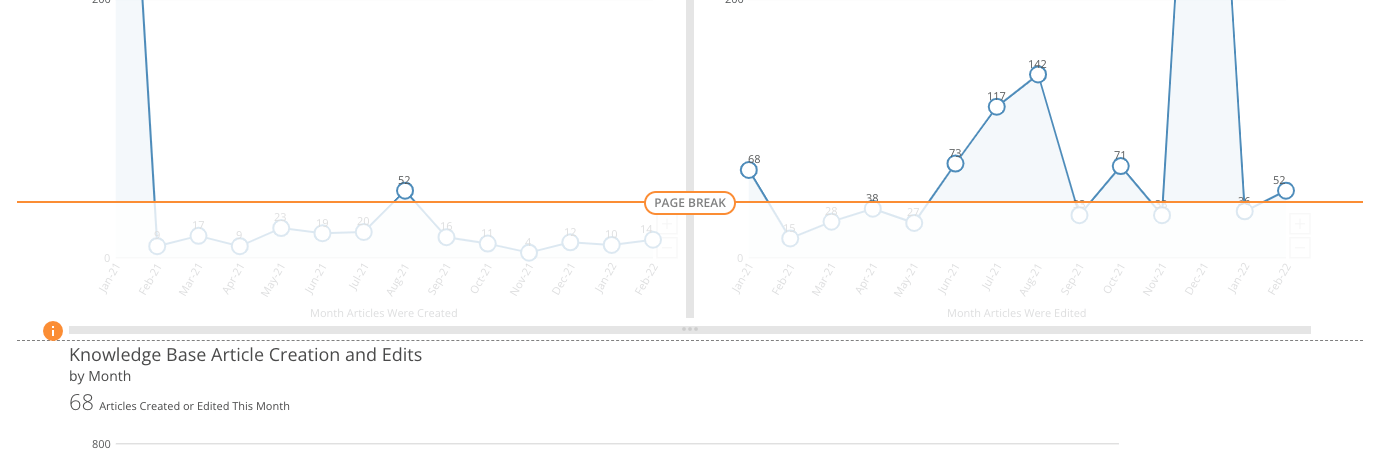 **To enable the page breaks view,**
1. Open the Dashboard you want to export.
2. In the
menu in the upper right corner, select **Edit Dashboard**.
3. In the **Options** drop-down menu, enable the **Page breaks** toggle.
**To enable the page breaks view,**
1. Open the Dashboard you want to export.
2. In the
menu in the upper right corner, select **Edit Dashboard**.
3. In the **Options** drop-down menu, enable the **Page breaks** toggle.