> ## Documentation Index
> Fetch the complete documentation index at: https://domoinc-openapi-sync-dataflows.mintlify.site/llms.txt
> Use this file to discover all available pages before exploring further.

# Connecting to SAP ECC Data in Domo

## Intro

SAP has many systems. This article addresses connecting to data from the SAP ECC (ERP Central Component) tool. This connector consists of several modules, including utilities for marketing and sales, field service, product design and development, production and inventory control, human resources, finance and accounting. SAP ERP collects and combines data from the separate modules to provide the company or organization with enterprise resource planning.

<table class="mt-responsive-table" data-aura-rendered-by="33:195;a"><tbody><tr><td class="mt-noheading" colspan="1" rowspan="1"><p><b> Primary Use Cases </b></p></td><td class="mt-noheading" colspan="1" rowspan="1"><ul><li><p> Just in time inventory tracking </p></li><li><p> Finance </p></li><li><p> Production quality and efficiency </p></li><li><p> Profit and loss tracking </p></li><li><p> Availability of critical equipment </p></li></ul></td></tr><tr><td class="mt-noheading" colspan="1" rowspan="1"><p><b> Primary Metrics </b></p></td><td class="mt-noheading" colspan="1" rowspan="1"><ul><li><p> Purchase orders </p></li><li><p> Purchase requests </p></li><li><p> Income statement </p></li><li><p> Balance sheet </p></li><li><p> General ledger </p></li><li><p> Sales orders </p></li><li><p> Accounts receivable </p></li><li><p> Accounts payable </p></li><li><p> Materials </p></li><li><p> Manufacturing </p></li></ul></td></tr><tr><td class="mt-noheading" colspan="1" rowspan="1"><p><b> Primary Company Roles </b></p></td><td class="mt-noheading" colspan="1" rowspan="1"><ul><li><p> CEO </p></li><li><p> CFO </p></li><li><p> HR </p></li><li><p> Sales Manager </p></li></ul></td></tr><tr><td class="mt-noheading" colspan="1" rowspan="1"><p><b> Average Implementation Time </b></p></td><td class="mt-noheading" colspan="1" rowspan="1"><p> 80 hours </p></td></tr><tr><td class="mt-noheading" colspan="1" rowspan="1"><p><b> Ease of Implementation (on a 1-to-10 scale with 1 being easiest) </b></p></td><td class="mt-noheading" colspan="1" rowspan="1"><p> 10 </p></td></tr></tbody></table>

## Architecture

The architecture of this connection can be summed up as follows:

<Frame>
  <img alt="sap_architecture.png" src="https://mintcdn.com/domoinc-openapi-sync-dataflows/gDOtiCXH_3EtosfI/images/kb/ka0Vq0000000BBZ-00N5w00000Ri7BU-0EM5w000005vNvo.png?fit=max&auto=format&n=gDOtiCXH_3EtosfI&q=85&s=4fe19da11e325fe508a3379e069e9184" width="568" height="111" data-path="images/kb/ka0Vq0000000BBZ-00N5w00000Ri7BU-0EM5w000005vNvo.png" />
</Frame>

1. A Service-Oriented Architecture (SOA) is created in ECC and published for subscription (Publish & Subscribe).
2. The service generates a Web Service Definition Language (WSDL) XML file which defines the flow of data.
3. Domo then calls the service through the WSDL and requests data as defined by the WSDL.
4. ECC then interrogates the call and sends data through the SOA packet.
5. This is all controlled and defined in SAP ECC and Netweaver.

## Connection Summary

To connect to SAP data in Domo, you must establish a DOMO-SAP data link. To do this, you will go through all of the following steps. If a step contains a hyperlink, you can click on that link to read about this step in more detail.

1. Do all of the following in your development system:

   1. [Establish an RFC user for DOMO](#establish-an-rfc-user-for-domo "Connecting to SAP Data in Domo")
   2. [Create the ZZDOMO Function Group](#create-the-zzdomo-function-group "Connecting to SAP Data in Domo")
   3. [Find your ICF server path](#find-your-icf-server-path "Connecting to SAP Data in Domo")
   4. [Load your first DOMO function module](#load-your-first-domo-function-module "Connecting to SAP Data in Domo")
   5. [Create an Enterprise Service](#create-an-enterprise-service "Connecting to SAP Data in Domo")
   6. [Publish your new service using SAP SOA](#publish-your-new-service-using-sap-soa "Connecting to SAP Data in Domo")
   7. Send an email to DOMO with:

      * Server Path
      * DOMO RFC username and password
   8. Test your first web service with a DOMO representative
   9. Load all additional web services
   10. Test all services in the Development Environment
2. Transport all of the above to a Quality Assurance System and test thoroughly.
3. Transport all of the above to a Production, or BI System.

## Connection Steps

### Step 1: Establish an RFC user for Domo

To enable communication between the SAP ERP back-end system and DOMO, you must create an RFC user in the SAP ERP system.

**To establish an RFC user for Domo,**

1. Log onto the SAP ECC system.
2. Access the activity using one of the following navigation options:

   1. Call transaction code SU01.
   2. In the SAP ERP GUI, choose **Tools > Administration > User Maintenance > Users**.
3. In the User field, enter ERP2DOMO.
4. Select **Create** (F8).
5. On the **Maintain User** screen, enter information as shown here:

   1. On the **Address** tab page, enter the following:

      * **Last Name**: ERP2DOMO
      * **Function**: `<Enter your function>`
   2. On the **Logon Data** tab page, enter the following:

      * **User Type:** System
      * **Password:**  `<Enter your password>`
   3. On the **Defaults** tab page, enter the following:

      * **Logon Language**: EN
   4. On the **Profiles** tab page, enter the following:

      * **Profile**: SAP\_ALL and SAP\_NEW
   5. Save your entries (Ctrl - S).

   <Note>
     **Note:** The ERP2DOMO user has the profiles SAP\_ALL and SAP\_NEW assigned, which gives him full authorization rights. If this authorization is not applicable to your project, you can restrict the rights of this user according to SAP Note [0338537](http://service.sap.com/~form/handler?_APP=01100107900000000342&_EVENT=REDIR&_NNUM=0338537&_NLANG=en&_NVERS=0 "Go to SAP note 0338537").
   </Note>

### Step 2: Create the ZZDomo Function Group

After establishing your RFC user in the SAP ERP system, you must next create the ZZDomo function group.

**To create the ZZDomo function group in the SAP ERP system,**

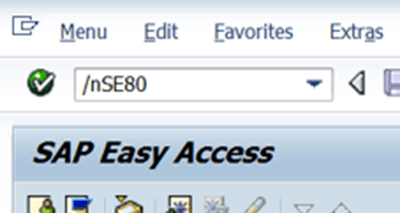
1. Run transaction SE80 (/nSE80).

   <Frame>
     <img alt="sapimages_2_1.png" src="https://mintcdn.com/domoinc-openapi-sync-dataflows/gDOtiCXH_3EtosfI/images/kb/ka0Vq0000000BBZ-00N5w00000Ri7BU-0EM5w000005vNvp.png?fit=max&auto=format&n=gDOtiCXH_3EtosfI&q=85&s=a44ae5ce709fab7ea87ba84c9b26409a" width="400" height="213" data-path="images/kb/ka0Vq0000000BBZ-00N5w00000Ri7BU-0EM5w000005vNvp.png" />
   </Frame>

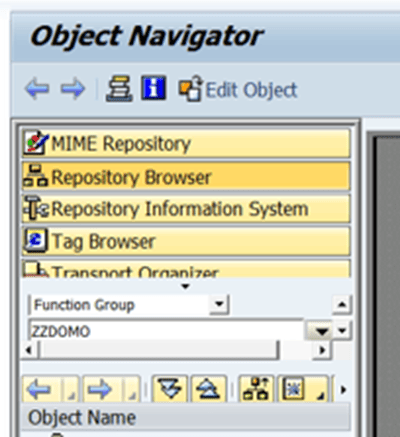
2. Select **Repository Browser**.

3. Select **Function Group** in the menu.

4. Enter ZZDOMO in the empty field then hit Enter.
   <Frame>
     <img alt="sapimages_2_2.png" src="https://mintcdn.com/domoinc-openapi-sync-dataflows/gDOtiCXH_3EtosfI/images/kb/ka0Vq0000000BBZ-00N5w00000Ri7BU-0EM5w000005vNvj.png?fit=max&auto=format&n=gDOtiCXH_3EtosfI&q=85&s=3da4bf80c88047c4563862f9bb2b0127" width="400" height="437" data-path="images/kb/ka0Vq0000000BBZ-00N5w00000Ri7BU-0EM5w000005vNvj.png" />
   </Frame>

5. Click **Yes**.

6. In the **Short text** field, enter Domo Function Group, then hit Enter.

7. Select your Business Intelligence package then click **Save**. (If you don't have a B.I. package, use a package starting with "z").

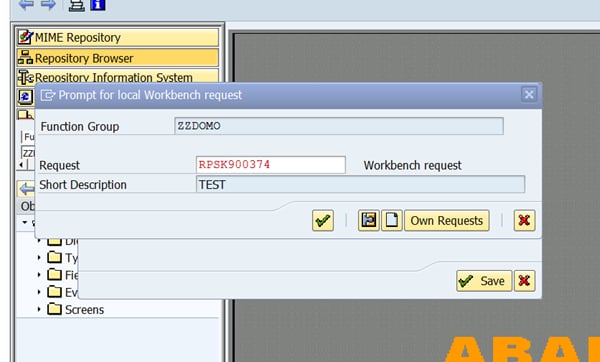
8. Enter or select your CTS request number for your Domo development, then click **Save**.
   <Frame>
     <img alt="sapimages_2_3.png" src="https://mintcdn.com/domoinc-openapi-sync-dataflows/gDOtiCXH_3EtosfI/images/kb/ka0Vq0000000BBZ-00N5w00000Ri7BU-0EM5w000005vNva.png?fit=max&auto=format&n=gDOtiCXH_3EtosfI&q=85&s=408ec854f18eec349c5f1b833af61fd9" width="600" height="362" data-path="images/kb/ka0Vq0000000BBZ-00N5w00000Ri7BU-0EM5w000005vNva.png" />
   </Frame>

### Step 3: Find Your ICF Server Path

**To find your ICF server path,**

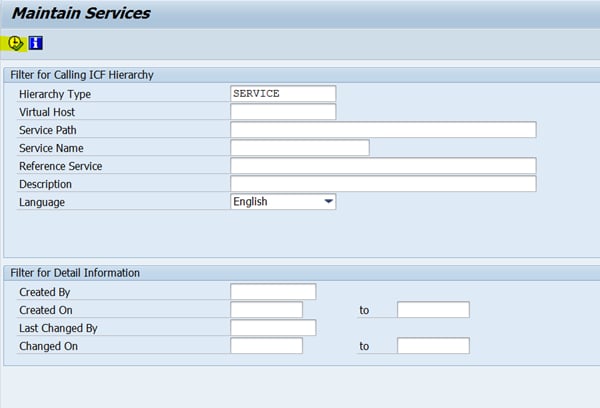
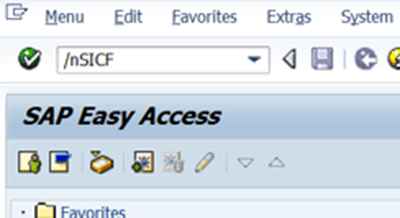
1. Run transaction SICF (/nSICF ).
   <Frame>
     <img alt="sapimages_3_1.png" src="https://mintcdn.com/domoinc-openapi-sync-dataflows/gDOtiCXH_3EtosfI/images/kb/ka0Vq0000000BBZ-00N5w00000Ri7BU-0EM5w000005vNvv.png?fit=max&auto=format&n=gDOtiCXH_3EtosfI&q=85&s=c084787f000b498574f37f5310b164dc" width="400" height="218" data-path="images/kb/ka0Vq0000000BBZ-00N5w00000Ri7BU-0EM5w000005vNvv.png" />
   </Frame>

2. Click the **Execute** icon.

   <Frame>
     <img alt="sapimages_3_2.png" src="https://mintcdn.com/domoinc-openapi-sync-dataflows/gDOtiCXH_3EtosfI/images/kb/ka0Vq0000000BBZ-00N5w00000Ri7BU-0EM5w000005vNvs.png?fit=max&auto=format&n=gDOtiCXH_3EtosfI&q=85&s=e28682d7eb6c40cc7d6e13117222cb51" width="600" height="408" data-path="images/kb/ka0Vq0000000BBZ-00N5w00000Ri7BU-0EM5w000005vNvs.png" />
   </Frame>

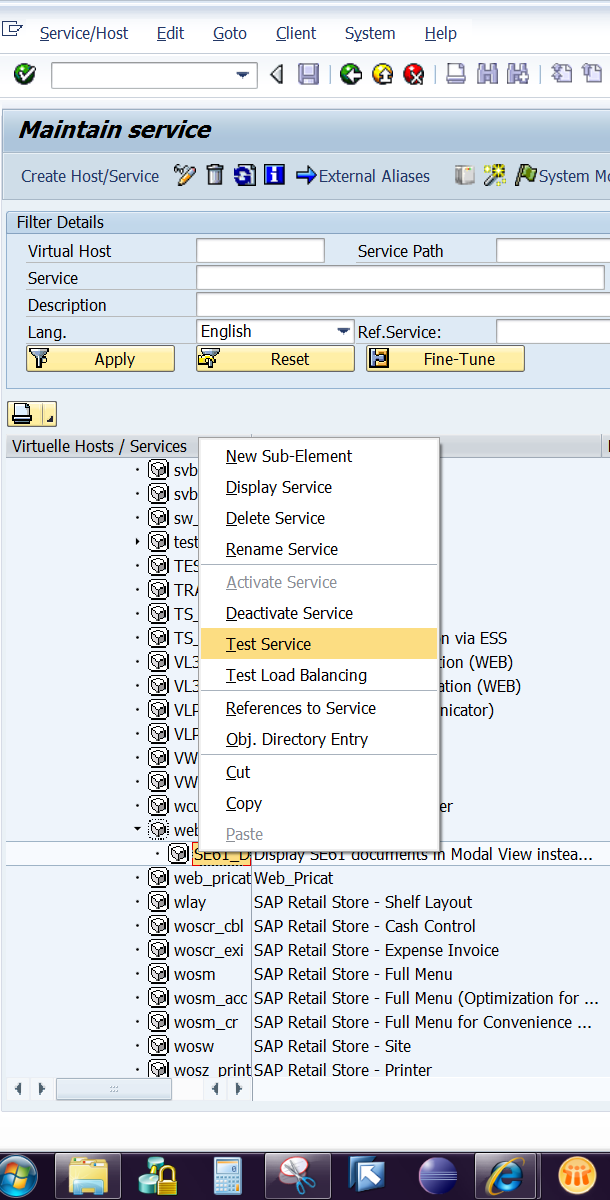
3. Navigate to path
   default\_host > sap > bc > gui > sap > its > webgui > SE61-DISPTXT.

4. Right-click and select
   **Test Service**.
   <Frame>
     <img alt="sapimages_3_3.png" src="https://mintcdn.com/domoinc-openapi-sync-dataflows/gDOtiCXH_3EtosfI/images/kb/ka0Vq0000000BBZ-00N5w00000Ri7BU-0EM5w000005vNvb.png?fit=max&auto=format&n=gDOtiCXH_3EtosfI&q=85&s=80db62145223112ce18e3f693d9239ee" width="610" height="1200" data-path="images/kb/ka0Vq0000000BBZ-00N5w00000Ri7BU-0EM5w000005vNvb.png" />
   </Frame>

   If the webgui service does not contain the SE61-DISPTXT sub-element, right-click on the webgui service and select **Test Service**.

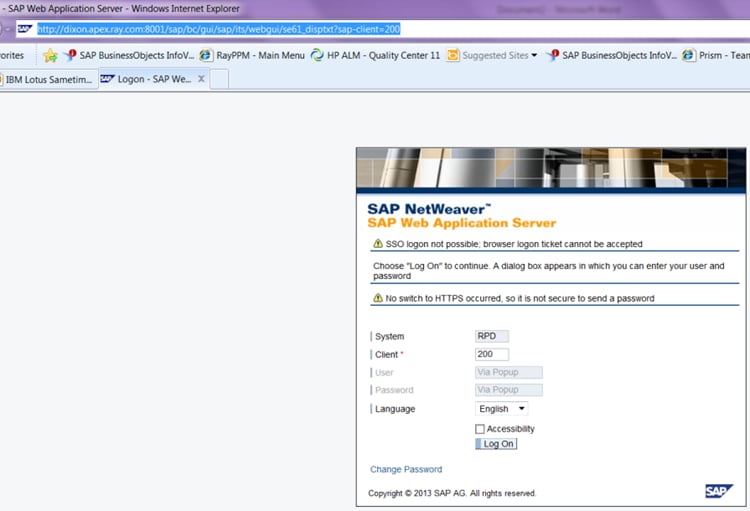
5. Copy the IE path and email it to Domo.
   <Frame>
     <img alt="sapimages_3_4.png" src="https://mintcdn.com/domoinc-openapi-sync-dataflows/gDOtiCXH_3EtosfI/images/kb/ka0Vq0000000BBZ-00N5w00000Ri7BU-0EM5w000005vNvq.png?fit=max&auto=format&n=gDOtiCXH_3EtosfI&q=85&s=324c20c2f4c04e1ff42708ef2e51dd10" width="750" height="511" data-path="images/kb/ka0Vq0000000BBZ-00N5w00000Ri7BU-0EM5w000005vNvq.png" />
   </Frame>

### Step 4: Load Your First Domo Function Module

Use the following set of steps to load all Domo function modules. You can find specifications for all available function modules in [Function Module Specifications](#h_91170981-cbe7-4ca9-93eb-e08f3f5ca2d0 "Connecting to SAP Data in Domo").

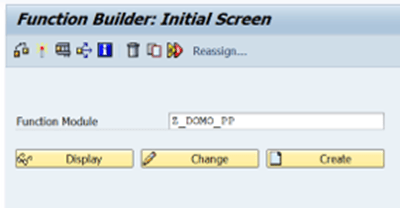
1. In your development client, run transaction SE37 (/
   nSE37 ).

2. Input the provided function module name, then click
   **Create**.

   In this example, the name is Z\_DOMO\_PP.
   <Frame>
     <img alt="sapimages_4_1.png" src="https://mintcdn.com/domoinc-openapi-sync-dataflows/gDOtiCXH_3EtosfI/images/kb/ka0Vq0000000BBZ-00N5w00000Ri7BU-0EM5w000005vNvu.png?fit=max&auto=format&n=gDOtiCXH_3EtosfI&q=85&s=0d496b12c4f5ad464cf34ced6a3fb4c7" width="400" height="209" data-path="images/kb/ka0Vq0000000BBZ-00N5w00000Ri7BU-0EM5w000005vNvu.png" />
   </Frame>

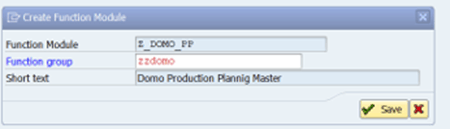
3. Enter
   ZZDOMO in the **Function Group** field.
   <Frame>
     <img alt="sapimages_4_2.png" src="https://mintcdn.com/domoinc-openapi-sync-dataflows/gDOtiCXH_3EtosfI/images/kb/ka0Vq0000000BBZ-00N5w00000Ri7BU-0EM5w000005vNvl.png?fit=max&auto=format&n=gDOtiCXH_3EtosfI&q=85&s=1ce082ddd68e7d96440549ed83663269" width="450" height="129" data-path="images/kb/ka0Vq0000000BBZ-00N5w00000Ri7BU-0EM5w000005vNvl.png" />
   </Frame>

4. In the
   **Short text** field, describe your function module.

5. Click
   **Save**.

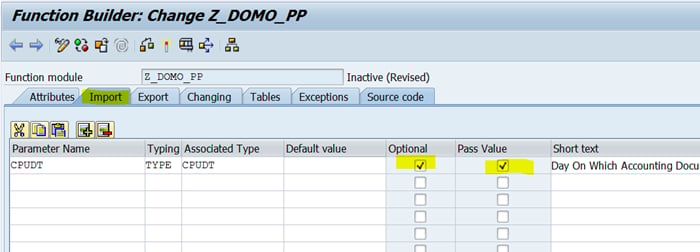
6. In the
   **Import** tab, enter the input fields from your load sheet.

   Make sure to check the boxes for **Optional** and **Pass Value**.
   <Frame>
     <img alt="sapimages_4_3.png" src="https://mintcdn.com/domoinc-openapi-sync-dataflows/gDOtiCXH_3EtosfI/images/kb/ka0Vq0000000BBZ-00N5w00000Ri7BU-0EM5w000005vNvf.png?fit=max&auto=format&n=gDOtiCXH_3EtosfI&q=85&s=f3f139ad4071fedad7b47952772b332f" width="700" height="252" data-path="images/kb/ka0Vq0000000BBZ-00N5w00000Ri7BU-0EM5w000005vNvf.png" />
   </Frame>

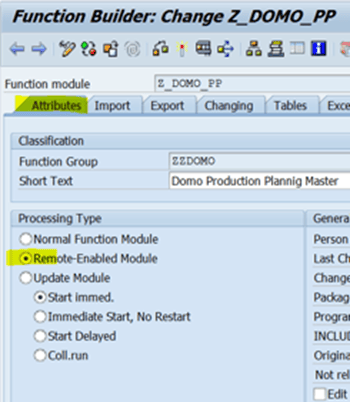
7. In the
   **Attributes** tab, select **Remote Enabled** **Module**.
   <Frame>
     <img alt="sapimages_4_4.png" src="https://mintcdn.com/domoinc-openapi-sync-dataflows/gDOtiCXH_3EtosfI/images/kb/ka0Vq0000000BBZ-00N5w00000Ri7BU-0EM5w000005vNvX.png?fit=max&auto=format&n=gDOtiCXH_3EtosfI&q=85&s=08421de278b1d3bbe4cc8fdf0cf96cd5" width="350" height="403" data-path="images/kb/ka0Vq0000000BBZ-00N5w00000Ri7BU-0EM5w000005vNvX.png" />
   </Frame>

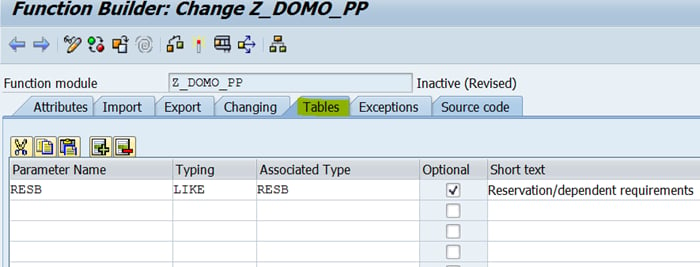
8. In the
   **Tables** tab, enter your return tables from your load sheet.
   <Frame>
     <img alt="sapimages_4_5.png" src="https://mintcdn.com/domoinc-openapi-sync-dataflows/gDOtiCXH_3EtosfI/images/kb/ka0Vq0000000BBZ-00N5w00000Ri7BU-0EM5w000005vNvd.png?fit=max&auto=format&n=gDOtiCXH_3EtosfI&q=85&s=cea3d5cee348ac782a2171ab39cd9669" width="700" height="267" data-path="images/kb/ka0Vq0000000BBZ-00N5w00000Ri7BU-0EM5w000005vNvd.png" />
   </Frame>

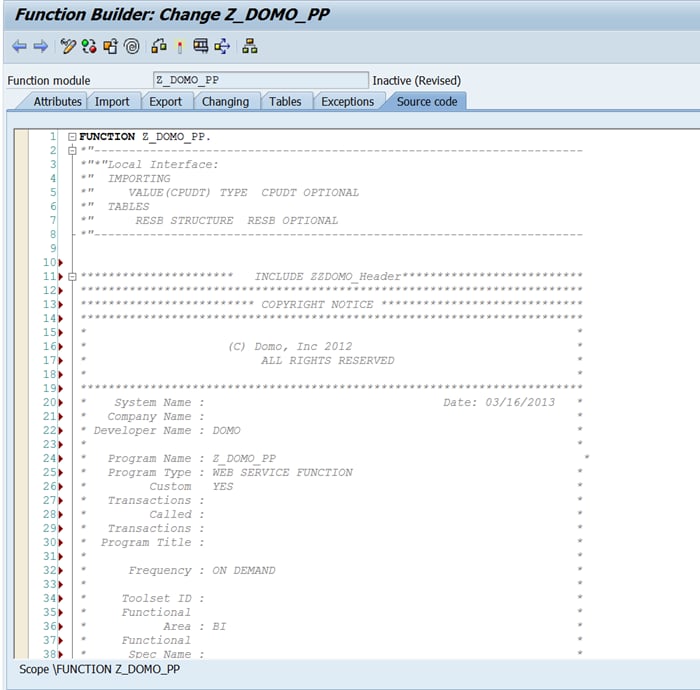
9. Copy the code section from your load sheet.

10. Paste the copied code into the
    **Source code** tab.
    <Frame>
      <img alt="sapimages_4_6.png" src="https://mintcdn.com/domoinc-openapi-sync-dataflows/gDOtiCXH_3EtosfI/images/kb/ka0Vq0000000BBZ-00N5w00000Ri7BU-0EM5w000005vNvh.png?fit=max&auto=format&n=gDOtiCXH_3EtosfI&q=85&s=eeb67e634caaf684780e632e6b9008cf" width="700" height="690" data-path="images/kb/ka0Vq0000000BBZ-00N5w00000Ri7BU-0EM5w000005vNvh.png" />
    </Frame>

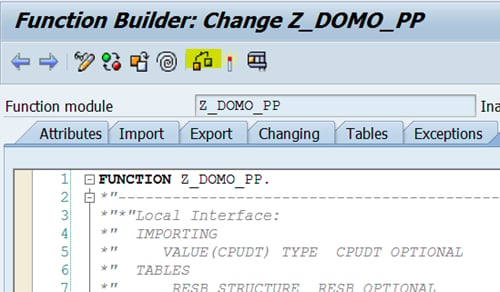
11. Click the
    **Check** icon.

    <Frame>
      <img alt="sapimages_4_7.png" src="https://mintcdn.com/domoinc-openapi-sync-dataflows/gDOtiCXH_3EtosfI/images/kb/ka0Vq0000000BBZ-00N5w00000Ri7BU-0EM5w000005vNvW.png?fit=max&auto=format&n=gDOtiCXH_3EtosfI&q=85&s=74e511171b29d64b47ca6295fd8c11ca" width="500" height="292" data-path="images/kb/ka0Vq0000000BBZ-00N5w00000Ri7BU-0EM5w000005vNvW.png" />
    </Frame>

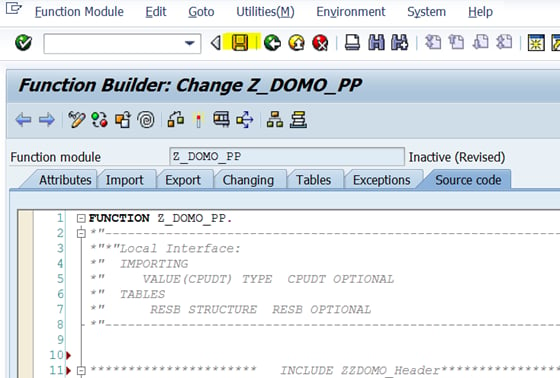
12. Click the
    **Save** icon.

    <Frame>
      <img alt="sapimages_4_8.png" src="https://mintcdn.com/domoinc-openapi-sync-dataflows/gDOtiCXH_3EtosfI/images/kb/ka0Vq0000000BBZ-00N5w00000Ri7BU-0EM5w000005vNvg.png?fit=max&auto=format&n=gDOtiCXH_3EtosfI&q=85&s=60c0360ab18b6add3ac9673045df235e" width="560" height="378" data-path="images/kb/ka0Vq0000000BBZ-00N5w00000Ri7BU-0EM5w000005vNvg.png" />
    </Frame>

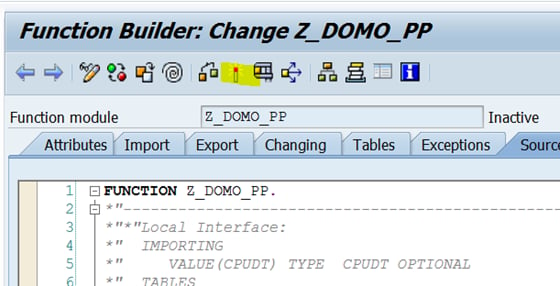
13. Click the
    **Activate** icon.

    <Frame>
      <img alt="sapimages_4_9.png" src="https://mintcdn.com/domoinc-openapi-sync-dataflows/gDOtiCXH_3EtosfI/images/kb/ka0Vq0000000BBZ-00N5w00000Ri7BU-0EM5w000005vNvi.png?fit=max&auto=format&n=gDOtiCXH_3EtosfI&q=85&s=ed5e42253d7d005ab402dc404442faeb" width="560" height="286" data-path="images/kb/ka0Vq0000000BBZ-00N5w00000Ri7BU-0EM5w000005vNvi.png" />
    </Frame>

14. Click the green checkmark at the bottom of the screen.
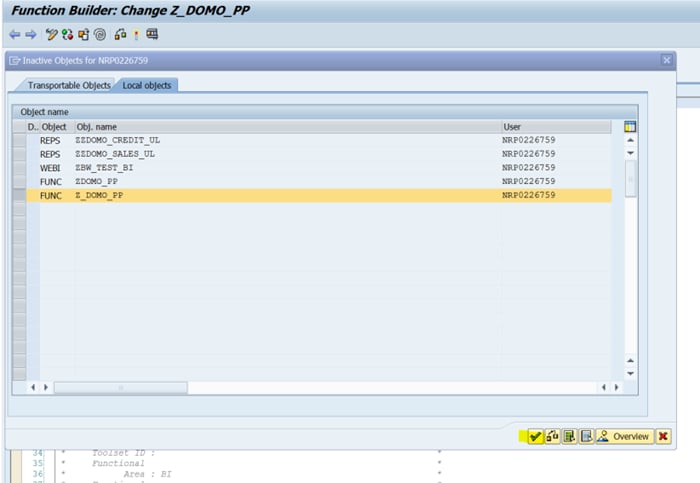
    <Frame>
      <img alt="" src="https://mintcdn.com/domoinc-openapi-sync-dataflows/gDOtiCXH_3EtosfI/images/kb/ka0Vq0000000BBZ-00N5w00000Ri7BU-0EM5w000005vNvt.png?fit=max&auto=format&n=gDOtiCXH_3EtosfI&q=85&s=427a0124282c52aa26a053a0db7beca3" width="700" height="483" data-path="images/kb/ka0Vq0000000BBZ-00N5w00000Ri7BU-0EM5w000005vNvt.png" />
    </Frame>

Congratulations, you have created a function module!

### Step 5: Create an Enterprise Service

**To create an enterprise service,**

1. Run transaction SE80 (/nSE80 ).

2. Under
   **Function Group**, enter ZDOMO then click on the dropdown to open the list of function modules.

3. Right-click on your new function module and select
   **Create > Enterprise Service**.
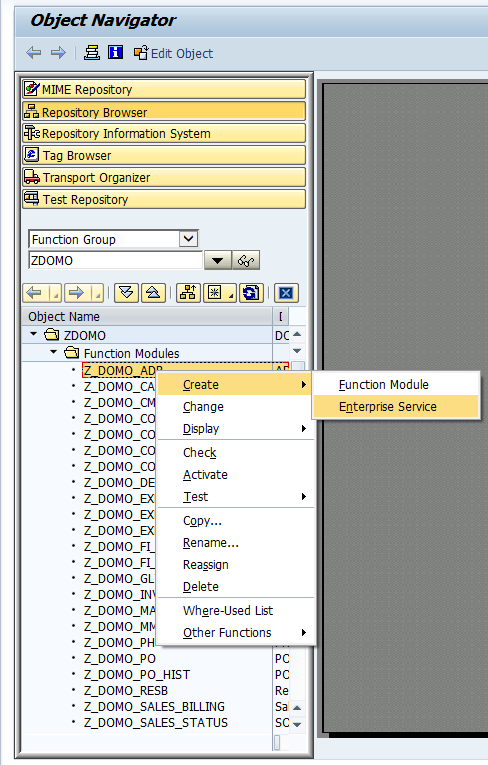
   <Frame>
     <img alt="" src="https://mintcdn.com/domoinc-openapi-sync-dataflows/gDOtiCXH_3EtosfI/images/kb/ka0Vq0000000BBZ-00N5w00000Ri7BU-0EM5w000005vNvn.png?fit=max&auto=format&n=gDOtiCXH_3EtosfI&q=85&s=2b1df6dfdd36a1ddca153c357d7aaac2" style={{width: 544, height: 727}} width="488" height="765" data-path="images/kb/ka0Vq0000000BBZ-00N5w00000Ri7BU-0EM5w000005vNvn.png" />
   </Frame>

4. Name the new service and give it a description, then click
   **Continue**.

5. Click
   **Continue** again.

6. Select a security profile, then click
   **Continue**.
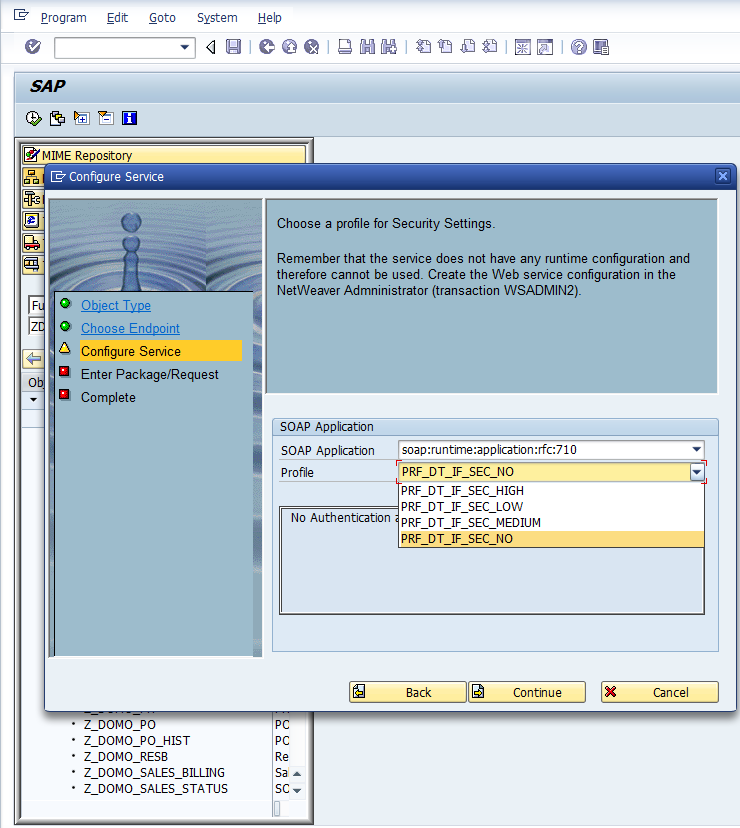
   <Frame>
     <img alt="" src="https://mintcdn.com/domoinc-openapi-sync-dataflows/gDOtiCXH_3EtosfI/images/kb/ka0Vq0000000BBZ-00N5w00000Ri7BU-0EM5w000005vNvc.png?fit=max&auto=format&n=gDOtiCXH_3EtosfI&q=85&s=abdcbabaa13a2c6da5ee9b65fd508532" style={{width: 740, height: 828}} width="740" height="828" data-path="images/kb/ka0Vq0000000BBZ-00N5w00000Ri7BU-0EM5w000005vNvc.png" />
   </Frame>

7. Select your Package and Transport Request, then click
   **Continue**.

8. Click
   **Complete**.

9. Click
   **Activate**.

10. Click
    **Continue**.

### Step 6: Publish Your New Service Using SAP SOA

**To publish your new enterprise service,**

1. Run transaction SOAMANAGER (/
   nSOAMANAGER ).

   This launches the web-based SOA Manager.

2. Click
   **Log On**.

3. Log in using your ECC credentials.
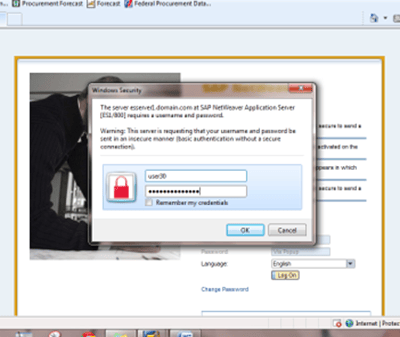
   <Frame>
     <img alt="" src="https://mintcdn.com/domoinc-openapi-sync-dataflows/gDOtiCXH_3EtosfI/images/kb/ka0Vq0000000BBZ-00N5w00000Ri7BU-0EM5w000005vNvV-1.png?fit=max&auto=format&n=gDOtiCXH_3EtosfI&q=85&s=c154b0bce62723e530c9d23d427cb3fc" style={{width: 400, height: 337}} width="400" height="337" data-path="images/kb/ka0Vq0000000BBZ-00N5w00000Ri7BU-0EM5w000005vNvV-1.png" />
   </Frame>

4. Select
   **Service Administration**.

5. Select
   **Single Service Configuration**.

6. In the
   **Search Pattern** field, enter the name of the new enterprise service, then click **Go**.
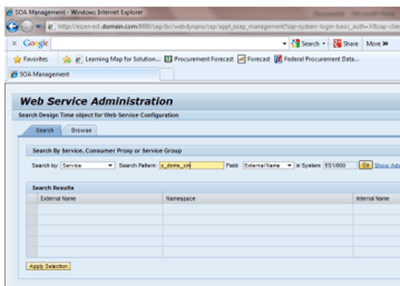
   <Frame>
     <img alt="" src="https://mintcdn.com/domoinc-openapi-sync-dataflows/gDOtiCXH_3EtosfI/images/kb/ka0Vq0000000BBZ-00N5w00000Ri7BU-0EM5w000005vNvk.png?fit=max&auto=format&n=gDOtiCXH_3EtosfI&q=85&s=2140982f0e684b076407908f25f57ade" style={{width: 400, height: 286}} width="400" height="286" data-path="images/kb/ka0Vq0000000BBZ-00N5w00000Ri7BU-0EM5w000005vNvk.png" />
   </Frame>

7. Select your service, then click
   **Apply Selection**.
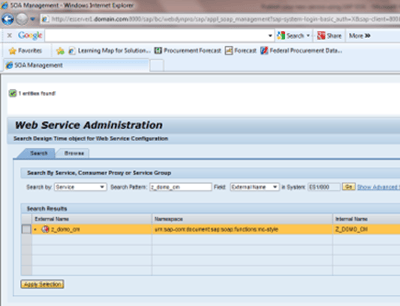
   <Frame>
     <img alt="" src="https://mintcdn.com/domoinc-openapi-sync-dataflows/gDOtiCXH_3EtosfI/images/kb/ka0Vq0000000BBZ-00N5w00000Ri7BU-0EM5w000005vNvZ.png?fit=max&auto=format&n=gDOtiCXH_3EtosfI&q=85&s=4b532c878b73e3e5d1d0a2206c19ae54" style={{width: 400, height: 306}} width="400" height="306" data-path="images/kb/ka0Vq0000000BBZ-00N5w00000Ri7BU-0EM5w000005vNvZ.png" />
   </Frame>

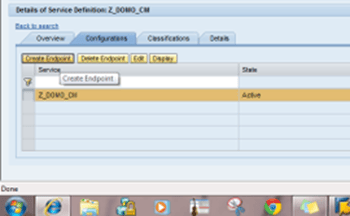
8. Open the
   **Configuration** tab.

9. Click
   **Create Endpoint**.
   <Frame>
     <img alt="" src="https://mintcdn.com/domoinc-openapi-sync-dataflows/gDOtiCXH_3EtosfI/images/kb/ka0Vq0000000BBZ-00N5w00000Ri7BU-0EM5w000005vNvY.png?fit=max&auto=format&n=gDOtiCXH_3EtosfI&q=85&s=b77cf1b700b2efa1b9b3e21856122983" style={{width: 350, height: 216}} width="350" height="216" data-path="images/kb/ka0Vq0000000BBZ-00N5w00000Ri7BU-0EM5w000005vNvY.png" />
   </Frame>

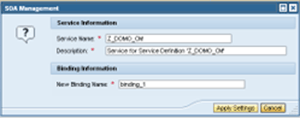
10. In the
    **Service Information** dialog, enter the following:

    * The service name (match the name of the service)
    * A description
    * A binding name
      <Frame>
        <img alt="" src="https://mintcdn.com/domoinc-openapi-sync-dataflows/gDOtiCXH_3EtosfI/images/kb/ka0Vq0000000BBZ-00N5w00000Ri7BU-0EM5w000005vNve.png?fit=max&auto=format&n=gDOtiCXH_3EtosfI&q=85&s=3760d8f2716da479dd1bddc1429f7961" style={{width: 300, height: 118}} width="300" height="118" data-path="images/kb/ka0Vq0000000BBZ-00N5w00000Ri7BU-0EM5w000005vNve.png" />
      </Frame>

11. Click
    **Apply Settings**.

12. Check the box for
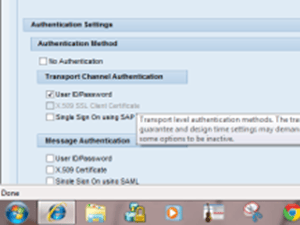
    **User ID/Password**.
    <Frame>
      <img alt="" src="https://mintcdn.com/domoinc-openapi-sync-dataflows/gDOtiCXH_3EtosfI/images/kb/ka0Vq0000000BBZ-00N5w00000Ri7BU-0EM5w000005vNvm.png?fit=max&auto=format&n=gDOtiCXH_3EtosfI&q=85&s=05915dd8598a0a1543b410a7fbc44f4c" style={{width: 300, height: 225}} width="300" height="225" data-path="images/kb/ka0Vq0000000BBZ-00N5w00000Ri7BU-0EM5w000005vNvm.png" />
    </Frame>

13. Scroll up and click
    **Save**.

14. Open the
    **Overview** tab.

15. Click
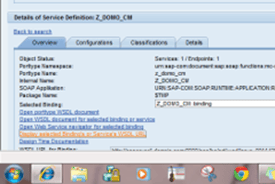
    **Display selected Binding's or Service's WSDL URL**.
    <Frame>
      <img alt="" src="https://mintcdn.com/domoinc-openapi-sync-dataflows/gDOtiCXH_3EtosfI/images/kb/ka0Vq0000000BBZ-00N5w00000Ri7BU-0EM5w000005vNvr.png?fit=max&auto=format&n=gDOtiCXH_3EtosfI&q=85&s=394250e6280859ff092509283080bf76" style={{width: 275, height: 184}} width="275" height="184" data-path="images/kb/ka0Vq0000000BBZ-00N5w00000Ri7BU-0EM5w000005vNvr.png" />
    </Frame>

16. Copy the URL and email it to Domo.

### Next Steps

Once you have completed all of the above steps, you have only a few tasks remaining. These tasks are as follows:

1. 1. Send an email to DOMO with:

      * Server Path
      * DOMO RFC username and password
   2. Test your first web service with a DOMO representative
   3. Load all additional web services
   4. Test all services in the Development Environment
2. Transport all of the above to a Quality Assurance System and test thoroughly.
3. Transport all of the above to a Production, or BI System.

## Function Module Specifications

Use the following table to locate specification sheets in.docx format for each function module (as required in [Step 4](#h_5d91a7ef-6959-4852-8390-6f04138f7008 "Connecting to SAP Data in Domo") above).

<table cellpadding="0" cellspacing="0" data-aura-rendered-by="33:195;a" width="100%"><thead><tr><th colspan="1" rowspan="1"><p> Data Type </p></th><th colspan="1" rowspan="1"><p> Function Module </p></th><th colspan="1" rowspan="1"><p> Tables </p></th><th colspan="1" rowspan="1"><p> Link to Spec Sheet </p></th></tr></thead><tbody><tr><td colspan="1" rowspan="1"><p> Costs </p></td><td colspan="1" rowspan="1"><p> Z\_DOMO\_COST </p></td><td colspan="1" rowspan="1"><p> COBK, COEP </p></td><td colspan="1" rowspan="1"><p><a target="_blank" title="Cost Details Specification.docx"> Cost Details Specification.docx </a></p></td></tr><tr><td colspan="1" rowspan="1"><p> Cost Element Group </p></td><td colspan="1" rowspan="1"><p> Z\_DOMO\_COST\_KAH3 </p></td><td colspan="1" rowspan="1"><p> KAH3 </p></td><td colspan="1" rowspan="1"><p><span class="mt-color-ff0000"> NOT YET AVAILABLE </span></p></td></tr><tr><td colspan="1" rowspan="1"><p> General Ledger:Actual Line Items </p></td><td colspan="1" rowspan="1"><p> Z\_DOMO\_FAGLFLEXA\_SO </p></td><td colspan="1" rowspan="1"><p> FAGLFLEXA, BKPF, SKA1 </p></td><td colspan="1" rowspan="1"><p><a target="_blank" title="FAGLFLEXA Specification.docx"> FAGLFLEXA Specification.docx </a></p></td></tr><tr><td colspan="1" rowspan="1"><p> Cost Center Master </p></td><td colspan="1" rowspan="1"><p> Z\_DOMO\_CSKS </p></td><td colspan="1" rowspan="1"><p> CSKS </p></td><td colspan="1" rowspan="1"><p><span class="mt-color-ff0000"> NOT YET AVAILABLE </span></p></td></tr><tr><td colspan="1" rowspan="1"><p> General Ledger Totals </p></td><td colspan="1" rowspan="1"><p> Z\_DOMO\_FAGLFLEXT </p></td><td colspan="1" rowspan="1"><p> FAGLFLEXT </p></td><td colspan="1" rowspan="1"><p><a target="_blank" title="FAGLFLEXT Specification.docx"> FAGLFLEXT Specification.docx </a></p></td></tr><tr><td colspan="1" rowspan="1"><p><span class="mt-color-333333"> General Ledger Details </span></p></td><td colspan="1" rowspan="1"><p> Z\_DOMO\_FAGLFLEXT\_COST </p></td><td colspan="1" rowspan="1"><p> CEPC, CEPCT, SKB1, SKAT, TFKBT </p></td><td colspan="1" rowspan="1"><p><span class="mt-color-ff0000"> NOT YET AVAILABLE </span></p></td></tr><tr><td colspan="1" rowspan="1"><p><span class="mt-color-333333"> Financial Documents </span></p></td><td colspan="1" rowspan="1"><p> Z\_DOMO\_FI\_DOC </p></td><td colspan="1" rowspan="1"><p> BKPF, BSAD, BSAK, BSID, BSIK, BSEG </p></td><td colspan="1" rowspan="1"><p><a target="_blank" title="FI Documents Specification.docx"> FI Documents Specification.docx </a></p></td></tr><tr><td colspan="1" rowspan="1"><p><span class="mt-color-333333"> Financial Documents GL Detail </span></p></td><td colspan="1" rowspan="1"><p> Z\_DOMO\_FI\_DOC\_GL </p></td><td colspan="1" rowspan="1"><p> BKPF, BSIS, BSAS </p></td><td colspan="1" rowspan="1"><p><a target="_blank" title="FI GL Documents Specification.docx"> FI GL Documents Specification.docx </a></p></td></tr><tr><td colspan="1" rowspan="1"><p><span class="mt-color-333333"> Account Master </span></p></td><td colspan="1" rowspan="1"><p> Z\_DOMO\_GLT0 </p></td><td colspan="1" rowspan="1"><p> GLT0 </p></td><td colspan="1" rowspan="1"><p><a target="_blank" title="GLT0 Specification.docx"> GLT0 Specification.docx </a></p></td></tr><tr><td colspan="1" rowspan="1"><p> Inventory </p></td><td colspan="1" rowspan="1"><p> Z\_DOMO\_INVENTORY </p></td><td colspan="1" rowspan="1"><p> MARD, MARC </p></td><td colspan="1" rowspan="1"><p><a target="_blank" title="Inventory Specification.docx"> Inventory Specification.docx </a></p></td></tr><tr><td colspan="1" rowspan="1"><p> Profitability Analysis </p></td><td colspan="1" rowspan="1"><p> Z\_DOMO\_KE30 </p></td><td colspan="1" rowspan="1"><p> CE31010 </p></td><td colspan="1" rowspan="1"><p><span class="mt-color-ff0000"> NOT YET AVAILABLE </span></p></td></tr><tr><td colspan="1" rowspan="1"><p> Purchase Orders </p></td><td colspan="1" rowspan="1"><p> Z\_DOMO\_PO </p></td><td colspan="1" rowspan="1"><p> EKKO, EKPO </p></td><td colspan="1" rowspan="1"><p><a target="_blank" title="Purchase Order Specification.docx"> Purchase Order Specification.docx </a></p></td></tr><tr><td colspan="1" rowspan="1"><p> Sales Billing </p></td><td colspan="1" rowspan="1"><p> Z\_DOMO\_SALES\_BILLING </p></td><td colspan="1" rowspan="1"><p> VBRK, VBRP, VBPA, MVKE </p></td><td colspan="1" rowspan="1"><p><a target="_blank" title="Sales Billing Specification.docx"> Sales Billing Specification.docx </a></p></td></tr><tr><td colspan="1" rowspan="1"><p> Sales Documents </p></td><td colspan="1" rowspan="1"><p> Z\_DOMO\_SDOC </p></td><td colspan="1" rowspan="1"><p> VBFA </p></td><td colspan="1" rowspan="1"><p><a target="_blank" title="Sales Document Specification.docx"> Sales Document Specification.docx </a></p></td></tr><tr><td colspan="1" rowspan="1"><p> Sales Orders </p></td><td colspan="1" rowspan="1"><p> Z\_DOMO\_SO </p></td><td colspan="1" rowspan="1"><p> VBAK, VBAP, VBEP, VBKD </p></td><td colspan="1" rowspan="1"><p><a target="_blank" title="Sales Orders Specification.docx"> Sales Orders Specification.docx </a></p></td></tr><tr><td colspan="1" rowspan="1"><p> Address Master </p></td><td colspan="1" rowspan="1"><p> Z\_DOMO\_ADR </p></td><td colspan="1" rowspan="1"><p> ADR6, ADRC </p></td><td colspan="1" rowspan="1"><p><a target="_blank" title="Address Specification.docx"> Address Specification.docx </a></p></td></tr><tr><td colspan="1" rowspan="1"><p> Cross Application Time Card </p></td><td colspan="1" rowspan="1"><p> Z\_DOMO\_CATS </p></td><td colspan="1" rowspan="1"><p> CATSDB </p></td><td colspan="1" rowspan="1"><p><a target="_blank" title="Cross Application Time Card Specification.docx"> Cross Application Time Card Specification.docx </a></p></td></tr><tr><td colspan="1" rowspan="1"><p> Customer Master </p></td><td colspan="1" rowspan="1"><p> Z\_DOMO\_CM </p></td><td colspan="1" rowspan="1"><p> KNA1, KNVP, KNB1, KNKK </p></td><td colspan="1" rowspan="1"><p><a target="_blank" title="Customer Master Specification.docx"> Customer Master Specification.docx </a></p></td></tr><tr><td colspan="1" rowspan="1"><p> Cost Center Master </p></td><td colspan="1" rowspan="1"><p> Z\_DOMO\_COA </p></td><td colspan="1" rowspan="1"><p> SKA1 </p></td><td colspan="1" rowspan="1"><p><span class="mt-color-ff0000"> NOT YET AVAILABLE </span></p></td></tr><tr><td colspan="1" rowspan="1"><p> Cost Totals </p></td><td colspan="1" rowspan="1"><p> Z\_DOMO\_COST\_TOTAL </p></td><td colspan="1" rowspan="1"><p> COSS, COSP </p></td><td colspan="1" rowspan="1"><p><a target="_blank" title="Cost totals Specification.docx"> Cost Totals Specification.docx </a></p></td></tr><tr><td colspan="1" rowspan="1"><p> Delivery </p></td><td colspan="1" rowspan="1"><p> Z\_DOMO\_DELIVERY </p></td><td colspan="1" rowspan="1"><p> LIKP, LIPS </p></td><td colspan="1" rowspan="1"><p><a target="_blank" title="Delivery Specification.docx"> Delivery Specification.docx </a></p></td></tr><tr><td colspan="1" rowspan="1"><p> Expense Details </p></td><td colspan="1" rowspan="1"><p> Z\_DOMO\_EXPENSE\_COE </p></td><td colspan="1" rowspan="1"><p> COVP </p></td><td colspan="1" rowspan="1"><p><a target="_blank" title="Expense COE Specification.docx"> Expense COE Specification.docx </a></p></td></tr><tr><td colspan="1" rowspan="1"><p> Expense by Vendor or Customer </p></td><td colspan="1" rowspan="1"><p> Z\_DOMO\_EXPENSE\_PCA </p></td><td colspan="1" rowspan="1"><p> GLPCA </p></td><td colspan="1" rowspan="1"><p><a target="_blank" title="Expense PCA Specification.docx"> Expense PCA Specification.docx </a></p></td></tr><tr><td colspan="1" rowspan="1"><p> Expense PCT Details </p></td><td colspan="1" rowspan="1"><p> Z\_DOMO\_EXPENSE\_PCT </p></td><td colspan="1" rowspan="1"><p> GLPCT </p></td><td colspan="1" rowspan="1"><p><a target="_blank" title="Expense PCT Specification.docx"> Expense PCT Specification.docx </a></p></td></tr><tr><td colspan="1" rowspan="1"><p> Materials Documents </p></td><td colspan="1" rowspan="1"><p> Z\_DOMO\_MAT\_DOC </p></td><td colspan="1" rowspan="1"><p> MKPF, MSEG </p></td><td colspan="1" rowspan="1"><p><a target="_blank" title="Material Documents Specification.docx"> Material Documents Specification.docx </a></p></td></tr><tr><td colspan="1" rowspan="1"><p> Material Master </p></td><td colspan="1" rowspan="1"><p> Z\_DOMO\_MM </p></td><td colspan="1" rowspan="1"><p> MARA, MVKE, TVM5T, MARM, MBEW, T001W, MAKT </p></td><td colspan="1" rowspan="1"><p><a target="_blank" title="Messages Specification.docx"> Material Master Specification.docx </a></p></td></tr><tr><td colspan="1" rowspan="1"><p> Product Hierarchy </p></td><td colspan="1" rowspan="1"><p> Z\_DOMO\_PH </p></td><td colspan="1" rowspan="1"><p> T179T </p></td><td colspan="1" rowspan="1"><p><a target="_blank" title="Product Hierarchy Specification.docx"> Product Hierarchy Specification.docx </a></p></td></tr><tr><td colspan="1" rowspan="1"><p> Purchase Order History </p></td><td colspan="1" rowspan="1"><p> Z\_DOMO\_PO\_HIST </p></td><td colspan="1" rowspan="1"><p> EKBE </p></td><td colspan="1" rowspan="1"><p><a target="_blank" title="Purchase Order History Specification.docx"> Purchase Order History Specification.docx </a></p></td></tr><tr><td colspan="1" rowspan="1"><p> Pricing </p></td><td colspan="1" rowspan="1"><p> Z\_DOMO\_PRICING </p></td><td colspan="1" rowspan="1"><p> KONH, KONP, KONV </p></td><td colspan="1" rowspan="1"><p><a target="_blank" title="Pricing Specification.docx"> Pricing Specification.docx </a></p></td></tr><tr><td colspan="1" rowspan="1"><p> Reservations </p></td><td colspan="1" rowspan="1"><p> Z\_DOMO\_RESB </p></td><td colspan="1" rowspan="1"><p> RKPF, RESB </p></td><td colspan="1" rowspan="1"><p><a target="_blank" title="Reservations Specification.docx"> Reservations Specification.docx </a></p></td></tr><tr><td colspan="1" rowspan="1"><p> Messages </p></td><td colspan="1" rowspan="1"><p> Z\_DOMO\_T001 </p></td><td colspan="1" rowspan="1"><p> T001, T001S </p></td><td colspan="1" rowspan="1"><p><a target="_blank" title="Messages Specification.docx"> Messages Specification.docx </a></p></td></tr><tr><td colspan="1" rowspan="1"><p> Vendor Master </p></td><td colspan="1" rowspan="1"><p> Z\_DOMO\_VM </p></td><td colspan="1" rowspan="1"><p> LFA1, LFB1 </p></td><td colspan="1" rowspan="1"><p><a target="_blank" title="Vendor Master Specification.docx"> Vendor Master Specification.docx </a></p></td></tr><tr><td colspan="1" rowspan="1"><p> Account Master joined with Chart of Accounts </p></td><td colspan="1" rowspan="1"><p> Z\_DOMO\_COA\_GL </p></td><td colspan="1" rowspan="1"><p> COA\_GL </p></td><td colspan="1" rowspan="1"><p><span class="mt-color-ff0000"> NOT YET AVAILABLE </span></p></td></tr><tr><td colspan="1" rowspan="1"><p> Relationships in GOS </p></td><td colspan="1" rowspan="1"><p> Z\_DOMO\_SRGBTBREL </p></td><td colspan="1" rowspan="1"><p> SRGBTBREL </p></td><td colspan="1" rowspan="1"><p><span class="mt-color-ff0000"> NOT YET AVAILABLE </span></p></td></tr><tr><td colspan="1" rowspan="1"><p> Sales Status </p></td><td colspan="1" rowspan="1"><p> Z\_DOMO\_SALES\_STATUS </p></td><td colspan="1" rowspan="1"><p> VBUK, VBUP </p></td><td colspan="1" rowspan="1"><p><span class="mt-color-ff0000"> NOT YET AVAILABLE </span></p></td></tr></tbody></table>

**Note:** The hyperlinks in the **Link to Spec Sheet** column does not point to any documentation.

## Troubleshooting

* Test the connection to the web service using SoapUI.
* Run the function module locally in the SAP environment.