> ## Documentation Index
> Fetch the complete documentation index at: https://domoinc-openapi-sync-dataflows.mintlify.site/llms.txt
> Use this file to discover all available pages before exploring further.
# Connecting to Clicktale Data in Domo
export const InlineImage = ({src, alt = '', height = '1.6em'}) => {
return  ;
};
## Intro
You can pull Clicktale data into Domo as CSV data using our CSV-SFTP connector. Once you have created a Clicktale DataSet, you can use Beast Mode to add Replay links to your Clicktale cards. This article explains how to perform both of these tasks.
## Prerequisites
To pull Clicktale data into Domo, you will need SFTP credentials (which should be provided to you by Clicktale). These credentials consist of the following:
* An SFTP hostname
* The SFTP username and password
## Importing Clicktale Data into Domo
To import your Clicktale data into Domo, you must connect to Clicktale's SFTP server using credentials provided to you by Clicktale.
**To import Clicktale data into Domo,**
1. Do one of the following:
* Select **> Data > File**.
* Select **Data** in the toolbar at the top of the screen, then click **File** in the **Connect Data** area.
* Select **Appstore** in the toolbar at the top of the screen, click the **Connectors** tab, then search for "CSV-SFTP."
2. Click the "CSV-SFTP" tile.
3. Click **Get the Data**.
4. In the **Credentials** pane, enter your SFTP credentials as provided by Clicktale, then click **Connect**.
5. In the **Details** pane, set the desired options for your CSV file.
For more information about the available options, see [CSV-SFTP Connector](/s/article/360042931894 "CSV-SFTP Connector").
6. In the **Scheduling** pane, set the DataSet to update every day, and set **Update** to **Append**.
7. In the **Name & Describe Your DataSet** pane, enter a name and description for the DataSet.
8. Click **Save**.
Your Clicktale data is now imported into Domo as a CSV DataSet.
## Adding Replay Links to Your Card
Once your Clicktale data is available in Domo, you can use it to build table cards containing Replay links. These links allow users to gain incredible insights from your data.
**To build a table with Replay links from your Clicktale data,**
1. In the details view for the DataSet, click the **Cards** tab then click **Add Card**.
2. In the Analyzer, build your table as described in [Table](/s/article/360043429573 "Table").
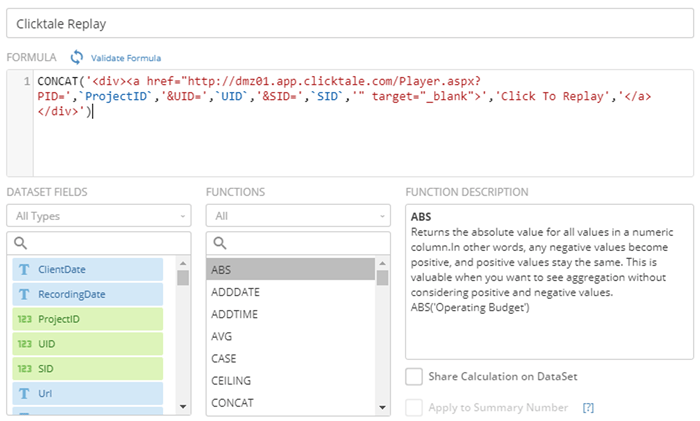
3. Add a Beast Mode calculation with the following formula:
```sql theme={"dark"}
CONCAT('')
```
;
};
## Intro
You can pull Clicktale data into Domo as CSV data using our CSV-SFTP connector. Once you have created a Clicktale DataSet, you can use Beast Mode to add Replay links to your Clicktale cards. This article explains how to perform both of these tasks.
## Prerequisites
To pull Clicktale data into Domo, you will need SFTP credentials (which should be provided to you by Clicktale). These credentials consist of the following:
* An SFTP hostname
* The SFTP username and password
## Importing Clicktale Data into Domo
To import your Clicktale data into Domo, you must connect to Clicktale's SFTP server using credentials provided to you by Clicktale.
**To import Clicktale data into Domo,**
1. Do one of the following:
* Select **> Data > File**.
* Select **Data** in the toolbar at the top of the screen, then click **File** in the **Connect Data** area.
* Select **Appstore** in the toolbar at the top of the screen, click the **Connectors** tab, then search for "CSV-SFTP."
2. Click the "CSV-SFTP" tile.
3. Click **Get the Data**.
4. In the **Credentials** pane, enter your SFTP credentials as provided by Clicktale, then click **Connect**.
5. In the **Details** pane, set the desired options for your CSV file.
For more information about the available options, see [CSV-SFTP Connector](/s/article/360042931894 "CSV-SFTP Connector").
6. In the **Scheduling** pane, set the DataSet to update every day, and set **Update** to **Append**.
7. In the **Name & Describe Your DataSet** pane, enter a name and description for the DataSet.
8. Click **Save**.
Your Clicktale data is now imported into Domo as a CSV DataSet.
## Adding Replay Links to Your Card
Once your Clicktale data is available in Domo, you can use it to build table cards containing Replay links. These links allow users to gain incredible insights from your data.
**To build a table with Replay links from your Clicktale data,**
1. In the details view for the DataSet, click the **Cards** tab then click **Add Card**.
2. In the Analyzer, build your table as described in [Table](/s/article/360043429573 "Table").
3. Add a Beast Mode calculation with the following formula:
```sql theme={"dark"}
CONCAT('')
```
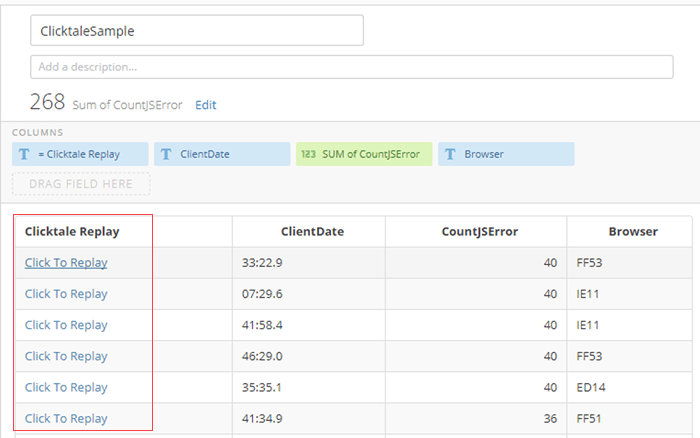
 4. Use the Beast Mode calculation to add a new table column with Clicktale Replay links.
 For more information about Beast Mode, see [Transforming Data Using Beast Mode](/s/article/360043430053).