> ## Documentation Index
> Fetch the complete documentation index at: https://domoinc-openapi-sync-dataflows.mintlify.site/llms.txt
> Use this file to discover all available pages before exploring further.
# Replacing a Column Value in Workbench 5
export const InlineImage = ({src, alt = '', height = '1.6em'}) => {
return  ;
};
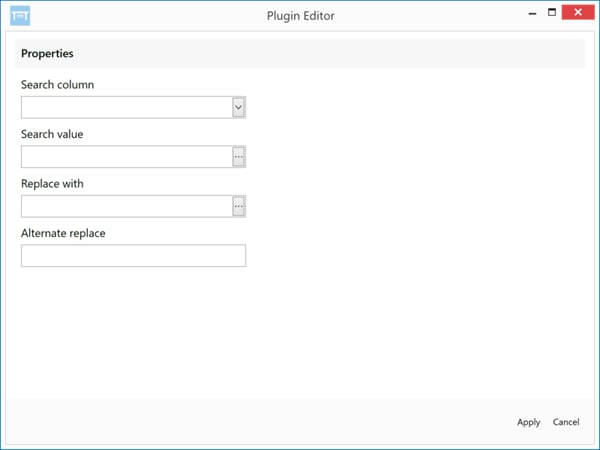
You can use the **Search & Replace** transform to replace a specified value in a column with another value. You can also specify a default value to appear in cells in which your search value does not appear.
;
};
You can use the **Search & Replace** transform to replace a specified value in a column with another value. You can also specify a default value to appear in cells in which your search value does not appear.
 After searching for values in your data by specifying a **Search Value**, you can transform the values using regular expressions. For example, suppose you want to transform the date format of date values. Using regular expressions in the **Search Value** and **Replace With** fields, you could search for dates with a format of yyyymmdd and replace them with a format of yyyy-mm-dd by doing the following:
* Setting the
**Search Value** field to `([0-9]{4})([0-9]{2})([0-9]{2})`
This regular expression searches for values, storing them in variables with 4 digits, 2 digits, and 2 digits (for dates in the form yyyymmdd ).
* Setting the
**Replace With** field to `$1-$2-$3`
This regular expression replaces the variables ($1, $2, $3) found in the **Search String** regular expression, resulting in the $1-$2-$3 format for dates in the form yyy-mm-dd.
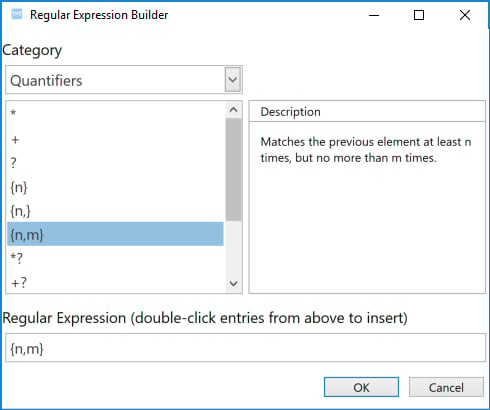
Workbench 5 includes a Regular Expression Builder to help you construct regular expressions for your "Search" value and/or "Replace with" value. You can open the Regular Expression Builder by clicking the ellipsis (...) to the right of the **Include filter** field. In the Builder, you can select from a wide variety of constructs to use in your search or replacement string. These constructs are divided into categories for easy navigation (grouping constructs, character escapes, substitutions, etc.). Descriptions are provided for each construct.
After searching for values in your data by specifying a **Search Value**, you can transform the values using regular expressions. For example, suppose you want to transform the date format of date values. Using regular expressions in the **Search Value** and **Replace With** fields, you could search for dates with a format of yyyymmdd and replace them with a format of yyyy-mm-dd by doing the following:
* Setting the
**Search Value** field to `([0-9]{4})([0-9]{2})([0-9]{2})`
This regular expression searches for values, storing them in variables with 4 digits, 2 digits, and 2 digits (for dates in the form yyyymmdd ).
* Setting the
**Replace With** field to `$1-$2-$3`
This regular expression replaces the variables ($1, $2, $3) found in the **Search String** regular expression, resulting in the $1-$2-$3 format for dates in the form yyy-mm-dd.
Workbench 5 includes a Regular Expression Builder to help you construct regular expressions for your "Search" value and/or "Replace with" value. You can open the Regular Expression Builder by clicking the ellipsis (...) to the right of the **Include filter** field. In the Builder, you can select from a wide variety of constructs to use in your search or replacement string. These constructs are divided into categories for easy navigation (grouping constructs, character escapes, substitutions, etc.). Descriptions are provided for each construct.
 **To replace a value in a column,**
1. In Workbench, Click in the left-hand icon bar.
2. In the Jobs listing, double-click the DataSet job with column values you want to replace.
3. Click
**Transforms** to expand that section of the pane.
4. In the
**Add a transform** menu, select **Search/Replace Transform**.
5. Click the
button.
The **Search/Replace Transform Editor** appears.
6. In the
**Search Column** menu, select the column in which you want to replace values.
7. In the
**Search Value** field, enter the value you want to replace or insert a regular expression using the Regular Expression Builder.
8. In the
**Replace With** field, enter the value that should replace the value you entered in step 7 or insert a regular expression using the Regular Expression Builder.
9. (Optional) In the
**Alternate Replace** field, specify a default value to appear in cells in which your search value does not appear.
10. Click
****Apply****.
11. Click
at the top of the pane to save your transform.
**To replace a value in a column,**
1. In Workbench, Click in the left-hand icon bar.
2. In the Jobs listing, double-click the DataSet job with column values you want to replace.
3. Click
**Transforms** to expand that section of the pane.
4. In the
**Add a transform** menu, select **Search/Replace Transform**.
5. Click the
button.
The **Search/Replace Transform Editor** appears.
6. In the
**Search Column** menu, select the column in which you want to replace values.
7. In the
**Search Value** field, enter the value you want to replace or insert a regular expression using the Regular Expression Builder.
8. In the
**Replace With** field, enter the value that should replace the value you entered in step 7 or insert a regular expression using the Regular Expression Builder.
9. (Optional) In the
**Alternate Replace** field, specify a default value to appear in cells in which your search value does not appear.
10. Click
****Apply****.
11. Click
at the top of the pane to save your transform.