> ## Documentation Index
> Fetch the complete documentation index at: https://domoinc-openapi-sync-dataflows.mintlify.site/llms.txt
> Use this file to discover all available pages before exploring further.

# Previewing a Document

export const InlineImage = ({src, alt = '', height = '1.6em'}) => {
  return <img noZoom src={src} alt={alt} style={{
    display: 'inline',
    verticalAlign: 'start',
    height: height,
    margin: '0'
  }} />;
};

## Intro

When a document or image has been uploaded to Domo, either in a Doc Card or in a Buzz discussion, you can open a preview mode for the file. This preview mode provides all of the following capabilities:

* Standard and full-screen viewing modes
* A page indicator that lets you jump to a specific page in the document (when the document consists of multiple pages)
* Page navigation buttons
* A download icon

You can also open the preview mode for a file *before* it is saved as a card; that is, when you select a file for a new Doc Card, the preview mode becomes available.

## Opening the file preview mode

If the file you want to preview has been uploaded to a Doc Card, you can open the preview mode from the card Details page. If the document has been attached to a Buzz post, you can preview the document just by clicking the thumbnail. You can also preview the document after selecting it in the **New Document** dialog.

<Note>
  **Note:** If you attach a file with an unpreviewable file type (e.g. a `.wav` file) to a Buzz post, an image of a generic blue square containing the file extension. appears for the thumbnail and preview. However, you can still download such files in the preview mode. For more information about downloading, see [Downloading a Document from Domo](/s/article/360043430193 "Downloading a Document from Domo")

  If the file belongs to an unsupported file type, an error message appears. For a list of supported file types, see [Permitted File Types for Attachments](/s/article/360042925634 "Permitted File Types for Attachments").
</Note>

**To open the preview mode from the file Details view,**

1. Click the Doc Card.

   The Details view for the Card opens.
2. Mouse over the upper portion of the document.
3. Click the
   <InlineImage src="/images/kb/ka05w00000123TJ-00N5w00000Ri7BU-0EM5w000005vOH1.png" /> icon that appears.

**To open the preview mode from Buzz,**

1. Click the thumbnail of the attached document.

**To open the preview mode from the New Doc Card dialog,**

1. Select the file you want to appear in a Card.

   For more information about uploading a document, see [Adding a Doc Card to Domo](/s/article/360043430173 "Adding a Document Card to Domo").
2. Click
   <InlineImage src="/images/kb/ka05w00000123TJ-00N5w00000Ri7BU-0EM5w000005vOH1.png" />.

## Understanding the document preview mode interface

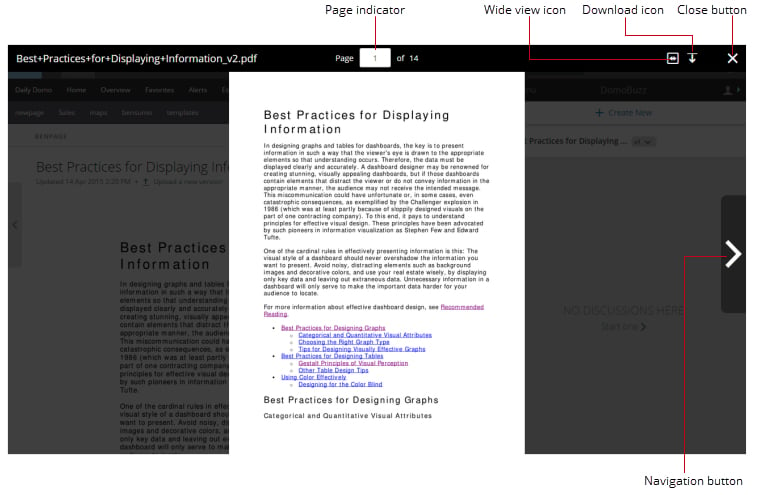
The following screenshot shows the components of the preview mode view for a file. This is the standard (non-full-screen) view that first appears when you open the reading view.

<Frame>
  <img alt="Previewing_a_Document.jpg" src="https://mintcdn.com/domoinc-openapi-sync-dataflows/6RkB_PbKEcYlGecr/images/kb/ka05w00000123TJ-00N5w00000Ri7BU-0EM5w000005vOH3.jpg?fit=max&auto=format&n=6RkB_PbKEcYlGecr&q=85&s=29f50db2f88e7bae5a30094d60970249" width="765" height="495" data-path="images/kb/ka05w00000123TJ-00N5w00000Ri7BU-0EM5w000005vOH3.jpg" />
</Frame>

You can learn more about these components in the following table:

<table border="1" cellpadding="1" cellspacing="1" data-aura-rendered-by="33:208;a"><thead><tr><th colspan="1" rowspan="1"><p> Name </p></th><th colspan="1" rowspan="1"><p> Description </p></th></tr></thead><tbody><tr><td colspan="1" rowspan="1"><p> Page indicator </p></td><td colspan="1" rowspan="1"><p> Shows you the number of the currently displayed page and lets you navigate to other pages. </p></td></tr><tr><td colspan="1" rowspan="1"><p> Full-screen icon </p></td><td colspan="1" rowspan="1"><p> Opens the full-screen-width version of the file. </p></td></tr><tr><td colspan="1" rowspan="1"><p> Download icon </p></td><td colspan="1" rowspan="1"><p> Lets you download this file to your own computer. </p></td></tr><tr><td colspan="1" rowspan="1"><p> Close button </p></td><td colspan="1" rowspan="1"><p> Closes the reading view for the file. </p></td></tr><tr><td colspan="1" rowspan="1"><p> Navigation buttons </p></td><td colspan="1" rowspan="1"><p> Allow you to navigate from one page to the next if the file consists of more than one page. </p></td></tr></tbody></table>

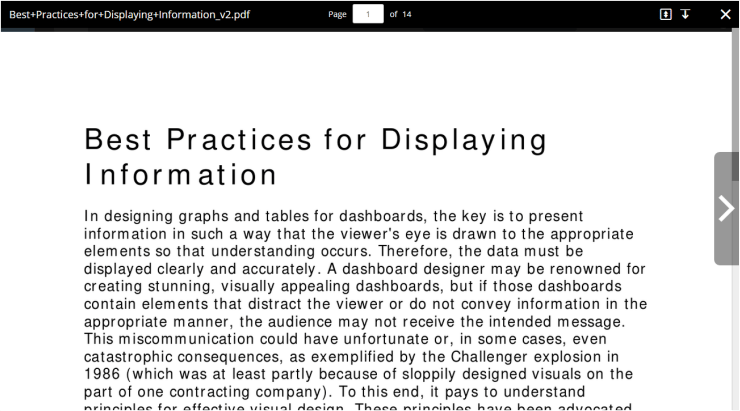
The following screenshot shows you the full screen-width version of the same file shown above (which you access by clicking <InlineImage src="/images/kb/ka05w00000123TJ-00N5w00000Ri7BU-0EM5w000005vOGw.png" /> ). The options in this version are the same, except for the <InlineImage src="/images/kb/ka05w00000123TJ-00N5w00000Ri7BU-0EM5w000005vOGv.png" /> icon, which returns the view to the standard version.

<Frame>
  <img alt="" src="https://mintcdn.com/domoinc-openapi-sync-dataflows/6RkB_PbKEcYlGecr/images/kb/ka05w00000123TJ-00N5w00000Ri7BU-0EM5w000005vOGt.png?fit=max&auto=format&n=6RkB_PbKEcYlGecr&q=85&s=04a924a758a3106331812f25aac65877" width="740" height="411" data-path="images/kb/ka05w00000123TJ-00N5w00000Ri7BU-0EM5w000005vOGt.png" />
</Frame>