> ## Documentation Index
> Fetch the complete documentation index at: https://domoinc-openapi-sync-dataflows.mintlify.site/llms.txt
> Use this file to discover all available pages before exploring further.
# Updating or Refreshing the DataSet for a Visualization Card
export const InlineImage = ({src, alt = '', height = '1.6em'}) => {
return  ;
};
## Intro
You can update or refresh the DataSet for any card you have edit access for. You can do this in the card view or the Details view.
When you update a DataSet from a card,
* any cards powered up by that DataSet are automatically updated.
* an entry for the revision is added to the **History** tab in the card Details view.
For more information about this view, see [Card Details View Layout](/s/article/360042923934 "Card Details View Layout").
For information about connecting cards to a different DataSet, see [Connecting Cards to a Different DataSet](/s/article/360043430653 "Connecting Cards to a Different DataSet").
For information about the Data Center, see [Workbench 5](/s/article/360042932554 "Data Center Layout").
## Changing the DataSet for a Card
You can change the DataSet for a card by uploading a DataSet that already exists in Domo or a new Excel or Google spreadsheet. Aside from Excel and CSV files, Google sheets, and online forms, you cannot upload new DataSets from the card/Details view. You must first add DataSets in the Data Center before they can be used to update cards.
**To update a card by changing the DataSet,**
1. Mouse over the KPI card you want to update OR click the card to open its Details view.
2. Click
(or in the Details view), then select **Connect / Update Data** from the menu.
A dialog appears.
**Tip:** You can also open this dialog in a KPI card's Details view, by clicking the **Update Data** link near the bottom of the screen.
3. Click **Change DataSet**.
4. Choose one of the following options:
1. To use an existing DataSet...
1. Click **Existing Data**.
A dialog appears in which you can choose a DataSet.
;
};
## Intro
You can update or refresh the DataSet for any card you have edit access for. You can do this in the card view or the Details view.
When you update a DataSet from a card,
* any cards powered up by that DataSet are automatically updated.
* an entry for the revision is added to the **History** tab in the card Details view.
For more information about this view, see [Card Details View Layout](/s/article/360042923934 "Card Details View Layout").
For information about connecting cards to a different DataSet, see [Connecting Cards to a Different DataSet](/s/article/360043430653 "Connecting Cards to a Different DataSet").
For information about the Data Center, see [Workbench 5](/s/article/360042932554 "Data Center Layout").
## Changing the DataSet for a Card
You can change the DataSet for a card by uploading a DataSet that already exists in Domo or a new Excel or Google spreadsheet. Aside from Excel and CSV files, Google sheets, and online forms, you cannot upload new DataSets from the card/Details view. You must first add DataSets in the Data Center before they can be used to update cards.
**To update a card by changing the DataSet,**
1. Mouse over the KPI card you want to update OR click the card to open its Details view.
2. Click
(or in the Details view), then select **Connect / Update Data** from the menu.
A dialog appears.
**Tip:** You can also open this dialog in a KPI card's Details view, by clicking the **Update Data** link near the bottom of the screen.
3. Click **Change DataSet**.
4. Choose one of the following options:
1. To use an existing DataSet...
1. Click **Existing Data**.
A dialog appears in which you can choose a DataSet.
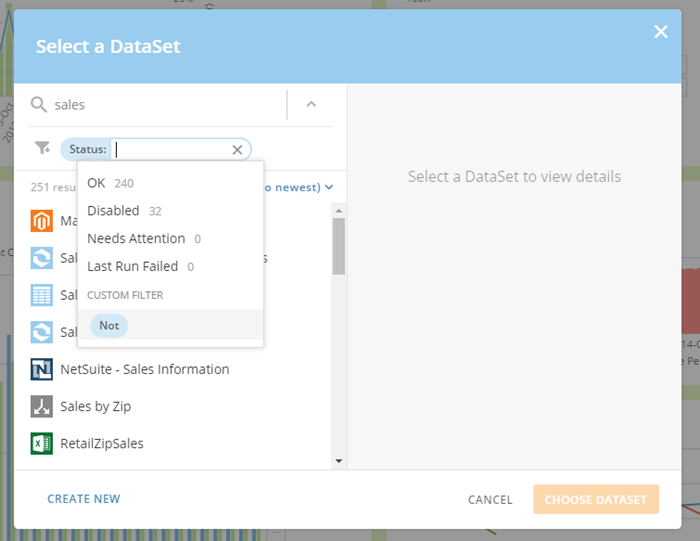 This dialog includes many options for locating your desired DataSet. In addition to being able to search by name, you can also apply various filters to your search. If you click the icon, a dialog appears with a number of selectable filters such as **Owned by**, **Created Date**, **Tag**, and so on. You can choose any of these filters then specify the criteria for the filter. For example, if you chose **Tag**, you would then be prompted to select the tag associated with your desired DataSet. You can also customize filters by applying operators. These differ between filters. Most filters include the **Not** operator so you can indicate that specified criteria are excluded from your filter. For example, you might build a filter in which the status is *not* disabled. Date-based filters include the **On**, **Not On**, **Before**, and **After** operators, so you can narrow down when a DataSet was created or last run. Number-based filters include **Equal To**, **Not Equal To**, **Less Than**, and **Greater Than** operators.
In the filter dialog, you can also choose from several quick filters by clicking **Favorite Filters**. These include **Recently run** (which defaults to 7 days), **Owned by you**, and **Needs attention**.
This dialog includes many options for locating your desired DataSet. In addition to being able to search by name, you can also apply various filters to your search. If you click the icon, a dialog appears with a number of selectable filters such as **Owned by**, **Created Date**, **Tag**, and so on. You can choose any of these filters then specify the criteria for the filter. For example, if you chose **Tag**, you would then be prompted to select the tag associated with your desired DataSet. You can also customize filters by applying operators. These differ between filters. Most filters include the **Not** operator so you can indicate that specified criteria are excluded from your filter. For example, you might build a filter in which the status is *not* disabled. Date-based filters include the **On**, **Not On**, **Before**, and **After** operators, so you can narrow down when a DataSet was created or last run. Number-based filters include **Equal To**, **Not Equal To**, **Less Than**, and **Greater Than** operators.
In the filter dialog, you can also choose from several quick filters by clicking **Favorite Filters**. These include **Recently run** (which defaults to 7 days), **Owned by you**, and **Needs attention**.
You can apply multiple filters to narrow down your results; for example, you might apply an **Owned by** filter specifying user "Kate Nickelby," a **Type** filter specifying "Adobe Analytics," and a **Status** filter specifying "Disabled."
Once you have your results set, you can change the sort by clicking **Created Date (oldest to newest** **)** and then choosing the desired sort method and direction.
You can add or manage DataSets in the Data Center. For more information, see [Data Center Layout](/s/article/360047553253).
2. Browse to the DataSet you want to upload.
3. Click **Select DataSet**.
A dialog appears that informs you whether the fields in the selected DataSet match the old DataSet. It is recommended that you do *not* upload a DataSet with non-matching fields, as this could cause cards powered by this DataSet to break.
4. Click **Yes, Switch to New DataSet**.
2. To use a new Excel or CSV DataSet...
1. Click **Excel** (even if you are updating a CSV DataSet).
2. Browse to and select the desired Microsoft Excel or CSV file.
For more information, see [File Upload Connector](/s/article/360043436573 "File Upload Connector").
3. (Optional) Edit the data if desired. For more information about editing chart data, see
[Analyzer Overview](/s/article/360043428673 "KPI Card Building Part 2: The Card Builder").
4. Click **Save and Finish**.
3. To use a new Google Sheets DataSet...
1. Click **Google Sheets**.
2. Upload the new Google Sheet by following the instructions in
[Google Sheets Connector](/s/article/360043436633 "Google Sheets Connector").
3. Click **Update card with new data** when ready.
## Refreshing the DataSet for a Card
For KPI cards not powered by Excel spreadsheets, CSV files, or online forms, rather than uploading a new file you can use the **Run DataSet** option. This refreshes the data and updates the card accordingly.
If the DataSet is an Excel or CSV file that has changed, you can update the data by re-uploading the modified spreadsheet file.
**To refresh the data for a non-Excel/CSV card,**
1. Mouse over the KPI card you want to refresh OR click the card to open its Details view.
2. Click
(or in the Details view), then select **Connect / Update Data** from the menu.
A dialog appears.
**Tip:** You can also open this dialog in a KPI card's Details view, by clicking the **Update Data** link near the bottom of the screen.
3. Click **Run DataSet**.
**Note:** The chart data may take up to 60 seconds to refresh.
**To refresh data for an Excel or CSV card,**
1. Mouse over the KPI card you want to update OR click the card to open its Details view.
2. Click
(or in the Details view), then select **Connect / Update Data** from the menu.
A dialog appears.
**Tip:** You can also open this dialog in a KPI card's Details view, by clicking the **Update Data** link near the bottom of the screen.
3. Click **Update Data**.
4. Browse to and select the desired Microsoft Excel or CSV spreadsheet file.
5. Click **Save**.
## Editing Data in a Webform
You can update data that you have entered manually into a webform in Domo. For more information about uploading data using this form, see [Powering a Visualization Card with Data](/s/article/360043429873 "Powering a KPI Card with Data").
**To edit data in a webform from the KPI card,**
1. Mouse over the KPI card containing data you want to edit.
2. Click, then select **Connect / Update Data** from the menu.
A dialog appears.
**Tip:** You can also open this dialog in a KPI card's Details view, by clicking the **Update Data** link near the bottom of the screen.
3. Click **Edit Webform**.
The webform with your data appears.
4. Make any desired changes to the data in the form.
5. Click **Save & Continue**.
**To edit data in a webform from the DataSet,**
1. Click **Data** in the toolbar at the top of the screen.
2. Click the DataSet for the online form.
3. In the Details view, click
, then select **Edit Webform**.
The online form with your data appears.
4. Make any desired changes to the data in the form.
5. Click **Save & Continue**.
For information about the webform editor, see Webforms Connector.
## Refreshing a Page of Cards
Cards in pages are refreshed when you do any of the following:
* Refresh your browser.
* Leave the page then return.
* Click the **Refresh** button at the bottom of the page (which only appears when the page includes one or more cards that have been updated since you loaded the page).