> ## Documentation Index
> Fetch the complete documentation index at: https://domoinc-openapi-sync-dataflows.mintlify.site/llms.txt
> Use this file to discover all available pages before exploring further.
# Changing the Legend Position in Your Chart
For some chart types with legends, you can hide or show le gends or change the legend position. For many of these chart types, you have the additional ability to specify different legend positions for the chart as it appears in portrait and landscape views for the card.
**Note:** As of our October 2016 release, the **Large View Legend Position** and **Details View Legend Position** are deprecated and have been replaced with the **Portrait View Legend Position** and **Landscape View Legend Position** options. Prior to this release, certain chart types contained different properties for formatting the legends. With the October 2016 release, all charts with legends now have the same properties for formatting legends.
***
**Note:** Legends do not appear in Bar and Line charts without series data.
You can make these distinctions by applying the **Portrait View Legend Position** and **Landscape View Legend Position** properties in the **Chart Properties**.
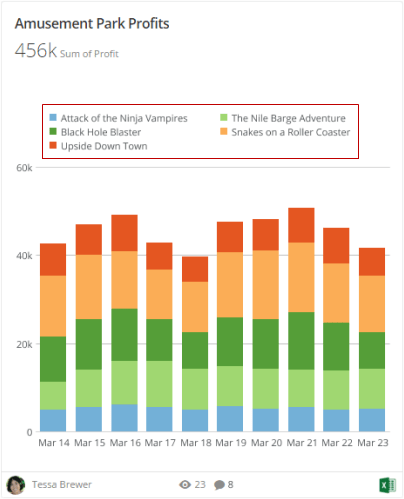
For example, the following screenshot shows a chart in portrait view, with the legend appearing above the chart:
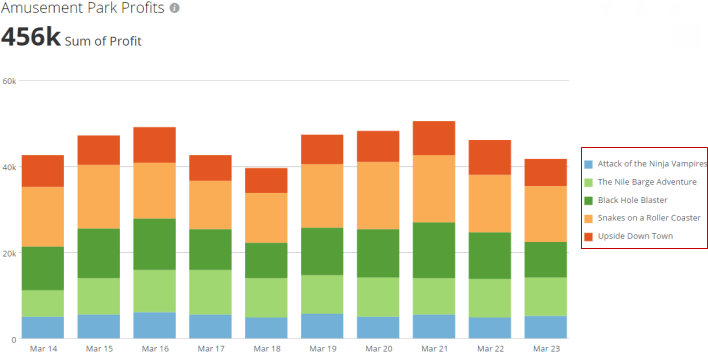
 The following screenshot shows the chart in landscape view, with the legend appearing to the right of the chart.
 You can reverse the order of the items in the legend by checking **Reverse Legend Layout Order** in the **Chart Properties**.
Depending on the legend location for lines and bars, the legend font size is reduced and the text is concatenated.
**To hide, show, or reposition the legend for a chart,**
1. Open the Analyzer for the chart you want to edit.
2. In **Chart Properties**, click **General**.
3. Select the desired option from the **Portrait View Legend Position** menu.
By default, legends appear at the bottom of a chart in portrait view.
4. Select the desired option from the **Landscape View Legend Position** menu.
By default, legends appear to the right of a chart in landscape view. If you select **Auto**, the legend appears to the right of the chart if it contains 10 or fewer items. Otherwise it appears at the bottom of the chart.
You can reverse the order of the items in the legend by checking **Reverse Legend Layout Order** in the **Chart Properties**.
Depending on the legend location for lines and bars, the legend font size is reduced and the text is concatenated.
**To hide, show, or reposition the legend for a chart,**
1. Open the Analyzer for the chart you want to edit.
2. In **Chart Properties**, click **General**.
3. Select the desired option from the **Portrait View Legend Position** menu.
By default, legends appear at the bottom of a chart in portrait view.
4. Select the desired option from the **Landscape View Legend Position** menu.
By default, legends appear to the right of a chart in landscape view. If you select **Auto**, the legend appears to the right of the chart if it contains 10 or fewer items. Otherwise it appears at the bottom of the chart.