> ## Documentation Index
> Fetch the complete documentation index at: https://domoinc-openapi-sync-dataflows.mintlify.site/llms.txt
> Use this file to discover all available pages before exploring further.
# Disabling or Deleting a DataFlow
export const InlineImage = ({src, alt = '', height = '1.6em'}) => {
return  ;
};
You can disable or delete a DataFlow in Domo. Disabling it causes any DataSets powered by the DataFlow to stop working (along with any KPI cards powered by those DataSets) but keeps the DataFlow itself intact. Deleting it disables the DataSets and cards and also removes it from Domo.
**To disable or delete a DataFlow,**
1. In Domo, click **Data** in the toolbar at the top of the screen.
2. Click
in the left-hand navigation pane.
3. Locate the DataFlow you want to disable or delete.
You can use the filter options to narrow down the DataFlows that appear in the list.
4. Mouse over the desired DataFlow then click
to display a list of options.
5. (Conditional) To disable the DataFlow, click **Disable**. To delete the DataFlow, click **Delete**.
You can also access this option from the Details view for the DataFlow.
**To delete multiple DataFlows,**
1. In Domo, click **Data** in the toolbar at the top of the screen.
2. Click
in the left-hand navigation pane.
The **DataFlows** tab opens.
3. Locate one of the DataFlows you want to delete.
For more information about searching and filtering DataFlows in the Data Center, see [Data Center Layout](https://domo-support.domo.com/s/article/360047553253?language=en_US).
4. Mouse over the row for the DataFlow and click the circled checkmark that pops up over the connector icon.
;
};
You can disable or delete a DataFlow in Domo. Disabling it causes any DataSets powered by the DataFlow to stop working (along with any KPI cards powered by those DataSets) but keeps the DataFlow itself intact. Deleting it disables the DataSets and cards and also removes it from Domo.
**To disable or delete a DataFlow,**
1. In Domo, click **Data** in the toolbar at the top of the screen.
2. Click
in the left-hand navigation pane.
3. Locate the DataFlow you want to disable or delete.
You can use the filter options to narrow down the DataFlows that appear in the list.
4. Mouse over the desired DataFlow then click
to display a list of options.
5. (Conditional) To disable the DataFlow, click **Disable**. To delete the DataFlow, click **Delete**.
You can also access this option from the Details view for the DataFlow.
**To delete multiple DataFlows,**
1. In Domo, click **Data** in the toolbar at the top of the screen.
2. Click
in the left-hand navigation pane.
The **DataFlows** tab opens.
3. Locate one of the DataFlows you want to delete.
For more information about searching and filtering DataFlows in the Data Center, see [Data Center Layout](https://domo-support.domo.com/s/article/360047553253?language=en_US).
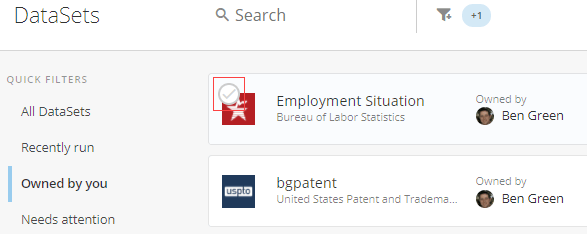
4. Mouse over the row for the DataFlow and click the circled checkmark that pops up over the connector icon.
 5. In the blue bar that appears at the top of the screen, click the
icon.
6. Select **Delete**.
5. In the blue bar that appears at the top of the screen, click the
icon.
6. Select **Delete**.
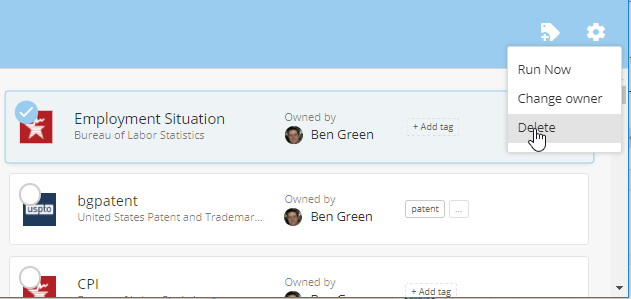 All of the DataFlows you have selected should now be deleted.