> ## Documentation Index
> Fetch the complete documentation index at: https://domoinc-openapi-sync-dataflows.mintlify.site/llms.txt
> Use this file to discover all available pages before exploring further.
# Troubleshoot Domo
export const InlineImage = ({src, alt = '', height = '1.6em'}) => {
return  ;
};
## Intro
This article contains troubleshooting information, such as forgotten passord, missing access to a Domo feature, and others.
***
# Forgotten Password
If you forget your password to log in to Domo, you can change it from the signing dialog, as long as you know the email address you use to log in. For more information, see [Changing Your Password](http://domo-support.domo.com/s/article/360043427513?language=en_US).
If you cannot remember your login email address, ask someone who can log in to tell you what email address displays for you in your user profile.
;
};
## Intro
This article contains troubleshooting information, such as forgotten passord, missing access to a Domo feature, and others.
***
# Forgotten Password
If you forget your password to log in to Domo, you can change it from the signing dialog, as long as you know the email address you use to log in. For more information, see [Changing Your Password](http://domo-support.domo.com/s/article/360043427513?language=en_US).
If you cannot remember your login email address, ask someone who can log in to tell you what email address displays for you in your user profile.
 # Expired Password
If your password has expired or is expiring, you can reset it. To learn how, see [Changing Your Password](http://domo-support.domo.com/s/article/360043427513?language=en_US).
# Change the Password for a Connector Account
For connectors that require you to enter account credentials manually (as opposed to using OAuth), you can edit the password for the account in the **Accounts** section of the Data Center.
1. From the navigation header, select **Data.**
2. In the left navigation menu, select
**Accounts**.
3. Hover over the entry you want to edit, then select **Edit**.
4. Edit the credentials in the appropriate fields.
5. Select **Save Changes**.
For more information, see [Manage Connector Accounts.](http://domo-support.domo.com/s/article/360042926054?language=en_US)
# Map Area with Data Not Displaying
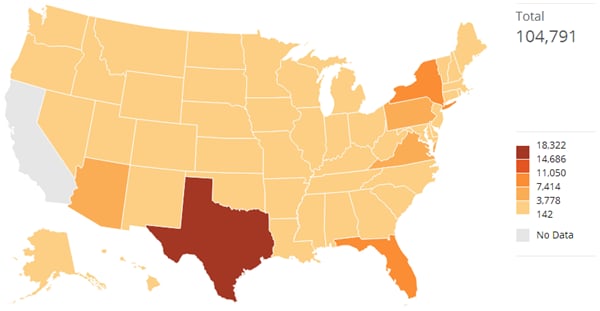
When data does not display for an area of a map, that area appears grayed out and the legend indicates there is no data. In the example below, California indicates no data.
# Expired Password
If your password has expired or is expiring, you can reset it. To learn how, see [Changing Your Password](http://domo-support.domo.com/s/article/360043427513?language=en_US).
# Change the Password for a Connector Account
For connectors that require you to enter account credentials manually (as opposed to using OAuth), you can edit the password for the account in the **Accounts** section of the Data Center.
1. From the navigation header, select **Data.**
2. In the left navigation menu, select
**Accounts**.
3. Hover over the entry you want to edit, then select **Edit**.
4. Edit the credentials in the appropriate fields.
5. Select **Save Changes**.
For more information, see [Manage Connector Accounts.](http://domo-support.domo.com/s/article/360042926054?language=en_US)
# Map Area with Data Not Displaying
When data does not display for an area of a map, that area appears grayed out and the legend indicates there is no data. In the example below, California indicates no data.
 If there is data for the area, then the map may not be properly connected to the data, due to an incorrect name or code. To fix this, change the name or code for that area of the map. Refer to the list of supported names and codes for the map you are using. For more information on supported names and codes, see [Continental and Regional Maps](http://domo-support.domo.com/s/article/360043429013?language=en_US) and [U.S. State and County Maps](http://domo-support.domo.com/s/article/360042925074?language=en_US).
You can do one of the following:
* Change the value in the DataSet.
* Use a Beast Mode calculation to rename the value (in a new, transformed column), then set the area column name (state, country, and so on) to use the transformed column.
For example, to transform a "broken" area, you could use the CASE function, as in the the following example of a calculation named "RenState" that renames mispellings of "Californai" in the **State** column to "California" in the **RenState** column.
If there is data for the area, then the map may not be properly connected to the data, due to an incorrect name or code. To fix this, change the name or code for that area of the map. Refer to the list of supported names and codes for the map you are using. For more information on supported names and codes, see [Continental and Regional Maps](http://domo-support.domo.com/s/article/360043429013?language=en_US) and [U.S. State and County Maps](http://domo-support.domo.com/s/article/360042925074?language=en_US).
You can do one of the following:
* Change the value in the DataSet.
* Use a Beast Mode calculation to rename the value (in a new, transformed column), then set the area column name (state, country, and so on) to use the transformed column.
For example, to transform a "broken" area, you could use the CASE function, as in the the following example of a calculation named "RenState" that renames mispellings of "Californai" in the **State** column to "California" in the **RenState** column.
`` CASE `State` ``
`when 'Californai' then 'California'`
``else `State` ``
`end `
For more information about Beast Mode, see [Create a Beast Mode Calculation](/s/article/360043429913).
# Missing Access to a Domo Feature
The most likely reason for this is that you do not have sufficient rights to access the feature you want. The default security roles in Domo are Admin, Privileged, Editor, Participant, and Social. Each security role has specific grants to certain features. Users with Participant and Social roles generally have view-only access. Users with an Admin role have access to all features, cards, and dashboards in their company instance.
For a list of grants in Domo and the associated access levels, see [Default Security Role Reference](/s/article/360043438953 "Security Role Reference"). You can also create custom roles in which you specify the privileges available to users with that role. For more information, see Managing Custom Roles.
# Sorting Errors
#### Pie and Donut Charts
By default, you cannot use the **Sorting** menu to change the order in which slices appear in pie and donut charts. However, if you check the **Unsorted Data** box in **Chart Properties**, you can use **Sorting** to change the sort order.
For more information about die and donut charts, see [Sorting the Data in Your Chart](/s/article/360043428733 "Pie Graph").
#### Funnel Bars/Folded Funnel Charts
Because funnel bars and folded funnel charts are intended to show data dropping off through a series of stages, the data is automatically sorted from highest to lowest value. You cannot change the sorting in these chart types. However, you can change the sorting in standard funnel charts.
For more information about funnel charts, see [Sorting the Data in Your Chart](/s/article/360043428733 "Funnel Graph").
# Spreadsheet Error After Renaming
When updating a spreadsheet, Domo uses the name of the spreadsheet and the worksheet to update data. For more information, see [Updating or Refreshing the DataSet for a Visualization Card](/s/article/360043429893 "Updating or Refreshing the DataSet for a KPI Card").
If you have to rename the worksheet, Domo may be unable to update the data from the spreadsheet. You can revert to the old name of the worksheet, and then update the spreadsheet.
# Truncated Text in Spreadsheets
Domo has a 1024-character limit for columns. Any additional characters are truncated. You can get around this by splitting the text between two columns to make sure it stays within the limit. You must do this in your own data before bringing it into Domo.
You can contact [Domo Support](http://domo-support.domo.com/s/?language=en_US) to request a character-limit increase. Multiples of 1024 are preferred. Note that anything over 8100 characters can have a significant effect on performance when loading cards.
# Unable to Sync Value Scale and Data Label Values
When editing a chart, you can ensure that the values on your value scale and those in your data labels are in sync using one of the following options:
* Set number formatting using the **Format** menu (by selecting **More Options** under the value menu).
While this option syncs the numbers on the value scale and in your hover labels, it has the following drawbacks:
* Only the hover labels are affected; the permanent data labels (which you apply by selecting **Chart Properties** > **Data Label Settings** > **Show** > **Always**) are not affected.
* There are no advanced formatting options as there are in the **Chart Properties**.
* The **Format** menu items are overridden by formatting changes in **Chart Properties**.
Because of this override, Domo recommends that you use **Chart Properties** to specify formatting where possible.
* Set formatting in **Chart Properties** > **Data Label Settings** by checking the **Use scale format** and the **Use scale abbreviation** boxes. Also, ensure that **Show** > **Always** is selected.
For more information, see [Formatting Data Label and Hover Text in Your Chart](/s/article/360043429693 "Formatting Values in Your Chart").
# Unable to View a Specific Card or Dashboard
If a card or dashboard has not been shared with you, you cannot see it. Ask someone who has access to the card or dashboard to share it with you. Content that is shared with you appears on your **Shared** page. For more information, see [Sharing and Removing Access to Cards and Dashboards](http://domo-support.domo.com/s/article/360042932994?language=en_US).