> ## Documentation Index
> Fetch the complete documentation index at: https://domoinc-openapi-sync-dataflows.mintlify.site/llms.txt
> Use this file to discover all available pages before exploring further.
# Personalized Data Permissions (PDP)
export const InlineImage = ({src, alt = '', height = '1.6em'}) => {
return  ;
};
## Intro
You can create customized and secure data experiences for your Domo users by configuring Personalized Data Permissions (PDP) policies for DataSets. These policies allow you to filter data in DataSets so that people and groups can only access data applicable to them when viewing cards and DataFlows.
There are two kinds of PDP policies—row policies and column policies:
* Row policies allow you to remove rows from the data that people/groups can interact with.
* Column policies/masking allow you to hide some or all of the data in a column to help secure personally identifiable information (PII) and other sensitive values.
Additionally, depending on your organization's size, Domo offers Simple or Dynamic PDP:
* Simple PDP provides a straightforward approach to data access control, allowing Admins to assign permissions based on predefined groups, and is more suited towards smaller DataSets or organizations with strict data access needs.
* Dynamic PDP provides a more flexible solution, enabling real-time permissions adjustment based on changing user attributes. Dynamic PDP is more beneficial for larger organizations or those with evolving data access requirements.\
Learn about [Dynamic PDP](#dynamic-pdp) below.
**PDP or Publication Groups?**
In Domo, you can use PDP or Publication Groups to control who can access which data.
**PDP**
* Use PDP if you want people to interact with others in the same Domo instance
* PDP provides protection at the DataSet level
* PDP provides a customized landing page
* With PDP, people can create and view cards securely
* People not included in the PDP policy cannot access DataSets and DataFlows
* We recommend this solution for the vast majority of use cases
**Publication Groups**
* Use Publication Groups if you want people to view your data without having the ability to create with it
* Publication Groups provide protection at the dashboard level
* Publication Groups provide a forced landing page
Learn more about [Publication Groups](/s/article/360043438993).
***
## Get Started with PDP
You can use both row and column policies to protect data with PDP.
For example, if your card is powered by a DataSet with data for two regions in the United States—West and East—and you only want to give people within the West region access to data for that region (and vice versa), you can use row policies.
Create two separate row policies—"West" and "East"—and enable them. When the policies are active, people in each region see only the data for their region and no data for the other region.
You can then use column policies to mask the employee names and IDs for everyone besides admins for each region.
### PDP Around Domo
When you create a PDP row policy for a DataSet, the policy applies to other features throughout Domo, like alerts and DataFlows. This means that members of policies only have access to data assigned to them for any item powered by that DataSet. Learn more about [PDP and DataFlows/DataFusion](#pdp_and_dataflows) below. Follow this link to learn more about [PDP and Alerts](/s/article/360042934634).
### Access the PDP Interface
Follow these steps to access and make changes to PDP for a DataSet.
1. Navigate to the Data Center. In the **DataSets** section, in the list of DataSets, search for the DataSet to which you want to add PDP.
;
};
## Intro
You can create customized and secure data experiences for your Domo users by configuring Personalized Data Permissions (PDP) policies for DataSets. These policies allow you to filter data in DataSets so that people and groups can only access data applicable to them when viewing cards and DataFlows.
There are two kinds of PDP policies—row policies and column policies:
* Row policies allow you to remove rows from the data that people/groups can interact with.
* Column policies/masking allow you to hide some or all of the data in a column to help secure personally identifiable information (PII) and other sensitive values.
Additionally, depending on your organization's size, Domo offers Simple or Dynamic PDP:
* Simple PDP provides a straightforward approach to data access control, allowing Admins to assign permissions based on predefined groups, and is more suited towards smaller DataSets or organizations with strict data access needs.
* Dynamic PDP provides a more flexible solution, enabling real-time permissions adjustment based on changing user attributes. Dynamic PDP is more beneficial for larger organizations or those with evolving data access requirements.\
Learn about [Dynamic PDP](#dynamic-pdp) below.
**PDP or Publication Groups?**
In Domo, you can use PDP or Publication Groups to control who can access which data.
**PDP**
* Use PDP if you want people to interact with others in the same Domo instance
* PDP provides protection at the DataSet level
* PDP provides a customized landing page
* With PDP, people can create and view cards securely
* People not included in the PDP policy cannot access DataSets and DataFlows
* We recommend this solution for the vast majority of use cases
**Publication Groups**
* Use Publication Groups if you want people to view your data without having the ability to create with it
* Publication Groups provide protection at the dashboard level
* Publication Groups provide a forced landing page
Learn more about [Publication Groups](/s/article/360043438993).
***
## Get Started with PDP
You can use both row and column policies to protect data with PDP.
For example, if your card is powered by a DataSet with data for two regions in the United States—West and East—and you only want to give people within the West region access to data for that region (and vice versa), you can use row policies.
Create two separate row policies—"West" and "East"—and enable them. When the policies are active, people in each region see only the data for their region and no data for the other region.
You can then use column policies to mask the employee names and IDs for everyone besides admins for each region.
### PDP Around Domo
When you create a PDP row policy for a DataSet, the policy applies to other features throughout Domo, like alerts and DataFlows. This means that members of policies only have access to data assigned to them for any item powered by that DataSet. Learn more about [PDP and DataFlows/DataFusion](#pdp_and_dataflows) below. Follow this link to learn more about [PDP and Alerts](/s/article/360042934634).
### Access the PDP Interface
Follow these steps to access and make changes to PDP for a DataSet.
1. Navigate to the Data Center. In the **DataSets** section, in the list of DataSets, search for the DataSet to which you want to add PDP.
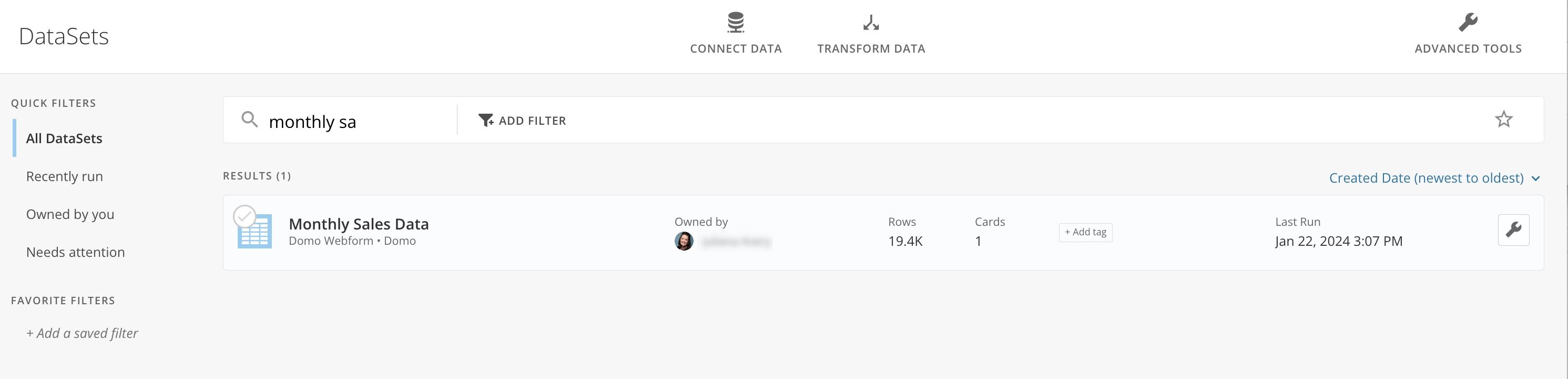 2. Select the DataSet to open its details page.
3. Go to the **PDP** tab.
2. Select the DataSet to open its details page.
3. Go to the **PDP** tab.
 Inside the **PDP** tab, there are two tabs: **Row Policies** and **Column Policies**.
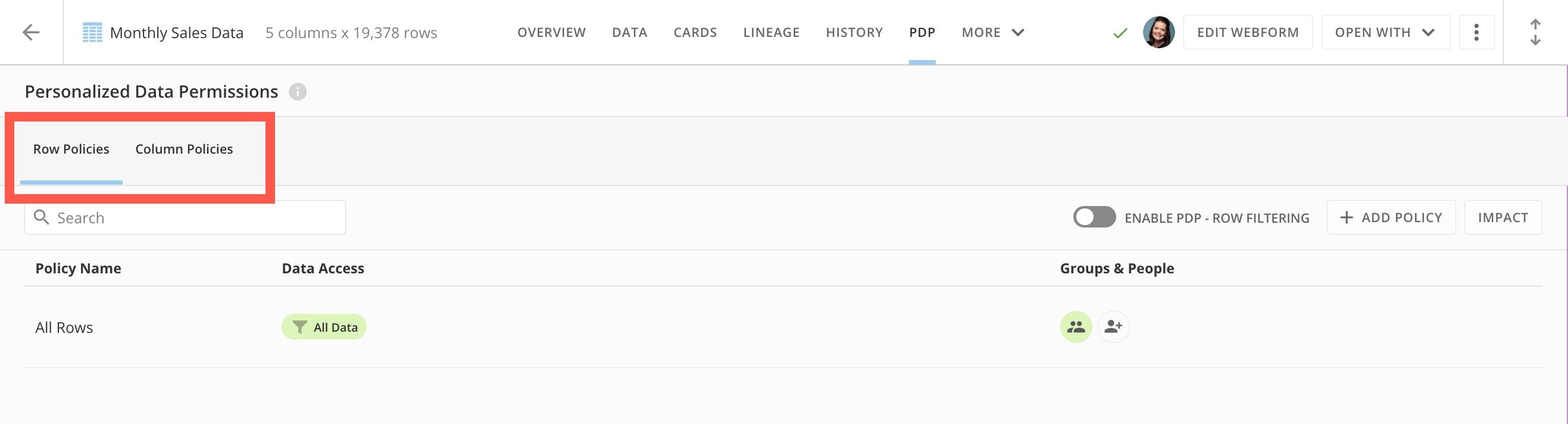 In each tab, you can view a searchable list of existing policies of that type; you can also [enable PDP](#enable_pdp) for that policy type, add a policy of that type, and view the [impact](#impact) of PDP on the DataSet.
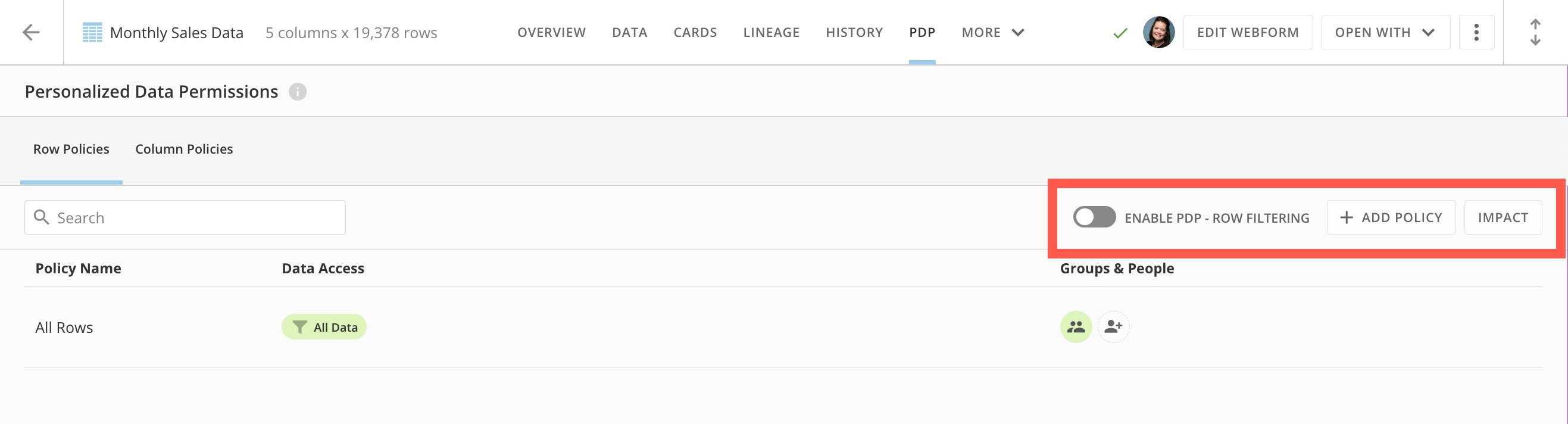 ### Enable PDP
You must enable each type of PDP to activate existing policies. You can create and save PDP policies of either type to your DataSet, but they don't take effect until you enable PDP.
For example, if you add and save a row policy to the DataSet but do not toggle the **Enable PDP — Row Filtering** switch, the system does not recognize the row policy.
**Understand impact:** We strongly recommend reviewing PDP [impact](#review-pdp-impact) before enabling PDP for a DataSet.
To enable PDP for either type, go to the appropriate tab in the **PDP** interface and toggle the switch to **Enable PDP** for row filtering or column masking.
### Enable PDP
You must enable each type of PDP to activate existing policies. You can create and save PDP policies of either type to your DataSet, but they don't take effect until you enable PDP.
For example, if you add and save a row policy to the DataSet but do not toggle the **Enable PDP — Row Filtering** switch, the system does not recognize the row policy.
**Understand impact:** We strongly recommend reviewing PDP [impact](#review-pdp-impact) before enabling PDP for a DataSet.
To enable PDP for either type, go to the appropriate tab in the **PDP** interface and toggle the switch to **Enable PDP** for row filtering or column masking.
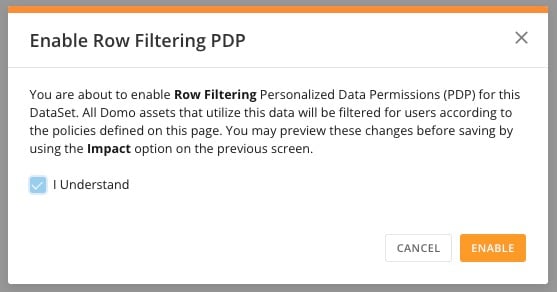
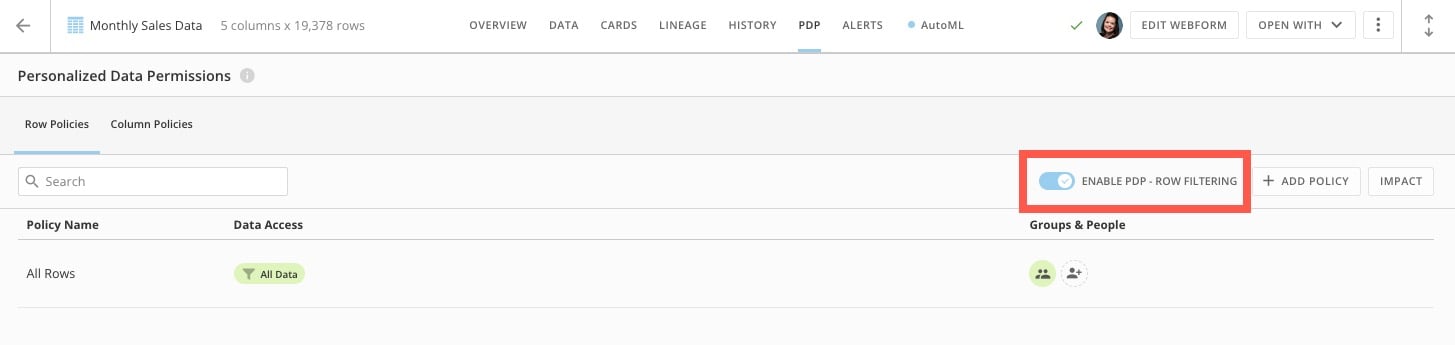 In the dialog that displays, confirm that you understand the [impact](#impact) of PDP. Select **Enable**.
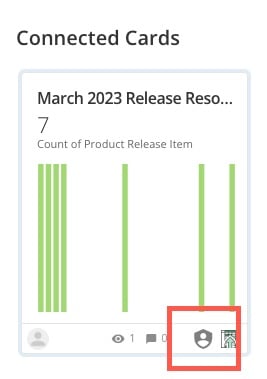
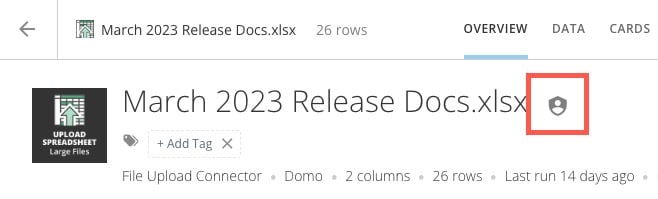
 The PDP policy is now in effect for anything in Domo powered by or associated with this DataSet. Each affected item displays a badge to inform users that PDP is in effect and they may not be viewing all of the available data.
**Note:** Each item in Domo where PDP is in effect displays a badge. If you see a badge, you might not be able to view all of the available data, depending on your permissions. In these examples, you can see the badge on a card and DataSet with active PDP policies.
The PDP policy is now in effect for anything in Domo powered by or associated with this DataSet. Each affected item displays a badge to inform users that PDP is in effect and they may not be viewing all of the available data.
**Note:** Each item in Domo where PDP is in effect displays a badge. If you see a badge, you might not be able to view all of the available data, depending on your permissions. In these examples, you can see the badge on a card and DataSet with active PDP policies.
 ### Disable PDP
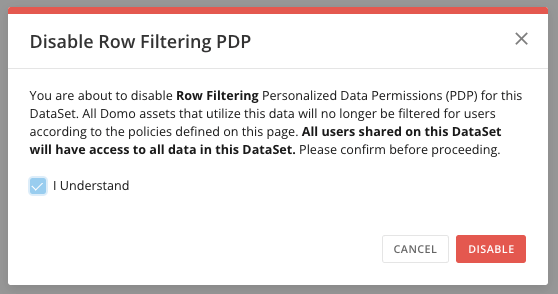
To disable row filtering or column masking PDP for a DataSet, toggle the switch in the correct tab again. Check the box to confirm that you understand the [impact](#impact) of disabling PDP and that all users with access to the DataSet will have access to all data in the DataSet, then select **Disable**.
### Disable PDP
To disable row filtering or column masking PDP for a DataSet, toggle the switch in the correct tab again. Check the box to confirm that you understand the [impact](#impact) of disabling PDP and that all users with access to the DataSet will have access to all data in the DataSet, then select **Disable**.
 ### Review PDP Impact
**Understand impact:** Before creating any PDP policy, we strongly recommend you review the impact. This is important if the DataSet is an input DataSet in any DataFlows. Learn about [PDP and DataFlows](#pdp-and-dataflows%2Fdatafusion) below.
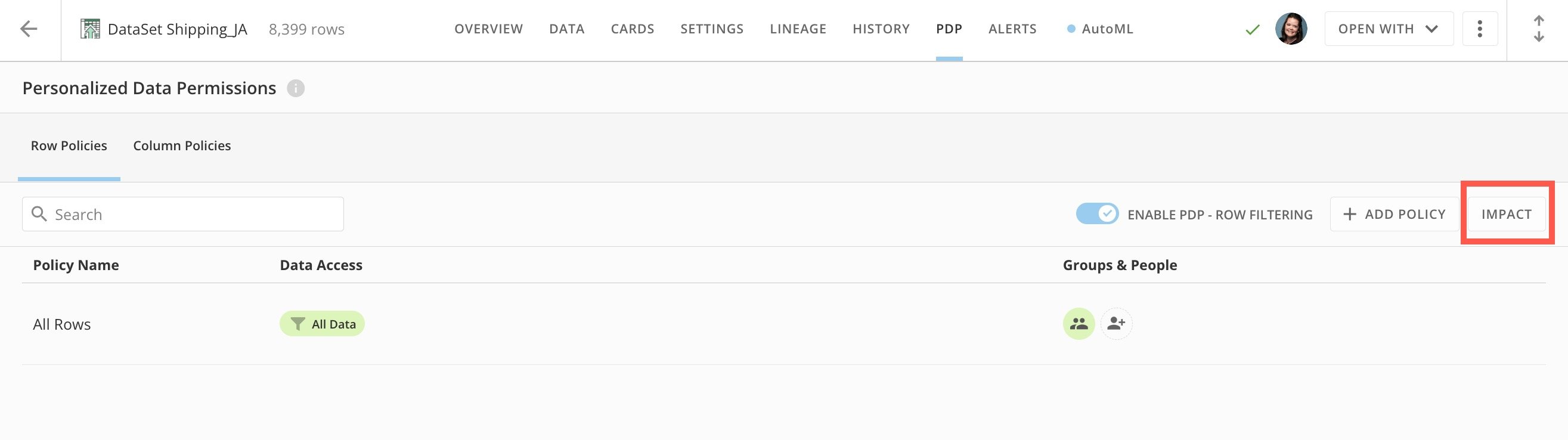
In either the **Row Policies**/**Column Policies** tab, select **Impact** to open the outcomes modal.
### Review PDP Impact
**Understand impact:** Before creating any PDP policy, we strongly recommend you review the impact. This is important if the DataSet is an input DataSet in any DataFlows. Learn about [PDP and DataFlows](#pdp-and-dataflows%2Fdatafusion) below.
In either the **Row Policies**/**Column Policies** tab, select **Impact** to open the outcomes modal.
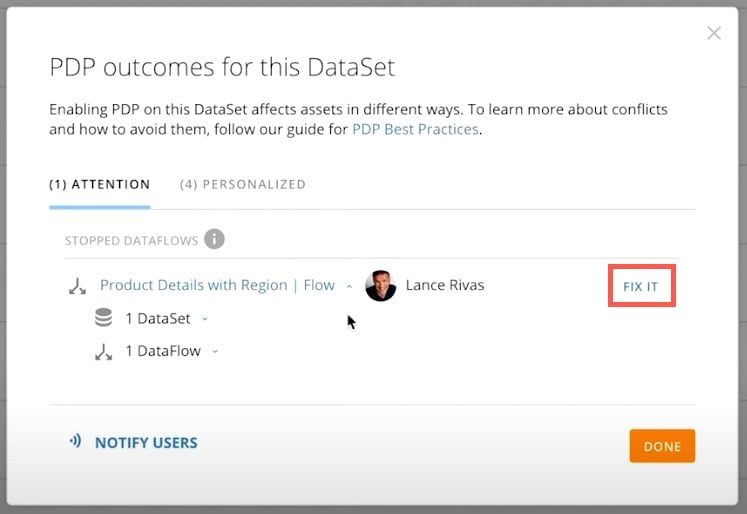
 The outcomes modal indicates how creating a PDP policy for the DataSet affects all of the assets tied to this DataSet. There are two tabs in the modal: **Attention** and **Personalized**.
* The **Attention** tab displays any DataFlows that will break if PDP is added. You can expand a DataFlow to see all included items. Select **Fix It** to add the owner of those assets to the [All Rows policy](#all_rows_policy). This prevents the DataFlow from breaking.
The outcomes modal indicates how creating a PDP policy for the DataSet affects all of the assets tied to this DataSet. There are two tabs in the modal: **Attention** and **Personalized**.
* The **Attention** tab displays any DataFlows that will break if PDP is added. You can expand a DataFlow to see all included items. Select **Fix It** to add the owner of those assets to the [All Rows policy](#all_rows_policy). This prevents the DataFlow from breaking.
 * The **Personalized** tab displays any cards that will be affected.
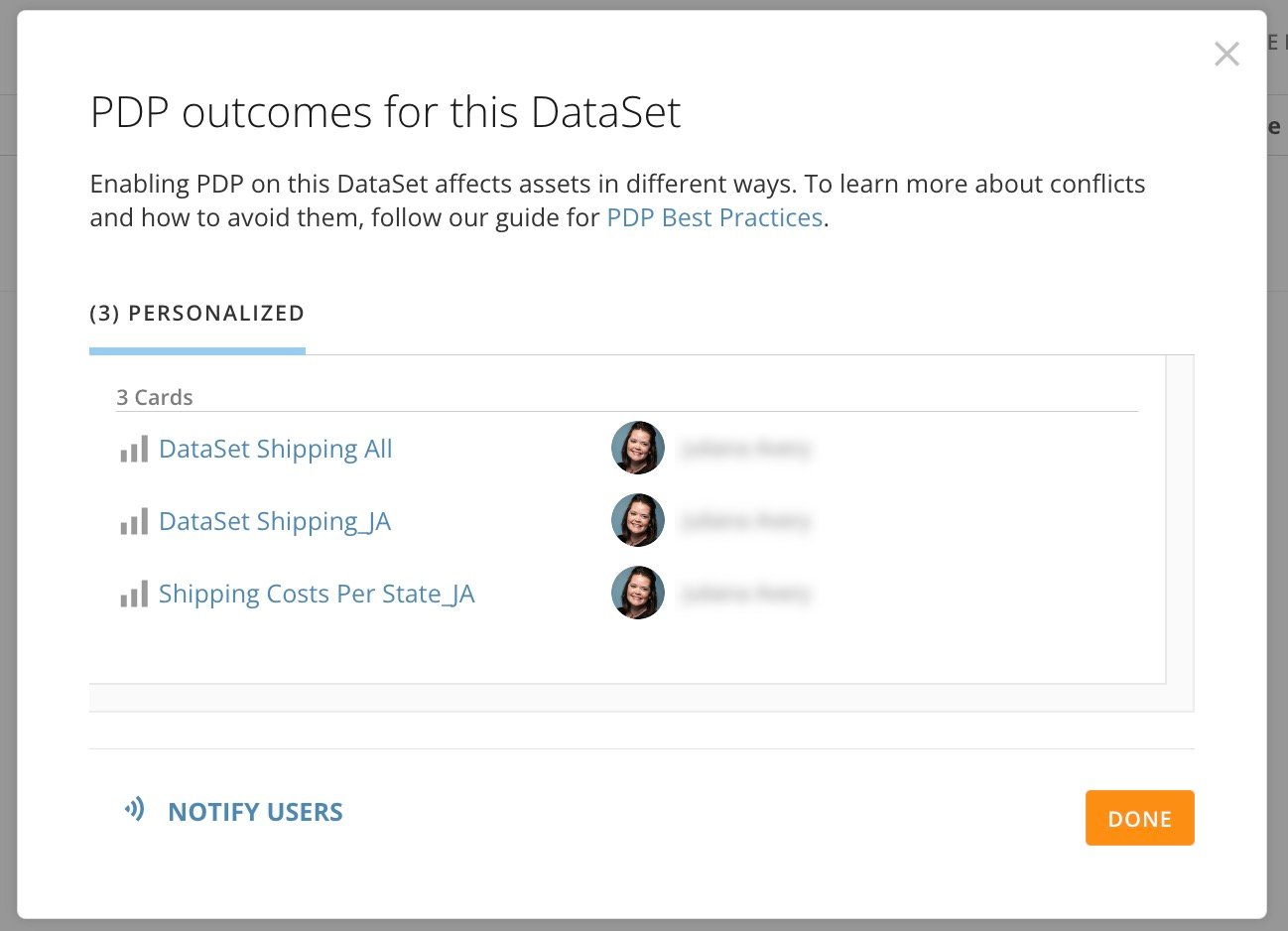 If no cards or DataFlows will be affected, the modal displays with no tabs.
When you are finished reviewing the impact, you can select **Done** to close the modal.
#### Notify Users
In the outcomes modal, you can select **Notify Users** to send a single email to the owners of all affected assets to notify them that you are updating PDP for this DataSet.
When finished, select **Done** to close the modal.
## Row Policies
In the **Rows Policies** tab, you can create PDP policies based on rows in your DataSet.
The **Row Policies** tab displays a list of all existing row policies for this DataSet. All DataSets have a default All Rows policy to give non-owners/admins access to view all data and use it to build cards and DataFlows.
### All Rows Policy
DataSet owners and admins have access to all data in a DataSet. The All Rows policy allows you to give other users and groups the same level of access. All DataSets have an existing All Rows policy.
Follow these steps to add members to the All Rows policy:
1. [Access](#access-the-pdp-interface) the **Row Policies** tab of the PDP interface.\
In the policies list, identify the **All Rows** policy.
2. For the **All Rows** policy, select **Add groups & people**.
If no cards or DataFlows will be affected, the modal displays with no tabs.
When you are finished reviewing the impact, you can select **Done** to close the modal.
#### Notify Users
In the outcomes modal, you can select **Notify Users** to send a single email to the owners of all affected assets to notify them that you are updating PDP for this DataSet.
When finished, select **Done** to close the modal.
## Row Policies
In the **Rows Policies** tab, you can create PDP policies based on rows in your DataSet.
The **Row Policies** tab displays a list of all existing row policies for this DataSet. All DataSets have a default All Rows policy to give non-owners/admins access to view all data and use it to build cards and DataFlows.
### All Rows Policy
DataSet owners and admins have access to all data in a DataSet. The All Rows policy allows you to give other users and groups the same level of access. All DataSets have an existing All Rows policy.
Follow these steps to add members to the All Rows policy:
1. [Access](#access-the-pdp-interface) the **Row Policies** tab of the PDP interface.\
In the policies list, identify the **All Rows** policy.
2. For the **All Rows** policy, select **Add groups & people**.
 The **Add groups & people** modal displays.
3. In the modal, search for and select the person or group name to add them to the policy.
The **Add groups & people** modal displays.
3. In the modal, search for and select the person or group name to add them to the policy.
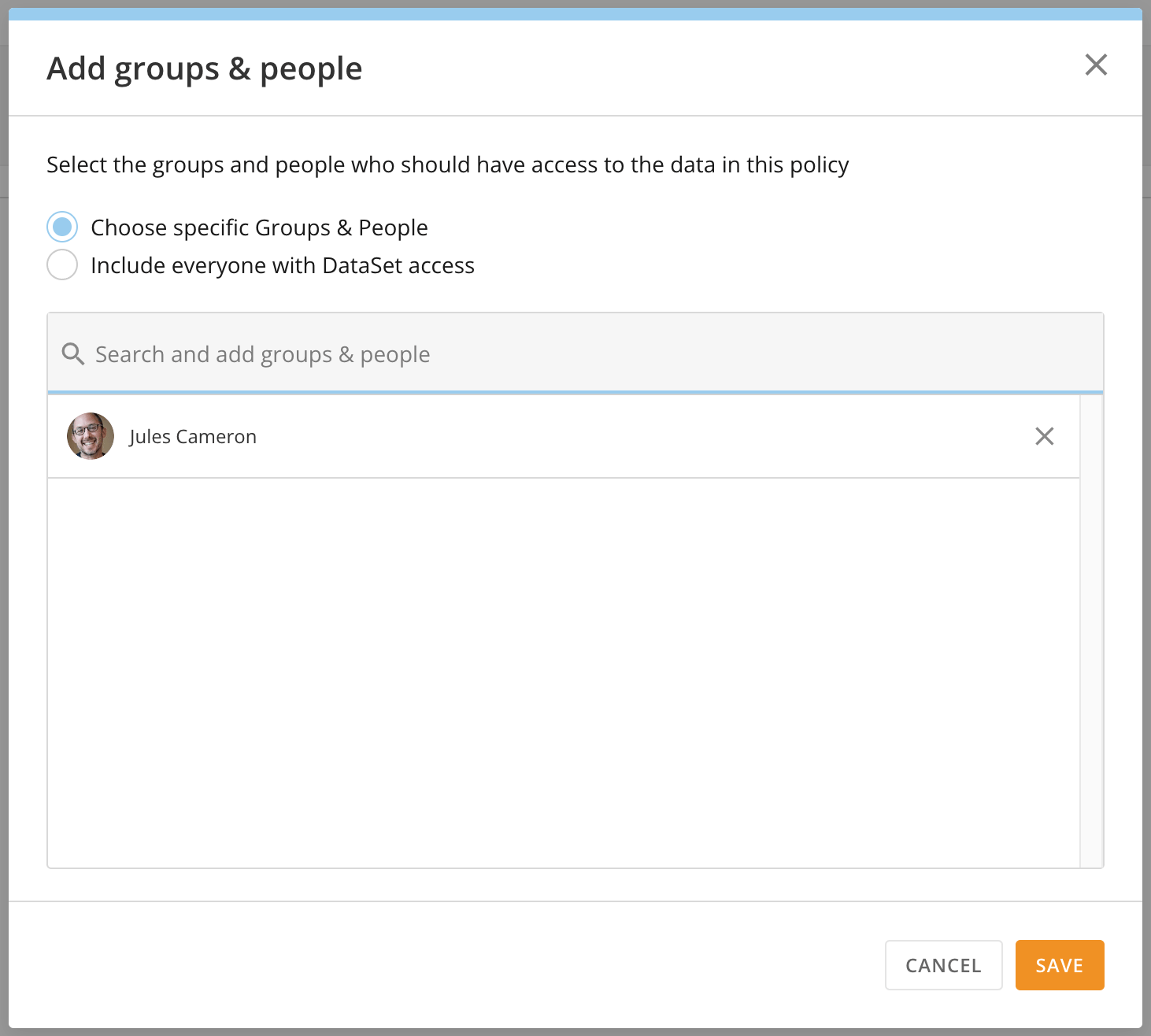 4. Select **Save** to keep your changes and close the modal.
**Important:** If this DataSet is an input DataSet in a DataFlow, we recommend adding the DataFlow owner to the All Rows policy; otherwise the DataFlow could break when creating additional PDP policies. Learn more about [PDP and DataFlows](#pdp-and-dataflows%2Fdatafusion) below.
### Manage All Rows with a DataFlow
**Note:** If you want to give people/groups view access to all of the data in a DataSet, but you don't want them to build DataFlows from the data, you can't use the All Rows policy. Instead, you can use a Magic ETL DataFlow. Follow the steps below.
1. From the details page of the DataSet, select **Open With** > **Magic ETL**.
4. Select **Save** to keep your changes and close the modal.
**Important:** If this DataSet is an input DataSet in a DataFlow, we recommend adding the DataFlow owner to the All Rows policy; otherwise the DataFlow could break when creating additional PDP policies. Learn more about [PDP and DataFlows](#pdp-and-dataflows%2Fdatafusion) below.
### Manage All Rows with a DataFlow
**Note:** If you want to give people/groups view access to all of the data in a DataSet, but you don't want them to build DataFlows from the data, you can't use the All Rows policy. Instead, you can use a Magic ETL DataFlow. Follow the steps below.
1. From the details page of the DataSet, select **Open With** > **Magic ETL**.
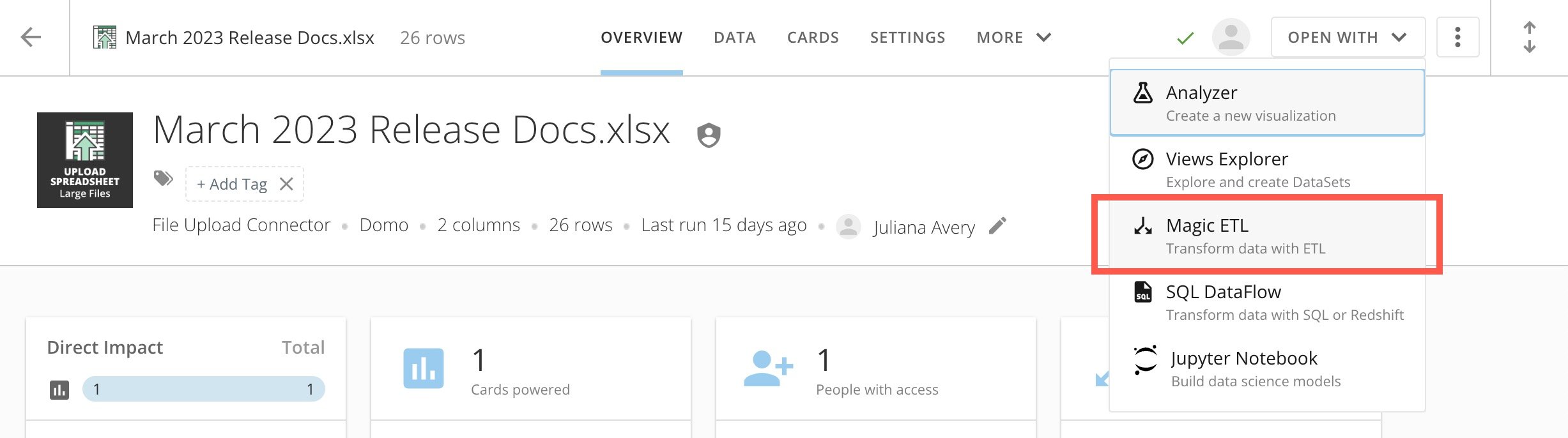 The DataSet displays on the Magic ETL canvas as the input DataSet.
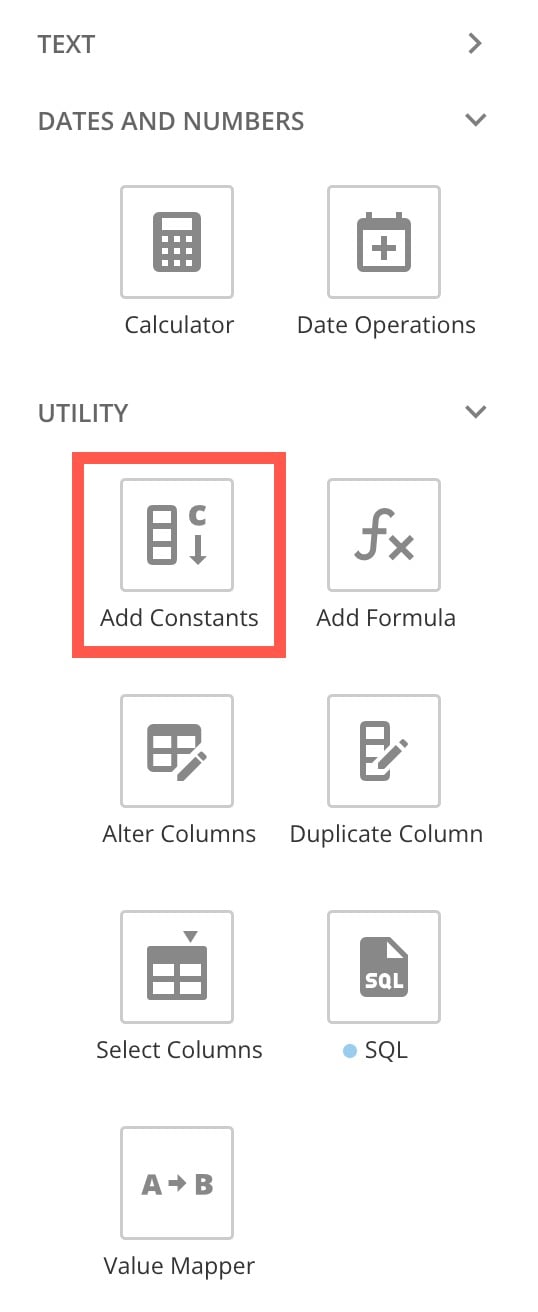
2. In the sidebar, expand the **Utility** tiles. Drag an **Add Constants** tile to the canvas and connect it to the input DataSet to expand the tile editor below the canvas.
The DataSet displays on the Magic ETL canvas as the input DataSet.
2. In the sidebar, expand the **Utility** tiles. Drag an **Add Constants** tile to the canvas and connect it to the input DataSet to expand the tile editor below the canvas.
 3. In step 1 of the tile editor, enter \`Access to All Rows\` as the name.
4. In the step 2 dropdown, choose **Text**.
5. In step 3, enter \`Yes\` as the constant value.
3. In step 1 of the tile editor, enter \`Access to All Rows\` as the name.
4. In the step 2 dropdown, choose **Text**.
5. In step 3, enter \`Yes\` as the constant value.
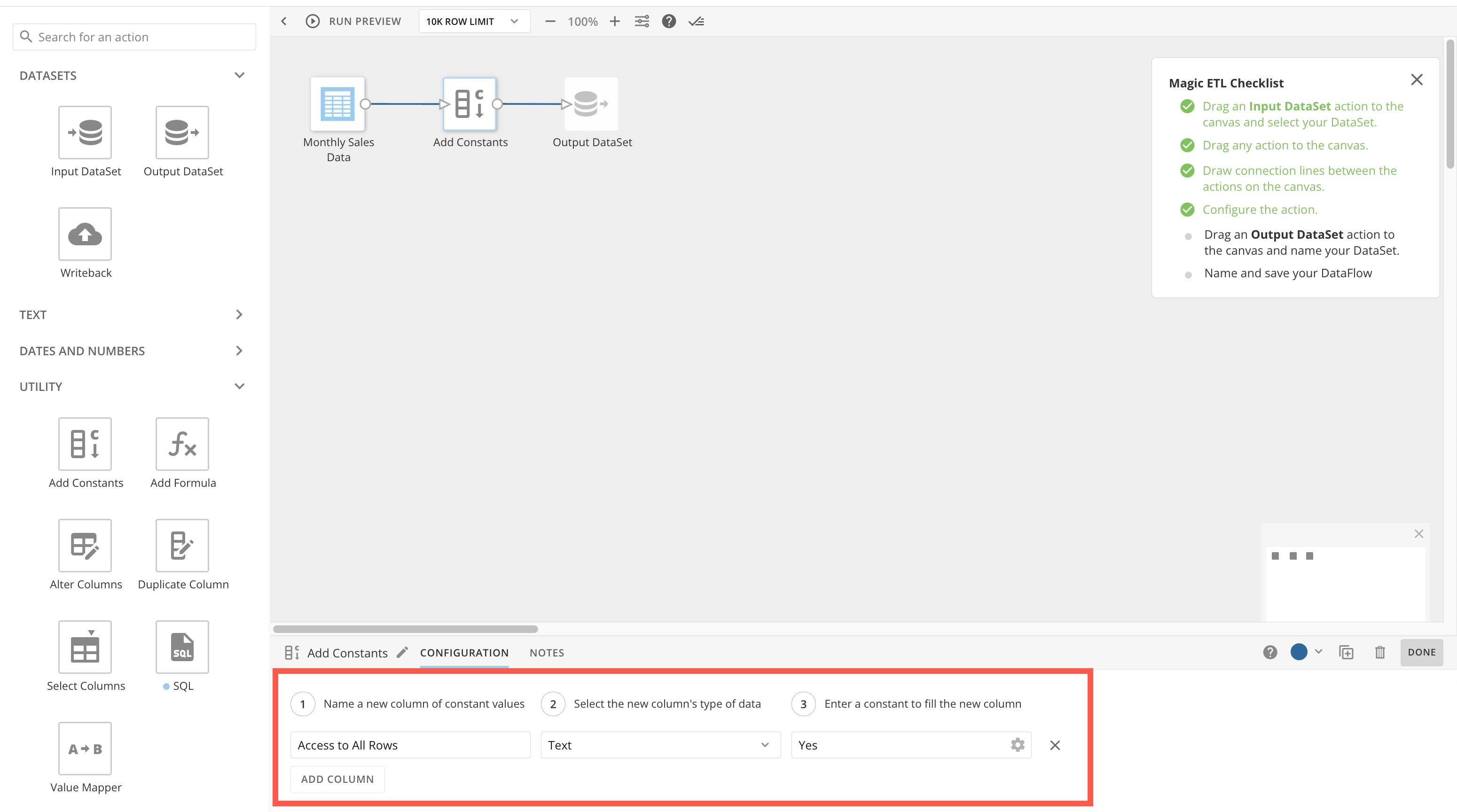 6. Create an output DataSet and connect it to the Add Constants tile.
7. Name the output DataSet.
8. Name your DataFlow and save it. You must add PDP to the output DataSet of the DataFlow. Learn about [PDP and DataFlows](#pdp_and_dataflows) below.
9. In the Data Center, navigate to the output DataSet details. Go to the **PDP** tab.
10. Select **+** **Add** **Policy** to add a new row.
11. Name the policy and select **+ Add Data** to open the **Add data access** modal.
12. In the **Column Name** dropdown, select **Access to All Rows**.
13. In the search bar, enter and select "Yes."
6. Create an output DataSet and connect it to the Add Constants tile.
7. Name the output DataSet.
8. Name your DataFlow and save it. You must add PDP to the output DataSet of the DataFlow. Learn about [PDP and DataFlows](#pdp_and_dataflows) below.
9. In the Data Center, navigate to the output DataSet details. Go to the **PDP** tab.
10. Select **+** **Add** **Policy** to add a new row.
11. Name the policy and select **+ Add Data** to open the **Add data access** modal.
12. In the **Column Name** dropdown, select **Access to All Rows**.
13. In the search bar, enter and select "Yes."
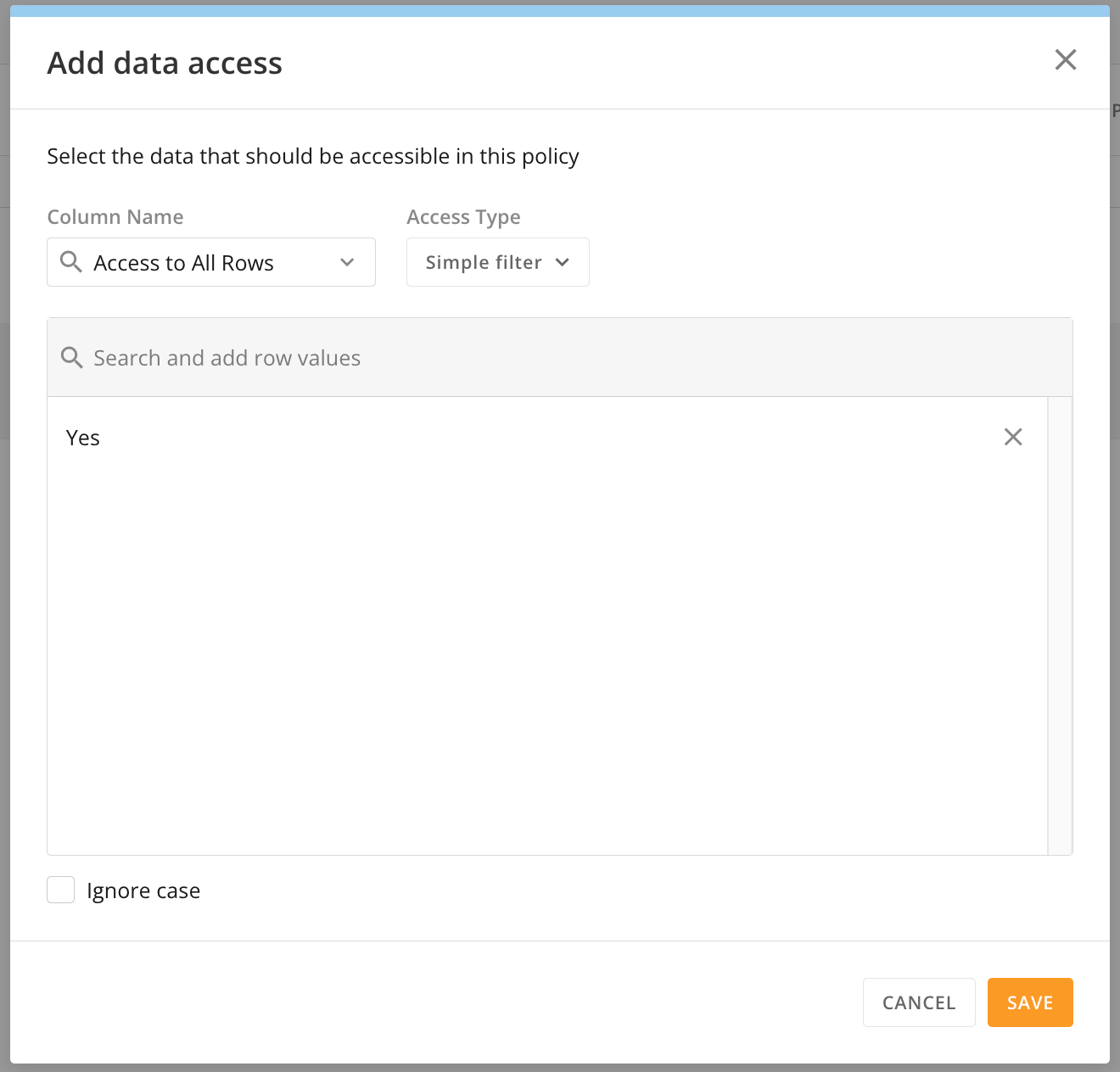 14. Select **Save** to close the modal.
15. Use the **Add groups & people** option to this policy and select **Save** when finished.
16. In the policy row, select **Save**.
14. Select **Save** to close the modal.
15. Use the **Add groups & people** option to this policy and select **Save** when finished.
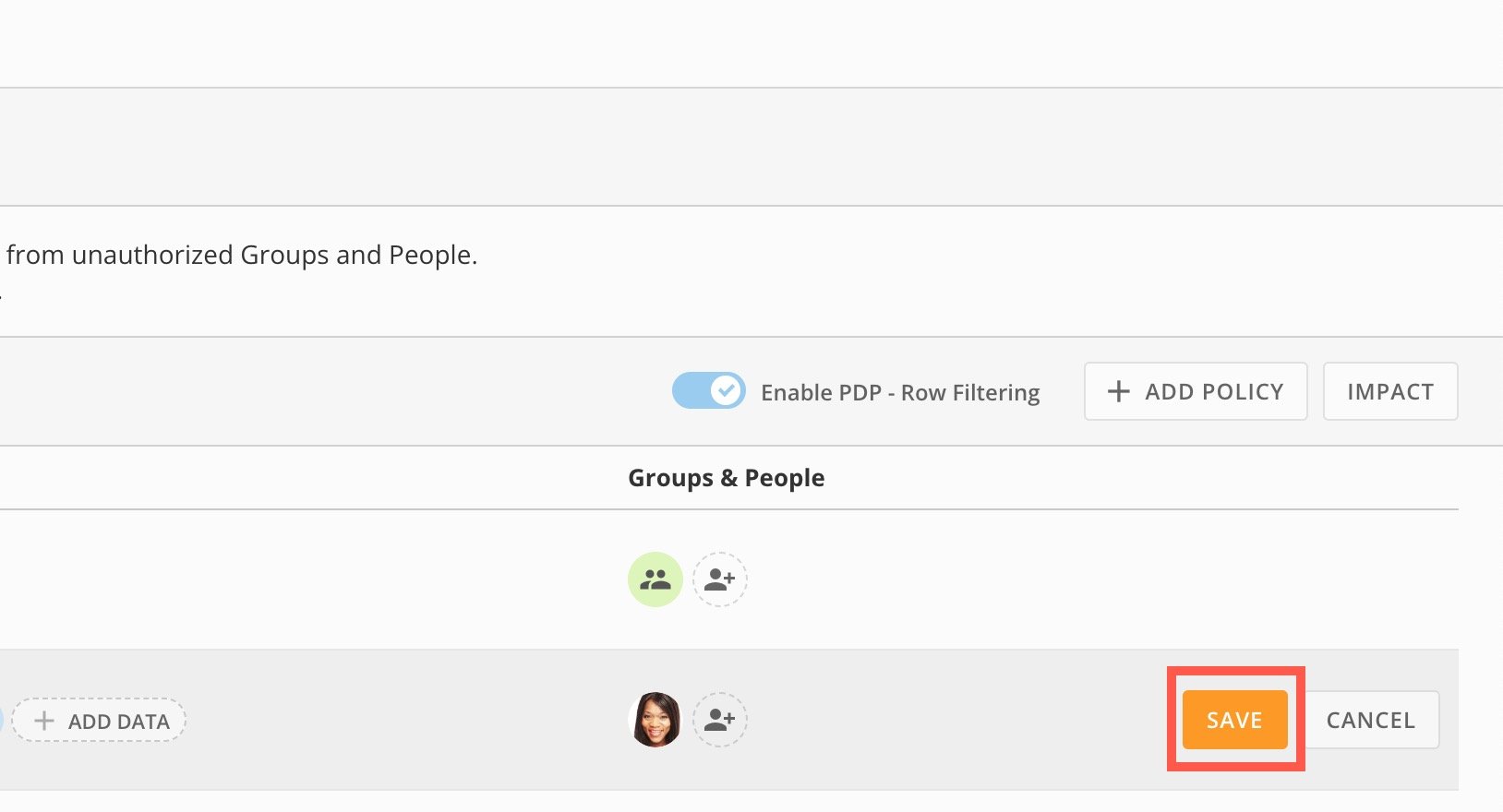
16. In the policy row, select **Save**.
 ### Row Policy Filter Types
When you create a PDP row policy, you must choose at least one of the following filters. You can choose more than one and create a multi-filtered policy, but you can only configure one filter at a time.
* **Simple filter —** This filter allows you to build your policy based on a specific column value. \
*Example:* Create one policy for the West region and a separate one for the East region. The DataSet must have a \`region\` column with values of \`West\` and \`East.\`
* **Custom filter —** This filter allows you to customize a filter for your policy using one or more rules. This filter is a good choice when a person/group should only see data within a certain date range or above/below a certain threshold.\
For a custom filter, you must configure rules. The available rules include:
* is greater than
* is less than
* is greater than or equal to
* is less than or equal to
* is between
* Begins with (This rule allows you to filter on text strings.)
* **Filter by Managed Attribute —** This filter allows you to filter data dynamically based on managed attributes in your instance such as name, email, or employee number. To learn about attributes and how to create managed attributes, see our [Attributes](/s/article/000005164) article.
### Create a Row Policy
You can add multiple policies to a DataSet, but you must create them one at a time by following the steps below.
1. [Access](#access-the-pdp-interface) the **Row Policies** tab of the PDP interface.
2. Select **+** **Add Policy** to add a row to the policy list.
### Row Policy Filter Types
When you create a PDP row policy, you must choose at least one of the following filters. You can choose more than one and create a multi-filtered policy, but you can only configure one filter at a time.
* **Simple filter —** This filter allows you to build your policy based on a specific column value. \
*Example:* Create one policy for the West region and a separate one for the East region. The DataSet must have a \`region\` column with values of \`West\` and \`East.\`
* **Custom filter —** This filter allows you to customize a filter for your policy using one or more rules. This filter is a good choice when a person/group should only see data within a certain date range or above/below a certain threshold.\
For a custom filter, you must configure rules. The available rules include:
* is greater than
* is less than
* is greater than or equal to
* is less than or equal to
* is between
* Begins with (This rule allows you to filter on text strings.)
* **Filter by Managed Attribute —** This filter allows you to filter data dynamically based on managed attributes in your instance such as name, email, or employee number. To learn about attributes and how to create managed attributes, see our [Attributes](/s/article/000005164) article.
### Create a Row Policy
You can add multiple policies to a DataSet, but you must create them one at a time by following the steps below.
1. [Access](#access-the-pdp-interface) the **Row Policies** tab of the PDP interface.
2. Select **+** **Add Policy** to add a row to the policy list.
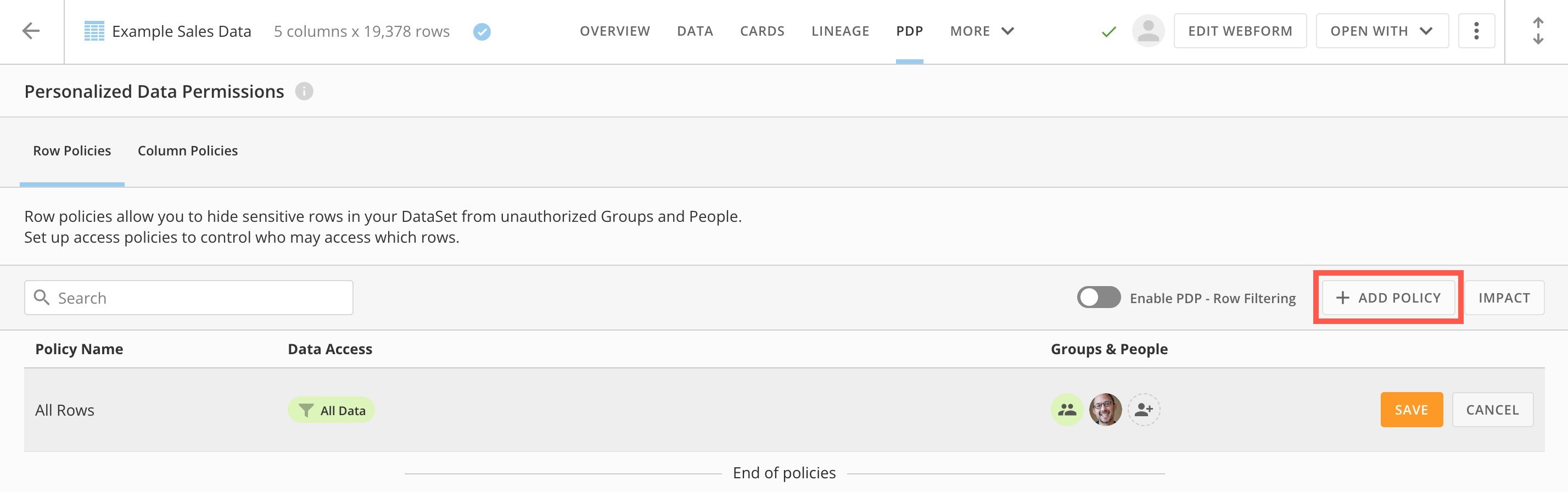 3. In the new row, enter a descriptive name for the policy.
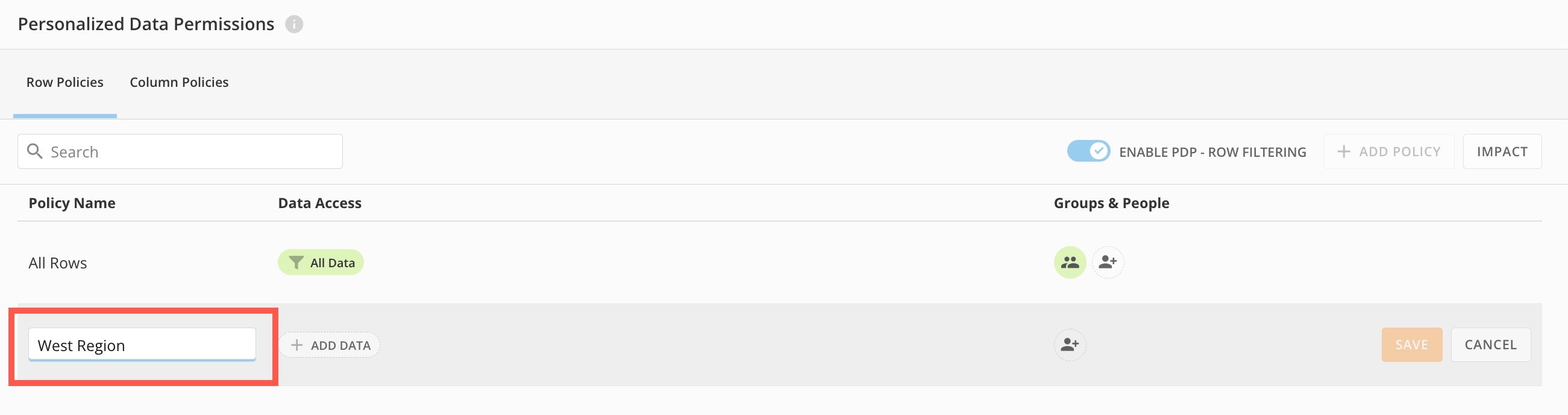 4. In the new row, select **+** **Add Data** to open the **Add data access** modal.
5. From the modal's **Column Name** dropdown, select the column in the DataSet to filter by.
4. In the new row, select **+** **Add Data** to open the **Add data access** modal.
5. From the modal's **Column Name** dropdown, select the column in the DataSet to filter by.
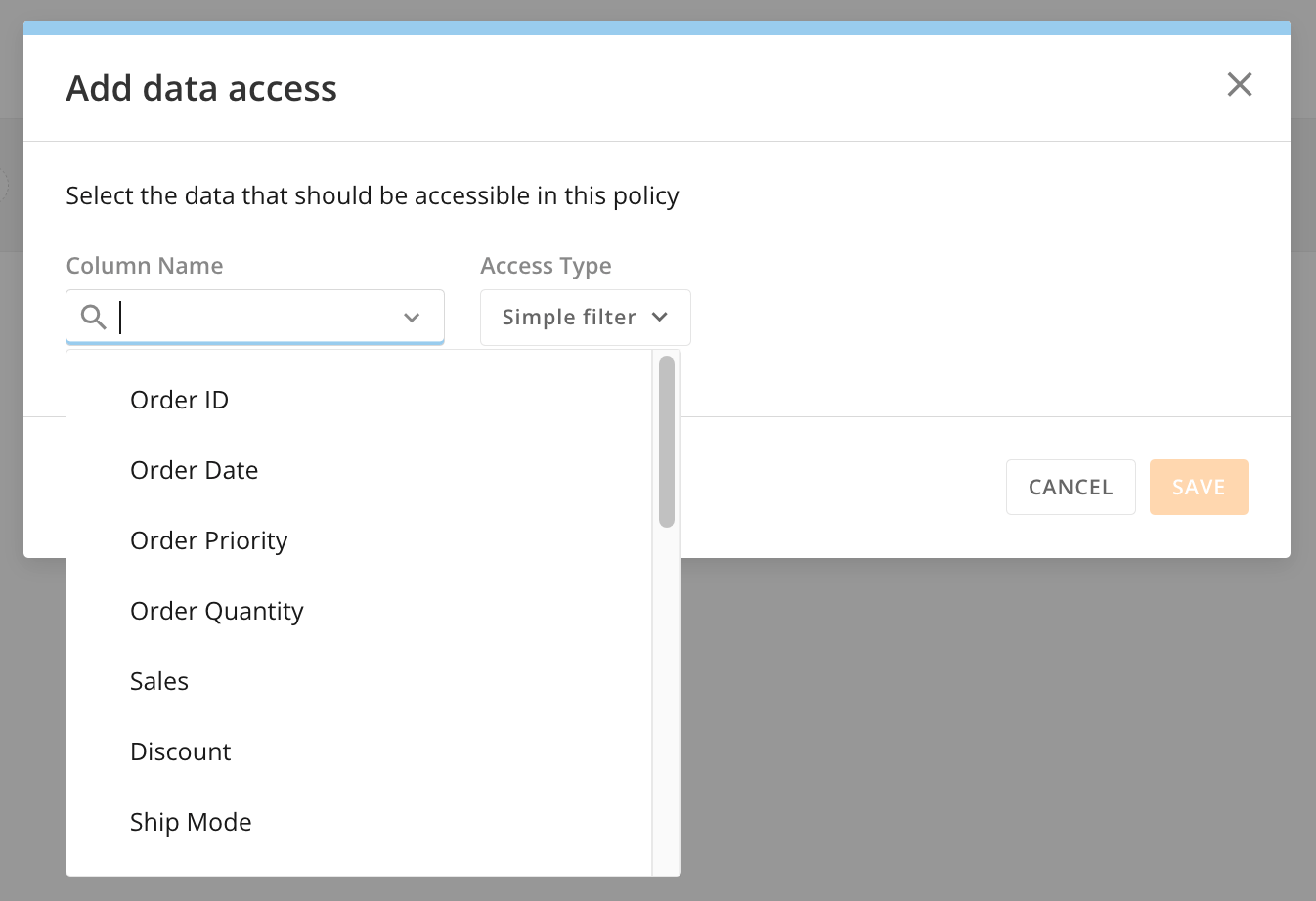 6. From the **Access Type** dropdown, choose which [filter type](#row-policy-filter-types) to use.
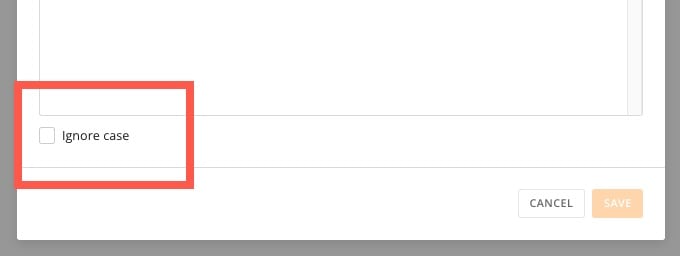
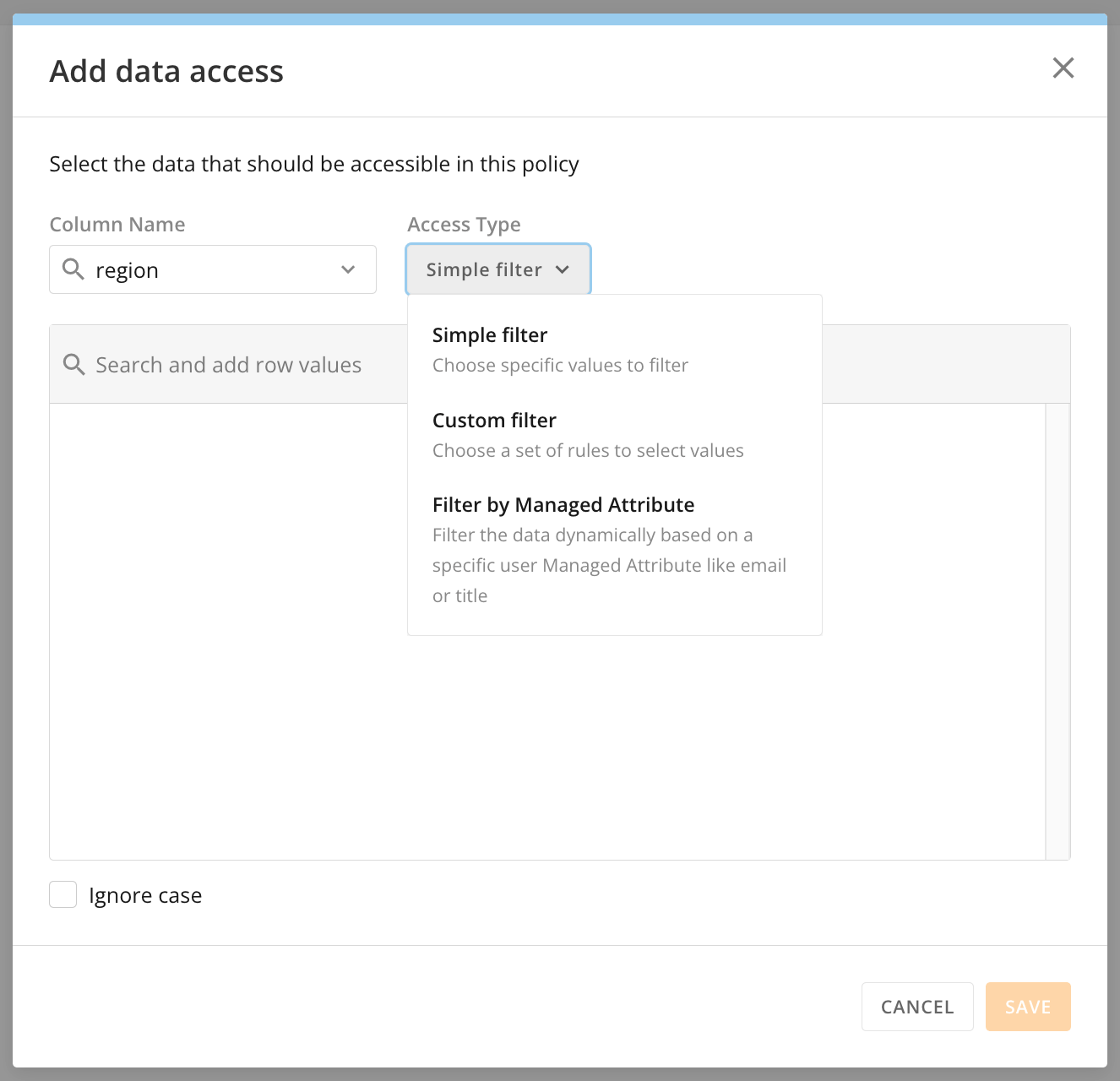 7. (Optional) Check the box labeled **Ignore case** to disable uppercase/lowercase sensitivity for your filter.
 8. Follow the steps below based on your filter type:
A. **Simple filter**
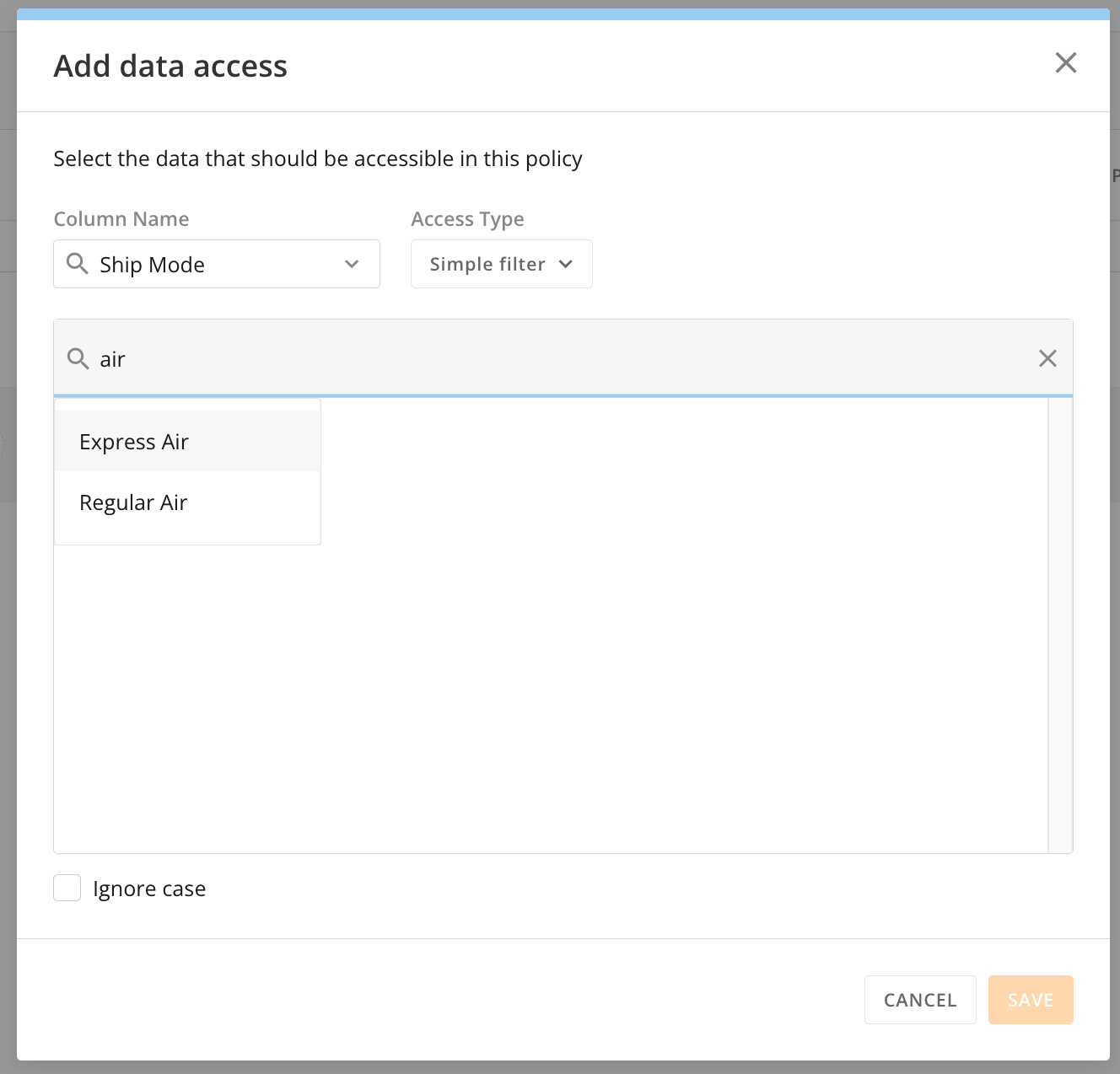
1. In the **Search and add row values** field, search for and select the row you want to filter by.
2. (Optional) Repeat the previous step to add all the rows you want to filter by.
3. When finished, select **Save** to keep your changes and close the modal.
8. Follow the steps below based on your filter type:
A. **Simple filter**
1. In the **Search and add row values** field, search for and select the row you want to filter by.
2. (Optional) Repeat the previous step to add all the rows you want to filter by.
3. When finished, select **Save** to keep your changes and close the modal.
 B. **Custom filter**
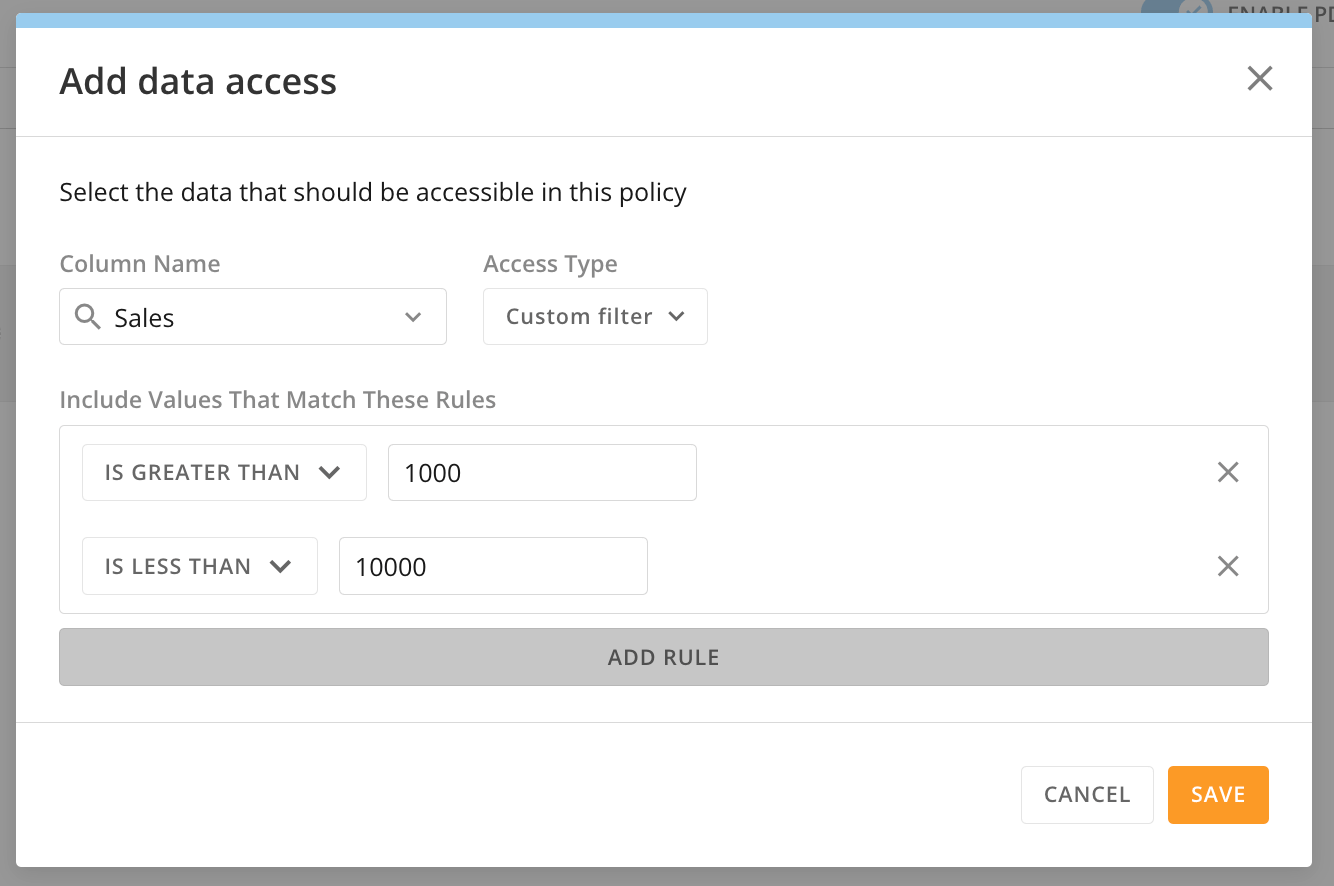
1. Under **Include Values That Match These Rules**, choose a filter condition.
2. To the right of the filter condition, enter the value or string or select the date that completes the condition.
**Note:** If you choose the **Is between** condition, two fields display—the first for the minimum value or start date, the second for the maximum value or end date.
3. (Optional) To add more rules, select **Add** **Rule** and repeat the previous steps to add all rules.
4. When finished, select **Save** to keep your changes and close the modal.
B. **Custom filter**
1. Under **Include Values That Match These Rules**, choose a filter condition.
2. To the right of the filter condition, enter the value or string or select the date that completes the condition.
**Note:** If you choose the **Is between** condition, two fields display—the first for the minimum value or start date, the second for the maximum value or end date.
3. (Optional) To add more rules, select **Add** **Rule** and repeat the previous steps to add all rules.
4. When finished, select **Save** to keep your changes and close the modal.
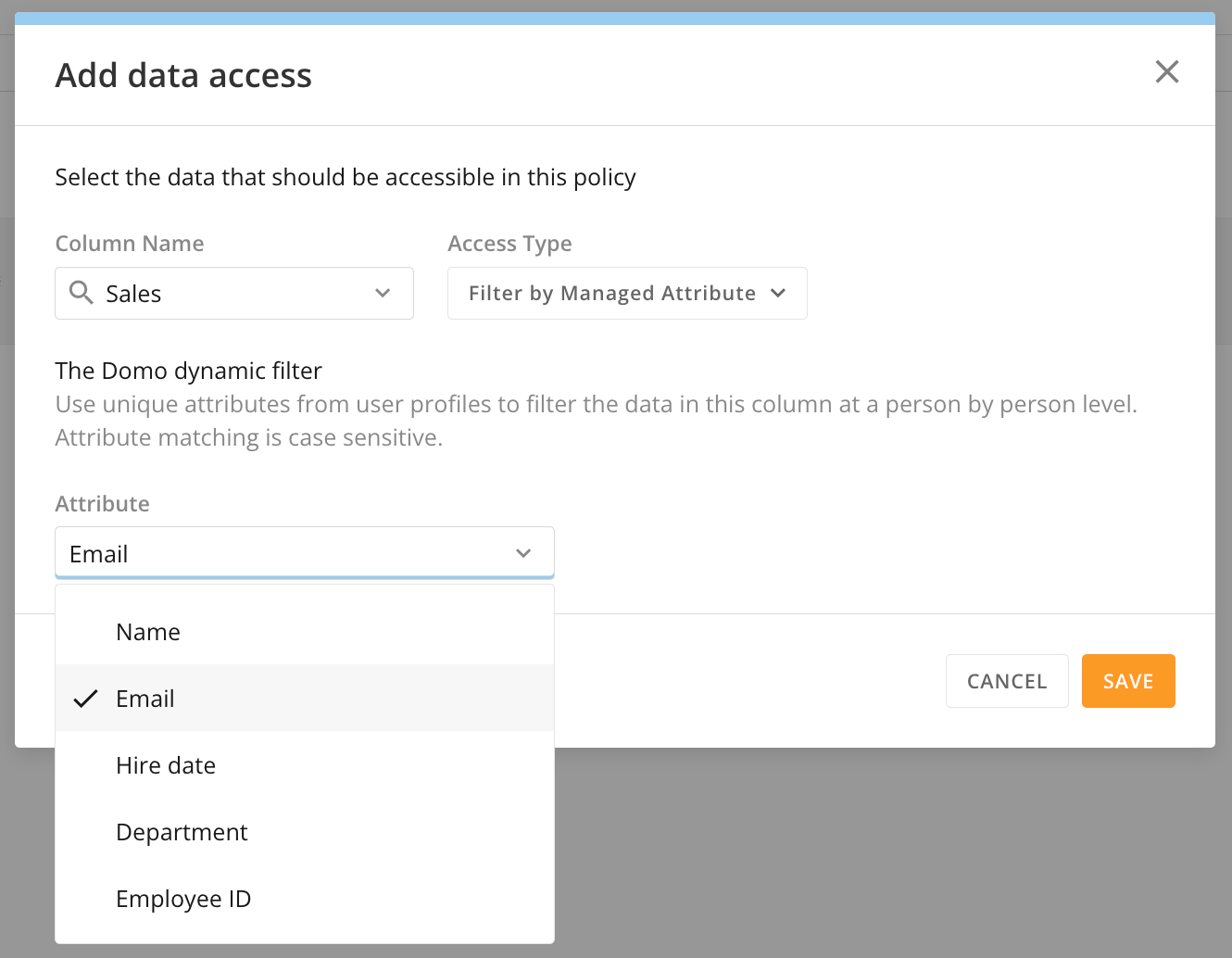
 C. **Filter by Managed Attribute**
**Note:** For this filter type to work, you must enable any managed attributes in the **Attributes** section of the governance Admin Settings. Learn about [managed attributes](/s/article/000005164#attribute-management).
1. In the **Attribute** dropdown, select the managed attribute to use as a dynamic filter.
2. When finished, select **Save** to keep your changes and close the modal.
C. **Filter by Managed Attribute**
**Note:** For this filter type to work, you must enable any managed attributes in the **Attributes** section of the governance Admin Settings. Learn about [managed attributes](/s/article/000005164#attribute-management).
1. In the **Attribute** dropdown, select the managed attribute to use as a dynamic filter.
2. When finished, select **Save** to keep your changes and close the modal.
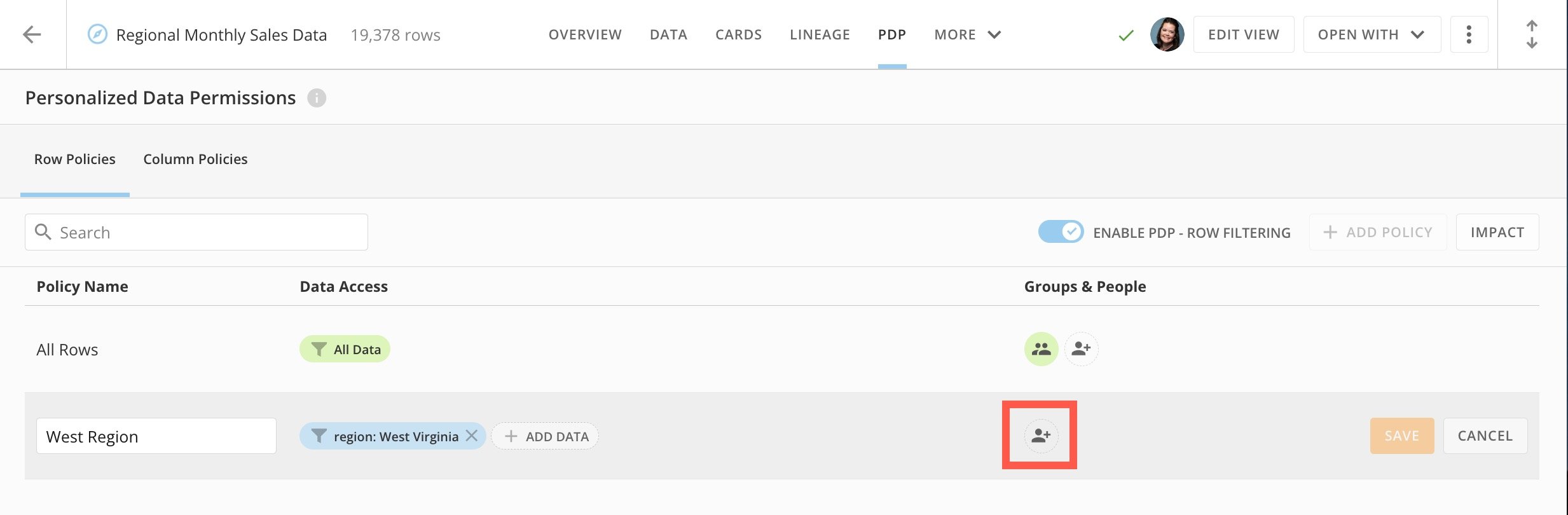
 9. Select **Add groups & people** in the new policy row to open the **Add groups & people** modal.
 10. In the modal, choose a radio button. The options are:
* Choose specific Groups & People
* Include everyone with DataSet access.
11. (Conditional) If you are choosing specific groups and people, search for and select them. We recommend using groups where possible so that when group members shift, access changes dynamically.
12. Select **Save** to keep your changes and close the modal.
13. In the policy row, select **Save**.
10. In the modal, choose a radio button. The options are:
* Choose specific Groups & People
* Include everyone with DataSet access.
11. (Conditional) If you are choosing specific groups and people, search for and select them. We recommend using groups where possible so that when group members shift, access changes dynamically.
12. Select **Save** to keep your changes and close the modal.
13. In the policy row, select **Save**.
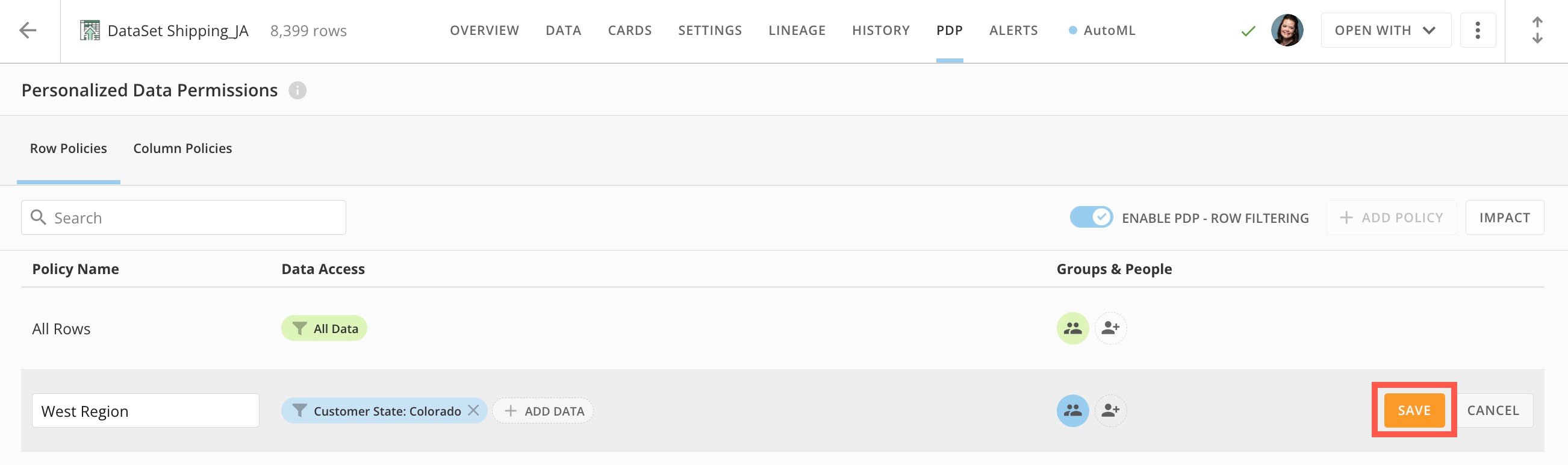 You now have a row policy. You must [enable](#enable_pdp) row filtering PDP before the policy can take effect.
### Preview Configured PDP
After you create a policy, you can preview how it affects the DataSet. We recommend previewing the data before enabling the policy.
1. In the policy list, hover over the row for the policy you want to preview and select **Preview**.
You now have a row policy. You must [enable](#enable_pdp) row filtering PDP before the policy can take effect.
### Preview Configured PDP
After you create a policy, you can preview how it affects the DataSet. We recommend previewing the data before enabling the policy.
1. In the policy list, hover over the row for the policy you want to preview and select **Preview**.
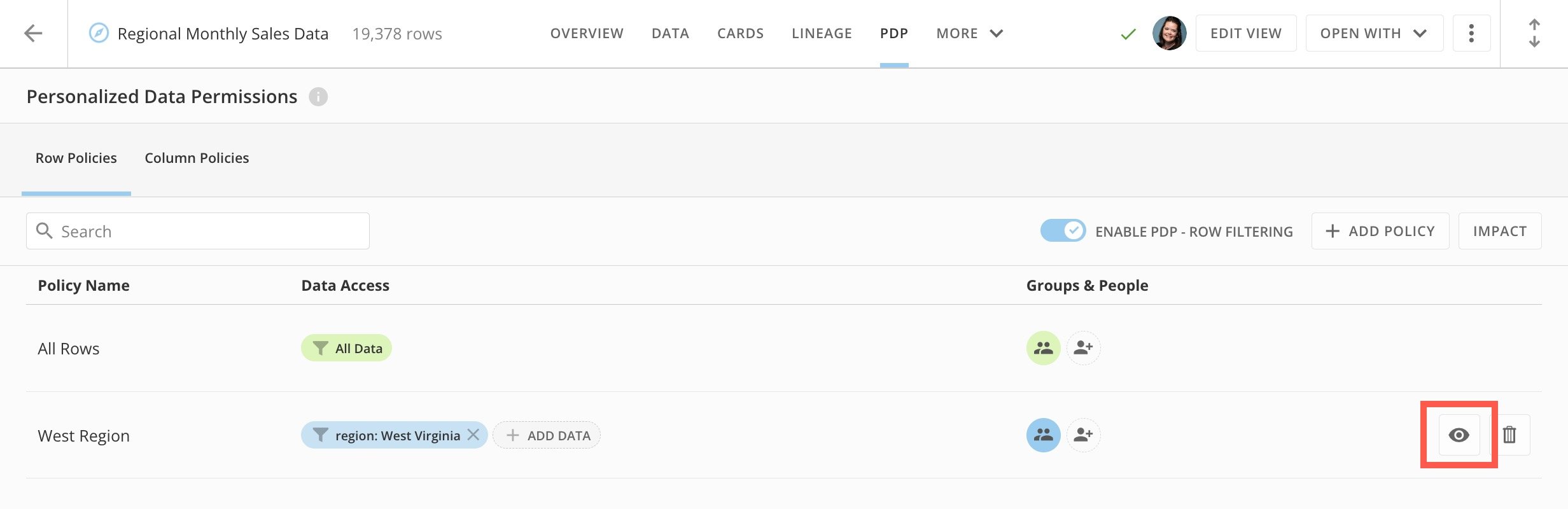 The data preview displays.
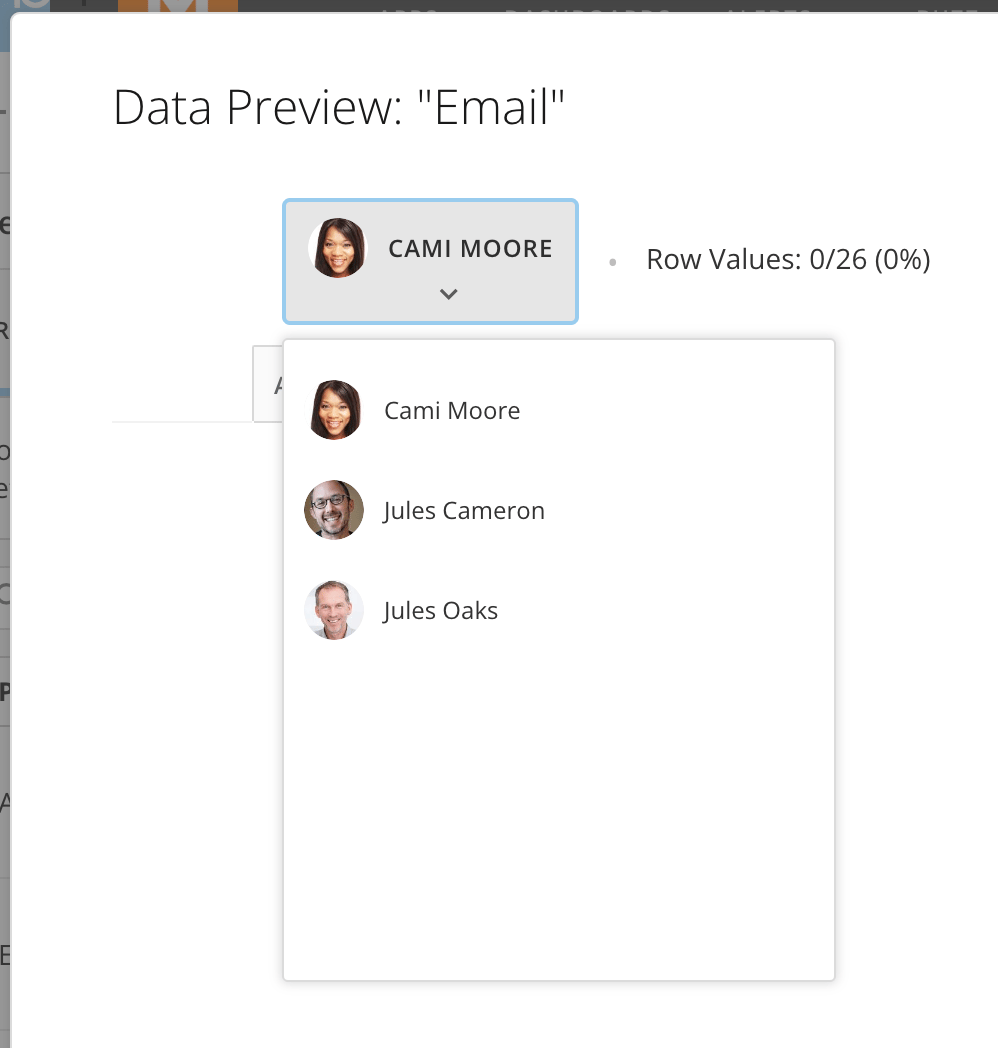
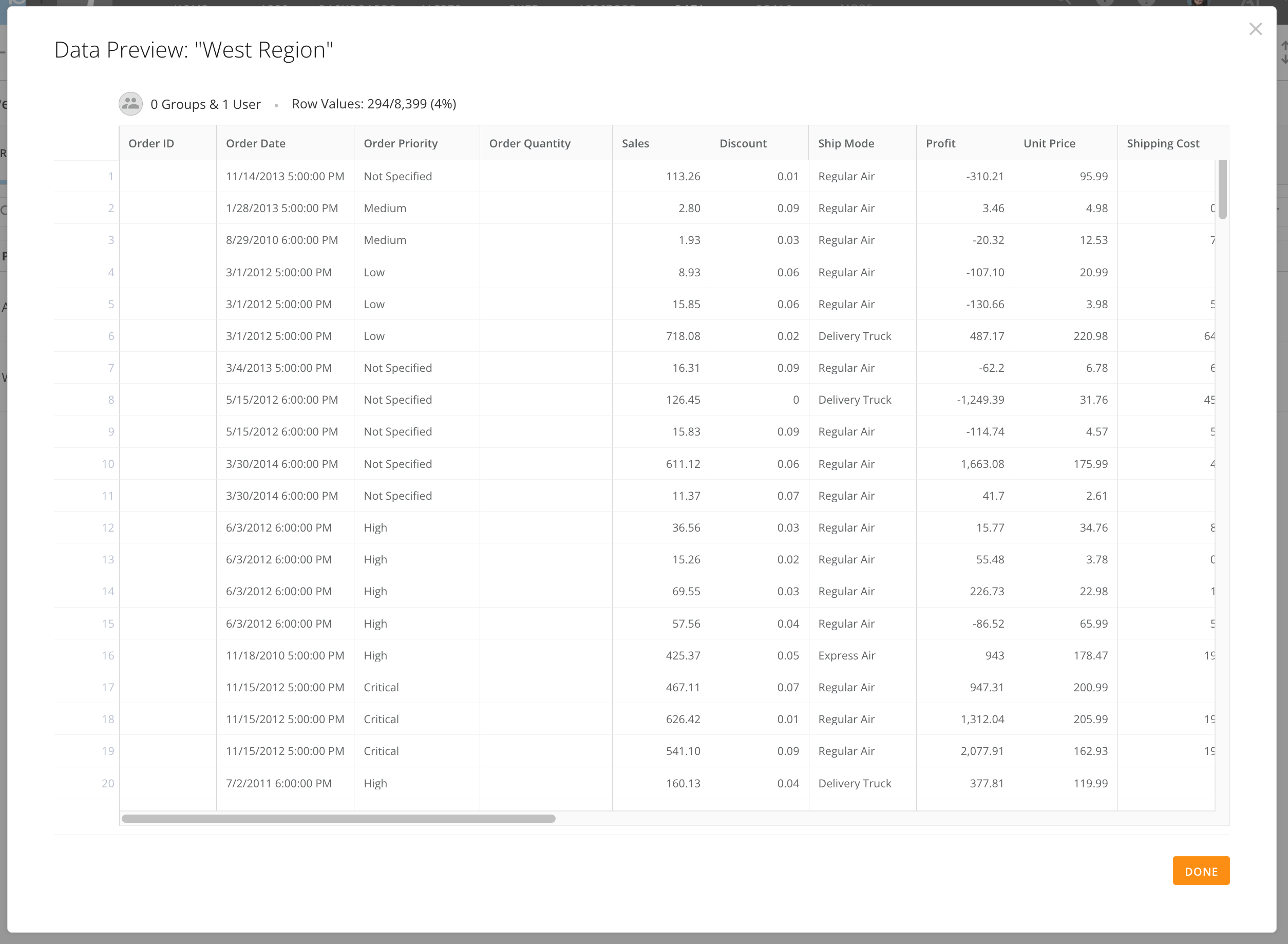 2. (Conditional) If you are filtering by managed attribute, you can choose a person from the preview dropdown to see how they view the data.
 3. Select **Done** to close the preview.
### AND/OR Logic with Multiple PDP Policies
You may want to add a person or group to multiple policies on the same DataSet. You can do this by adding a new policy, choosing the appropriate filter, and adding the needed person or group. Separate policies for the same DataSet are considered OR logic. One policy with two or more values are considered AND logic. Configuring AND/OR logic is important to make sure people and groups see all of the data they need to see.
#### OR Logic
If you add a person to two separate policies, Domo processes them as OR logic—if any row in the data passes either of the filters, the person can see that row.
For example, Person A is part of a policy based on product line—they can see all rows where the product line is \`camping equipment.\`\
Person A is then added to a policy based on order method—they can now also see all rows where the order method is \`web.\`
When Person A views cards based on this data, they have access to more data than they would have if assigned to only one of these policies. They can see rows for any product line where the order method was \`web,\` and they can see rows for any order method where the product line was \`camping equipment.\`
#### AND logic
If you add two values, \`camping equipment\` for product line and \`web\` for order method, to the same policy, Domo processes these as AND logic. Data only passes through the filters if it meets both values.
This means that if Person A is part of this policy, they can only see data for when the product line was \`camping equipment\` AND the order method was \`web.\`
### Delete a Row Policy
You can delete a row policy from inside the **Row Policies** tab in the PDP interface. When you delete a policy, it no longer applies to any assets powered by the DataSet, including alerts and DataFlows.
**Note:** You cannot delete the All Rows policy.
1. [Access](#access-the-pdp-interface) the **Row Policies** or **Column Policies** tab.
2. In the respective policy list, hover over the policy you want to delete and select **Delete**.
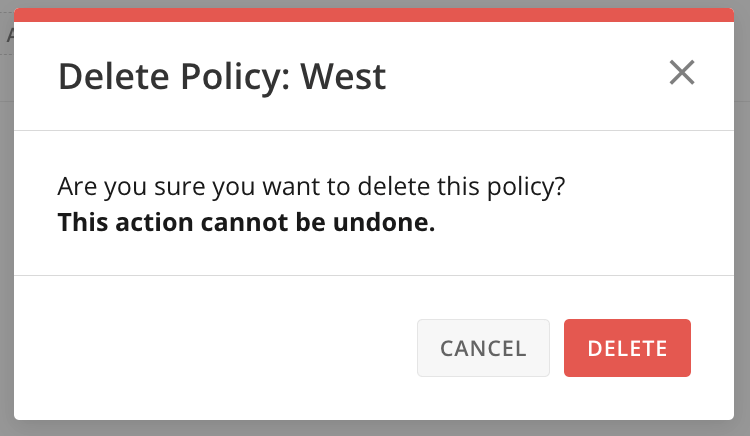
3. In the confirmation dialog, select **Delete**.
**Note:** This action cannot be undone.
3. Select **Done** to close the preview.
### AND/OR Logic with Multiple PDP Policies
You may want to add a person or group to multiple policies on the same DataSet. You can do this by adding a new policy, choosing the appropriate filter, and adding the needed person or group. Separate policies for the same DataSet are considered OR logic. One policy with two or more values are considered AND logic. Configuring AND/OR logic is important to make sure people and groups see all of the data they need to see.
#### OR Logic
If you add a person to two separate policies, Domo processes them as OR logic—if any row in the data passes either of the filters, the person can see that row.
For example, Person A is part of a policy based on product line—they can see all rows where the product line is \`camping equipment.\`\
Person A is then added to a policy based on order method—they can now also see all rows where the order method is \`web.\`
When Person A views cards based on this data, they have access to more data than they would have if assigned to only one of these policies. They can see rows for any product line where the order method was \`web,\` and they can see rows for any order method where the product line was \`camping equipment.\`
#### AND logic
If you add two values, \`camping equipment\` for product line and \`web\` for order method, to the same policy, Domo processes these as AND logic. Data only passes through the filters if it meets both values.
This means that if Person A is part of this policy, they can only see data for when the product line was \`camping equipment\` AND the order method was \`web.\`
### Delete a Row Policy
You can delete a row policy from inside the **Row Policies** tab in the PDP interface. When you delete a policy, it no longer applies to any assets powered by the DataSet, including alerts and DataFlows.
**Note:** You cannot delete the All Rows policy.
1. [Access](#access-the-pdp-interface) the **Row Policies** or **Column Policies** tab.
2. In the respective policy list, hover over the policy you want to delete and select **Delete**.
3. In the confirmation dialog, select **Delete**.
**Note:** This action cannot be undone.
 ## Column Policies
In the **Column Policies** tab, you can configure column masking policies and enable column masking for the DataSet. There are a variety of masking methods that allow you to hide part or all of the data in a field to protect sensitive information like Personally Identifiable Information (PII) from users.
### Structure and Mapping
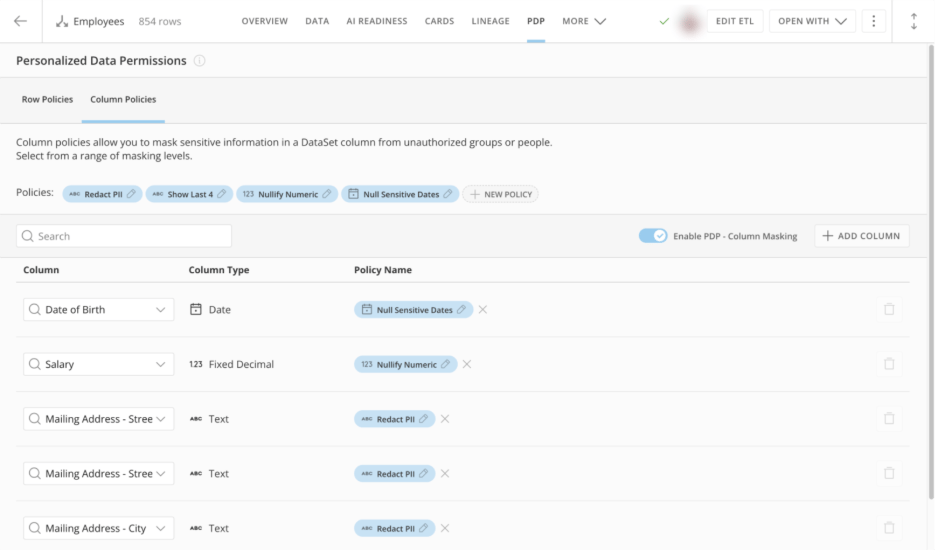
DataSets define and save column policies and can have up to 20 column policies. Policies consist of rules that assign masking methods to users or groups. Since a policy can contain multiple rules, each with its own masking method, you can define column policies to serve many stakeholders and groups with their own business needs for data access.
## Column Policies
In the **Column Policies** tab, you can configure column masking policies and enable column masking for the DataSet. There are a variety of masking methods that allow you to hide part or all of the data in a field to protect sensitive information like Personally Identifiable Information (PII) from users.
### Structure and Mapping
DataSets define and save column policies and can have up to 20 column policies. Policies consist of rules that assign masking methods to users or groups. Since a policy can contain multiple rules, each with its own masking method, you can define column policies to serve many stakeholders and groups with their own business needs for data access.
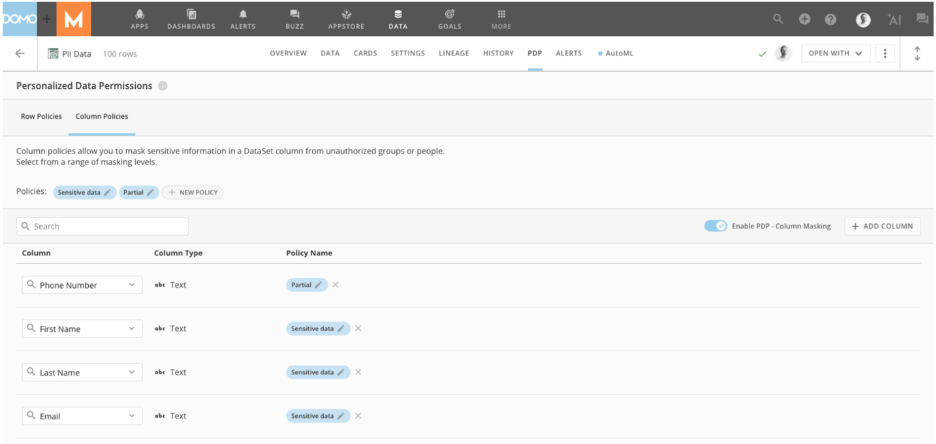 Note the definitions of these terms:
* **Masking method —** The masking method defines how you mask your data.
* **Column policy —** The column policy defines the masking methods that users and groups enforce.
* **Policy rule —** A column policy consists of rules, where each rule has a chosen masking method. You can assign rules to users and groups.
* **Rule precedence** — Rule precedence determines which rule to enforce if you have assigned a user to multiple rules. Rule precedence enforces only the highest-listed rule.
* **Default unmasked rule —** This rule exists in all column policies, and you can't remove or modify it. DataSet owners, co-owners, and users whose Domo role includes the **Manage DataSet** grant have access to this rule.
* **Default rule —** This rule exists in all column policies. All users who have access to the DataSet receive the default rule unless you assign them to another rule of higher precedence. You can't remove it, but you can configure the masking method. You can configure the default rule with the masking method appropriate to the sensitivity of the data.
**Important:** If you are a DataSet owner, a co-owner, or a user whose Domo role includes the **Mananage DataSet** grant, you always have unmasked access to the data in the DataSet.
### Masking Methods
The masking method of a column policy rule defines what users assigned to that rule see when they view data in a PDP-controlled column.
You have access to the following masking methods:
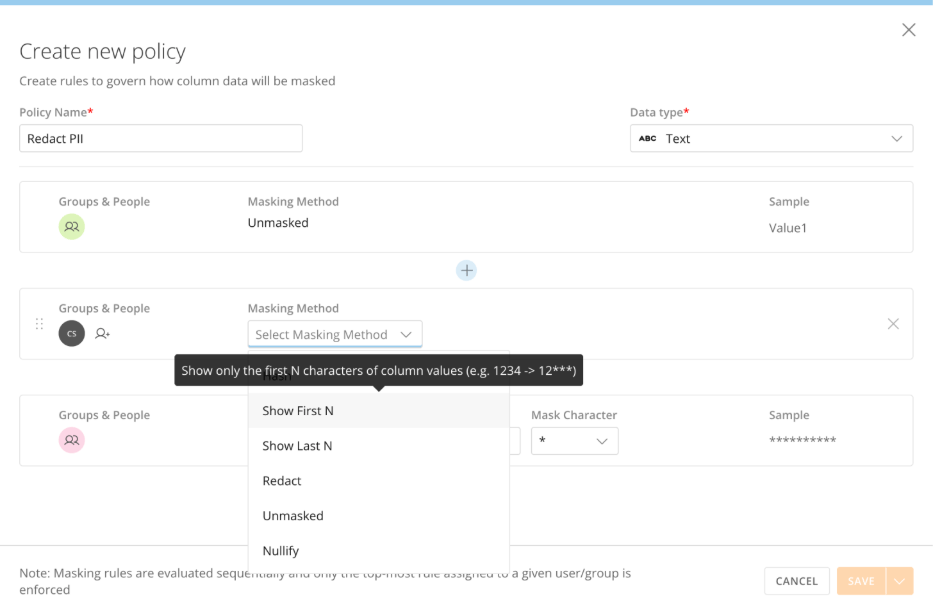
* **Hash —** This method masks your data by hashing it with one of the available hashing algorithms.\
For example: `e09c80c42f`
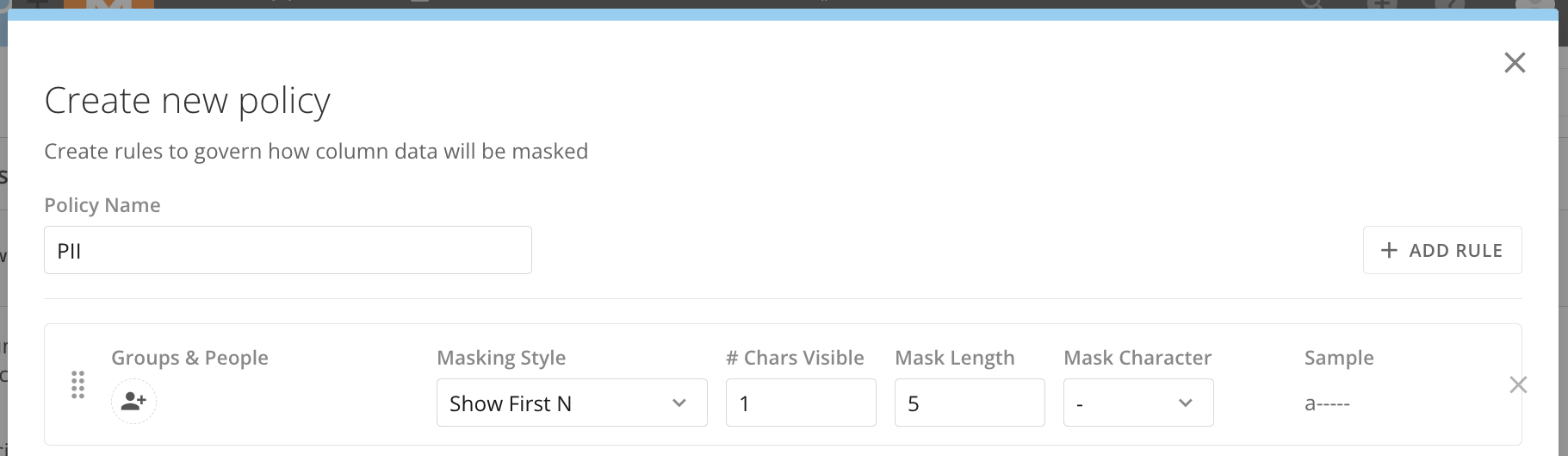
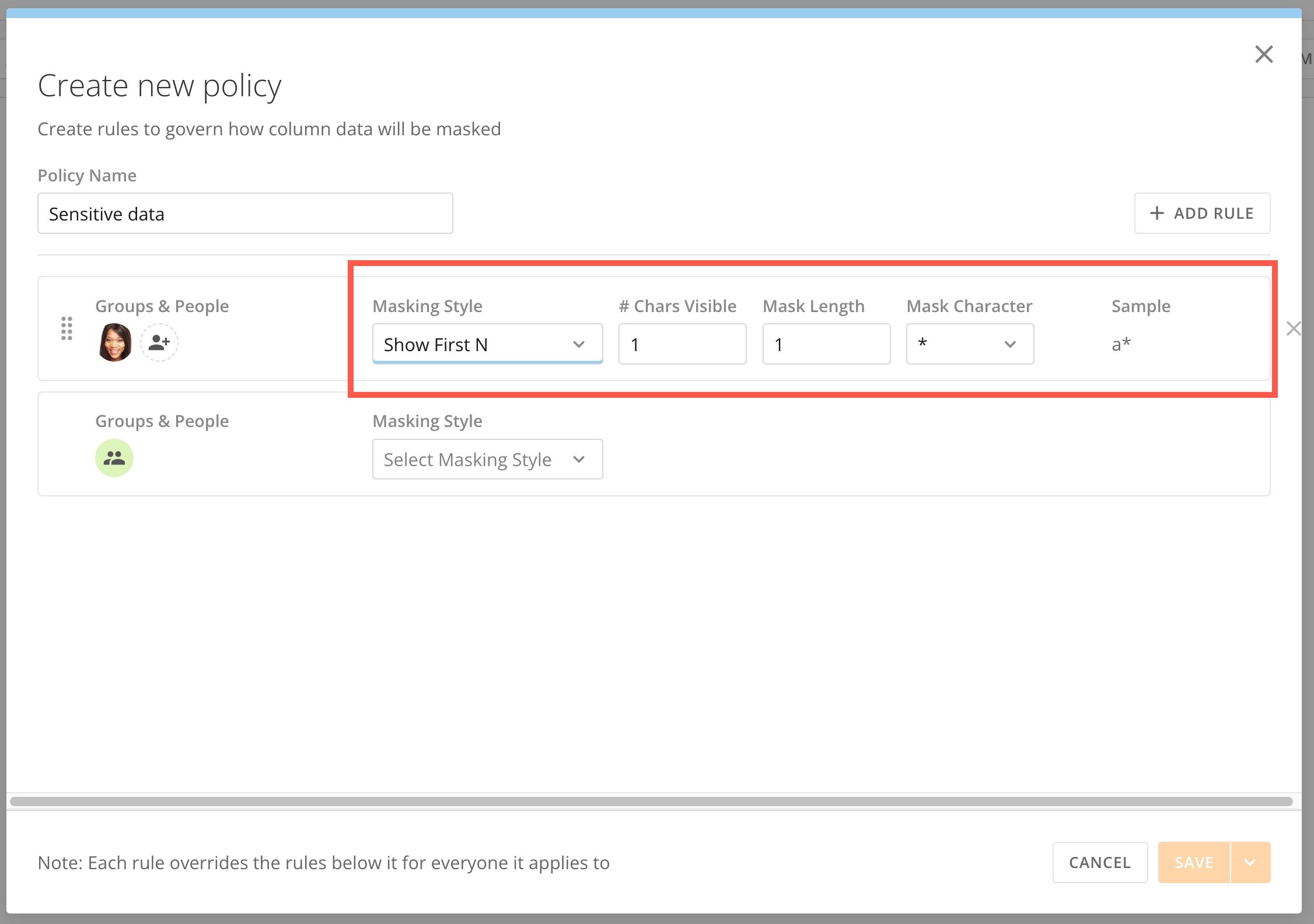
* **Show first N —** This method unmasks the first N characters of your data while replacing all other characters with a specified number of selected masking characters.\
For example: (1 character visible, 5-character mask length, a hyphen mask character) `a-----`
Note the definitions of these terms:
* **Masking method —** The masking method defines how you mask your data.
* **Column policy —** The column policy defines the masking methods that users and groups enforce.
* **Policy rule —** A column policy consists of rules, where each rule has a chosen masking method. You can assign rules to users and groups.
* **Rule precedence** — Rule precedence determines which rule to enforce if you have assigned a user to multiple rules. Rule precedence enforces only the highest-listed rule.
* **Default unmasked rule —** This rule exists in all column policies, and you can't remove or modify it. DataSet owners, co-owners, and users whose Domo role includes the **Manage DataSet** grant have access to this rule.
* **Default rule —** This rule exists in all column policies. All users who have access to the DataSet receive the default rule unless you assign them to another rule of higher precedence. You can't remove it, but you can configure the masking method. You can configure the default rule with the masking method appropriate to the sensitivity of the data.
**Important:** If you are a DataSet owner, a co-owner, or a user whose Domo role includes the **Mananage DataSet** grant, you always have unmasked access to the data in the DataSet.
### Masking Methods
The masking method of a column policy rule defines what users assigned to that rule see when they view data in a PDP-controlled column.
You have access to the following masking methods:
* **Hash —** This method masks your data by hashing it with one of the available hashing algorithms.\
For example: `e09c80c42f`
* **Show first N —** This method unmasks the first N characters of your data while replacing all other characters with a specified number of selected masking characters.\
For example: (1 character visible, 5-character mask length, a hyphen mask character) `a-----`
 * **Show last N —** This method unmasks the last N characters of your data while replacing all other characters with a specified number of selected masking characters.\
For example: (3 characters visible, 5-character mask length, and an asterisk mask character) `*****com`
* **Redact —** This method replaces your data with a specified number of selected masking characters.
**Tip:** Defining mask length prevents viewers from being able to infer a value based on its length.
* **Nullify —** This method replaces the data with NULL.
* **Unmasked —** This method does not mask the data, and as a result, users can view the raw data.
**Note:** Column policies are data type-specific. You can use all masking methods with text-type policies. However, you can only use Nullify and Unmasked with numeric and date/time type policies.
**Important:** If you are a DataSet owner, a co-owner, or a user whose Domo role includes the **Mananage DataSet** grant, you always have unmasked access to the data in the DataSet.
### Enable PDP Column Masking on a DataSet
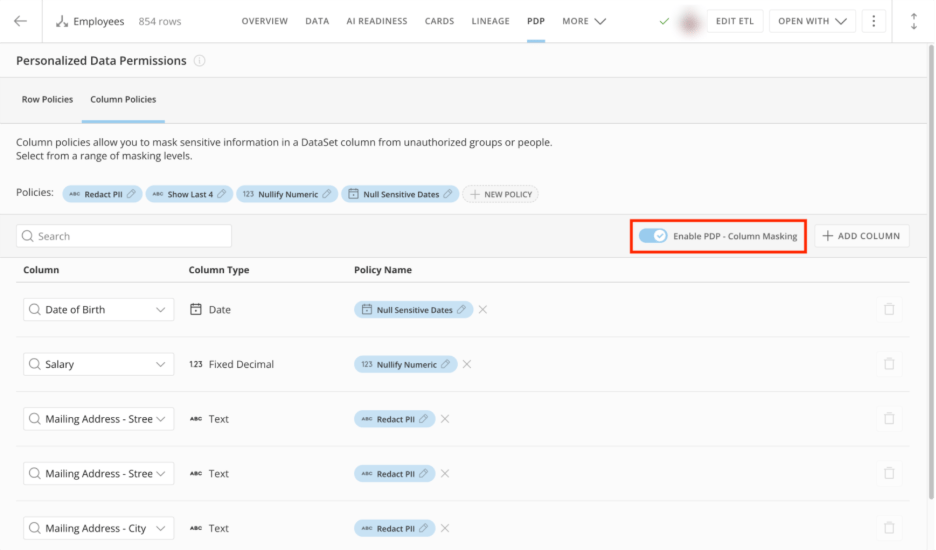
You must enable PDP column masking on your DataSet, regardless of the policies defined or mapped on it.
To enable PDP column masking, go to your **Personalized Data Permissions** dashboard and toggle the **Enable PDP - Column Masking** switch on.
* **Show last N —** This method unmasks the last N characters of your data while replacing all other characters with a specified number of selected masking characters.\
For example: (3 characters visible, 5-character mask length, and an asterisk mask character) `*****com`
* **Redact —** This method replaces your data with a specified number of selected masking characters.
**Tip:** Defining mask length prevents viewers from being able to infer a value based on its length.
* **Nullify —** This method replaces the data with NULL.
* **Unmasked —** This method does not mask the data, and as a result, users can view the raw data.
**Note:** Column policies are data type-specific. You can use all masking methods with text-type policies. However, you can only use Nullify and Unmasked with numeric and date/time type policies.
**Important:** If you are a DataSet owner, a co-owner, or a user whose Domo role includes the **Mananage DataSet** grant, you always have unmasked access to the data in the DataSet.
### Enable PDP Column Masking on a DataSet
You must enable PDP column masking on your DataSet, regardless of the policies defined or mapped on it.
To enable PDP column masking, go to your **Personalized Data Permissions** dashboard and toggle the **Enable PDP - Column Masking** switch on.
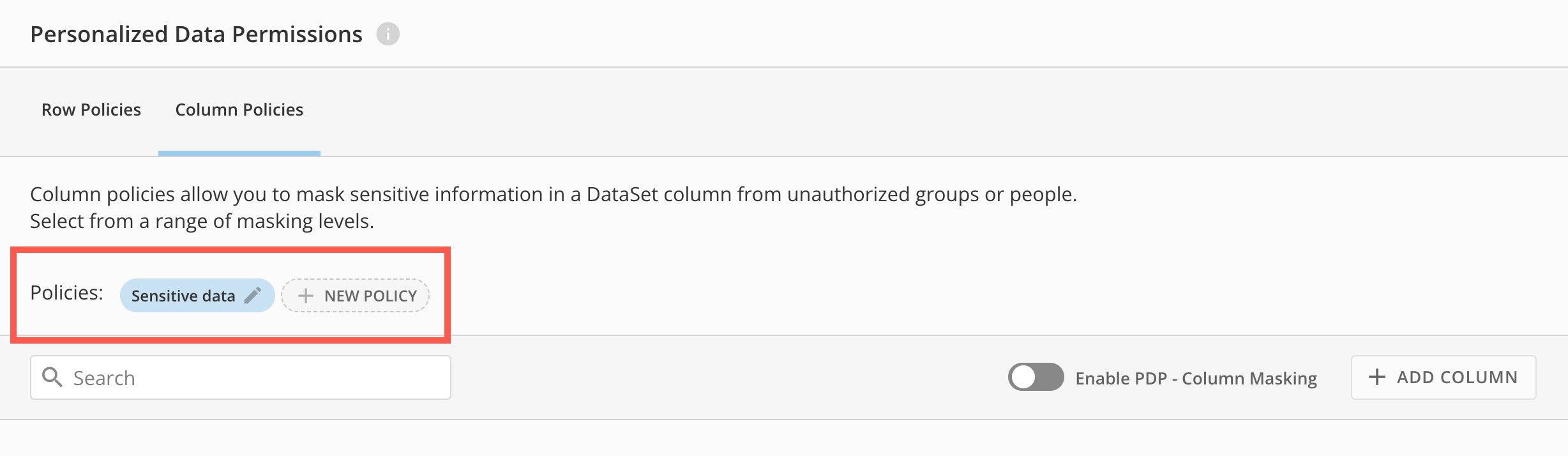
 ### Create a Column Policy
Follow the steps below to create a new column policy.
1. [Access](#access-the-pdp-interface) the **Column Policies** tab of the PDP interface.
2. Select **+ New Policy** to open the policy editor.
3. Name the policy and select your data type.
**Note:** Available masking methods depend on the selected data type. You can only map a column policy to a column of a matching data type.
### Create a Column Policy
Follow the steps below to create a new column policy.
1. [Access](#access-the-pdp-interface) the **Column Policies** tab of the PDP interface.
2. Select **+ New Policy** to open the policy editor.
3. Name the policy and select your data type.
**Note:** Available masking methods depend on the selected data type. You can only map a column policy to a column of a matching data type.
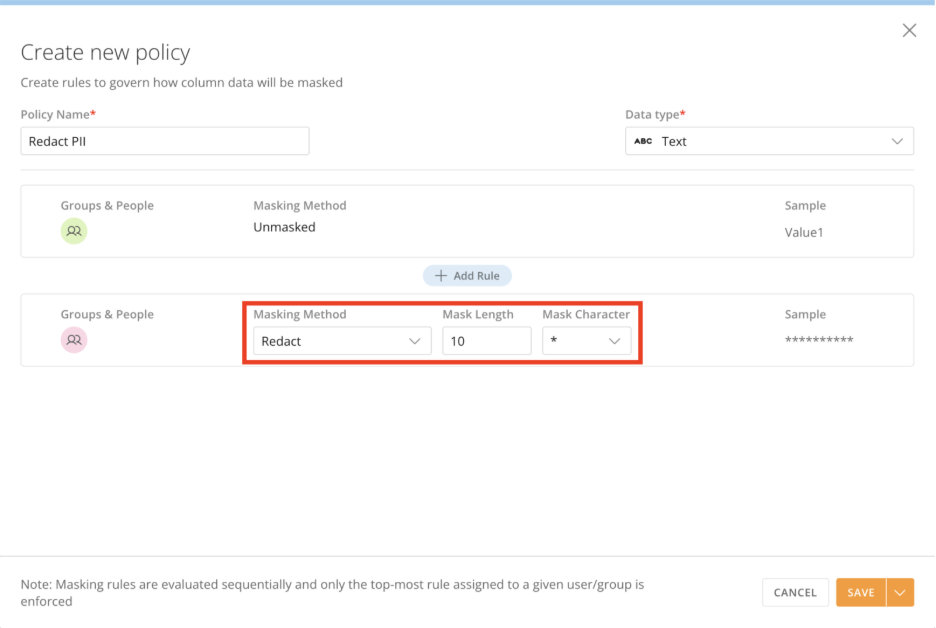 4. Select the masking method for the default rule. \
The default rule applies to everyone with DataSet access, unless you’ve assigned them a higher-priority rule. To keep data secure, set the default rule to use a masking method that fits the sensitivity of your data. If you’re not sure which method to choose, we recommend starting with the most restrictive options: **Redact** or **Nullify**. Learn about [masking methods](#masking-methods).
4. Select the masking method for the default rule. \
The default rule applies to everyone with DataSet access, unless you’ve assigned them a higher-priority rule. To keep data secure, set the default rule to use a masking method that fits the sensitivity of your data. If you’re not sure which method to choose, we recommend starting with the most restrictive options: **Redact** or **Nullify**. Learn about [masking methods](#masking-methods).
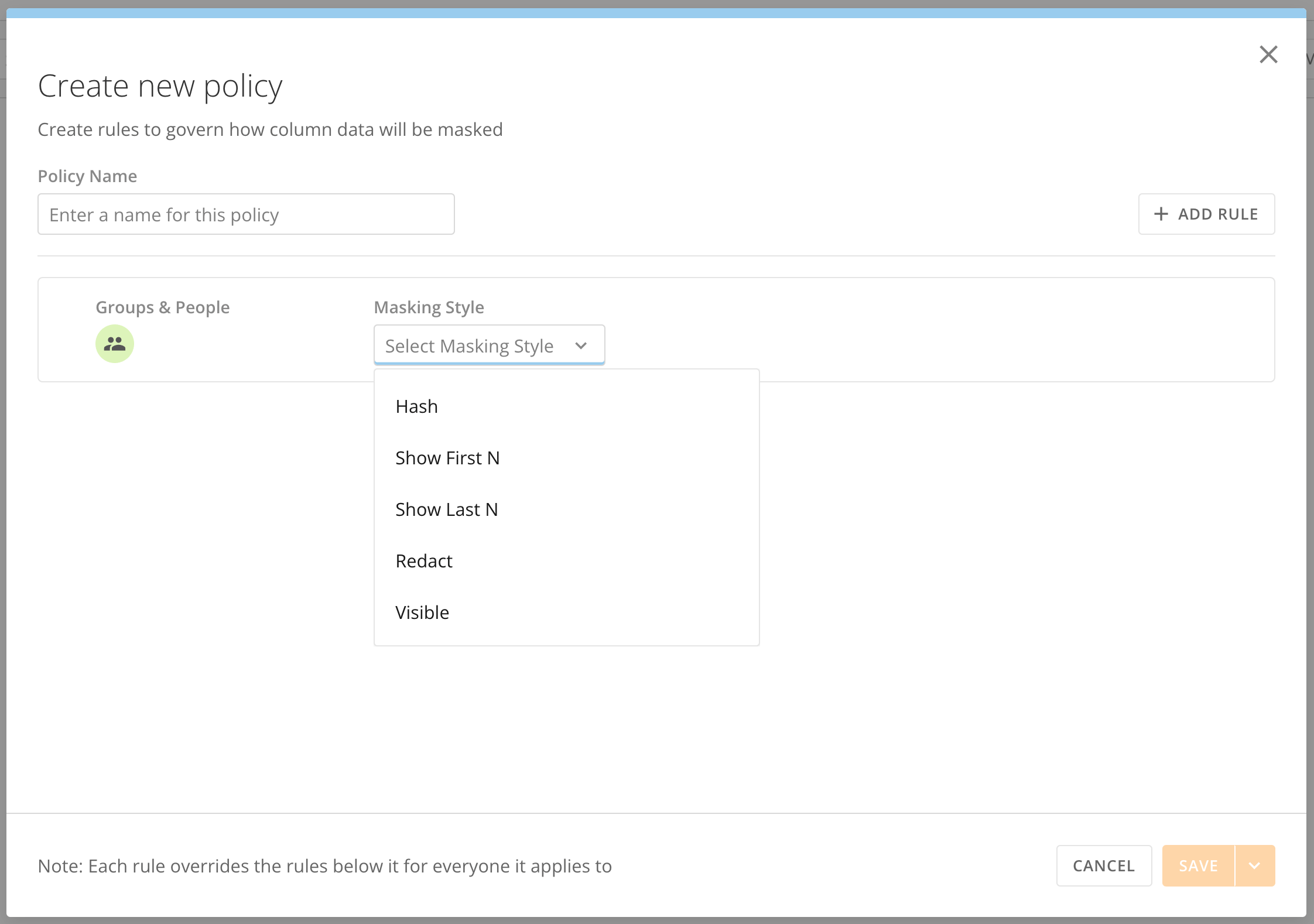 5. Add more rules as necessary by selecting the **+ Add Rule** button.
6. Assign users and/or groups to the rule by selecting **Add groups & people** to search for the user or group, then selecting the user or group from the search.
7. From the **Masking Method** dropdown, choose a masking style and define it. Learn about [masking methods](#masking_methods).
5. Add more rules as necessary by selecting the **+ Add Rule** button.
6. Assign users and/or groups to the rule by selecting **Add groups & people** to search for the user or group, then selecting the user or group from the search.
7. From the **Masking Method** dropdown, choose a masking style and define it. Learn about [masking methods](#masking_methods).
 8. Continue adding rules with assigned users/groups and selecting a masking method as necessary.
**Note:** You can assign users to multiple rules. However, only the rule listed highest in the policy is enforced.
9. Change rule precedence as needed by dragging and dropping rules.
**Important:** You can't move the default unmasked rule or the default rule.
10. Save the policy.
**Note:** You can select **Cancel** at any time to close the policy editor without saving your changes.
8. Continue adding rules with assigned users/groups and selecting a masking method as necessary.
**Note:** You can assign users to multiple rules. However, only the rule listed highest in the policy is enforced.
9. Change rule precedence as needed by dragging and dropping rules.
**Important:** You can't move the default unmasked rule or the default rule.
10. Save the policy.
**Note:** You can select **Cancel** at any time to close the policy editor without saving your changes.
 ### Edit a Column Policy
1. [Access](#access-the-pdp-interface) the **Column Policies** tab of the PDP interface.
2. View the available policies and select **Edit** to edit the policy.\
The policy editor opens.
### Edit a Column Policy
1. [Access](#access-the-pdp-interface) the **Column Policies** tab of the PDP interface.
2. View the available policies and select **Edit** to edit the policy.\
The policy editor opens.
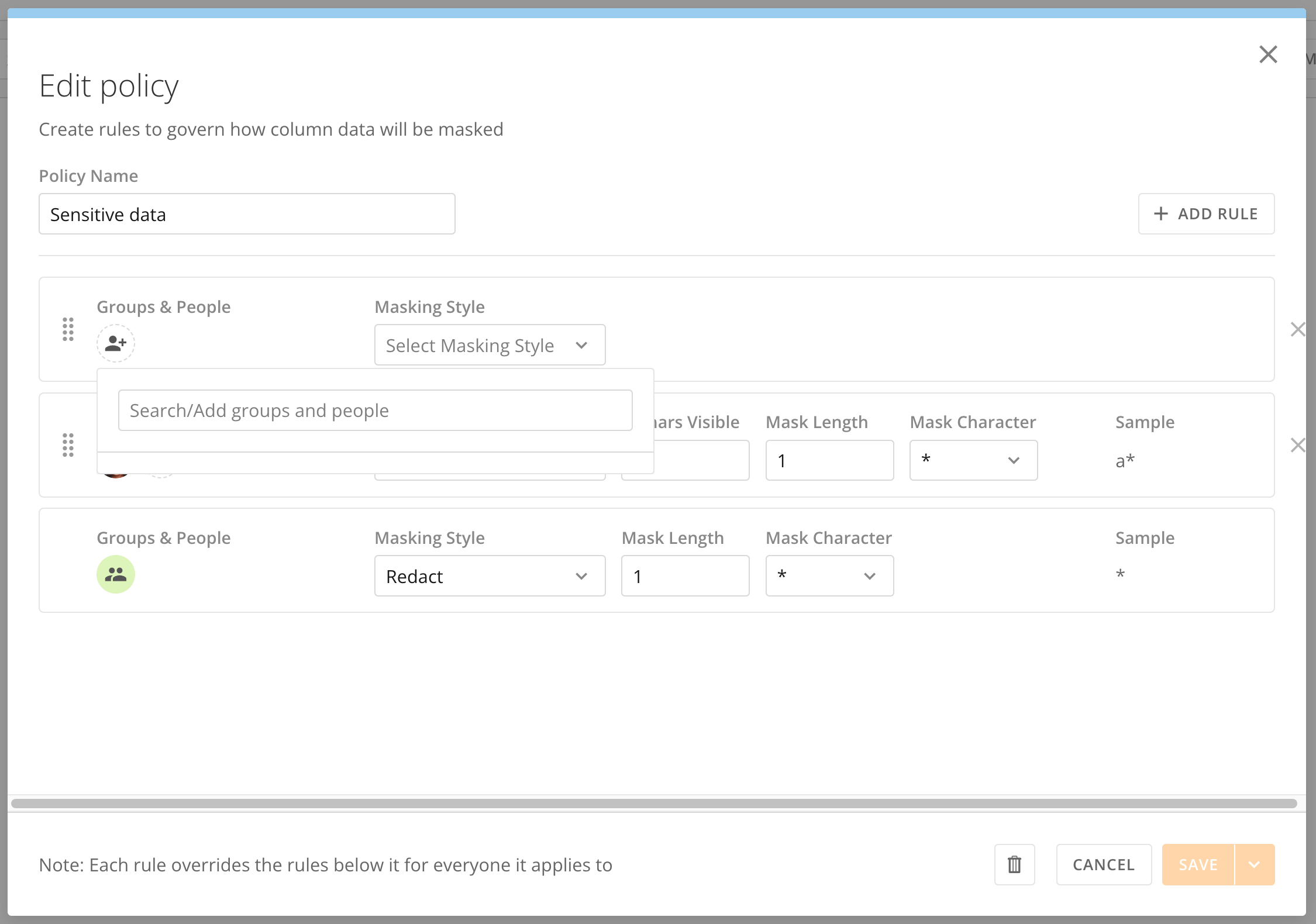 3. Make any desired changes to the policy name, data type, rules, assignments, and masking methods.
**Note:** If you currently have a policy mapped to one or more columns, you can't change the policy data type. You must remove the policy from all column mappings before changing the data type.
4. Save your changes.
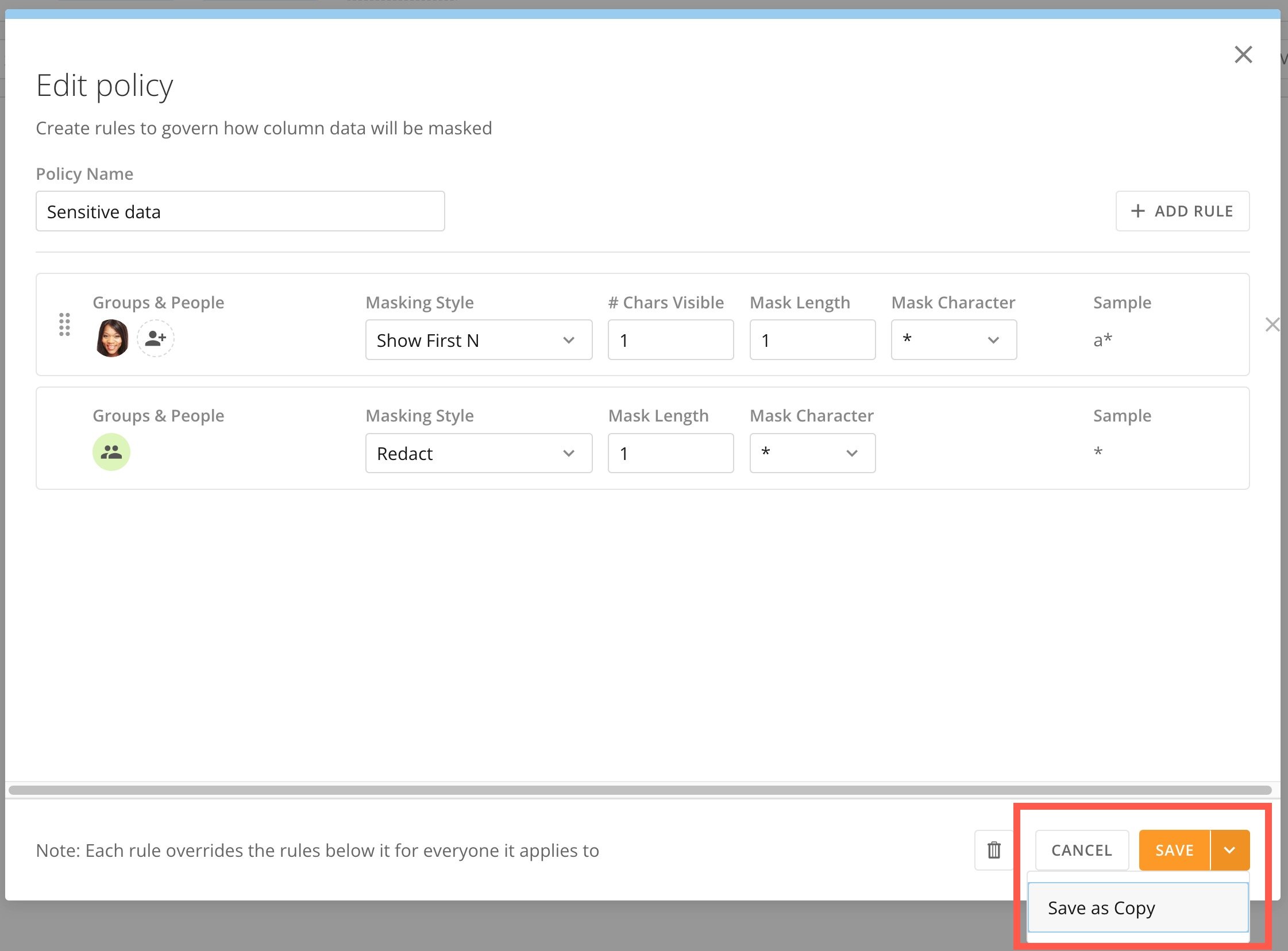
### Copy an Existing Policy
1. Select **Edit** on the policy you want to copy.
2. Change the policy name.
3. Make any other desired changes to rules, assignments, or masking methods.
4. Select **Save as Copy**.
### Delete a Column Policy
1. [Access](#access-the-pdp-interface) the **Column Policies** tab of the PDP interface.
2. View the available policies and select **Edit** for the policy you want to delete.\
The policy editor opens.
3. Select **Delete**.
3. Make any desired changes to the policy name, data type, rules, assignments, and masking methods.
**Note:** If you currently have a policy mapped to one or more columns, you can't change the policy data type. You must remove the policy from all column mappings before changing the data type.
4. Save your changes.
### Copy an Existing Policy
1. Select **Edit** on the policy you want to copy.
2. Change the policy name.
3. Make any other desired changes to rules, assignments, or masking methods.
4. Select **Save as Copy**.
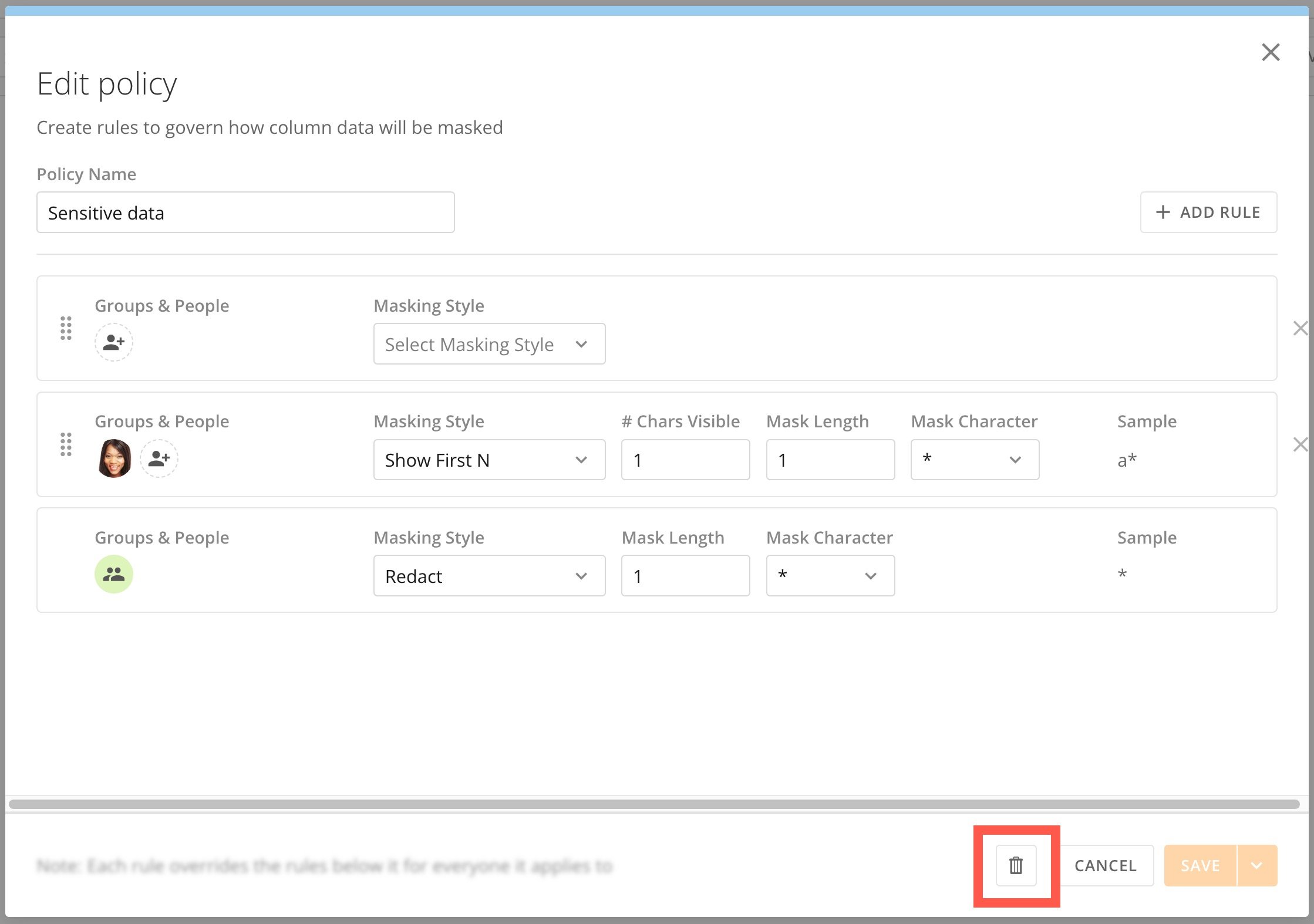
### Delete a Column Policy
1. [Access](#access-the-pdp-interface) the **Column Policies** tab of the PDP interface.
2. View the available policies and select **Edit** for the policy you want to delete.\
The policy editor opens.
3. Select **Delete**.
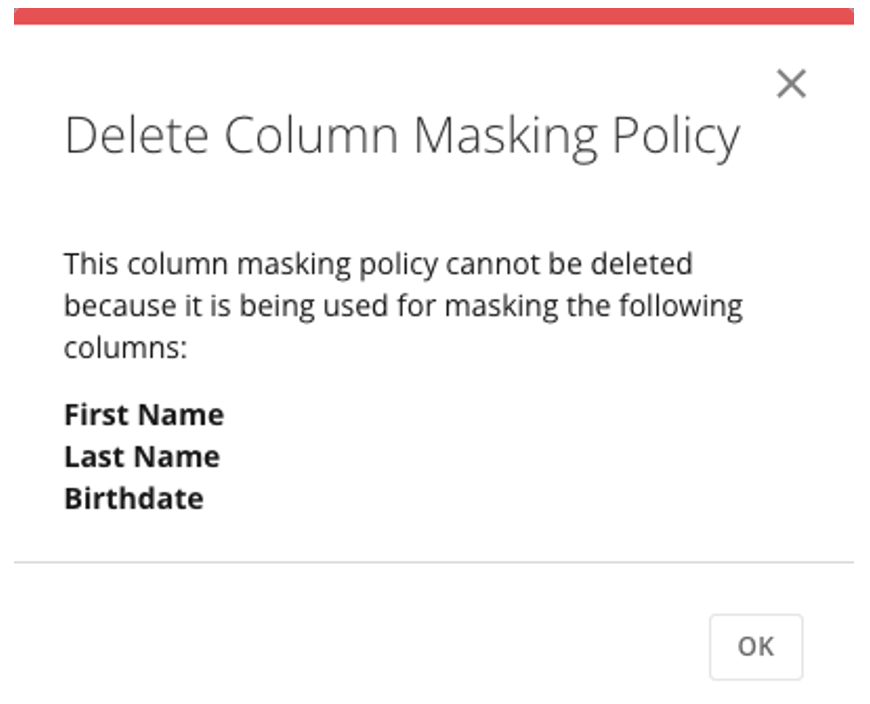
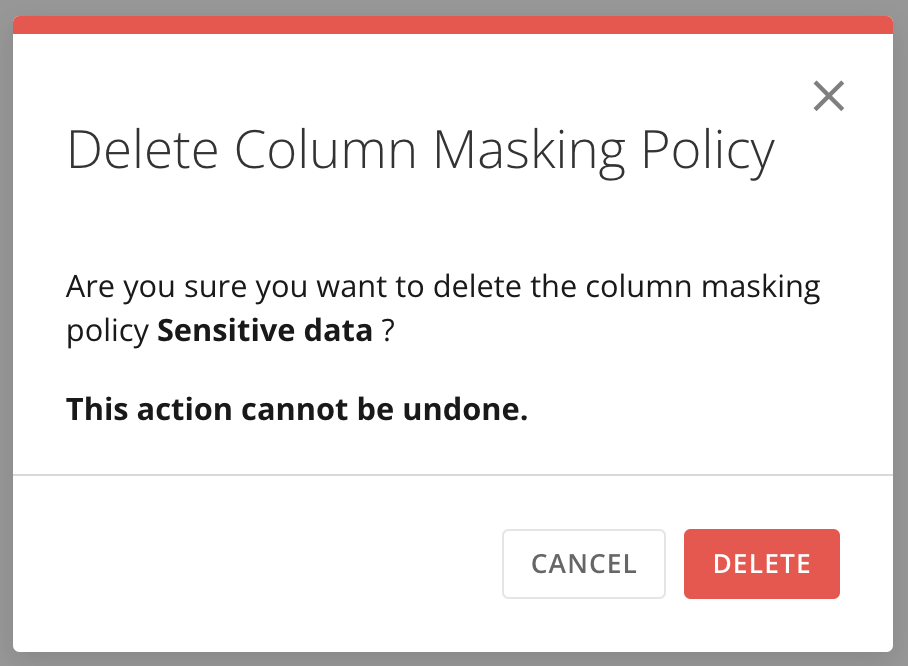
 The confirmation dialog displays.
**Important:** If you currently have a policy mapped to one or more columns, you can't delete the policy. You must remove the policy from all column mappings before you can delete it.
The confirmation dialog displays.
**Important:** If you currently have a policy mapped to one or more columns, you can't delete the policy. You must remove the policy from all column mappings before you can delete it.
 4. Select **Delete** to delete the policy. This action cannot be undone. Select **Cancel** to keep the policy and reopen the editor.
 ### Map a Policy to a Column
**Important:** If you are a DataSet owner, a co-owner, or a user whose Domo role includes the **Mananage DataSet** grant, you always have unmasked access to the data in the DataSet.
Column policies only apply to the columns you map them to. Any columns without a policy stay visible to everyone. You can map one policy to multiple columns, but each column can only have one policy—or none at all.
To map a policy to a column:
1. [Access](#access-the-pdp-interface) the **Column Policies** tab of the PDP interface.
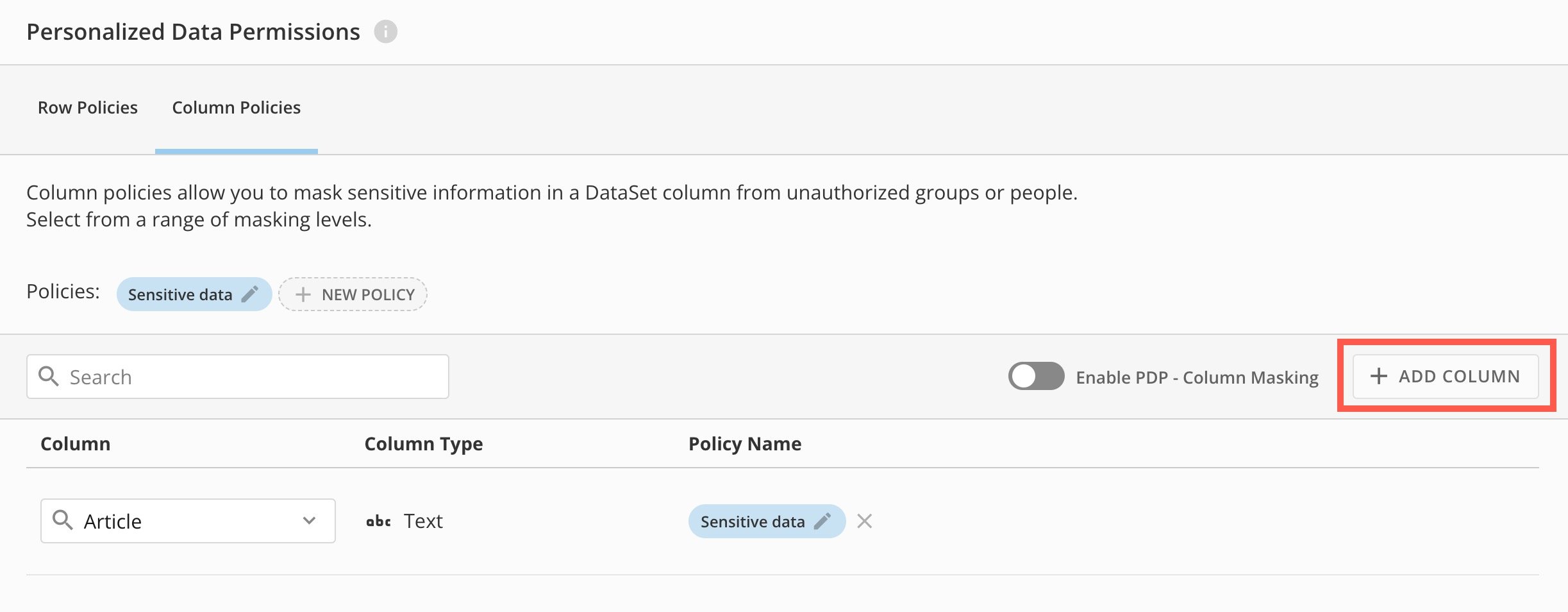
2. Select **+ Add Column** to add a new column to the mapping list.
### Map a Policy to a Column
**Important:** If you are a DataSet owner, a co-owner, or a user whose Domo role includes the **Mananage DataSet** grant, you always have unmasked access to the data in the DataSet.
Column policies only apply to the columns you map them to. Any columns without a policy stay visible to everyone. You can map one policy to multiple columns, but each column can only have one policy—or none at all.
To map a policy to a column:
1. [Access](#access-the-pdp-interface) the **Column Policies** tab of the PDP interface.
2. Select **+ Add Column** to add a new column to the mapping list.
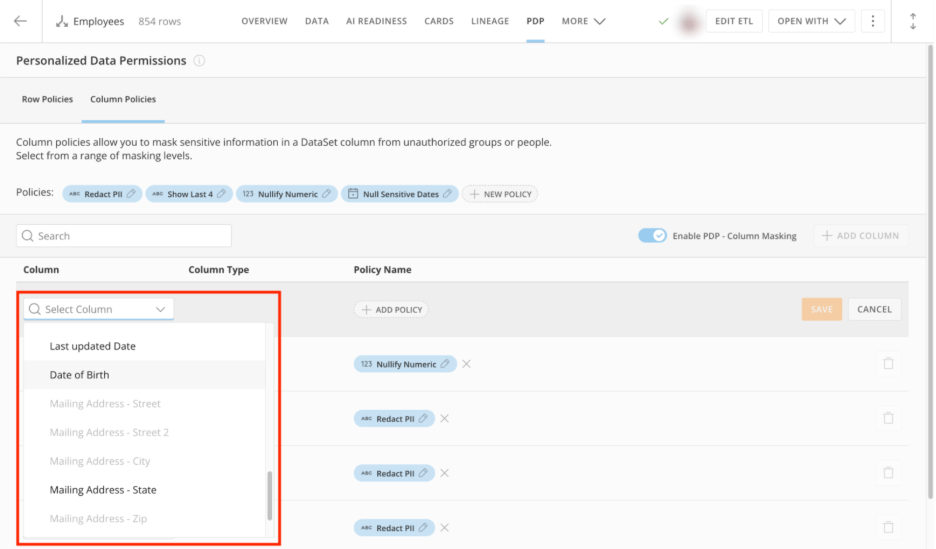
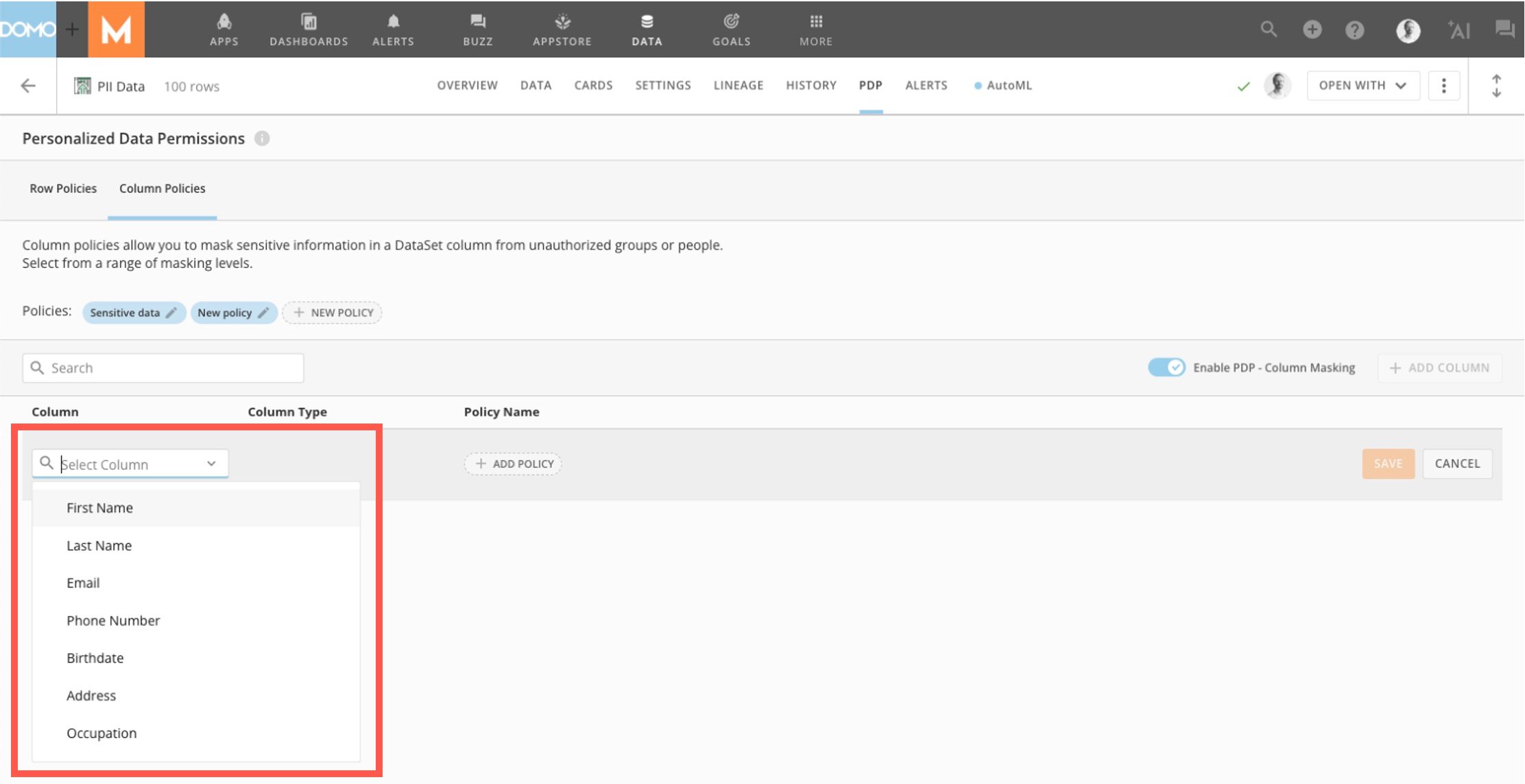
 3. In the **Column** dropdown in the mapping list item, select the column you want to mask.\
When you select the column, the data type under **Column Type** populates automatically.
3. In the **Column** dropdown in the mapping list item, select the column you want to mask.\
When you select the column, the data type under **Column Type** populates automatically.
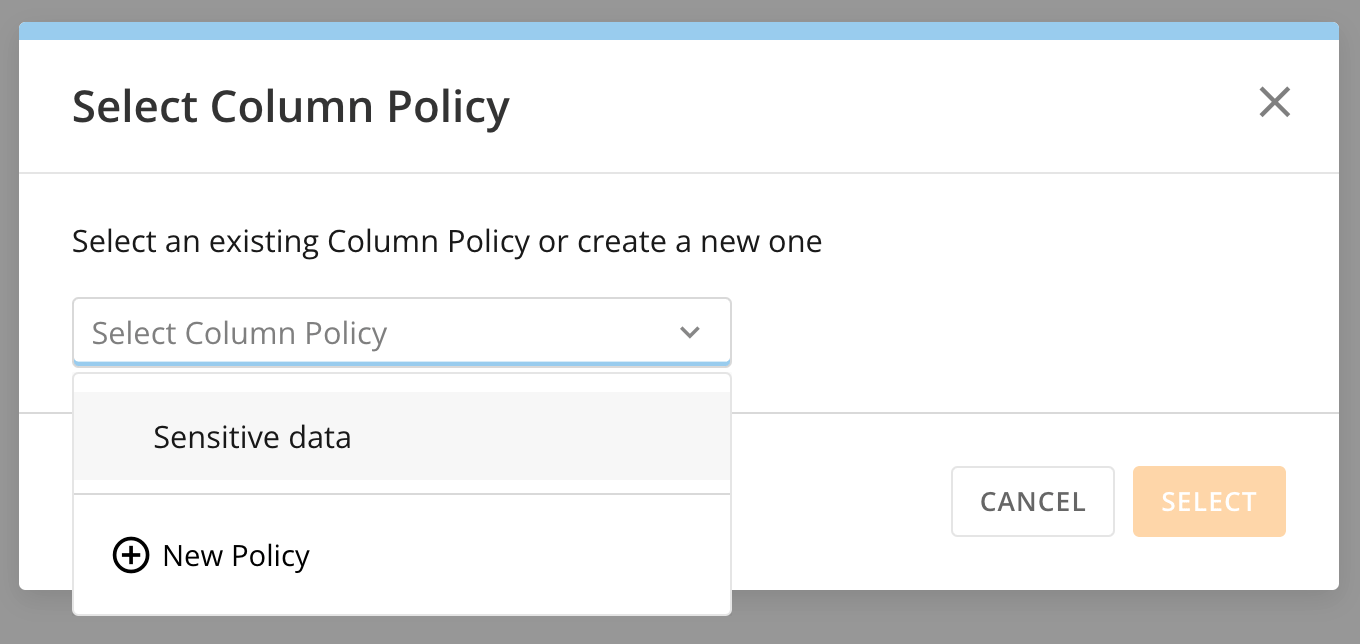
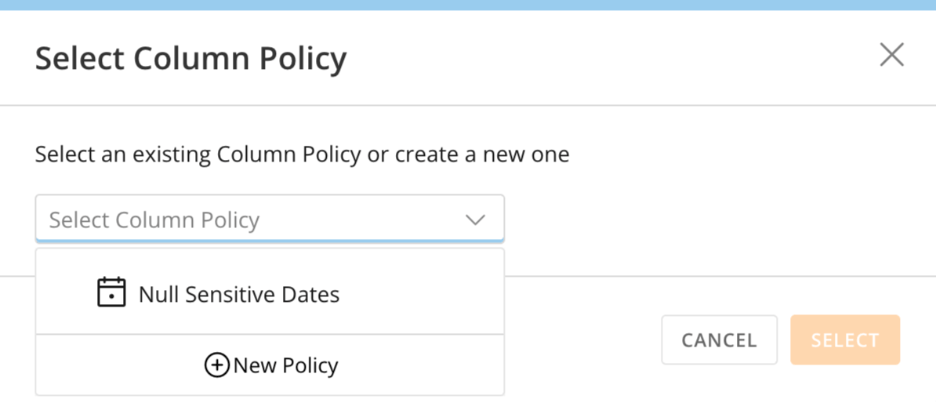
 4. To populate the **Policy Name**, select **+ Add Policy** to open the **Select Column Policy** modal.
5. Select an existing column policy or [create a new one](#create-a-column-policy).
4. To populate the **Policy Name**, select **+ Add Policy** to open the **Select Column Policy** modal.
5. Select an existing column policy or [create a new one](#create-a-column-policy).
 6. Choose **Select** to close the modal and assign the policy.
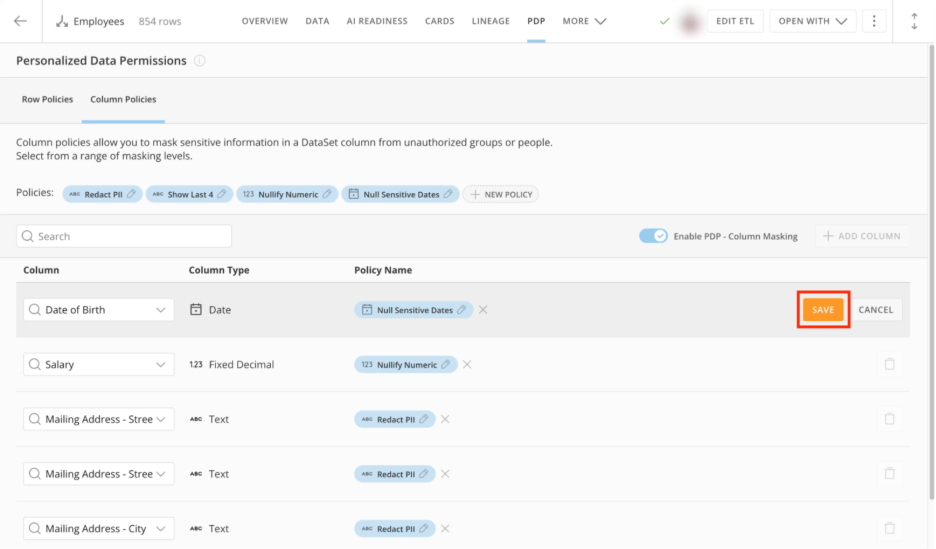
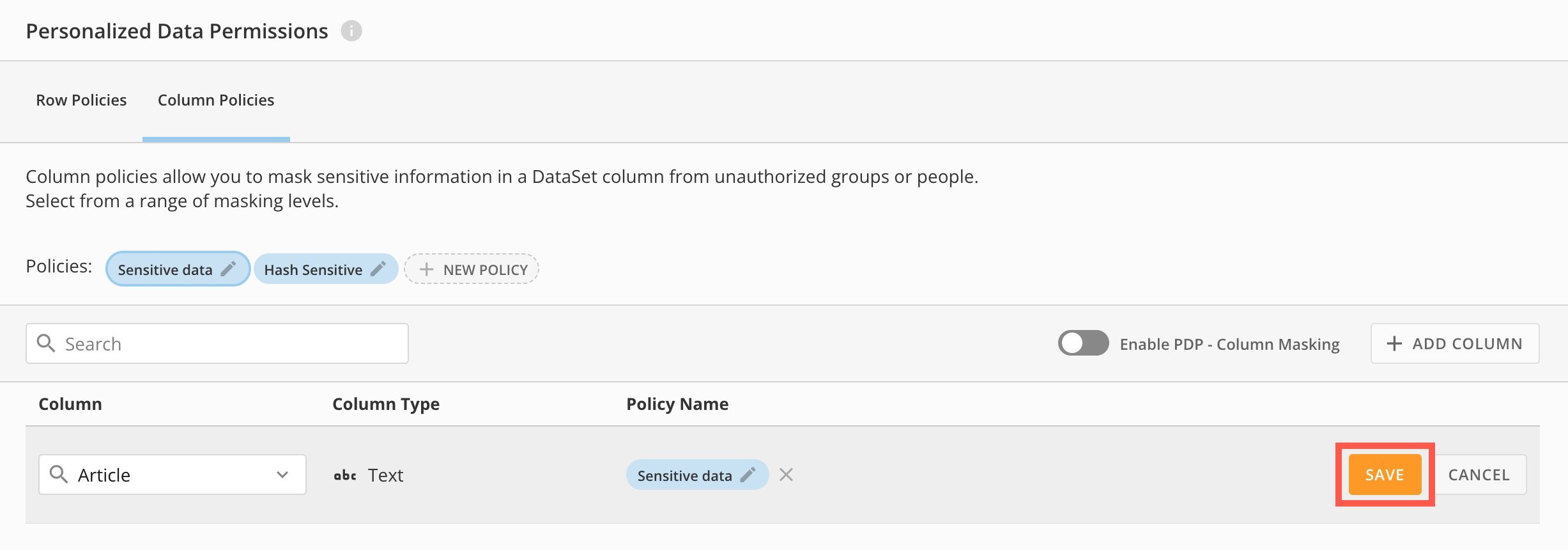
7. After you've assigned a new or existing policy, select **Save** to complete the mapping of the policy to the column.
6. Choose **Select** to close the modal and assign the policy.
7. After you've assigned a new or existing policy, select **Save** to complete the mapping of the policy to the column.
 ### Change the Column Policy Mapping
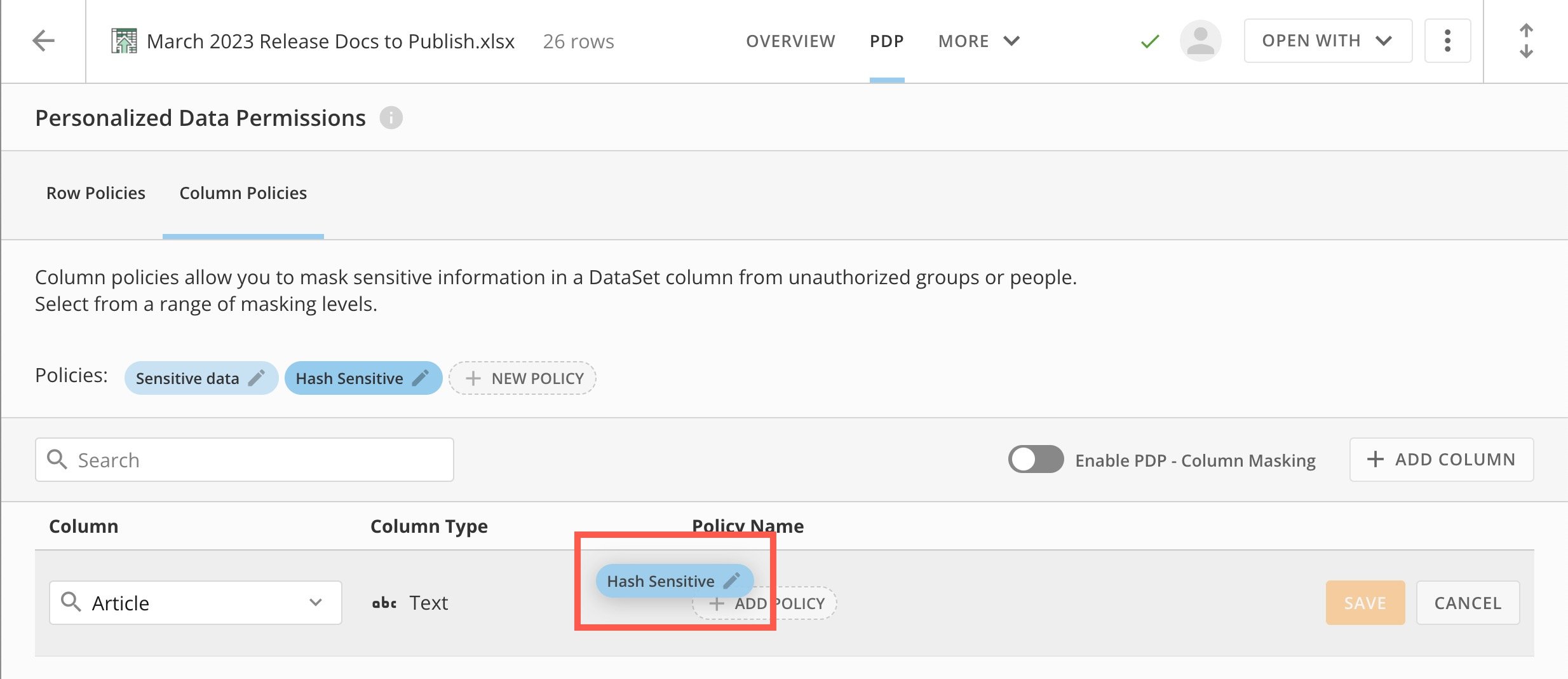
You can change the column policy that you've mapped to a column by dragging and dropping an existing policy to the **Policy Name**.
### Change the Column Policy Mapping
You can change the column policy that you've mapped to a column by dragging and dropping an existing policy to the **Policy Name**.
 ### Remove Column Masking
You can remove all column masking from a column by following these steps:
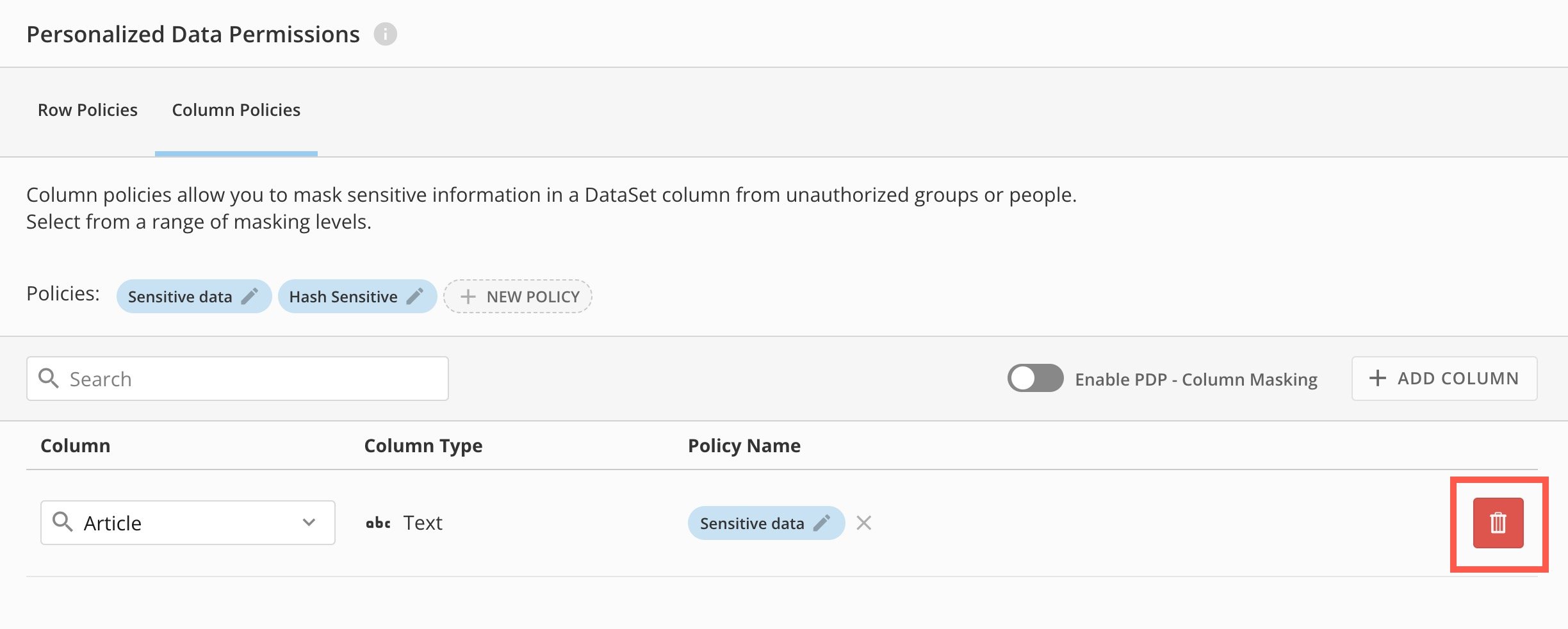
1. Hover over the mapping list item and select **Delete**.\
The confirmation dialog displays.
### Remove Column Masking
You can remove all column masking from a column by following these steps:
1. Hover over the mapping list item and select **Delete**.\
The confirmation dialog displays.
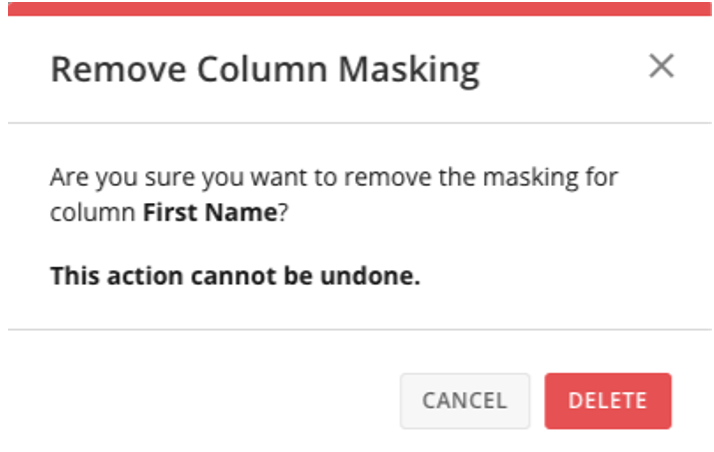
 2. In the confirmation dialog, select **Delete** to remove the masking from the column. This action cannot be undone. Select **Cancel** to close the dialog and keep the current masking.
 ## Known Limitations
When you enable PDP Column Policies, keep these limitations in mind:
* **Alerts on Cards and DataSets**\
You can’t create Alerts on DataSets (or Cards powered by them) if PDP Column Policies are enabled. Any Alerts you set up before turning on Column Policies will stop working once the policies are active.
## Use Case — Row Policies
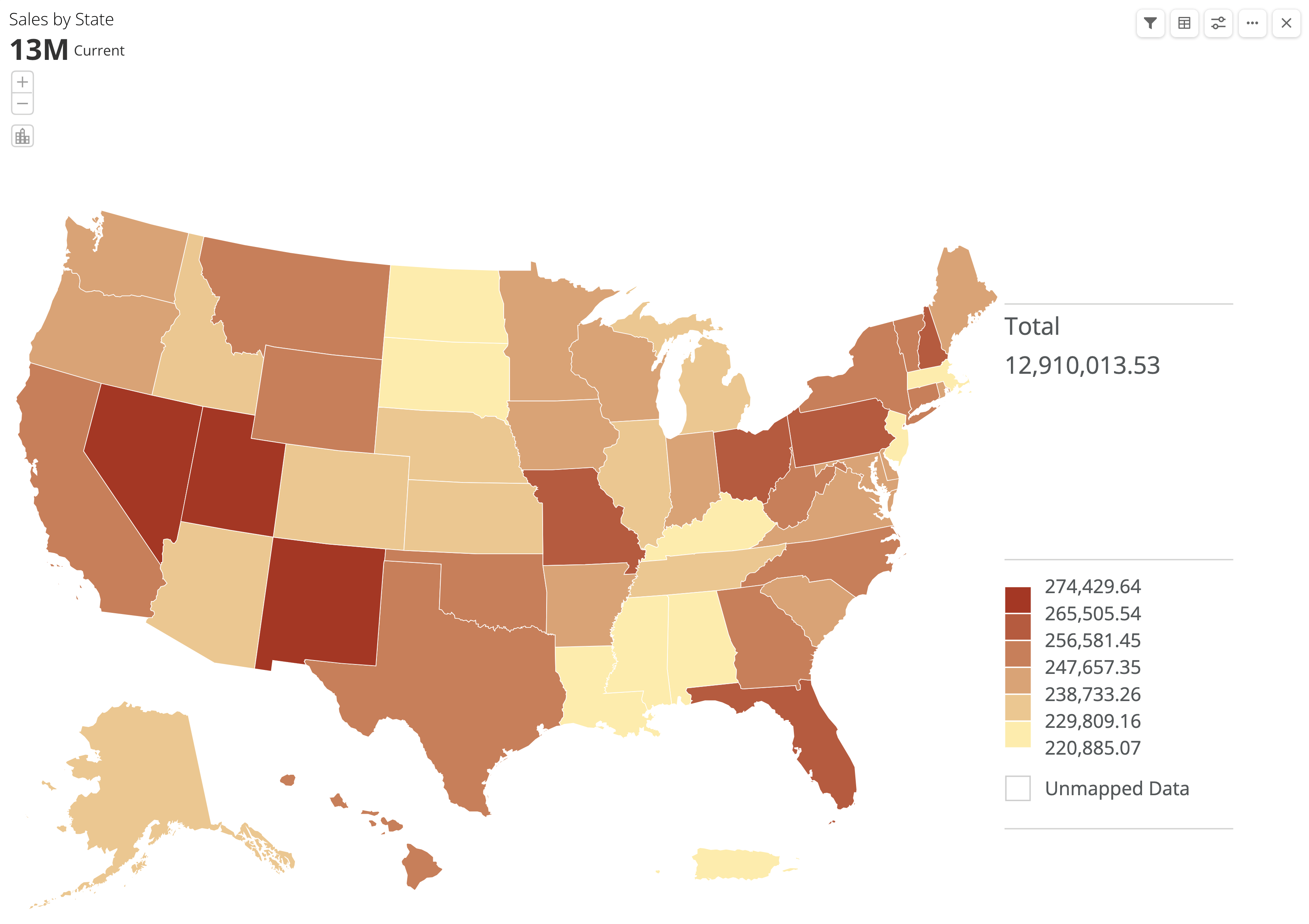
This use case shows how row policies for a DataSet affect a card powered by the DataSet. The example DataSet tracks sales throughout the U.S. based on region—East and West. The data is presented using a U.S. map. By default, no PDP policies are in place, so all data in the DataSet displays, as in the image below.
## Known Limitations
When you enable PDP Column Policies, keep these limitations in mind:
* **Alerts on Cards and DataSets**\
You can’t create Alerts on DataSets (or Cards powered by them) if PDP Column Policies are enabled. Any Alerts you set up before turning on Column Policies will stop working once the policies are active.
## Use Case — Row Policies
This use case shows how row policies for a DataSet affect a card powered by the DataSet. The example DataSet tracks sales throughout the U.S. based on region—East and West. The data is presented using a U.S. map. By default, no PDP policies are in place, so all data in the DataSet displays, as in the image below.
 The sales manager for company K wants salespeople in each region to see only the necessary data. All salespeople belong to one of four groups in Domo—K East, K West, K South, or K Central—so this requires connecting each group to a policy filtered to the appropriate region.
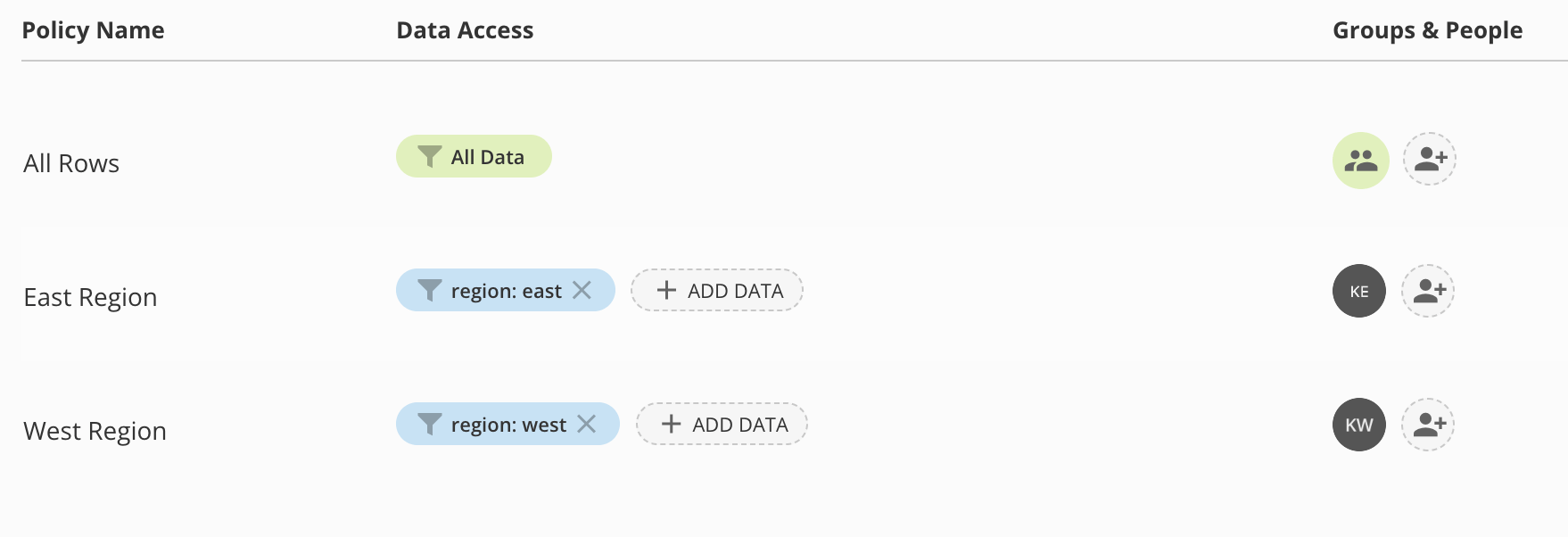
The sales manager creates two row policies—East Region and West Region—and uses a simple filter for each policy with \`Region\` as the column and a single value of \`West\` or \`East\` respectively. There are not yet policies for K South and K Central.
The sales manager then adds the K East group to the East Region policy and the K West group to the West Region policy. Then the sales manager enables PDP for row filtering.\
The sales manager's **Row Policies** tab now displays as shown below.
The sales manager for company K wants salespeople in each region to see only the necessary data. All salespeople belong to one of four groups in Domo—K East, K West, K South, or K Central—so this requires connecting each group to a policy filtered to the appropriate region.
The sales manager creates two row policies—East Region and West Region—and uses a simple filter for each policy with \`Region\` as the column and a single value of \`West\` or \`East\` respectively. There are not yet policies for K South and K Central.
The sales manager then adds the K East group to the East Region policy and the K West group to the West Region policy. Then the sales manager enables PDP for row filtering.\
The sales manager's **Row Policies** tab now displays as shown below.
 With these row policies in place, members of each group only see data assigned to them. A member of the K West group sees the card as shown below.\
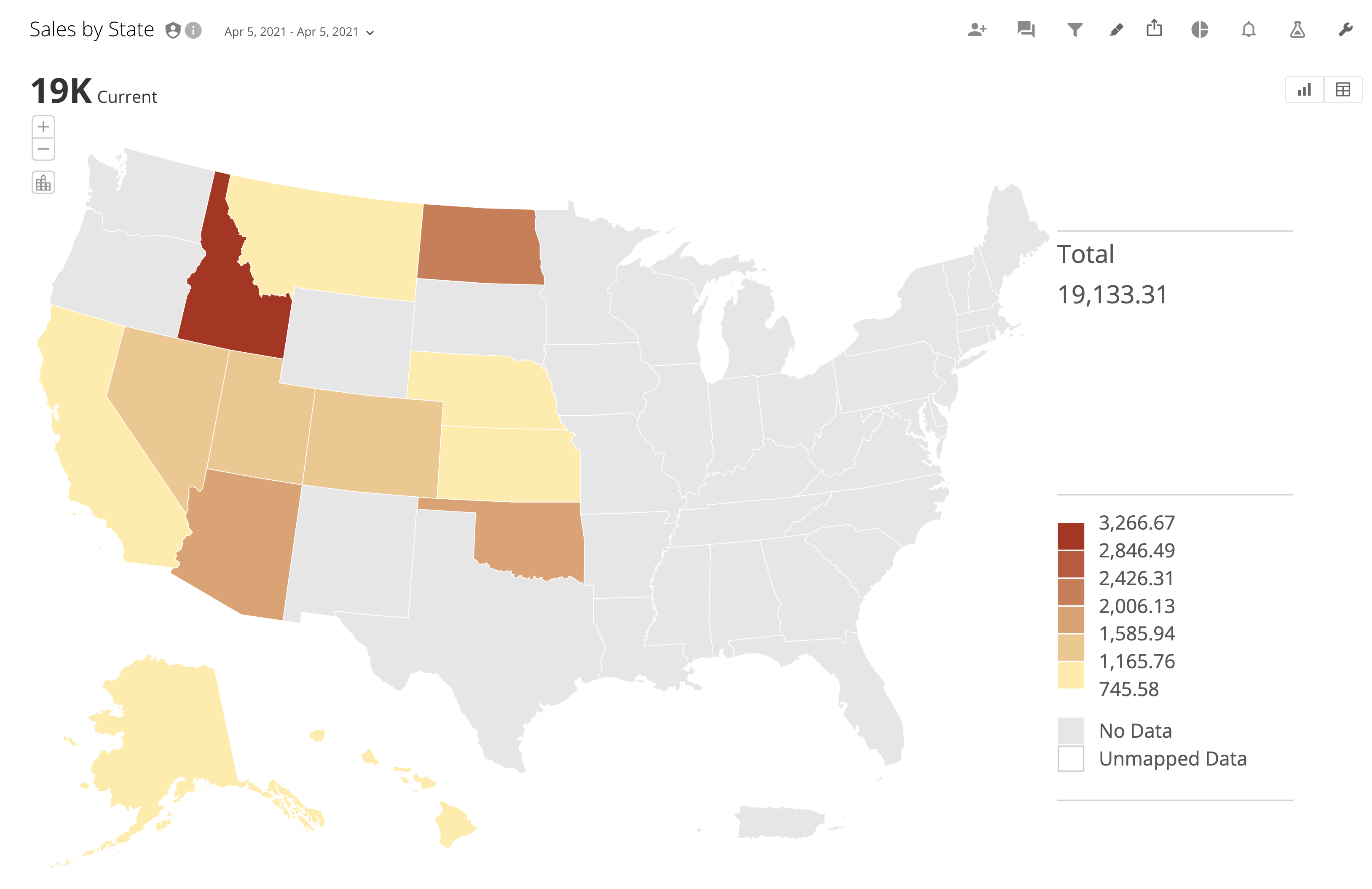 **Note:** Data only displays for those states that fall into the West Region. Also notice that the chart total has changed to reflect the PDP policy and that a PDP stamp appears near the title to indicate that this view shows a PDP-filtered version of the data.
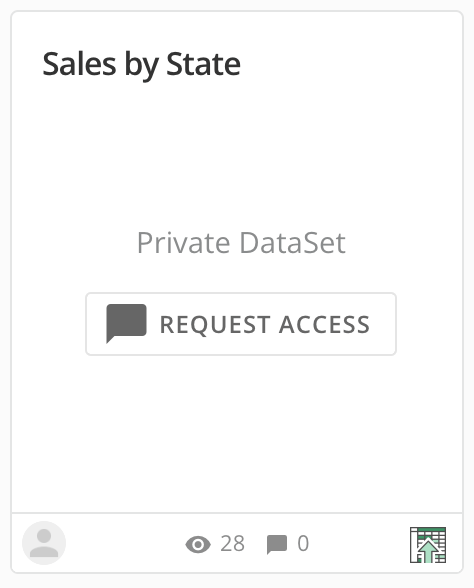
Because the sales manager did not create policies for the K Central or K South groups, members of those groups attempting to access the card see an option to request access to the card. They could request access to ask the DataSet owner to create the necessary row policies to allow them to view their relevant data.
**Note:** Data only displays for those states that fall into the West Region. Also notice that the chart total has changed to reflect the PDP policy and that a PDP stamp appears near the title to indicate that this view shows a PDP-filtered version of the data.
Because the sales manager did not create policies for the K Central or K South groups, members of those groups attempting to access the card see an option to request access to the card. They could request access to ask the DataSet owner to create the necessary row policies to allow them to view their relevant data.
 ## Dynamic PDP
Dynamic PDP builds upon Simple PDP and offers a more advanced and flexible solution for managing data permissions. It uses real-time, attribute-based permission adjustments, meaning that as user attributes or data context change, so does access to data without needing to manually update and reconfigure your policies.
### Use an IdP and the Governance Toolkit
To leverage Dynamic PDP in Domo, dynamically source and update your integration with a connected Identity Provider (IdP) or utilize the Domo Governance Toolkit. The Toolkit offers both manual and automated options for attribute management.
Using IdP ensures that changes in user roles or other attributes are reflected in real time in Domo. The Governance Toolkit allows for precise control and automates attribute updates within the Domo platform.
### Configuring Attributes and Set
You need to configure your sourced attributes in Domo before they can be used for Dynamic PDP. Learn more about [configuring attributes](/s/article/000005164).
Dynamic PDP policies can be created manually or automatically. To learn more about the automatic creation and management of PDP policies, see [PDP Automation](/s/article/4415800746391).
## PDP and DataFlows/DataFusion
Be aware of the following considerations before configuring a PDP policy on a DataSet powering a DataFlow or DataFusion.
### DataFlows Considerations
DataFlows with PDP applied to the input DataSet(s) only work if at least one of the following is true:
* The DataFlow owner has the Admin role or a custom role with the **Manage DataFlow** grant enabled
* The DataFlow owner also owns the input DataSet
* The DataFlow owner has PDP policies that grant full access to all rows and columns in the input DataSet:
* (If you've enabled PDP row filtering) must be assigned to the [All Rows policy](#all-rows-policy)
* AND (if you've enabled PDP column masking) must be assigned to the Unmasked rule for each column where you've applied a masking policy
If none of the above are true, you can't run the DataFlow.
#### DataFusion Considerations
For a DataFusion, you can apply PDP to both input and output DataSets.
If you are creating a DataFusion that includes one or more DataSets with PDP enabled, you must be part of the All Rows policy for the DataSet(s).
If the owner of a DataFusion loses access to one or more input DataSets with active PDP, the DataFusion is disabled.
When you build a DataFusion from one or more input DataSets with PDP policies in place, those policies are incorporated into the output DataSet.
## DomoStats
Domo provides PDP policy configuration metadata through DomoStats reports. Three reports cover row policies, and four reports cover column policies. These reports explain what each policy does, the logic it uses, and which users and groups it applies to. Because DomoStats reports include policy definition and assignment details—including filter values in the PDP — Row Policy Conditions report—we recommend enabling PDP on these report DataSets to help protect potentially sensitive data.
### PDP—Row Policies (BETA)
This report lists all PDP row policies by ID, whether you have enabled row policies on the DataSet or not.
| Field | Description | |
| --------------- | ------------------------------------------------------------------------------------------------------------------------------------------------------------------------------------------------------------------------------------------------------- | - |
| ID | The unique identifier of the policy | |
| Name | The name of the policy | |
| DataSet ID | The ID of the DataSet on which you define the policy | |
| DataSet Name | The Name of the DataSet on which you define the policy | |
| Policy Enforced | This report lists all PDP row policies, even if Row PDP isn’t enabled on a given DataSet. This field indicates if the policy is enforced (value of 1; Row policies enabled on the DataSet) or not (value of 0; Row policies not enabled on the DataSet) | |
### PDP—Row Policy Conditions (BETA)
This report shows the conditions that make up each row of the policy. A single policy can include multiple conditions, and the report lists each condition on its own row. The report includes all policy conditions. It does not exclude any policies; however, the All Rows policy does not appear because it has no conditions.
**Note:** You won't see the All Rows policy in this report because it doesn't have conditions.
| Field | Description |
| ---------------- | ------------------------------------------------------------------------------------------------------------------------------------------------------------------------------ |
| ID | The ID of the row policy filter condition |
| Policy ID | The ID of the policy the condition is defined on; join key to the ID column in the Policies report |
| Policy Name | The name of the policy on which you define the condition |
| DataSet ID | The ID of the DataSet on which you define the policy |
| DataSet Name | The name of the DataSet on which you define the policy |
| Condition Type | Indicates if the filter condition value is static (COLUMN) or dynamic based on a user attribute (DYNAMIC) |
| Column Name | The name of the column referenced in the policy filter condition |
| Operator | The operator involved in the comparison of the filter condition value to the column value |
| Case Insensitive | Indicates if the filter condition is case insensitive (1) or case sensitive (0) |
| Value | The filter condition value. For static policy conditions, this is the value that is applied as a filter; for dynamic policy conditions, this is the key of the user attribute. |
### PDP—Row Policy Assignments (BETA)
This report shows all users and groups that you explicitly assign to row policies. The All Rows policy is a special case: it can exist without any user or group assignments. As a result, the All Rows policy appears in this report only when you explicitly assign users or groups to it.
**Note:** You won't see the All Rows policy in this report unless you have explicitly assigned users or groups to it.
| Field | Description |
| ------------ | ---------------------------------------------------------------------------------------------------------------------------------------------------------------------------------------------------- |
| Policy ID | The ID of the policy the condition is defined on; join key to the ID column in the Policies report |
| Policy Name | The name of the policy on which you define the condition |
| DataSet ID | The ID of the DataSet on which you define the policy |
| DataSet Name | The name of the DataSet on which you define the policy |
| Entity Type | Indicates the type of the entity assigned to the policy: USER, GROUP, or CONTROL\_GROUP. An assignment Entity Type CONTROL\_GROUP indicates all users with DataSet access are assigned to the policy |
| Entity ID | The ID of the user or group assigned to the policy |
### PDP—Column Policies
This report shows every PDP column policy by ID, whether you have enabled column policies on the DataSet or not.
| Field | Description |
| ------------ | ------------------------------------------------------ |
| ID | The system ID of the column policy |
| Name | The name you gave the policy |
| Data Type | Type of data (TEXT, NUMERIC, DATE\_TIMESTAMP) |
| DataSet ID | The ID of the DataSet where the policy lives |
| DataSet Name | The name of that DataSet |
| Is Mapped | Shows if the policy is mapped to a column (1 = mapped) |
### PDP—Column Policy Rules
This report lists every PDP column policy rule by ID.
**Note:** You won't see the default unmasked rule in this report because every policy includes it, and you can't delete or modify it.
| Field | Description |
| -------------- | ----------------------------------------------------------------------------------------------- |
| ID | The system ID of the rule |
| Precedence | The rule’s priority (higher number = higher priority). The default rule always has precedence 0 |
| Masking Method | How the rule masks data (for example, “redact 5 \*” replaces values with five asterisks) |
| Policy ID | The system ID of the policy the rule belongs to |
| Policy Name | The name you gave the policy |
| DataSet ID | The ID of the DataSet where the policy lives |
| DataSet Name | The name of that DataSet |
### PDP—Column Policy Rule Assignments
This report shows which users or groups are assigned to column policy rules.
**Note:** You won't see the default unmasked rule in this report because every policy includes it, and you can't delete or modify it.
| Field | Description |
| ------------ | ------------------------------------------------------------------------------------------------------------------------------ |
| Entity ID | The ID of the user or group |
| Entity Type | The type of entity (user, group, or control\_group). A control group is system-defined and always assigned to the default rule |
| Rule ID | The system ID of the rule |
| Policy ID | The system ID of the policy the rule belongs to |
| Policy Name | The name you gave the policy |
| DataSet ID | The ID of the DataSet where the policy lives |
| DataSet Name | The name of that DataSet |
### PDP—Column Policy Mappings
This report shows how PDP column policies map to DataSet columns. Only mapped policies appear here.
| Field | Description |
| ------------ | ---------------------------------------------------------- |
| ID | The system ID of the mapping (not the column or policy ID) |
| DataSet ID | The ID of the DataSet where the mapping lives |
| DataSet Name | The name of that DataSet |
| Column Name | The name of the column the policy maps to |
| Policy ID | The system ID of the policy |
| Policy Name | The name you gave the policy |
## FAQ
No, this is not supported.
No, this is a known limitation. Domo will be evaluating how we may be able to allow Alerts on DataSets where PDP column policies have been enabled.
## Dynamic PDP
Dynamic PDP builds upon Simple PDP and offers a more advanced and flexible solution for managing data permissions. It uses real-time, attribute-based permission adjustments, meaning that as user attributes or data context change, so does access to data without needing to manually update and reconfigure your policies.
### Use an IdP and the Governance Toolkit
To leverage Dynamic PDP in Domo, dynamically source and update your integration with a connected Identity Provider (IdP) or utilize the Domo Governance Toolkit. The Toolkit offers both manual and automated options for attribute management.
Using IdP ensures that changes in user roles or other attributes are reflected in real time in Domo. The Governance Toolkit allows for precise control and automates attribute updates within the Domo platform.
### Configuring Attributes and Set
You need to configure your sourced attributes in Domo before they can be used for Dynamic PDP. Learn more about [configuring attributes](/s/article/000005164).
Dynamic PDP policies can be created manually or automatically. To learn more about the automatic creation and management of PDP policies, see [PDP Automation](/s/article/4415800746391).
## PDP and DataFlows/DataFusion
Be aware of the following considerations before configuring a PDP policy on a DataSet powering a DataFlow or DataFusion.
### DataFlows Considerations
DataFlows with PDP applied to the input DataSet(s) only work if at least one of the following is true:
* The DataFlow owner has the Admin role or a custom role with the **Manage DataFlow** grant enabled
* The DataFlow owner also owns the input DataSet
* The DataFlow owner has PDP policies that grant full access to all rows and columns in the input DataSet:
* (If you've enabled PDP row filtering) must be assigned to the [All Rows policy](#all-rows-policy)
* AND (if you've enabled PDP column masking) must be assigned to the Unmasked rule for each column where you've applied a masking policy
If none of the above are true, you can't run the DataFlow.
#### DataFusion Considerations
For a DataFusion, you can apply PDP to both input and output DataSets.
If you are creating a DataFusion that includes one or more DataSets with PDP enabled, you must be part of the All Rows policy for the DataSet(s).
If the owner of a DataFusion loses access to one or more input DataSets with active PDP, the DataFusion is disabled.
When you build a DataFusion from one or more input DataSets with PDP policies in place, those policies are incorporated into the output DataSet.
## DomoStats
Domo provides PDP policy configuration metadata through DomoStats reports. Three reports cover row policies, and four reports cover column policies. These reports explain what each policy does, the logic it uses, and which users and groups it applies to. Because DomoStats reports include policy definition and assignment details—including filter values in the PDP — Row Policy Conditions report—we recommend enabling PDP on these report DataSets to help protect potentially sensitive data.
### PDP—Row Policies (BETA)
This report lists all PDP row policies by ID, whether you have enabled row policies on the DataSet or not.
| Field | Description | |
| --------------- | ------------------------------------------------------------------------------------------------------------------------------------------------------------------------------------------------------------------------------------------------------- | - |
| ID | The unique identifier of the policy | |
| Name | The name of the policy | |
| DataSet ID | The ID of the DataSet on which you define the policy | |
| DataSet Name | The Name of the DataSet on which you define the policy | |
| Policy Enforced | This report lists all PDP row policies, even if Row PDP isn’t enabled on a given DataSet. This field indicates if the policy is enforced (value of 1; Row policies enabled on the DataSet) or not (value of 0; Row policies not enabled on the DataSet) | |
### PDP—Row Policy Conditions (BETA)
This report shows the conditions that make up each row of the policy. A single policy can include multiple conditions, and the report lists each condition on its own row. The report includes all policy conditions. It does not exclude any policies; however, the All Rows policy does not appear because it has no conditions.
**Note:** You won't see the All Rows policy in this report because it doesn't have conditions.
| Field | Description |
| ---------------- | ------------------------------------------------------------------------------------------------------------------------------------------------------------------------------ |
| ID | The ID of the row policy filter condition |
| Policy ID | The ID of the policy the condition is defined on; join key to the ID column in the Policies report |
| Policy Name | The name of the policy on which you define the condition |
| DataSet ID | The ID of the DataSet on which you define the policy |
| DataSet Name | The name of the DataSet on which you define the policy |
| Condition Type | Indicates if the filter condition value is static (COLUMN) or dynamic based on a user attribute (DYNAMIC) |
| Column Name | The name of the column referenced in the policy filter condition |
| Operator | The operator involved in the comparison of the filter condition value to the column value |
| Case Insensitive | Indicates if the filter condition is case insensitive (1) or case sensitive (0) |
| Value | The filter condition value. For static policy conditions, this is the value that is applied as a filter; for dynamic policy conditions, this is the key of the user attribute. |
### PDP—Row Policy Assignments (BETA)
This report shows all users and groups that you explicitly assign to row policies. The All Rows policy is a special case: it can exist without any user or group assignments. As a result, the All Rows policy appears in this report only when you explicitly assign users or groups to it.
**Note:** You won't see the All Rows policy in this report unless you have explicitly assigned users or groups to it.
| Field | Description |
| ------------ | ---------------------------------------------------------------------------------------------------------------------------------------------------------------------------------------------------- |
| Policy ID | The ID of the policy the condition is defined on; join key to the ID column in the Policies report |
| Policy Name | The name of the policy on which you define the condition |
| DataSet ID | The ID of the DataSet on which you define the policy |
| DataSet Name | The name of the DataSet on which you define the policy |
| Entity Type | Indicates the type of the entity assigned to the policy: USER, GROUP, or CONTROL\_GROUP. An assignment Entity Type CONTROL\_GROUP indicates all users with DataSet access are assigned to the policy |
| Entity ID | The ID of the user or group assigned to the policy |
### PDP—Column Policies
This report shows every PDP column policy by ID, whether you have enabled column policies on the DataSet or not.
| Field | Description |
| ------------ | ------------------------------------------------------ |
| ID | The system ID of the column policy |
| Name | The name you gave the policy |
| Data Type | Type of data (TEXT, NUMERIC, DATE\_TIMESTAMP) |
| DataSet ID | The ID of the DataSet where the policy lives |
| DataSet Name | The name of that DataSet |
| Is Mapped | Shows if the policy is mapped to a column (1 = mapped) |
### PDP—Column Policy Rules
This report lists every PDP column policy rule by ID.
**Note:** You won't see the default unmasked rule in this report because every policy includes it, and you can't delete or modify it.
| Field | Description |
| -------------- | ----------------------------------------------------------------------------------------------- |
| ID | The system ID of the rule |
| Precedence | The rule’s priority (higher number = higher priority). The default rule always has precedence 0 |
| Masking Method | How the rule masks data (for example, “redact 5 \*” replaces values with five asterisks) |
| Policy ID | The system ID of the policy the rule belongs to |
| Policy Name | The name you gave the policy |
| DataSet ID | The ID of the DataSet where the policy lives |
| DataSet Name | The name of that DataSet |
### PDP—Column Policy Rule Assignments
This report shows which users or groups are assigned to column policy rules.
**Note:** You won't see the default unmasked rule in this report because every policy includes it, and you can't delete or modify it.
| Field | Description |
| ------------ | ------------------------------------------------------------------------------------------------------------------------------ |
| Entity ID | The ID of the user or group |
| Entity Type | The type of entity (user, group, or control\_group). A control group is system-defined and always assigned to the default rule |
| Rule ID | The system ID of the rule |
| Policy ID | The system ID of the policy the rule belongs to |
| Policy Name | The name you gave the policy |
| DataSet ID | The ID of the DataSet where the policy lives |
| DataSet Name | The name of that DataSet |
### PDP—Column Policy Mappings
This report shows how PDP column policies map to DataSet columns. Only mapped policies appear here.
| Field | Description |
| ------------ | ---------------------------------------------------------- |
| ID | The system ID of the mapping (not the column or policy ID) |
| DataSet ID | The ID of the DataSet where the mapping lives |
| DataSet Name | The name of that DataSet |
| Column Name | The name of the column the policy maps to |
| Policy ID | The system ID of the policy |
| Policy Name | The name you gave the policy |
## FAQ
No, this is not supported.
No, this is a known limitation. Domo will be evaluating how we may be able to allow Alerts on DataSets where PDP column policies have been enabled.