> ## Documentation Index
> Fetch the complete documentation index at: https://domoinc-openapi-sync-dataflows.mintlify.site/llms.txt
> Use this file to discover all available pages before exploring further.

# Activity Log

export const InlineImage = ({src, alt = '', height = '1.6em'}) => {
  return <img noZoom src={src} alt={alt} style={{
    display: 'inline',
    verticalAlign: 'start',
    height: height,
    margin: '0'
  }} />;
};

### Intro

The Activity log allows Domo administrators to see how their users are using Domo. They can see a near real-time record of activities such as user logins, dashboard views, groups created, and more.

Admins can view Activity Log entries in the Domo UI and export them to a CSV file or send them to a webhook. Activity Log data is also available in the [DomoStats](/s/article/360043433813) Activity Log report.

***

### Access Activity Log

<Warning>
  **Important:** You can only view the Activity log if you have an Admin system role or a custom role with the View Activity Logs grant enabled. Learn more about [roles and grants](/s/article/360043438973).
</Warning>

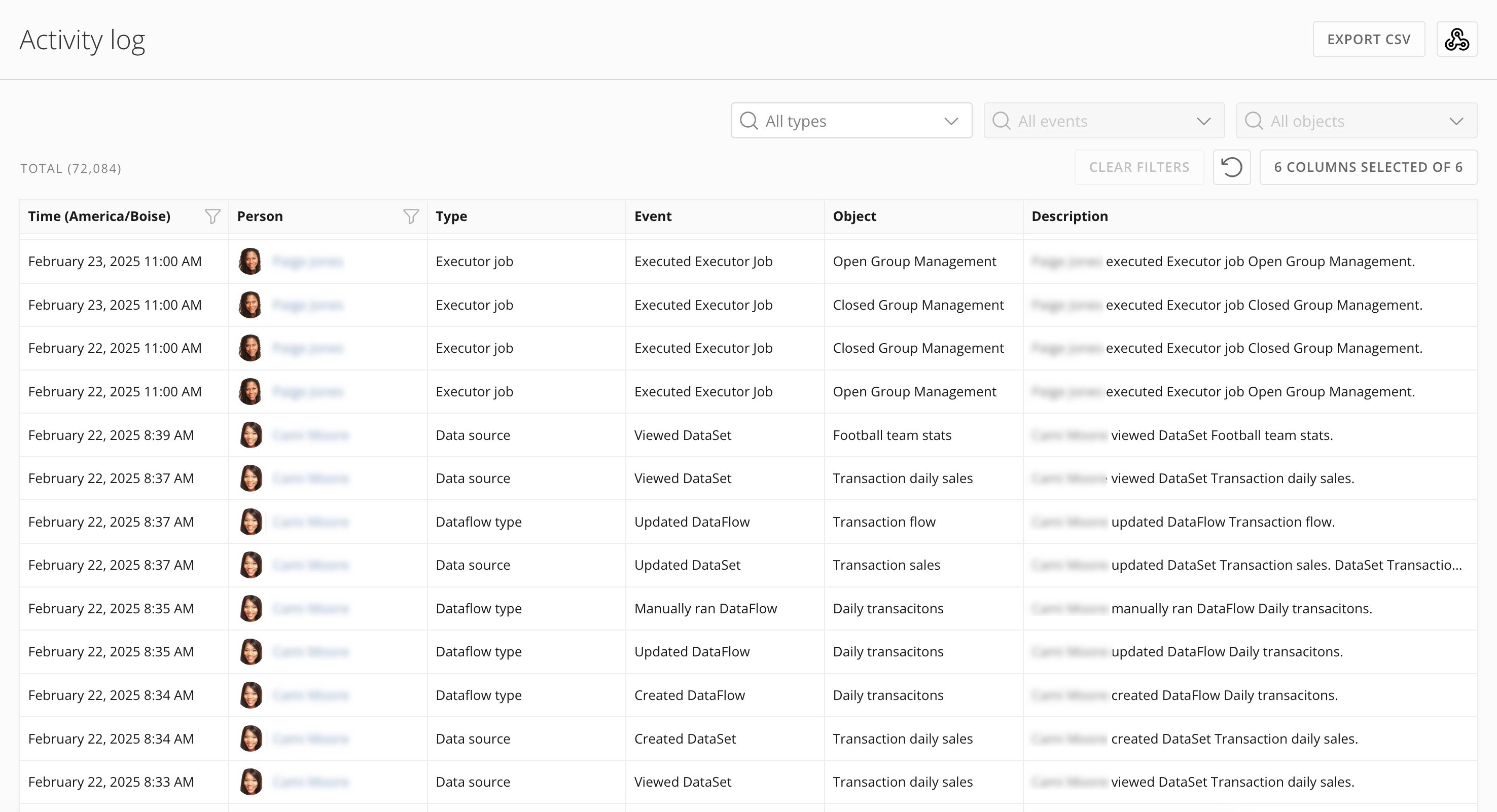
You can access the Activity log from the Admin Settings (**More** > **Admin**). Under **Governance**, select **Activity log**.

The Activity log page displays.

<Frame>
  <img alt="" src="https://mintcdn.com/domoinc-openapi-sync-dataflows/yCOsvW2xnTRbP1fO/images/kb/ka0Vq0000008Oht-00N5w00000Ri7BU-0EMVq000005cyxy.jpg?fit=max&auto=format&n=yCOsvW2xnTRbP1fO&q=85&s=910af242368892be00defd752730834a" style={{width: 899, height: 488}} width="2952" height="1602" data-path="images/kb/ka0Vq0000008Oht-00N5w00000Ri7BU-0EMVq000005cyxy.jpg" />
</Frame>

### Using the Log

The Activity log is updated in near real-time and includes activities logged within the rolling one-year period. You can explore the log with filters on the date range and the person who took the action. In addition, filters on type, event, and object can be applied to find specific activities. When you first load the Activity log, the data is filtered to a rolling 24-hour window.

<Note>
  **Refresh the log:** Selecting <InlineImage src="/images/kb/ka0Vq0000008Oht-00N5w00000Ri7BU-0EMVq000005bfFq.jpg" /> **Refresh** reloads the log, displaying events logged since the page was last loaded.
</Note>

This table describes the available filters:

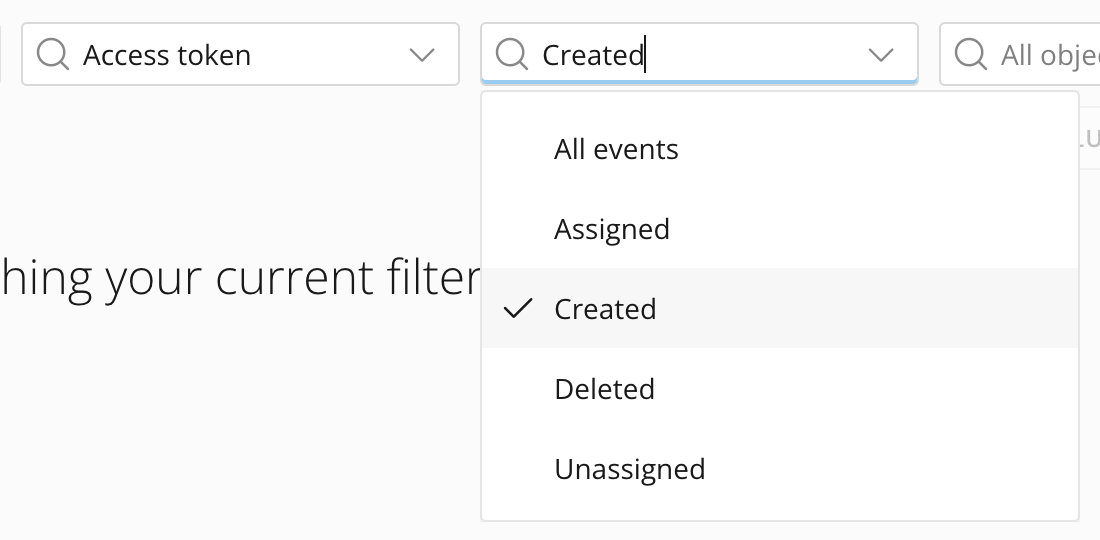
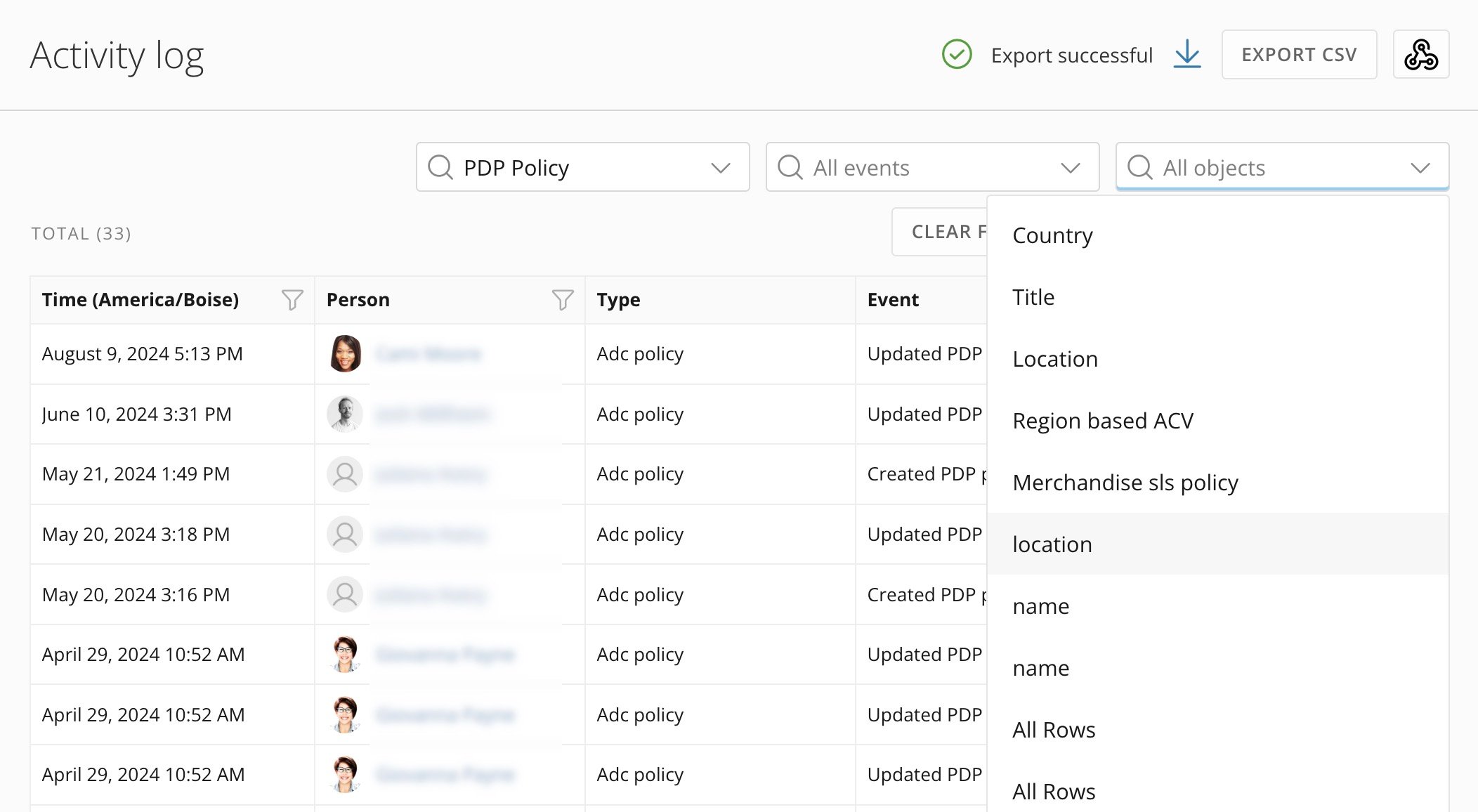
<table border="1" cellpadding="1" cellspacing="1" class="mt-responsive-table" data-aura-rendered-by="33:208;a"><thead><tr><th class="mt-column-width-10" colspan="1" rowspan="1"><p> Filter </p></th><th class="mt-column-width-90" colspan="1" rowspan="1"><p> Description </p></th></tr></thead><tbody><tr><td class="mt-column-width-10" colspan="1" rowspan="1"><p> Time </p></td><td class="mt-column-width-90" colspan="1" rowspan="1"><p> Filter for any date or range of dates. </p><p><b> Note: </b> The Activity log contains events within the rolling one-year window. When you first load the Activity log, the data is filtered to a rolling 24-hour window </p></td></tr><tr><td class="mt-column-width-10" colspan="1" rowspan="1"><p> Person </p></td><td class="mt-column-width-90" colspan="1" rowspan="1"><p> Allows filtering for `All Users` or for a single person at a time. </p></td></tr><tr><td colspan="1" rowspan="1"> Type </td><td colspan="1" rowspan="1"><p> Allows filtering for `All Types` or for a single object type (such as card, dashboard, account). </p><p> To filter for a specific Event or Object, a filter must first be applied to the Type. Available filter values in the Event and Object filters are limited by the selection of the Type filter. </p></td></tr><tr><td class="mt-column-width-10" colspan="1" rowspan="1"><p> Event </p></td><td class="mt-column-width-90" colspan="1" rowspan="1"><p> Allows you to filter instance data for `All Events` or for a single event at a time. </p><p> To filter for a specific Event, a filter must first be applied to the Type. The selection of the Type filter limits the available filter values in the Event filter. </p><p><br /><em> Example: <b> Access token </b> > <b> Created </b></em>. </p><p><img alt="" src="https://mintcdn.com/domoinc-openapi-sync-dataflows/yCOsvW2xnTRbP1fO/images/kb/ka0Vq0000008Oht-00N5w00000Ri7BU-0EMVq000005d08X.jpg?fit=max&auto=format&n=yCOsvW2xnTRbP1fO&q=85&s=4ab45ad480de21696c8d9688f5a74cca" style={{width: 550, height: 270}} width="1100" height="540" data-path="images/kb/ka0Vq0000008Oht-00N5w00000Ri7BU-0EMVq000005d08X.jpg" /></p></td></tr><tr><td class="mt-column-width-10" colspan="1" rowspan="1"><p> Object </p></td><td class="mt-column-width-90" colspan="1" rowspan="1"><p> Allows you to filter instance data for `All Objects` or for a single object at a time. </p><p> To filter for a specific Object, a filter must first be applied to the Type. The selection of the Type filter limits the available filter values in the Object filter. </p><p> For example, if you select <b> PDP Policy </b> from the list, a menu of selectable PDP policies displays. Select a policy to filter the data to show only rows for that policy. </p><p><img alt="" src="https://mintcdn.com/domoinc-openapi-sync-dataflows/yCOsvW2xnTRbP1fO/images/kb/ka0Vq0000008Oht-00N5w00000Ri7BU-0EMVq000005bwoX.jpg?fit=max&auto=format&n=yCOsvW2xnTRbP1fO&q=85&s=5cc2e89589e3cc556ab41991cf9d29e1" style={{width: 648, height: 356}} width="2104" height="1156" data-path="images/kb/ka0Vq0000008Oht-00N5w00000Ri7BU-0EMVq000005bwoX.jpg" /><a id="domostats_report_available" target="_blank" /></p></td></tr></tbody></table>
### DomoStats Report Available

<Frame>
  <img alt="" src="https://mintcdn.com/domoinc-openapi-sync-dataflows/GZtBW7DeR7whzwbr/images/kb/ka0Vq0000000Rcv-00N5w00000Ri7BU-0EM5w000006vKuy.jpg?fit=max&auto=format&n=GZtBW7DeR7whzwbr&q=85&s=5fcf57c528a1ab0ee69bc4965a4ec322" style={{width: 150, height: 150}} width="204" height="204" data-path="images/kb/ka0Vq0000000Rcv-00N5w00000Ri7BU-0EM5w000006vKuy.jpg" />
</Frame>

For more extensive analysis of user activity, we recommend installing the DomoStats Activity Log report. This report loads a rolling 30-day window of activities the first time it executes; each subsequent execution of the report loads and appends only the activities logged since the last time the report was executed (up to the last 30 days' worth of activities).

The DomoStats Activity Log report allows building a long-running history of user activity in Domo. Learn more about the [DomoStats connector](/s/article/360043433813) and the [Activity Log report](https://domo-support.domo.com/s/article/360043433813?language=en_US#activity_log) in the Knowledge Base.

### Export to CSV

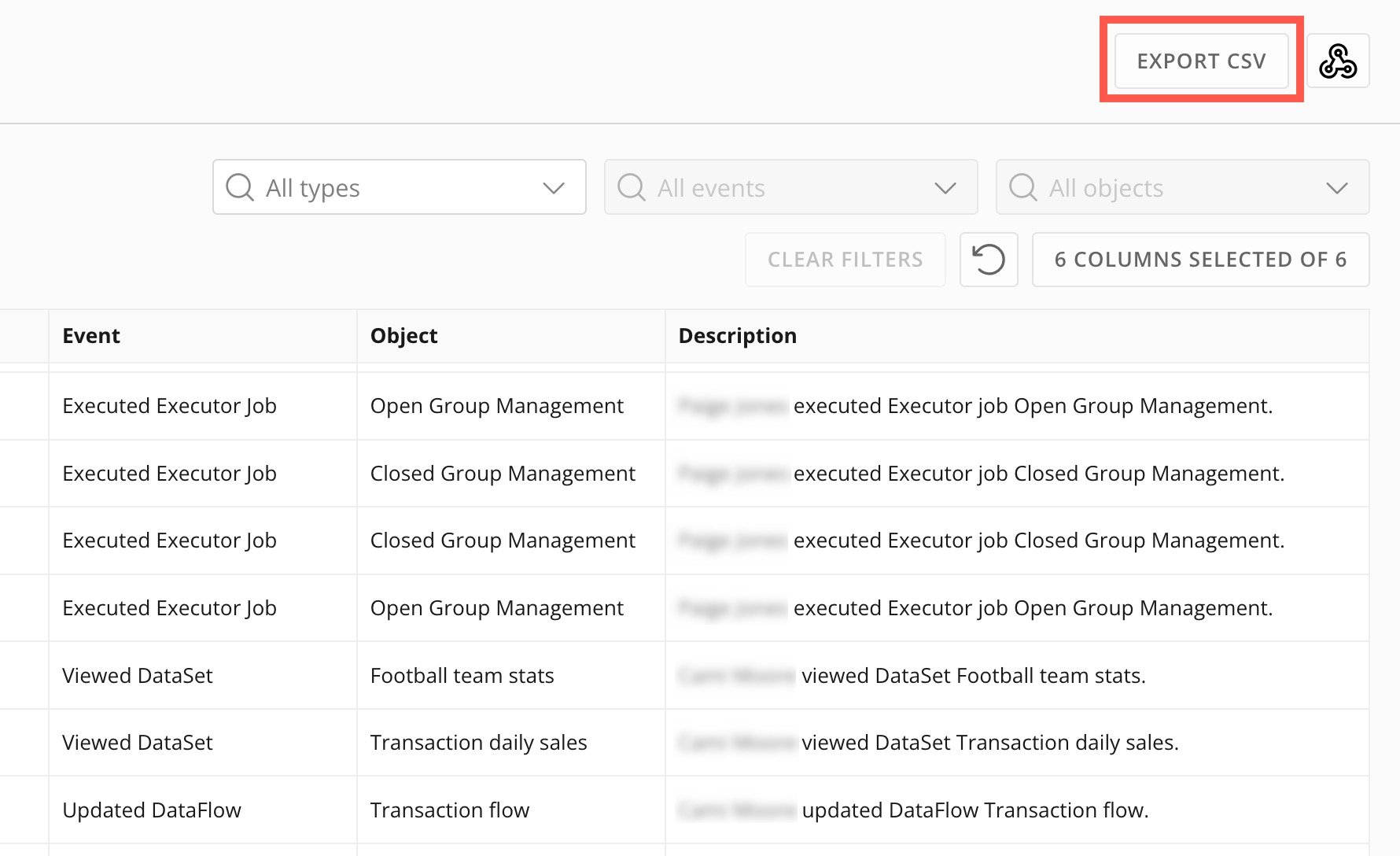
You can export the Activity log for your instance to a CSV file by selecting **Export CSV**.
<Frame>
  <img alt="" src="https://mintcdn.com/domoinc-openapi-sync-dataflows/yCOsvW2xnTRbP1fO/images/kb/ka0Vq0000008Oht-00N5w00000Ri7BU-0EMVq000005d0bZ.jpg?fit=max&auto=format&n=yCOsvW2xnTRbP1fO&q=85&s=ee54bfa9176561b76b443b877d65b5a2" style={{width: 653, height: 399}} width="1780" height="1088" data-path="images/kb/ka0Vq0000008Oht-00N5w00000Ri7BU-0EMVq000005d0bZ.jpg" />
</Frame>

The download process may take from a few seconds to several minutes, depending on the number of logs in your instance. When the download is successful, an **Export successful** message displays.

Then, select <InlineImage src="/images/kb/ka0Vq0000008Oht-00N5w00000Ri7BU-0EM5w000006uzIS.jpg" /> **Download** to download the CSV file to your machine.

<Frame>
  <img alt="" src="https://mintcdn.com/domoinc-openapi-sync-dataflows/yCOsvW2xnTRbP1fO/images/kb/ka0Vq0000008Oht-00N5w00000Ri7BU-0EMVq000005bst0.jpg?fit=max&auto=format&n=yCOsvW2xnTRbP1fO&q=85&s=47ad7663d58211adff4df0d7fe50b7e6" style={{width: 445, height: 74}} width="806" height="134" data-path="images/kb/ka0Vq0000008Oht-00N5w00000Ri7BU-0EMVq000005bst0.jpg" />
</Frame>

<Warning>
  **Important:** The log exports based on the filters you have configured at the time of export.

  For example, if your **Time** filter is set to **Past 24 hours**, the export file only contains data from the past 24 hours. If your export file does not contain all the data you expected, check your filter configuration and re-export if necessary.
</Warning>

### Send Events to a Webhook (Beta)

You can send log events to a webhook, sharing events with a third-party system and consolidating auditing across your enterprise.

<Note>
  **Note:** This feature is in beta and available on request. Contact your Domo account team to request enablement.
</Note>

You need the following items to configure this feature:

* The URL of a webhook that accepts an HTTP POST request containing a JSON body with the event details.
* A secret key. This is required for the configuration in Domo. If your webhook doesn't require a secret, you can enter any value in this field.
* The list of event types to send to the webhook.
* (Optional) An authorization header, if required by your webhook. For example, "Bearer ABC123DEF356."
* (Optional) An OAuth client ID/secret, if required by your webhook.

After obtaining these items, follow the configuration steps below.

1. [Access](#access_activity_log) the Activity log.
2. Select
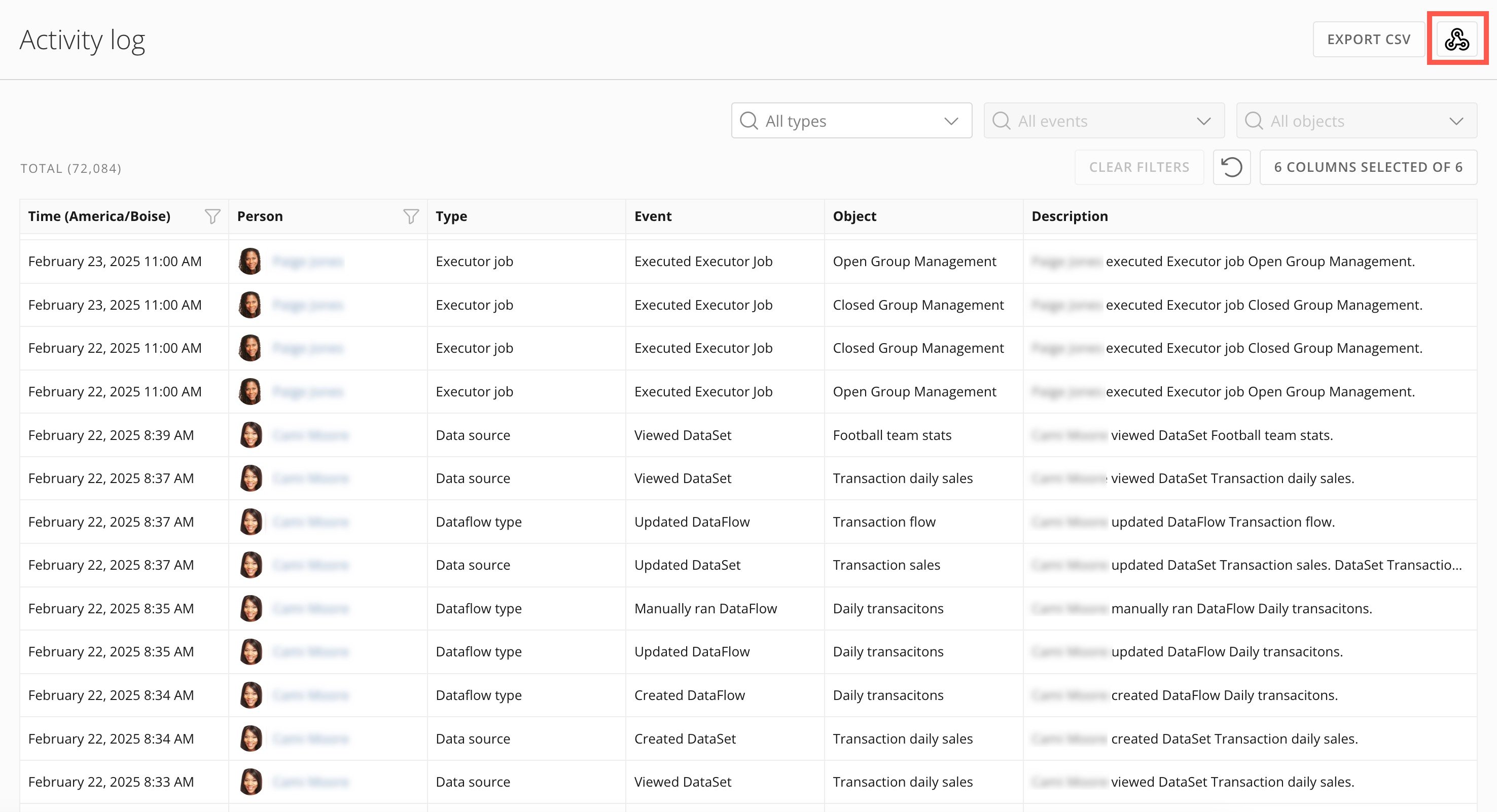
   <InlineImage src="/images/kb/ka0Vq0000008Oht-00N5w00000Ri7BU-0EMVq000001RI3V.jpg" /> **Activity Log Webhook Configuration**.

   <Frame>
     <img alt="" src="https://mintcdn.com/domoinc-openapi-sync-dataflows/yCOsvW2xnTRbP1fO/images/kb/ka0Vq0000008Oht-00N5w00000Ri7BU-0EMVq000005d0rh.jpg?fit=max&auto=format&n=yCOsvW2xnTRbP1fO&q=85&s=75ce03e20c4383b27370901a3436275c" style={{width: 899, height: 488}} width="2952" height="1602" data-path="images/kb/ka0Vq0000008Oht-00N5w00000Ri7BU-0EMVq000005d0rh.jpg" />
   </Frame>

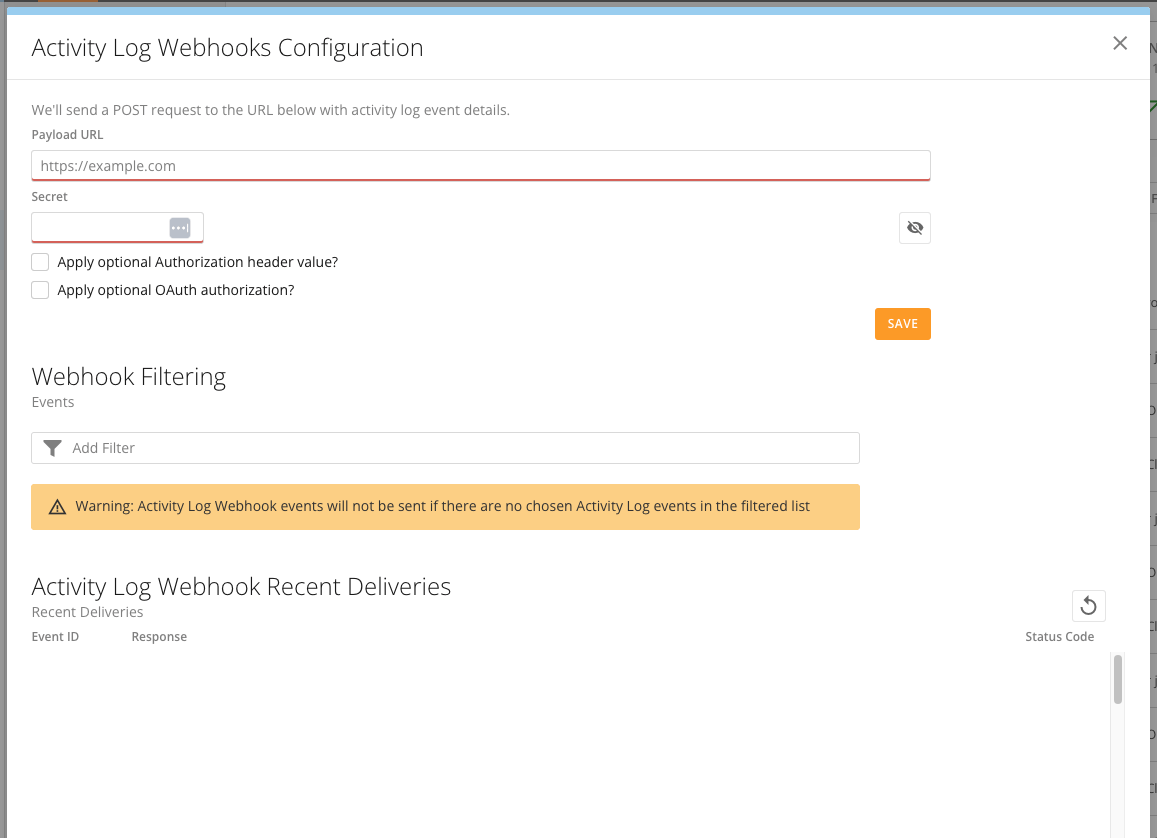
   The webhook configuration modal displays.
   <Frame>
     <img alt="Screenshot 2024-06-10 at 10.15.22 AM.png" src="https://mintcdn.com/domoinc-openapi-sync-dataflows/yCOsvW2xnTRbP1fO/images/kb/ka0Vq0000008Oht-00N5w00000Ri7BU-0EMVq000001HDZl.jpg?fit=max&auto=format&n=yCOsvW2xnTRbP1fO&q=85&s=0783914ca68f9820f24c8b59c1c92738" style={{width: 651, height: 472}} width="1157" height="838" data-path="images/kb/ka0Vq0000008Oht-00N5w00000Ri7BU-0EMVq000001HDZl.jpg" />
   </Frame>
3. In the modal, fill in the following fields:
   * **Payload URL —** This is the destination webhook URL where the Activity log events should be sent.
   * **Secret —** The secret allows the webhook to verify that the data being sent to the payload URL came from this instance of Domo. You can select <InlineImage src="/images/kb/ka0Vq0000008Oht-00N5w00000Ri7BU-0EMVq000001HDd0.jpg" /> **Show secret/Hide secret**.
     **Note:** Domo requires a secret key. However, if your webhook doesn't require a secret, you can enter any value in this field.
4. (Optional) Check the box labeled **Apply optional Authorization header value?** and enter your webhook authorization header value in the **Authorization header** field. For example, "Bearer ABC123DEF356."
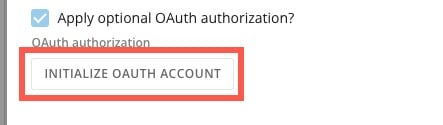
5. (Optional) Check the box labeled **Apply optional OAuth authorization?**
   * If you check the box, select **Initialize OAuth Account**. This opens the **Select account** modal where you can apply all the necessary OAuth headers for the webhook's requests to access the payload URL's resources. Follow the steps below.

     <Frame>
       <img alt="initialize oauth account.jpg" src="https://mintcdn.com/domoinc-openapi-sync-dataflows/yCOsvW2xnTRbP1fO/images/kb/ka0Vq0000008Oht-00N5w00000Ri7BU-0EMVq000001HH78.jpg?fit=max&auto=format&n=yCOsvW2xnTRbP1fO&q=85&s=9c490e768a56bdd1ba055b0356edf091" style={{width: 400, height: 113}} width="443" height="125" data-path="images/kb/ka0Vq0000008Oht-00N5w00000Ri7BU-0EMVq000001HH78.jpg" />
     </Frame>

     In the **Select account** modal, choose the account you want to use to view this content and choose one of the following:

     1. Select **Connect**
     2. Select **Add Account** to add the client ID and client secret for a new account; then select **Create Account**.
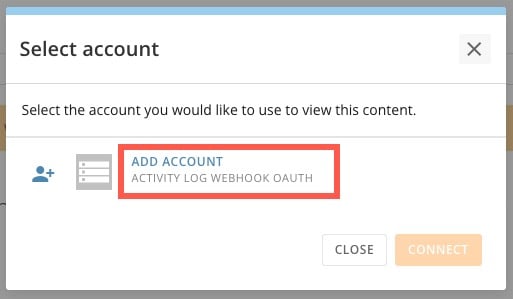
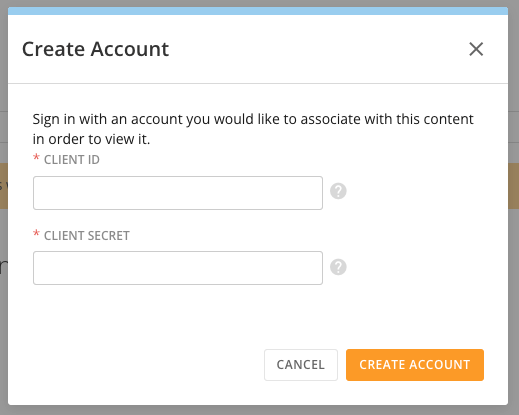
        <Frame>
          <img alt="add account.jpg" src="https://mintcdn.com/domoinc-openapi-sync-dataflows/yCOsvW2xnTRbP1fO/images/kb/ka0Vq0000008Oht-00N5w00000Ri7BU-0EMVq000001HF0T.jpg?fit=max&auto=format&n=yCOsvW2xnTRbP1fO&q=85&s=353401ae6d09806ae959ce5b750946bd" style={{width: 401, height: 234}} width="513" height="299" data-path="images/kb/ka0Vq0000008Oht-00N5w00000Ri7BU-0EMVq000001HF0T.jpg" />
        </Frame>

        <Frame>
          <img alt="Screenshot 2024-06-10 at 10.31.56 AM.png" src="https://mintcdn.com/domoinc-openapi-sync-dataflows/yCOsvW2xnTRbP1fO/images/kb/ka0Vq0000008Oht-00N5w00000Ri7BU-0EMVq000001HF3h.jpg?fit=max&auto=format&n=yCOsvW2xnTRbP1fO&q=85&s=58a0b2f923295cfad937a903b3b666d7" style={{width: 399, height: 319}} width="519" height="415" data-path="images/kb/ka0Vq0000008Oht-00N5w00000Ri7BU-0EMVq000001HF3h.jpg" />
        </Frame>
6. In the webhook configuration modal, select **Save** to keep your configuration.

   <Frame>
     <img alt="save option.jpg" src="https://mintcdn.com/domoinc-openapi-sync-dataflows/yCOsvW2xnTRbP1fO/images/kb/ka0Vq0000008Oht-00N5w00000Ri7BU-0EMVq000001HBUk.jpg?fit=max&auto=format&n=yCOsvW2xnTRbP1fO&q=85&s=ffdcb753e31032df72f3268e872e53da" style={{width: 647, height: 66}} width="1157" height="118" data-path="images/kb/ka0Vq0000008Oht-00N5w00000Ri7BU-0EMVq000001HBUk.jpg" />
   </Frame>
7. In the modal under **Webhook Filtering**, click into the **Add Filter** field.
8. Search for and select the events you want to send to the payload URL. After selecting all your desired events, select **Save**.
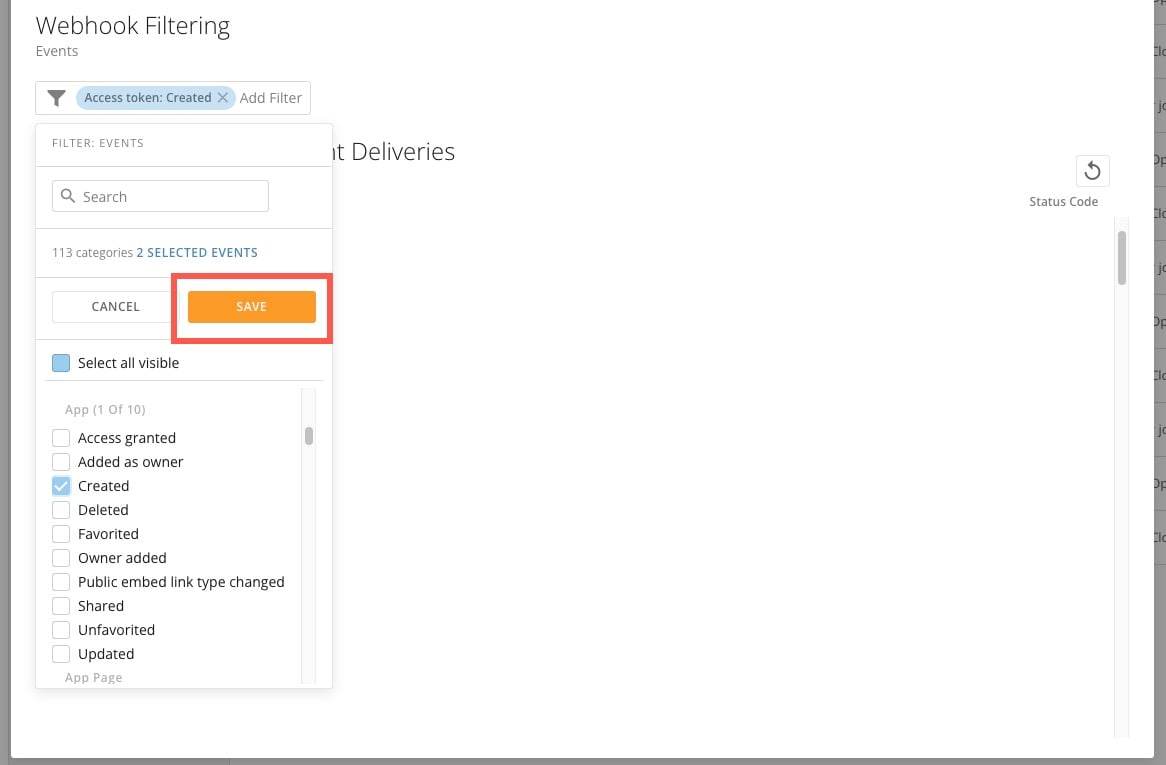
   <Warning>
     **Important:** Only the event types selected in **Webhook Filtering** are sent to the webhook.
   </Warning>

<Frame>
  <img alt="save filter.jpg" src="https://mintcdn.com/domoinc-openapi-sync-dataflows/yCOsvW2xnTRbP1fO/images/kb/ka0Vq0000008Oht-00N5w00000Ri7BU-0EMVq000001HFIE.jpg?fit=max&auto=format&n=yCOsvW2xnTRbP1fO&q=85&s=6be06e8a49a0103d0a2be91d76a09c2b" style={{width: 651, height: 427}} width="1166" height="765" data-path="images/kb/ka0Vq0000008Oht-00N5w00000Ri7BU-0EMVq000001HFIE.jpg" />
</Frame>

The list of recently delivered webhooks displays at the bottom of the modal. After at least one delivery, you can select <InlineImage src="/images/kb/ka0Vq0000008Oht-00N5w00000Ri7BU-0EMVq000005bfFq.jpg" /> **Refresh** to see the most recent data.
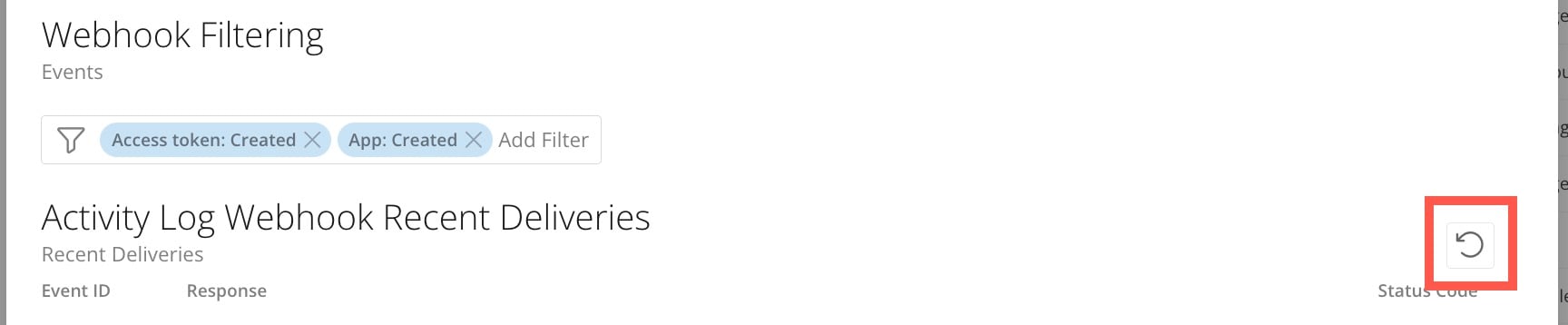
<Frame>
  <img alt="" src="https://mintcdn.com/domoinc-openapi-sync-dataflows/yCOsvW2xnTRbP1fO/images/kb/ka0Vq0000008Oht-00N5w00000Ri7BU-0EMVq000005bnV7.jpg?fit=max&auto=format&n=yCOsvW2xnTRbP1fO&q=85&s=0a30dc07d01934a5606f7a8faf3e7b6e" style={{width: 651, height: 135}} width="1728" height="358" data-path="images/kb/ka0Vq0000008Oht-00N5w00000Ri7BU-0EMVq000005bnV7.jpg" />
</Frame>

Your webhook configuration is now complete and will start receiving events shortly. Each event is only sent once; if it cannot be delivered for any reason, it is not re-sent.

### Stop Sending Events to a Webhook

To stop sending activity log events to the webhook, select <InlineImage src="/images/kb/ka0Vq0000008Oht-00N5w00000Ri7BU-0EMVq000001RI3V.jpg" /> **Activity Log Webhook Configuration** to open the webhook configuration modal.

In the modal above the payload URL, select <InlineImage src="/images/kb/ka0Vq0000007KoP-00N5w00000Ri7BU-0EMVq000000SmMf.jpg" /> **Delete**.