> ## Documentation Index
> Fetch the complete documentation index at: https://domoinc-openapi-sync-dataflows.mintlify.site/llms.txt
> Use this file to discover all available pages before exploring further.
# Setting the Time Zone for a Workbench 5 Job
export const InlineImage = ({src, alt = '', height = '1.6em'}) => {
return  ;
};
All datetime data coming into Domo is presumed to be UTC. You can set the time zone for a DataSet Job in Workbench, which will convert the time back to UTC before transmitting to Domo.
American Daylight Savings is taken into account for time zones in Workbench, but you may see the gaining or losing of an hour in your data depending on the time of year.
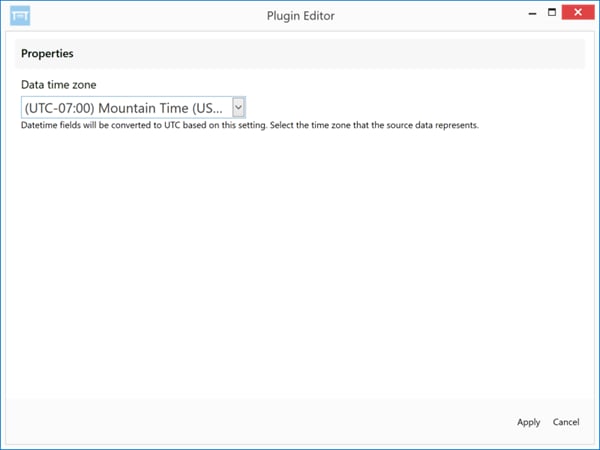
You apply a time zone to a DataSet using the **Shift Date Timezone** Transform. Note the UTC offset in the example below. In this case, 7 hours would be added to your datetime value in order to bring it inline with UTC.
;
};
All datetime data coming into Domo is presumed to be UTC. You can set the time zone for a DataSet Job in Workbench, which will convert the time back to UTC before transmitting to Domo.
American Daylight Savings is taken into account for time zones in Workbench, but you may see the gaining or losing of an hour in your data depending on the time of year.
You apply a time zone to a DataSet using the **Shift Date Timezone** Transform. Note the UTC offset in the example below. In this case, 7 hours would be added to your datetime value in order to bring it inline with UTC.
 **To set the time zone for a DataSet job,**
1. In Workbench, Click in the left-hand icon bar.
2. In the Jobs listing, double-click the DataSet job with columns you want to filter.
3. Click
**Transforms** to expand that section of the pane.
4. In the
**Add a transform** menu, select **Filter Transform**.
5. Click the
button.
The **Filter Transform Editor** appears.
6. In the
**Data Timezone** menu, select the desired time zone.
7. Click
**Apply**.
8. Click at the top of the pane to save your transform.
**To set the time zone for a DataSet job,**
1. In Workbench, Click in the left-hand icon bar.
2. In the Jobs listing, double-click the DataSet job with columns you want to filter.
3. Click
**Transforms** to expand that section of the pane.
4. In the
**Add a transform** menu, select **Filter Transform**.
5. Click the
button.
The **Filter Transform Editor** appears.
6. In the
**Data Timezone** menu, select the desired time zone.
7. Click
**Apply**.
8. Click at the top of the pane to save your transform.