> ## Documentation Index
> Fetch the complete documentation index at: https://domoinc-openapi-sync-dataflows.mintlify.site/llms.txt
> Use this file to discover all available pages before exploring further.

# YouTube Reporting Enterprise Connector

## Intro

You can use Domo's YouTube Reporting Enterprise Connector to retrieve information about YouTube assets, videos, and channels. To learn more about the YouTube API, visit their page ([https://developers.google.com/youtube/](https://developers.google.com/youtube/ "https://developers.google.com/youtube/")).

<Note>
  **Note:** There are currently 5 YouTube Connectors available in Domo. The difference between these may be difficult to understand, so here is an explanation of each:

  * **YouTube Reporting Connector -**
    This is our entry-level YouTube Connector. It requires only a Google username and password to authenticate. Most Domo users should use this Connector to retrieve YouTube data.
  * **YouTube Reporting Enterprise Connector -**
    This is the enterprise version of the YouTube Reporting Connector. This report has a few additional reports and requires you to enter a Google Client ID and Client Secret in addition to a basic Google username and password.
  * **YouTube Enterprise Advanced Connector -**
    This is Domo's most advanced YouTube Connector. (This is the only version of the YouTube Enterprise Connector; there is no Connector simply called "YouTube Enterprise.") It requires a Google Client ID and Client Secret as well as a Google username and password. It provides more reports and options than the other YouTube Connectors but is also more complicated and much more difficult to configure. This Connector is recommended for advanced users only.
  * **YouTube Reporting Partition Connector**
    **-** This offers the same reports as the YouTube Reporting Connector, with the added ability to use Partitioning in the DataSet.
  * **YouTube Reporting Enterprise Partition Connector**
    **-** This offers the same reports as the YouTube Reporting Enterprise Connector, with the added ability to use Partitioning in the DataSet.
</Note>

The YouTube Reporting Enterprise Connector is a "Cloud App" Connector, meaning it retrieves data stored in the cloud. In the Data Center, you can access the Connector page for this and other Cloud App Connectors by clicking **Cloud App** in the toolbar at the top of the window.

You connect to your YouTube Reporting Enterprise account in the Data Center. This topic discusses the fields and menus that are specific to the YouTube Reporting Enterprise Connector user interface. General information for adding DataSets, setting update schedules, and editing DataSet information is discussed in [Adding a DataSet Using a Data Connector.](/s/article/360042926274 "Adding a DataSet Using a Data Connector")

## Best practices

* When you first power up the Connector, you can choose to retrieve "Predefined Reports." These reports can be used to get analytics data about the provided YouTube account. Whenever a report is selected for the first time (meaning first dataset using this report), Domo creates a YouTube reporting job. All data before that day is considered "historical data." YouTube only returns 30 days worth of historical data. For example, if the first "Device and OS" report dataset is created on August 31st, only data up to August 1st will be available. This historical data will typically be available in a couple days after the dataset's creation. Every day after, data from two days prior will be available. Using the previous example, this means August 31st's data will be available on September 2nd and September 1st's data will be available on September 3rd, and so forth. By the end of September this dataset will have 2 months worth of data (August's data and September's data). However, the historical data will only be available for 30 days. This means around October, the data from August would no longer be available from YouTube. In contrast, all the data after the dataset's creation (so August 31st and after) will be available for 60 days from YouTube.
* DataSets should run only ONCE within a 24-hour period because the data is updated only once a day.

## Prerequisites

To connect to your YouTube account and create a DataSet, you must have the following:

* A Google Client ID
* A Google Client Secret
* A Google username and password

For step-by-step instructions on obtaining a Client ID and Client Secret, see [https://support.google.com/cloud/answer/6158849](https://support.google.com/cloud/answer/6158849 "https://developers.google.com/console/help/new/#generatingoauth2").

<Note>
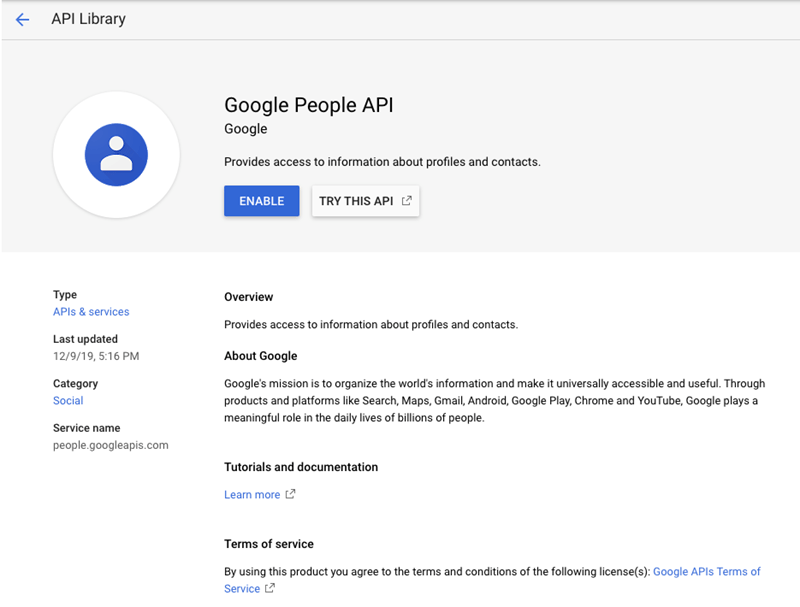
  ****Note:**** For multiple YouTube Reporting Enterprise accounts in Domo, you must enable the Google People API to properly configure this Connector. If the Google People API is not enabled, then any new YouTube Reporting Enterprise account in Domo will override the current credentials.
</Note>

For more information about this API, see [https://developers.google.com/people/?hl=en\_US](https://developers.google.com/people/?hl=en_US "Follow link").

<Frame>
  <img alt="google_people_api.png" src="https://mintcdn.com/domoinc-openapi-sync-dataflows/blcgkVgnZv6gj_XY/images/kb/ka05w000001238U-00N5w00000Ri7BU-0EM5w000005vNzE.png?fit=max&auto=format&n=blcgkVgnZv6gj_XY&q=85&s=7574fa77e601f05697ef008e9e316528" width="800" height="607" data-path="images/kb/ka05w000001238U-00N5w00000Ri7BU-0EM5w000005vNzE.png" />
</Frame>

## Connecting to your YouTube Reporting Enterprise account

This section enumerates the options in the **Credentials** and **Details** panes in the YouTube Reporting Enterprise Connector page. The components of the other panes in this page, **Scheduling** and **Name & Describe Your DataSet**, are universal across most Connector types and are discussed in greater length in [Adding a DataSet Using a Data Connector](/s/article/360042926274 "Adding a DataSet Using a Data Connector").

### Credentials pane

This pane contains fields for entering credentials to connect to your YouTube account. For information about obtaining these credentials, see "Prerequisites," above.

The following table describes what is needed for each field:

<table border="1" cellpadding="1" cellspacing="1" data-aura-rendered-by="33:195;a"><thead><tr><th colspan="1" rowspan="1"><p><span class="s1"> Field </span></p></th><th colspan="1" rowspan="1"><p><span class="s1"> Description </span></p></th></tr></thead><tbody><tr><td colspan="1" rowspan="1"><p><span class="s1"> Client ID </span></p></td><td colspan="1" rowspan="1"><p><span class="s1"> Enter your Google Client ID. </span></p></td></tr><tr><td colspan="1" rowspan="1"><p><span class="s1"> Client Secret </span></p></td><td colspan="1" rowspan="1"><p><span class="s1"> Enter your Google Client Secret. </span></p></td></tr></tbody></table>

After you have entered valid credentials, you are taken to Google's OAuth page where you are prompted to enter your Google username and password. Once you have successfully authenticated, you can use the same account any time you go to create a new YouTube Reporting Enterprise DataSet. You can manage Connector accounts in the **Accounts** tab in the Data Center. For more information about this tab, see [Managing User Accounts for Connectors](/s/article/360042926054 "Managing User Accounts for Connectors").

### Details pane

This pane contains a primary menu from which you can select a report, along with various other menus and fields in which you can configure your selected report.

<table border="1" cellpadding="1" cellspacing="1" data-aura-rendered-by="33:195;a"><thead><tr><th colspan="1" rowspan="1"><p><span class="s1"> Menu </span></p></th><th colspan="1" rowspan="1"><p><span class="s1"> Description </span></p></th></tr></thead><tbody><tr><td colspan="1" rowspan="1"><p><span class="s1"> Report </span></p></td><td colspan="1" rowspan="1"><p><span class="s1"> Select the desired YouTube Reporting Enterprise report. Different reports are available depending on the API type you choose. </span></p><table border="1" cellpadding="1" cellspacing="1"><tbody><tr><td colspan="1" rowspan="1"><p> Asset Names </p></td><td colspan="1" rowspan="1"><p> Returns the list of all assets. <br /><b> Content Owner ID is required for this report. </b></p></td></tr><tr><td colspan="1" rowspan="1"><p> Available Reports </p></td><td colspan="1" rowspan="1"><p> Returns the list of available reports based on report type. </p></td></tr><tr><td colspan="1" rowspan="1"><p> Channel Details and Statistics </p></td><td colspan="1" rowspan="1"><p> Returns content details, snippets, and statistics data for the authenticated channel. </p></td></tr><tr><td colspan="1" rowspan="1"><p> Jobs </p></td><td colspan="1" rowspan="1"><p> Lists reporting jobs that have been scheduled for a channel or content owner. </p></td></tr><tr><td colspan="1" rowspan="1"><p> Other Video Details and Statistics </p></td><td colspan="1" rowspan="1"><p> Returns content details, snippets, and statistics data for the specified channel IDs. </p></td></tr><tr><td colspan="1" rowspan="1"><p> Predefined Report Types </p></td><td colspan="1" rowspan="1"><p> Returns predefined Report types that the channel or content owner can retrieve. </p></td></tr><tr><td colspan="1" rowspan="1"><p> Public Channel Information </p></td><td colspan="1" rowspan="1"><p> Returns public information of channels entered. </p></td></tr><tr><td colspan="1" rowspan="1"><p> Video and Channel Names </p></td><td colspan="1" rowspan="1"><p> Returns the list of video and channel names. </p></td></tr></tbody></table></td></tr><tr><td colspan="1" rowspan="1"><p> Call on Behalf of Content Owner </p></td><td colspan="1" rowspan="1"><p> Select <b> Yes </b> if you are planning to retrieve a predefined report for another user (whose ID you will enter in the <b> Content Owner ID </b> field). Select <b> No </b> if you are the content owner for the report you plan to pull. </p> <Note><div class="info-box-wrapper"><div class="info-box-icon-container" /><div class="info-box-content-container"><div class="info-box-content"><b> Note: </b> You must have content owner access and the Content ID API enabled in the developers console application to do this. </div></div></div> </Note></td></tr><tr><td colspan="1" rowspan="1"><p> Content Owner ID </p></td><td colspan="1" rowspan="1"><p> Enter the content owner ID for the user with content you want to pull. If you do not specify a value for the parameter, the API server assumes the request is being made for your own channel. </p><p> To find your content owner ID, you must be a member of an MCN (Multi-Channel Network). For more information, see <a href="https://support.google.com/youtube/answer/2737059?hl=en" target="_blank"> [https://support.google.com/youtube/answer/2737059?hl=en](https://support.google.com/youtube/answer/2737059?hl=en) </a>. </p><p> To find your content owner ID, do the following: </p><ol><li><p> Log into YouTube. </p></li><li><p> Click your profile picture in the top right. </p></li><li><p> Select <b> Studio </b> in the dropdown menu. </p></li><li><p> Copy the portion of the page URL following <span class="mt-font-courier-new"> o= </span>. </p></li></ol><p> For example, if the page URL was <span class="nowiki"><span class="mt-font-courier-new"><a href="https://www.youtube.com/dashboard?o=abc123_qrs_654" rel="noopener" target="_blank"> [https://www.youtube.com/dashboard?o=abc123\_qrs\_654](https://www.youtube.com/dashboard?o=abc123_qrs_654) </a></span></span>, the content owner ID would be <span class="mt-font-courier-new"> abc123\_qrs\_654 </span>. </p> <Note><div class="info-box-wrapper"><div class="info-box-icon-container" /><div class="info-box-content-container"><div class="info-box-content"><b> Note: </b> You must have content owner access and the Content ID API enabled in the developers console application to do this. </div></div></div> </Note></td></tr><tr><td colspan="1" rowspan="1"><p> Preserve Column Names </p></td><td colspan="1" rowspan="1"><p> Specify whether you want column names in your DataSet to be preserved when a report is changed. The best practice is to set this to <b> True </b> so cards do not break if the data is changed. </p></td></tr><tr><td colspan="1" rowspan="1"><p> Retrieve Video and Channel Names </p></td><td colspan="1" rowspan="1"><p> Specify whether you want to retrieve video and channel names when a Video or Channel ID is present in a report. </p></td></tr><tr><td colspan="1" rowspan="1"><p> Channel IDs </p></td><td colspan="1" rowspan="1"><p> Enter the channel ID you want to retrieve data for. If there are multiple channel IDs, separate them with commas. </p></td></tr><tr><td colspan="1" rowspan="1"><p> Duration </p></td><td colspan="1" rowspan="1"><p> Select whether you want to pull data for a specific date or a date range. </p></td></tr><tr><td colspan="1" rowspan="1"><p> Report Date </p></td><td colspan="1" rowspan="1"><p> Select whether the report data is for a specific date or for a relative number of days back from today. </p></td></tr><tr><td colspan="1" rowspan="1"><p> Select Specific Date </p></td><td colspan="1" rowspan="1"><p> Select the date for the report. </p></td></tr><tr><td colspan="1" rowspan="1"><p> Days Back </p></td><td colspan="1" rowspan="1"><p> Enter the number of past days that should appear in the report. </p></td></tr><tr><td colspan="1" rowspan="1"><p> Start Date </p></td><td colspan="1" rowspan="1"><p> Specify whether the first date in your date range is a specific or relative date. You select the last date in your range in <b> End Date </b>. </p></td></tr><tr><td colspan="1" rowspan="1"><p> End Date </p></td><td colspan="1" rowspan="1"><p> Specify whether the second date in your date range is a specific or relative date. You select the first date in your range in <b> Start Date </b>. </p></td></tr><tr><td colspan="1" rowspan="1"><p> Select Specific Start Date </p></td><td colspan="1" rowspan="1"><p> Select the first date in your date range. </p></td></tr><tr><td colspan="1" rowspan="1"><p> Select Specific End Date </p></td><td colspan="1" rowspan="1"><p> Select the second date in your date range. </p></td></tr><tr><td colspan="1" rowspan="1"><p> Days Back to Start From </p></td><td colspan="1" rowspan="1"><p> Enter the number of the farthest day back that should be represented in the report. Combine with <b> Days Back to End At </b> to create a range of represented days. </p><p> For example, if you entered <span class="mt-font-courier-new"> 10 </span> for <b> Days Back to Start From </b> and <span class="mt-font-courier-new"> 5 </span> for <b> Days Back to End At </b>, the report would contain data for 10 days ago up until 5 days ago. </p></td></tr><tr><td colspan="1" rowspan="1"><p> Days Back to End At </p></td><td colspan="1" rowspan="1"><p> Enter the number of the most recent day back that should be represented in the report. Combine with <b> Days Back to Start From </b> to create a range of represented days. </p><p> For example, if you entered <span class="mt-font-courier-new"> 10 </span> for <b> Days Back to Start From </b> and <span class="mt-font-courier-new"> 5 </span> for <b> Days Back to End At </b>, the report would contain data for 10 days ago up until 5 days ago. </p></td></tr></tbody></table>

### Other panes

For information about the remaining sections of the Connector interface, including how to configure scheduling, retry, and update options, see [Adding a DataSet Using a Data Connector](/s/article/360042926274 "Adding a DataSet Using a Data Connector").

### FAQs

<Accordion title="How do I create a Client ID and Client Secret?">
  Follow the steps to create a Client ID and Client Secret:

  1. Log-in to Google Developer Dashboard using your Google account.
  2. Create a new Application.
  3. Give the application a descriptive name such as **YouTube Reporting Enterprise Connection**.
  4. Use the **Library** section to enable the following APIs:
     * YouTube Reporting API
     * Google People API
  5. On the **OAuth Consent Screen** tab in the **Credentials** section, set the product name to to the same name you gave the project.
  6. Click **\[+ CREATE CREDENTIALS]** on the **Credentials** tab and create an OAuth Client ID.
  7. Create a Web Application.
  8. Set the following Authorized Redirect URIs:

     [https://oauth.domo.com/api/data/v1/oauth/providers/youtube-reporting-enterprise/exchange](https://oauth.domo.com/api/data/v1/oauth/providers/youtube-reporting-enterprise/exchange/)

     This will display the Client ID and the Client Secret.
  9. Copy and Paste the Client ID and the Client Secret to Domo's account creation screen.
</Accordion>
