> ## Documentation Index
> Fetch the complete documentation index at: https://domoinc-openapi-sync-dataflows.mintlify.site/llms.txt
> Use this file to discover all available pages before exploring further.
# Deleting DataSets
export const InlineImage = ({src, alt = '', height = '1.6em'}) => {
return  ;
};
You can delete a DataSet from your Domo instance if you are the DataSet owner or have an "Admin" default security role or a custom role with the "Manage DataSets" privilege enabled. For more information about default security roles, see [Changing the Owner of a DataSet](/s/article/360042926074 "Security Role Reference").
You can delete DataSets one at a time or in bulk. To take bulk actions on DataSets, you must have an "Admin" default security role or a custom role with the "Manage DataSets" privilege enabled.
**To delete a DataSet from your Domo instance,**
1. Click **Data** in the toolbar at the top of the screen.
The Data Center opens, with the **Data Warehouse** tab opened by default.
2. Click the
icon on the left side of the screen to open the **DataSets** tab.
3. Locate the DataSet you want to delete.
For more information about searching and filtering DataSets in the Data Center, see [Data Center Layout](https://domo-support.domo.com/s/article/360047553253?language=en_US).
4. Mouse over the row for the DataSet and click the
icon.
5. Select **Delete**.
6. Click **Delete** to confirm.
You can also delete a DataSet from the details view for that DataSet by selecting **Delete** in the wrench menu. For more information about the details view, see the *View Details* heading of [Data Center Layout](http://domo-support.domo.com/s/article/360047553253?language=en_US).
**To delete DataSets in bulk,**
1. Click **Data** in the toolbar at the top of the screen.
The Data Center opens, with the **Data Warehouse** tab opened by default.
2. Click the
icon on the left side of the screen to open the **DataSets** tab.
3. Locate one of the DataSets you want to delete.
For more information about searching and filtering DataSets in the Data Center, see [Data Center Layout](https://domo-support.domo.com/s/article/360047553253?language=en_US).
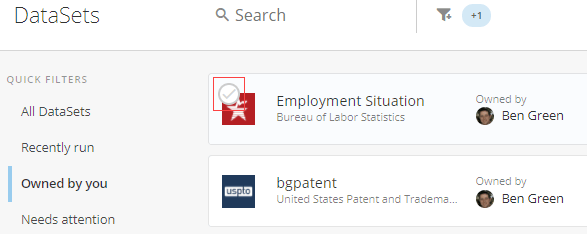
4. Mouse over the row for the DataSet and click the circled checkmark that pops up over the connector icon.
;
};
You can delete a DataSet from your Domo instance if you are the DataSet owner or have an "Admin" default security role or a custom role with the "Manage DataSets" privilege enabled. For more information about default security roles, see [Changing the Owner of a DataSet](/s/article/360042926074 "Security Role Reference").
You can delete DataSets one at a time or in bulk. To take bulk actions on DataSets, you must have an "Admin" default security role or a custom role with the "Manage DataSets" privilege enabled.
**To delete a DataSet from your Domo instance,**
1. Click **Data** in the toolbar at the top of the screen.
The Data Center opens, with the **Data Warehouse** tab opened by default.
2. Click the
icon on the left side of the screen to open the **DataSets** tab.
3. Locate the DataSet you want to delete.
For more information about searching and filtering DataSets in the Data Center, see [Data Center Layout](https://domo-support.domo.com/s/article/360047553253?language=en_US).
4. Mouse over the row for the DataSet and click the
icon.
5. Select **Delete**.
6. Click **Delete** to confirm.
You can also delete a DataSet from the details view for that DataSet by selecting **Delete** in the wrench menu. For more information about the details view, see the *View Details* heading of [Data Center Layout](http://domo-support.domo.com/s/article/360047553253?language=en_US).
**To delete DataSets in bulk,**
1. Click **Data** in the toolbar at the top of the screen.
The Data Center opens, with the **Data Warehouse** tab opened by default.
2. Click the
icon on the left side of the screen to open the **DataSets** tab.
3. Locate one of the DataSets you want to delete.
For more information about searching and filtering DataSets in the Data Center, see [Data Center Layout](https://domo-support.domo.com/s/article/360047553253?language=en_US).
4. Mouse over the row for the DataSet and click the circled checkmark that pops up over the connector icon.
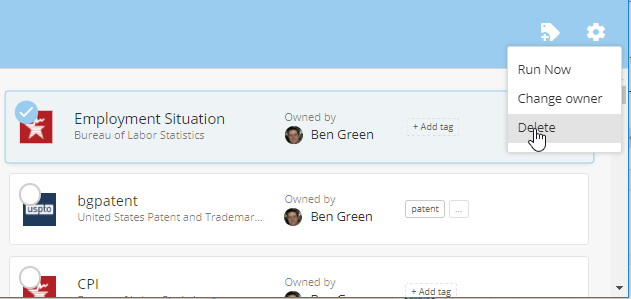
 5. In the blue bar that appears at the top of the screen, click the
icon.
6. Select **Delete**.
5. In the blue bar that appears at the top of the screen, click the
icon.
6. Select **Delete**.
 All of the DataSets you have selected should now be deleted.