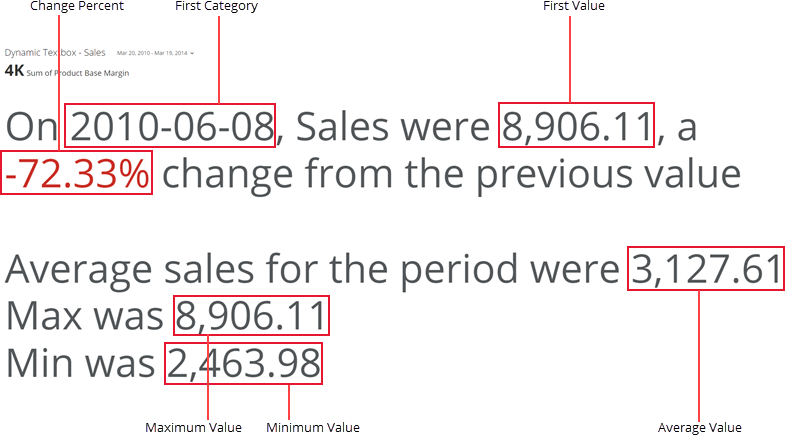
 The text can be as long as you want and can contain any character. You can format the text to be centered, left-aligned, or right-aligned, and can adjust margin size. You can also change the font size, color, and style. These and other options are discussed below.
This article details how to use Dynamic Textboxes in the following topics:
* [Powering Dynamic Textboxes](#powering)
* [Customizing Dynamic Textboxes](#customize)
## Powering Dynamic Textboxes
Dynamic Textboxes require two columns or rows of data from your DataSet. One column references the *category* column you are deriving macros from, and the other column references the *values* column. For example, if you wanted your text to say something like "Sales for \[region] was \[value]," you would drag the column with your region names into the **Category** field and the column with your values into the **Value** field.
At this point, the preview simply pulls in the first category or value from your DataSet, which is probably not what you want. Before the card shows meaningful data, go to **Chart Properties > General > Text** and enter the text you want, along with macros referencing data in your selected columns. Chart Properties are discussed below under [customizing Dynamic Textboxes](#customize).
For information about value, category, and series data, see [Understanding Chart Data](/s/article/360043428693 "Understanding Chart Data").
In Analyzer, choose the columns containing the data for your Textbox. For more information about choosing data columns, see [Applying DataSet Columns to Your Chart](/s/article/360043428713 "Applying DataSet Columns to Your Chart").
For more information about formatting charts in the Analyzer, see [Visualization Card Building Part 2: The Analyzer](/s/topic/0TO5w000000ZaoUGAS "KPI Card Building Part 2: The Card Builder").
## Customizing Dynamic Textboxes
You can customize the appearance of a Dynamic Textbox in a number of ways. You can specify the text that displays in your Textbox, using macros. You can also change formatting, margin spacing, font size, color, and style.
### Defining Text and Macros
In Analyzer with the Dynamic Textbox chart selected, go to **Chart Properties** > **General** > **Text** and specify the text that appears in your Textbox.
To view the available macros, select
The text can be as long as you want and can contain any character. You can format the text to be centered, left-aligned, or right-aligned, and can adjust margin size. You can also change the font size, color, and style. These and other options are discussed below.
This article details how to use Dynamic Textboxes in the following topics:
* [Powering Dynamic Textboxes](#powering)
* [Customizing Dynamic Textboxes](#customize)
## Powering Dynamic Textboxes
Dynamic Textboxes require two columns or rows of data from your DataSet. One column references the *category* column you are deriving macros from, and the other column references the *values* column. For example, if you wanted your text to say something like "Sales for \[region] was \[value]," you would drag the column with your region names into the **Category** field and the column with your values into the **Value** field.
At this point, the preview simply pulls in the first category or value from your DataSet, which is probably not what you want. Before the card shows meaningful data, go to **Chart Properties > General > Text** and enter the text you want, along with macros referencing data in your selected columns. Chart Properties are discussed below under [customizing Dynamic Textboxes](#customize).
For information about value, category, and series data, see [Understanding Chart Data](/s/article/360043428693 "Understanding Chart Data").
In Analyzer, choose the columns containing the data for your Textbox. For more information about choosing data columns, see [Applying DataSet Columns to Your Chart](/s/article/360043428713 "Applying DataSet Columns to Your Chart").
For more information about formatting charts in the Analyzer, see [Visualization Card Building Part 2: The Analyzer](/s/topic/0TO5w000000ZaoUGAS "KPI Card Building Part 2: The Card Builder").
## Customizing Dynamic Textboxes
You can customize the appearance of a Dynamic Textbox in a number of ways. You can specify the text that displays in your Textbox, using macros. You can also change formatting, margin spacing, font size, color, and style.
### Defining Text and Macros
In Analyzer with the Dynamic Textbox chart selected, go to **Chart Properties** > **General** > **Text** and specify the text that appears in your Textbox.
To view the available macros, select 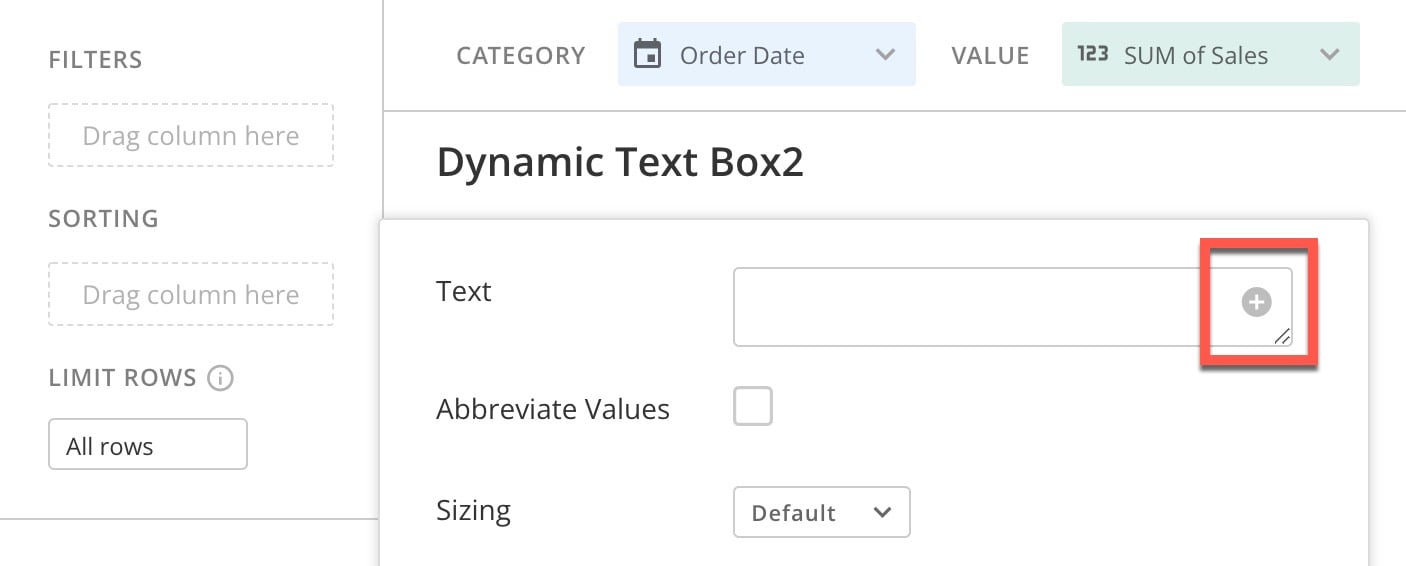
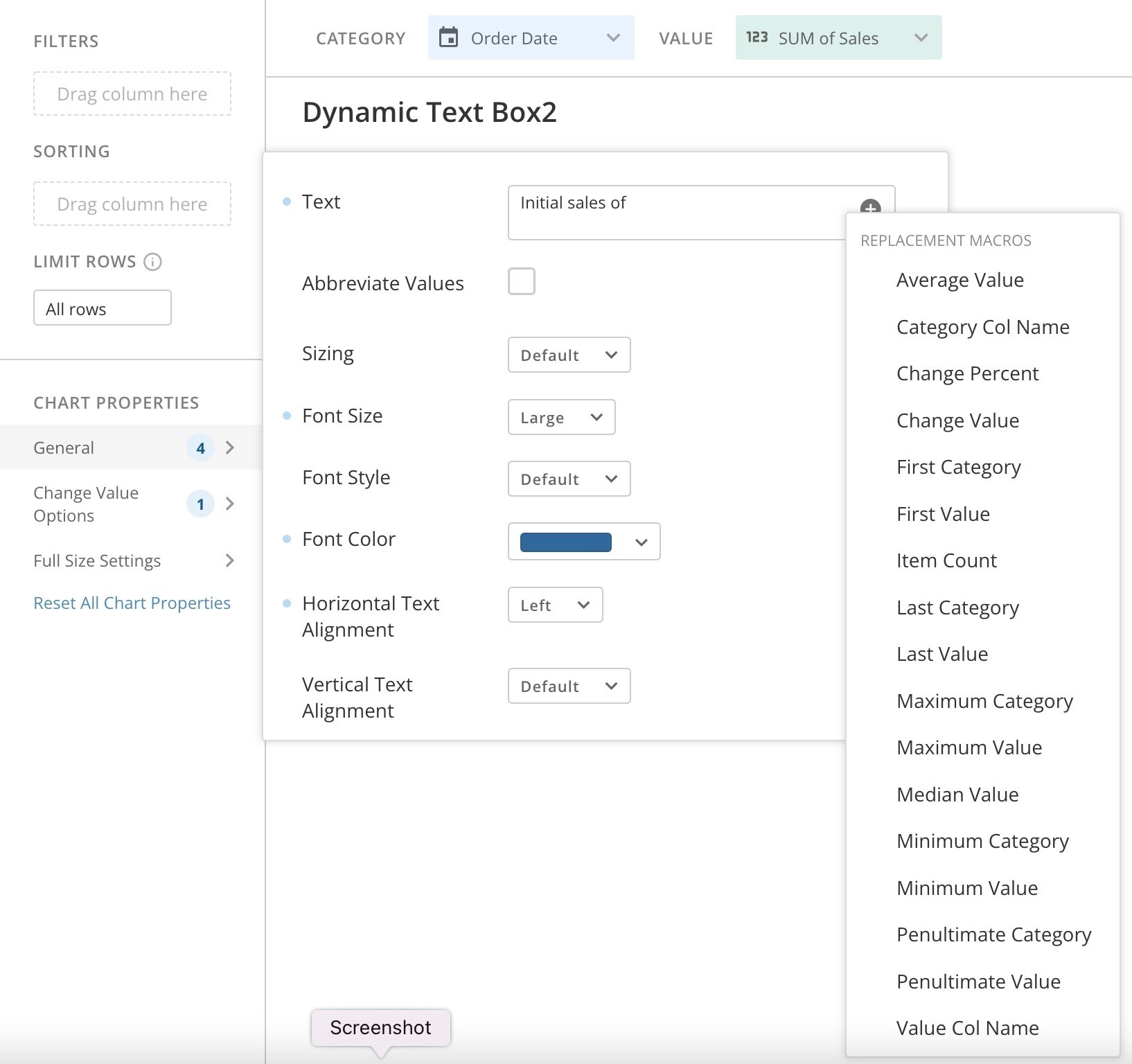 For example, if you want the text in your Textbox to read "Initial sales of \[date], Last sales of \[date]," enter " Initial sales of \[First Value], Last sales of \[Last Value]."
Then, every time the data updates, the \[First Value] and \[Last Value] macros update to reflect the most current data.
For example, if you want the text in your Textbox to read "Initial sales of \[date], Last sales of \[date]," enter " Initial sales of \[First Value], Last sales of \[Last Value]."
Then, every time the data updates, the \[First Value] and \[Last Value] macros update to reflect the most current data.
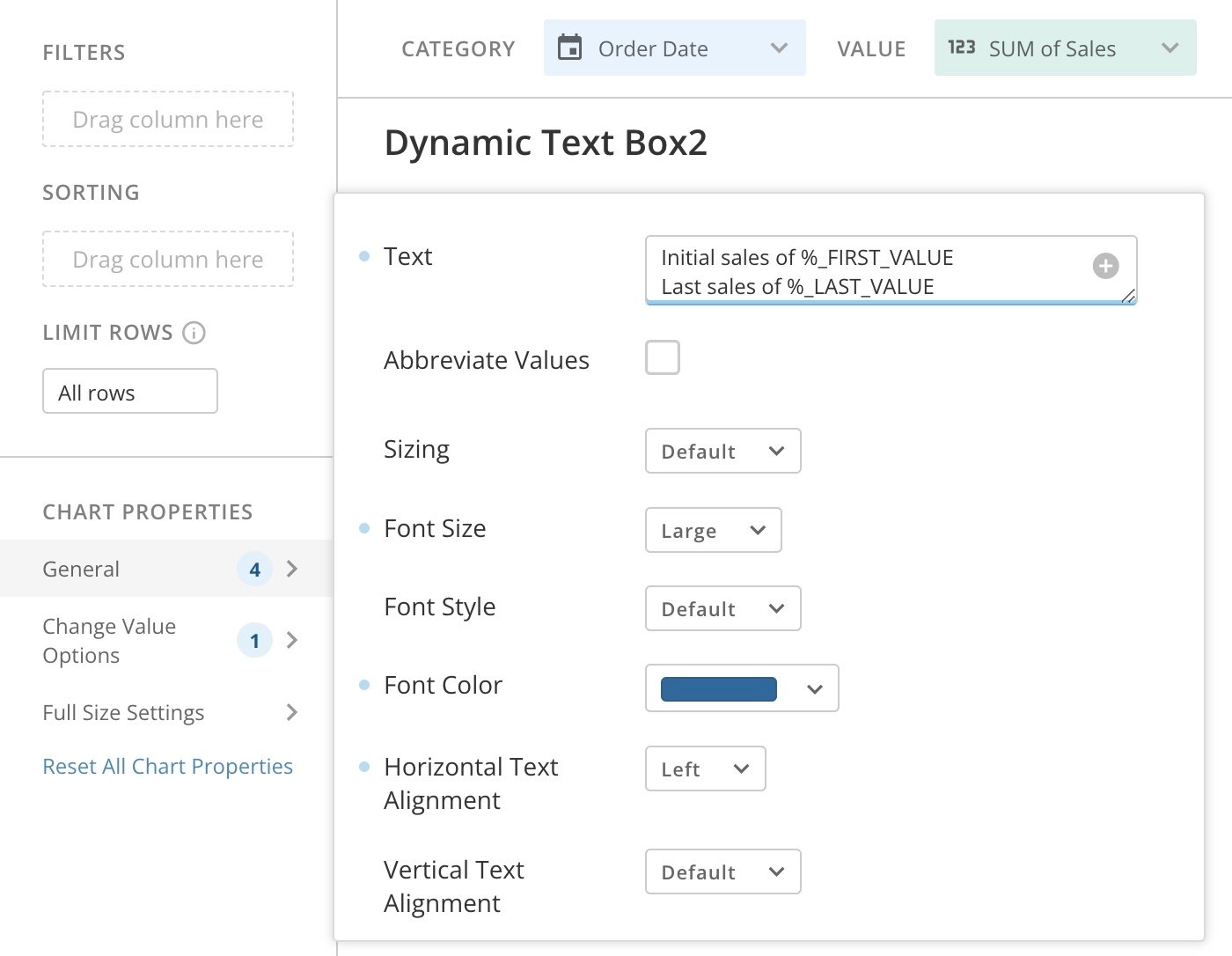 All of the following macros are available:
Macro | Description |
|---|---|
Average Value | Returns the average value of all values in your selected value column. |
| Category Col Name | Returns the name of your selected category column. |
Change Percent | Returns the percent of change for all values in your selected value column. |
Change Value | Returns the specific amount of change for all values in your selected value column. |
First Category | Returns the value for the first category (i.e. topmost category) in your selected category column. |
First Value | Returns the first value (i.e. topmost value) in your selected value column. |
Item Count | Returns a count of the rows in your data. |
Last Category | Returns the value for the last category (i.e. bottommost category) in your selected category column. |
Last Value | Returns the last value (i.e. bottommost value) in your selected value column. |
Maximum Category | Returns the value for the maximum category in your selected category column. This generally applies to date columns, in which the most recent date will be returned. |
Maximum Value | Returns the highest value in your selected value column. |
Median Value | Returns the median value in your selected value column. |
Minimum Category | Returns the value for the minimum category in your selected category column. This generally applies to date columns, in which the least recent date will be returned. |
Minimum Value | Returns the lowest value in your selected value column. |
Penultimate Category | Returns the value for the second category in your selected category column. |
Penultimate Value | Returns the second value in your selected value column. |
Value Col Name | Returns the name of your selected value column. |
Property | Description |
|---|---|
General > Abbreviate Values | When you check this box, values in your Textbox display abbreviated. |
General > Font Size | Lets you select the font size for the text in the Textbox. A number of sizes are available ranging from Small to XX-Large. If you select Default , the size is chosen that best matches the amount of available space. For example, if you have the maximum amount of space available, the XX-Large size is used. |
General > Font Style | Lets you choose whether the font for your text is plain, bold, italic, or bold-italic. |
General > Font Color | Lets you choose the color for your text. |
General > Horizontal Text Alignment | Lets you select the horizontal alignment for your text. |
General > Vertical Text Alignment | Determines whether the text in your Textbox displays at the top, in the center, or at the bottom. |
General > Top Margin | Determines the amount of space in pixels above the text. |
General > Bottom Margin | Determines the amount of space in pixels below the text. |
General > Left Margin | Determines the amount of space in pixels to the left of the text. |
General > Right Margin | Determines the amount of space in pixels to the right of the text. |
Change Value Options > Apply to First Value | Determines whether formatting changes are applied to the first value in the data. |
Change Value Options > Apply to Last Value | Determines whether formatting changes are applied to the last value in the data. |
Change Value Options > Apply to Minimum Value | Determines whether formatting changes are applied to the minimum value in the data. |
Change Value Options > Apply to Maximum Value | Determines whether formatting changes are applied to the maximum value in the data. |
Change Value Options > Data | Determines whether formatting changes are applied to the first and last values in the data (default) or the last two values. |
Change Value Options > Reverse Color Direction | When this box is checked, any negative values in your data are displayed using the color you select for Positive Color , and vice-versa. |
Change Value Options > Positive Color | Determines the color used to represent positive change values/percentages in the Textbox. |
Change Value Options > Negative Color | Determines the color used to represent negative change values/percentages in the Textbox. |