> ## Documentation Index
> Fetch the complete documentation index at: https://domoinc-openapi-sync-dataflows.mintlify.site/llms.txt
> Use this file to discover all available pages before exploring further.
# Changing the Owner of a DataFlow
export const InlineImage = ({src, alt = '', height = '1.6em'}) => {
return  ;
};
You can change the owner of a DataFlow in the Details view for that DataFlow. **You can do this *only* if you have an "Admin" security role (whether or not you are already the owner).** For more information about security roles, see Security Role Reference.
You can DataSet owners singly or in bulk.
**Note:** For a non-Admin user to see a DataFlow, that user must have share access to ALL of the DataSets powering the DataFlow.
**To change the owner of a single DataFlow,**
1. Click **Data** in the toolbar at the top of the screen.
2. Click
in the left-hand navigation pane.
3. Locate and click the DataFlow you want to assign a new owner to.
You can use the filter options to narrow down the DataFlows in the tab.
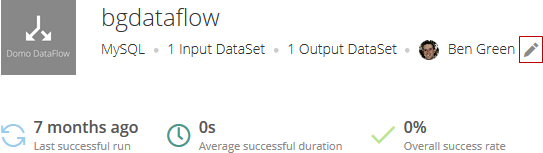
4. Click the pencil icon next to the name of the current owner.
;
};
You can change the owner of a DataFlow in the Details view for that DataFlow. **You can do this *only* if you have an "Admin" security role (whether or not you are already the owner).** For more information about security roles, see Security Role Reference.
You can DataSet owners singly or in bulk.
**Note:** For a non-Admin user to see a DataFlow, that user must have share access to ALL of the DataSets powering the DataFlow.
**To change the owner of a single DataFlow,**
1. Click **Data** in the toolbar at the top of the screen.
2. Click
in the left-hand navigation pane.
3. Locate and click the DataFlow you want to assign a new owner to.
You can use the filter options to narrow down the DataFlows in the tab.
4. Click the pencil icon next to the name of the current owner.
 5. Select the new owner in the list.
**To change the owner of multiple DataFlows at once,**
1. Click **Data** in the toolbar at the top of the screen.
2. Click
in the left-hand navigation pane.
3. Locate one of the DataFlows you want to change the owner of.
For more information about searching and filtering DataFlow in the Data Center, see [Data Center Layout](https://domo-support.domo.com/s/article/360047553253?language=en_US).
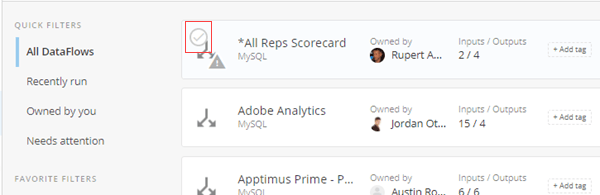
4. Mouse over the row for the DataFlow and click the circled checkmark that pops up over the connector icon.
5. Select the new owner in the list.
**To change the owner of multiple DataFlows at once,**
1. Click **Data** in the toolbar at the top of the screen.
2. Click
in the left-hand navigation pane.
3. Locate one of the DataFlows you want to change the owner of.
For more information about searching and filtering DataFlow in the Data Center, see [Data Center Layout](https://domo-support.domo.com/s/article/360047553253?language=en_US).
4. Mouse over the row for the DataFlow and click the circled checkmark that pops up over the connector icon.
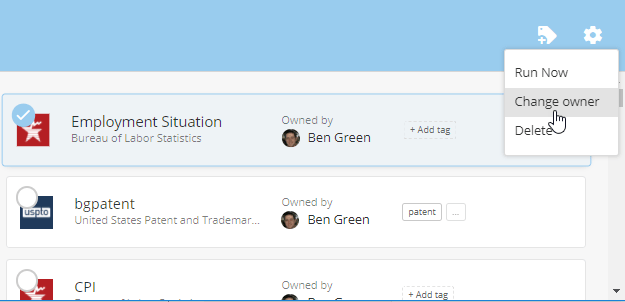
 5. In the blue bar that appears at the top of the screen, click the
icon.
6. Select **Change Owner**.
5. In the blue bar that appears at the top of the screen, click the
icon.
6. Select **Change Owner**.
 7. Select the new owner for the selected DataFlows and click **Reassign**.
All of the DataFlows you have selected should now be reassigned to the owner you have selected.
7. Select the new owner for the selected DataFlows and click **Reassign**.
All of the DataFlows you have selected should now be reassigned to the owner you have selected.