> ## Documentation Index
> Fetch the complete documentation index at: https://domoinc-openapi-sync-dataflows.mintlify.site/llms.txt
> Use this file to discover all available pages before exploring further.
# Viewing DataFlow Details
export const InlineImage = ({src, alt = '', height = '1.6em'}) => {
return  ;
};
### Intro
All DataFlows have a Details view that provides basic information about the flow.
### Access Details View
You can access the Details view for a DataFlow by following these steps:
1. In the navigation header, select **Data** to open the Data Center.
2. In the left rail, select
**DataFlows**.
The list of DataFlows in your instance displays.
;
};
### Intro
All DataFlows have a Details view that provides basic information about the flow.
### Access Details View
You can access the Details view for a DataFlow by following these steps:
1. In the navigation header, select **Data** to open the Data Center.
2. In the left rail, select
**DataFlows**.
The list of DataFlows in your instance displays.
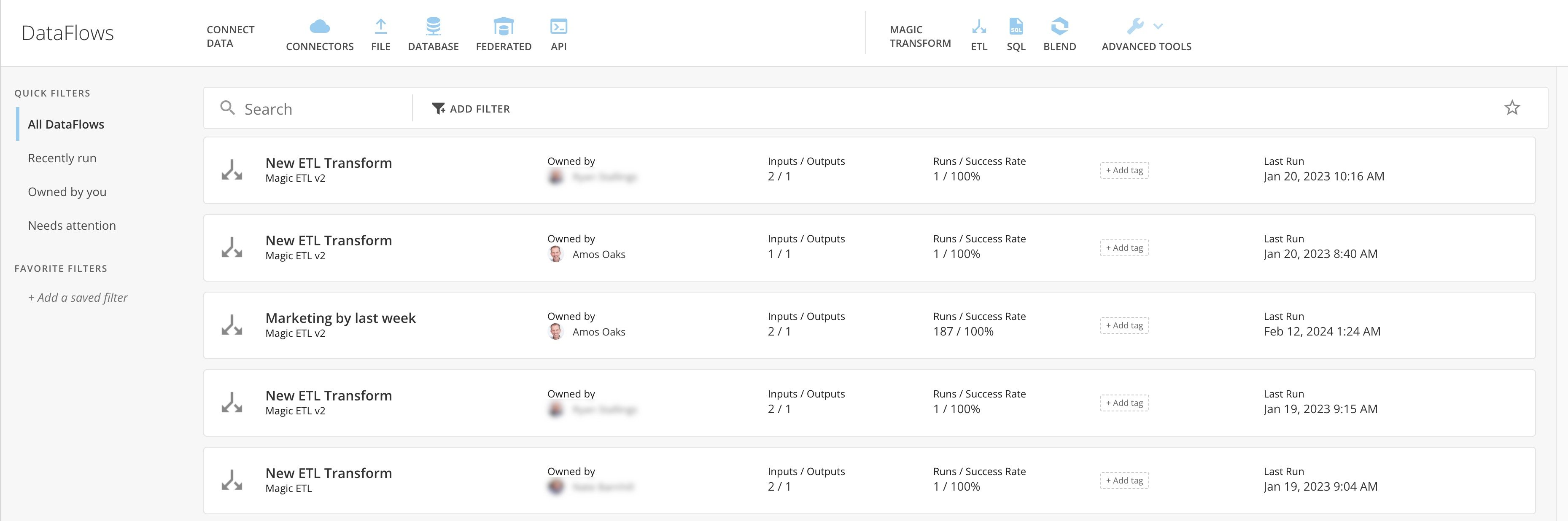 3. In the list, locate and select the DataFlow you want to see details for.
You can use the filter options to narrow down the DataFlows that appear in the list. For more information, see [Data Center Layout](http://domo-support.domo.com/s/article/360047553253?language=en_US).
The Details view displays.
In the Details view, you can select **Edit** to open your DataFlow in Magic ETL and edit it.
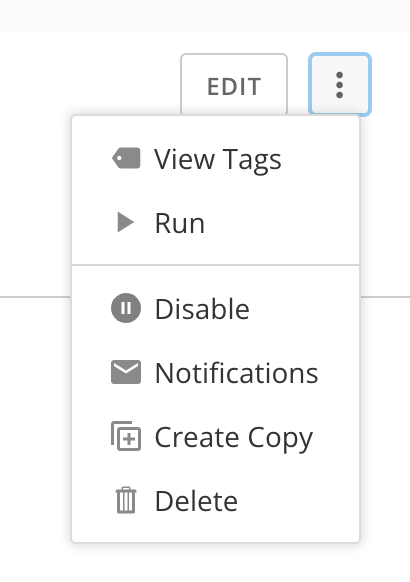
You can also select the kebab menu to take the following actions on the DataFlow:
* View Tags
* Run
* Disable
* Notifications
* Create Copy
* Delete
3. In the list, locate and select the DataFlow you want to see details for.
You can use the filter options to narrow down the DataFlows that appear in the list. For more information, see [Data Center Layout](http://domo-support.domo.com/s/article/360047553253?language=en_US).
The Details view displays.
In the Details view, you can select **Edit** to open your DataFlow in Magic ETL and edit it.
You can also select the kebab menu to take the following actions on the DataFlow:
* View Tags
* Run
* Disable
* Notifications
* Create Copy
* Delete
 ### Details View Tabs
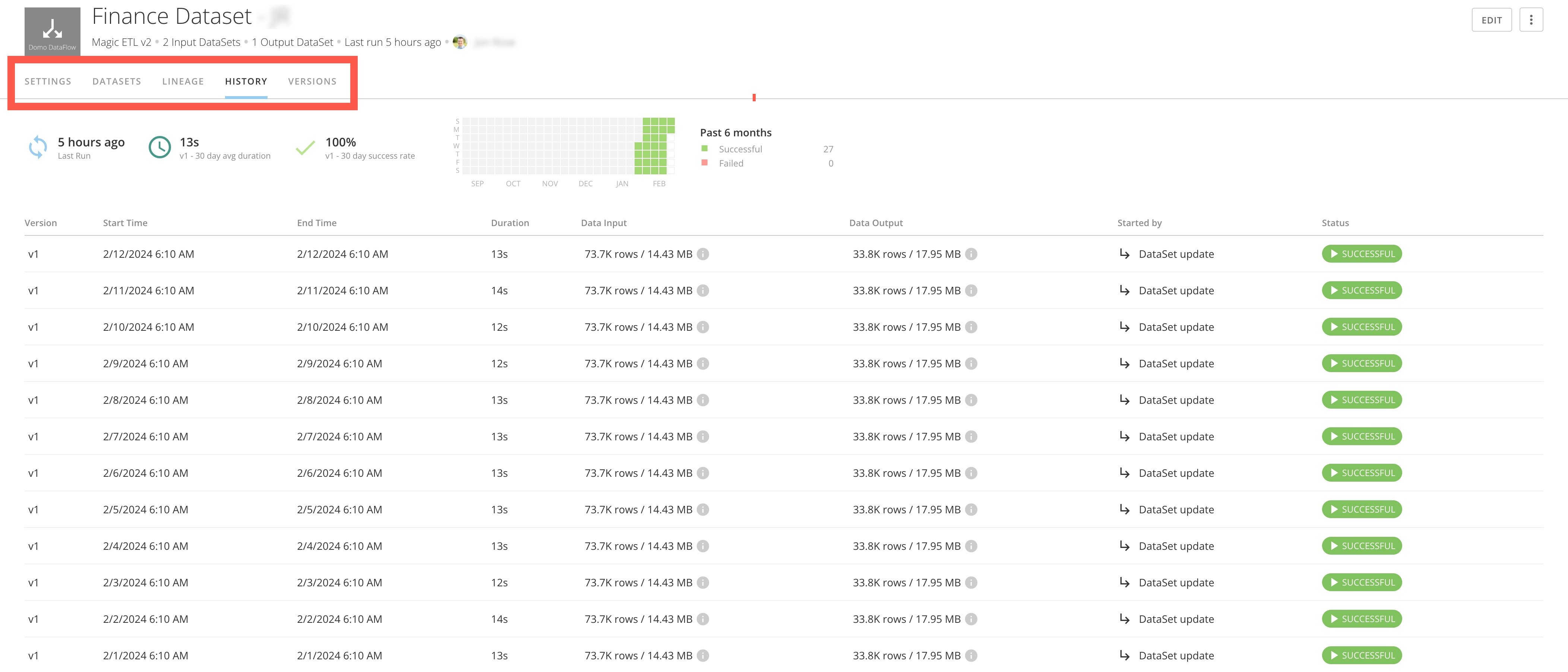
The Details view has five tabs— **Settings**, **DataSets**, **Lineage**, **History,** and **Versions**, described below.
### Details View Tabs
The Details view has five tabs— **Settings**, **DataSets**, **Lineage**, **History,** and **Versions**, described below.
 * The **Settings** tab lets you control scheduling for a DataFlow. When you check a box for a component DataSet, the DataFlow updates whenever that DataSet updates.
* The **DataSets** tab shows you the input and output DataSets in this DataFlow. You can select a DataSet to open the details view for that DataSet.
* The **Lineage** tab displays the flow of data from each DataSet that has been combined and/or transformed to create this DataFlow.
* The **History** tab provides information about runs, such as the number of successful and failed runs, the average number of successful runs, the run history, whether a run was executed manually or due to an input DataSet being updated, and the status of each run.
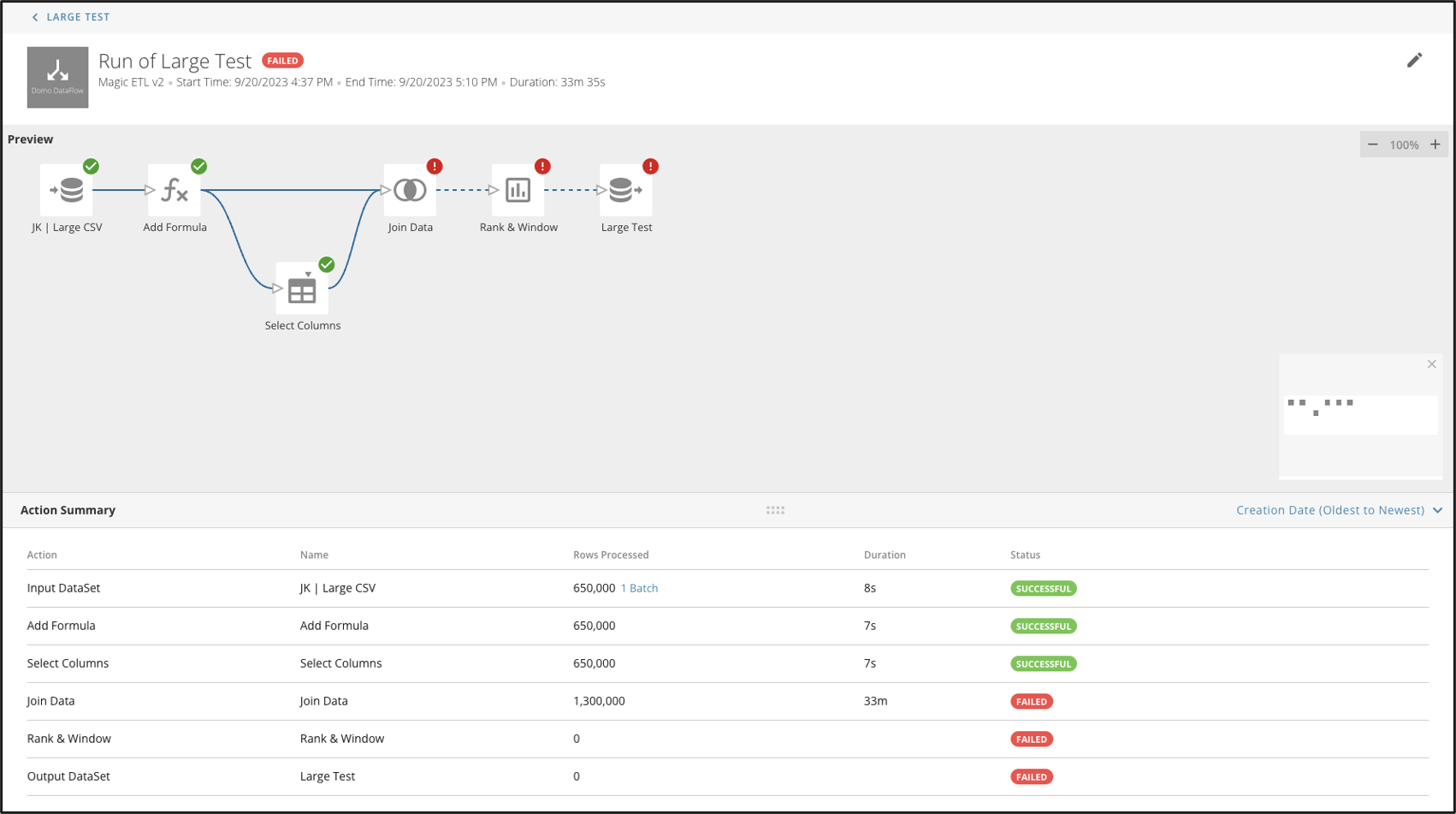
If a **DataFlow** fails for any reason, a Failed label displays in the **Status** column. To see details of a failed flow, select the **Failed** label to open a graph view of the run with a sortable **Action Summary** list. The **Action Summary** list specifies each action the DataFlow took to help you pinpoint issues.
* The **Settings** tab lets you control scheduling for a DataFlow. When you check a box for a component DataSet, the DataFlow updates whenever that DataSet updates.
* The **DataSets** tab shows you the input and output DataSets in this DataFlow. You can select a DataSet to open the details view for that DataSet.
* The **Lineage** tab displays the flow of data from each DataSet that has been combined and/or transformed to create this DataFlow.
* The **History** tab provides information about runs, such as the number of successful and failed runs, the average number of successful runs, the run history, whether a run was executed manually or due to an input DataSet being updated, and the status of each run.
If a **DataFlow** fails for any reason, a Failed label displays in the **Status** column. To see details of a failed flow, select the **Failed** label to open a graph view of the run with a sortable **Action Summary** list. The **Action Summary** list specifies each action the DataFlow took to help you pinpoint issues.
 * The **Versions** tab shows a list of versions of the DataFlow. Each time you save edits to a DataFlow, a new version is added to this list.