> ## Documentation Index
> Fetch the complete documentation index at: https://domoinc-openapi-sync-dataflows.mintlify.site/llms.txt
> Use this file to discover all available pages before exploring further.

# Google Analytics Mgmt Service Account Connector

## Intro

Use this connector to connect to your Google Analytics Management Service Account data. The Google Analytics Management API allows for programmatic access to Google Analytics configuration data. With the Google Analytics Management Service Account connector you can generate reports to list all account, property and view (profile) information for a user, or determine which goals are active and access their configured names. A Google Analytics Account is organized into several levels and the Management API Connector provides a way of interacting with the entities at each level.

To learn more about the Google Analytics Management API, visit [https://developers.google.com/analytics/devguides/config/mgmt/v3](https://developers.google.com/analytics/devguides/config/mgmt/v3).

You connect to your Google Analytics Service account in the Data Center. This topic discusses the fields and menus that are specific to the Google Analytics Management Service Account Connector user interface. General information for adding DataSets, setting update schedules, and editing DataSet information is discussed in [Adding a DataSet Using a Data Connector](/s/article/360042926274).

## Prerequisites

To connect to your Google Analytics Service account and create a DataSet, you must have a Google service account JSON key.

To generate a Google service account JSON key, do the following:

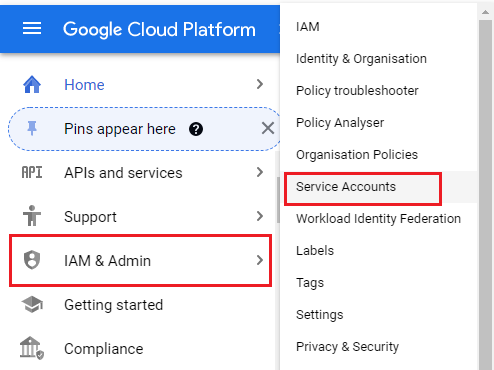
1. In the Google Cloud Platform Console, open the
   **IAM & Admin** page.

2. Click
   **Service accounts**.

   <Frame>
     <img alt="GCP_screen.png" src="https://mintcdn.com/domoinc-openapi-sync-dataflows/DkLG580DK4bdXUC1/images/kb/ka0Vq0000001Job-00N5w00000Ri7BU-0EM5w000005vNxW.png?fit=max&auto=format&n=DkLG580DK4bdXUC1&q=85&s=b08d07050e973a3c35c839e0d012e186" width="494" height="370" data-path="images/kb/ka0Vq0000001Job-00N5w00000Ri7BU-0EM5w000005vNxW.png" />
   </Frame>

3. Select your project and click
   **Create Service Account**.

   <Frame>
     <img alt="Create_Service_Account.png" src="https://mintcdn.com/domoinc-openapi-sync-dataflows/DkLG580DK4bdXUC1/images/kb/ka0Vq0000001Job-00N5w00000Ri7BU-0EM5w000005vNxa.png?fit=max&auto=format&n=DkLG580DK4bdXUC1&q=85&s=cb9d4cfadb1d913e3da6ced8866a2f29" width="960" height="102" data-path="images/kb/ka0Vq0000001Job-00N5w00000Ri7BU-0EM5w000005vNxa.png" />
   </Frame>

4. In the
   **Service account details** section, enter a name and description for the service account.

5. Click
   **Create**.

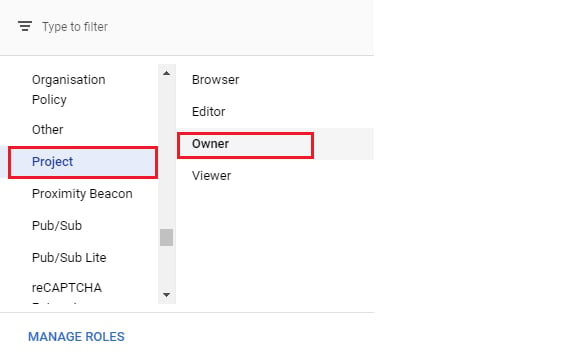
6. Now, in the
   **Grant this service account access to the project** section, click **Select a role** drop down.

7. Select
   **Project-> Owner**.
   <Frame>
     <img alt="Project-Owner.png" src="https://mintcdn.com/domoinc-openapi-sync-dataflows/DkLG580DK4bdXUC1/images/kb/ka0Vq0000001Job-00N5w00000Ri7BU-0EM5w000005vNxV.png?fit=max&auto=format&n=DkLG580DK4bdXUC1&q=85&s=bc0a7325d35147690f12432b5bec2eb3" width="562" height="361" data-path="images/kb/ka0Vq0000001Job-00N5w00000Ri7BU-0EM5w000005vNxV.png" />
   </Frame>

8. Click
   **Continue**.

9. Click
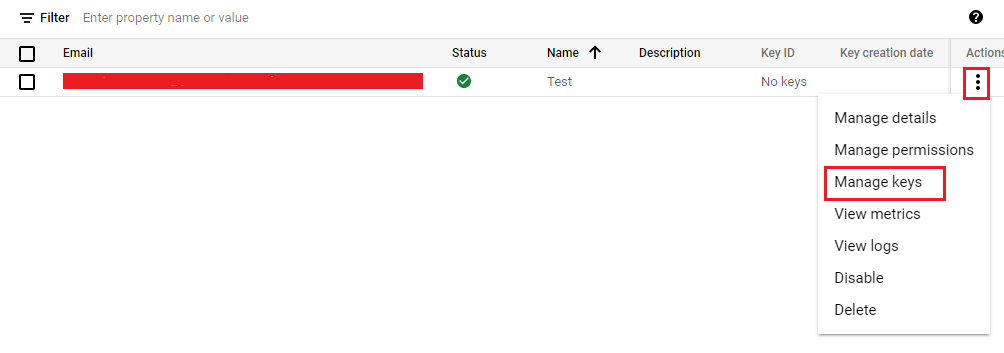
   **Done**. An overview of your service account will appear.

10. In the
    **Actions** column, click the three dots to expand the menu. Click **Manage Keys**.
    <Frame>
      <img alt="Actions-Manage_Keys.png" src="https://mintcdn.com/domoinc-openapi-sync-dataflows/DkLG580DK4bdXUC1/images/kb/ka0Vq0000001Job-00N5w00000Ri7BU-0EM5w000005vNxX.png?fit=max&auto=format&n=DkLG580DK4bdXUC1&q=85&s=4cd197f739a572679b7fd1cb84a665e3" width="1004" height="353" data-path="images/kb/ka0Vq0000001Job-00N5w00000Ri7BU-0EM5w000005vNxX.png" />
    </Frame>

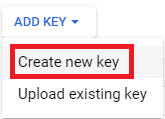
11. Click
    **Add Key**. Select **Create new key**.
    <Frame>
      <img alt="Add_Key-Create_new_key.png" src="https://mintcdn.com/domoinc-openapi-sync-dataflows/DkLG580DK4bdXUC1/images/kb/ka0Vq0000001Job-00N5w00000Ri7BU-0EM5w000005vNxb.png?fit=max&auto=format&n=DkLG580DK4bdXUC1&q=85&s=af81b5943e992e035a20f48be362667b" width="165" height="119" data-path="images/kb/ka0Vq0000001Job-00N5w00000Ri7BU-0EM5w000005vNxb.png" />
    </Frame>

12. **Create private key**
    window will appear. Select private key type as **JSON** and click **Create**.

13. A private key will be saved to your computer.

## Connecting to Your Google Service Account

This section enumerates the options in the Credentials and Details panes in the Google Analytics Management Service Account Connector page. The components of the other panes in this page, **Scheduling** and **Name & Describe Your DataSet**, are universal across most connector types and are discussed in greater length in [Adding a DataSet Using a Data Connector](/s/article/360042926274).

### Credentials Pane

This pane contains fields for entering credentials to connect to your Google Analytics Management Service account. The following table describes what is needed for each field:

<table border="1" cellpadding="1" cellspacing="1" data-aura-rendered-by="33:195;a"><thead><tr><th colspan="1" rowspan="1"><p> Field </p></th><th colspan="1" rowspan="1"><p> Description </p></th></tr></thead><tbody><tr><td colspan="1" rowspan="1"> Service Account Key JSON </td><td colspan="1" rowspan="1"><span> Copy and paste the JSON key for your Google service account. For information about creating a key, see "Prerequisites," above. </span></td></tr><tr><td colspan="1" rowspan="1"> Quota Limit </td><td colspan="1" rowspan="1"><span> Select the QPS limit for your Google Analytics project. By default it is 20 QPS. </span></td></tr></tbody></table>

Once you have entered a valid key, you can use the same account any time you go to create a new Google Analytics Management Service Account DataSet. You can manage Connector accounts in the **Accounts** tab in the Data Center. For more information about this tab, see [Managing User Accounts for Connectors](/s/article/360042926054).

### Details Pane

This pane contains a primary **Reports** menu, along with various other menus which may or may not appear depending on the report type you select.

<table border="1" cellpadding="1" cellspacing="1" data-aura-rendered-by="33:195;a"><thead><tr><th colspan="1" rowspan="1"><p> Menu </p></th><th colspan="1" rowspan="1"><p> Description </p></th></tr></thead><tbody><tr><td colspan="1" rowspan="1"><p> Report </p></td><td colspan="1" rowspan="1"><p> Select the <span> Google Analytics Management Service </span> Account report you want to run. The following reports are available: </p><table border="1" cellpadding="1" cellspacing="1"><tbody><tr><td colspan="1" rowspan="1"> Accounts </td><td colspan="1" rowspan="1"> Retrieves all accounts to which the user has access. </td></tr><tr><td colspan="1" rowspan="1"> Account Summaries </td><td colspan="1" rowspan="1"> Retrieves account summaries (lightweight flattened tree comprised of accounts/properties/profiles) to which the user has access. </td></tr><tr><td colspan="1" rowspan="1"> Account User Links </td><td colspan="1" rowspan="1"> Retrieves account-user links for a given account. </td></tr><tr><td colspan="1" rowspan="1"> Ad Words Links </td><td colspan="1" rowspan="1"> Retrieves webProperty-Google Ads links for a given web property. </td></tr><tr><td colspan="1" rowspan="1"> Custom Data Sources </td><td colspan="1" rowspan="1"> Retrieves custom data sources to which the user has access. </td></tr><tr><td colspan="1" rowspan="1"> Custom Dimensions </td><td colspan="1" rowspan="1"> Retrieves custom dimensions to which the user has access. </td></tr><tr><td colspan="1" rowspan="1"> Custom Metrics </td><td colspan="1" rowspan="1"> Retrieves custom metrics to which the user has access. </td></tr><tr><td colspan="1" rowspan="1"> Experiments </td><td colspan="1" rowspan="1"> Retrieves experiments to which the user has access. </td></tr><tr><td colspan="1" rowspan="1"> Filters </td><td colspan="1" rowspan="1"> Retrieves all filters for an account. </td></tr><tr><td colspan="1" rowspan="1"> Goals </td><td colspan="1" rowspan="1"> Retrieves goals to which the user has access. </td></tr><tr><td colspan="1" rowspan="1"> Profile Filter Links </td><td colspan="1" rowspan="1"> Retrieves all profile filter links for a profile. </td></tr><tr><td colspan="1" rowspan="1"> Profile User Links </td><td colspan="1" rowspan="1"> Retrieves profile-user links for a given view (profile). </td></tr><tr><td colspan="1" rowspan="1"> Profiles </td><td colspan="1" rowspan="1"> Retrieves views (profiles) to which the user has access. </td></tr><tr><td colspan="1" rowspan="1"> Remarketing Audiences </td><td colspan="1" rowspan="1"> Retrieves remarketing audiences to which the user has access. </td></tr><tr><td colspan="1" rowspan="1"> Segments </td><td colspan="1" rowspan="1"> Retrieves segments to which the user has access. </td></tr><tr><td colspan="1" rowspan="1"> Uploads </td><td colspan="1" rowspan="1"> Retrieves uploads to which the user has access. </td></tr><tr><td colspan="1" rowspan="1"> Web Properties </td><td colspan="1" rowspan="1"> Retrieves properties to which the user has access. </td></tr><tr><td colspan="1" rowspan="1"> Web Property User Links </td><td colspan="1" rowspan="1"> Retrieves web property user links for a given web property. </td></tr></tbody></table></td></tr><tr><td colspan="1" rowspan="1"> Accounts </td><td colspan="1" rowspan="1"> Select the accounts to query data from. </td></tr><tr><td colspan="1" rowspan="1"> Web Properties </td><td colspan="1" rowspan="1"> Select the web properties to query data from. </td></tr><tr><td colspan="1" rowspan="1"> Profiles </td><td colspan="1" rowspan="1"> Select the profiles to query data from. </td></tr><tr><td colspan="1" rowspan="1"> Web Property Selection Type </td><td colspan="1" rowspan="1"> Selecting <b> All Web Properties </b> will retrieve data for all the web properties that the user has access to. Selecting <b> Specific Web Properties </b><span /> will retrieve data for the selected web properties. </td></tr><tr><td colspan="1" rowspan="1"> Custom Data Sources </td><td colspan="1" rowspan="1"> Select the custom data sources to query data from. </td></tr><tr><td colspan="1" rowspan="1"> Account Selection Type </td><td colspan="1" rowspan="1"> Selecting <b> All Accounts </b> will retrieve data for all accounts to which the user has access. Selecting <b> S </b><b> pecific Accounts </b> will retrieve data for the selected accounts. </td></tr></tbody></table>

### Other Panes

For information about the remaining sections of the Connector interface, including how to configure scheduling, retry, and update options, see [Adding a DataSet Using a Data Connector](/s/article/360042926274).
