> ## Documentation Index
> Fetch the complete documentation index at: https://domoinc-openapi-sync-dataflows.mintlify.site/llms.txt
> Use this file to discover all available pages before exploring further.
# Use FileSets to Gather Information from Unstructured Data (Beta)
export const InlineImage = ({src, alt = '', height = '1.6em'}) => {
return  ;
};
### Intro
**Note:** This feature is in beta. Contact your account team if you want to join.
Domo FileSets allow you to gain insights from images, documents, transcripts, and other types of unstructured data. You can extract structured information from images or customer reviews to power visualizations and data products, automate document-driven business processes, or leverage AI Search to ground AI Agent responses using non-public documentation.
***
### Required Grants
The following grants allow you to use the FileSets feature. FileSets have the same permission requirements as DataSets.
* **Manage DataSet —** This grant allows you to view, edit, and delete any DataSets in an instance.
* **Edit DataSet —** This grant allows you to create and edit DataSets you have access to.
Learn about [grants and custom roles](https://domo-support.domo.com/s/article/360043438973?language=en_US).
### Access FileSets
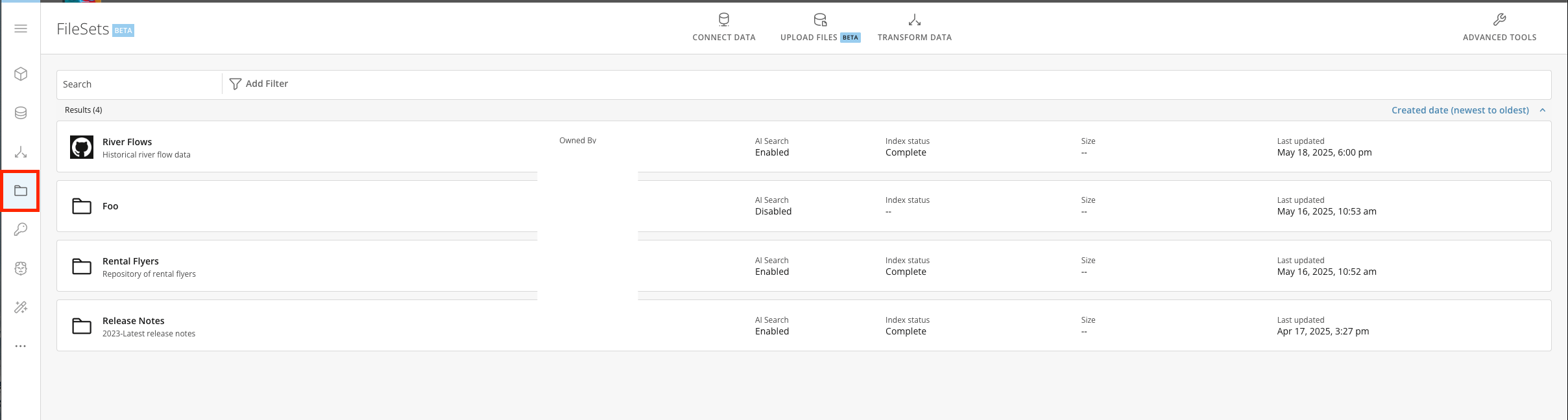
Use the search to navigate to **FileSets** (**Data** > **FileSets**).
A list of all the FileSets you have access to displays. I f a FileSet is powered by a connector, you can invoke manual runs.
;
};
### Intro
**Note:** This feature is in beta. Contact your account team if you want to join.
Domo FileSets allow you to gain insights from images, documents, transcripts, and other types of unstructured data. You can extract structured information from images or customer reviews to power visualizations and data products, automate document-driven business processes, or leverage AI Search to ground AI Agent responses using non-public documentation.
***
### Required Grants
The following grants allow you to use the FileSets feature. FileSets have the same permission requirements as DataSets.
* **Manage DataSet —** This grant allows you to view, edit, and delete any DataSets in an instance.
* **Edit DataSet —** This grant allows you to create and edit DataSets you have access to.
Learn about [grants and custom roles](https://domo-support.domo.com/s/article/360043438973?language=en_US).
### Access FileSets
Use the search to navigate to **FileSets** (**Data** > **FileSets**).
A list of all the FileSets you have access to displays. I f a FileSet is powered by a connector, you can invoke manual runs.
 ### Connect Your Data
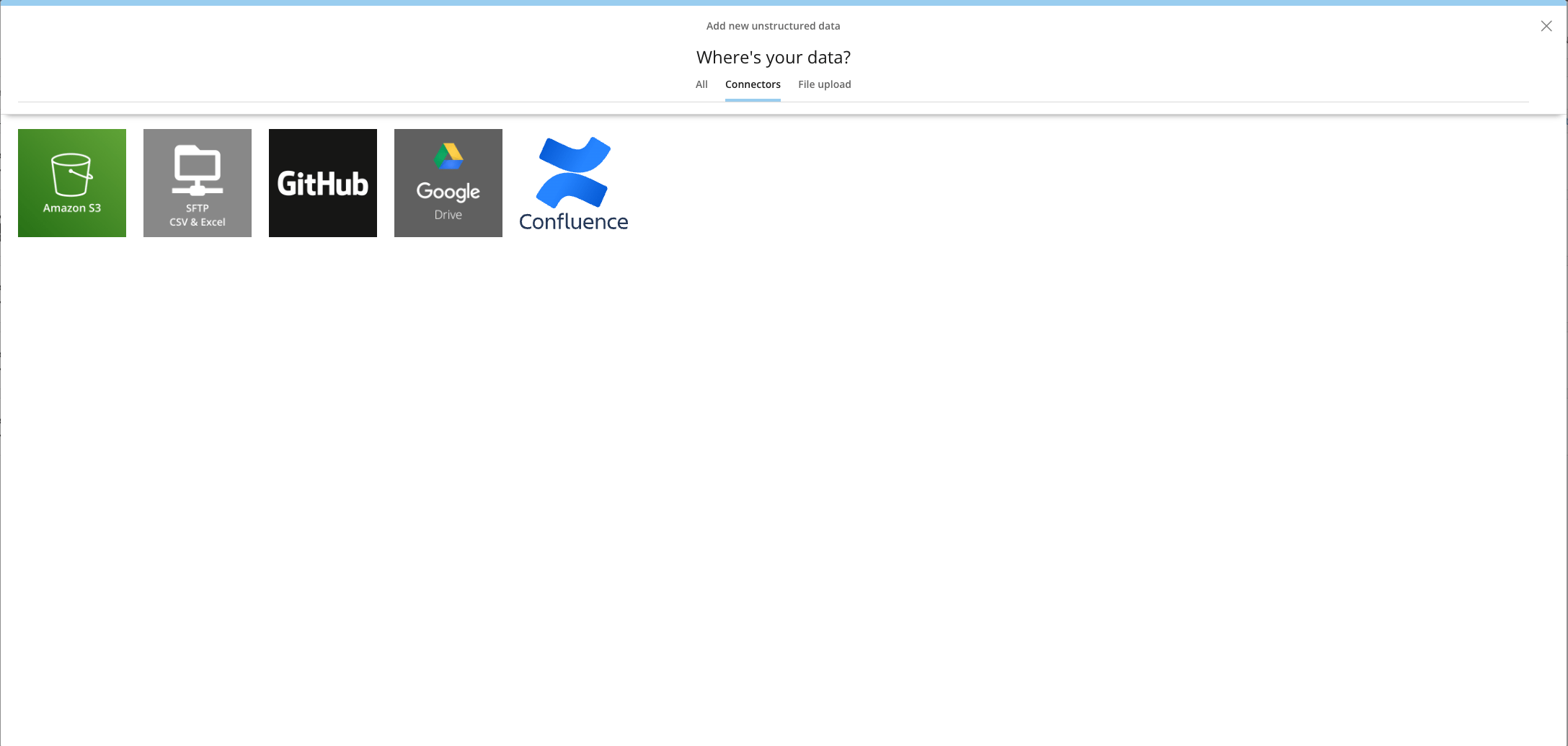
There are two methods for bringing your unstructured data into Domo: you can either [upload files](#upload_files) from your device or use one of the [file connectors](#upload_using_connector), including Amazon S3, SFTP, GitHub, Google Drive, or Confluence.
### Connect Your Data
There are two methods for bringing your unstructured data into Domo: you can either [upload files](#upload_files) from your device or use one of the [file connectors](#upload_using_connector), including Amazon S3, SFTP, GitHub, Google Drive, or Confluence.
 # Upload Files
Follow these steps to upload files directly from your device to FileSets:
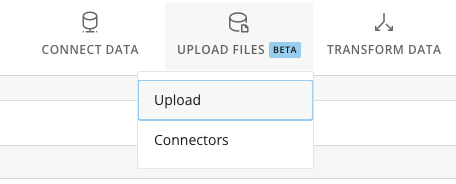
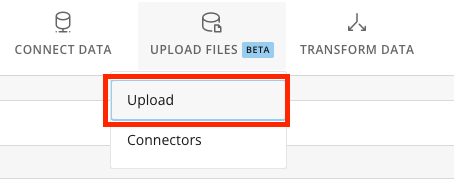
1. Select **Upload Files** > **Upload** from the FileSets screen.
# Upload Files
Follow these steps to upload files directly from your device to FileSets:
1. Select **Upload Files** > **Upload** from the FileSets screen.
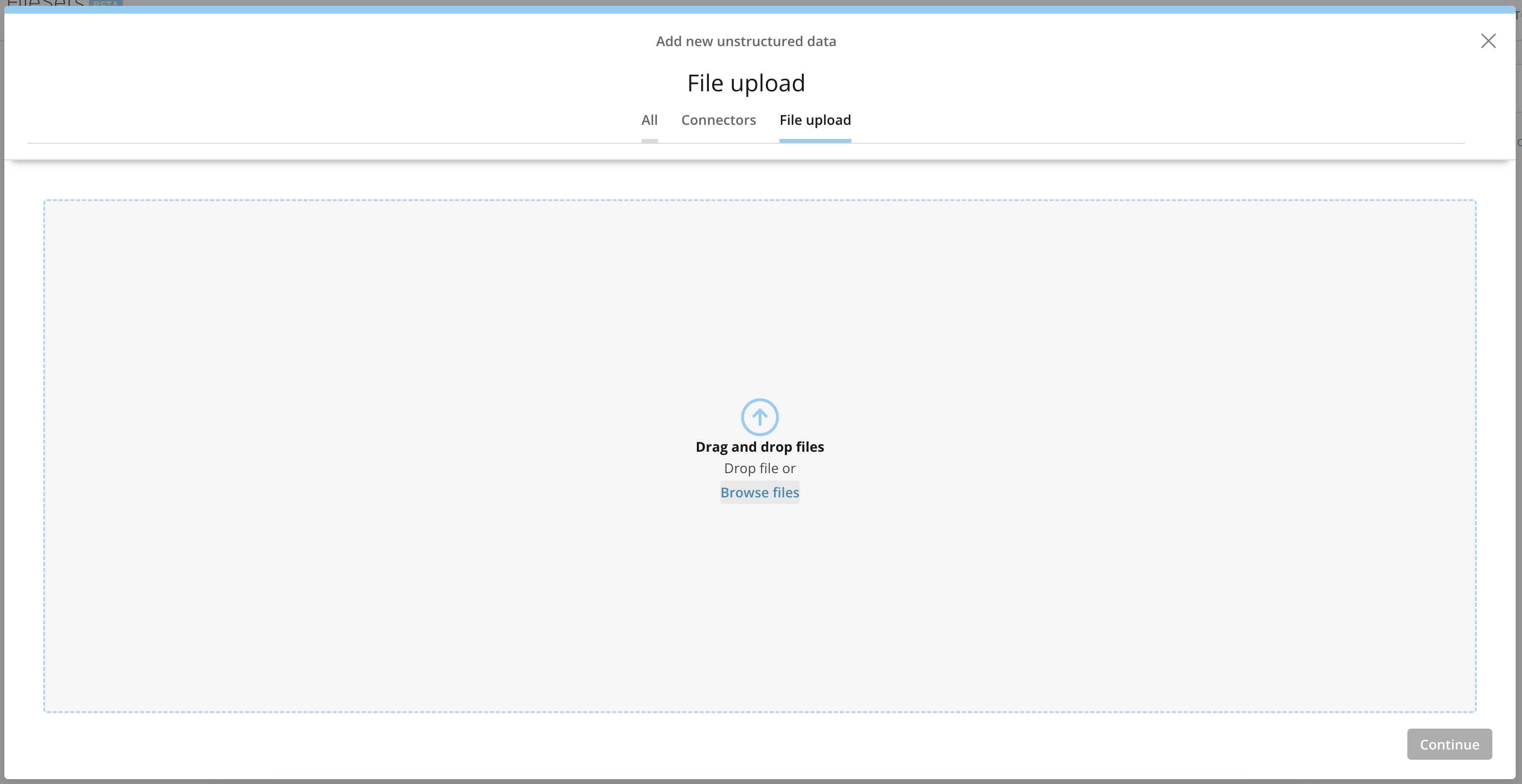
 2. You can browse files or drag and drop them. FileSets supports all common image and document file types.
 3. Name your FileSet (required) and give it an optional description.
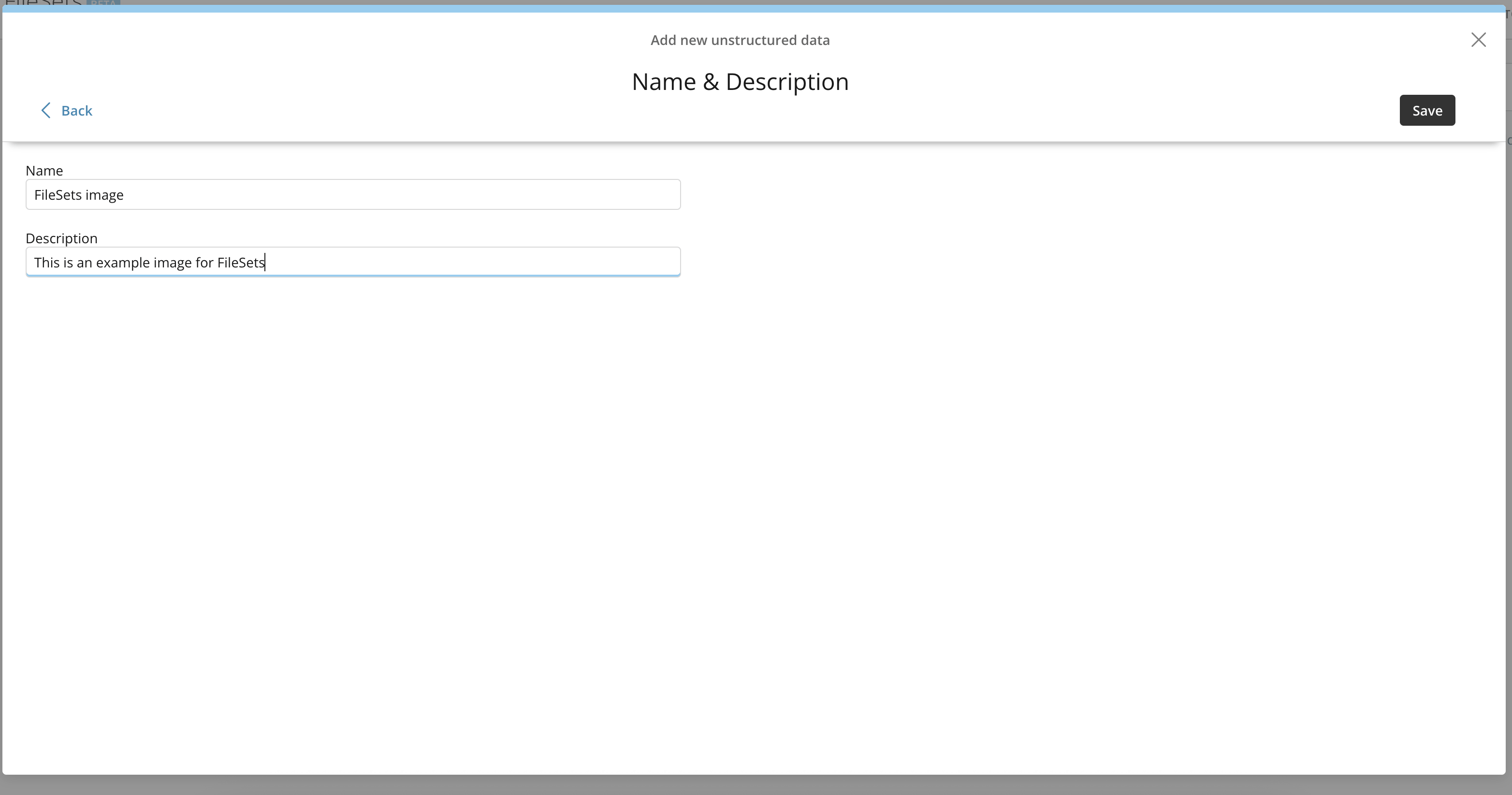 Your uploaded file is now available in the FileSets list.
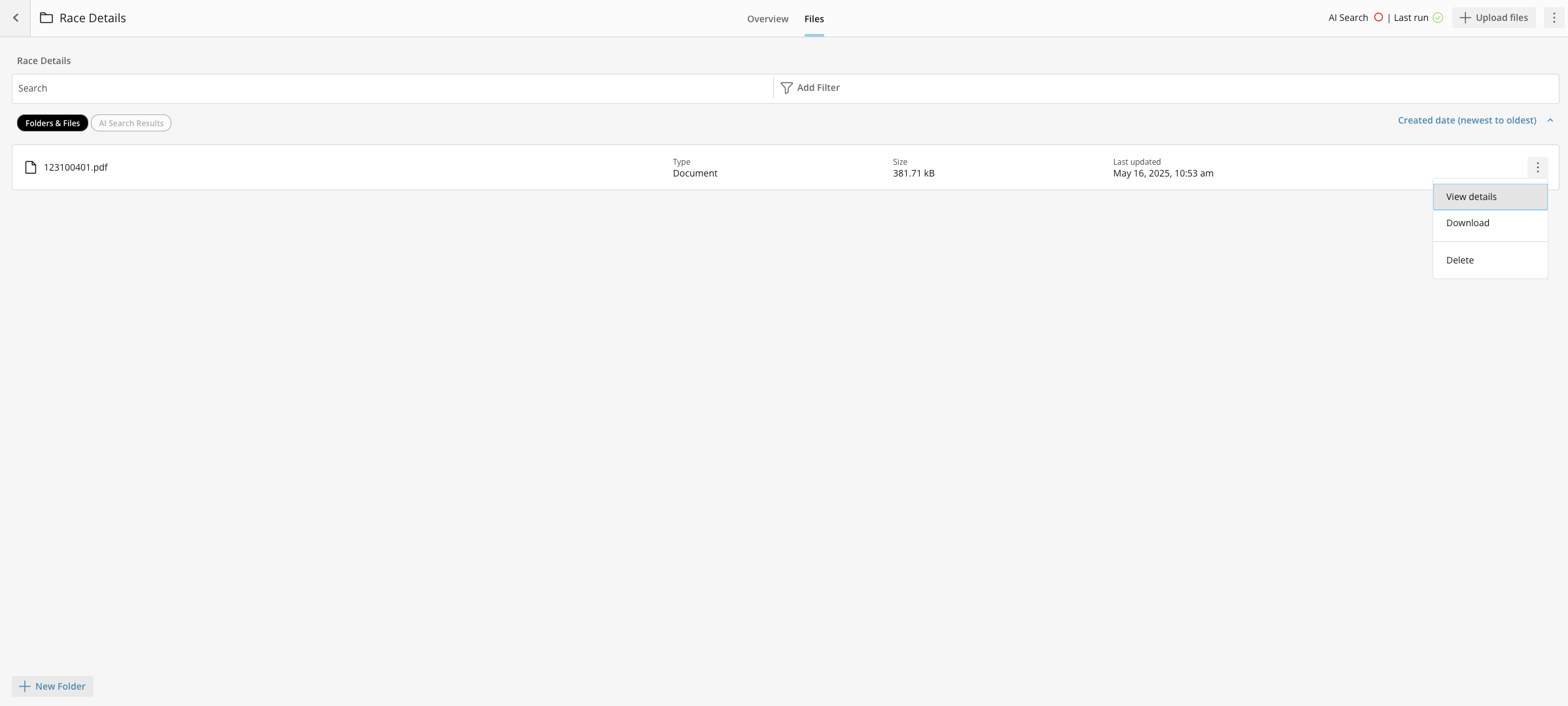
After uploading your files, you can enable [AI Search](#ai_search) and organize your data using folder management in FileSets. You can also add new folders and files, view, download, and delete files or folders.
Your uploaded file is now available in the FileSets list.
After uploading your files, you can enable [AI Search](#ai_search) and organize your data using folder management in FileSets. You can also add new folders and files, view, download, and delete files or folders.
 # Upload Using a Connector
Follow these steps to upload data using a connector:
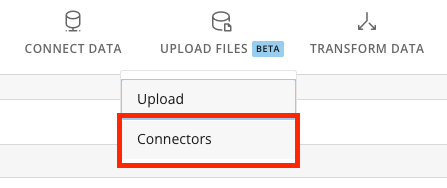
1. Select **Upload Files** > **Connectors** from the FileSets screen.
# Upload Using a Connector
Follow these steps to upload data using a connector:
1. Select **Upload Files** > **Connectors** from the FileSets screen.
 2. Choose the connector for your data.
 3. Select the appropriate authorized account or **Create Account** to create an account.
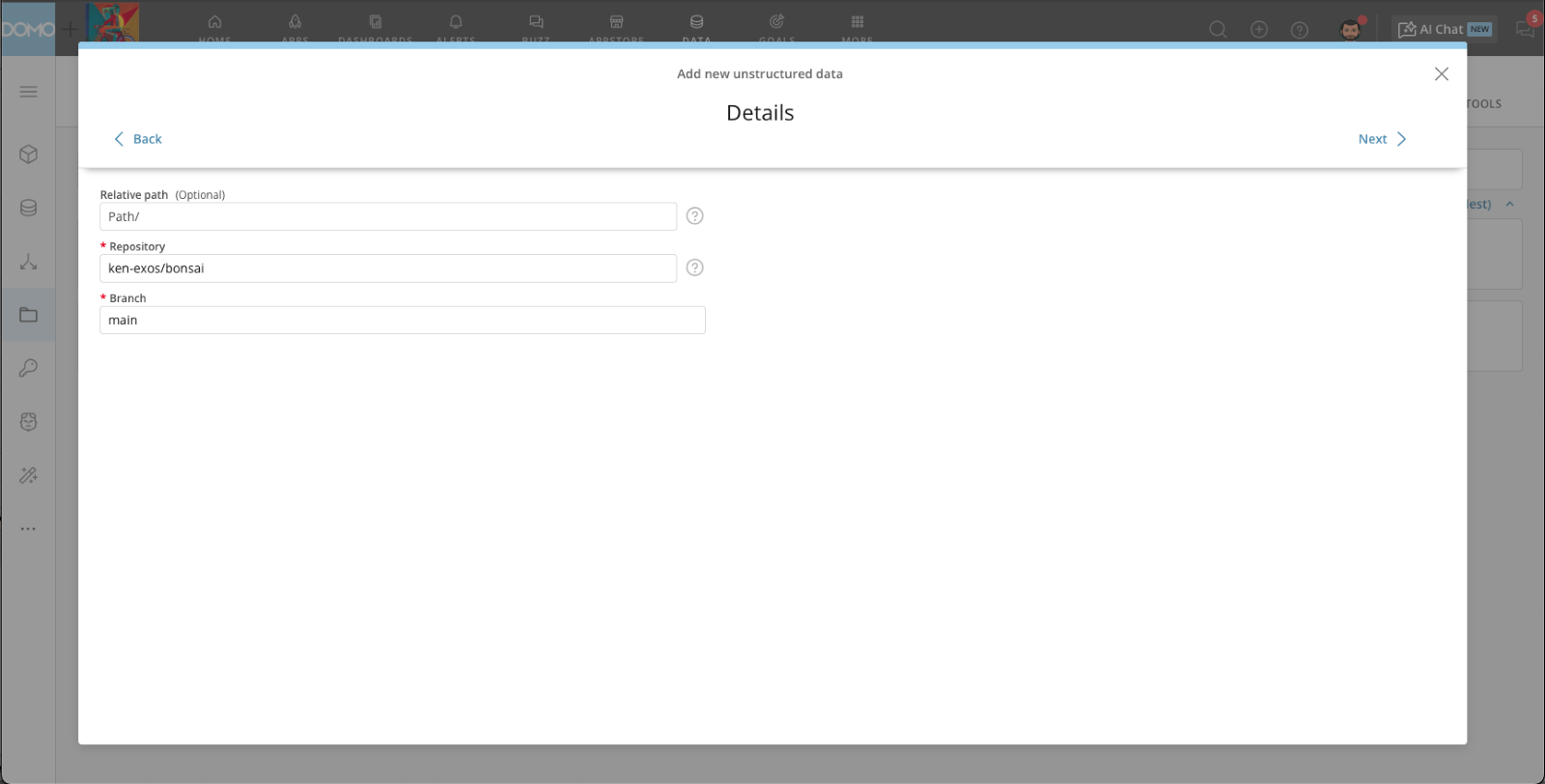
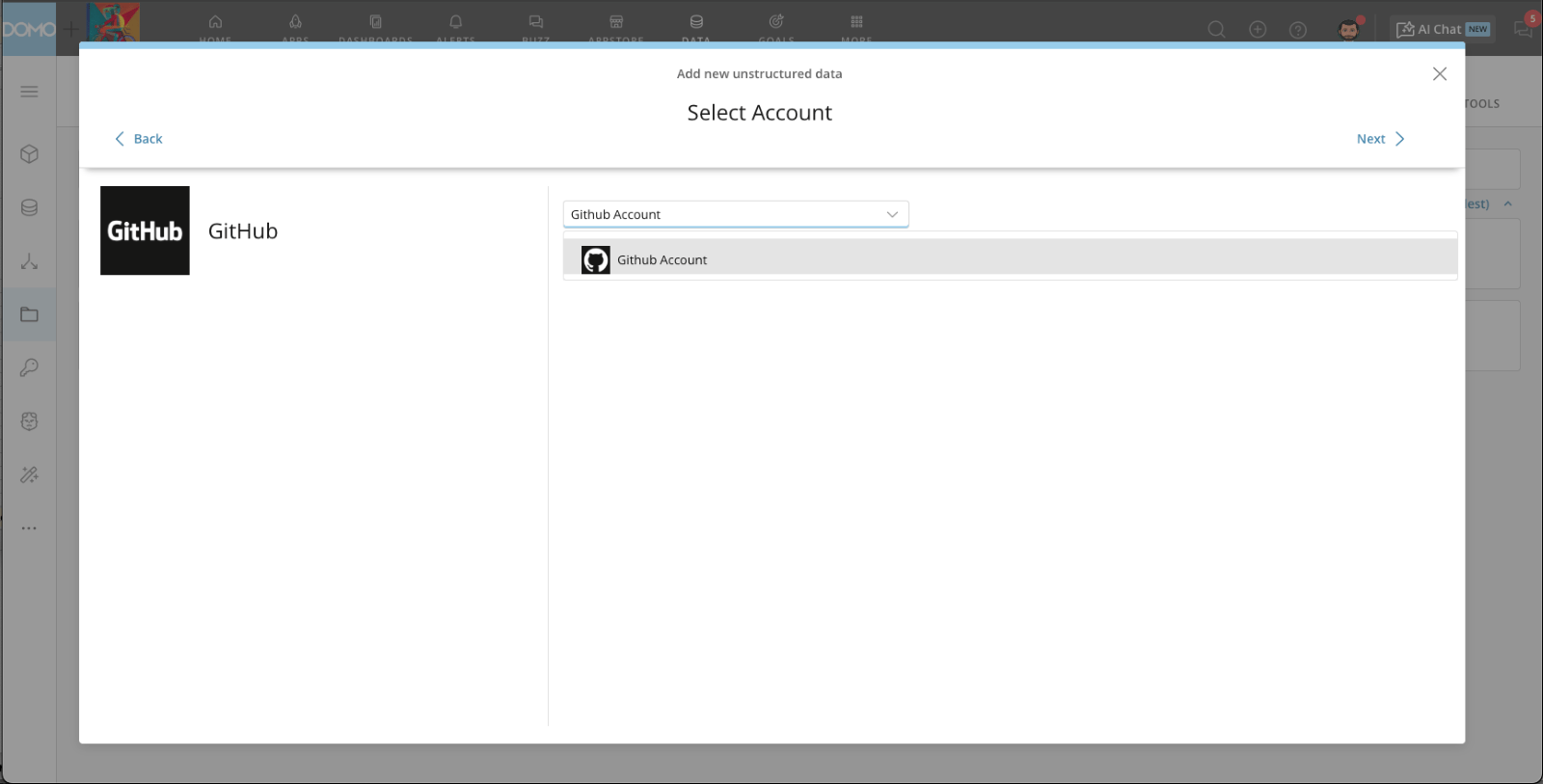 4. Add the required account details.
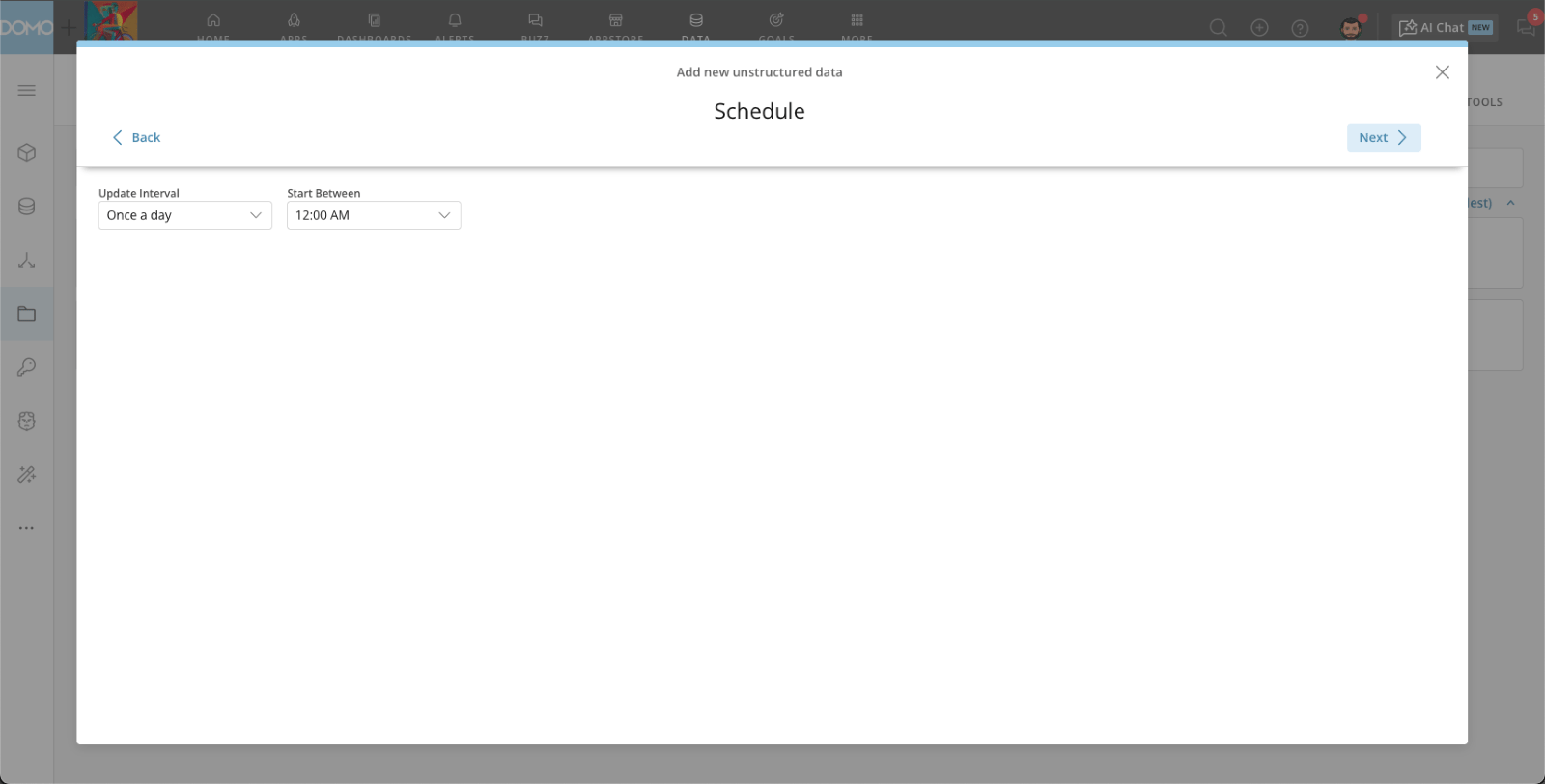
 5. Set up the refresh schedule.
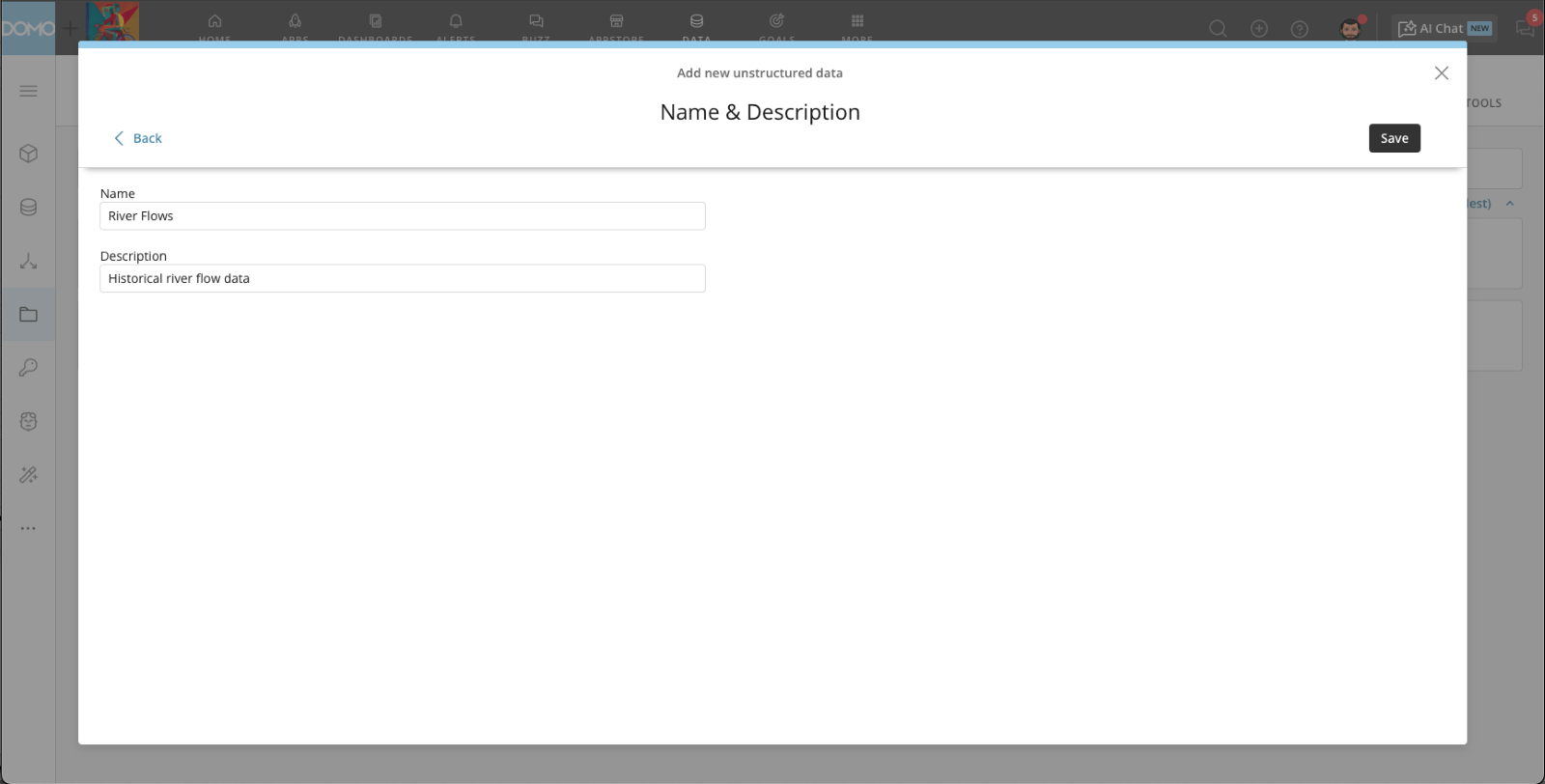
 6. Name your file (required) and give it an optional description.
 Your connected data is now available in the FileSets list.
### Manage Files
After [uploading data](#upload_files) from your device or [using a connector](#upload_using_connector), you can start managing your file contents.
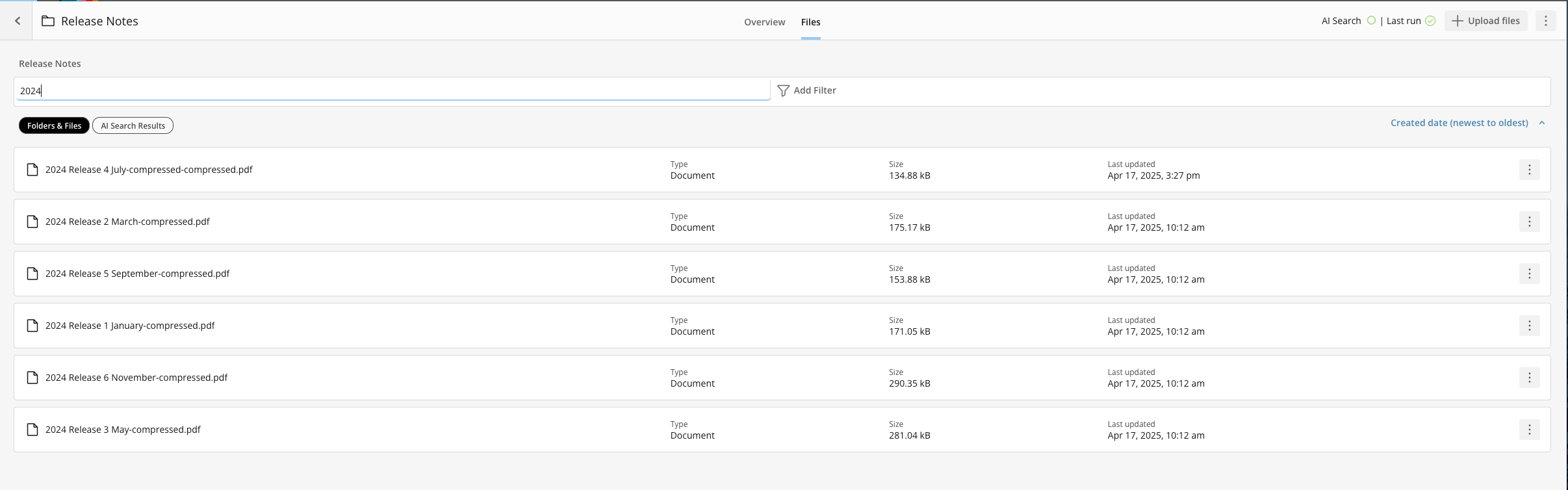
Select your FileSet to open it and go to the **Files** tab to view the full contents.
Your connected data is now available in the FileSets list.
### Manage Files
After [uploading data](#upload_files) from your device or [using a connector](#upload_using_connector), you can start managing your file contents.
Select your FileSet to open it and go to the **Files** tab to view the full contents.
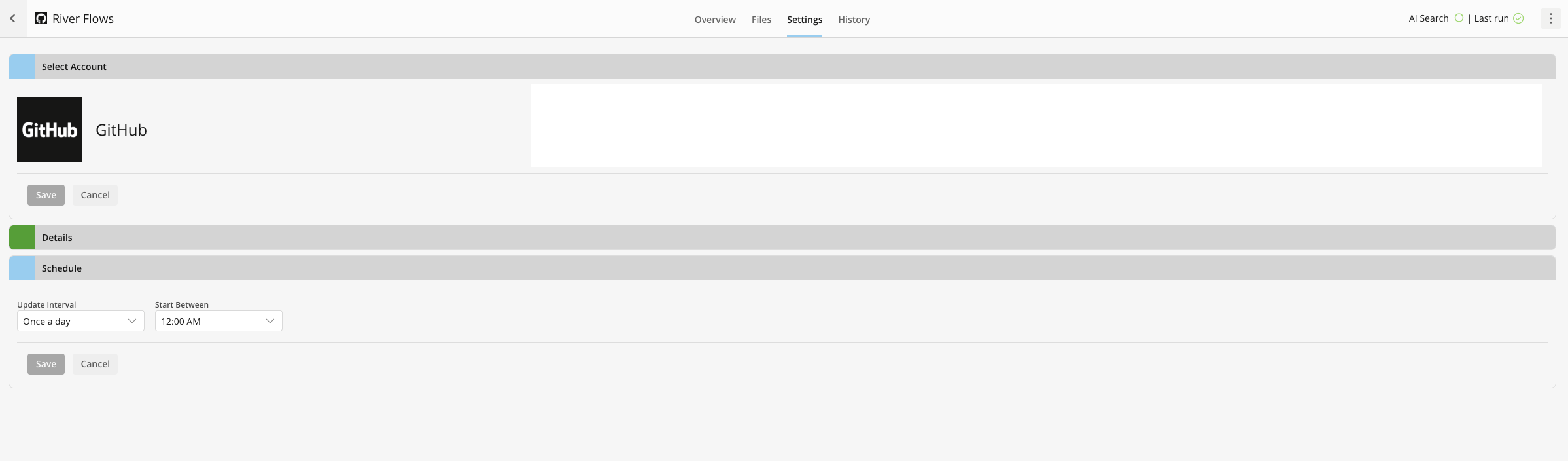
 For connector data, you can go to the **Settings** tab to configure the connector settings, including the account, details, and schedule, and to view connector history.
 ### Enable AI Search
Enabling AI Search in your FileSets allows you to search the contents of your files from the file listing tab. This also makes your files accessible to Domo AI and allows AI Chat and other agents to surface more accurate insights based on your uploaded data and files.
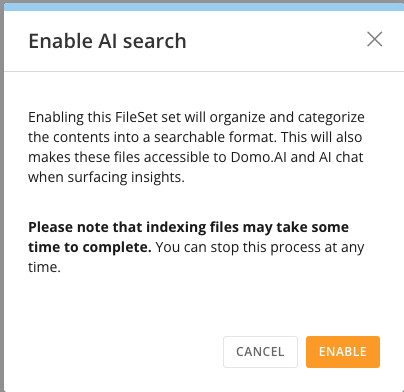
To enable AI Search for your FileSet, go to the **Overview** tab and select **Enable AI Search**.
### Enable AI Search
Enabling AI Search in your FileSets allows you to search the contents of your files from the file listing tab. This also makes your files accessible to Domo AI and allows AI Chat and other agents to surface more accurate insights based on your uploaded data and files.
To enable AI Search for your FileSet, go to the **Overview** tab and select **Enable AI Search**.
 Select **Enable** to confirm.
 ### Access FileSets From an Agent
AI Agents can use FileSets within an **AI Agent Task** inside Workflows.
Follow these steps to enable FileSets in Workflows:
1. Navigate to the workflow you'd like to add your FileSet to.
### Access FileSets From an Agent
AI Agents can use FileSets within an **AI Agent Task** inside Workflows.
Follow these steps to enable FileSets in Workflows:
1. Navigate to the workflow you'd like to add your FileSet to.
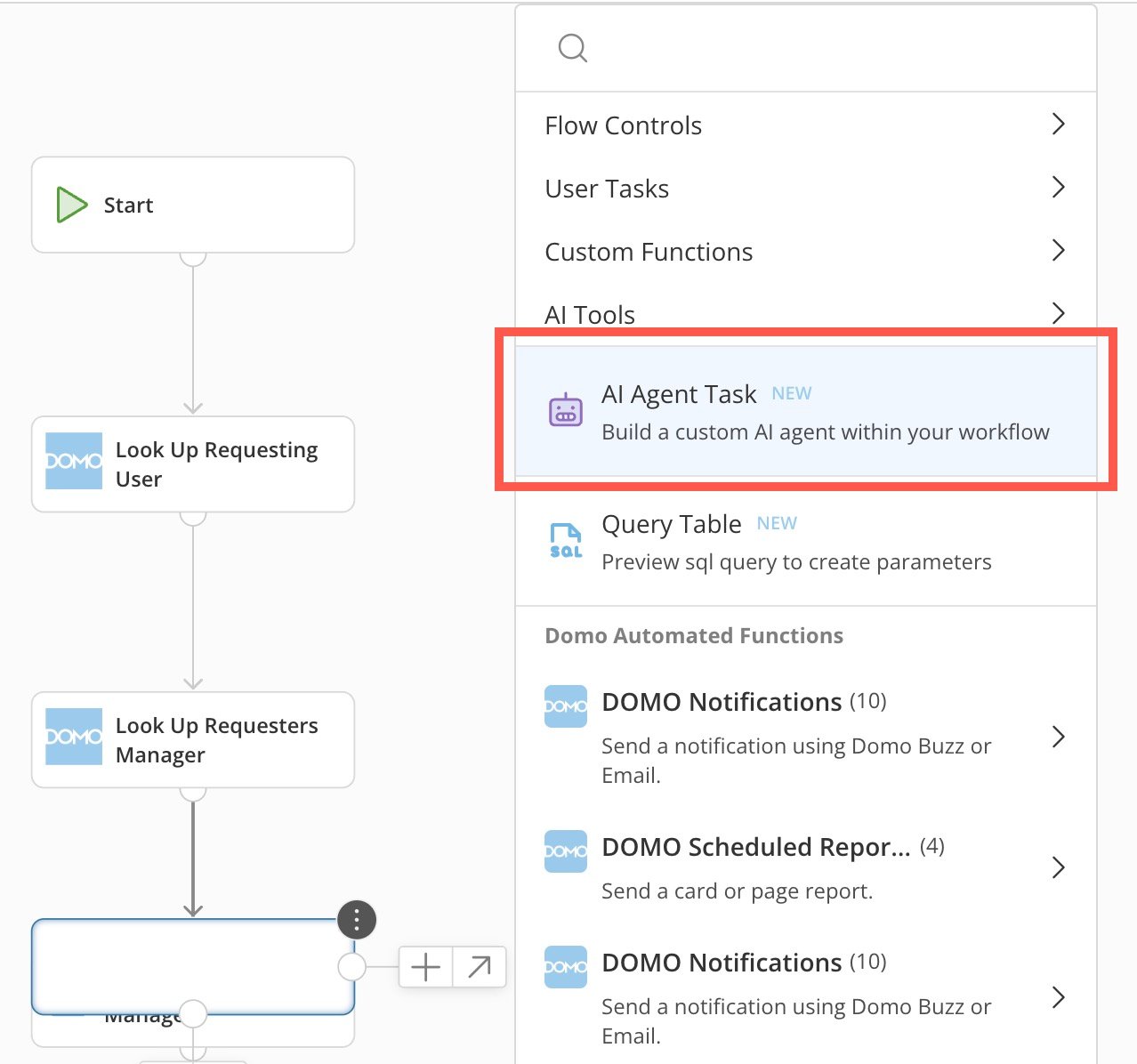
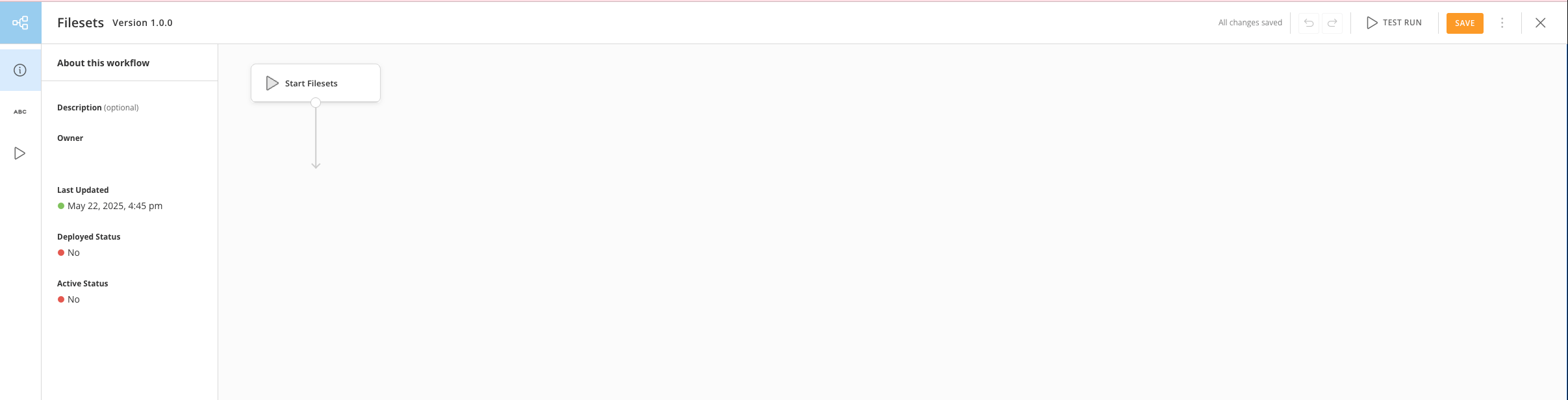 2. Add a new shape or edit an existing shape and choose **AI Agent Task**.
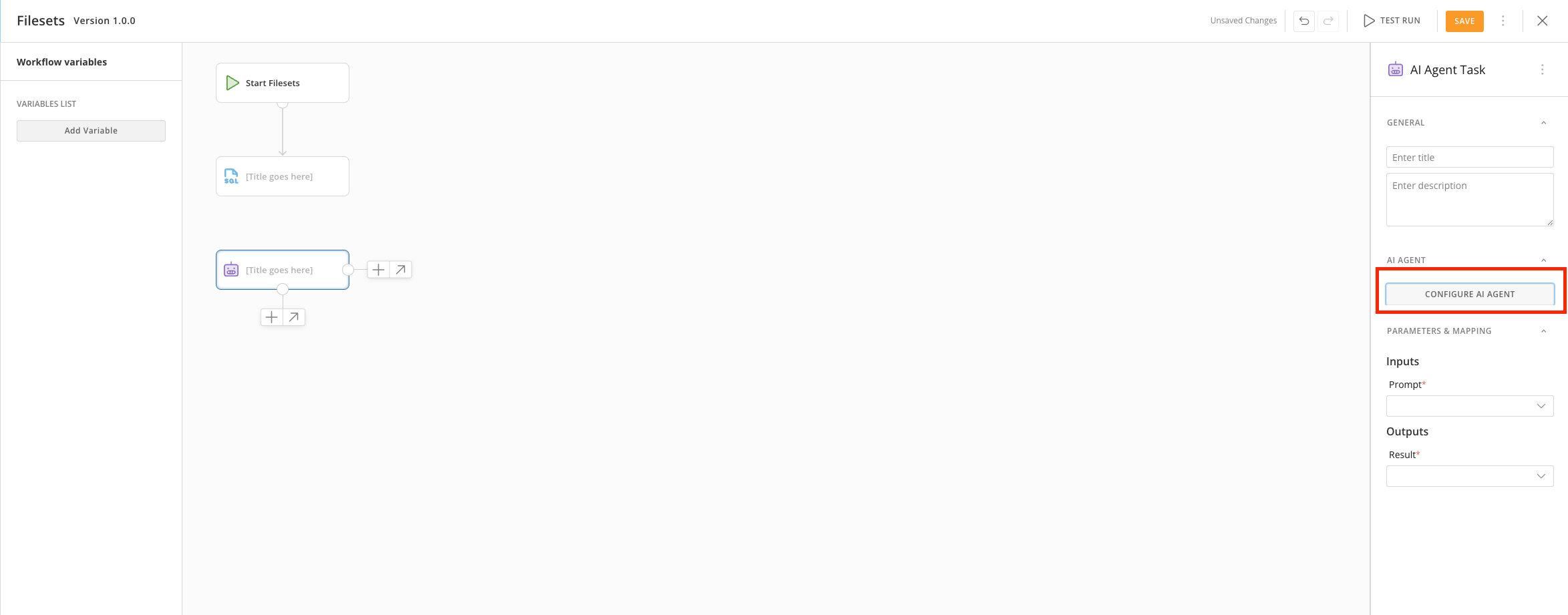
 3. In the configuration panel, select **Configure AI Agent**.
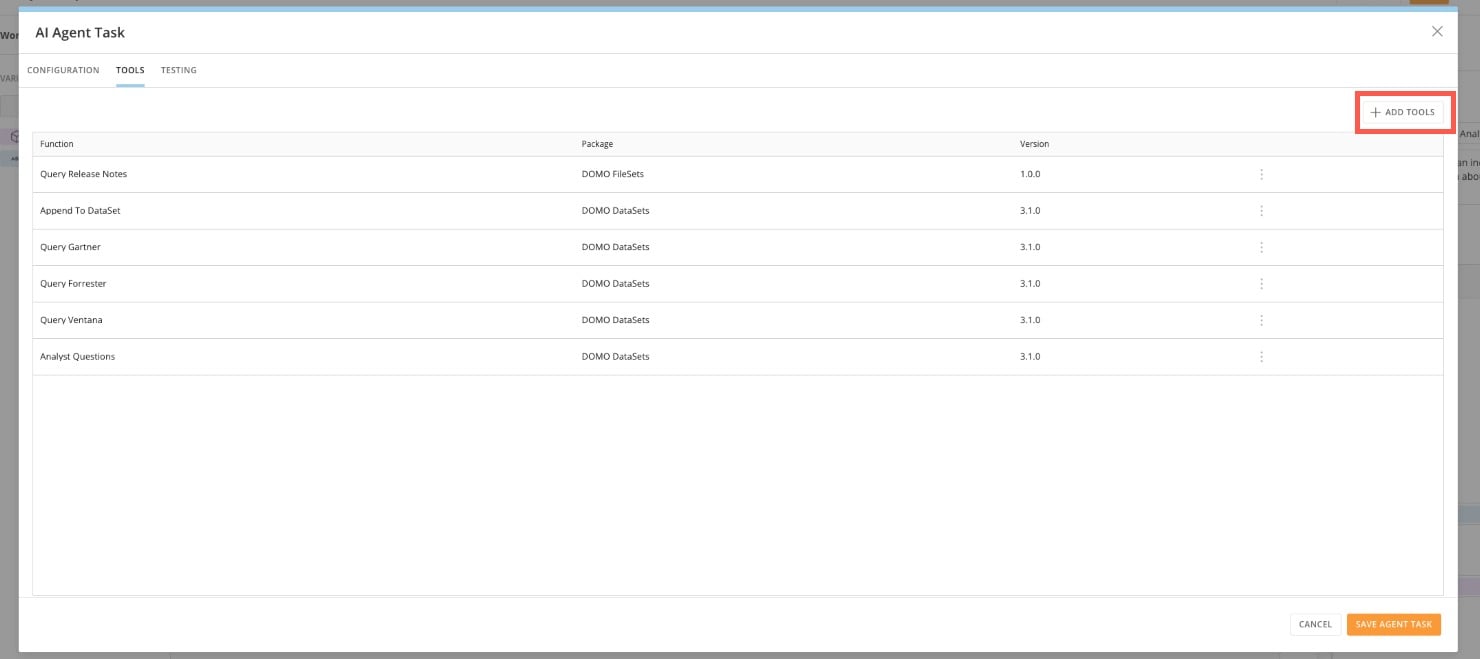
 The **AI Agent Task** configuration modal displays.
4. In the modal, go to the **Tools** tab, select **+** **Add Tools** and search for FileSets.
The **AI Agent Task** configuration modal displays.
4. In the modal, go to the **Tools** tab, select **+** **Add Tools** and search for FileSets.
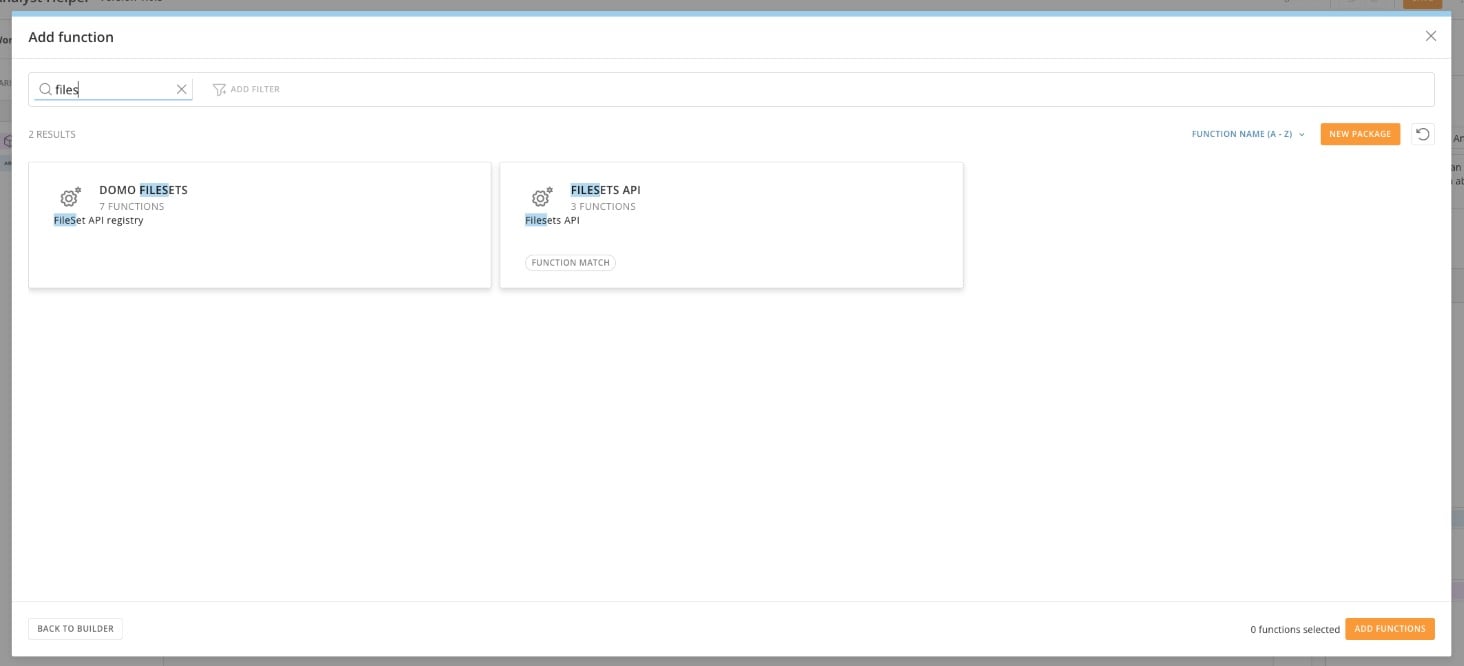 5. Check the box for the **Ai Search File Set** method, then select **Add Functions**.
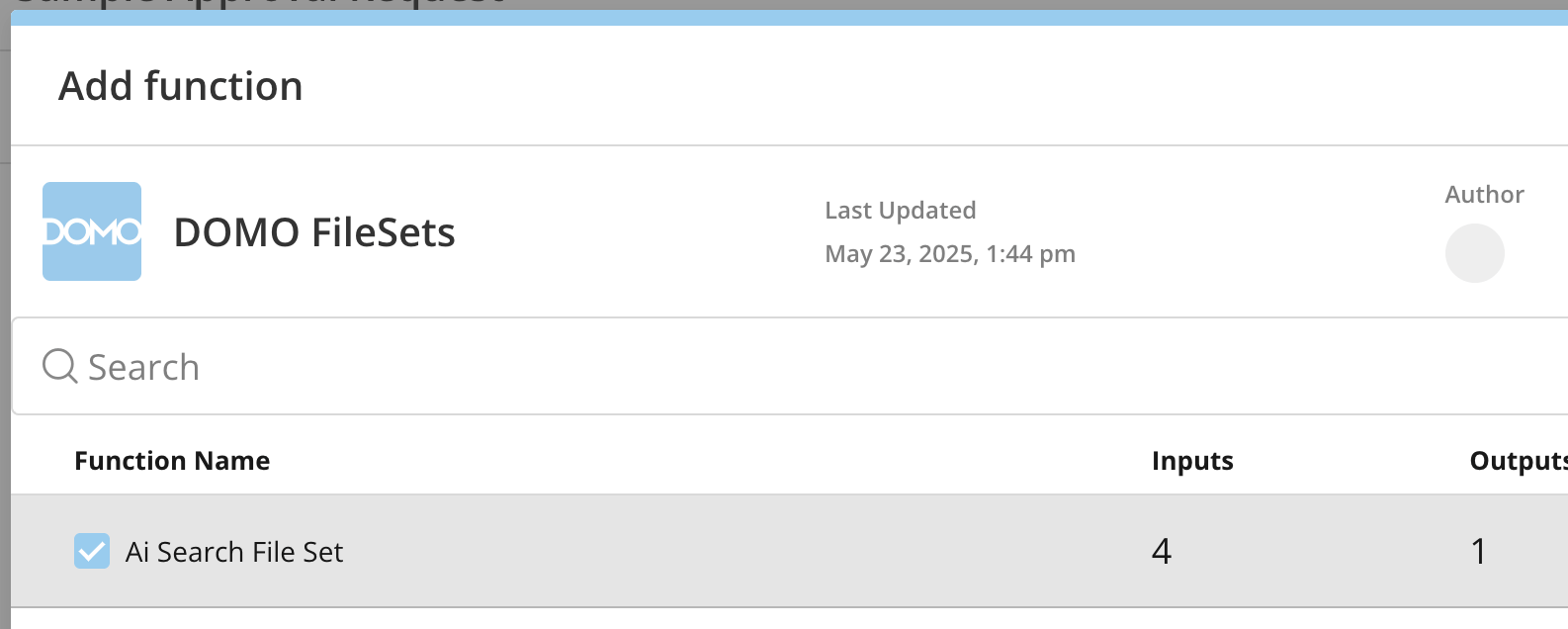
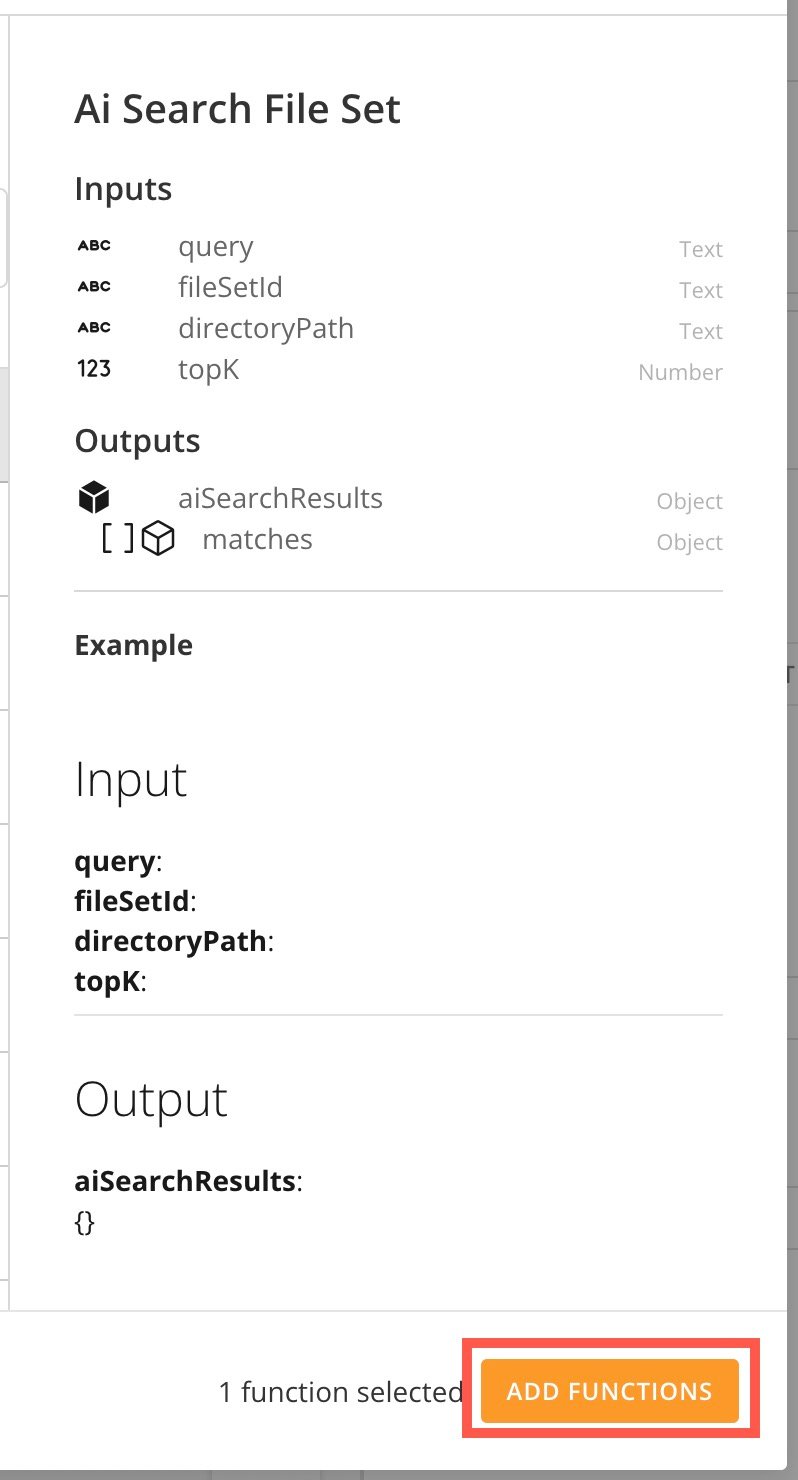 The FileSet is added to the list of tools in the **Tools** tab.
6. Select the FileSet to view the FileSet details. Enter the required information, including the FileSet ID.
**Find the File Set ID:** You can find the FileSet ID by viewing the FileSet in Domo. The FileSet ID appears in the URL, as shown in the highlighted area below.
The FileSet is added to the list of tools in the **Tools** tab.
6. Select the FileSet to view the FileSet details. Enter the required information, including the FileSet ID.
**Find the File Set ID:** You can find the FileSet ID by viewing the FileSet in Domo. The FileSet ID appears in the URL, as shown in the highlighted area below.
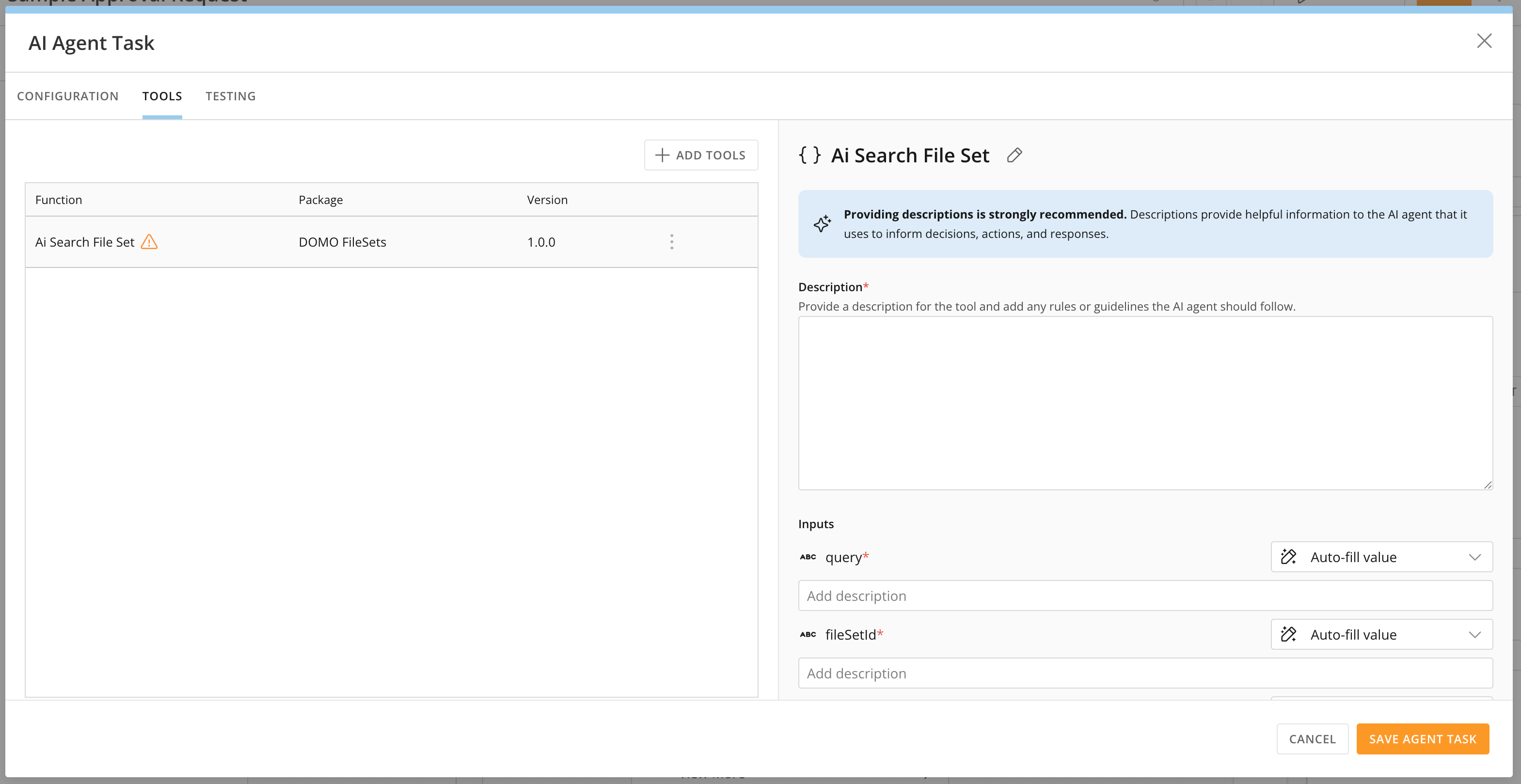 7. After entering all the information, save your AI agent task.
Learn more about [adding AI Tasks to your workflow](https://domo-support.domo.com/s/article/000005331?language=en_US#add_shapes_to_your_canvas).
### Use FileSets in Code Engine
You can also use FileSets in Code Engine by searching for FileSets in the Code Engine search, selecting the **Domo FileSets** function, and configuring and running your FileSet.
7. After entering all the information, save your AI agent task.
Learn more about [adding AI Tasks to your workflow](https://domo-support.domo.com/s/article/000005331?language=en_US#add_shapes_to_your_canvas).
### Use FileSets in Code Engine
You can also use FileSets in Code Engine by searching for FileSets in the Code Engine search, selecting the **Domo FileSets** function, and configuring and running your FileSet.

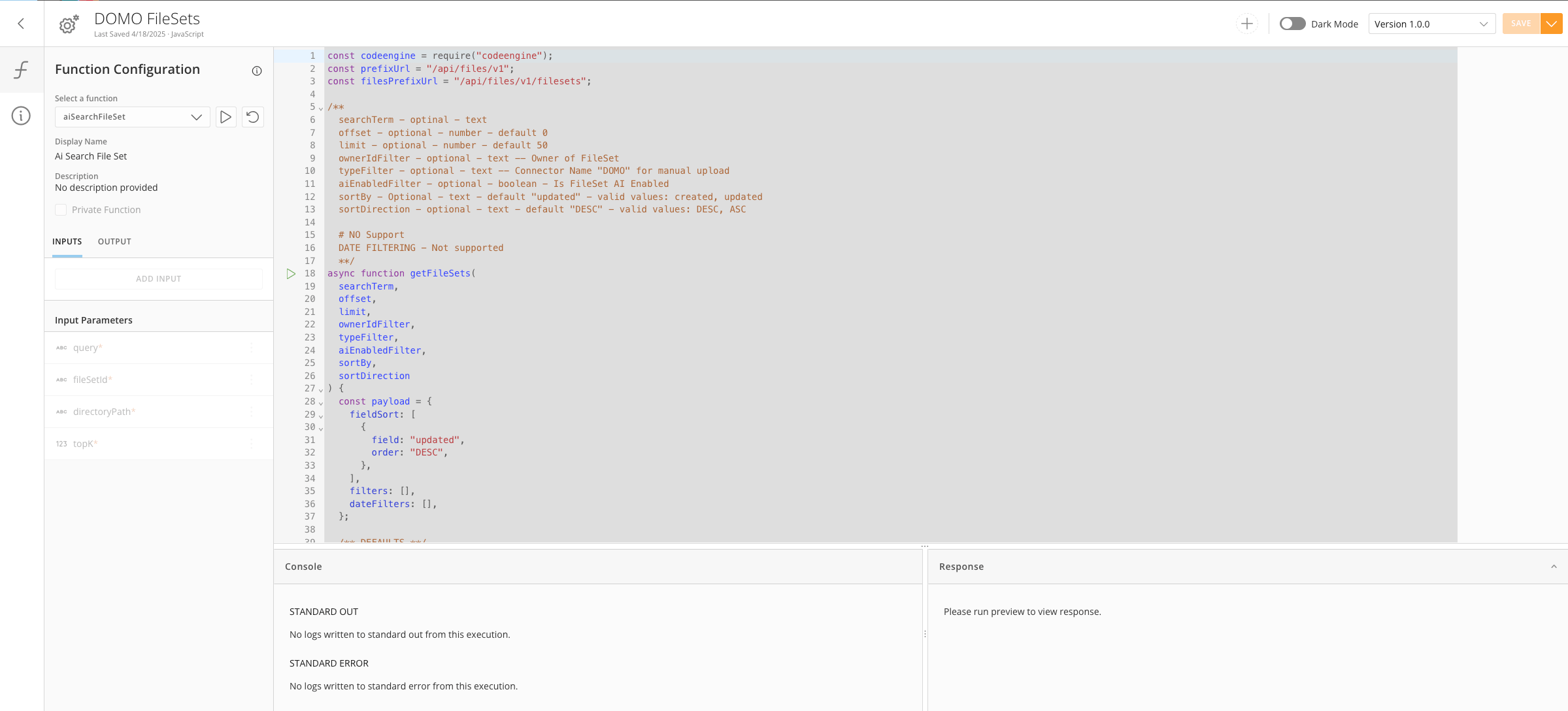 Learn more about [Code Engine](https://domo-support.domo.com/s/article/000005173?language=en_US).
### FAQ
This section answers some frequently asked questions. Select a question to expand and view its answer.
FileSets can store all common image and document file types. AI Search indexing is limited to the following file types: txt, md, CSV, CSS, JSON, HTML, doc, docx, xls, xlsx, pdf, jpg, jpeg, and png.
Images: 3.75MB
Documents: 50MB (manual upload limit to 5MB)
Unlimited, but consumption rates do apply. There are consumption charges for Storage, Retrieval, and AI Search Indexing.
Yes, you can connect to Amazon S3, SFTP, Google Drive, or Confluence, and more will become available.
Not at this time. This is on our roadmap.
Currently, permissions are based on the entire FileSet.
This is on our roadmap.
Learn more about [Code Engine](https://domo-support.domo.com/s/article/000005173?language=en_US).
### FAQ
This section answers some frequently asked questions. Select a question to expand and view its answer.
FileSets can store all common image and document file types. AI Search indexing is limited to the following file types: txt, md, CSV, CSS, JSON, HTML, doc, docx, xls, xlsx, pdf, jpg, jpeg, and png.
Images: 3.75MB
Documents: 50MB (manual upload limit to 5MB)
Unlimited, but consumption rates do apply. There are consumption charges for Storage, Retrieval, and AI Search Indexing.
Yes, you can connect to Amazon S3, SFTP, Google Drive, or Confluence, and more will become available.
Not at this time. This is on our roadmap.
Currently, permissions are based on the entire FileSet.
This is on our roadmap.