> ## Documentation Index
> Fetch the complete documentation index at: https://domoinc-openapi-sync-dataflows.mintlify.site/llms.txt
> Use this file to discover all available pages before exploring further.
# IBM Watson Adapter
export const InlineImage = ({src, alt = '', height = '1.6em'}) => {
return  ;
};
### Intro
With Cloud Amplifier, you can bring models and workspaces built on the IBM platform into Domo as ML flow models.
Before bringing models into Domo, you must enable IBM Watson in the AI Service Layer and add your IBM Watson account to Domo. This article describes how.
***
### Enable IBM Watson in the AI Service Layer
Follow these steps to enable IBM Watson in the AI Service Layer:
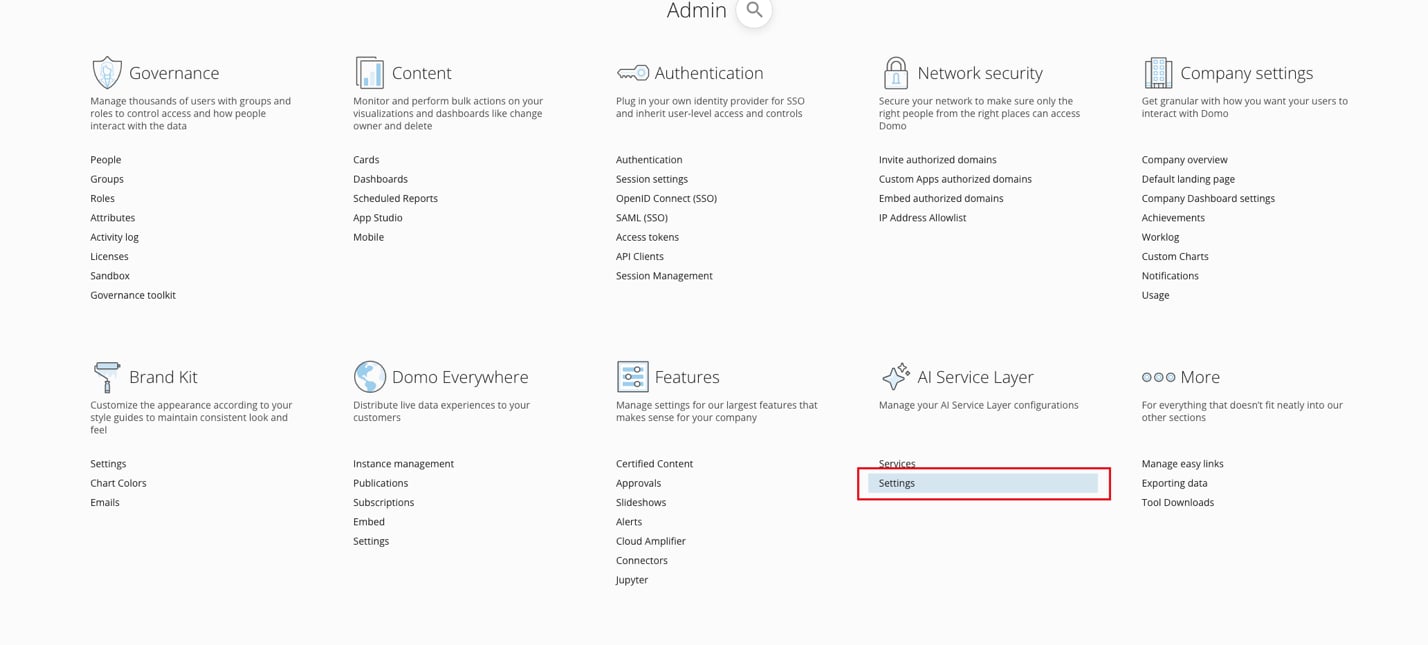
1. In the Domo navigation, select **More** > **Admin**. In the Admin Settings under **AI Service Layer**, choose **Settings**.
;
};
### Intro
With Cloud Amplifier, you can bring models and workspaces built on the IBM platform into Domo as ML flow models.
Before bringing models into Domo, you must enable IBM Watson in the AI Service Layer and add your IBM Watson account to Domo. This article describes how.
***
### Enable IBM Watson in the AI Service Layer
Follow these steps to enable IBM Watson in the AI Service Layer:
1. In the Domo navigation, select **More** > **Admin**. In the Admin Settings under **AI Service Layer**, choose **Settings**.
 2. In the AI Service Layer settings, you must enable IBM Watson AI in two locations:
* Under **Domo Provided Models**, toggle the switch labeled **IBM watsonx. ai**.
2. In the AI Service Layer settings, you must enable IBM Watson AI in two locations:
* Under **Domo Provided Models**, toggle the switch labeled **IBM watsonx. ai**.
 * Under **ML Connectors**, toggle the switch labeled **IBM Watson AI**.
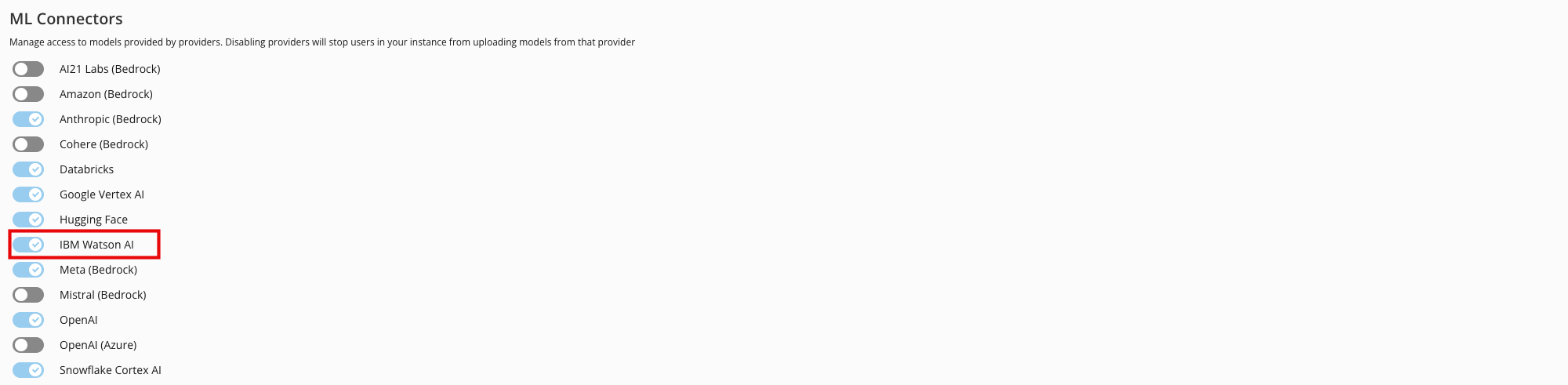 You can now add an IBM Watson account to Domo. Learn more about creating an account below. After your account is created, you can add IBM Watson models to the Domo AI Models interface. Learn how to [add models](/s/article/000005502).
### Add IBM Watson Account
Follow these steps to add an IBM Watson account to your Domo instance.
1. In the Domo navigation, select **Data** to open the Data Center.
2. Select
**Accounts** in the left sidebar.
3. On the **Integration Accounts** page, select **Add New** > **Account.** The **Add Account** modal opens.
4. In the **Add Account** modal, search for and select IBM Watson AI.
5. Fill out the information required for the IBM Watson AI Account. This connection requires an API key, region, and version.
* **API Key —** Obtain the API Key from IBM Watson.
* **Region —** You can choose from four different regional options: Dallas (us-south), Frankfurt (eu-de), London (eu-gb), and Tokyo (jp-tok).
* **Version —** The version is today's date (if you are finalizing your IBM Watson account in Domo today). This input requires a yyyy-mm-dd format. (*Example:* 2024-11-13)
You can now add an IBM Watson account to Domo. Learn more about creating an account below. After your account is created, you can add IBM Watson models to the Domo AI Models interface. Learn how to [add models](/s/article/000005502).
### Add IBM Watson Account
Follow these steps to add an IBM Watson account to your Domo instance.
1. In the Domo navigation, select **Data** to open the Data Center.
2. Select
**Accounts** in the left sidebar.
3. On the **Integration Accounts** page, select **Add New** > **Account.** The **Add Account** modal opens.
4. In the **Add Account** modal, search for and select IBM Watson AI.
5. Fill out the information required for the IBM Watson AI Account. This connection requires an API key, region, and version.
* **API Key —** Obtain the API Key from IBM Watson.
* **Region —** You can choose from four different regional options: Dallas (us-south), Frankfurt (eu-de), London (eu-gb), and Tokyo (jp-tok).
* **Version —** The version is today's date (if you are finalizing your IBM Watson account in Domo today). This input requires a yyyy-mm-dd format. (*Example:* 2024-11-13)
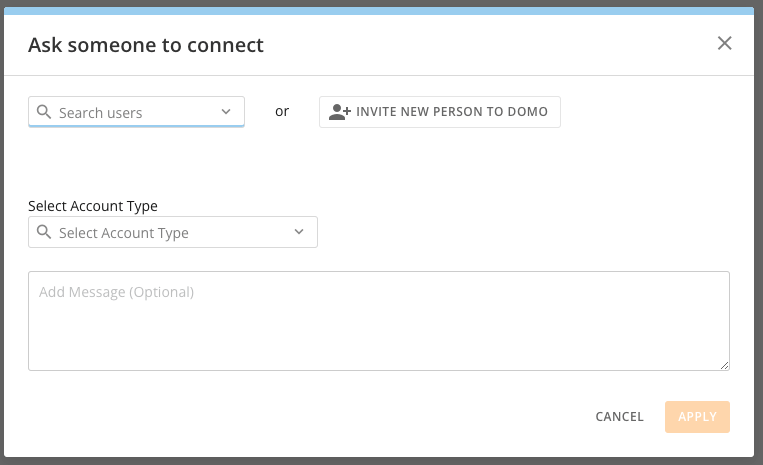
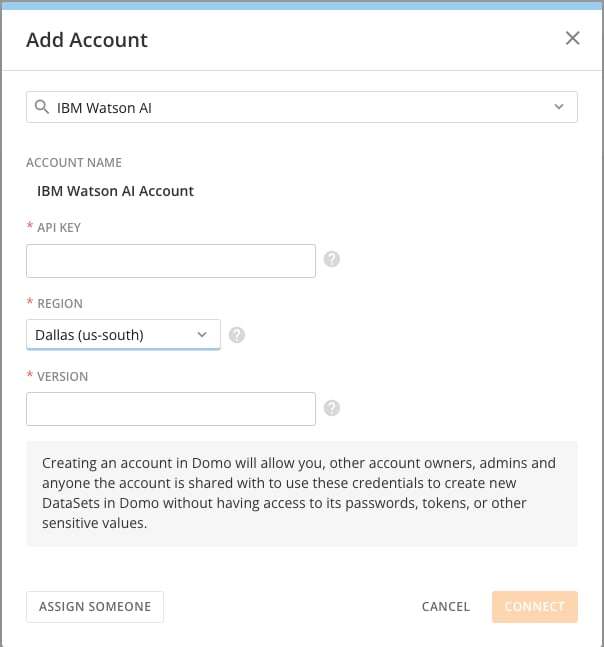 **Note:** You can use the **Assign Somone** option in the modal to choose someone else in your organization to connect their account.
 6. Select **Connect**.
Now that your IBM Watson account is connected, you can add your IBM Watson models to the Domo AI Models repository. Learn how to [add and test new models](/s/article/000005502).
**Tip:** Need to learn how to edit, share, or delete an existing account? See [Manage Connector/Adapter Accounts](/s/article/360042926054).
6. Select **Connect**.
Now that your IBM Watson account is connected, you can add your IBM Watson models to the Domo AI Models repository. Learn how to [add and test new models](/s/article/000005502).
**Tip:** Need to learn how to edit, share, or delete an existing account? See [Manage Connector/Adapter Accounts](/s/article/360042926054).