> ## Documentation Index
> Fetch the complete documentation index at: https://domoinc-openapi-sync-dataflows.mintlify.site/llms.txt
> Use this file to discover all available pages before exploring further.
# Explore Data with Table Elements in App Studio
### Intro
Domo has many powerful tools for data analysis and visualization, like DataSet Views and Analyzer. App Studio brings more of these tools together in one place.
When you add a table to your App Studio app, you can explore your data in a spreadsheet-like interface with functionality formatting, aggregating, grouping, resizing columns, and adding a new calculation.
In App Studio View mode, you and your app users can interact with tables the way you do on dashboards. Learn how to [interact with tables](/s/article/360043429573#interact_with_table_charts).
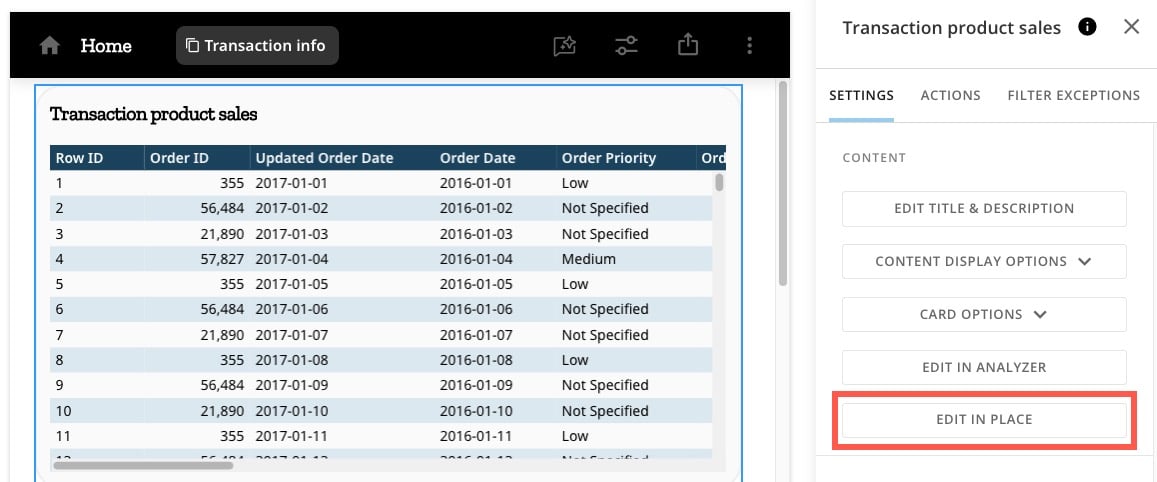
**Important:** This functionality is also available for existing tables in App Studio. Select a table element to open the configuration panel and select **Edit in Place**.
 ***
### Add a Table Element to App Studio
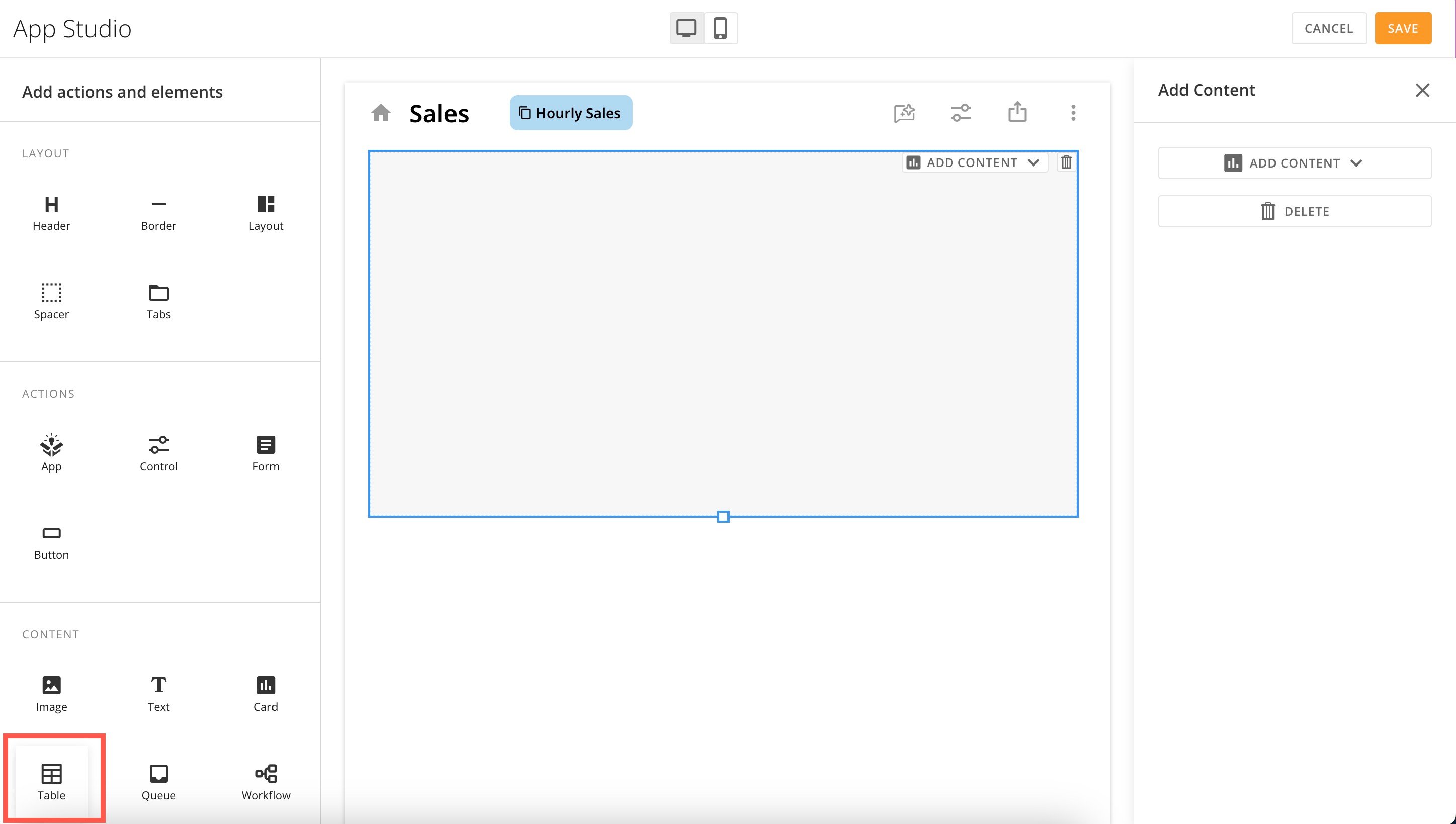
1. In App Studio edit mode, go to **Add actions and elements**. Under **Content**, drag a **Table** element to the canvas.
***
### Add a Table Element to App Studio
1. In App Studio edit mode, go to **Add actions and elements**. Under **Content**, drag a **Table** element to the canvas.
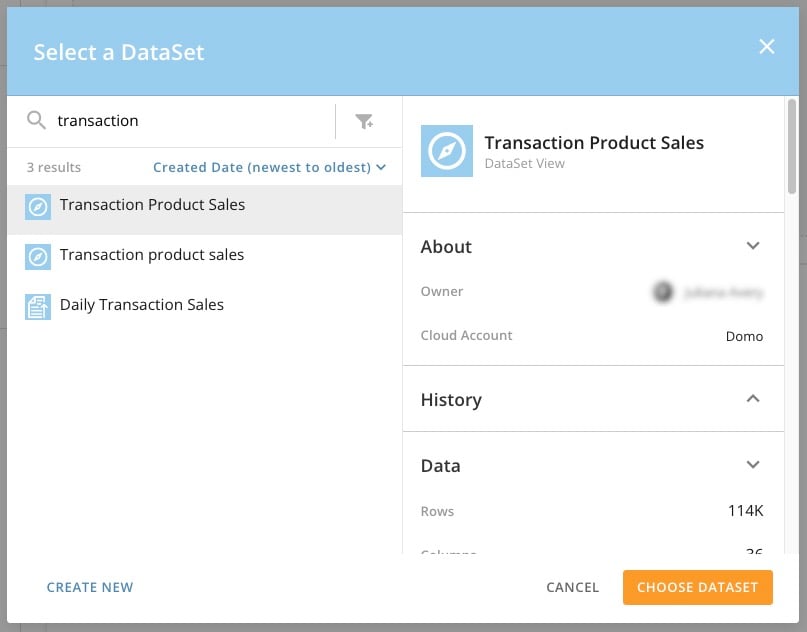
 2. Choose the DataSet you want to explore.
It displays as a Table Card on the app page.
2. Choose the DataSet you want to explore.
It displays as a Table Card on the app page.
 3. Select the card to open the right configuration panel. Select **Edit in Place** to open the edit mode.
You can now directly edit the table inside App Studio.
3. Select the card to open the right configuration panel. Select **Edit in Place** to open the edit mode.
You can now directly edit the table inside App Studio.
 ### Edit a Table Element
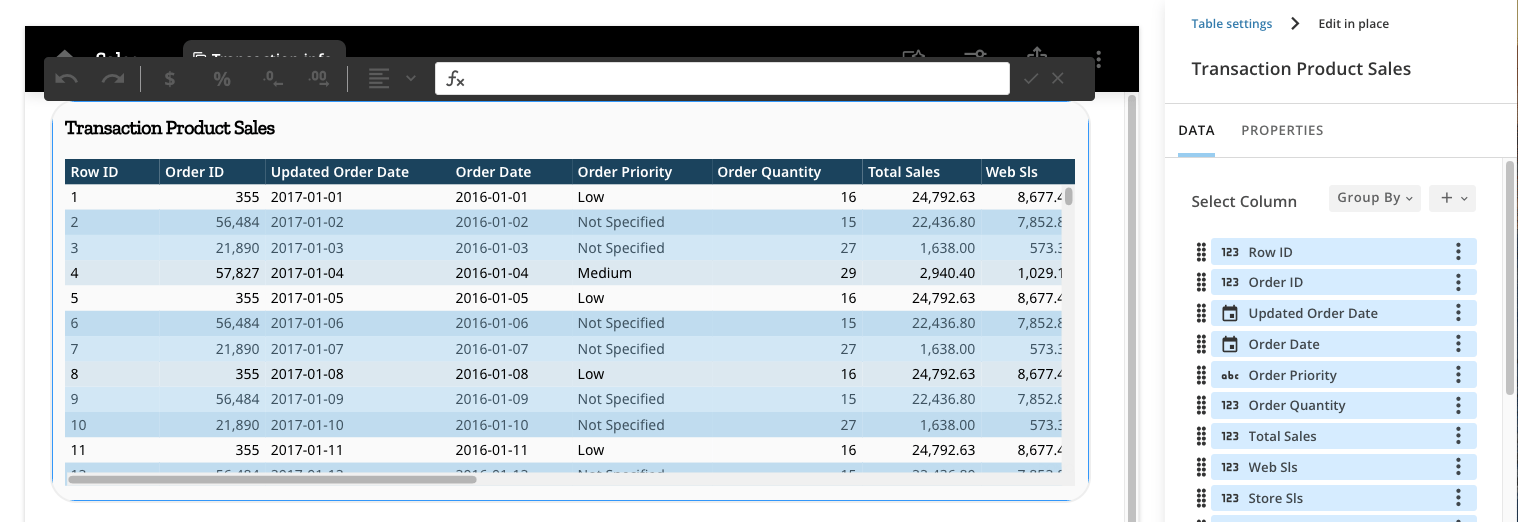
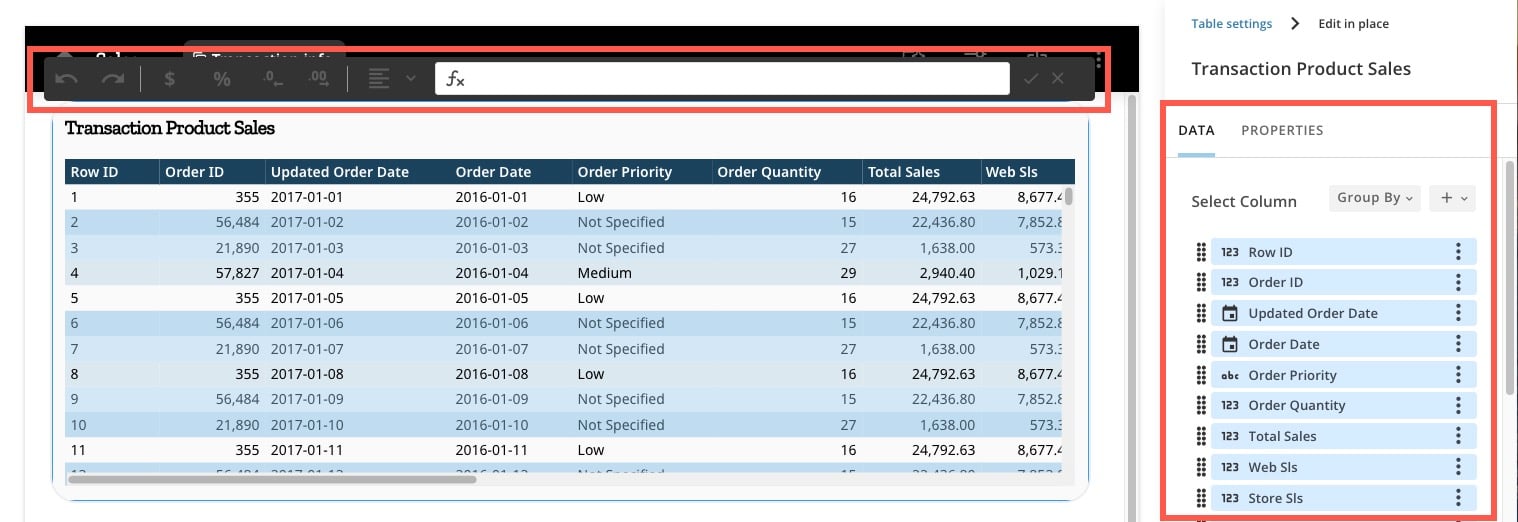
When you choose to edit a table element in place, the table formatting bar displays at the top of the table, and the DataSet columns display in the **Data** column of the configuration panel.
### Edit a Table Element
When you choose to edit a table element in place, the table formatting bar displays at the top of the table, and the DataSet columns display in the **Data** column of the configuration panel.
 #### Show/Hide Columns
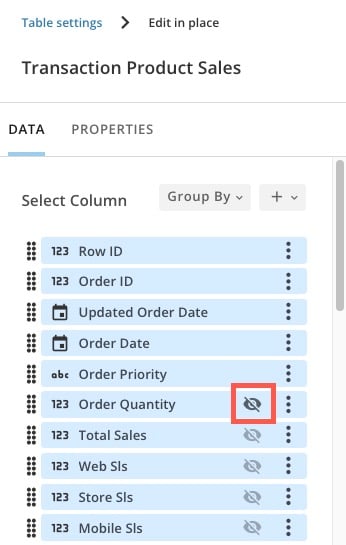
The Table Card automatically shows the first columns in the DataSet. You can select **Show/Hide** for any individual column in the configuration panel.
#### Show/Hide Columns
The Table Card automatically shows the first columns in the DataSet. You can select **Show/Hide** for any individual column in the configuration panel.
 #### Reorder Columns
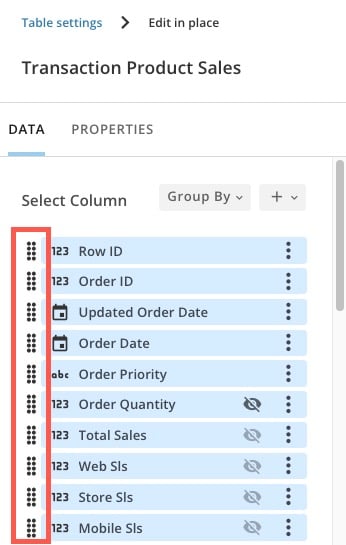
Use the handles in the configuration panel to reorder columns on the Table Card.
#### Reorder Columns
Use the handles in the configuration panel to reorder columns on the Table Card.
 #### Rename Columns
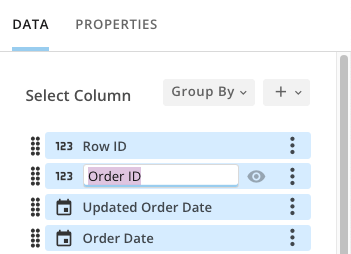
Double-click on a column name in the configuration panel or in the Table Card to rename it.
#### Rename Columns
Double-click on a column name in the configuration panel or in the Table Card to rename it.
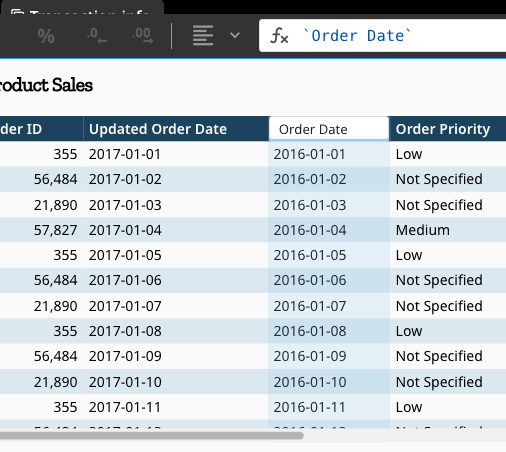 #### Resize Columns
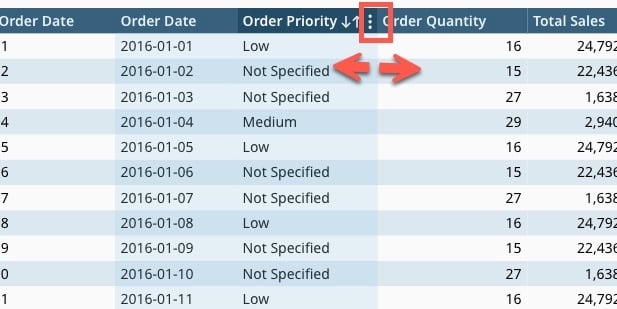
Drag the edges of the column headers to resize the columns in the Table Card. Your adjustments will be saved.
#### Resize Columns
Drag the edges of the column headers to resize the columns in the Table Card. Your adjustments will be saved.
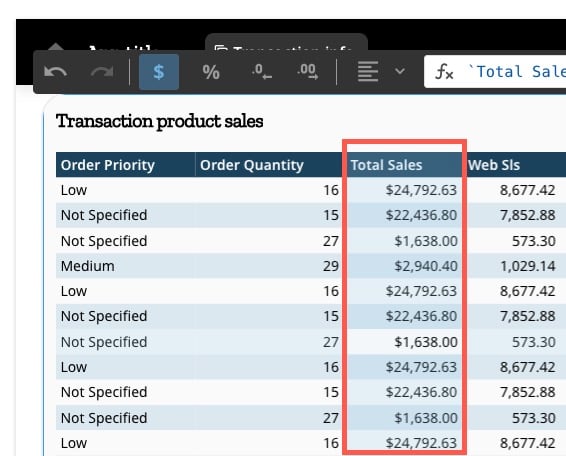
 #### Format Table
Use the formatting bar to format a column as currency or percentage, add or remove decimals, or align content inside the cells.
#### Format Table
Use the formatting bar to format a column as currency or percentage, add or remove decimals, or align content inside the cells.
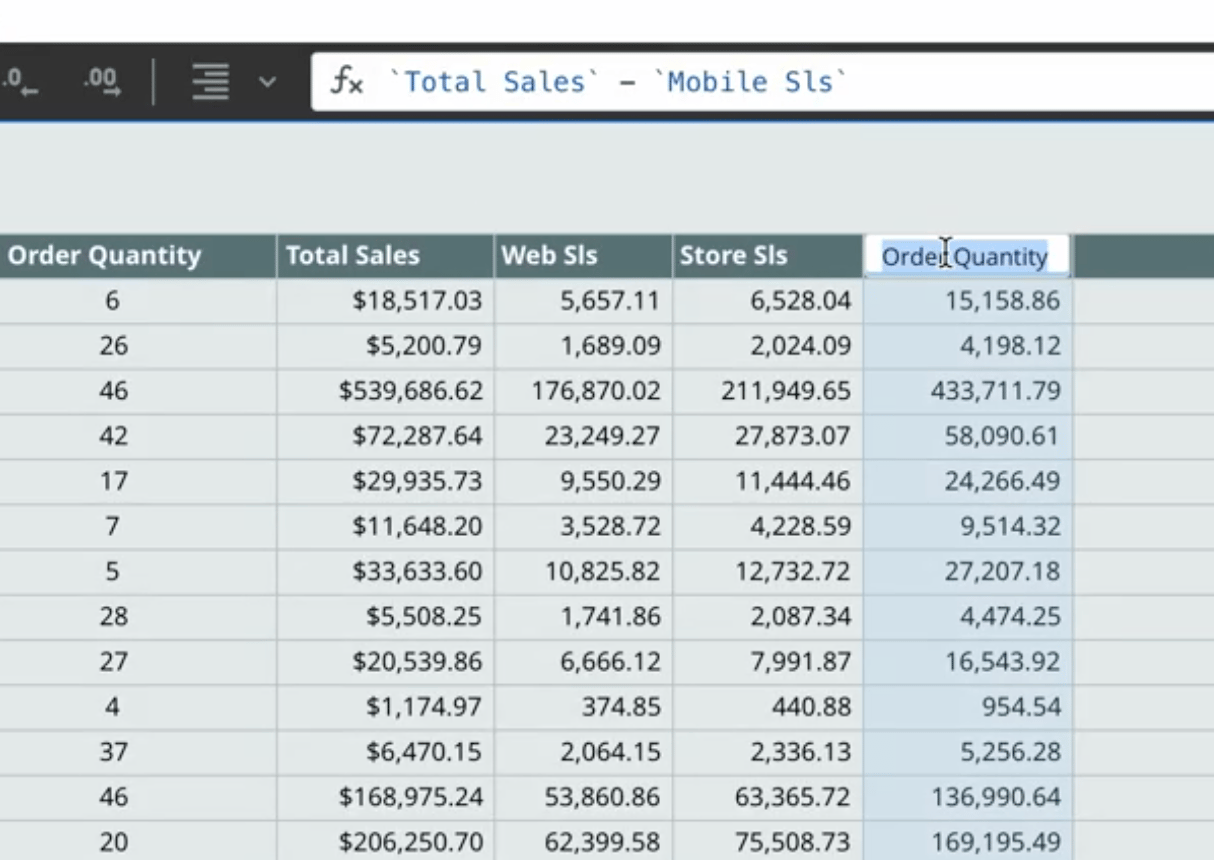
 #### Add a Column
In each column, hover over the header and select **More** (three vertical dots icon) > **Add column** to add a new column to the right.
#### Add a Column
In each column, hover over the header and select **More** (three vertical dots icon) > **Add column** to add a new column to the right.
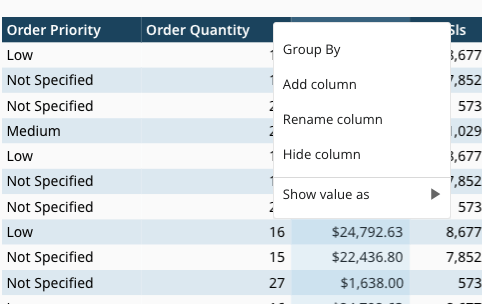 You can then use the formatting bar to populate the column with the results of a formula and name the column directly on the card.
 #### Group By
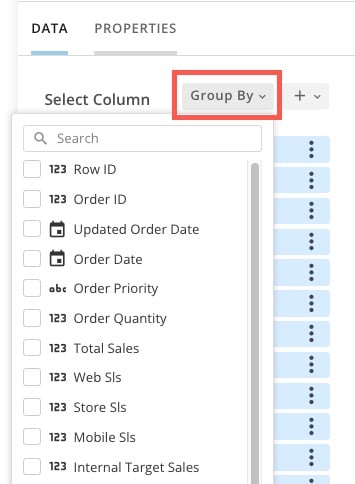
In the configuration panel, select **Group By** to group your columns and open up the **Aggregations** section of the configuration panel.
#### Group By
In the configuration panel, select **Group By** to group your columns and open up the **Aggregations** section of the configuration panel.
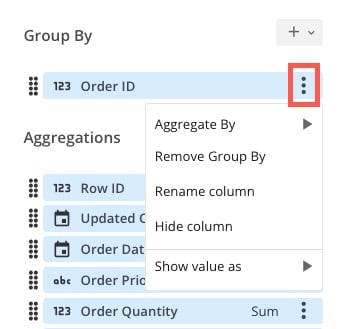
 For a group, select **More** (three vertical dots icon) to choose how to aggregate your data.
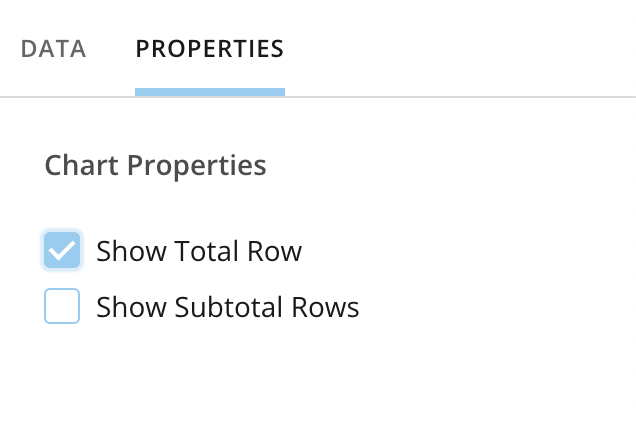
 #### Show/Hide Total Row and Subtotal Rows
Go to the **Properties** tab of the configuration panel to choose to show/hide the total row and subtotal rows.
#### Show/Hide Total Row and Subtotal Rows
Go to the **Properties** tab of the configuration panel to choose to show/hide the total row and subtotal rows.
 **Tip:** In App Studio View mode, you and your app users can interact with tables like you do on dashboards. Learn how to [interact with tables](/s/article/360043429573#interact_with_table_charts).