> ## Documentation Index
> Fetch the complete documentation index at: https://domoinc-openapi-sync-dataflows.mintlify.site/llms.txt
> Use this file to discover all available pages before exploring further.

# Customize Domo Mobile App

export const InlineImage = ({src, alt = '', height = '1.6em'}) => {
  return <img noZoom src={src} alt={alt} style={{
    display: 'inline',
    verticalAlign: 'start',
    height: height,
    margin: '0'
  }} />;
};

### Intro

You can create different navigation configurations for your Domo mobile apps, allowing app users to more quickly access the content most relevant to them. This is done through creating and customizing mobile app configurations. The Mobile Configuration feature is available for all organizations. If your organization doesn't use Mobile Configuration, individuals can still [personalize their individual app navigation](#personalize_your_navigation).

Need support? Check out our [FAQ](#faq) or contact your Domo account team.

***

### Required Grants

There are two available grants for mobile configuration:

* **Edit Mobile App Configurations —** This allows users to create, edit, and delete mobile app configurations to which they have access. **Note:** This grant does not allow the holder to grant [permissions](#manage_configuration_permissions) in a configuration. This grant is for non-admin users who need to make changes to mobile app configurations.
* **(Admin-only) Manage All Mobile App Configurations —** This allows admin-level users to create, edit, and delete all mobile app configurations.

### Access Mobile App Configuration Settings

Access the mobile app configuration settings from Admin Settings.

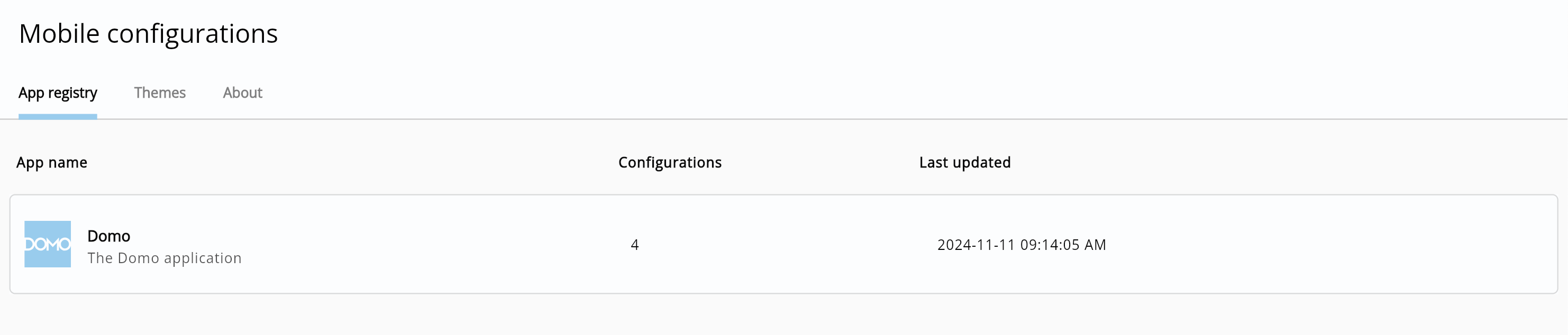
In Admin Settings under **Content**, select **Mobile**.

In the **App registry** tab, you can view the mobile apps in your instance.

**Note:** Most instance registries only contain the Domo and Domo Task Center apps (if you're using Domo Task Center).

<Frame>
  <img alt="Screenshot 2024-11-12 at 9.38.08 AM.png" src="https://mintcdn.com/domoinc-openapi-sync-dataflows/EtHMjR0Dwu423b1z/images/kb/ka0Vq0000004fHV-00N5w00000Ri7BU-0EMVq000003lKHh.jpg?fit=max&auto=format&n=EtHMjR0Dwu423b1z&q=85&s=0151cbd5f3861561da1d6b1970e4db22" style={{width: 897, height: 192}} width="2964" height="634" data-path="images/kb/ka0Vq0000004fHV-00N5w00000Ri7BU-0EMVq000003lKHh.jpg" />
</Frame>

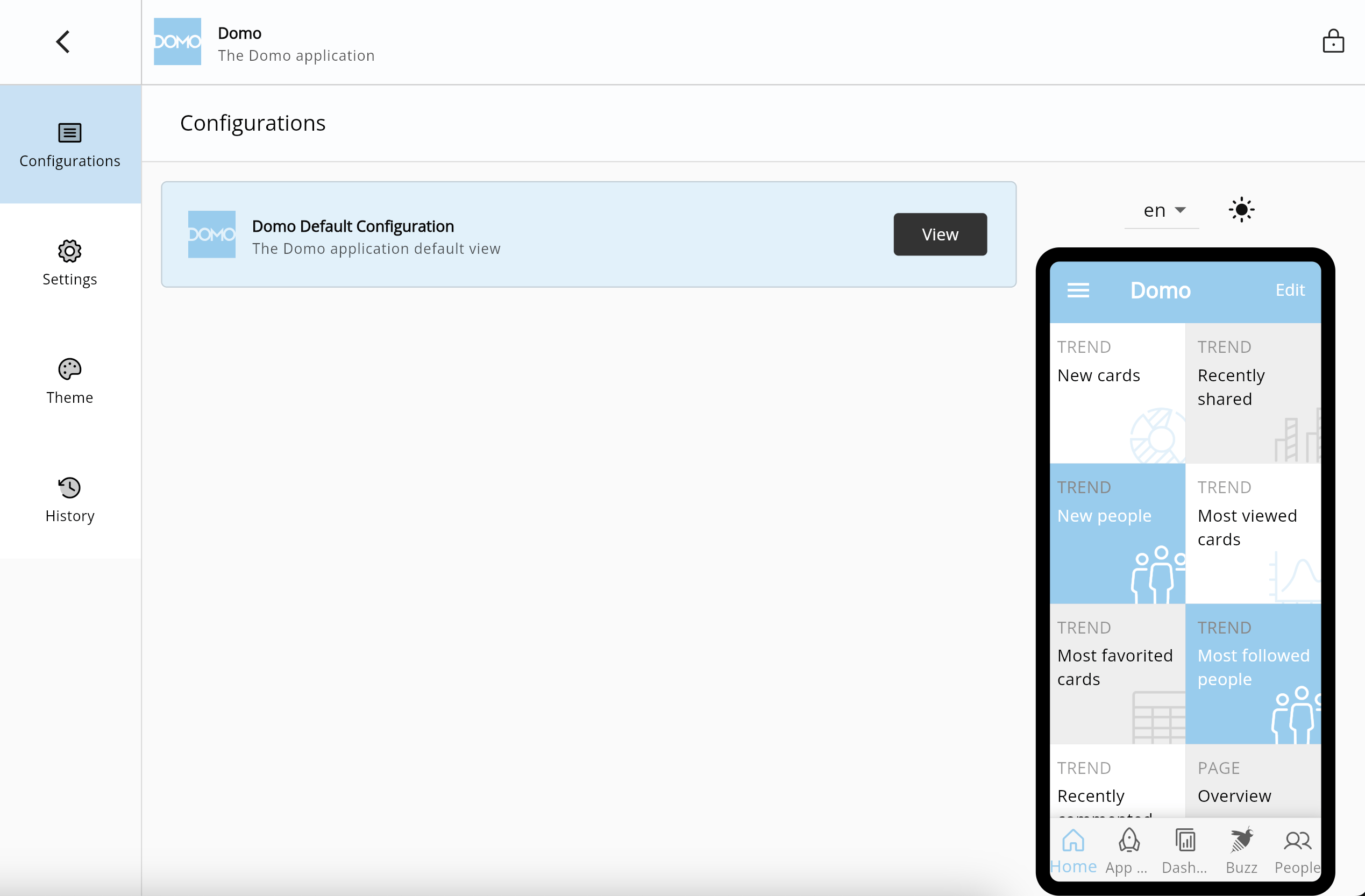
Select the app you want to configure to view the **Configurations** pane.
<Frame>
  <img alt="Screenshot 2024-11-12 at 9.41.46 AM.png" src="https://mintcdn.com/domoinc-openapi-sync-dataflows/EtHMjR0Dwu423b1z/images/kb/ka0Vq0000004fHV-00N5w00000Ri7BU-0EMVq000003lJTi.jpg?fit=max&auto=format&n=EtHMjR0Dwu423b1z&q=85&s=5e5ecd7752cabe260694e1503723ffff" style={{width: 800, height: 525}} width="2538" height="1666" data-path="images/kb/ka0Vq0000004fHV-00N5w00000Ri7BU-0EMVq000003lJTi.jpg" />
</Frame>

### Create a Mobile Configuration

1. Access the
   [mobile app **Configurations** pane](#access_mobile_app_configuration).
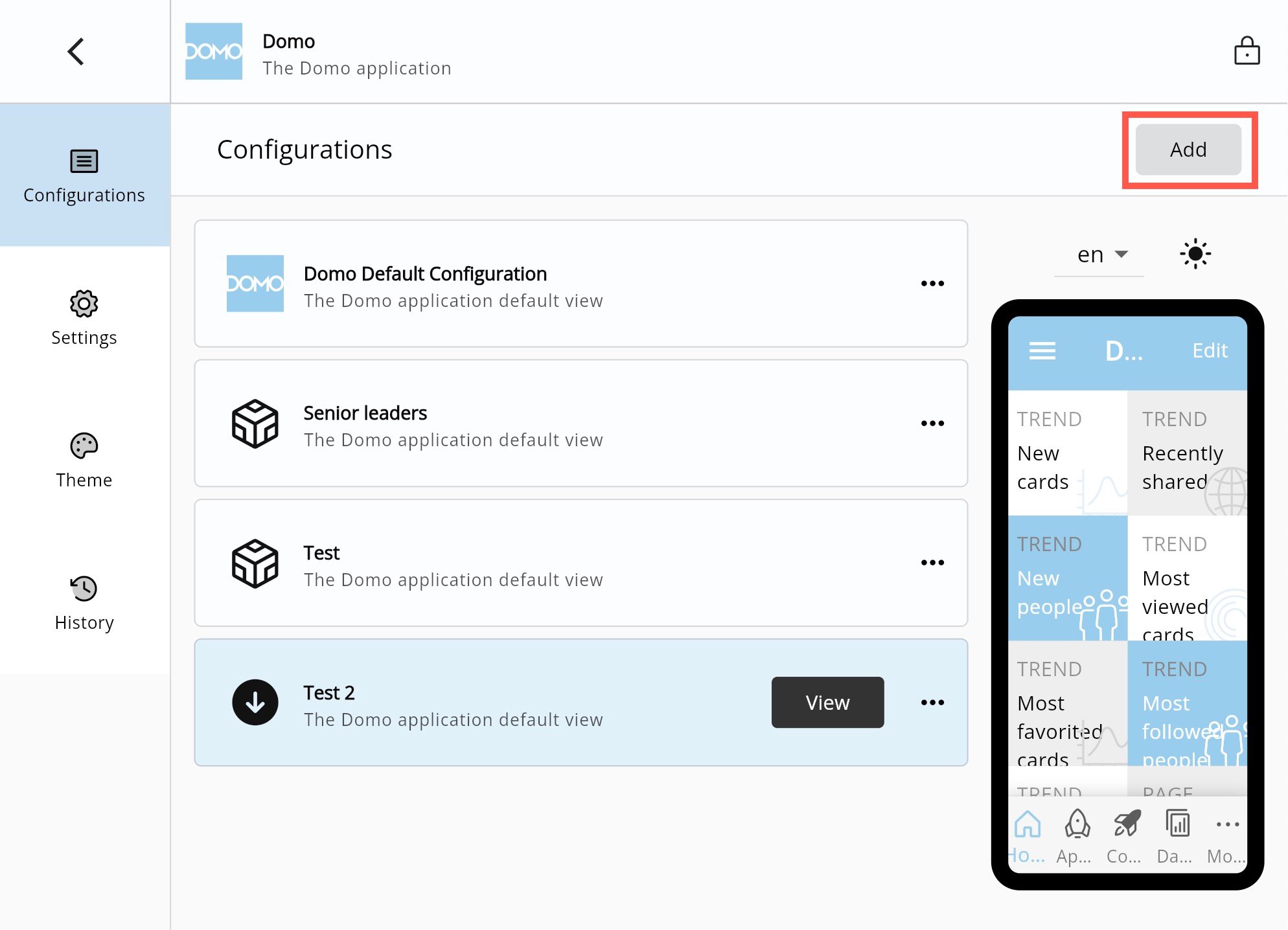
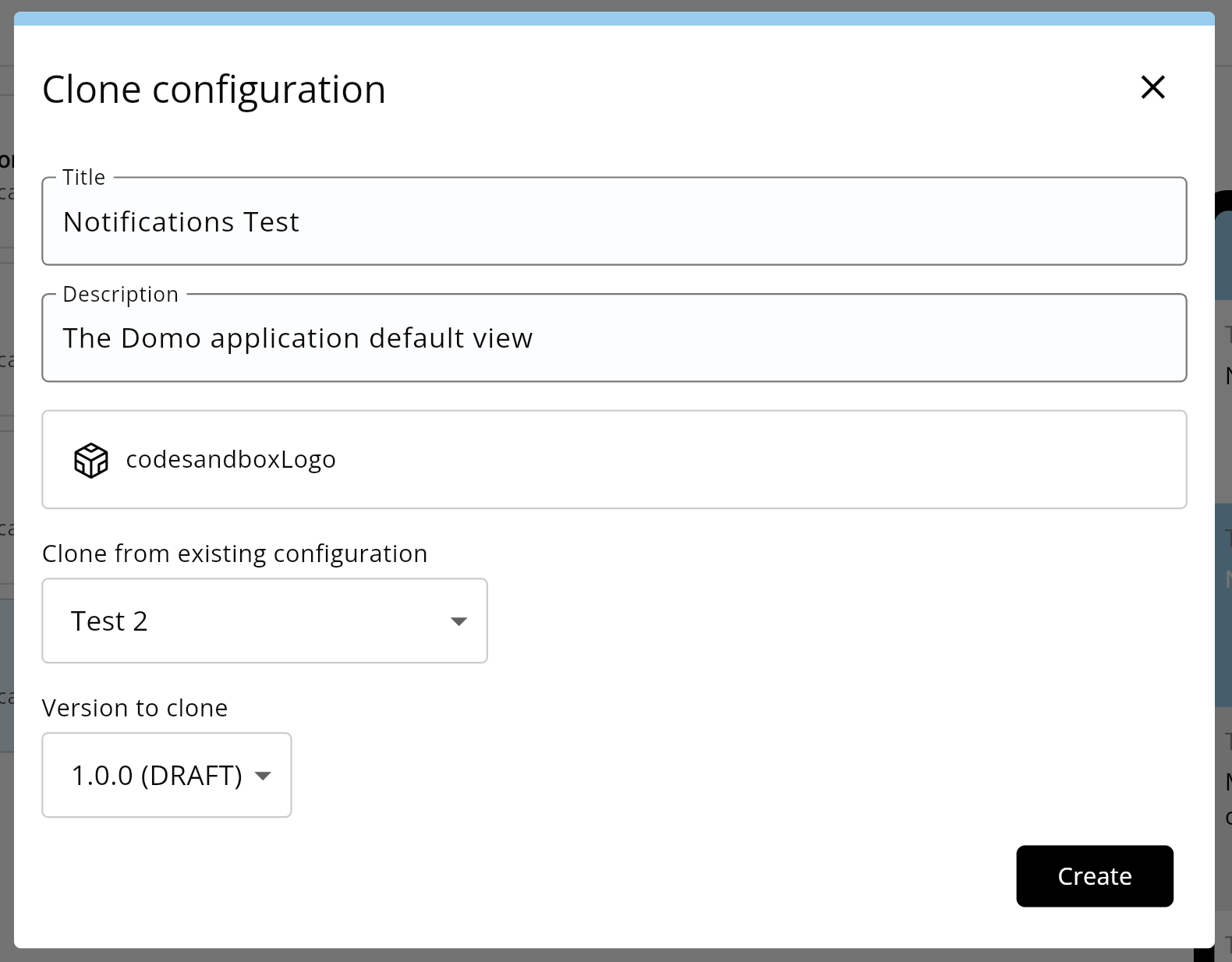
2. Select **Add** to open the **Clone configuration** modal.
   <Frame>
     <img alt="add new config.jpg" src="https://mintcdn.com/domoinc-openapi-sync-dataflows/EtHMjR0Dwu423b1z/images/kb/ka0Vq0000004fHV-00N5w00000Ri7BU-0EMVq000003lKkl.jpg?fit=max&auto=format&n=EtHMjR0Dwu423b1z&q=85&s=8b05bc4532495359db3e0e37ee478837" style={{width: 800, height: 578}} width="1988" height="1436" data-path="images/kb/ka0Vq0000004fHV-00N5w00000Ri7BU-0EMVq000003lKkl.jpg" />
   </Frame>

   In the modal, give your new configuration a title and description, choose an icon to represent it, and select which existing configuration to base your clone on.
   <Frame>
     <img alt="Screenshot 2024-11-12 at 10.33.58 AM.png" src="https://mintcdn.com/domoinc-openapi-sync-dataflows/EtHMjR0Dwu423b1z/images/kb/ka0Vq0000004fHV-00N5w00000Ri7BU-0EMVq000003lSYb.jpg?fit=max&auto=format&n=EtHMjR0Dwu423b1z&q=85&s=e88053571aeaad604393a58840234d80" style={{width: 550, height: 430}} width="1580" height="1234" data-path="images/kb/ka0Vq0000004fHV-00N5w00000Ri7BU-0EMVq000003lSYb.jpg" />
   </Frame>
3. Select **Create** to open the **Configuration Settings** for your new configuration.

### Customize a Configuration

1. Access the
   [mobile app **Configurations** page](#access_mobile_app_configuration).
2. Follow the steps to
   [create a mobile configuration](#create_mobile_configuration) or select an existing configuration from the list to view the **Configuration Settings**.
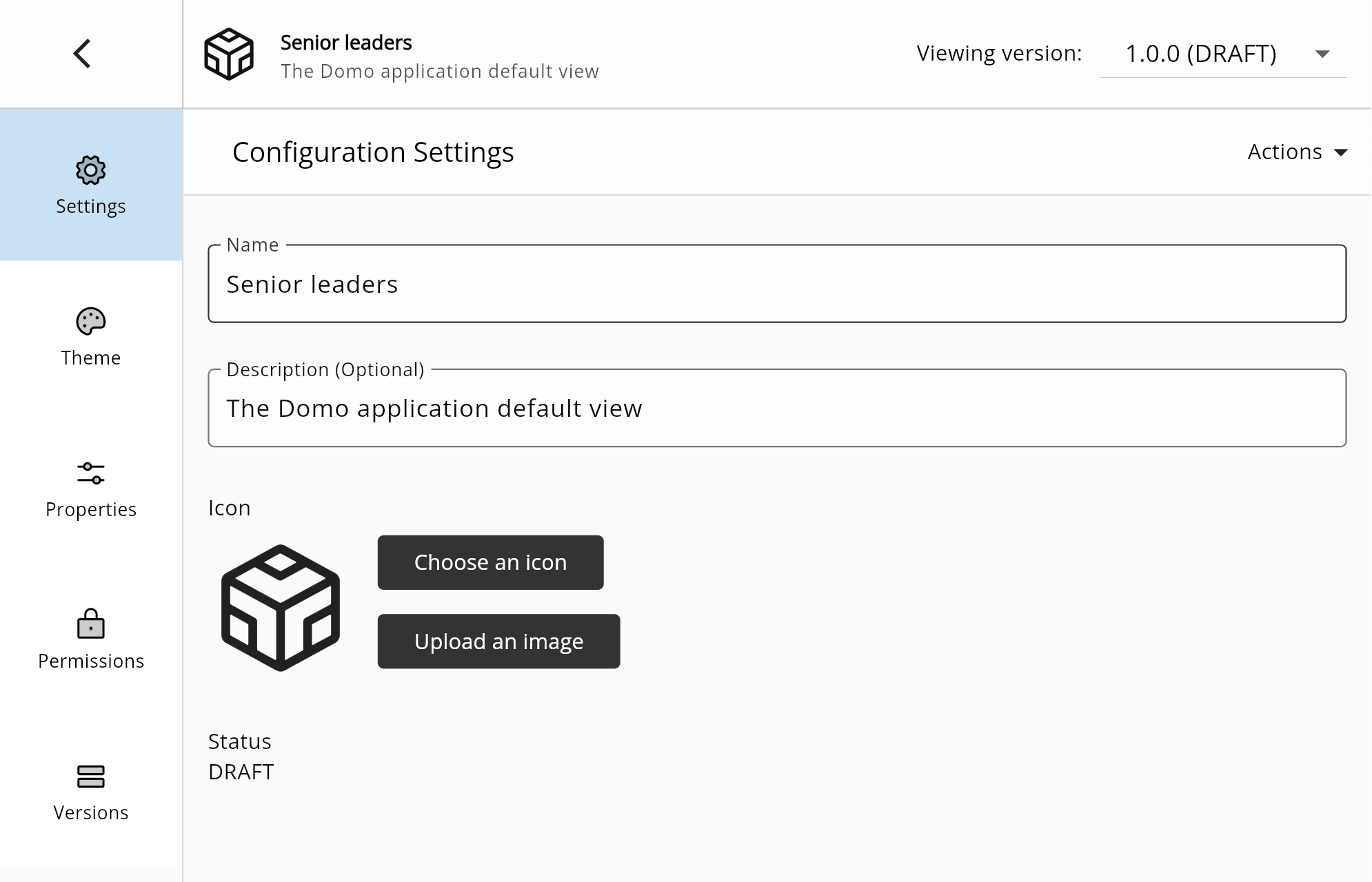
3. In the **Configuration Settings**, you can update the configuration name, description, and icon.
   <Frame>
     <img alt="Screenshot 2024-11-12 at 10.43.24 AM.png" src="https://mintcdn.com/domoinc-openapi-sync-dataflows/EtHMjR0Dwu423b1z/images/kb/ka0Vq0000004fHV-00N5w00000Ri7BU-0EMVq000003lTzJ.jpg?fit=max&auto=format&n=EtHMjR0Dwu423b1z&q=85&s=246c9769ce4e4d00686559543fad725e" style={{width: 801, height: 515}} width="1990" height="1280" data-path="images/kb/ka0Vq0000004fHV-00N5w00000Ri7BU-0EMVq000003lTzJ.jpg" />
   </Frame>
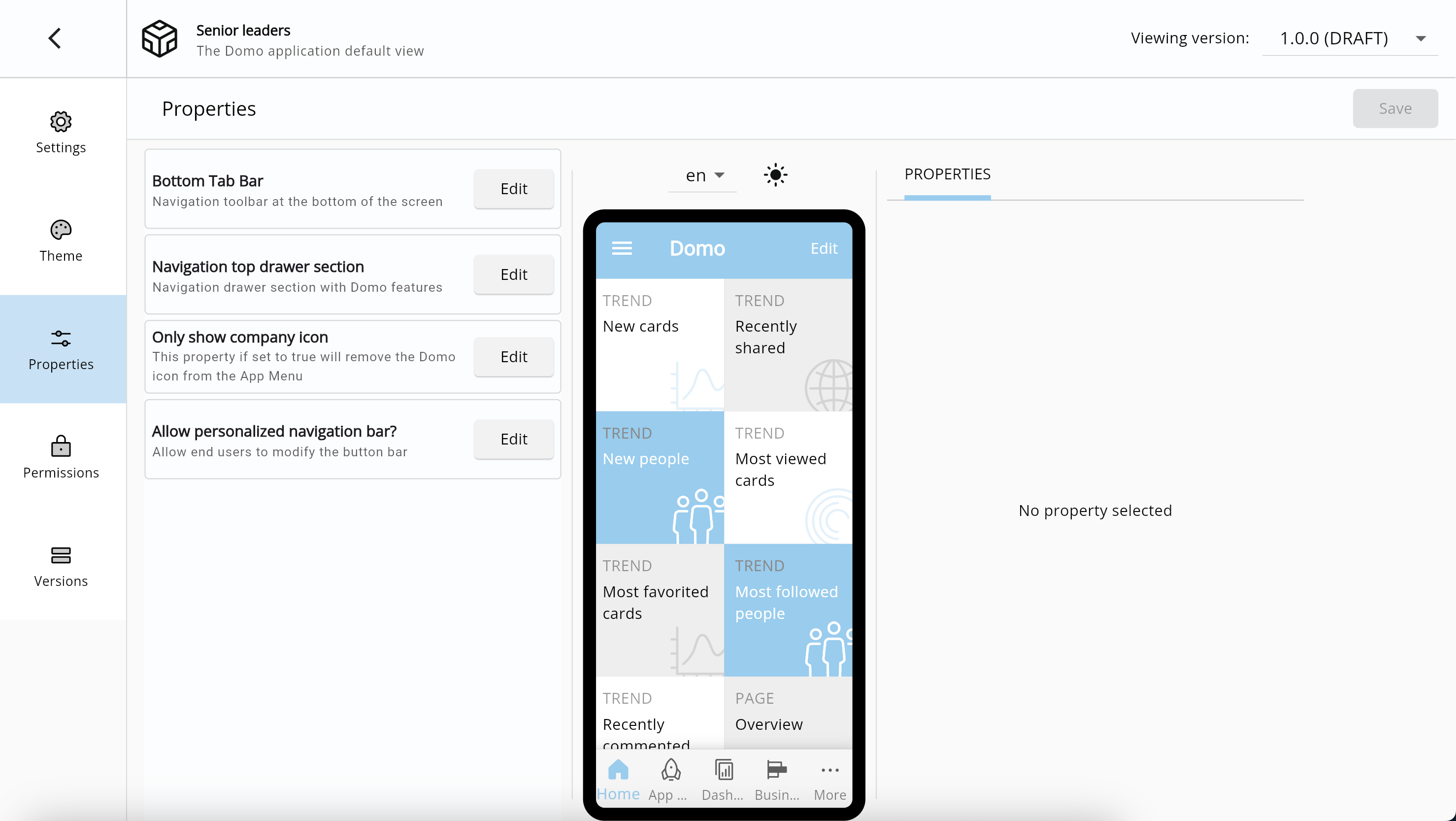
4. In the left rail select **Properties** to manage the available properties. Learn about [properties](#manage_app_properties) below.
   <Frame>
     <img alt="Screenshot 2024-11-12 at 12.24.58 PM.png" src="https://mintcdn.com/domoinc-openapi-sync-dataflows/EtHMjR0Dwu423b1z/images/kb/ka0Vq0000004fHV-00N5w00000Ri7BU-0EMVq000003lddi.jpg?fit=max&auto=format&n=EtHMjR0Dwu423b1z&q=85&s=0ab32b214ddb957025a71ccf4e48ce2d" style={{width: 897, height: 505}} width="2956" height="1666" data-path="images/kb/ka0Vq0000004fHV-00N5w00000Ri7BU-0EMVq000003lddi.jpg" />
   </Frame>

# Manage App Properties

There are four possible properties to manage (Bottom Tab Bar, Navigation top drawer section, Only show company icon, and Allow personalized navigation bar?). Selecting **Edit** for any of the properties opens that property in the **Properties** tab.

The interactive preview allows you to test your property configuration, including available languages and dark mode.

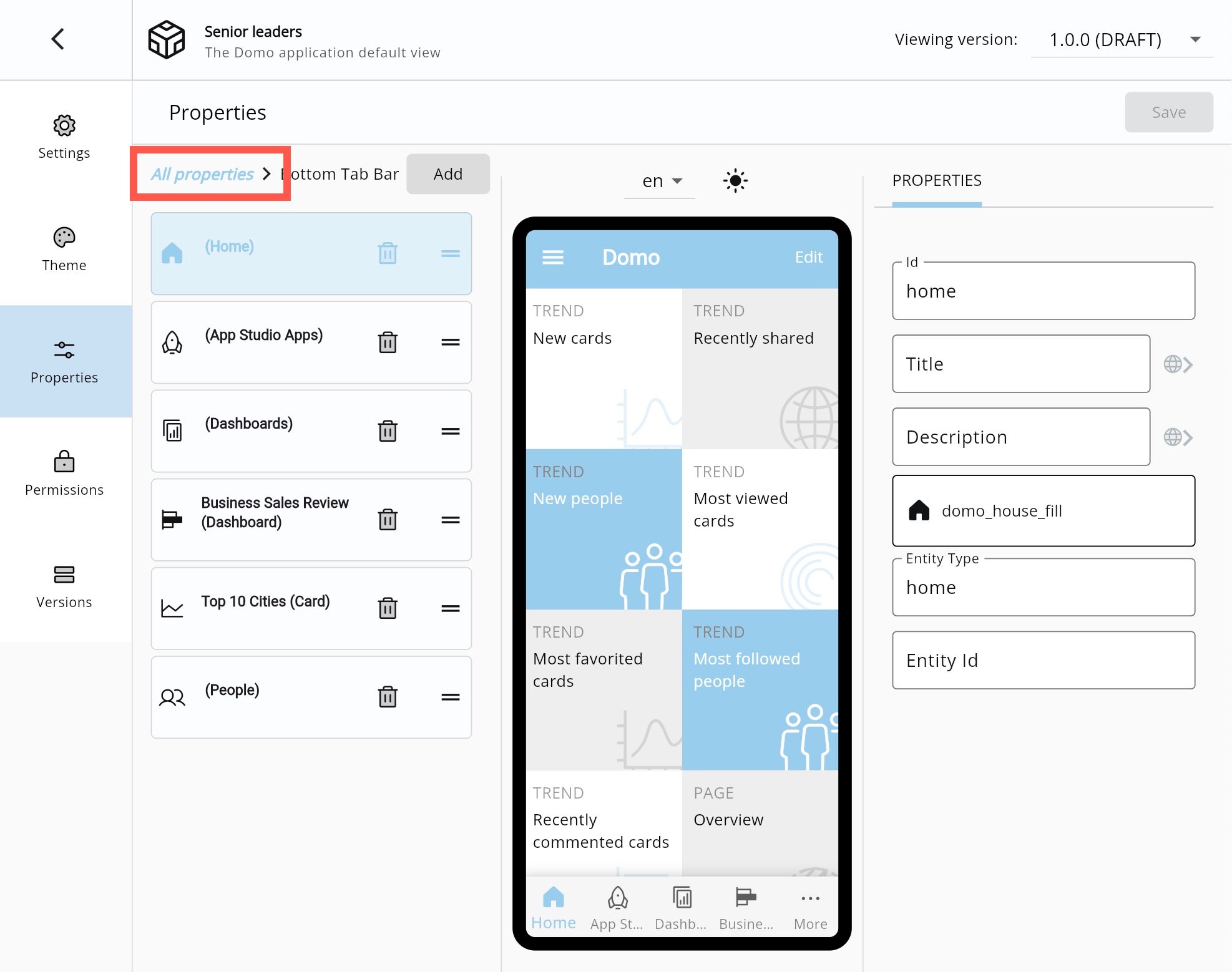
Select the **All properties** breadcrumb at the top of the pane to return to the properties list.
<Frame>
  <img alt="select all properties.jpg" src="https://mintcdn.com/domoinc-openapi-sync-dataflows/EtHMjR0Dwu423b1z/images/kb/ka0Vq0000004fHV-00N5w00000Ri7BU-0EMVq000003mJ1p.jpg?fit=max&auto=format&n=EtHMjR0Dwu423b1z&q=85&s=05e7ed2c4281270153d047e2d1622676" style={{width: 900, height: 711}} width="1974" height="1558" data-path="images/kb/ka0Vq0000004fHV-00N5w00000Ri7BU-0EMVq000003mJ1p.jpg" />
</Frame>

#### Edit the Bottom Tab Bar (Navigation Toolbar)

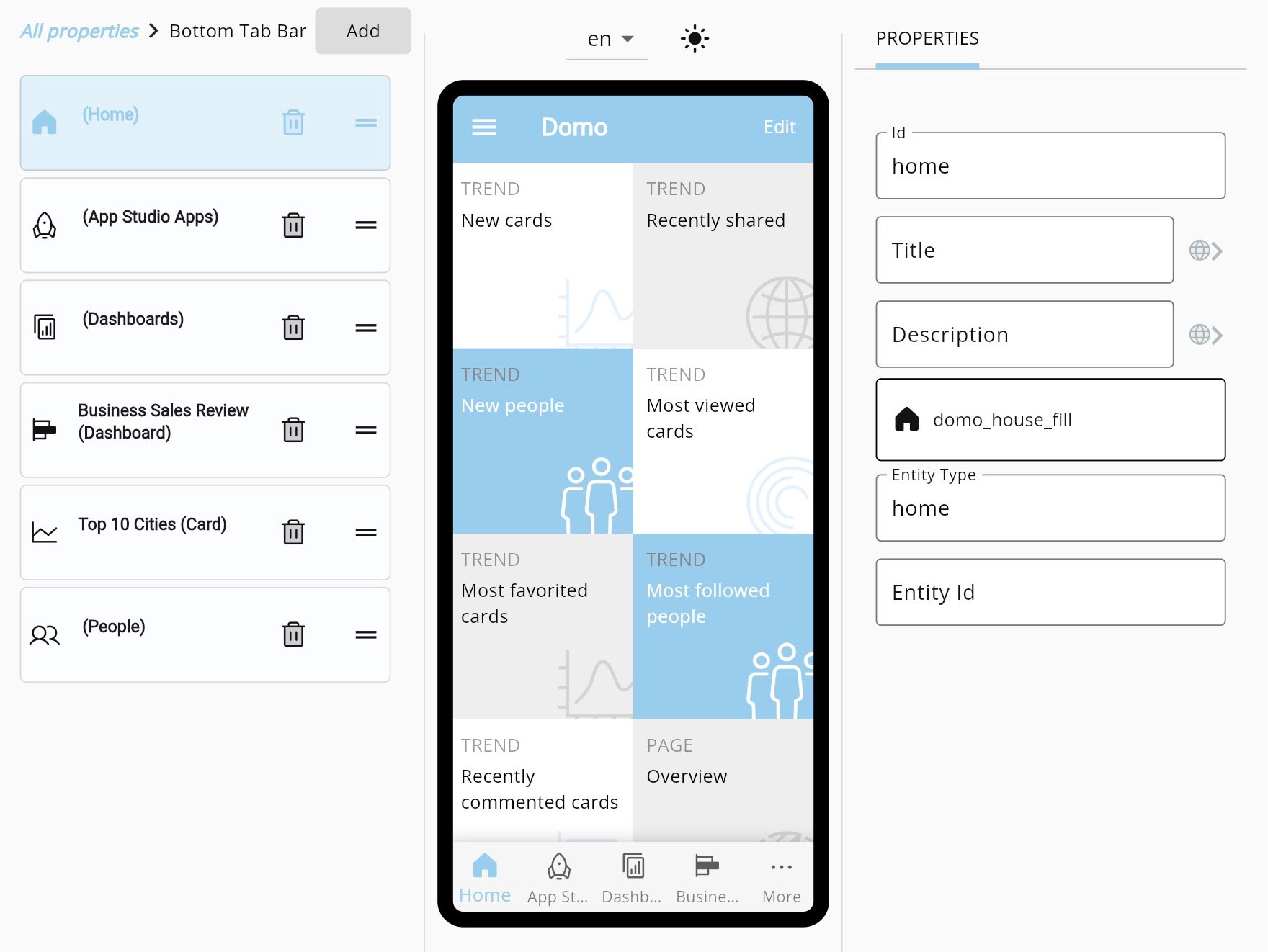
The Bottom Tab Bar (Navigation Toolbar) includes four icons and a **More** option.

Selecting **Edit** for this property displays the list of current items in the Bottom Tab Bar. When you select an item, the **Properties** tab allows you to add information like an ID, title, description, and icon for the selected item.

You can remove or reorder items in the list.

To add an item, select **Add** and choose Domo Content (cards, App Studio apps, or dashboards) or Domo Services like Approvals and Search.

Select **Save** after making your changes.
<Frame>
  <img alt="bottom tab bar crop.jpg" src="https://mintcdn.com/domoinc-openapi-sync-dataflows/EtHMjR0Dwu423b1z/images/kb/ka0Vq0000004fHV-00N5w00000Ri7BU-0EMVq000003mJGL.jpg?fit=max&auto=format&n=EtHMjR0Dwu423b1z&q=85&s=a7511f15a09ed131f63dece9bab0f640" style={{width: 601, height: 451}} width="1760" height="1322" data-path="images/kb/ka0Vq0000004fHV-00N5w00000Ri7BU-0EMVq000003mJGL.jpg" />
</Frame>

#### Edit the Navigation Top Drawer

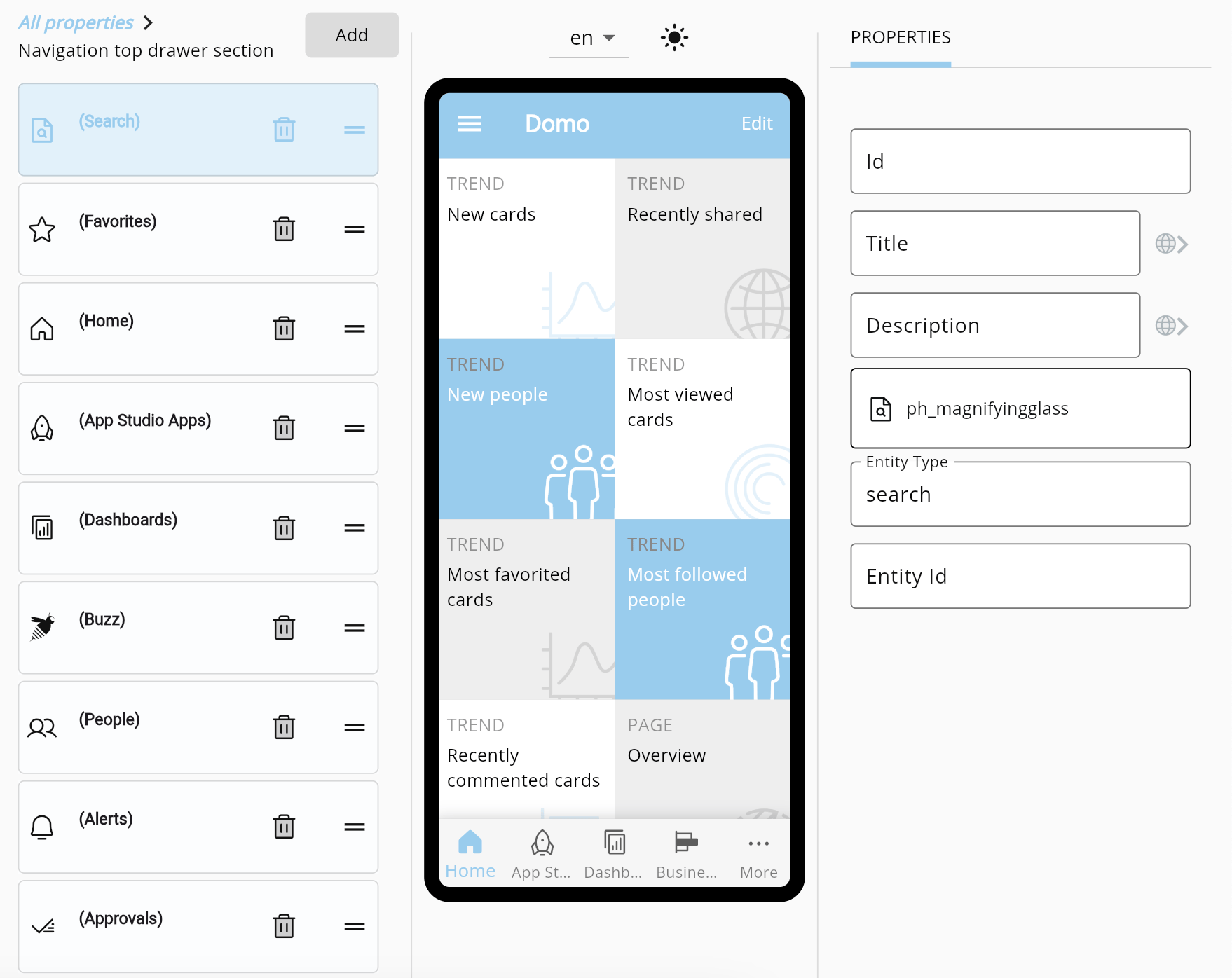
The Navigation Top Drawer includes a list of as many items as you would like.

Selecting **Edit** for this property displays the list of current items in the Navigation top drawer. When you select an item, the **Properties** tab allows you to add information like an ID, title, description, and icon for the selected item.

You can remove or reorder items in the list.

To add an item, select **Add** and choose Domo Content (cards, App Studio apps, or dashboards) or Domo Services like Approvals and Search.

Select **Save** after making your changes.
<Frame>
  <img alt="Screenshot 2024-11-12 at 8.45.37 PM.png" src="https://mintcdn.com/domoinc-openapi-sync-dataflows/EtHMjR0Dwu423b1z/images/kb/ka0Vq0000004fHV-00N5w00000Ri7BU-0EMVq000003mJJZ.jpg?fit=max&auto=format&n=EtHMjR0Dwu423b1z&q=85&s=849813cd35eaf57ca262c6968436c8c7" style={{width: 600, height: 477}} width="1758" height="1396" data-path="images/kb/ka0Vq0000004fHV-00N5w00000Ri7BU-0EMVq000003mJJZ.jpg" />
</Frame>

#### Only Show Company Icon

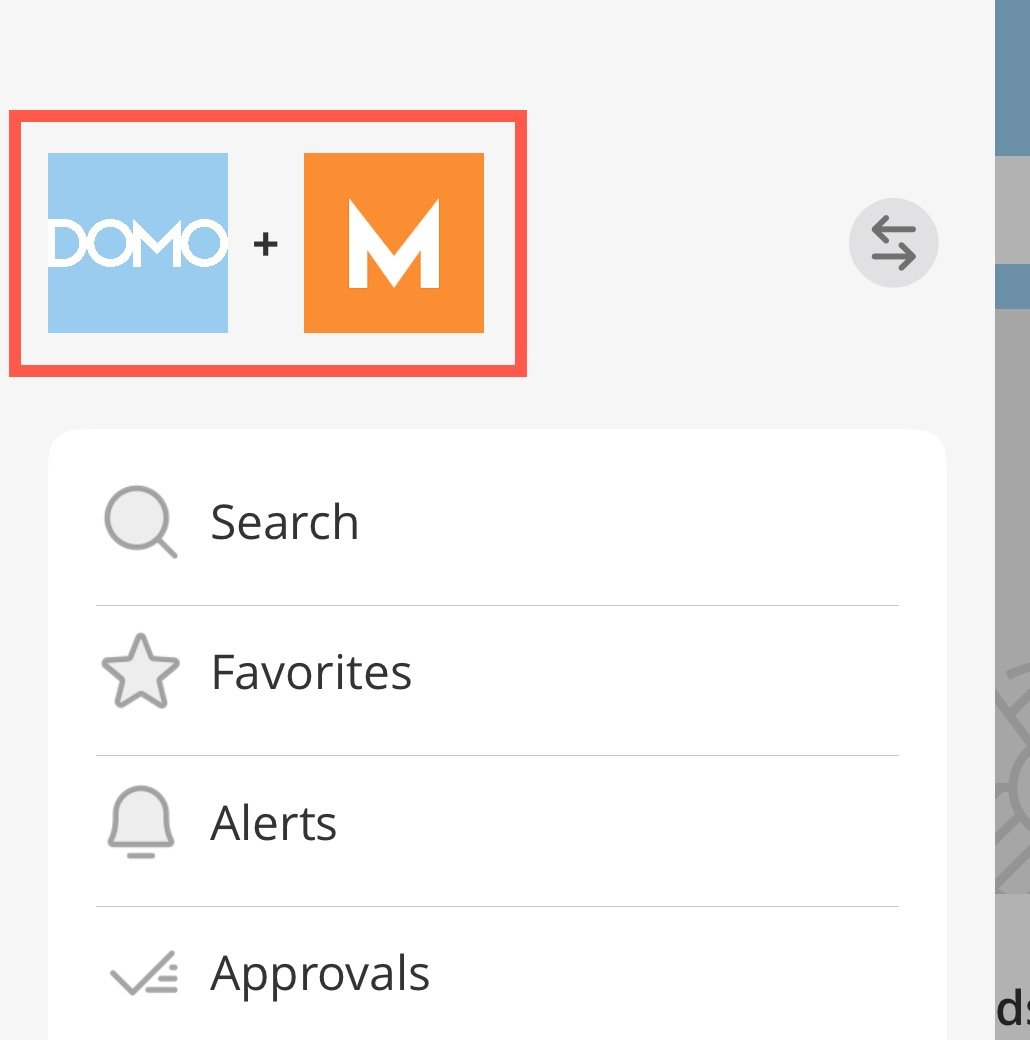
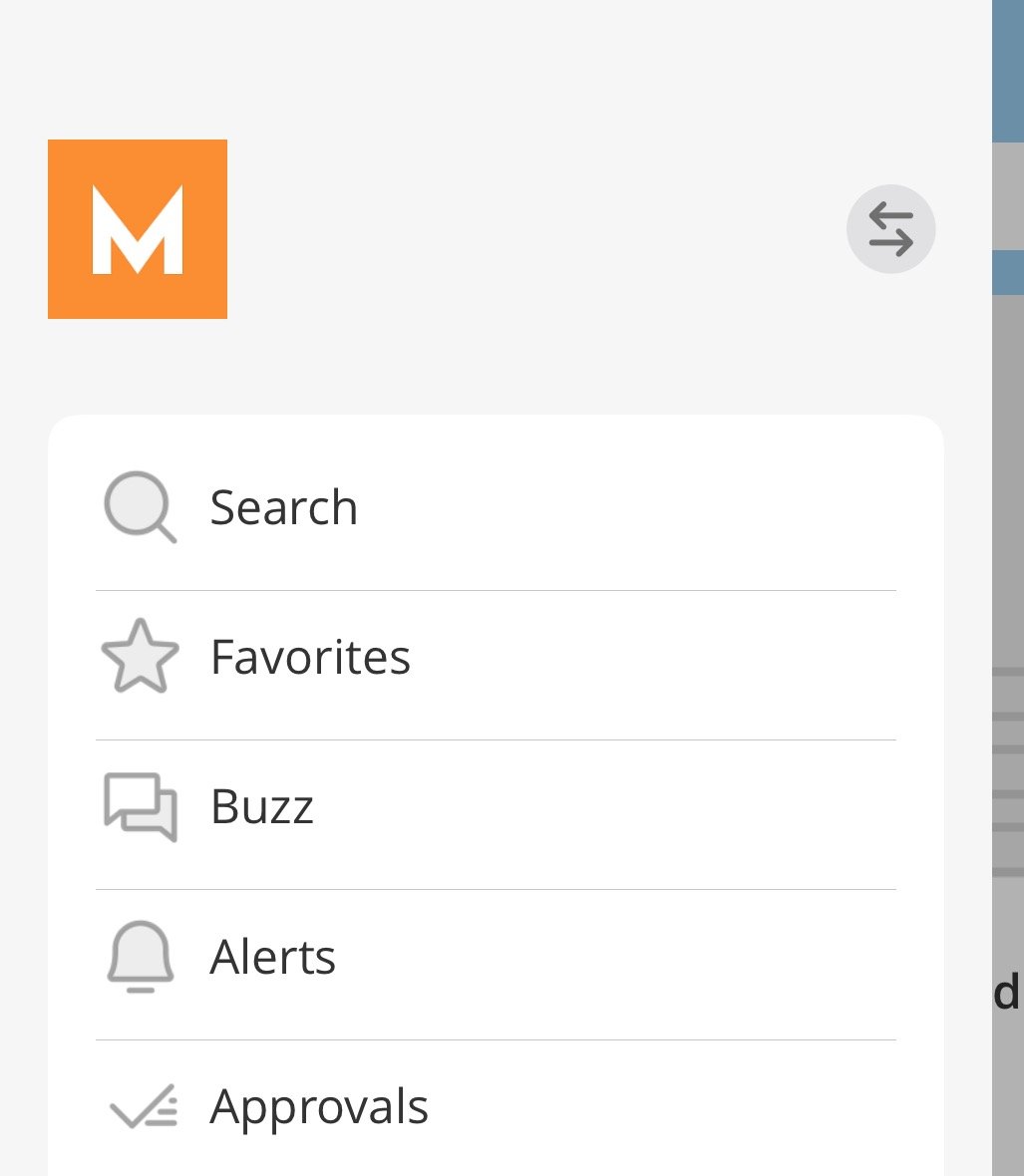
Selecting **Edit** for this property displays a switch in the **Properties** tab. Enabling the switch removes the Domo icon from the navigation top drawer and preserves your branding, as displayed in these images.
<Frame>
  <img src="https://mintcdn.com/domoinc-openapi-sync-dataflows/EtHMjR0Dwu423b1z/images/kb/ka0Vq0000004fHV-00N5w00000Ri7BU-0EMVq000003mJMn.jpg?fit=max&auto=format&n=EtHMjR0Dwu423b1z&q=85&s=80cb880493013a31bcc35ce5eab4fc6e" width="1030" height="1040" data-path="images/kb/ka0Vq0000004fHV-00N5w00000Ri7BU-0EMVq000003mJMn.jpg" />
</Frame>

<Frame>
  <img alt="one logo.jpg" src="https://mintcdn.com/domoinc-openapi-sync-dataflows/EtHMjR0Dwu423b1z/images/kb/ka0Vq0000004fHV-00N5w00000Ri7BU-0EMVq000003mJOP.jpg?fit=max&auto=format&n=EtHMjR0Dwu423b1z&q=85&s=f158ec92a1ae4cd986210982934cef69" style={{width: 239, height: 275}} width="1027" height="1180" data-path="images/kb/ka0Vq0000004fHV-00N5w00000Ri7BU-0EMVq000003mJOP.jpg" />
</Frame>

#### Allow Personalized Navigation Bar?
<Warning>
  **Important:** This property is enabled by default.
</Warning>

Selecting **Edit** for this property displays a switch in the **Properties** tab. Enabling the switch allows end users to [personalize their Bottom Tab Bar/navigation bar](#personalize_your_navigation).

Select **Save** after making your changes.

### Manage Configuration Permissions

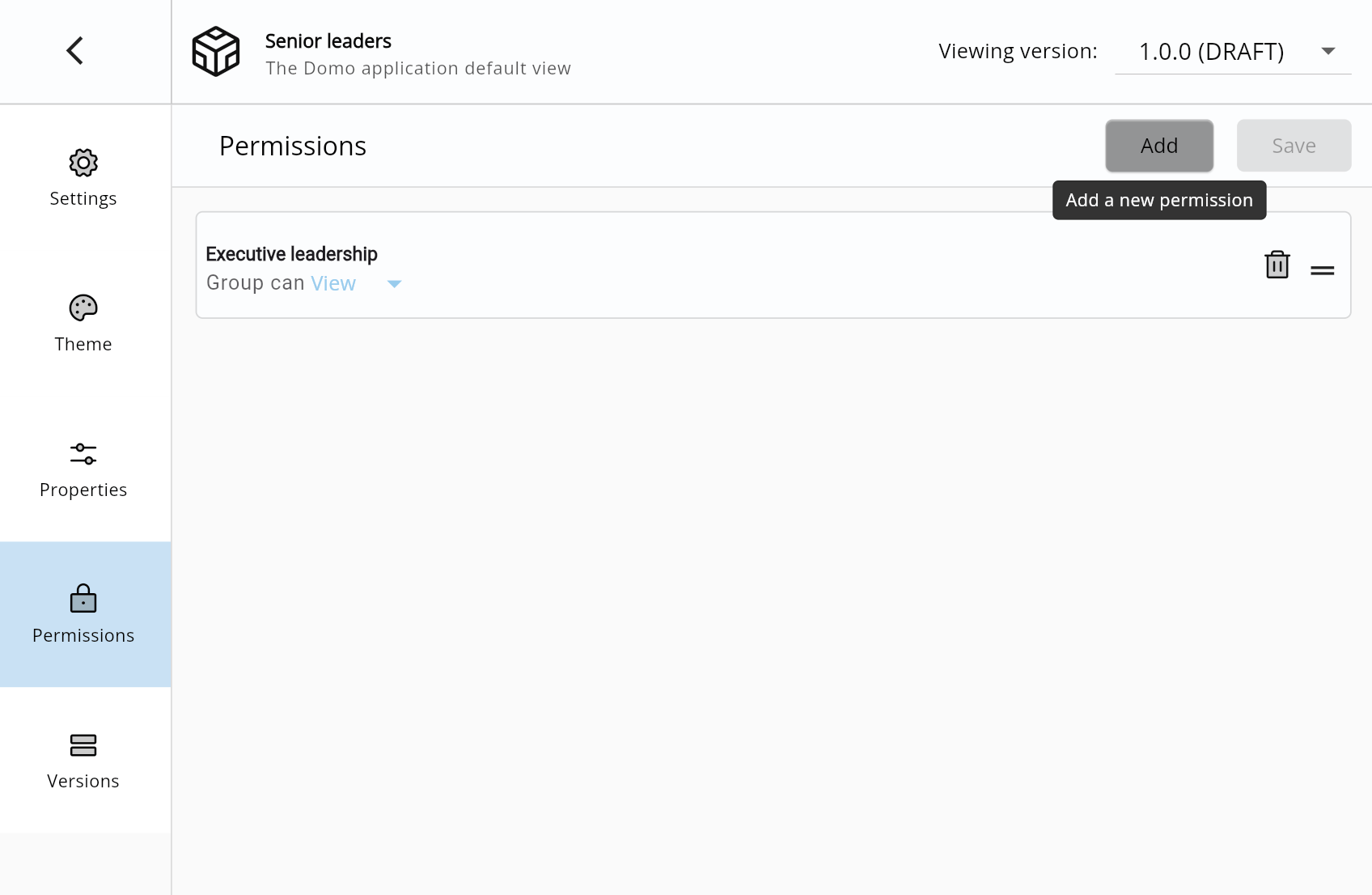
The **Permissions** pane allows you to assign individuals and groups to a particular configuration.

1. Access the
   [mobile app **Configurations** pane](#access_mobile_app_configuration).
2. Select a configuration to view its configuration settings.
3. Go to the **Permissions** pane.
4. Select **Add** to open the permissions modal.

   <Frame>
     <img alt="Screenshot 2024-11-12 at 4.45.15 PM.png" src="https://mintcdn.com/domoinc-openapi-sync-dataflows/EtHMjR0Dwu423b1z/images/kb/ka0Vq0000004fHV-00N5w00000Ri7BU-0EMVq000003m6z4.jpg?fit=max&auto=format&n=EtHMjR0Dwu423b1z&q=85&s=ded2dd4a4d11c1b14c2e57b87eeb1116" style={{width: 800, height: 522}} width="1696" height="1106" data-path="images/kb/ka0Vq0000004fHV-00N5w00000Ri7BU-0EMVq000003m6z4.jpg" />
   </Frame>
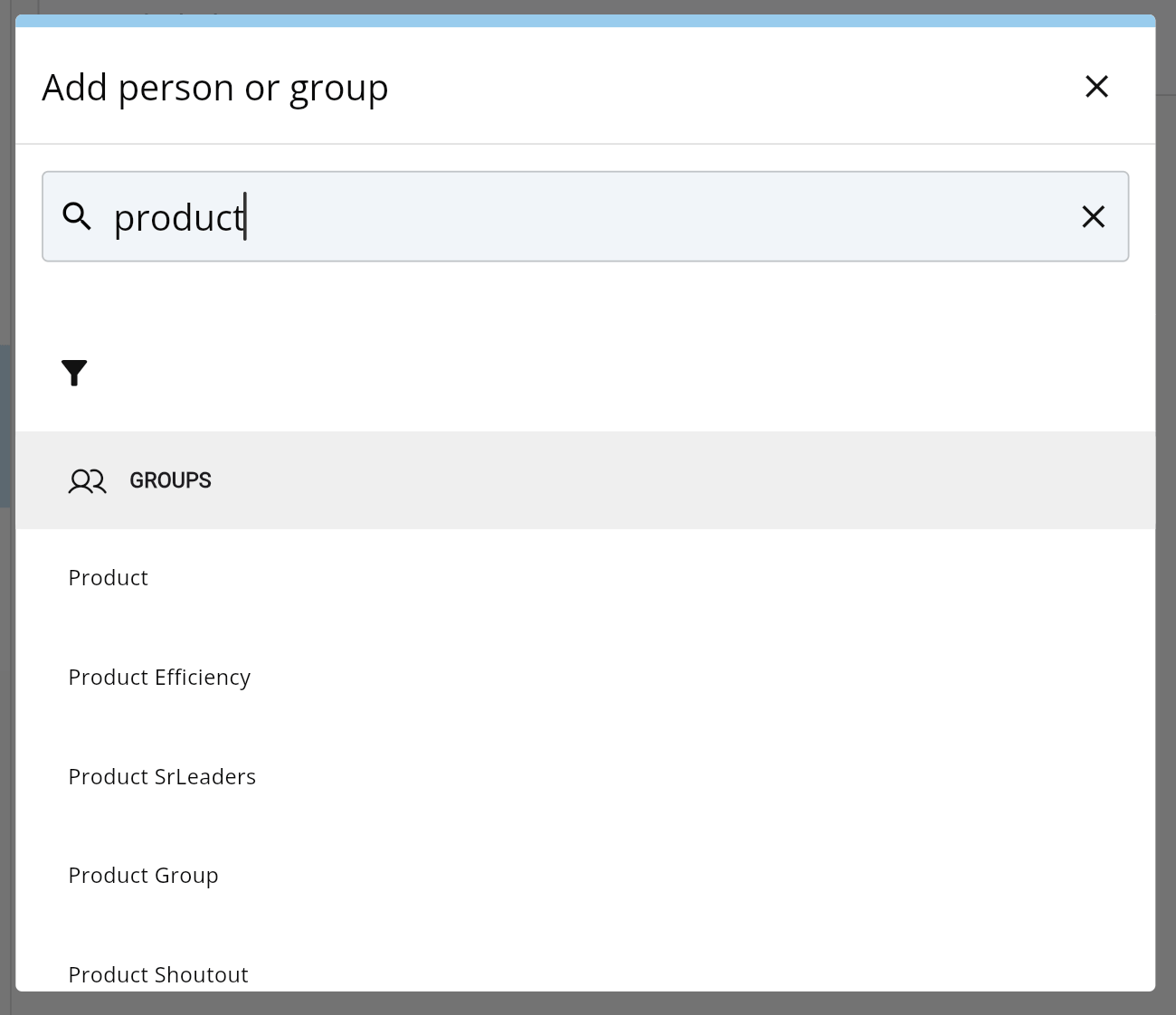
5. Find a person or group and select them to add them to the permissions list and close the modal.
   <Frame>
     <img alt="Screenshot 2024-11-12 at 4.47.51 PM.png" src="https://mintcdn.com/domoinc-openapi-sync-dataflows/EtHMjR0Dwu423b1z/images/kb/ka0Vq0000004fHV-00N5w00000Ri7BU-0EMVq000003mAsz.jpg?fit=max&auto=format&n=EtHMjR0Dwu423b1z&q=85&s=164828dfcc300771cbb6843faf7d1fb4" style={{width: 550, height: 475}} width="1300" height="1122" data-path="images/kb/ka0Vq0000004fHV-00N5w00000Ri7BU-0EMVq000003mAsz.jpg" />
   </Frame>
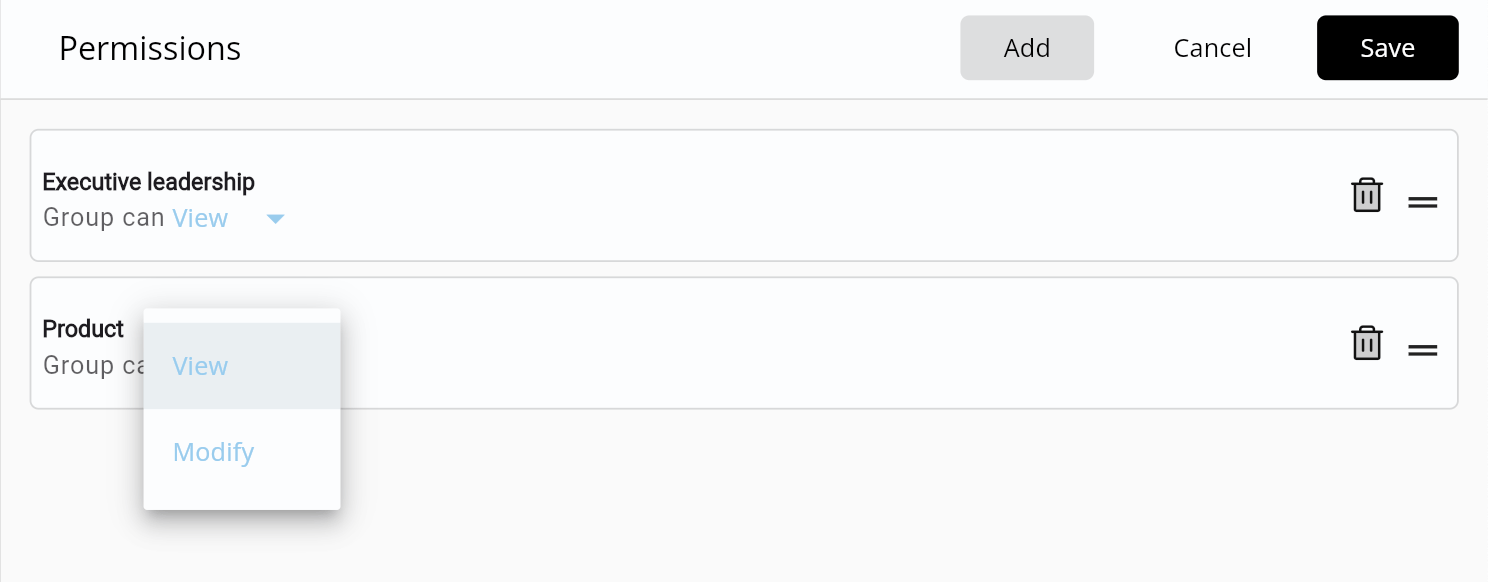
6. Back in the **Permissions** pane, choose whether the person or group can View or Modify the configuration.
   <Note>
     **Note:** When a person or group has been given permission to a configuration, that is the configuration they will see when using the Domo mobile app. They do not need to sign out and log back in to the app to view the new configuration.
   </Note>

<Frame>
  <img alt="Screenshot 2024-11-12 at 4.52.08 PM.png" src="https://mintcdn.com/domoinc-openapi-sync-dataflows/EtHMjR0Dwu423b1z/images/kb/ka0Vq0000004fHV-00N5w00000Ri7BU-0EMVq000003mAzR.jpg?fit=max&auto=format&n=EtHMjR0Dwu423b1z&q=85&s=ac5748826535a8af1b925479d285831c" style={{width: 698, height: 273}} width="1488" height="582" data-path="images/kb/ka0Vq0000004fHV-00N5w00000Ri7BU-0EMVq000003mAzR.jpg" />
</Frame>

7. Select **Save** to keep your changes.

You can delete or reorder the people/groups in the permissions list. Save your changes before navigating away from the **Permissions** pane.

### View All Configuration Versions

1. Access the
   [mobile app **Configurations** pane](#access_mobile_app_configuration).
2. Choose a configuration from the list.
3. Go to the **Versions** pane.

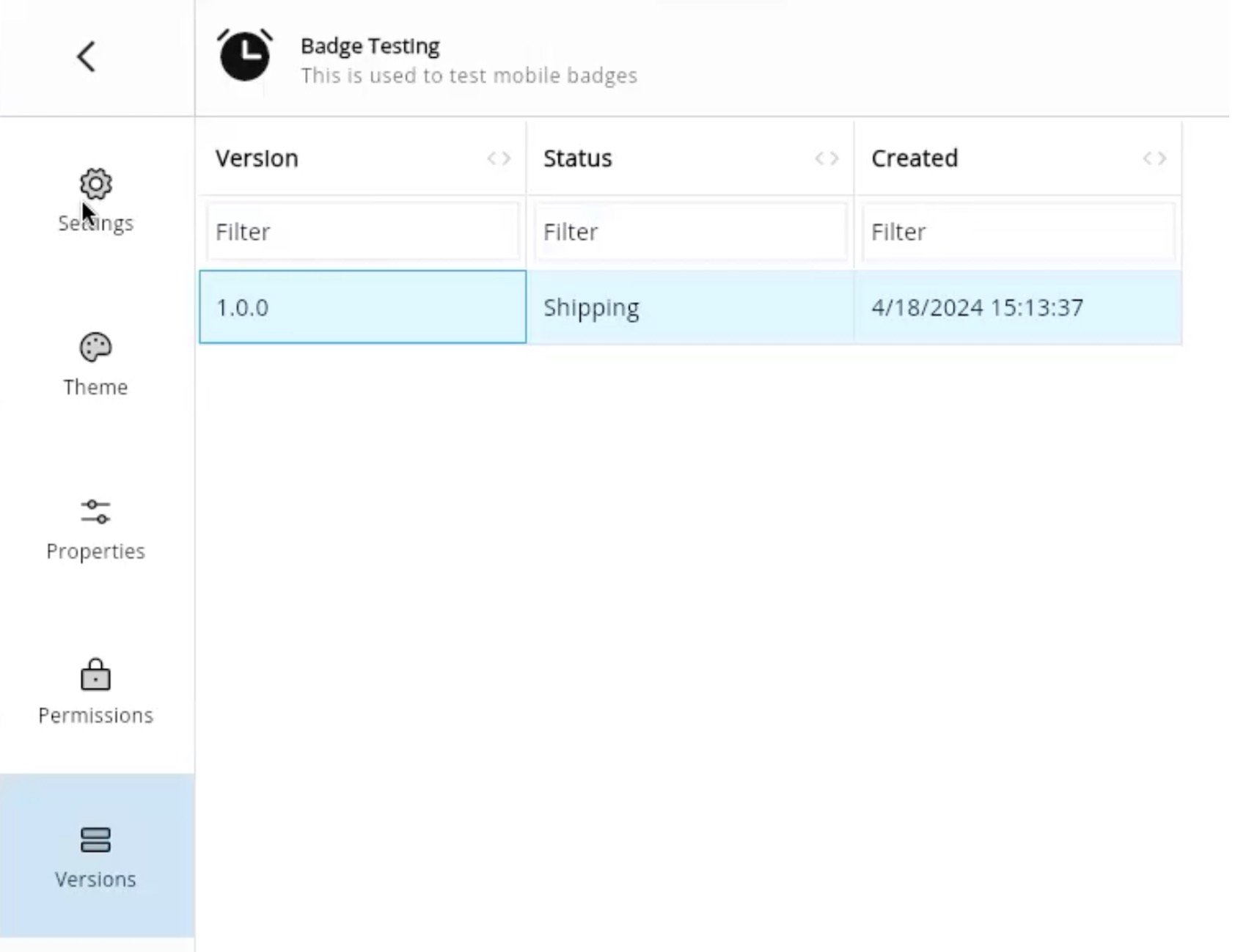
   The **Versions** pane displays the version number, status, and creation date for each existing version.
   <Frame>
     <img alt="config versions.jpg" src="https://mintcdn.com/domoinc-openapi-sync-dataflows/EtHMjR0Dwu423b1z/images/kb/ka0Vq0000004fHV-00N5w00000Ri7BU-0EMVq000003ln8Q.jpg?fit=max&auto=format&n=EtHMjR0Dwu423b1z&q=85&s=aef39b6707ea7ac3259bf0b893ef1526" style={{width: 631, height: 486}} width="1684" height="1298" data-path="images/kb/ka0Vq0000004fHV-00N5w00000Ri7BU-0EMVq000003ln8Q.jpg" />
   </Frame>

Versions can have one of two statuses:
<table border="1" cellpadding="1" cellspacing="1" data-aura-rendered-by="33:208;a"><thead><tr><th colspan="1" rowspan="1"><p> Status </p></th><th colspan="1" rowspan="1"><p> Description </p></th></tr></thead><tbody><tr><td colspan="1" rowspan="1"><p> Draft </p></td><td colspan="1" rowspan="1"><p> Before you push a configuration version to Shipping, you can make changes to it. </p></td></tr><tr><td colspan="1" rowspan="1"><p> Shipping </p></td><td colspan="1" rowspan="1"><p> You can't edit configuration versions in Shipping status or push versions in Shipping status back to Draft. To make changes, you must clone the version to make a new version. <a id="view_configuration_history" target="_blank" /></p></td></tr></tbody></table>

### View Configuration History

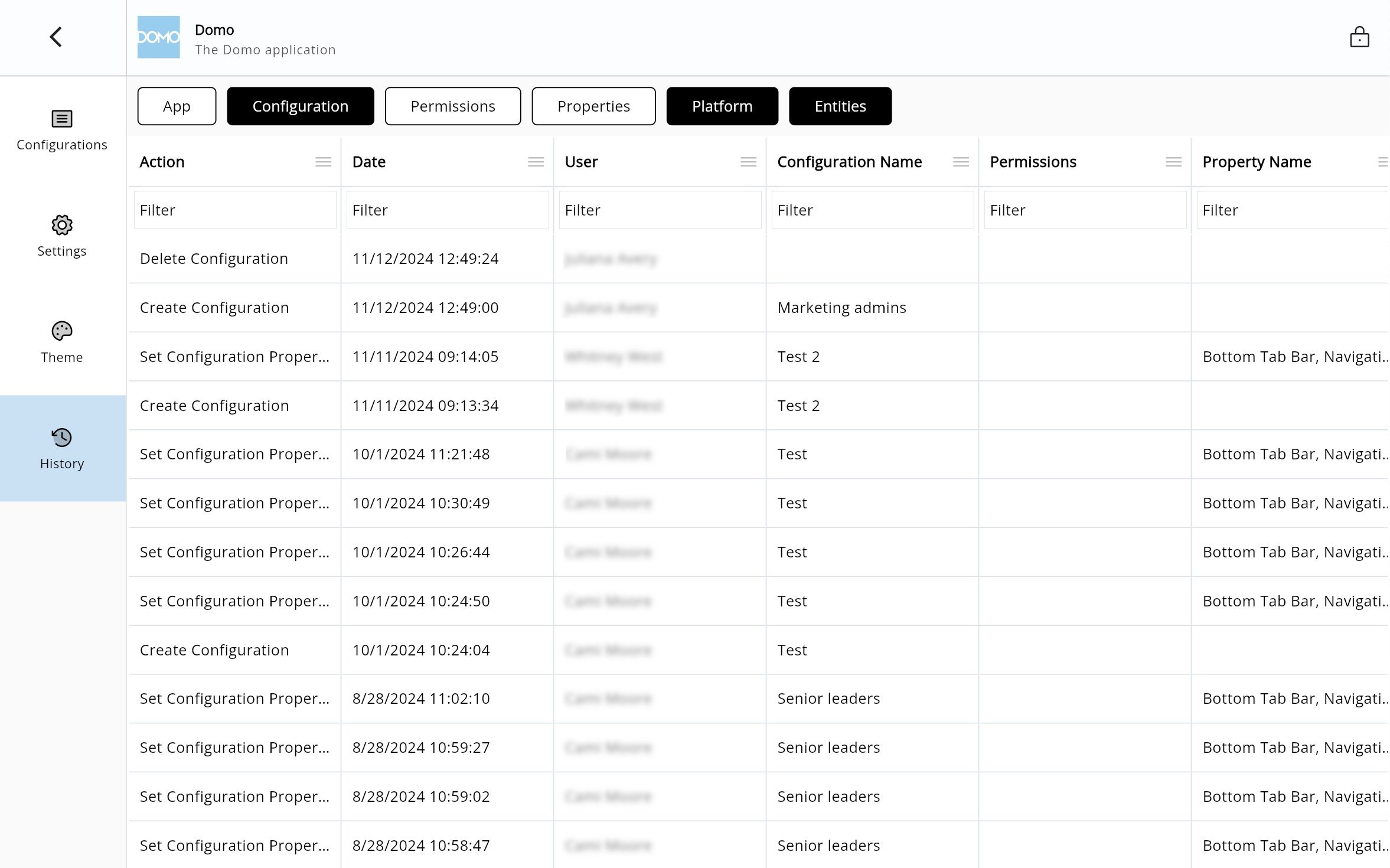
Follow these steps to view the history for your app configuration.

1. Access a mobile app's
   [**Configurations** pane](#access_mobile_app_configuration).
2. Go to the **History** pane.
3. Use the pills at the top of the history data to filter the list to relevant data.

   <Frame>
     <img alt="config history.jpg" src="https://mintcdn.com/domoinc-openapi-sync-dataflows/EtHMjR0Dwu423b1z/images/kb/ka0Vq0000004fHV-00N5w00000Ri7BU-0EMVq000003lqcY.jpg?fit=max&auto=format&n=EtHMjR0Dwu423b1z&q=85&s=7aea9ba4137bcec997f8f9f01190451a" style={{width: 799, height: 499}} width="2354" height="1470" data-path="images/kb/ka0Vq0000004fHV-00N5w00000Ri7BU-0EMVq000003lqcY.jpg" />
   </Frame>

### Apply a Theme to Your Configuration

You can select from pre-built theme packages to apply to your mobile app configuration as in [Brand Kit](/s/article/5428851518999) or [App Studio](/s/article/000005543).

1. Access the
   [mobile app **Configurations** page](#access_mobile_app_configuration).
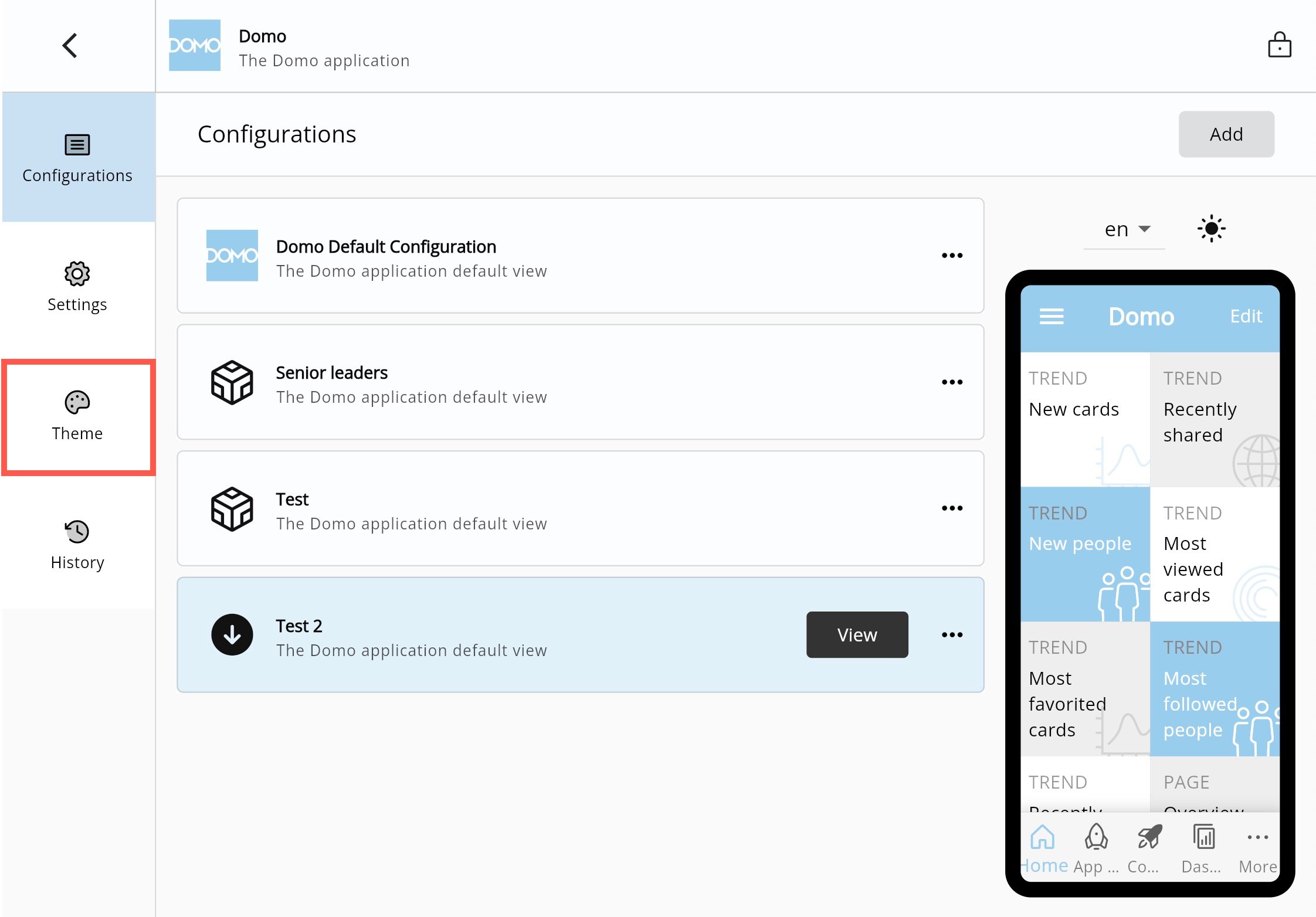
2. From the **Configurations** pane, go to the **Theme** pane.
   <Frame>
     <img alt="theme section.jpg" src="https://mintcdn.com/domoinc-openapi-sync-dataflows/EtHMjR0Dwu423b1z/images/kb/ka0Vq0000004fHV-00N5w00000Ri7BU-0EMVq000003lhar.jpg?fit=max&auto=format&n=EtHMjR0Dwu423b1z&q=85&s=65ee3d7237fde601f9512e7ed71da9b5" style={{width: 800, height: 558}} width="2244" height="1564" data-path="images/kb/ka0Vq0000004fHV-00N5w00000Ri7BU-0EMVq000003lhar.jpg" />
   </Frame>
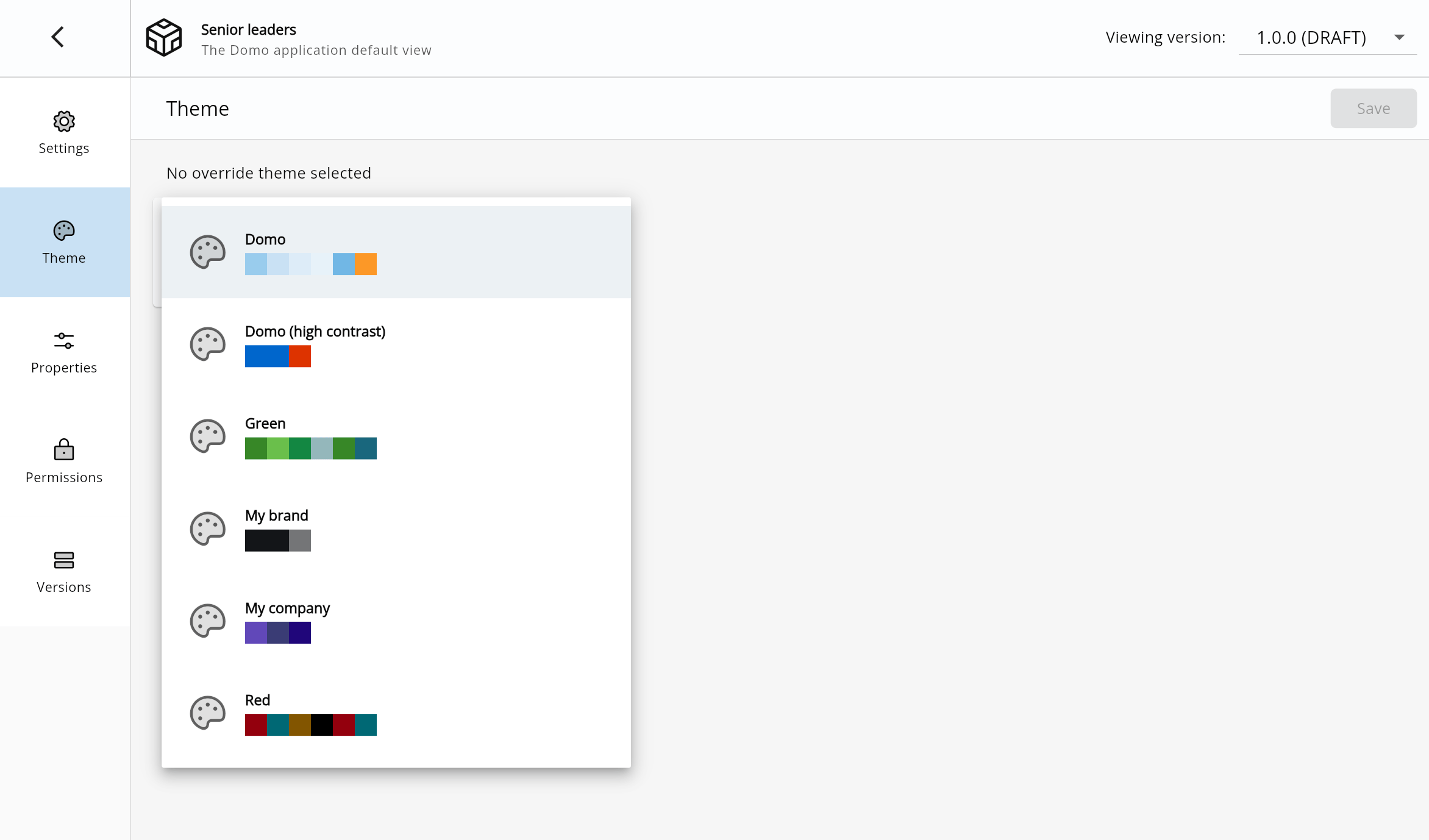
3. Use the **Select a theme** dropdown and choose an available theme package.
   <Frame>
     <img alt="Screenshot 2024-11-12 at 12.37.56 PM.png" src="https://mintcdn.com/domoinc-openapi-sync-dataflows/EtHMjR0Dwu423b1z/images/kb/ka0Vq0000004fHV-00N5w00000Ri7BU-0EMVq000003liYX.jpg?fit=max&auto=format&n=EtHMjR0Dwu423b1z&q=85&s=784fbc2d28a77965573c4bfb096c650b" style={{width: 801, height: 471}} width="2344" height="1378" data-path="images/kb/ka0Vq0000004fHV-00N5w00000Ri7BU-0EMVq000003liYX.jpg" />
   </Frame>
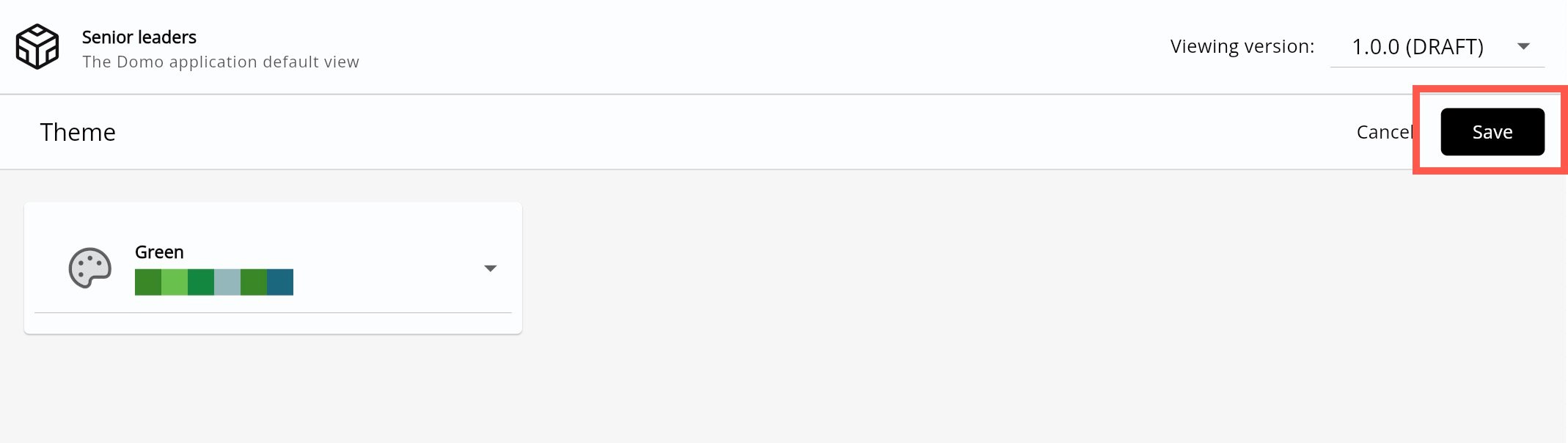
4. Select **Save** to apply your chosen theme.
   <Frame>
     <img alt="save theme.jpg" src="https://mintcdn.com/domoinc-openapi-sync-dataflows/EtHMjR0Dwu423b1z/images/kb/ka0Vq0000004fHV-00N5w00000Ri7BU-0EMVq000003lijp.jpg?fit=max&auto=format&n=EtHMjR0Dwu423b1z&q=85&s=4b28c07b3e8bb1472cca3bb05ea86451" style={{width: 800, height: 226}} width="2138" height="604" data-path="images/kb/ka0Vq0000004fHV-00N5w00000Ri7BU-0EMVq000003lijp.jpg" />
   </Frame>

### Delete a Configuration

1. Access the
   [mobile app **Configurations** settings](#access_mobile_app_configuration).
2. Locate the configuration you want to delete.
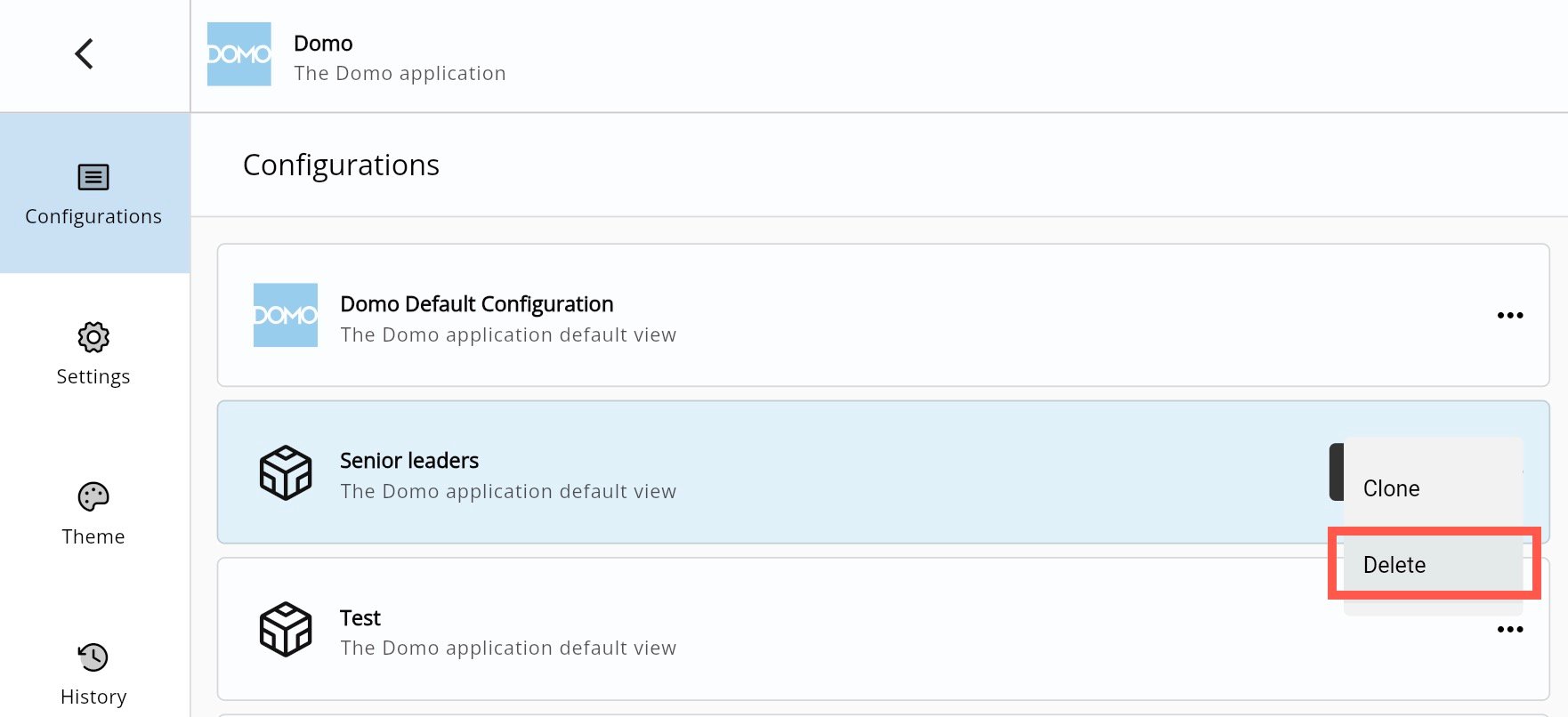
3. Select **Show menu** (three horizontal dots icon) > **Delete** to remove the configuration.
   <Frame>
     <img alt="delete config.jpg" src="https://mintcdn.com/domoinc-openapi-sync-dataflows/EtHMjR0Dwu423b1z/images/kb/ka0Vq0000004fHV-00N5w00000Ri7BU-0EMVq000003ljzF.jpg?fit=max&auto=format&n=EtHMjR0Dwu423b1z&q=85&s=a3218ad24c4a0c819eb3eb1a841367d4" style={{width: 757, height: 346}} width="1762" height="806" data-path="images/kb/ka0Vq0000004fHV-00N5w00000Ri7BU-0EMVq000003ljzF.jpg" />
   </Frame>

### Switch Between Mobile App Configurations

If you have permission to more than one mobile app configuration at a time, you can switch between them in your mobile app.

1. Open the mobile app.
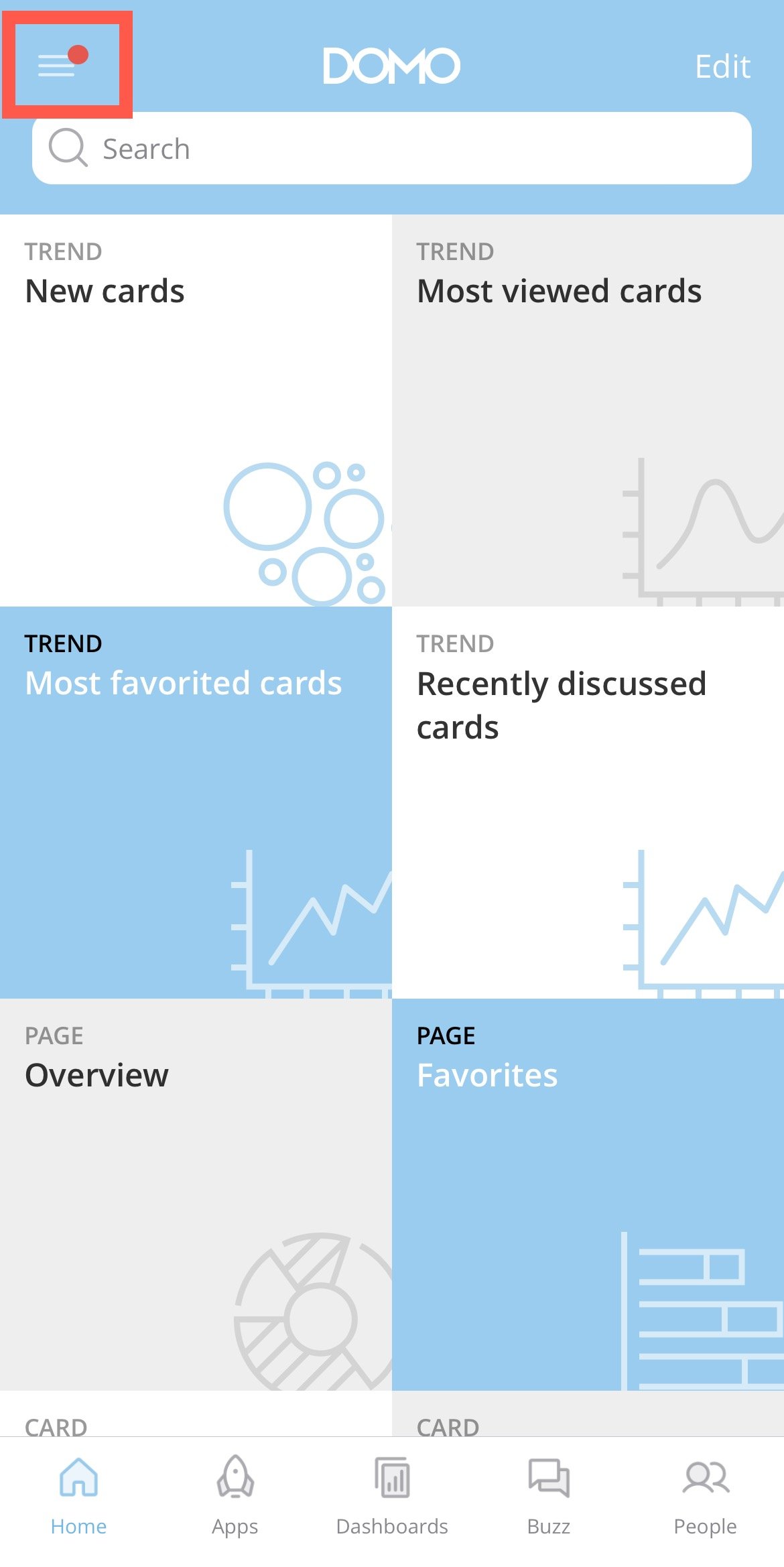
2. Select **More** (three horizontal lines icon).
   <Frame>
     <img alt="more mobile app.jpg" src="https://mintcdn.com/domoinc-openapi-sync-dataflows/EtHMjR0Dwu423b1z/images/kb/ka0Vq0000004fHV-00N5w00000Ri7BU-0EMVq000003lt5l.jpg?fit=max&auto=format&n=EtHMjR0Dwu423b1z&q=85&s=6e389cdeae35e98e91049d241b863804" style={{width: 300, height: 599}} width="1170" height="2338" data-path="images/kb/ka0Vq0000004fHV-00N5w00000Ri7BU-0EMVq000003lt5l.jpg" />
   </Frame>
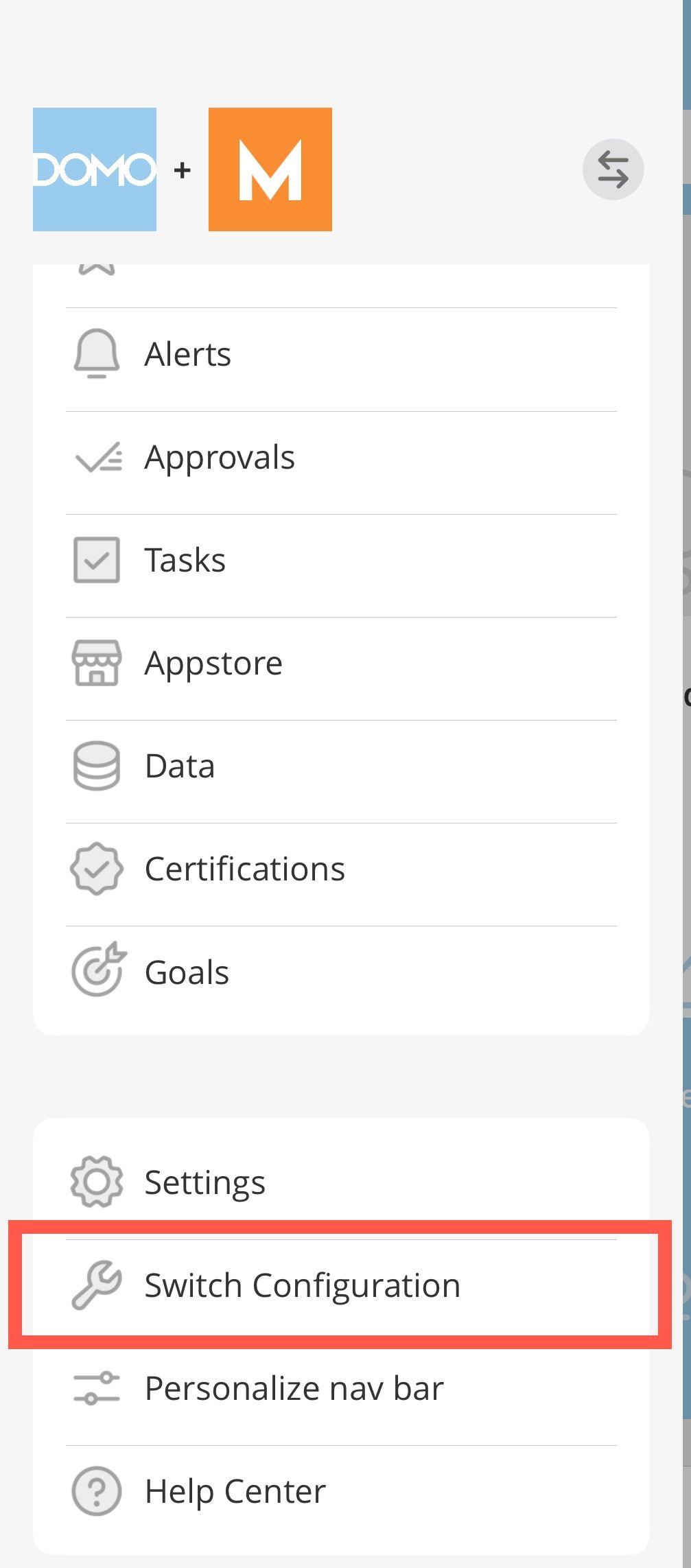
3. Scroll to the bottom of the many and select **Switch Configuration**.
   <Frame>
     <img alt="switch configuration.jpg" src="https://mintcdn.com/domoinc-openapi-sync-dataflows/EtHMjR0Dwu423b1z/images/kb/ka0Vq0000004fHV-00N5w00000Ri7BU-0EMVq000003lu53.jpg?fit=max&auto=format&n=EtHMjR0Dwu423b1z&q=85&s=b4dc72edd2a172e30f6a4dcfd48e2300" style={{width: 300, height: 681}} width="1007" height="2285" data-path="images/kb/ka0Vq0000004fHV-00N5w00000Ri7BU-0EMVq000003lu53.jpg" />
   </Frame>
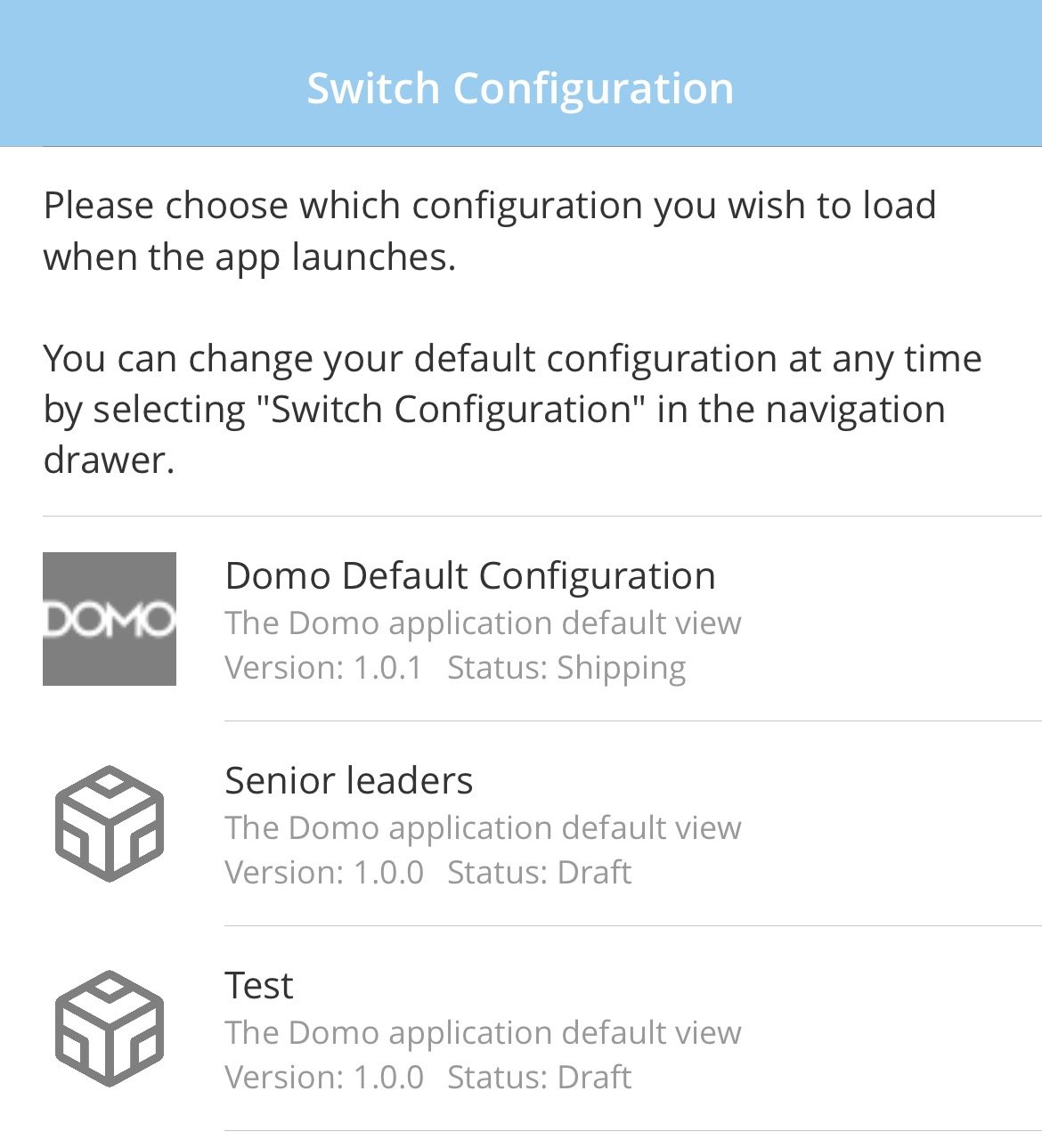
4. Choose the configuration you want to use.
   <Frame>
     <img alt="switch config.jpg" src="https://mintcdn.com/domoinc-openapi-sync-dataflows/EtHMjR0Dwu423b1z/images/kb/ka0Vq0000004fHV-00N5w00000Ri7BU-0EMVq000003luMn.jpg?fit=max&auto=format&n=EtHMjR0Dwu423b1z&q=85&s=007b83a617bd3123265a88cd8d6393a0" style={{width: 301, height: 332}} width="1170" height="1289" data-path="images/kb/ka0Vq0000004fHV-00N5w00000Ri7BU-0EMVq000003luMn.jpg" />
   </Frame>

### Personalize Your Navigation

Whether or not your organization uses mobile configuration, all users can personalize the navigation in their own mobile app. Follow the steps below.

1. In the Domo mobile app, select **More** (three horizontal lines icon).

   <Frame>
     <img alt="more mobile app.jpg" src="https://mintcdn.com/domoinc-openapi-sync-dataflows/EtHMjR0Dwu423b1z/images/kb/ka0Vq0000004fHV-00N5w00000Ri7BU-0EMVq000003lt5l.jpg?fit=max&auto=format&n=EtHMjR0Dwu423b1z&q=85&s=6e389cdeae35e98e91049d241b863804" style={{width: 300, height: 599}} width="1170" height="2338" data-path="images/kb/ka0Vq0000004fHV-00N5w00000Ri7BU-0EMVq000003lt5l.jpg" />
   </Frame>
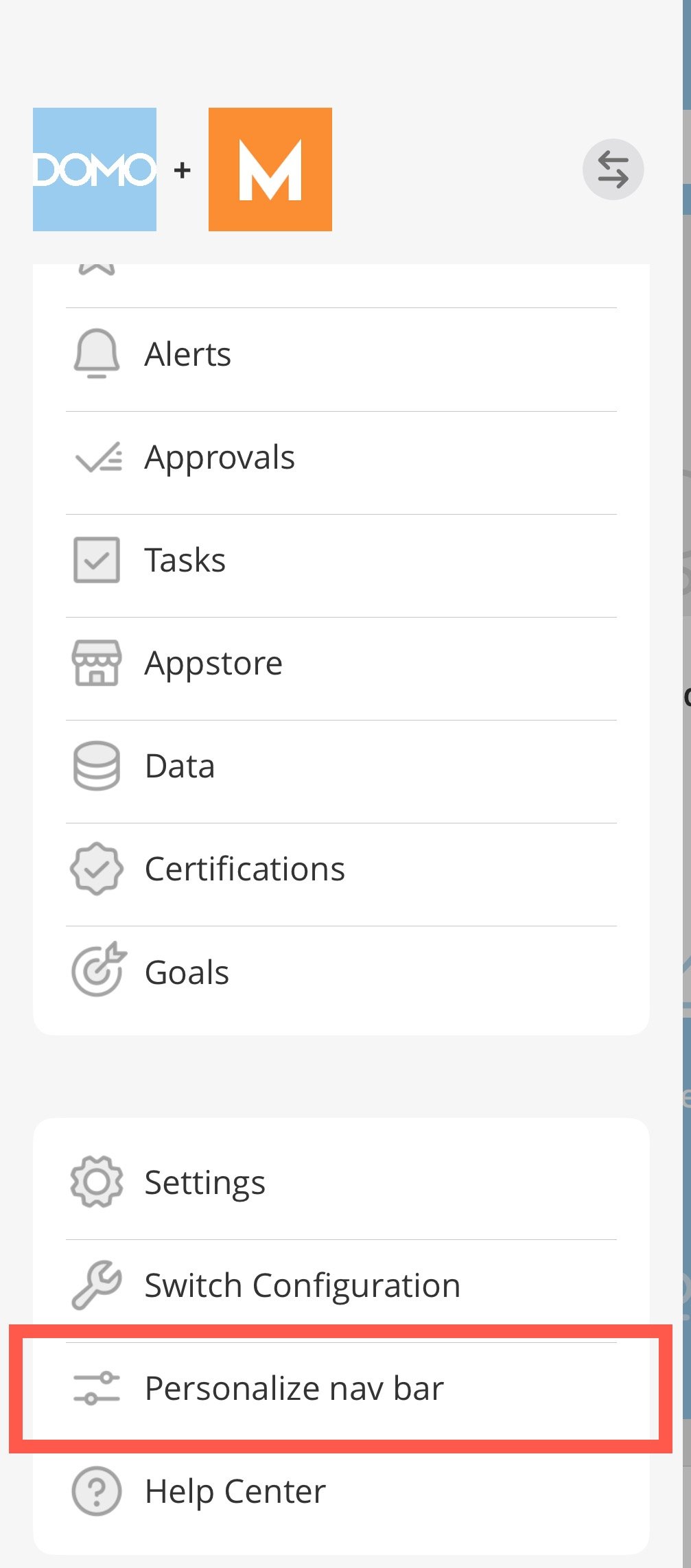
2. Select **Personalize nav bar**.

   <Frame>
     <img alt="personalize nav bar.jpg" src="https://mintcdn.com/domoinc-openapi-sync-dataflows/EtHMjR0Dwu423b1z/images/kb/ka0Vq0000004fHV-00N5w00000Ri7BU-0EMVq000003lvva.jpg?fit=max&auto=format&n=EtHMjR0Dwu423b1z&q=85&s=d79d7ab5f7badb179868656e4748c542" style={{width: 300, height: 681}} width="1007" height="2285" data-path="images/kb/ka0Vq0000004fHV-00N5w00000Ri7BU-0EMVq000003lvva.jpg" />
   </Frame>
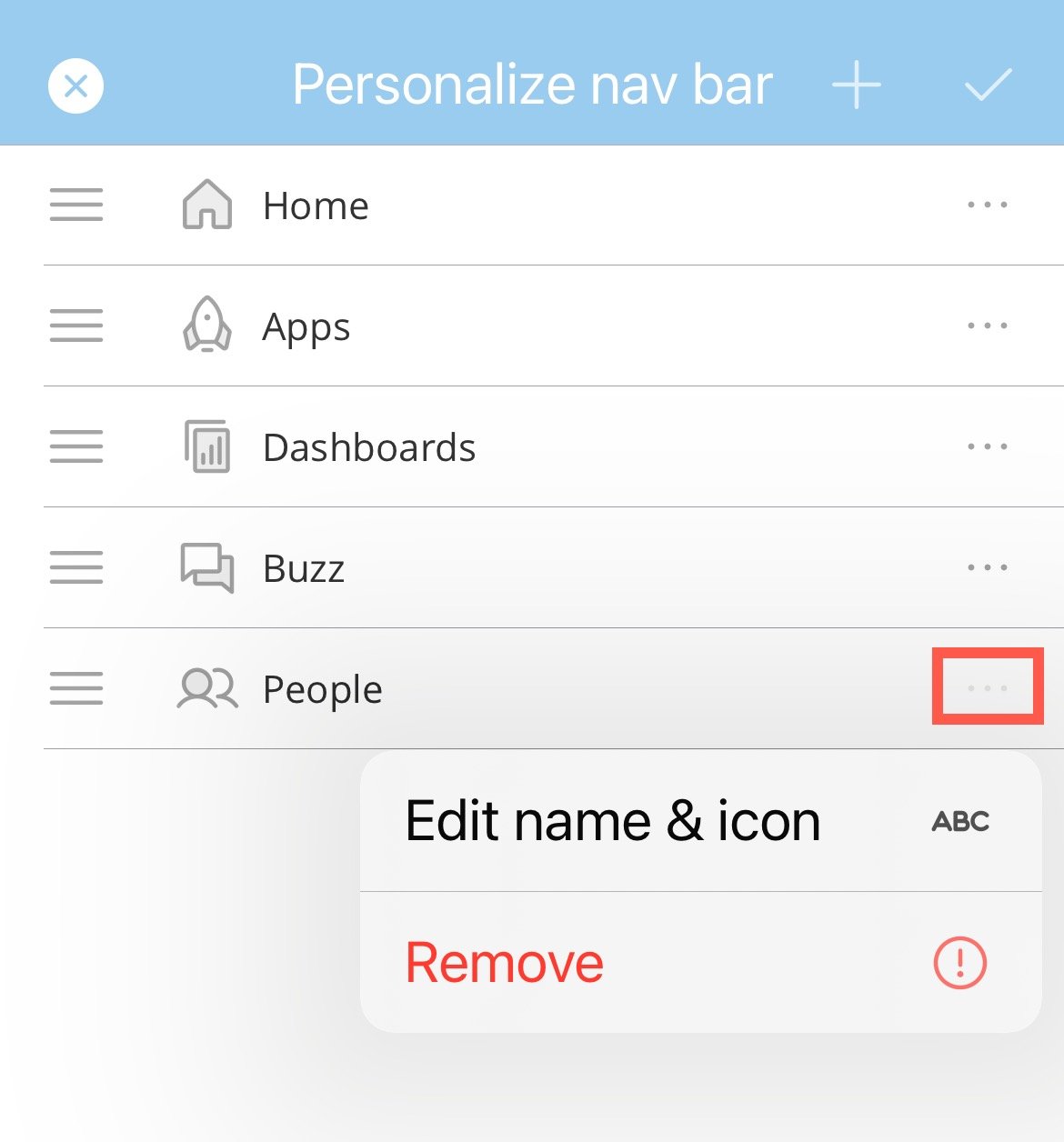
3. From the personalization screen, you can select **More** (three horizontal dots icon) for a current navigation item to edit its name and icon or remove it from the navigation.
   <Frame>
     <img alt="edit name and icon.jpg" src="https://mintcdn.com/domoinc-openapi-sync-dataflows/EtHMjR0Dwu423b1z/images/kb/ka0Vq0000004fHV-00N5w00000Ri7BU-0EMVq000003lxni.jpg?fit=max&auto=format&n=EtHMjR0Dwu423b1z&q=85&s=f460e842e92a7cae4e338194e5448e60" style={{width: 300, height: 322}} width="1170" height="1256" data-path="images/kb/ka0Vq0000004fHV-00N5w00000Ri7BU-0EMVq000003lxni.jpg" />
   </Frame>
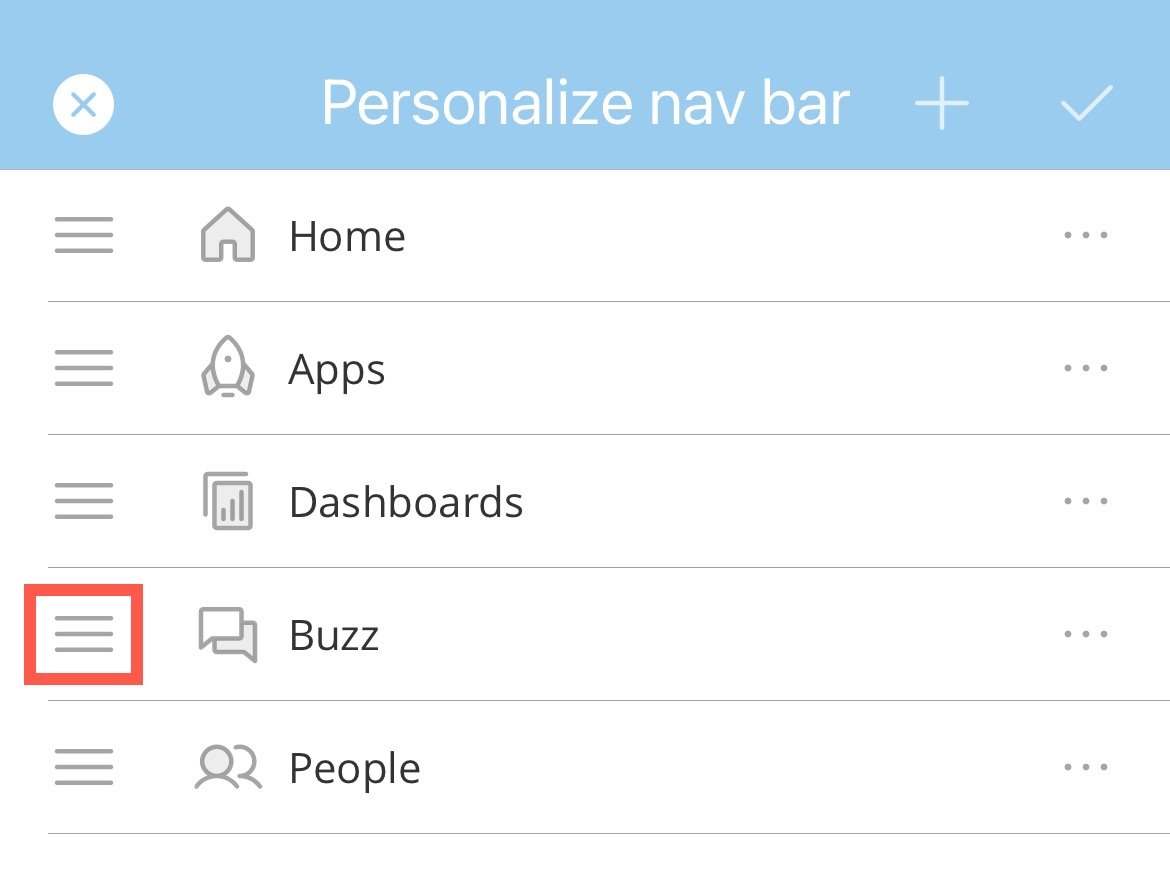
4. Use the handles (three horizontal lines icons) to drag and reorder items in the navigation.
   <Frame>
     <img alt="drag items.jpg" src="https://mintcdn.com/domoinc-openapi-sync-dataflows/EtHMjR0Dwu423b1z/images/kb/ka0Vq0000004fHV-00N5w00000Ri7BU-0EMVq000003lyQP.jpg?fit=max&auto=format&n=EtHMjR0Dwu423b1z&q=85&s=af40f90c8b73dd11eb495db1234a1242" style={{width: 299, height: 229}} width="1170" height="895" data-path="images/kb/ka0Vq0000004fHV-00N5w00000Ri7BU-0EMVq000003lyQP.jpg" />
   </Frame>
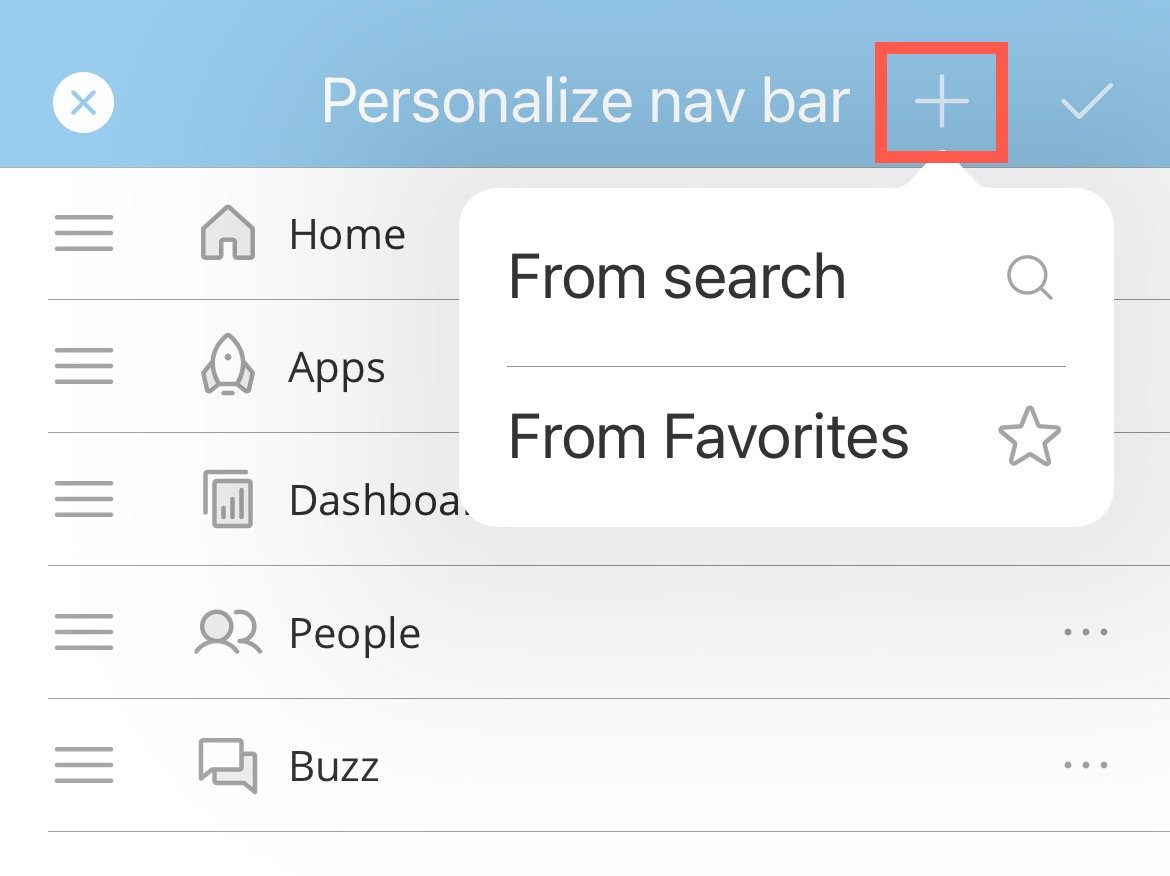
5. Select **Add** (plus icon) to add items to the navigation using search or your saved favorites.
   <Frame>
     <img alt="add item.jpg" src="https://mintcdn.com/domoinc-openapi-sync-dataflows/EtHMjR0Dwu423b1z/images/kb/ka0Vq0000004fHV-00N5w00000Ri7BU-0EMVq000003lydJ.jpg?fit=max&auto=format&n=EtHMjR0Dwu423b1z&q=85&s=7bd0fecd033e25ab939c5201386c6b16" style={{width: 300, height: 225}} width="1170" height="876" data-path="images/kb/ka0Vq0000004fHV-00N5w00000Ri7BU-0EMVq000003lydJ.jpg" />
   </Frame>
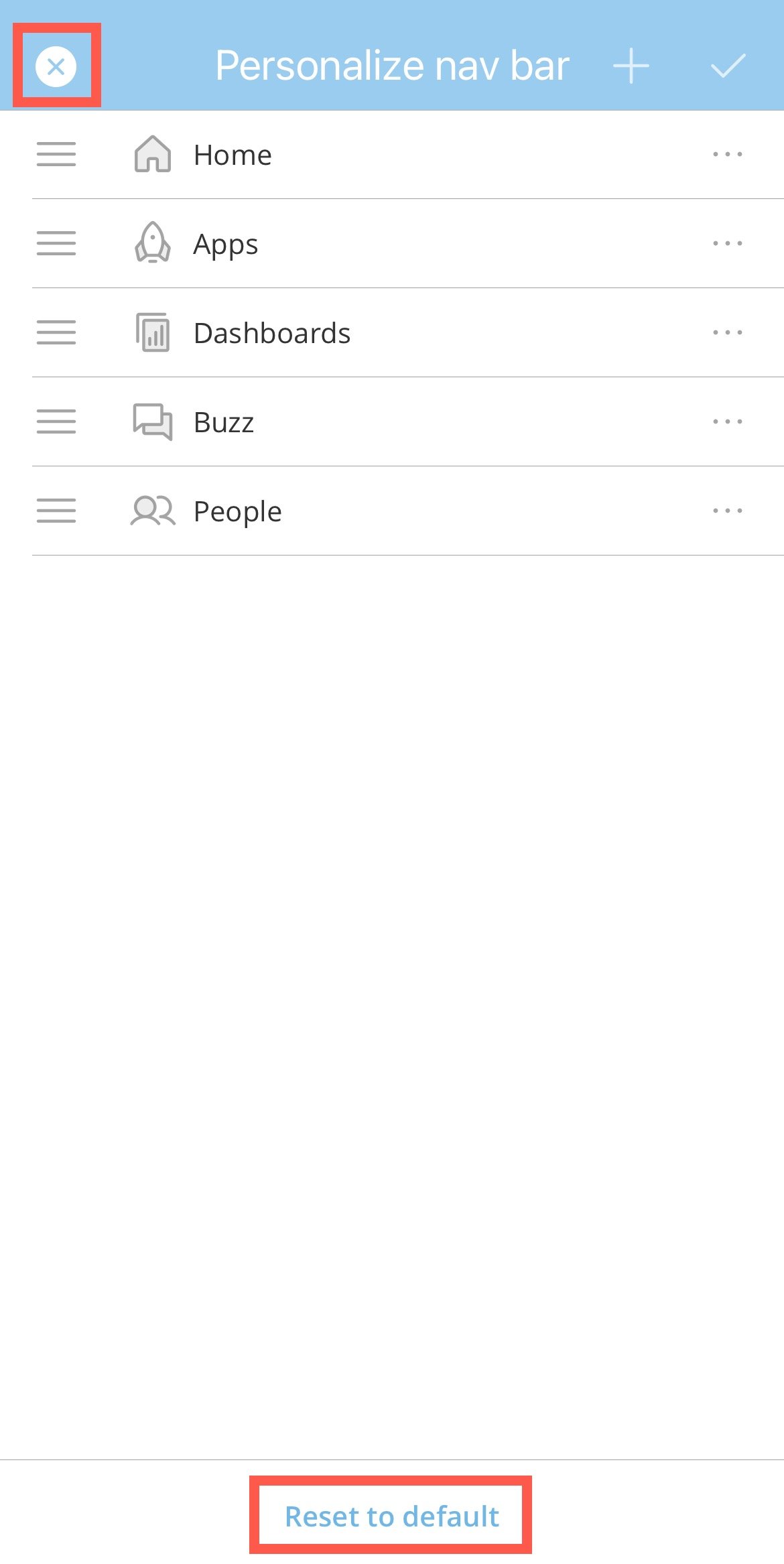
6. (Optional) Select **Close** (x icon) or **Reset to default** to discard your changes.
   <Frame>
     <img alt="close or reset.jpg" src="https://mintcdn.com/domoinc-openapi-sync-dataflows/EtHMjR0Dwu423b1z/images/kb/ka0Vq0000004fHV-00N5w00000Ri7BU-0EMVq000003lwek.jpg?fit=max&auto=format&n=EtHMjR0Dwu423b1z&q=85&s=fb0975684ee1c2105b80f5e7d888495b" style={{width: 300, height: 599}} width="1170" height="2334" data-path="images/kb/ka0Vq0000004fHV-00N5w00000Ri7BU-0EMVq000003lwek.jpg" />
   </Frame>
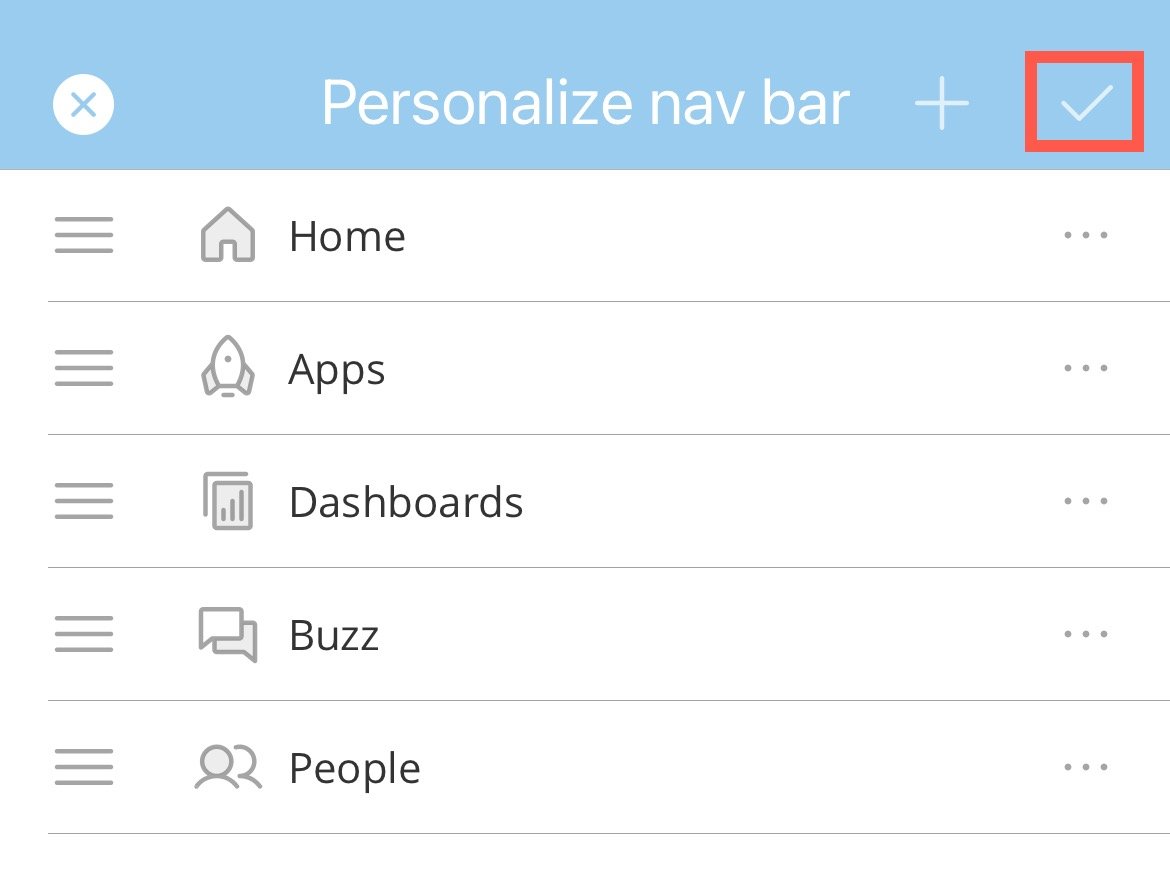
7. When finished, select **Save** (checkmark icon) to apply your changes to your personal app.
   <Frame>
     <img alt="save personal nav.jpg" src="https://mintcdn.com/domoinc-openapi-sync-dataflows/EtHMjR0Dwu423b1z/images/kb/ka0Vq0000004fHV-00N5w00000Ri7BU-0EMVq000003ly3q.jpg?fit=max&auto=format&n=EtHMjR0Dwu423b1z&q=85&s=a1a8a269e2f76d5804ea3f0802206146" style={{width: 299, height: 229}} width="1170" height="895" data-path="images/kb/ka0Vq0000004fHV-00N5w00000Ri7BU-0EMVq000003ly3q.jpg" />
   </Frame>

### FAQ

<AccordionGroup>
  <Accordion title="Can I create a custom theme for my mobile configuration?">
    This is not currently supported. To create a branded Domo mobile experience, contact your Domo account team or [Domo Support](https://domo-support.domo.com/s/) <InlineImage src="/images/kb/ka0Vq00000001FR-00N5w00000Ri7BU-0EMVq0000000XDh.jpg" />.
  </Accordion>

  <Accordion title="Are there any navigation elements, such as Home, that I can't remove from my configuration?">
    No, all navigation elements are personalizable, including the Home screen.
  </Accordion>

  <Accordion title="What do I do if I'm unable to view a configuration I've been added to?">
    Close and restart the Domo mobile app to view the new configuration.
  </Accordion>

  <Accordion title="Can the default Domo app be edited or deleted?">
    No, you cannot edit or delete the default Domo app configuration.
  </Accordion>
</AccordionGroup>