> ## Documentation Index
> Fetch the complete documentation index at: https://domoinc-openapi-sync-dataflows.mintlify.site/llms.txt
> Use this file to discover all available pages before exploring further.
# Launch Workbench Enterprise Jobs with Third-Party Tools Using JWT
### Intro
Workbench Enterprise allows third-party applications to launch jobs and to get the status of a job execution.
JSON web tokens (JWTs) have a limited scope. A token can only do the following:
* Get the job execution status
* Start an execution for a single job—to execute another job, you must generate a new JWT
**Tip:** Learn how to [implement Workbench Enterprise](/s/article/000005303).
### Generate a JWT
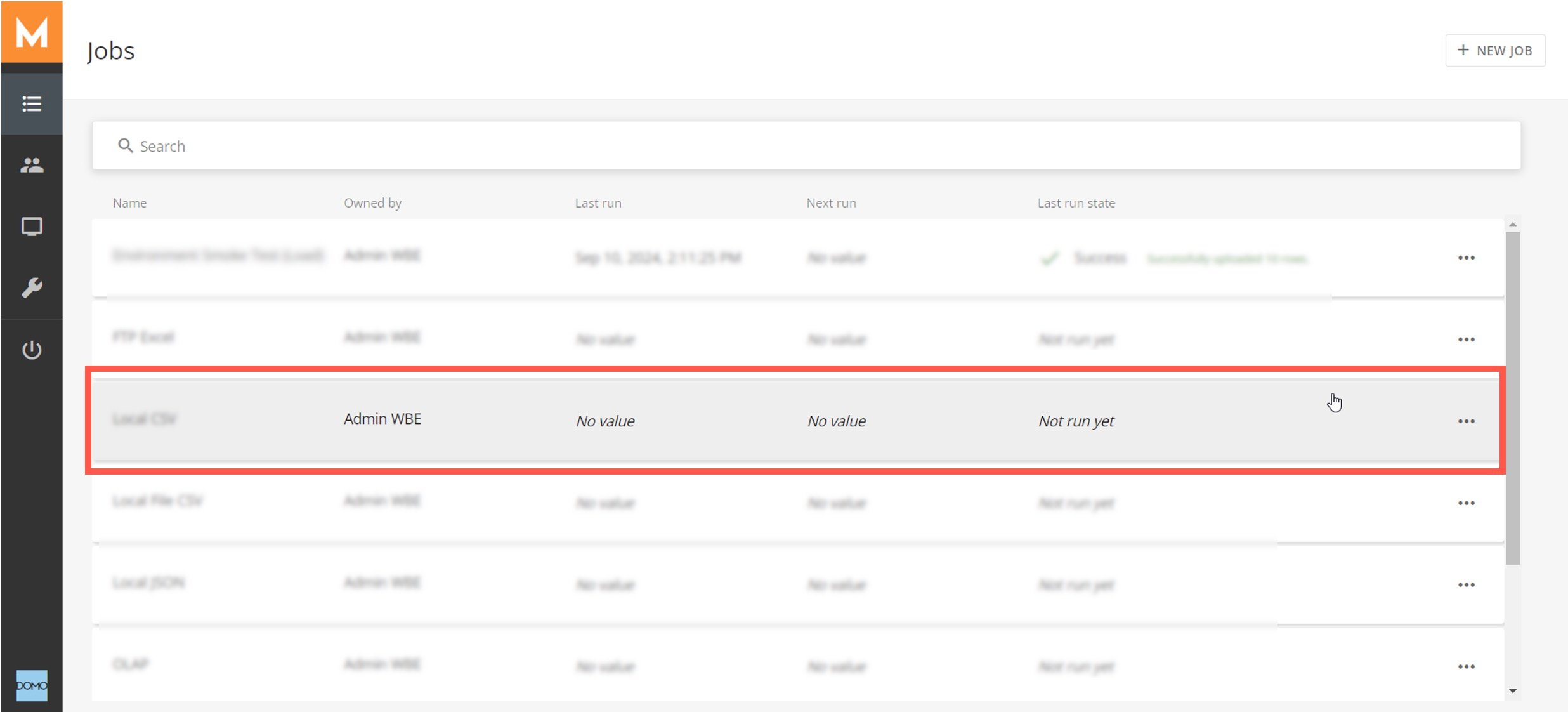
1. Find and select your job in the jobs list.
 2. Go to the
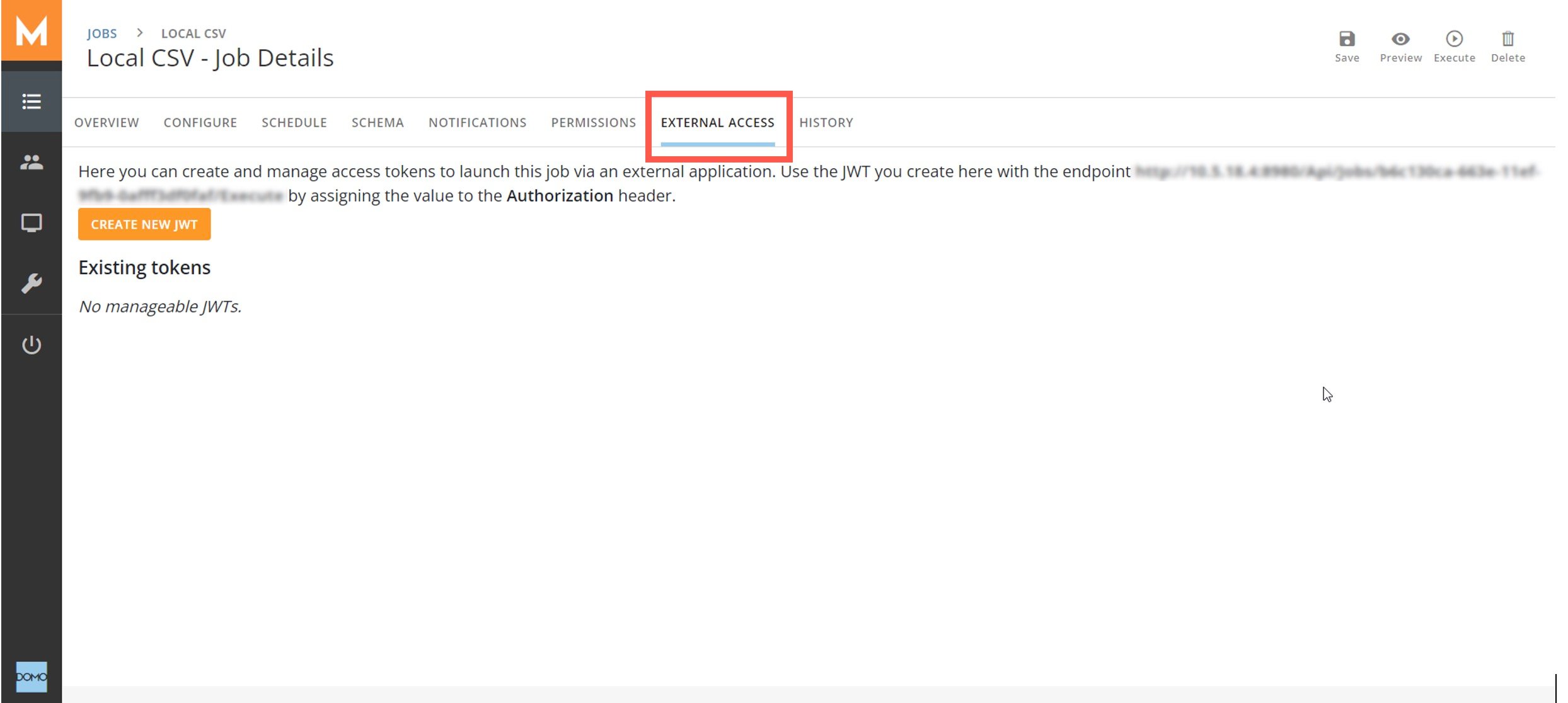
**External Access** tab and select **Create New JWT**.
2. Go to the
**External Access** tab and select **Create New JWT**.
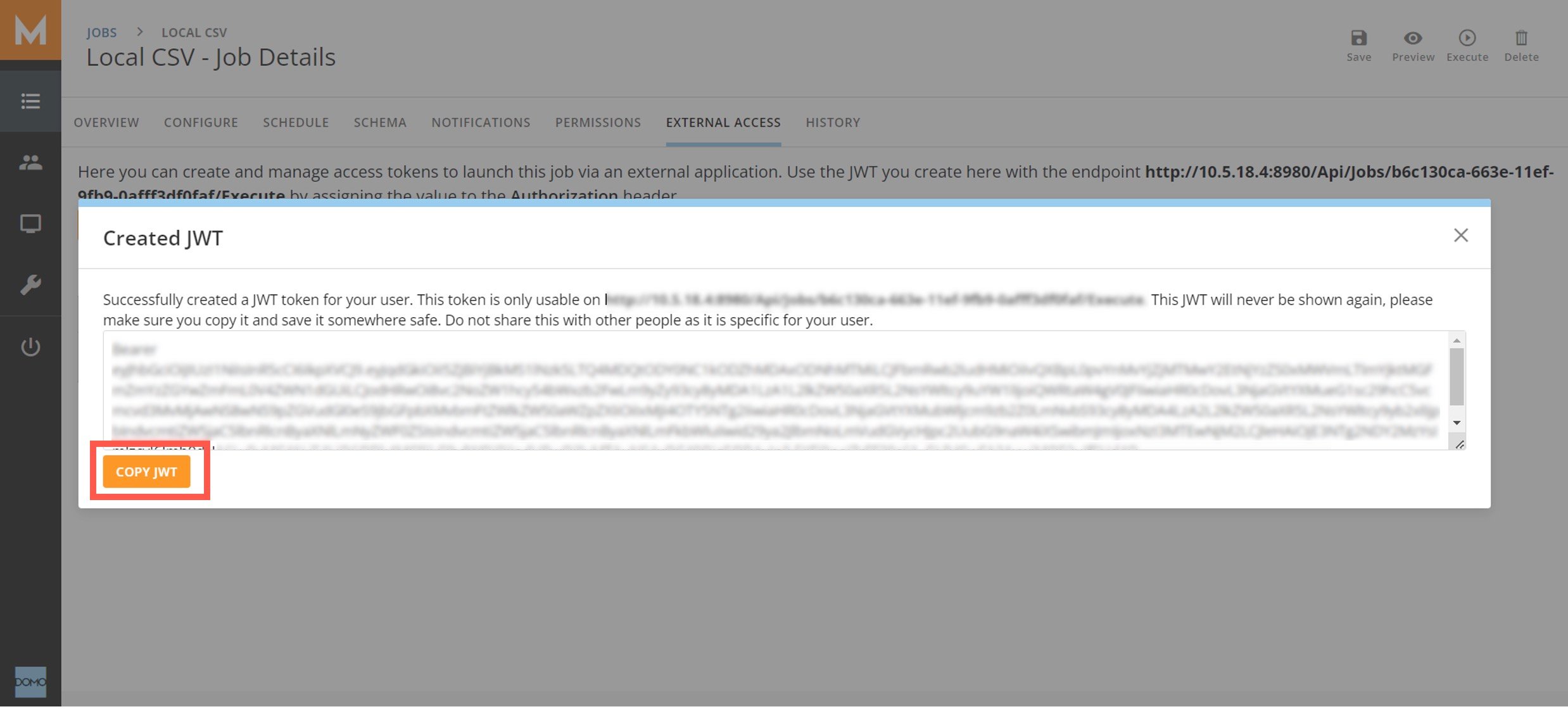
 3. Copy the JWT and save it in a secure location. The JWT will never display again after you close the modal.
 ### Launch a Workbench Enterprise Job
Launch a Workbench Enterprise job with a PUT request to the job execution endpoint.
**Note:** In the examples below, the JWT is stored in a variable named `JWT.`
Curl:
```bash theme={"dark"}
curl -X PUT --header "Authorization: $JWT"
-v https://WorkbenchEnterprise.internal.com/Api/Jobs/{jobId}/Execute
```
Powershell:
```powershell theme={"dark"}
Invoke-Webrequest -uri https://WorkbenchEnterprise.internal.com/Api/Jobs/ {jobId}
/Execute -Method PUT -Headers @{'Authorization' = $JWT}
```
### Get the Job Execution Status
Workbench Enterprise can return the job status using a GET request to the job execution endpoint.
**Note:** In the examples below, the JWT is stored in a variable named `JWT.`
Curl:
```bash theme={"dark"}
curl -X GET --header "Authorization: $JWT"
-v https://WorkbenchEnterprise.internal.com/Api/Jobs/ {jobId} /Execute
```
Powershell:
```powershell theme={"dark"}
Invoke-Webrequest
-uri https://WorkbenchEnterprise.internal.com/Api/Jobs/ {jobId} /Execute -Method GET -Headers @{'Authorization' = $JWT}
```
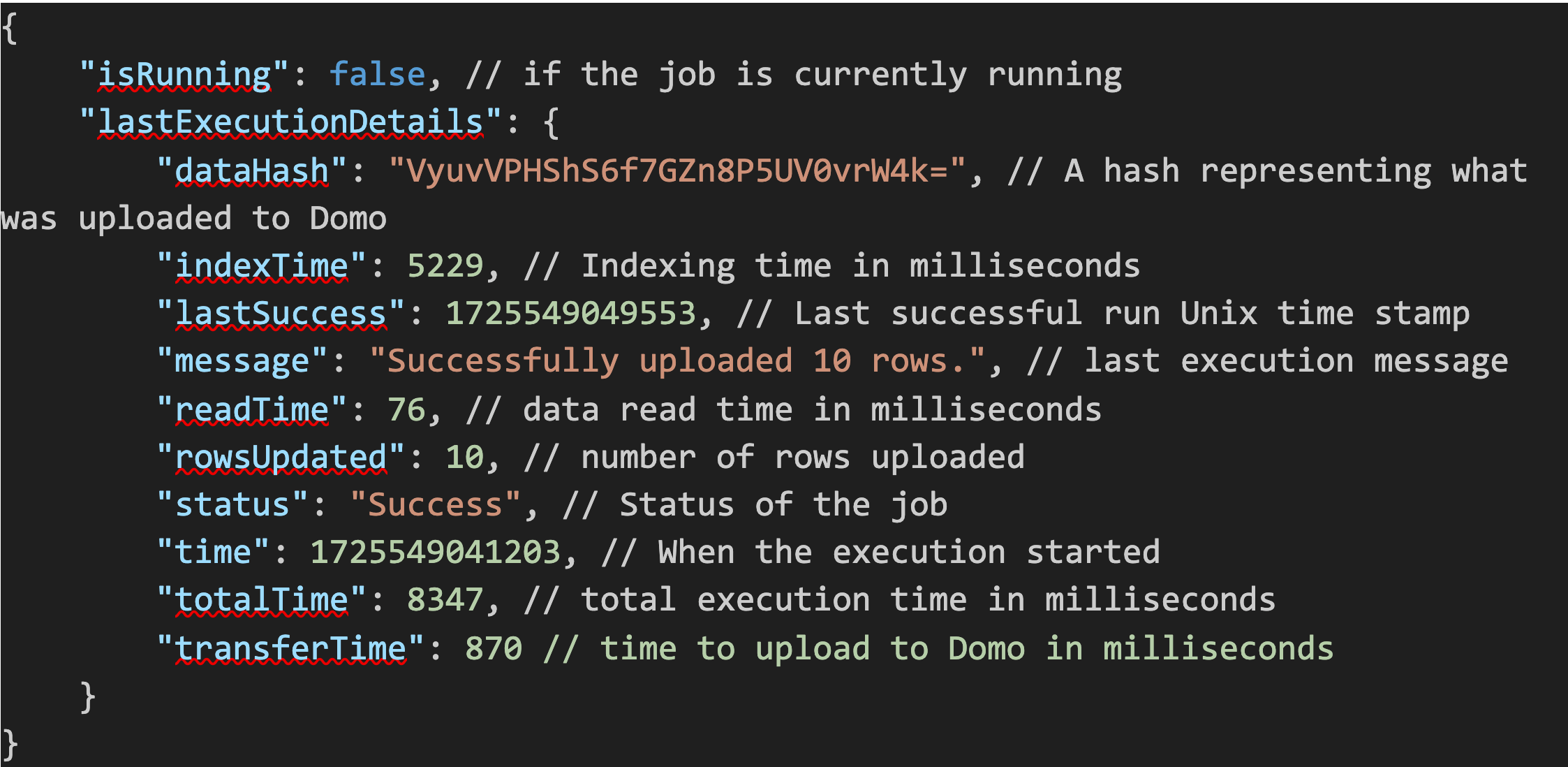
The response body will have these elements:
### Launch a Workbench Enterprise Job
Launch a Workbench Enterprise job with a PUT request to the job execution endpoint.
**Note:** In the examples below, the JWT is stored in a variable named `JWT.`
Curl:
```bash theme={"dark"}
curl -X PUT --header "Authorization: $JWT"
-v https://WorkbenchEnterprise.internal.com/Api/Jobs/{jobId}/Execute
```
Powershell:
```powershell theme={"dark"}
Invoke-Webrequest -uri https://WorkbenchEnterprise.internal.com/Api/Jobs/ {jobId}
/Execute -Method PUT -Headers @{'Authorization' = $JWT}
```
### Get the Job Execution Status
Workbench Enterprise can return the job status using a GET request to the job execution endpoint.
**Note:** In the examples below, the JWT is stored in a variable named `JWT.`
Curl:
```bash theme={"dark"}
curl -X GET --header "Authorization: $JWT"
-v https://WorkbenchEnterprise.internal.com/Api/Jobs/ {jobId} /Execute
```
Powershell:
```powershell theme={"dark"}
Invoke-Webrequest
-uri https://WorkbenchEnterprise.internal.com/Api/Jobs/ {jobId} /Execute -Method GET -Headers @{'Authorization' = $JWT}
```
The response body will have these elements:
 ### Invalidate a JWT
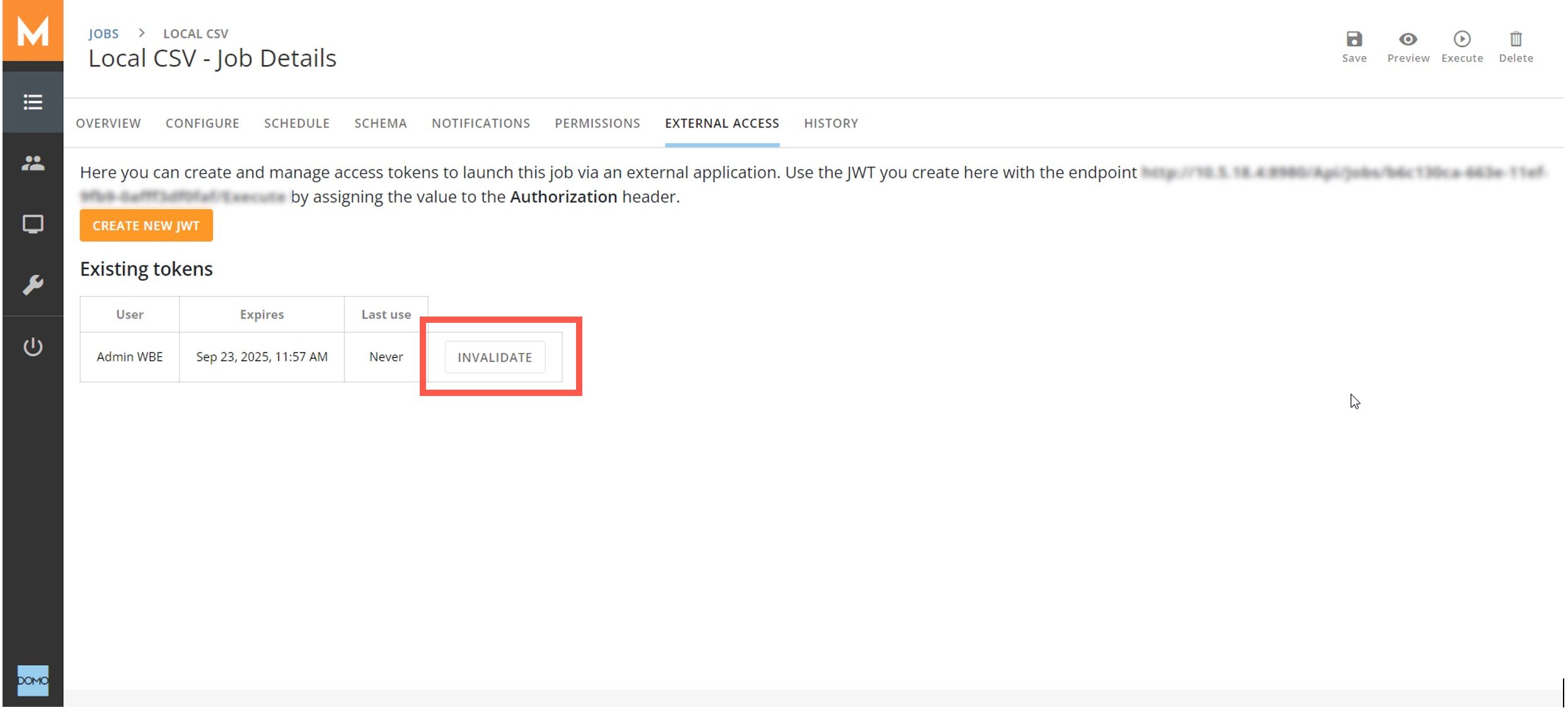
If you want to invalidate an existing token, select **Invalidate** for the token in the job's **External Access** tab.
### Invalidate a JWT
If you want to invalidate an existing token, select **Invalidate** for the token in the job's **External Access** tab.